

Threads
Schedule Threads posts with text, images, video, or as multi-part threads. Connects through Instagram (Business or Creator account, public profile).
Threads is where text-first conversations happen. If you’re already on Instagram, you likely have a Threads account - and in Ordinal, you can schedule text posts, image carousels, videos, and multi-part threads to keep the conversation going.
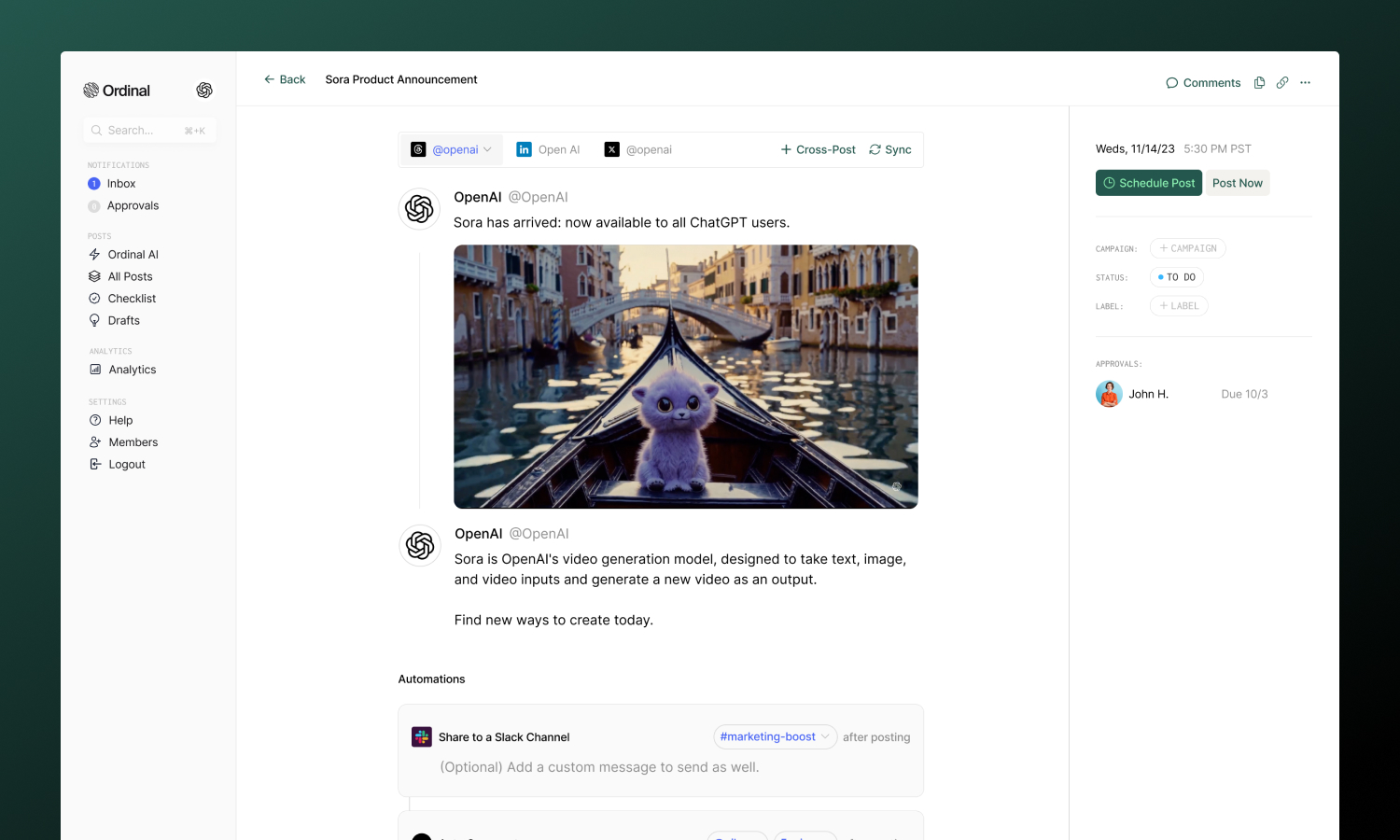
Overview
Threads connects through Instagram and requires a Business or Creator account (not personal). Your Threads profile must also be public - private profiles can’t connect via the API.
Connecting Threads
Connect via your Instagram account
Drafting a Post
Formatting, mentions, and media
Multi-part Threads
Longer stories across connected posts
Analytics
Track reach, engagement, and growth
Connecting Threads
Go to Settings → Profiles → Scheduling, click Connect Threads, and follow the Threads authentication flow. You’ll sign in with your Instagram credentials.
| Requirement | Details |
|---|---|
| Account type | Instagram Business or Creator |
| Profile visibility | Public (private profiles can’t connect) |
| Authentication | Via Threads |
Drafting a Threads Post
What you can post
| Feature | Supported | Notes |
|---|---|---|
| Text posts | ✅ | Up to 500 characters |
| Images | ✅ | Up to 20 per carousel |
| Videos | ✅ | Up to 5 minutes |
| Multi-part threads | ✅ | Each segment gets own media |
| Polls | ❌ | Not currently supported |
Drafting & Formatting
The Threads editor supports rich formatting through Unicode characters, which render as bold and italic on Threads:
- Bold / Italic: Use the toolbar buttons or press
Cmd/Ctrl + Bfor bold andCmd/Ctrl + Ifor italic - Hashtags: Type
#followed by your tag - they’ll automatically link to Threads search - Mentions: Type
@followed by a username - they’ll link to that profile on Threads - Links: Paste URLs directly into your post (they count toward the 500 character limit)
Each post or thread segment is limited to 500 characters. The character counter updates in real-time as you type.
Drafting Posts
Full guide to formatting, mentions, slash commands, and keyboard shortcuts.
Post Preview
As you draft, the editor shows a live preview that matches how your content will appear on Threads - including your profile picture and username.
Link Previews
When you add a URL to a text-only post (no images or videos), Ordinal displays a link preview card showing the destination’s title and thumbnail. Link previews only appear when your post has no media attached - adding images or videos takes priority.
Post Types
Upload images to create visual posts or carousels:
| Spec | Limit |
|---|---|
| Formats | JPG, PNG |
| Size | 8MB per image |
| Aspect ratio | Max 10:1 (images too wide rejected) |
| Per post | Up to 20 images |
Multiple images automatically create a swipeable carousel. Ordinal compresses oversized images automatically.
Upload video content directly to Threads:
| Spec | Limit |
|---|---|
| Formats | MP4, MOV |
| Duration | Up to 5 minutes |
| Aspect ratio | 0.01:1 to 10:1 |
Vertical video (9:16) is recommended for best display on mobile. Ordinal automatically compresses videos over 125MB or wider than 1920px.
Multi-part Threads
Multi-part threads let you tell longer stories across multiple connected posts. Each segment can have its own text and media.
Creating a multi-part thread:
- Write your first post
- Click Add Thread to add the next segment
- Each segment gets its own 500-character limit and media
- Continue adding as many segments as needed
- All segments publish together in sequence
Reordering Segments
Use the up/down arrow buttons next to each segment to rearrange the order. Changes save automatically.
Analytics
Analytics are not currently available for Threads, but are coming soon. Send us an email at support@tryordinal.com if you’re interested in early access.
Analytics overview
Learn more about tracking performance across all your connected profiles.
