

Comments
Leave inline comments on specific text or post-level comments. Reply, react, @mention teammates, and resolve when done.
Comments let your team collaborate directly on posts - leave feedback, ask questions, and refine content before it goes live. Ordinal supports two types of comments: inline comments for specific text suggestions, and post comments for overall feedback.
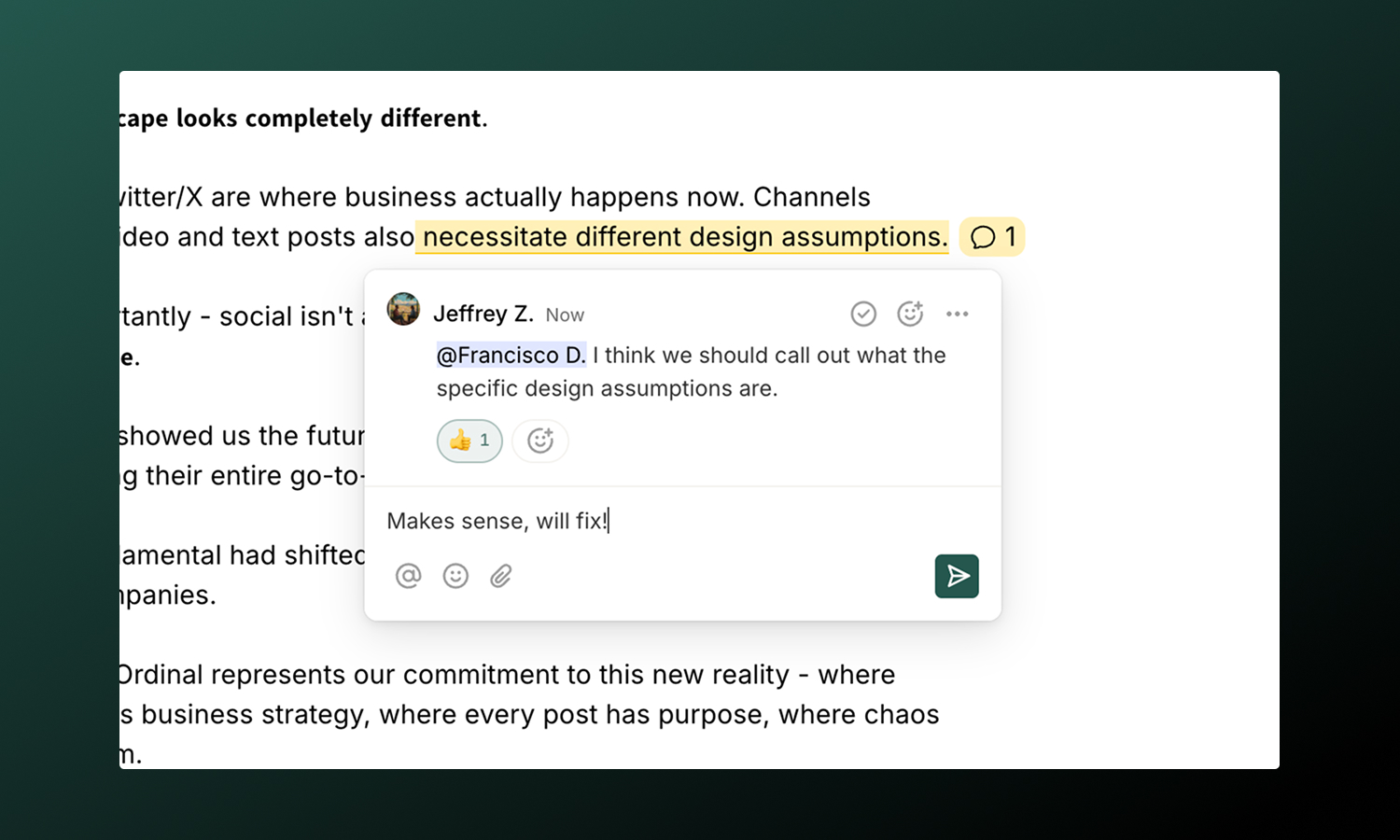
Inline comments
Inline comments attach directly to specific text in your post - perfect for suggesting word changes, asking about a particular phrase, or pointing out issues.
To add an inline comment:
- Select the text you want to comment on
- Click the Comment button that appears
- Write your feedback and submit
The selected text is highlighted, and your comment links directly to it.
Replies and reactions
Inline comments support threaded conversations:
- Reply to continue the discussion
- React with emoji to acknowledge without adding to the thread
- @Mention teammates to loop them in
Resolving comments
When feedback has been addressed, click Resolve on the comment. Resolved comments collapse to reduce visual clutter but remain accessible for reference.
Comments sidebar
Click the Comments button in the post header to open the comments sidebar. This gives you a centralized view of all inline comments across the post.
| View | What it shows |
|---|---|
| Active | Comments that still need attention |
| Resolved | Toggle “Show resolved comments” to see addressed feedback |
Each comment shows the original highlighted text, making it easy to understand context even if the content has changed.
Post comments
Post comments appear at the bottom of the post page and are visible to everyone with access. Use them for general feedback, questions, or discussions about the post as a whole.
To leave a comment:
- Open a post and find the Comments section at the bottom of the page
- Type your message and click the Comment button
Your comment appears immediately and the post author is notified.
@Mentions
Tag teammates by typing @ followed by their name. When you @mention someone:
- They receive a notification (in-app, email, or Slack based on their preferences)
- They’re added as a subscriber to the post
- The mention appears highlighted in your comment
Deleting comments
To delete a post comment, hover over the comment, then click the three dots > Delete Comment. Only comment authors and admins can delete comments. Deleted comments cannot be recovered.
Notifications
Stay updated on comment activity as a subscriber to a post.
| Event | When you’re notified |
|---|---|
| New comment | Someone comments on a post you’re subscribed to |
| Reply | Someone replies to your comment |
| @Mention | You’re tagged in a comment |
Configure delivery preferences in Settings → Notifications.