

Version History
View, compare, and restore previous versions of your post copy.
Version history tracks every change to your post copy, so you can see what changed, who changed it, and restore a previous version if needed.
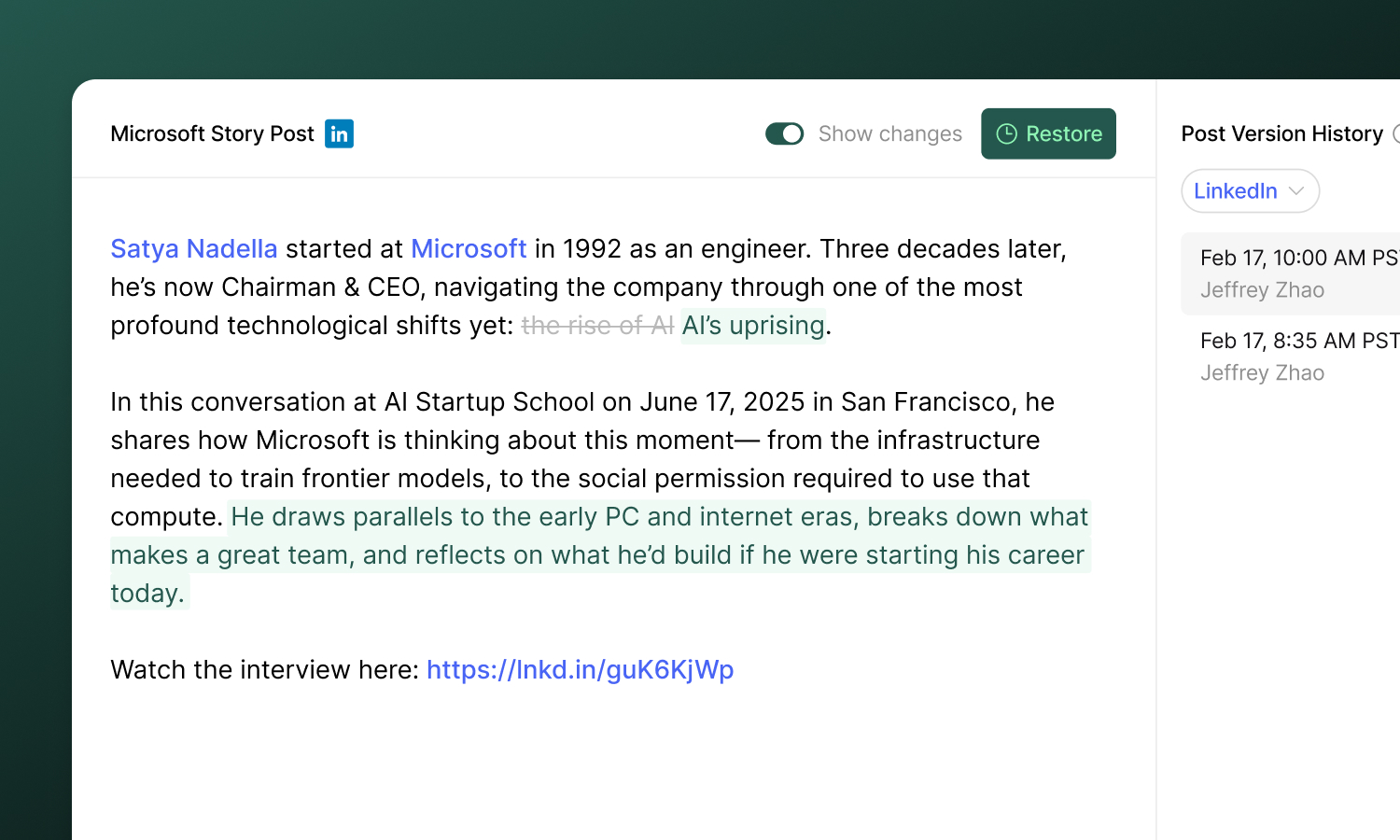
Viewing version history
To open version history, click the clock icon in the post header. This opens a modal with two panels:
- Left panel - A preview of the selected version’s content
- Right panel - A list of all saved versions, showing the timestamp and author of each change
Click any version in the list to preview its content.
Comparing changes
Toggle Show changes at the top of the modal to see a word-level diff between the selected version and the one before it. Added text is highlighted in green and removed text is highlighted in red.
This makes it easy to see exactly what was changed in each version without reading through the full post.
Restoring a version
If you want to go back to a previous version:
- Select the version you want to restore
- Click Restore in the top right
- Confirm the action in the dialog
The selected version’s content replaces the current post copy for that channel. This action is itself versioned, so you can always undo it by restoring again.
Multi-channel posts
For posts that target multiple channels (e.g. LinkedIn and X), version history is tracked independently per channel. Use the channel dropdown in the version history modal to switch between them and review changes for each channel separately.
Accessing version history programmatically
Version history is also available through the Ordinal API and the MCP server, so external integrations and AI assistants can list a post’s saved versions per channel and read the copy of any version.
- API:
GET /posts/{id}/versionslists versions grouped by channel;GET /posts/{id}/channels/{channel}/versions/{versionId}returns the plain-text copy for one version. - MCP: the
ordinal_list_post_versionsandordinal_get_post_version_contenttools expose the same data to your assistant.