

Drafting Posts
Format text, add mentions and hashtags, and preview how your post will look on each platform before publishing.
Once you’ve created a post, this is where your content comes to life. The editor gives you everything you need - a rich text experience, real-time previews, and collaborative tools - all designed to help you write and refine faster.
Text Formatting
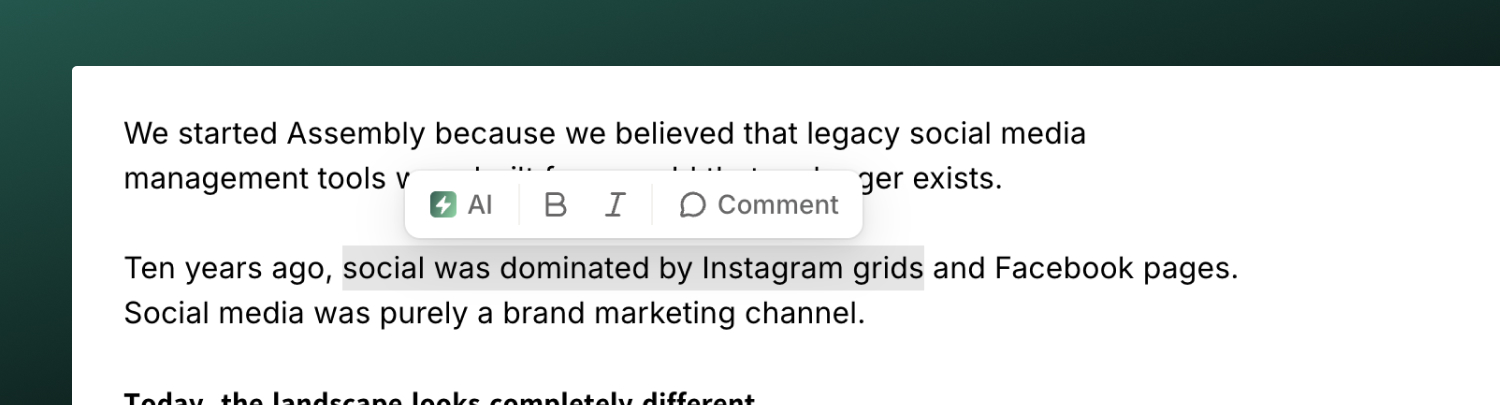
Format your content using the toolbar or keyboard shortcuts:
| Format | Shortcut |
|---|---|
| Bold | Cmd/Ctrl + B |
| Italic | Cmd/Ctrl + I |
| Link | Cmd/Ctrl + K |
Mentions
Tag people, companies, and accounts by typing @ followed by their name. Ordinal searches the platform for matches - select from the dropdown.
Mentions are supported on all platforms. See your channel’s page for details on how tagging works for each specific platform.
Hashtags
Add hashtags by typing # followed by your tag. They’ll automatically link when published.
Hashtags are supported on all platforms. See your channel’s page for platform-specific recommendations.
Emojis
Click the smiley icon in the post’s toolbar to open the emoji picker. Search or browse for an emoji, then select it. Ordinal inserts the emoji at your cursor and closes the picker.
In X and Threads threads, each post in the thread has its own smiley icon. If your cursor isn’t in that post, Ordinal adds the emoji to the end of that post’s text.
Preview
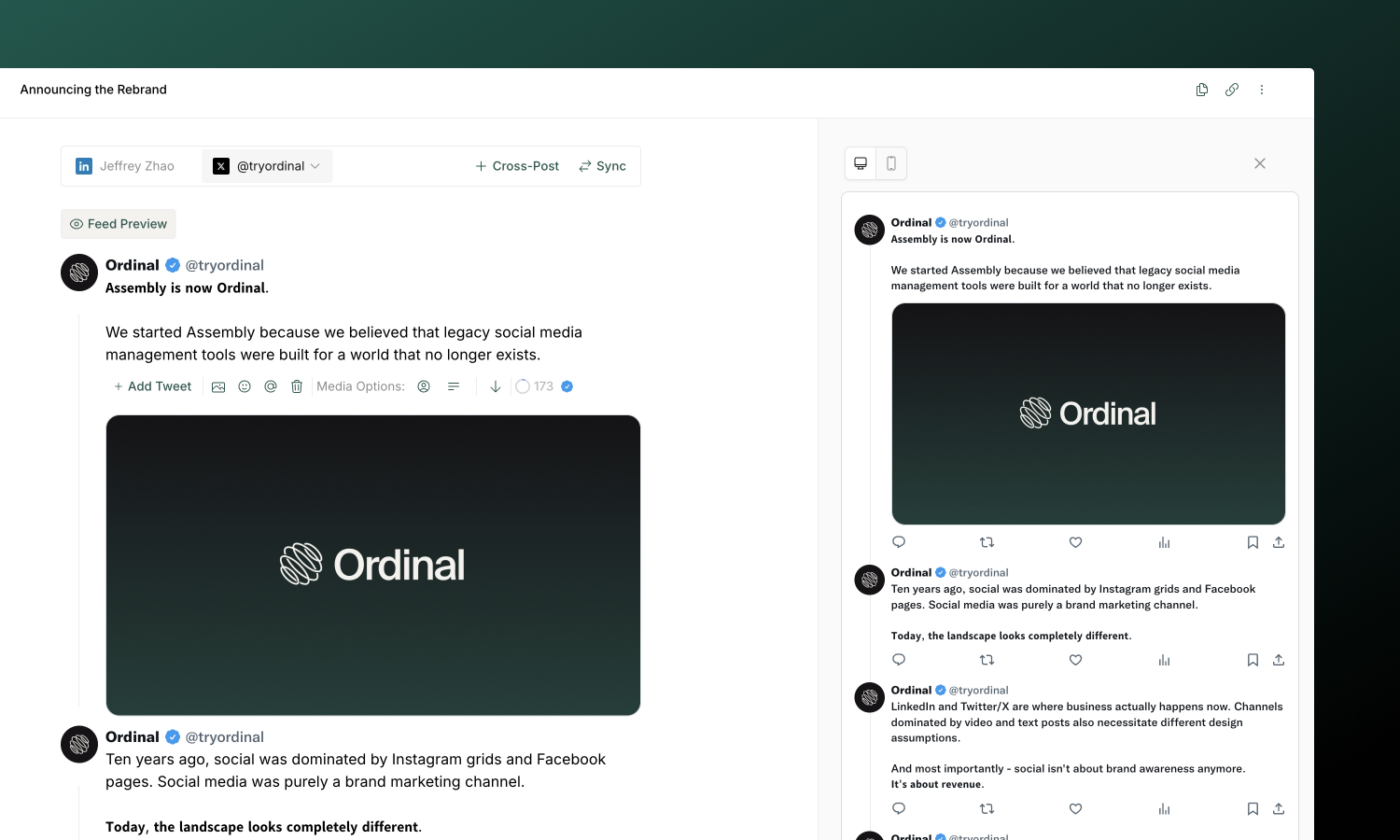
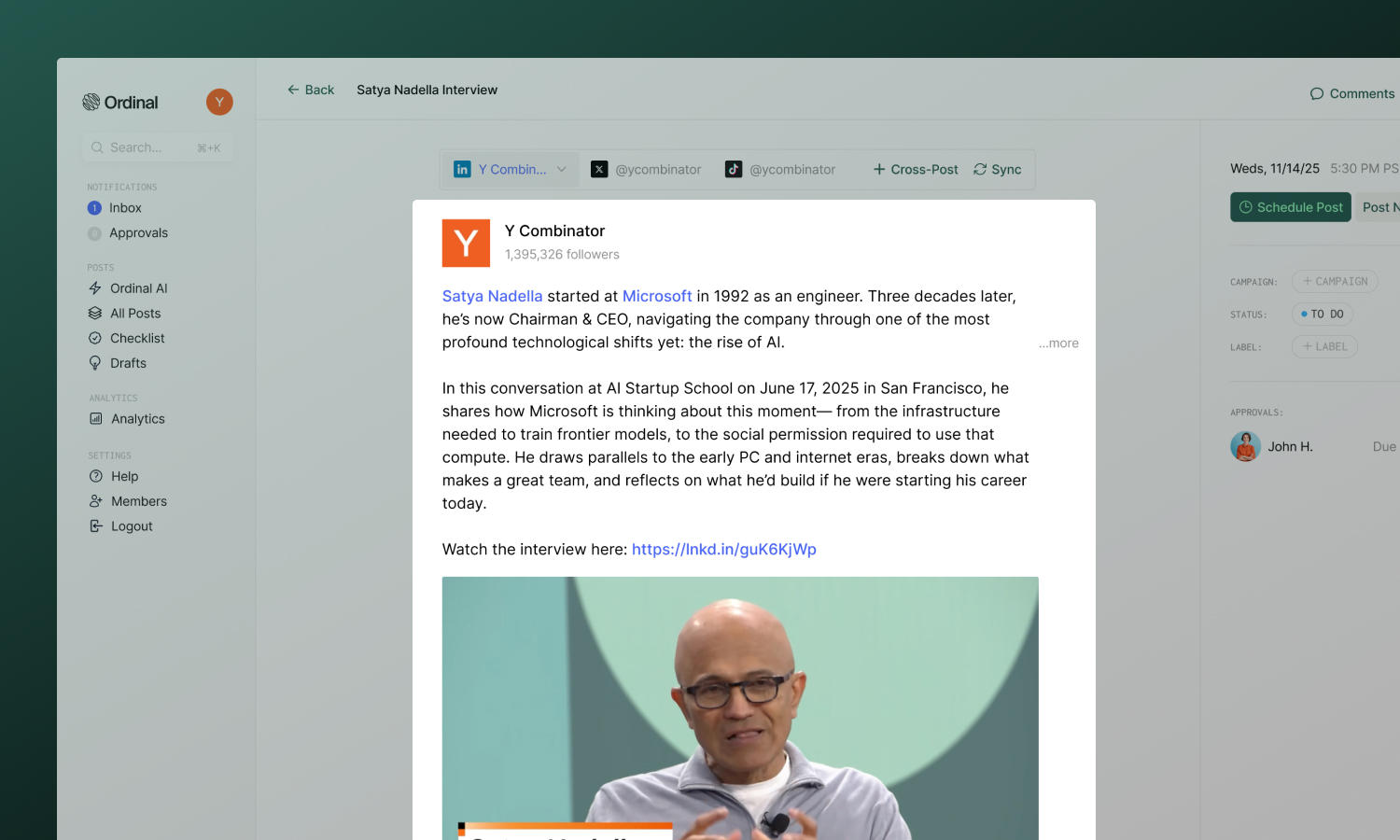
The editor shows a live preview of your post as you type - including proper text truncation with “see more” exactly where the platform would cut off on channels like LinkedIn.
For an even more realistic view, click the Feed Preview button (available on LinkedIn and Twitter/X) to see your post in a full feed context with your profile picture, desktop/mobile views, and engagement buttons.
Saving
Posts won’t publish until you click Schedule Post or Post Now.
Collaboration
Real-time editing
Multiple team members can edit the same post simultaneously:
- Presence indicators show who’s viewing
- Live cursors show where others are typing
- Changes sync instantly with no version conflicts
Inline Comments
For detailed feedback, leave comments directly on the content instead of editing:
- Select text in the editor
- Click the comment icon that appears
- Add your feedback, tag teammates to call them out, and all subscribers to the post are notified
Comments create threaded conversations attached to specific text, making it easy to discuss changes without losing context.
AI writing
Need help with your content? Select text in the editor and click the AI button in the toolbar to refine, expand, or rephrase your writing.
AI Writing
Full guide to AI-assisted content creation.