

Slack
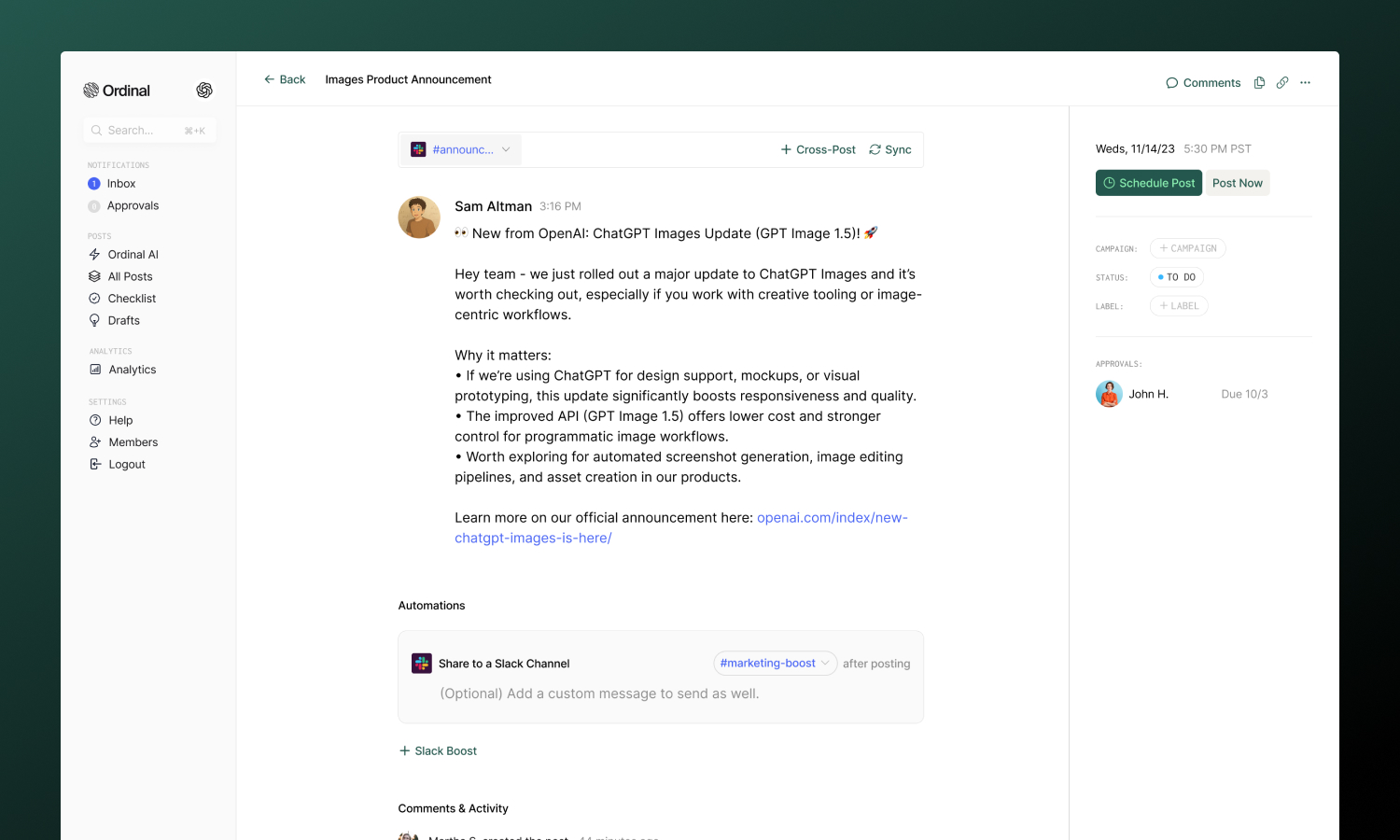
Schedule announcements and updates to Slack channels alongside your other social content.
Slack scheduling keeps your team in the loop without the manual work. Schedule announcements, content alerts, or recurring updates to any channel - written and timed alongside the rest of your content calendar.
Overview
This page covers scheduling messages to Slack channels. Ordinal also offers Slack notifications and Slack Boost for team amplification - see the callouts below.
Connecting Slack
Connect your workspace and channels
Drafting a Message
Formatting, mentions, and attachments
Attachments
Images and videos
Use Cases
When to use Slack scheduling
Connecting Slack
Go to Settings → Profiles → Scheduling → Slack, click Connect Slack, and sign in to your workspace. Choose which channel Ordinal can post to. Each channel appears as a selectable profile when creating posts.
| Requirement | Details |
|---|---|
| Connection | OAuth via Slack |
| Permissions | Post messages to selected channels |
| Sender | Your Slack profile (not Ordinal) |
Drafting a Slack Message
What you can post
| Feature | Supported | Notes |
|---|---|---|
| Text messages | ✅ | Up to 40,000 characters |
| Attachments | ✅ | 1 image or video per message |
| Formatted text | ✅ | Bold, italic, code, links, lists |
| Mentions | ✅ | @here, @channel, users, and channels |
| Link previews | ✅ | Slack unfurls links automatically |
Formatting
The editor supports Slack’s markdown-style formatting:
- Bold: Use the toolbar or
Cmd/Ctrl + B - Italic: Use the toolbar or
Cmd/Ctrl + I - Code: Inline code formatting
- Links: Paste URLs or use the link button
- Lists: Bullet and numbered lists
- Emoji: Type
:emoji_name:or use the emoji picker
Formatting converts to Slack’s native syntax when published, so your messages look native in the channel.
Mentions
Tag users, channels, and broadcast to everyone:
| Mention | What it does |
|---|---|
@here |
Notifies active members in the channel |
@channel |
Notifies all members in the channel |
@everyone |
Notifies everyone in the workspace |
<@USER_ID> |
Mentions a specific user |
<#CHANNEL_ID> |
Links to another channel |
Drafting Posts
Full guide to formatting, slash commands, and keyboard shortcuts.
Attachments
You can attach one image or video per Slack message.
| Spec | Limit |
|---|---|
| Files per post | 1 |
| Formats | JPG, PNG, GIF, MP4, MOV |
Drag and drop files into the editor, paste from clipboard, or use the attachment button. If you need to share multiple files, consider posting them separately or linking to a shared folder.
FAQ
Can't connect
You may need workspace admin permission to add apps. Check with your Slack admin.
Messages not posting
Verify the channel still exists and Ordinal hasn’t been removed from your workspace.
Use Cases
- Scheduled announcements: Company or community updates, policy changes, etc.
- Recurring messages: Weekly reminders, monthly reports, etc.
Other Slack Features
Ordinal offers additional Slack integrations beyond scheduling:
Notifications
Get Slack alerts when posts publish, fail, or need approval.
Slack Boost
Automatically share published social posts with your team for engagement.
