

Twitter / X
Schedule individual tweets, build multi-tweet threads, coordinate team engagements, and track tweet performance.
Twitter is one of the fastest platforms for real-time engagement. In Ordinal, you can schedule individual tweets, build multi-tweet threads, and coordinate team engagements - all timed to publish when your audience is most active.
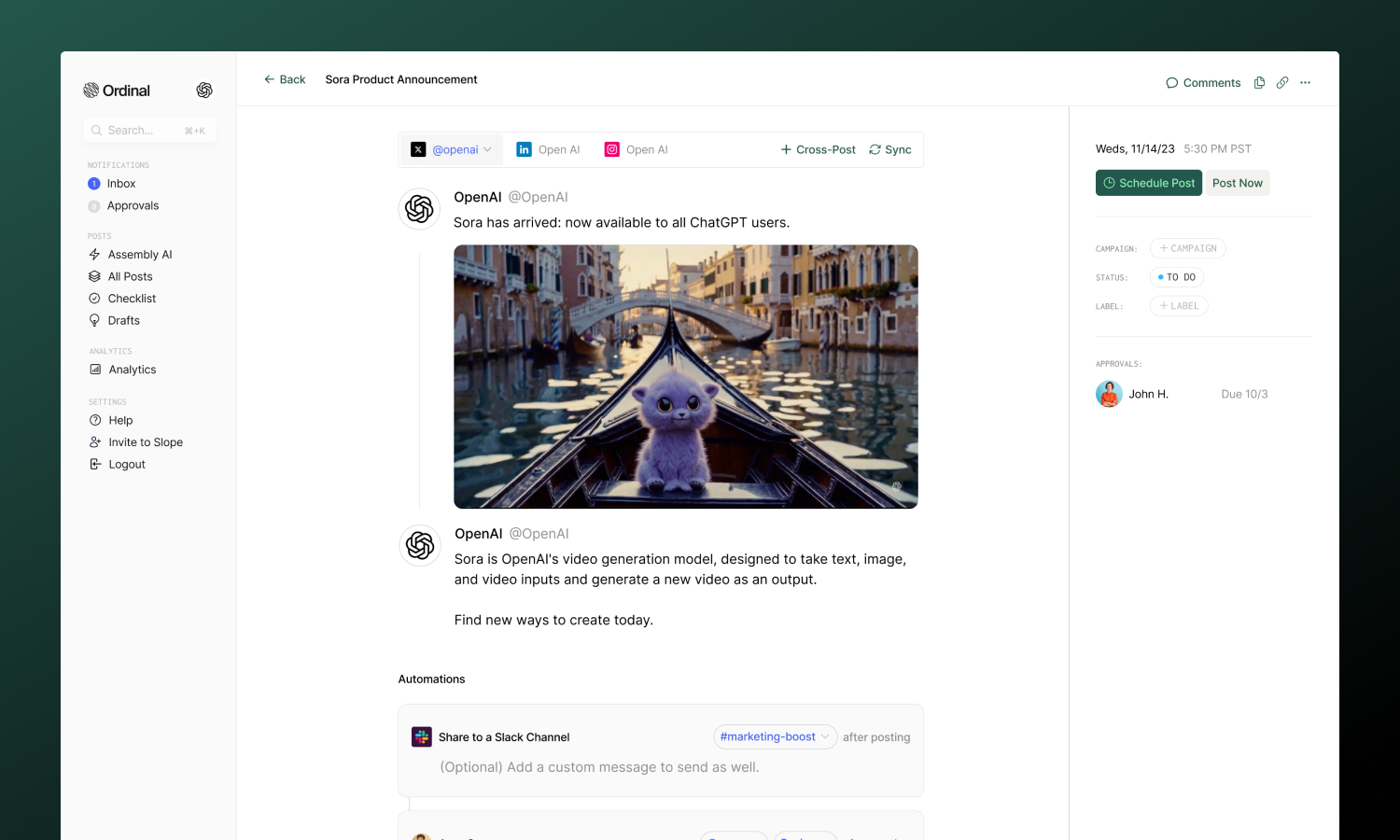
Overview
With Ordinal, you can connect Twitter accounts for both scheduling and engagement. Most users connect both to get the full experience.
Connecting Twitter
Connect for scheduling or engagement
Drafting a Tweet
Formatting, mentions, media, and threads
Team Engagements
Coordinate likes, retweets, and replies from your team
Analytics
Track tweet performance
Connecting Twitter
There are two types of connections supported for Twitter: scheduling and engagement-only. Scheduling profiles can post tweets, threads, and use team engagements. Engagement-only profiles are used purely for team engagements (liking, retweeting, replying to posts).
For scheduling: Go to Settings → Profiles → Scheduling, select “Connect X”, and follow the instructions to sign in via X.
For engagement-only: Go to Settings → Profiles → Engagement, select “Connect X”, and follow the instructions to sign in via X.
Drafting a Tweet
What you can post
| Feature | Supported | Notes |
|---|---|---|
| Text tweets | ✅ | 280 characters |
| Long-form tweets | ✅ | Up to 4,000 characters (Premium) |
| Images | ✅ | Up to 4 per tweet |
| GIFs | ✅ | Up to 1280px x 1280px |
| Videos | ✅ | Up to 2:20 (10 min for verified) |
| Threads | ✅ | Multi-tweet sequences with individual media |
| Polls | ❌ | Not currently supported |
Drafting & Formatting
The Twitter editor supports Unicode formatting for bold and italic text:
- Bold / Italic: Use the toolbar buttons or press
Cmd/Ctrl + Bfor bold andCmd/Ctrl + Ifor italic - Hashtags: Type
#followed by your tag - it’ll automatically link when published - Mentions: Type
@followed by a username to mention someone - Links: Paste URLs directly into your tweet (and use a link shortener for detailed click analytics)
Drafting Posts
Full guide to formatting, mentions, slash commands, and keyboard shortcuts.
Long-form Tweets
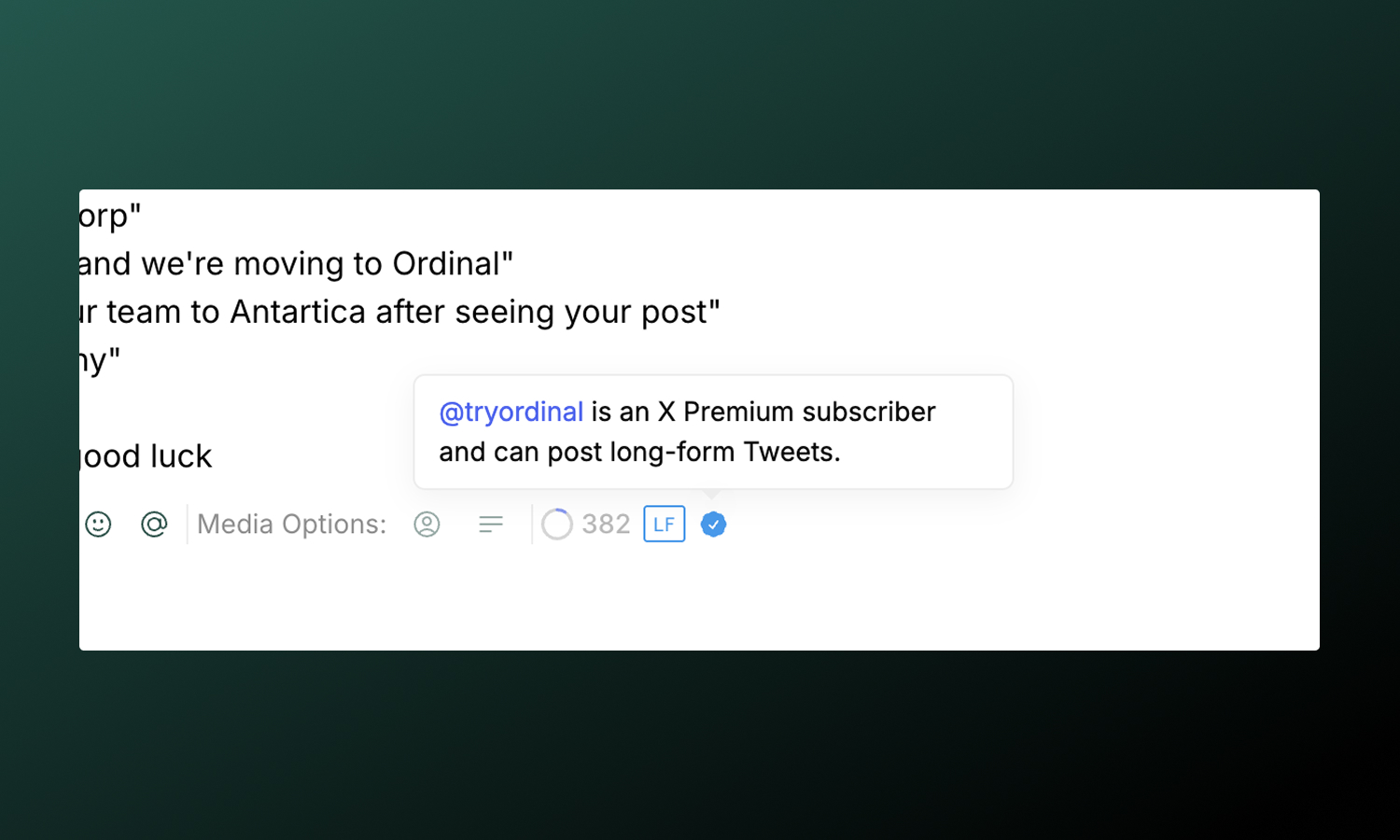
Twitter Premium subscribers can post tweets up to 4,000 characters - far beyond the standard 280 limit. Ordinal automatically detects your account type and adjusts the character counter accordingly.
Long-form tweets display with a “Show more” link in the feed. Note that Twitter does not show link preview images on long-form tweets.
Post Preview
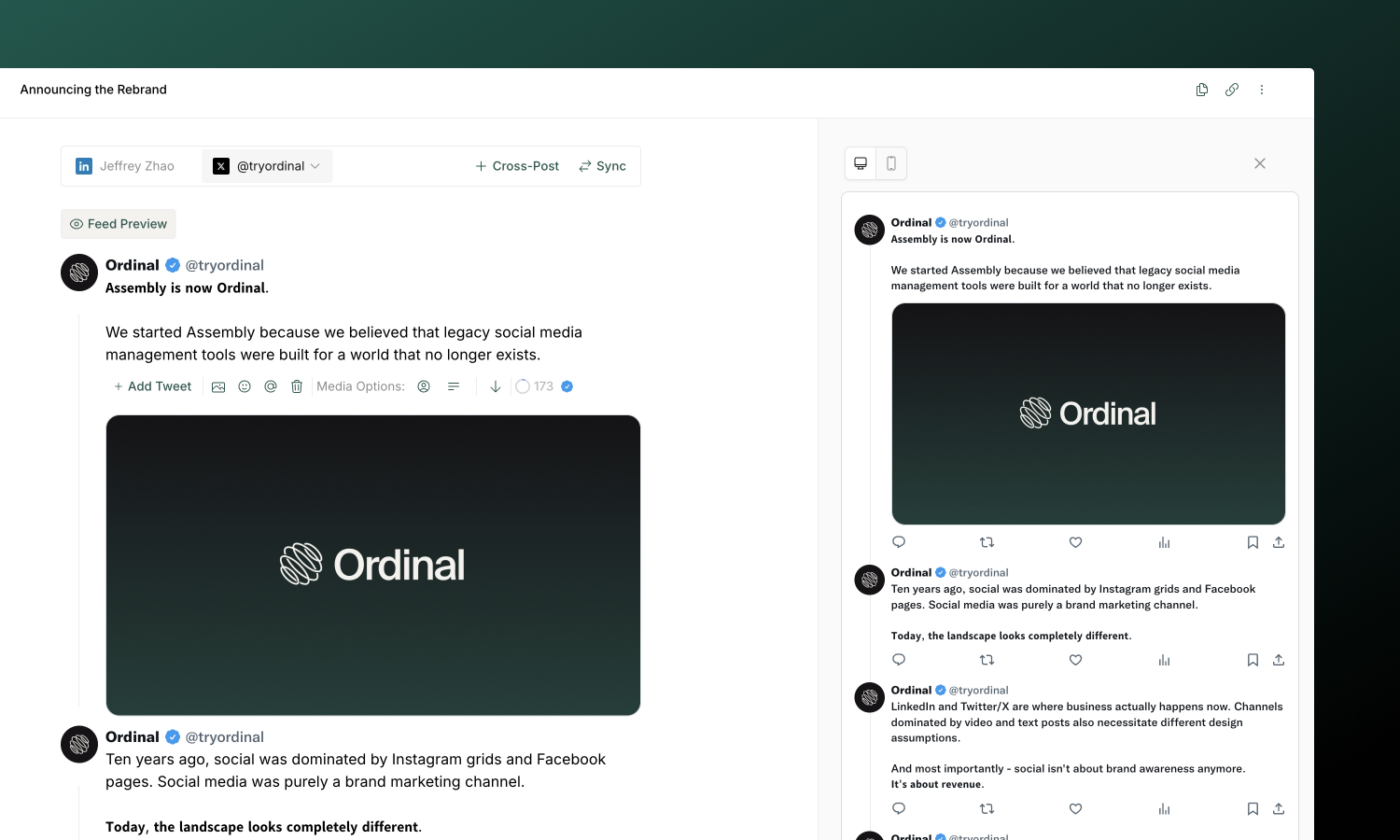
As you draft your tweet, the editor shows a live preview that matches how your content will appear on Twitter - including proper text truncation with “See more” for longer posts.
For a more realistic preview, click the Feed Preview button to see your tweet in a full Twitter feed context with desktop and mobile previews.
Photo Options
Alt text: Add descriptions to your images for accessibility. Click the image options menu and enter alt text (up to 1,000 characters) that describes the visual content for screen readers.
Photo tagging: Tag users in your images to notify them and increase visibility:
- Add images to your tweet
- Click the Tag Users button (user icon)
- Enter Twitter handles (without the @)
- Add up to 10 users per tweet
Media Options
You can upload up to 4 attachments per tweet.
Multiple images display in a grid layout. Add alt text for accessibility via the image options.
| Spec | Limit |
|---|---|
| Formats | JPG, PNG, WEBP |
| Size | 5MB per image |
Attach video content to any Tweet(s).
| Spec | Limit |
|---|---|
| Formats | MP4, MOV |
| Size | 350mb |
| Minimum Duration | 0.5 seconds |
| Maximum Duration | 2:20 (standard) / 10 min (verified) |
| Ratio | Between 1:3 and 3:1 |
| Frame rate | Up to 60 fps |
You don’t need to re-encode videos that exceed these specs. Ordinal automatically converts HEVC videos to H.264 and reduces videos above 60 fps to 60 fps before publishing to Twitter.
Add animated GIFs to your tweets:
| Spec | Limit |
|---|---|
| Format | GIF |
| Size | 15MB max |
Media & Assets
Full specifications for all platforms including recommended dimensions.
Tweet Threads
Threads are Twitter’s way of telling longer stories across multiple connected tweets. Each tweet in a thread can have its own media.
Creating a thread:
- Write your first tweet
- Click Add Tweet to add the next tweet
- Continue adding tweets to your thread
- Preview the entire thread before scheduling
- All tweets publish in sequence automatically
Splitting Tweets
You can quickly split a tweet into two using your keyboard:
- Press
Enter3 times at the end of a tweet to add a new empty tweet after it - Press
Enter5 times in the middle of text to split a single tweet into two tweets at that point - content after the split moves to a new tweet
This makes it easy to break up long drafts into thread-sized chunks without copy-pasting.
Reordering Tweets
Rearrange tweets in your thread using the arrow buttons:
- Click the up arrow to move a tweet earlier in the thread
- Click the down arrow to move a tweet later in the thread
The thread position updates instantly, and you can preview the final order before scheduling.
If a thread fails to publish
If publishing stops partway through a thread, Ordinal deletes the tweets from that thread it already posted, so a half-finished thread isn’t left on your profile. The post is marked Errored and you get the usual error notification. Fix the issue, then publish the thread again. See Handling errored posts for common causes.
Team Engagements
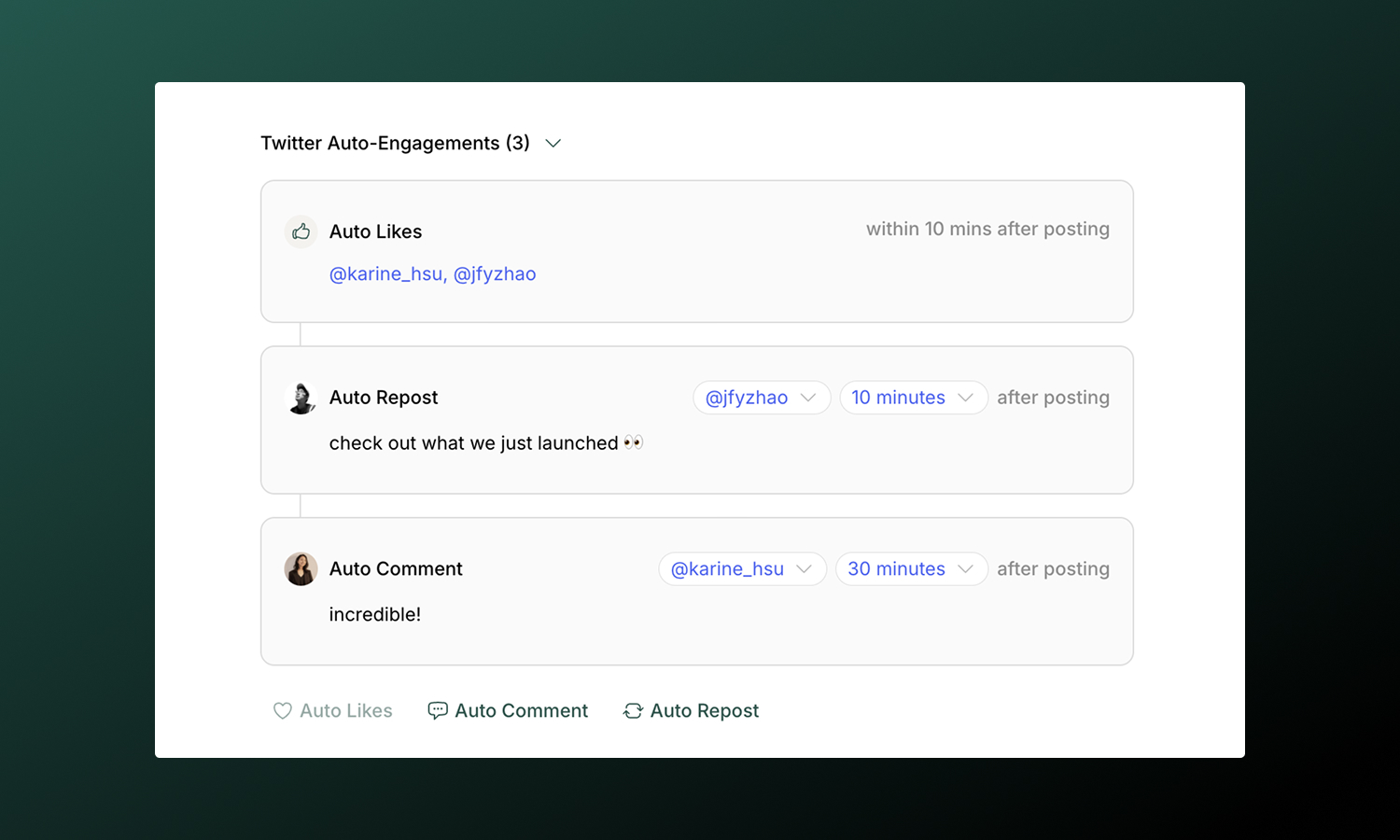
Make it easy for your team to coordinate likes, replies, and retweets from their connected accounts after your tweet publishes. Twitter supports these team engagement types:
| Type | What it does |
|---|---|
| Team Likes | Make it easy for selected connected profiles to like your tweet |
| Team Repost | Help a team member retweet from a connected Twitter account |
| Team Comment | Help a team member add a first reply (great for additional context, links, or a call-to-action) |
Choose a time from immediately after posting up to 24 hours later. Staggering engagements across different delays helps your team coordinate activity.
Team Engagements
Full guide to setting up timing, best practices, and troubleshooting.
Analytics
View tweet performance in Analytics → X. You’ll see impressions, engagement breakdown (likes, retweets, replies, quote tweets), click-through rate, and follower growth.
Analytics sync automatically each day. You can also manually refresh stats using the Refresh Stats button (once per hour) to see the latest performance data.
Analytics overview
Learn more about tracking performance across all your connected profiles.