

Labels
Organize and categorize your content
Labels are colored tags that help you organize posts and campaigns. Apply labels to categorize by content type, topic, priority, or any taxonomy that fits your workflow. Labels appear throughout Ordinal and enable powerful filtering.
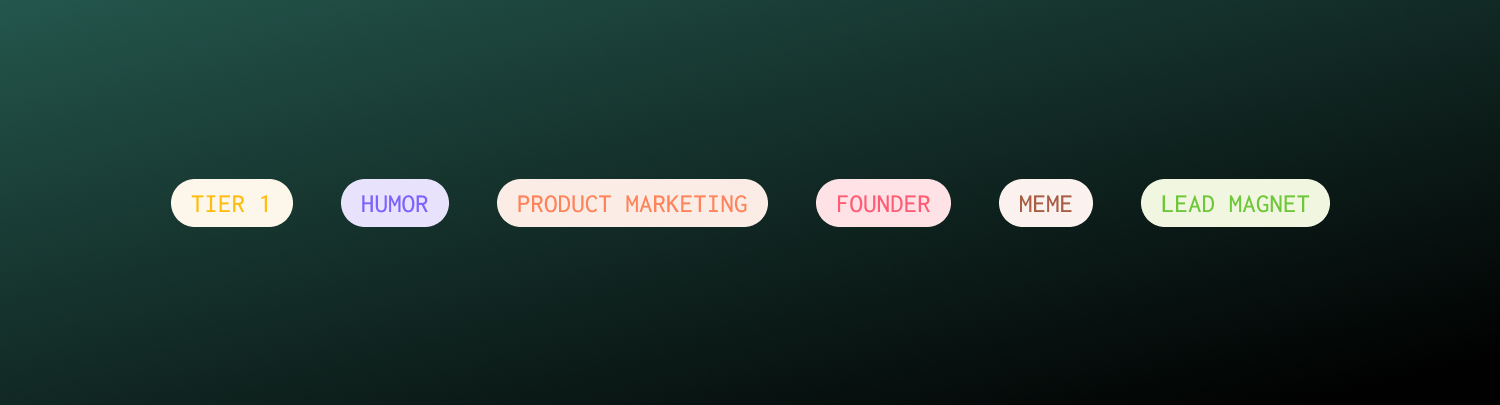
Creating labels
Open label settings
Go to Settings → Labels.
Add a label
Click Create New Label and enter a name.
Choose colors
Select a color for your new label to help it stand out visually.
Save
Click Create to add the label.
Open label field
In any post, click the Labels field in the sidebar.
Type a new name
Start typing a label that doesn’t exist yet.
Create inline
Click Create “[label name]” to create and apply it immediately.
Applying labels
To posts
Open any post and find the Labels field in the sidebar. Search existing labels or create new ones. Apply multiple labels to a single post - there’s no limit.
To campaigns
Campaigns can also have labels, helping you categorize entire initiatives. Open a campaign and add labels the same way.
Filtering by label
Labels enable filtering throughout Ordinal:
| View | How it helps |
|---|---|
| Calendar | Focus on specific content types or campaigns |
| Posts list | Narrow down to matching posts |
| Analytics | Compare performance by category |
Label use cases
Content type
Categorize by format:
- 📸 Photo
- 🎥 Video
- 📄 Article
- 📊 Poll
- 🧵 Thread
Topic or pillar
Organize by subject:
- Industry News
- Company Updates
- Tips & Tricks
- Customer Stories
- Product Features
Status (internal)
Track workflow stages:
- Needs Review
- Approved
- Client Feedback
- Ready to Publish
- Evergreen
Priority
Indicate urgency:
- Urgent
- High Priority
- Normal
- Evergreen (no time pressure)
Funnel stage
Map to marketing funnel:
- Awareness
- Consideration
- Conversion
- Retention
Labels vs campaigns
Both help organize content, but they serve different purposes:
| Aspect | Labels | Campaigns |
|---|---|---|
| Purpose | Flexible categorization | Time-bound groupings |
| Date range | No | Yes |
| Multiple per post | Yes | One per post |
| Analytics | Filter by label | Aggregate campaign metrics |
Managing labels
Edit labels
Update a label’s name or colors in Settings → Labels. Changes apply immediately to all posts using that label.
Delete labels
Remove labels you no longer need. Deleting removes the label from all posts but doesn’t delete the posts themselves.
Label usage
In Settings → Labels, see how many posts and campaigns use each label. This helps identify unused labels to clean up.
Troubleshooting
Label not appearing on post
Ensure you saved the post after applying the label. Try refreshing the page.
Can't find labeled posts
Check your current filters. Multiple filters combine with AND logic - a post must match all selected filters to appear.
Labels not syncing across team
Labels are workspace-level. Verify everyone is in the same workspace. Changes should appear for all team members.