

Schedule Instagram Feed posts, Reels, and Stories from a Business or Creator account. Add tags, collaborators, and first comments.
Instagram rewards polished, visual content - and consistency. In Ordinal, you can schedule Feed Posts, Reels, and Stories, plus use Instagram-specific features like photo tagging, collaborators, and first comments.
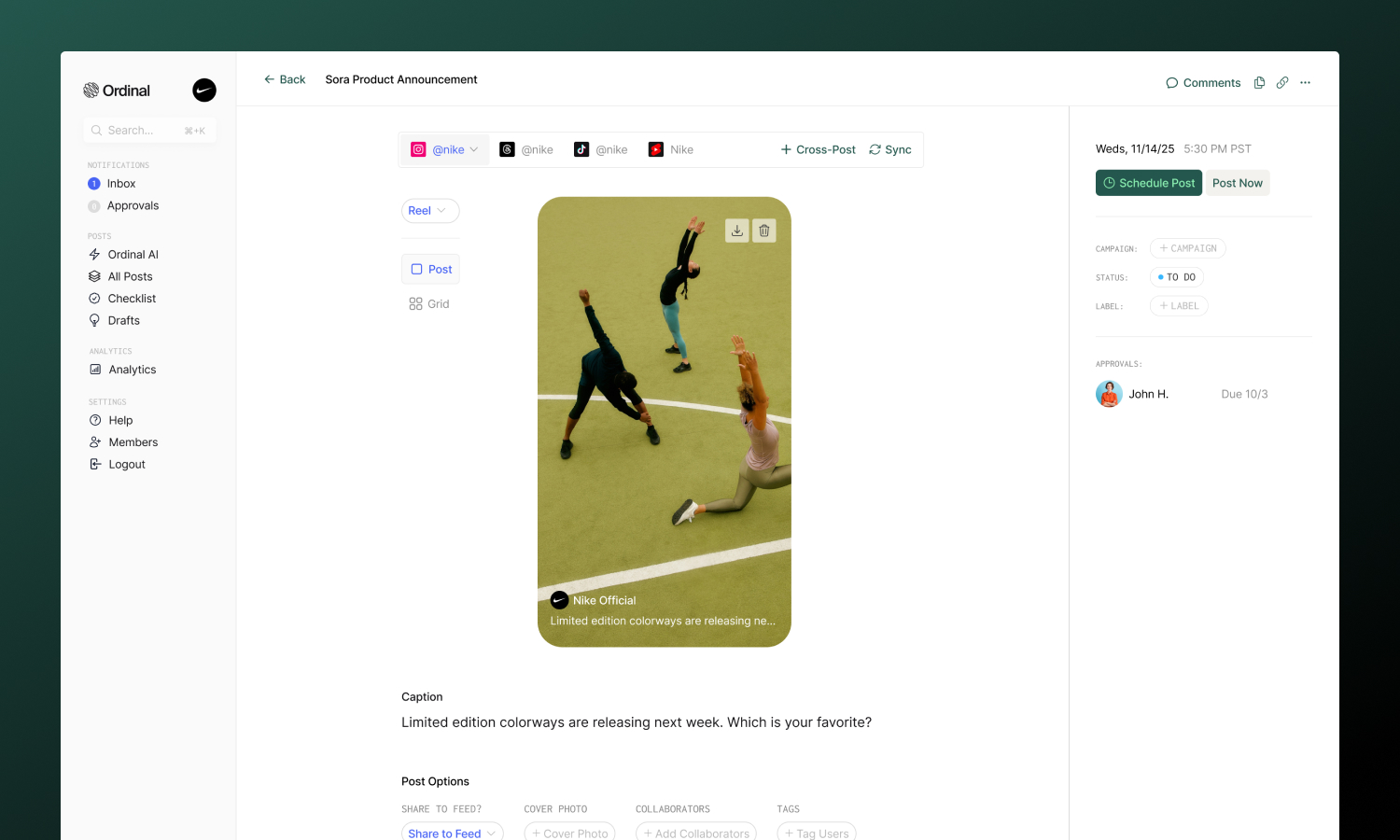
Overview
Instagram requires a Business or Creator account (not personal) and connects through Facebook.
Connecting Instagram
Connect your Business or Creator account
Drafting a Post
Formatting, tagging, and media
Post Types
Feed, Reels, and Stories
Analytics
Track post performance
Connecting Instagram
Go to Settings → Profiles → Scheduling, click “Connect Instagram”, and sign in with Instagram to connect your account.
Drafting an Instagram Post
What you can post
| Feature | Supported | Notes |
|---|---|---|
| Feed posts | ✅ | Up to 10 images/videos |
| Reels | ✅ | Single video, up to 15 minutes |
| Stories | ⚠️ | Up to 10 images/videos, no interactive elements |
Drafting & Formatting
The Instagram editor supports rich formatting through Unicode characters:
- Bold / Italic: Use the toolbar buttons or press
Cmd/Ctrl + Bfor bold andCmd/Ctrl + Ifor italic - Hashtags: Type
#followed by your tag - Instagram allows up to 30 per post (tracked in the editor) - Mentions: Type
@followed by an Instagram handle to mention someone - Links: Instagram captions don’t support clickable links, but you can include URLs as text
Captions can be up to 2,200 characters. The character counter updates in real-time as you type.
Drafting Posts
Full guide to formatting, mentions, slash commands, and keyboard shortcuts.
Post Preview
As you draft your post, the editor shows a live preview that matches how your content will appear on Instagram.
For planning your profile aesthetic, switch to Grid Preview to see how your new post will fit into your existing Instagram grid. This helps you maintain a consistent visual style across your profile.
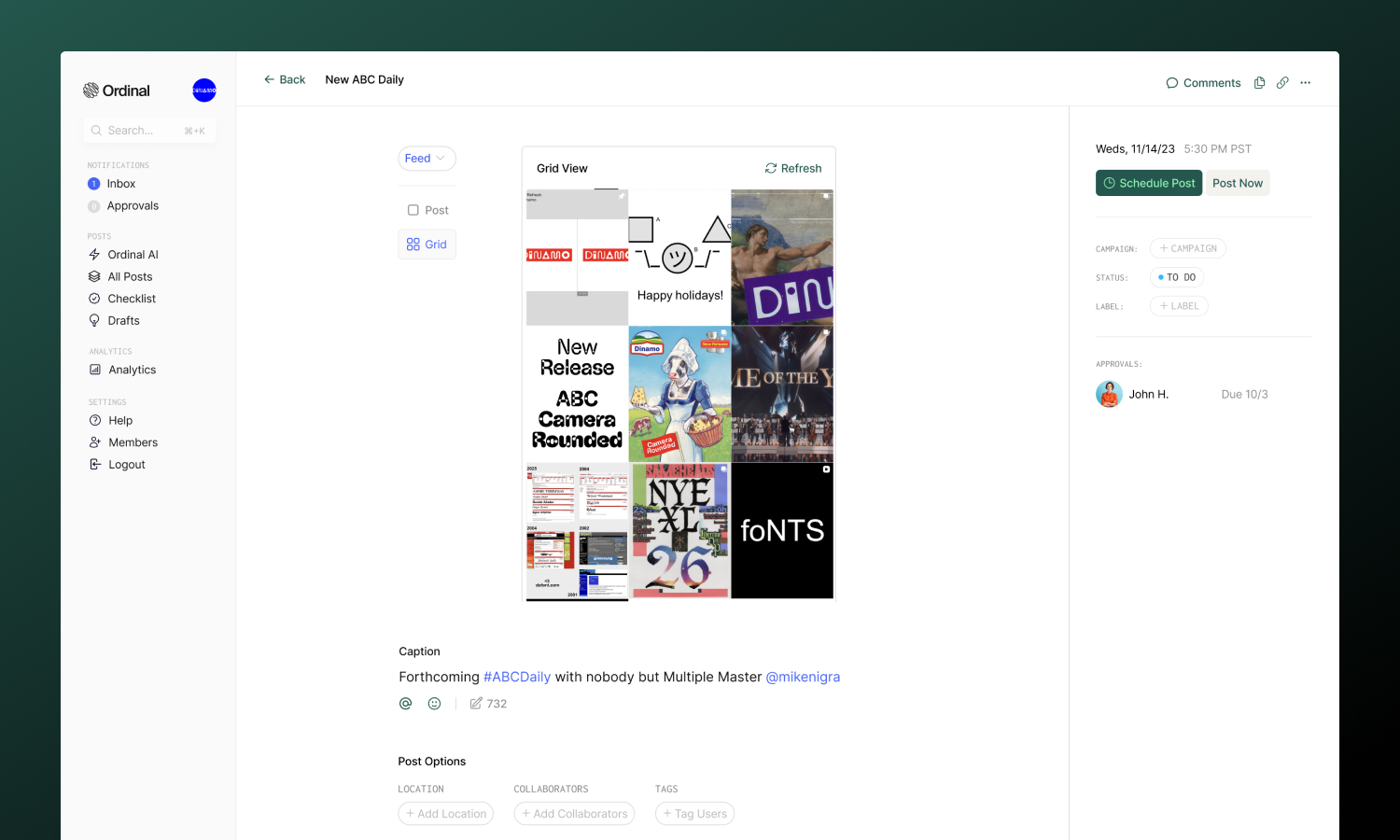
Photo Options
Photo tagging: Tag users directly on your images to increase engagement and notify them:
- Add images to your post
- Open the Tags option
- Click anywhere on the image where you want the tag to appear
- Enter the Instagram handle
Instagram-Specific Features
Location: Add a location to Feed posts to increase discoverability. Search for any place and it will appear on your published post.
Collaborators: Invite up to 3 other Instagram accounts to co-author your post. When published, collaborators receive a DM to accept the invitation, and the post appears on both profiles.
Cover Photo (Reels only): Pick any frame from your video or upload a custom thumbnail for your Reel. See Cover photos for videos for details.
Share to Feed (Reels only): Control whether your Reel appears in both your profile grid and the Reels tab, or just in Reels.
Trial Reel (Reels only): Publish the Reel as a trial reel, which is shown only to non-followers so you can test how new content performs before releasing it to your audience. Choose how the reel graduates to your main feed:
- Off (default): Publishes as a normal Reel to all followers.
- Manual graduation: The reel stays a trial until you graduate it manually from the Instagram app.
- Auto graduate on performance: Instagram automatically graduates the reel to your followers if it performs well in the first 72 hours.
Post Types
Feed posts appear in your profile grid and followers’ feeds. They support up to 10 images/videos.
| Spec | Limit |
|---|---|
| Formats | JPG only (PNG auto-converted) |
| Image size | 8MB max per image |
| Max pixels | 36 million per image |
| Per post | Up to 10 images/videos (carousel) |
| Aspect | 3:4 (portrait) to 1.91:1 (landscape) |
Videos in Feed:
| Spec | Limit |
|---|---|
| Formats | MP4, MOV |
| Duration | Up to 60 seconds |
| Aspect | 4:5 to 16:9 |
Ordinal automatically compresses videos larger than 125MB or wider than 1920px to meet Instagram’s requirements.
Reels are short-form vertical videos that appear in the Reels tab and can optionally show in your grid.
| Spec | Limit |
|---|---|
| Formats | MP4, MOV |
| Duration | Up to 15 minutes |
| Per post | 1 video only |
| Aspect | 0.01:1 to 10:1 (flexible) |
Reel-specific options:
- Cover Photo: Pick a frame from the video or upload a custom thumbnail to display on your grid and in your Reels tab.
- Share to Feed: Toggle whether the Reel appears in your profile grid.
- Trial Reel: Publish to non-followers first, then graduate manually or automatically based on performance.
Stories are ephemeral content that disappears after 24 hours.
| Spec | Limit |
|---|---|
| Formats | JPG, PNG, MP4, MOV |
| Per post | Up to 10 images/videos |
| Duration | 3–60 seconds (videos) |
| Image | 8MB max |
Story limitations:
Instagram’s API restricts what can be scheduled for Stories:
- ❌ No stickers, polls, questions, or countdowns
- ❌ No link stickers
- ❌ No music
- ❌ No captions (the editor is hidden for Stories)
For interactive Stories, post directly in the Instagram app.
Media & Assets
Full specifications for all platforms including recommended dimensions.
Team Engagements
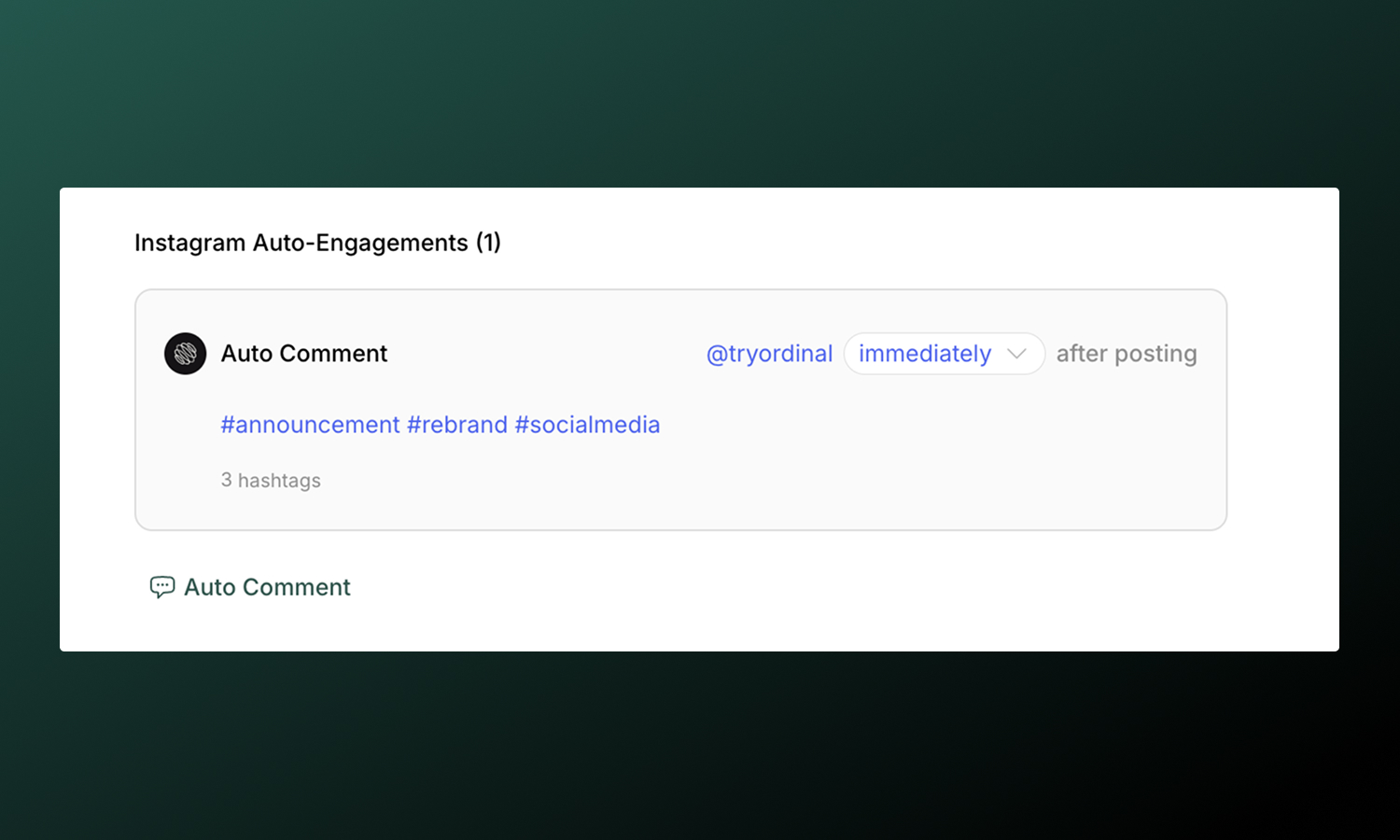
Make it easy to add a first comment after your post goes live. This is the only team engagement type available for Instagram due to API limitations. The comment must be posted from the same account that the post is scheduled for.
| Type | What it does |
|---|---|
| First Comment | Make it easy to add a comment immediately after posting (great for hashtags or CTAs) |
Team Engagements
Full guide to setting up timing, best practices, and troubleshooting.
Analytics
View post performance in Analytics → Instagram. You’ll see impressions, engagement breakdown (likes, comments, saves, shares), profile visits, and new followers gained from each post.
Analytics sync automatically each day. You can also manually refresh stats using the Refresh Stats button (once per hour) to see the latest performance data.
Analytics overview
Learn more about tracking performance across all your connected profiles.
