

Schedule Facebook Page posts and Reels. Personal profiles aren't supported (Facebook API restriction).
Facebook Pages are still one of the best ways to reach an established audience. In Ordinal, you can schedule feed posts, publish Reels, and manage multiple pages from one place.
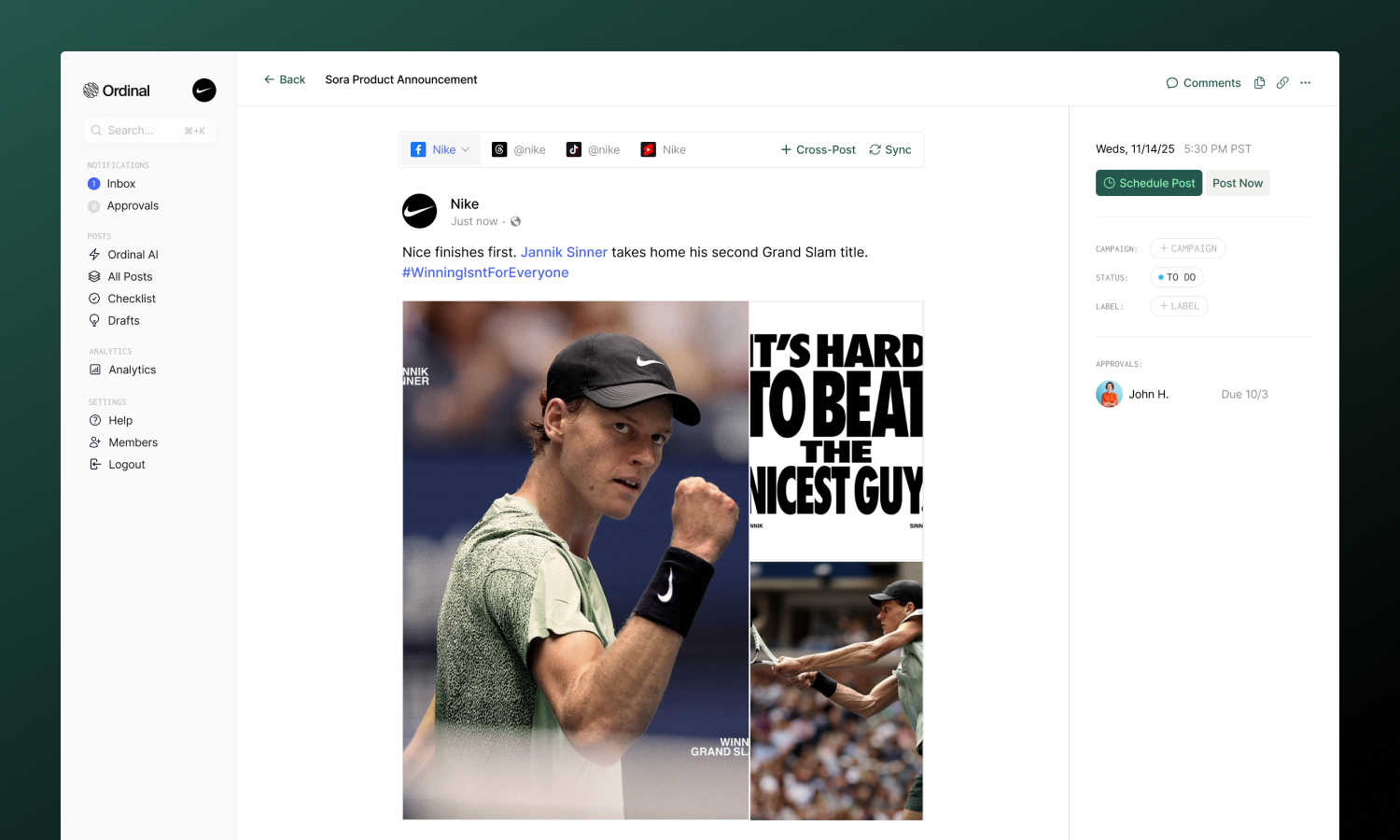
Overview
Facebook Pages represent businesses, brands, organizations, or public figures. When you connect a page, posts appear from the page (not your personal account), and you get access to page-level analytics.
Connecting Facebook
Connect your Facebook Pages
Drafting a Post
Formatting, mentions, and media
Post Types
Feed posts and Reels
Team Engagements
Add a first comment from your team
Connecting Facebook
Go to Settings → Profiles → Scheduling, click Connect Account, select Facebook, and sign in. Choose which pages to connect - you can connect multiple pages, and each appears as a separate profile.
| Requirement | Details |
|---|---|
| Account type | Facebook Page (not personal profile) |
| Access level | Admin or Editor role on the Page |
| Page status | Must be published (not draft) |
Business Suite Users
If you manage pages through Meta Business Suite, you may need to authorize Ordinal in Business Settings → Connected Apps. Some Business Suite configurations require explicit app permissions.
Drafting a Facebook Post
What you can post
| Feature | Supported | Notes |
|---|---|---|
| Text posts | ✅ | Up to 2,200 characters |
| Images | ✅ | Up to 10 per post |
| Videos | ✅ | Up to 10 minutes |
| Reels | ✅ | 3–90 seconds, vertical |
| Links | ✅ | With auto-generated preview |
| Events | ❌ | Not currently supported |
| Live video | ❌ | Not currently supported |
Drafting & Formatting
The Facebook editor supports rich formatting through Unicode characters, which render as bold and italic on Facebook:
- Bold / Italic: Use the toolbar buttons or press
Cmd/Ctrl + Bfor bold andCmd/Ctrl + Ifor italic - Hashtags: Type
#followed by your tag - they’ll automatically link to Facebook search - Mentions: Type
@and search for Facebook Pages to tag them in your post - Links: Paste URLs directly - Facebook auto-generates a preview with image, title, and description
Facebook posts can be up to 2,200 characters. The character counter updates in real-time as you type.
Drafting Posts
Full guide to formatting, mentions, slash commands, and keyboard shortcuts.
Post Preview
As you draft, the editor shows a live preview that matches how your content will appear on Facebook - including your page name and profile picture.
Tagging Pages
Tag other Facebook Pages in your posts to increase visibility and notify them:
- Type
@in your post - Search for the Page by name
- Select from the suggestions dropdown
Mentions become clickable links when published and may notify the tagged Page.
Post Types
Use the Feed / Reel dropdown at the top of the editor to switch between post types.
Standard posts that appear in your Page’s feed. You can include text, images, or video.
Images:
| Spec | Limit |
|---|---|
| Formats | JPG, PNG |
| Size | 4MB per image (auto-compressed) |
| Per post | Up to 10 images |
Videos:
| Spec | Limit |
|---|---|
| Formats | MP4, MOV |
| Duration | Up to 10 minutes |
| Per post | 1 video only |
Short-form vertical videos that get higher organic reach than static posts.
| Spec | Limit |
|---|---|
| Formats | MP4, MOV |
| Duration | 3–90 seconds |
| Aspect | 9:16 (vertical) required |
| Resolution | Minimum 540×960 pixels |
Cover Photo: Pick a frame from the video or upload a custom image to use as the thumbnail for your Reel. See Cover photos for videos for details.
Media & Assets
Full specifications for all platforms including recommended dimensions.
Team Engagements
Make it easy to add a first comment to your posts after they publish - great for CTAs, additional links, or hashtags you don’t want in the main post.
| Type | Supported | Notes |
|---|---|---|
| Team Comment | ✅ | Make it easy to add a comment from the same profile as the post author |
| Team Likes | ❌ | Not available for Facebook |
| Team Repost | ❌ | Not available for Facebook |
Configure timing from immediately after posting up to 24 hours later.
Team Engagements
Full guide to setting up timing and best practices.
Analytics
View Page performance in Analytics → Facebook:
| Metric | Description |
|---|---|
| Reach | Unique people who saw your post |
| Impressions | Total times post was shown |
| Reactions | Likes, loves, etc. |
| Comments | Comment count |
| Shares | Share count |
| Link clicks | Clicks on links in post |
| Follower growth | Net change in Page followers |
Analytics sync automatically each day. You can also manually refresh stats using the Refresh Stats button (once per hour) to see the latest performance data.
Analytics overview
Learn more about tracking performance across all your connected profiles.
