

Ordinal MCP server
The Ordinal MCP server lets Claude, Cursor, Codex, and other AI assistants work inside your Ordinal workspace.
What is it?
The Ordinal MCP server lets AI assistants work inside your Ordinal workspace. Once connected, you can ask Claude, Cursor, or any other MCP-capable assistant to draft posts, schedule them, pull analytics, manage approvals, and more — all using your own Ordinal account.
MCP Server URL
https://app.tryordinal.com/mcpHow it works
Add the server to your assistant
Follow the installation guide for your client - Claude, Claude Code, Codex, Cursor, etc.
Sign in with Ordinal
The first time you use it, a browser window opens. Sign in with your Ordinal account and approve access. Your assistant remembers the session - no API keys to copy or paste.
Ask the assistant to do something
“Draft a LinkedIn post about our launch,” “Show me last week’s engagement analytics,” “What were my top performing posts from the past month?.” It picks the right tool and calls it.
What the MCP can do
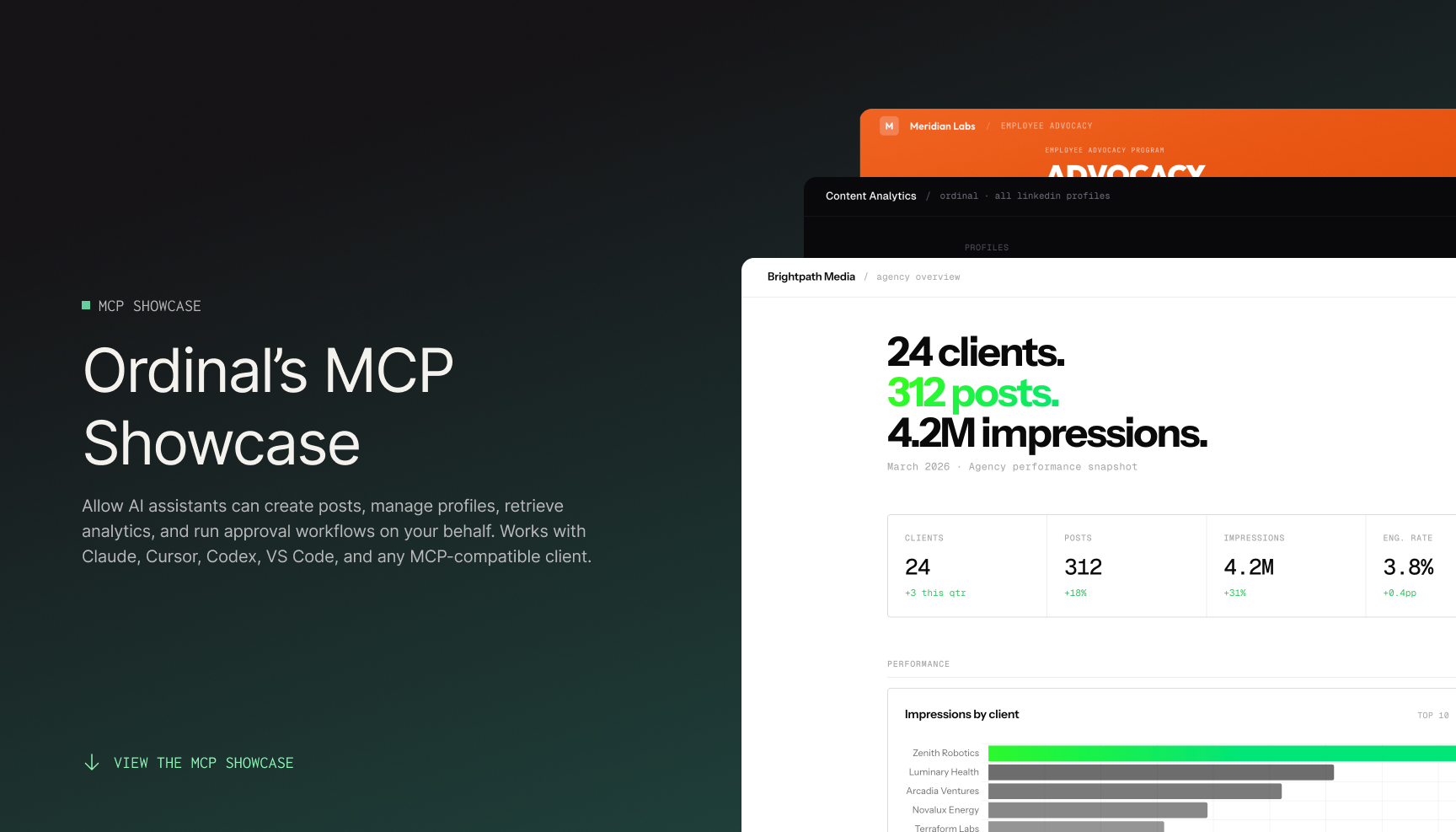
Want to see live examples of the MCP in action? Click here to check out our MCP showcase.
Posts and ideas
Create, update, search, and archive posts across LinkedIn, X, and Instagram.
Approvals and comments
Request approvals, add comments, manage subscribers.
Analytics
Post performance and follower growth for every connected platform.
Media uploads
Attach images and videos to posts from a URL.
Team engagements
Coordinate likes, comments, and reposts from connected team profiles.
Slack boosts
Create and manage Slack broadcasts attached to posts.
See the full tools reference for everything.
Signing in
The MCP server uses OAuth — the same kind of sign-in you use when connecting Google or GitHub to a third-party app. Your MCP client opens a browser, you sign in to Ordinal, and the client is granted access on your behalf.