

Approvals
Add reviewers to a post, set blocking or non-blocking approval, and require sign-off before content publishes.
Approvals ensure content gets reviewed before it goes live. Whether you’re an agency managing client accounts, a team posting on behalf of executives, or an organization with compliance requirements - approvals add a review gate that protects your brand and keeps stakeholders informed.
Common use cases:
- Agencies - Get client sign-off before publishing to their accounts
- Executive content - Ensure leadership reviews posts on their personal brands
- Brand consistency - Maintain voice and messaging standards across teams
- Compliance - Meet regulatory requirements with documented approval trails
How it works
- Request - Author finishes a post and requests approval from one or more reviewers
- Notify - Reviewers receive notifications via Slack, email, or in-app (based on their preferences)
- Review - Reviewers open the post, examine content, and approve or leave feedback
Requesting approval
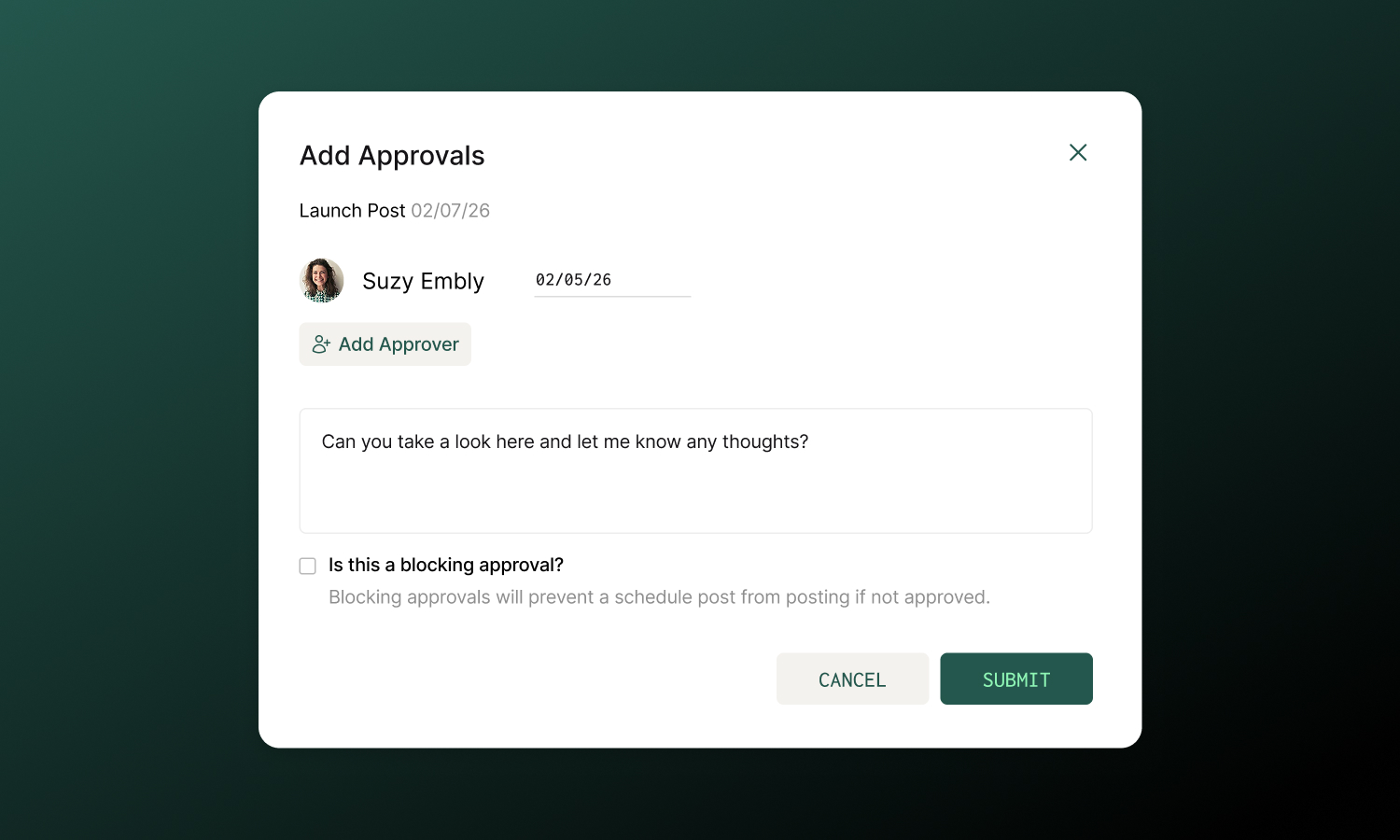
From any post or campaign, find the Approvals section in the sidebar and click Request Approval:
- Select reviewers - Search and add one or more team members
- Set due date (optional) - Reviewers get reminders when the due date arrives
- Choose blocking - Toggle on if the post shouldn’t publish without approval
- Add a note - Give context: “Please check hashtags” or “Client needs to approve messaging”
The post shows “Pending” until reviewers respond.
Blocking vs non-blocking
The post can’t be published until approved.
- You can still schedule the post for later
- Protects sensitive accounts from accidental publishing
- Default for approval rules
- If not approved, the post will remain in “Scheduled” status and will not be published.
Use for: Client accounts, executive profiles, regulated content
The post can be published while approval is pending.
- Approval is for visibility and awareness
- Creates an audit trail
- Post publishes regardless of approval status
Use for: Informing stakeholders, low-risk content, FYI requests
Approvals Inbox
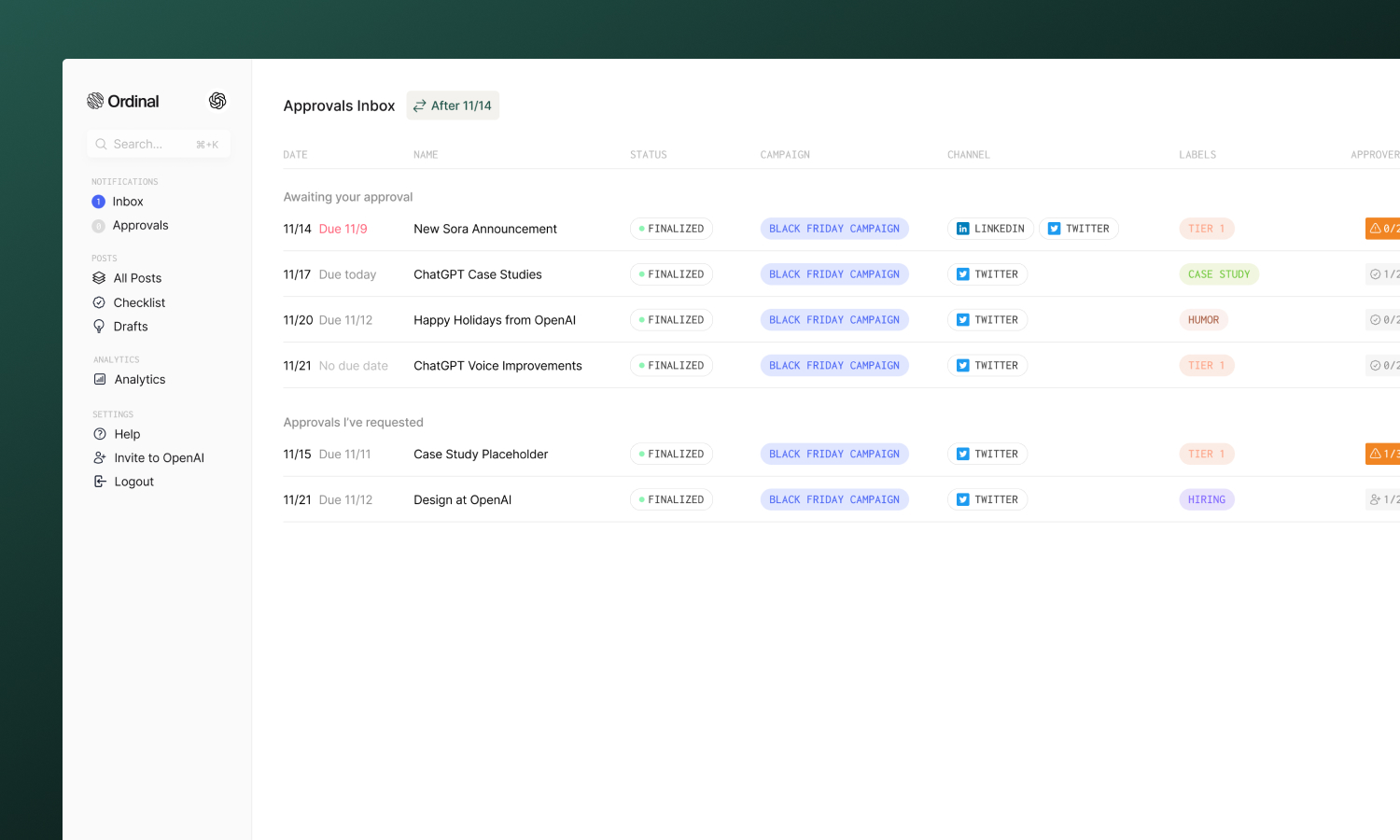
The Approvals page in the sidebar gives you a centralized view of posts still awaiting your approval, as well as outstanding approvals you’ve requested. You can filter the inbox by date range as well to focus on what’s urgent.
| Section | What it shows |
|---|---|
| Awaiting your approval | Posts and campaigns where someone requested your review |
| Approvals you’ve requested | Posts where you’re waiting on others |
Reviewing posts
When you’re asked to approve something:
- Find it - Click the notification or go to the Approvals page
- Review - Check the copy, media, mentions, hashtags, and schedule. Leave comments on anything that needs changing.
- If all looks good - approve - Click the checkmark. The requester is notified that the post is approved.
Notifications
Reviewers receive approval requests via their preferred channels:
- In-app - Always appears in the inbox
- Email - If enabled in notification settings
- Slack - If workspace has Slack connected
When due dates are set, reviewers get automatic reminders. Configure notification preferences in Settings → Notifications.
FAQs
Can I add multiple approvers?
Yes. Add as many reviewers as needed. Each receives their own notification and can approve independently.
Can approvals be done on mobile?
Yes. The mobile app supports reviewing and approving posts.
What are approval rules?
Rules automatically require approval for specific accounts. Once set, any post to that account triggers an approval request - no manual action needed. Enterprise workspaces can set these as defaults.
What happens if content changes after approval?
The approval stays in place. If significant changes are made, consider re-requesting approval to ensure reviewers have seen the final version.