

Discord
Schedule announcements to Discord channels using channel webhooks. No Discord login required.
Discord is where communities live - and scheduled announcements keep them engaged. Instead of connecting an account, you create webhooks in Discord and add them to Ordinal. Messages post to specific channels through those webhooks, perfect for product updates, event reminders, and recurring community content.
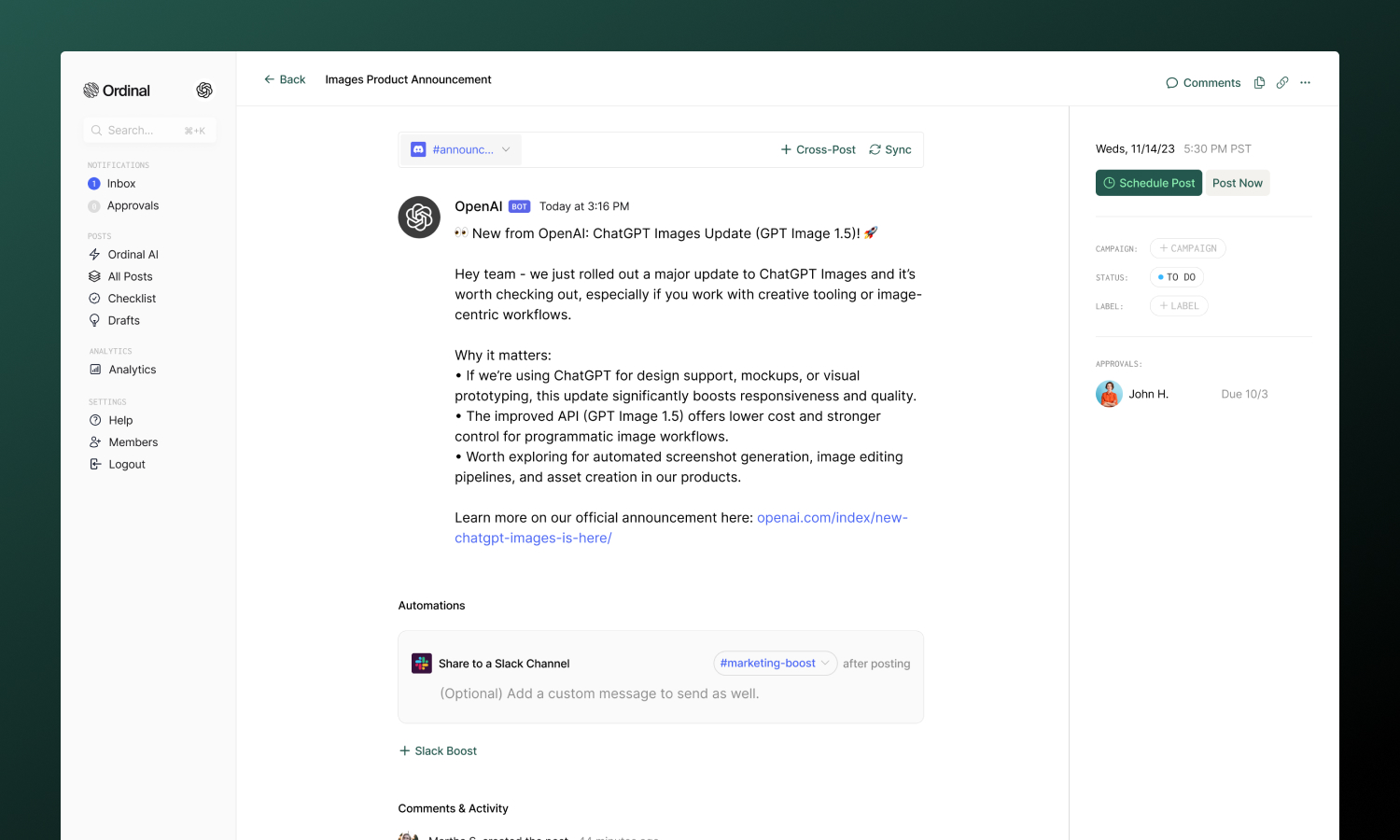
Overview
Webhooks are channel-specific URLs that accept incoming messages. You create them in Discord, give them a name and avatar, and paste the URL into Ordinal. No Discord login required - you control exactly which channels can receive scheduled messages.
Creating a Webhook
Set up webhooks in your Discord server
Adding to Ordinal
Connect your webhook to Ordinal
Drafting a Message
Formatting, mentions, and attachments
Use Cases
When to use Discord scheduling
| How it works | Details |
|---|---|
| Connection method | Webhook URL (not OAuth) |
| Sender appearance | Webhook name and avatar |
| Scope | One webhook per channel |
This means:
- You decide which channels get a webhook
- Each webhook posts to exactly one channel
- The webhook’s name and avatar appear as the message sender
- Anyone with the webhook URL can post to that channel (keep it private)
Creating a Webhook in Discord
- Open your Discord server
- Go to Server Settings → Integrations
- Click Create Webhook
- Set the name (this appears as the sender, e.g., “Ordinal Updates”)
- Upload an avatar image
- Select which channel this webhook posts to
- Click Copy Webhook URL
Keep this URL private - it’s essentially a posting key for that channel.
Adding the Webhook to Ordinal
Go to Settings → Profiles → Scheduling → Discord, paste your webhook URL and the channel name. The webhook appears as a profile you can select when creating posts.
To post to multiple channels, create a separate webhook for each channel in Discord and add each to Ordinal.
Drafting a Discord Message
What you can post
| Feature | Supported | Notes |
|---|---|---|
| Text messages | ✅ | Up to 2,000 characters |
| Attachments | ✅ | Up to 3 files, 10MB each |
| Formatted text | ✅ | Headings, bold, italic, underline, code, links, lists |
| Mentions | ✅ | @here, @everyone, users, roles |
| Link previews | ✅ | Discord unfurls links automatically |
Formatting
The editor supports Discord’s markdown formatting:
- Headings: H1 and H2 for structure
- Bold: Use the toolbar or
Cmd/Ctrl + B - Italic: Use the toolbar or
Cmd/Ctrl + I - Underline: Use the toolbar or
Cmd/Ctrl + U - Code: Inline code formatting
- Links: Paste URLs or use the link button
- Lists: Bullet and numbered lists
- Emoji: Type
:emoji_name:or use the emoji picker
Formatting converts to Discord’s native markdown when published.
Mentions
Tag users, roles, and broadcast to everyone:
| Mention | What it does |
|---|---|
@here |
Notifies active members in the channel |
@everyone |
Notifies all members in the server |
<@USER_ID> |
Mentions a specific user |
<@&ROLE_ID> |
Mentions a specific role |
Drafting Posts
Full guide to formatting, slash commands, and keyboard shortcuts.
Attachments
You can attach up to 3 files per Discord message.
| Spec | Limit |
|---|---|
| Files per post | 3 maximum |
| File size | 10MB per file |
| Formats | JPG, PNG, GIF, MP4, MOV |
Drag and drop files into the editor, paste from clipboard, or use the attachment button. Each attachment must have a unique filename.
FAQ
Webhook not working
The webhook may have been deleted in Discord. Create a new one and update it in Ordinal.
Messages not appearing
Verify you’re checking the correct channel - each webhook posts to exactly one channel.
Duplicate attachment error
Each attachment in a post must have a unique filename. Rename files before uploading if needed.
File too large
Discord webhooks have a 10MB file size limit. Compress your files or use a link instead.
Use Cases
- Product announcements: Release notes, feature launches, changelog updates
- Community updates: Event reminders, weekly roundups, server news
- Content sharing: Notify when new social posts, blog articles, or videos go live
- Automated alerts: Scheduled reminders, countdowns, recurring messages