

Calendar
Plan your content in calendar or list view. Filter by platform or status, and drag posts to reschedule.
The calendar is your command center for scheduled content. Toggle between a visual calendar grid and a sortable list view, filter by platform or status, and drag posts to reschedule. Whether you’re planning weeks ahead or reviewing today’s queue, the calendar keeps everything in one place.
Overview
Views
Calendar, list, and time frames
Filtering
Focus on specific content
Campaigns
See campaign date ranges
Views
Toggle between Calendar and List using the icons in the top-left corner:
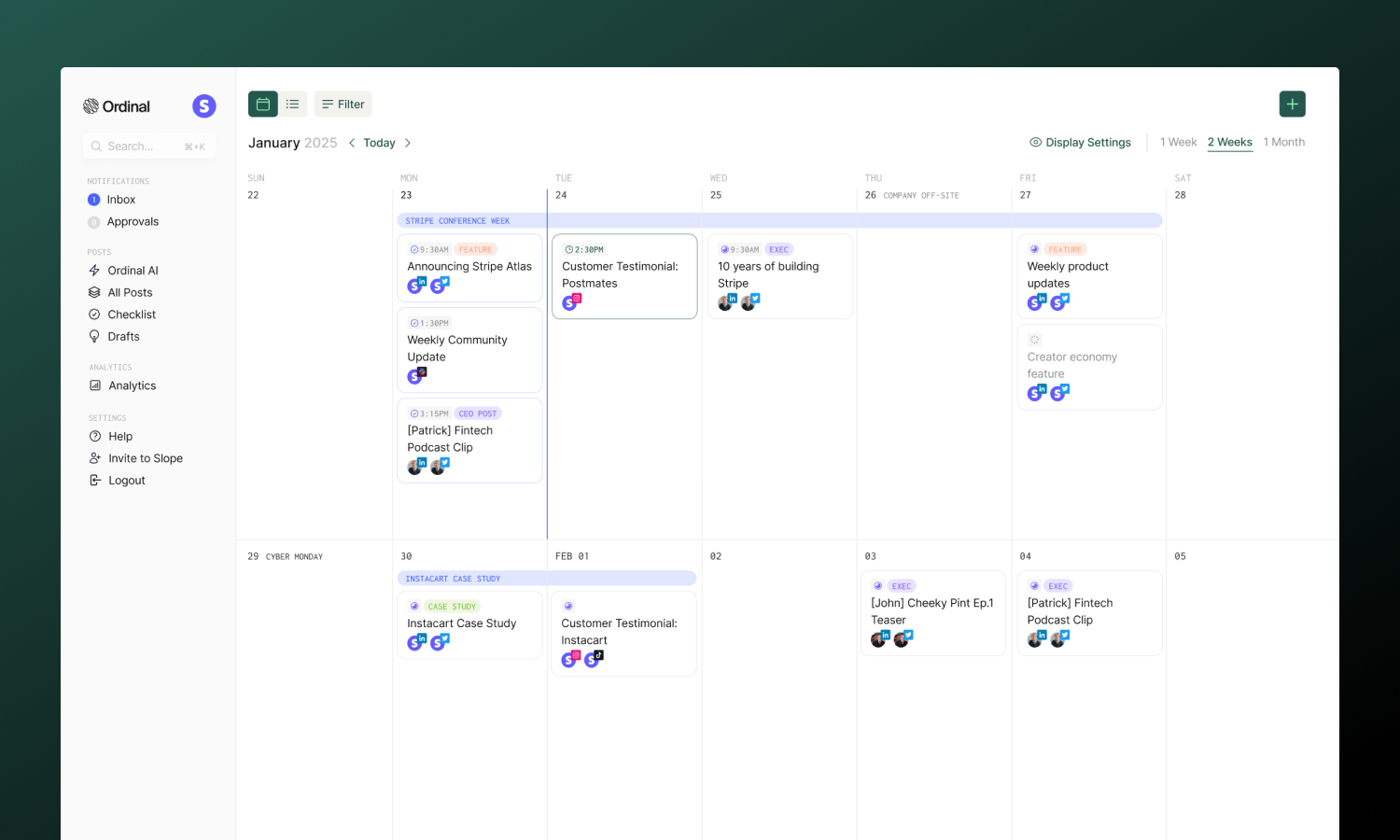
The default visual grid showing posts by date:
- Posts appear as cards on their scheduled day
- Platform icons show which channels each post targets
- Color-coded by status
- Drag posts to reschedule them
- Click any day to create a new post for that date
- US holidays are labeled on their respective days
Time frames: Choose how much time to display - 1 Week (W), 2 Weeks (X), or 1 Month (M). The 2-week view is the default.
A sortable table format for managing many posts at once:
- Columns: Date, Post Name, Status, Channels, Labels, Campaign
- Click column headers to sort
- Filter by date range using the date column
- Bulk select posts for actions
- Better for reviewing large volumes of scheduled content
Creating Posts
Click anywhere on the calendar to create a post for that date. The new post modal opens with the date pre-filled. Just choose the channel you want to post to and click Create Post.
Rescheduling
Drag and drop posts directly to new dates:
- In calendar view, drag posts between days
- If the post is already scheduled, we’ll automatically reschedule it for the same time on the new day. You’ll see a confirmation toast appears when the post is successfully rescheduled.
You can also click a post to open it, then change the scheduled date and time in the post editor.
Post Actions
Right-click any post on the calendar to manage it without opening the editor:
| Action | What it does |
|---|---|
| Rename | Edit the post title in a dialog. The card updates immediately on save |
| Change Status | Set a new status, or move the post back to Ideas |
| Copy Post Link | Copy a shareable link to the post |
| Duplicate Post | Create a copy of the post |
| Batch Duplicate Post | Create multiple copies at once |
| Delete Post | Move the post to the trash |
Filtering
Focus on specific content using the filter dropdown:
| Filter | Use case |
|---|---|
| Channel | Show only LinkedIn, Twitter, etc. |
| Status | Show only scheduled, posted, or failed |
| Label | Focus on specific content categories |
| Campaign | See only posts in a campaign |
| Account | Show posts for specific profiles |
Filters combine to narrow your view. Clear all filters to see everything.
Saved Views
Save frequently-used filter combinations as named views that appear in your sidebar for quick access:
- Apply your filters (channel, status, label, etc.)
- Click Save in the filter bar
- Name your view (e.g., “LinkedIn Only” or “Scheduled This Week”)
Saved views appear in the sidebar under All Posts, so you can jump to filtered views with one click. Right-click any saved view to rename or delete it.
Campaigns on Calendar
Campaigns help you organize larger launches, multi-day events, or themed content series. On the calendar, campaigns appear as colored bars spanning their date range - making it easy to see when campaigns start and end at a glance.
- Each campaign shows as a distinct colored band across its dates
- Click a campaign bar to open the campaign details
Show/Hide Campaigns: Use the eye icon in the calendar header to toggle campaign visibility. This is helpful when you want to focus on individual posts without the campaign overlay.
Campaigns
Learn more about creating and managing campaigns.
Navigation
| Action | Method |
|---|---|
| Previous period | Click ← or press ← key |
| Next period | Click → or press → key |
| Jump to today | Click Today or press T |
| 1 week view | Press W |
| 2 weeks view | Press X |
| 1 month view | Press M |
| New campaign | Press C |
Settings
Timezone
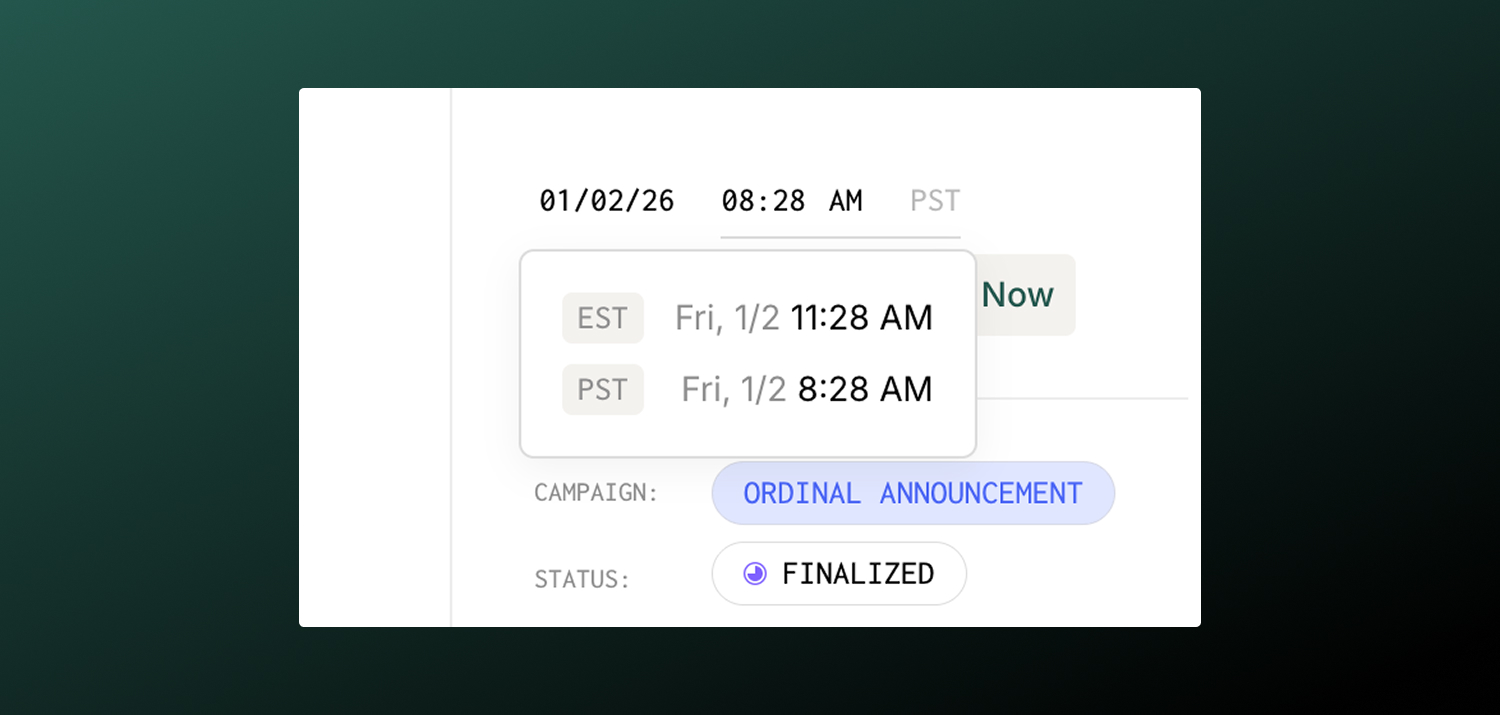
You can set a timezone for the workspace in Settings → General. Once set, this timezone will be used to generate recommended post time suggestions. When hovering over times in any part of the Ordinal app, you’ll also see a conversion from your computer’s local timezone to the workspace timezone.
Start of Week
Choose whether your calendar week starts on Sunday or Monday. Set this in your user preferences under Settings → Preferences.