

Cross-Posting
Publish a single post to multiple platforms at once. Customize copy and media independently for each channel.
Cross-posting lets you create content once and distribute it across multiple social platforms from a single post. Unlike many scheduling tools, Ordinal gives you full flexibility - customize your copy and assets independently for each platform so you can optimize content for every audience.
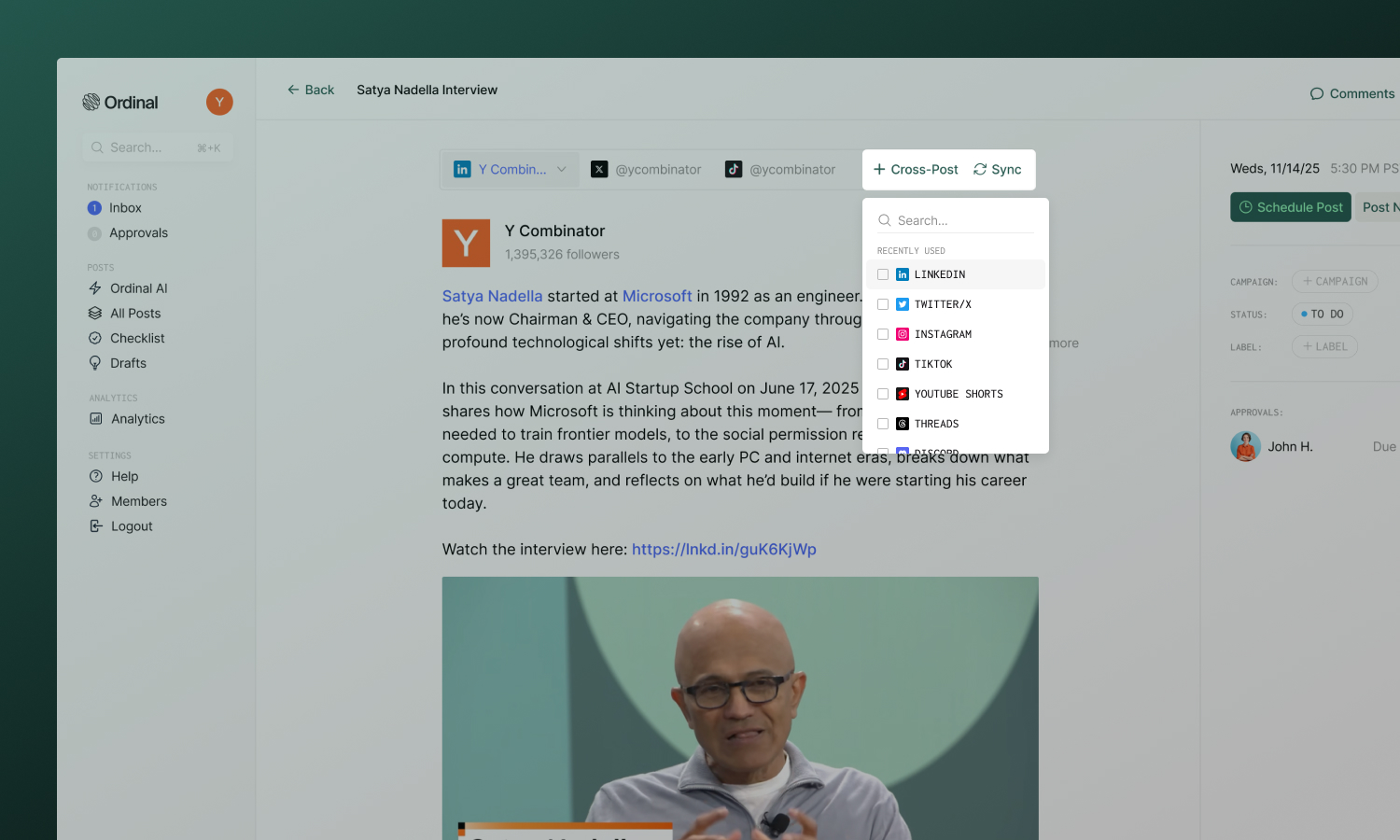
Creating a cross-post
Write your content
Start writing your post. We recommend adding the main post draft and assets first before adding cross-post channels. This way, content from the main channel will sync across automatically once you add additional cross-post channels.
Add Cross-Post Channels
Create a new post and click the Cross-Post button to add platforms. Select as many as you need. The copy and content from the first channel in the post will sync automatically to the cross-post channels.
Customize per platform
Click each platform tab to tailor that version. Change the copy, adjust hashtags, swap out media - each platform is fully independent.
Select accounts
Choose which connected account to use for each platform.
Schedule
Set one time - all versions publish together.
Platform tabs
Each platform in your cross-post has its own tab at the top of the editor. Click a tab to:
- See the live preview for that platform
- Edit copy specific to that platform
- Add, remove, or reorder media for that platform
- View the character count and limits
Changes you make in one tab only affect that platform - unless content is synced (see Syncing content below).
Customizing per channel
Ordinal lets you customize both copy and assets independently for each platform:
| What you can customize | Examples |
|---|---|
| Copy | Different hooks, hashtag strategies, character lengths |
| Assets | Platform-optimized images, different aspect ratios, video vs. static |
| Mentions | Tag platform-specific accounts |
| Links | Include or exclude based on platform support |
When you edit a platform’s content, it diverges from the others. The sync indicator updates to show that platform has custom content.
Syncing content
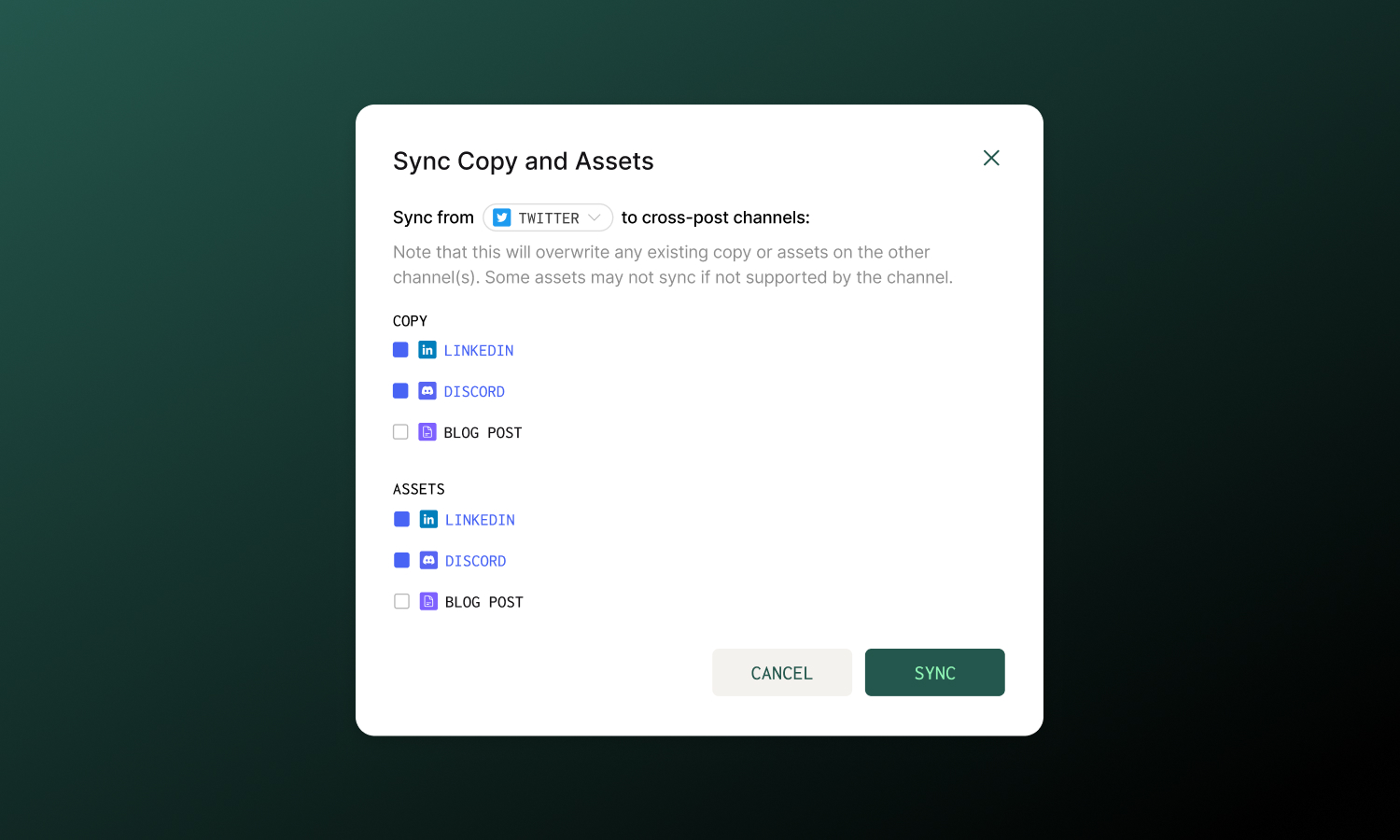
By default, content syncs across all platforms when you initially add them as cross-post channels. However, if you make updates to one channel and want to make sure it’s reflected on the other cross-post channels, you’ll need to click the Sync button in the cross-post bar.
- Click the Sync button in the cross-post bar
- Choose your source channel (the one you want to copy from)
- Select which destination channels to update
- Choose what to sync:
- Copy - syncs text content
- Assets - syncs images and videos
You can sync copy to some channels and assets to others - they’re independent options.
Best practices
Match platform culture
LinkedIn audiences expect professional depth; Twitter rewards brevity and punch; Instagram focuses on visual impact. Customize accordingly rather than posting identical content everywhere.
Preview each version
Always check the preview for each platform before scheduling. Rendering differences, link previews, and cropping can surprise you.
Cross-Posting from profiles within the same channel
Ordinal doesn’t support cross-posting the same content to multiple profiles on the same channel (e.g. posting the same exact post to two different LinkedIn profiles). The easiest way to achieve this is to create multiple versions of the post by duplicating it, and changing the posting account.
In general, duplicate content coming from multiple accounts at the same time is not recommended since many platforms will internally flag the content as duplicate and surpress it algorithmically.