

Notifications
Choose which Ordinal events trigger notifications and whether they go to in-app, email, or Slack.
Notifications keep you informed about what matters - posts publishing, approvals pending, comments on your content, and more. Customize which notifications you receive and how they’re delivered.
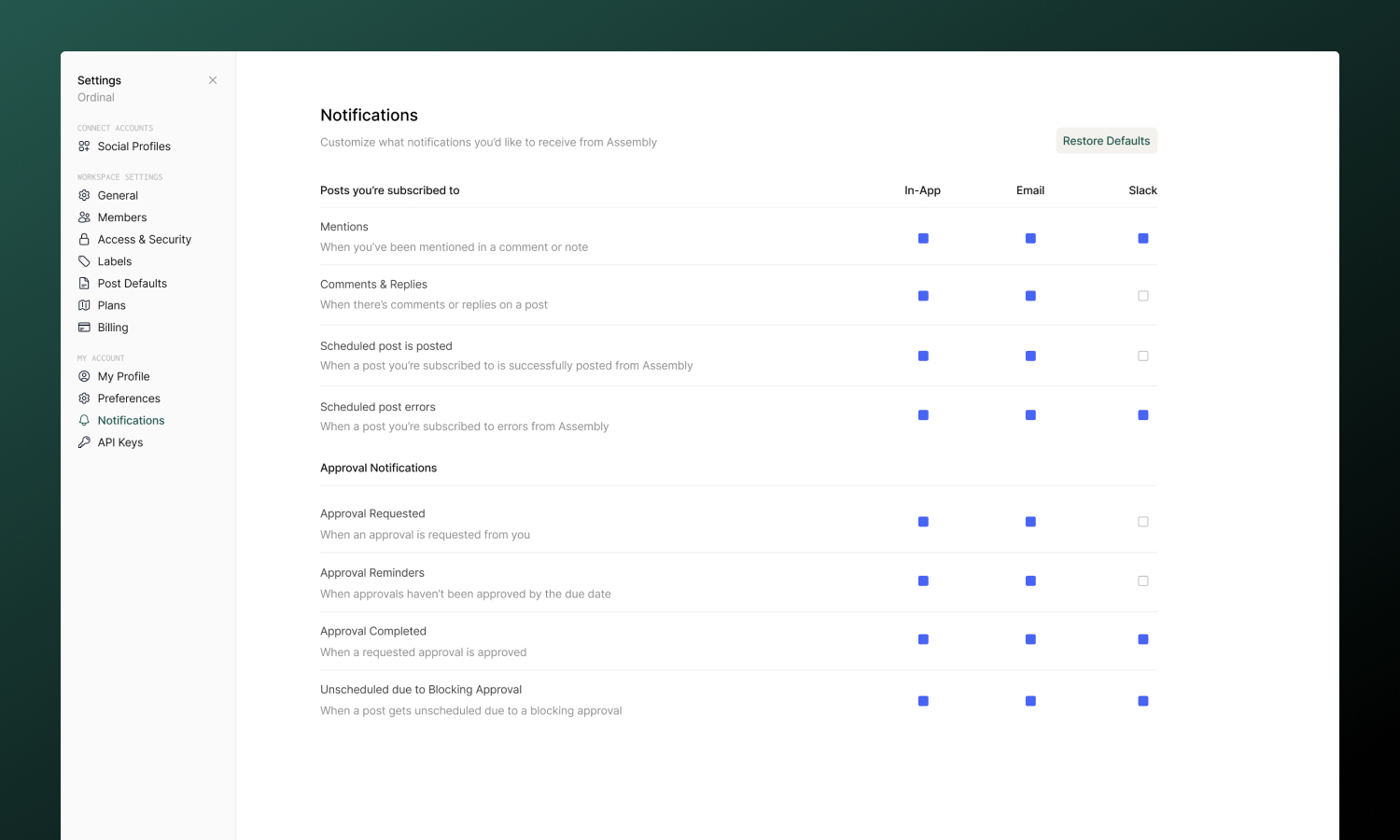
Notification types
Ordinal sends notifications for two categories of events:
Posts you’re subscribed to
| Notification | When it’s sent |
|---|---|
| Mentions | Someone @mentions you in a comment |
| Comments & Replies | New comments or replies on the post |
| Post published | A scheduled post goes live |
| Post errored | A post fails to publish (action needed) |
Approvals
| Notification | When it’s sent |
|---|---|
| Approval Requested | Someone requests your approval |
| Approval Reminders | A pending approval reaches its due date |
| Approval Completed | Your approval request is approved |
| Unscheduled due to Blocking Approval | A post gets unscheduled because it’s missing required approval |
Delivery channels
Each notification type can be delivered through:
| Channel | Description |
|---|---|
| In-app | Appears in your Inbox (bell icon in sidebar). Always available. |
| Sent to your registered email address. | |
| Slack | Sent as a direct message if you’ve connected Slack for notifications. |
Go to Settings → Notifications to toggle each channel on or off per notification type.
Slack notifications
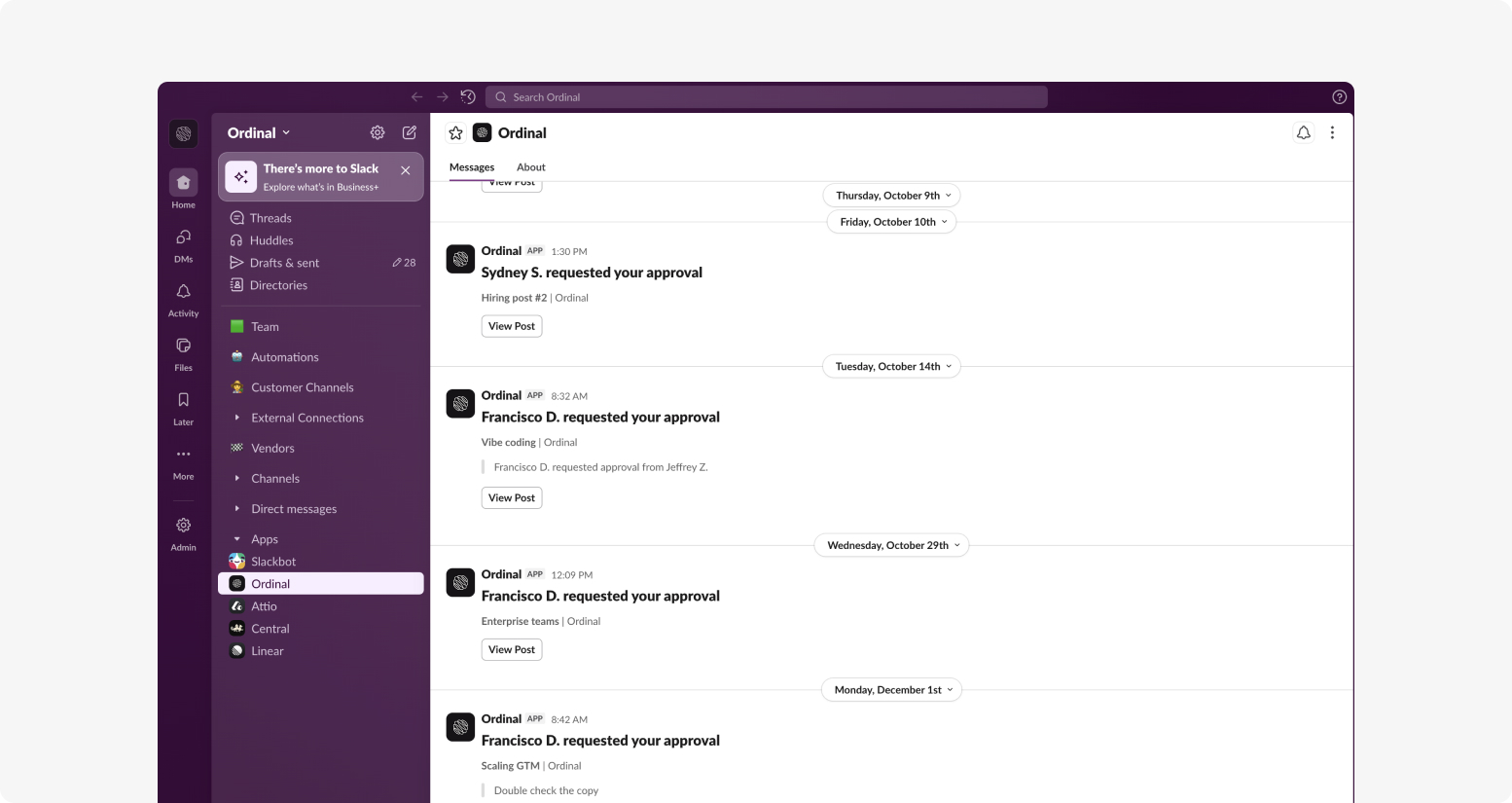
For fast response on approvals and mentions, connect Slack to receive notifications as direct messages.
To set up:
- Go to Integrations → Slack
- Click Slack Notifications
- Authorize Ordinal to send you messages
- Return to Settings → Notifications and enable Slack for the notification types you want
Once connected, Slack notifications appear as DMs from the Ordinal app. Click any notification to jump directly to the post or approval.
Post subscriptions
You receive notifications about posts you’re subscribed to. Subscriptions determine who gets notified about comments, status changes, and publishing events.
Automatic subscription
You’re automatically subscribed when you:
- Create a post
- Comment on a post
- Are @mentioned in a comment
- Are assigned as an approver
- Are added as a subscriber by someone else
Manual subscription
To follow a post you’re interested in:
- Open the post
- Find the Subscribers section above the post comments
- Click to add yourself
To stop receiving notifications, remove yourself from the subscribers list.
Adding others
You can add teammates as subscribers to keep them informed:
- Open the post
- Find the Subscribers section
- Click Add and select team members
They’ll receive notifications based on their own notification preferences.
Configuring notifications
Go to Settings → Notifications to customize your preferences:
- Toggle each notification type on or off
- Choose which channels receive each type (in-app, email, Slack)
- Changes take effect immediately