> ## Documentation Index
> Fetch the complete documentation index at: https://docs.tryordinal.com/llms.txt
> Use this file to discover all available pages before exploring further.
# Webflow
> Schedule blog posts and CMS items to a Webflow collection alongside your social posts.
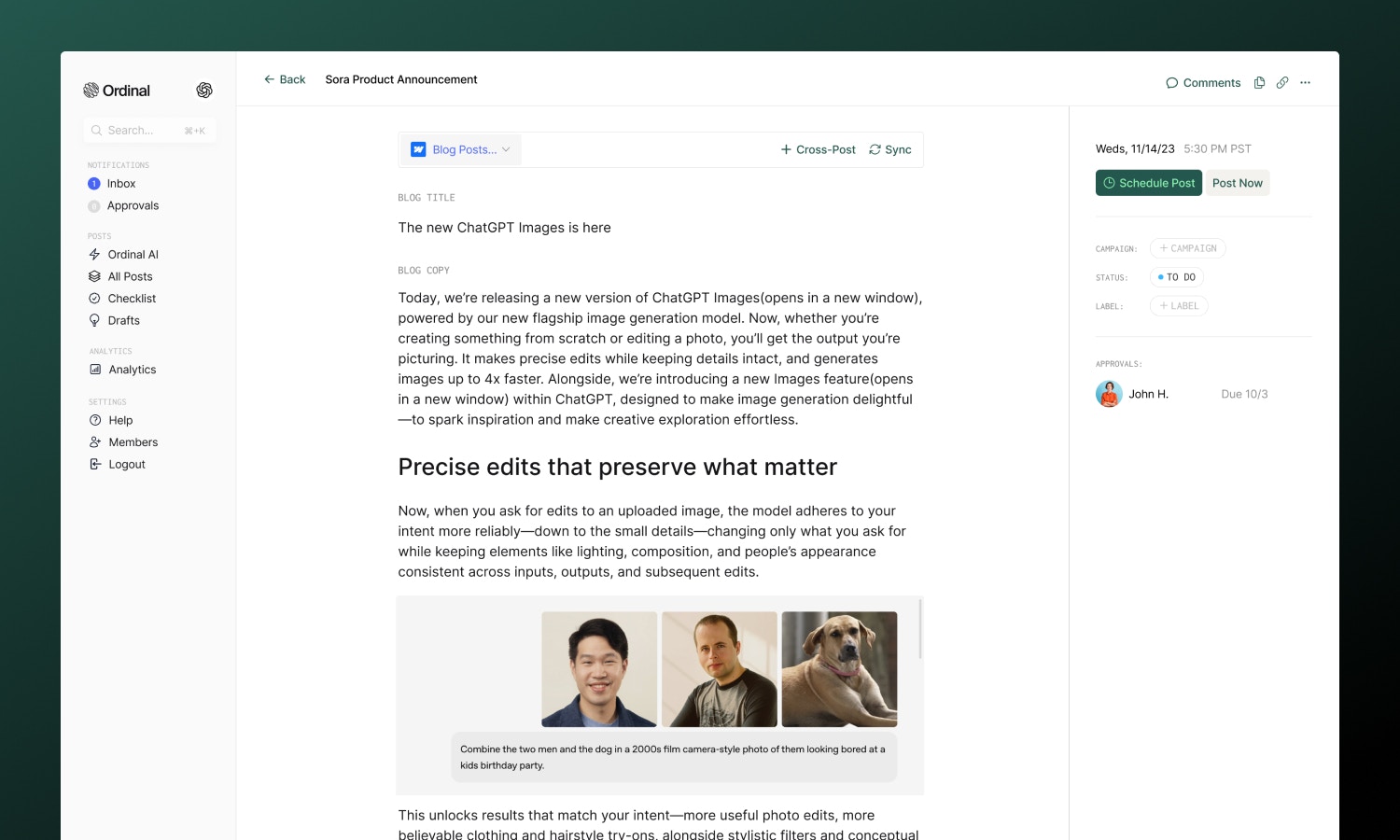
Webflow integration brings your blog into Ordinal and allows you to schedule updates directly to any Webflow CMS collection. Write content in the same place you manage social, schedule posts alongside your other channels, and coordinate blog launches with social promotion - all without logging into Webflow separately.
 ## Overview
This integration works with **Webflow CMS collections** - typically your blog or resources section. Unlike social channels, Webflow posts are full articles with rich formatting, custom CMS fields, and unique URLs.
Link your site and CMS collection
Rich text editor and blog formatting
Custom fields, slugs, and images
Preview on live site or in Designer
| Requirement | Details |
| ----------------- | ------------------------------------------------- |
| Webflow plan | CMS access required (not available on free plans) |
| Permissions | Editor or higher on the site |
| What it publishes | CMS collection items (blog posts, articles) |
This integration doesn't modify static pages, site design, or ecommerce products - only CMS collection items.
## Connecting Webflow
Go to [**Settings → Profiles → Scheduling → Webflow**](https://app.tryordinal.com/settings/profiles/scheduling/webflow), click **Connect Webflow CMS**, and sign in with your Webflow account. You'll then:
1. Choose the **site** you want to publish to
2. Select the **CMS collection** (usually "Blog Posts" or similar)
3. Map the **title** and **body** fields to your collection's corresponding fields
4. Set the **base URL** where your blog posts appear (e.g., `https://yoursite.com/blog`)
## Writing Content
The Webflow editor in Ordinal is a full rich text editor - more like a document than a social post. You'll find two tabs:
### Blog Copy
This is where you write your article. The editor supports:
* **Headings**: H1 through H6 for document structure
* **Text formatting**: Bold, italic, underline, and code
* **Lists**: Bullet points and numbered lists
* **Block quotes**: For callouts and citations
* **Links**: Inline hyperlinks with full URL support
* **Images**: Drag and drop or paste images directly into your content
* **Code blocks**: For technical content
Type `/` to open the slash command menu for quick formatting options. Blog content can be up to **40,000 characters** - plenty for long-form articles.
Full guide to formatting, slash commands, and keyboard shortcuts.
### How it publishes
Ordinal converts your content to HTML that Webflow understands. The result looks native to your Webflow site's design.
## CMS Fields
Switch to the **CMS Fields** tab to populate your collection's custom fields. Ordinal automatically detects your Webflow collection schema and displays inputs for each field.
### Supported field types
| Field Type | How it works in Ordinal |
| ----------------- | ----------------------------------------------- |
| Plain Text | Single or multi-line text input |
| Rich Text | Markdown editor that converts to HTML |
| Image | Upload a single image |
| Multi-Image | Upload up to 25 images (great for galleries) |
| File | Upload any file type |
| Link / Video Link | URL input with validation |
| Number | Numeric input with min/max/precision validation |
| Option | Dropdown selector from your Webflow options |
| Reference | Select from related collection items |
| Multi-Reference | Select multiple related items |
| Switch | True/false toggle |
| Color | Hex color picker |
| Date/Time | Date picker with optional time |
| Email | Email input with validation |
| Phone | Phone number input |
### Slug field
The slug determines your post's URL (e.g., `/blog/your-post-slug`). Ordinal auto-generates slugs from your title, but you can customize them. Click **Sync with Blog Title** to regenerate from the current title.
Each slug must be unique within your collection. Duplicate slugs cause publish failures.
### Refreshing fields
If you update your Webflow collection schema (adding new fields, changing requirements), click the refresh link in the CMS Fields tab to pull the latest structure. This ensures Ordinal stays in sync with your Webflow setup.
If you're not seeing the fields you expect, you may need to refresh the fields by clicking the refresh link in the CMS Fields tab.
This happens automatically when you create a new post to ensure you're always using the latest fields.
>
## Previewing Your Post
Before publishing, you can preview exactly how your post will appear on your site. Click **Preview on Webflow** and choose a preview mode:
| Mode | What happens |
| ------------- | ------------------------------------------------------------------------ |
| **Live Site** | Temporarily publishes to your live site for 3 minutes, then auto-deletes |
| **Designer** | Creates a draft in Webflow's Designer for 3 minutes, then auto-deletes |
Use **Live Site** preview to see the final result with your site's styling. It will be live for everyone to see though so be careful with what you preview.
Use **Designer** preview if you want to view the content in Webflow's Designer without it being live for the public.
Preview posts are automatically removed after 3 minutes. You can also manually unpublish early by clicking **Unpublish Preview**.
## Publishing
When you schedule a Webflow post, it'll be published at the scheduled time and will appear on your site at the URL specified through the `slug` field.
## FAQ
Your Webflow site needs CMS access. Free sites without CMS aren't connectable.
Verify your collection has the required fields and that API access is enabled in Webflow site settings.
Ensure field types match - text to text, rich text to rich text. Mismatched types can cause silent failures.
Check that required Webflow fields are populated, the slug is unique, and you haven't hit CMS item limits.
Each post needs a unique slug. If you're republishing or have a naming conflict, change the slug in the CMS Fields tab.
## Learn More
Publish to multiple platforms at once.
Set up review workflows for blog content.
## Overview
This integration works with **Webflow CMS collections** - typically your blog or resources section. Unlike social channels, Webflow posts are full articles with rich formatting, custom CMS fields, and unique URLs.
Link your site and CMS collection
Rich text editor and blog formatting
Custom fields, slugs, and images
Preview on live site or in Designer
| Requirement | Details |
| ----------------- | ------------------------------------------------- |
| Webflow plan | CMS access required (not available on free plans) |
| Permissions | Editor or higher on the site |
| What it publishes | CMS collection items (blog posts, articles) |
This integration doesn't modify static pages, site design, or ecommerce products - only CMS collection items.
## Connecting Webflow
Go to [**Settings → Profiles → Scheduling → Webflow**](https://app.tryordinal.com/settings/profiles/scheduling/webflow), click **Connect Webflow CMS**, and sign in with your Webflow account. You'll then:
1. Choose the **site** you want to publish to
2. Select the **CMS collection** (usually "Blog Posts" or similar)
3. Map the **title** and **body** fields to your collection's corresponding fields
4. Set the **base URL** where your blog posts appear (e.g., `https://yoursite.com/blog`)
## Writing Content
The Webflow editor in Ordinal is a full rich text editor - more like a document than a social post. You'll find two tabs:
### Blog Copy
This is where you write your article. The editor supports:
* **Headings**: H1 through H6 for document structure
* **Text formatting**: Bold, italic, underline, and code
* **Lists**: Bullet points and numbered lists
* **Block quotes**: For callouts and citations
* **Links**: Inline hyperlinks with full URL support
* **Images**: Drag and drop or paste images directly into your content
* **Code blocks**: For technical content
Type `/` to open the slash command menu for quick formatting options. Blog content can be up to **40,000 characters** - plenty for long-form articles.
Full guide to formatting, slash commands, and keyboard shortcuts.
### How it publishes
Ordinal converts your content to HTML that Webflow understands. The result looks native to your Webflow site's design.
## CMS Fields
Switch to the **CMS Fields** tab to populate your collection's custom fields. Ordinal automatically detects your Webflow collection schema and displays inputs for each field.
### Supported field types
| Field Type | How it works in Ordinal |
| ----------------- | ----------------------------------------------- |
| Plain Text | Single or multi-line text input |
| Rich Text | Markdown editor that converts to HTML |
| Image | Upload a single image |
| Multi-Image | Upload up to 25 images (great for galleries) |
| File | Upload any file type |
| Link / Video Link | URL input with validation |
| Number | Numeric input with min/max/precision validation |
| Option | Dropdown selector from your Webflow options |
| Reference | Select from related collection items |
| Multi-Reference | Select multiple related items |
| Switch | True/false toggle |
| Color | Hex color picker |
| Date/Time | Date picker with optional time |
| Email | Email input with validation |
| Phone | Phone number input |
### Slug field
The slug determines your post's URL (e.g., `/blog/your-post-slug`). Ordinal auto-generates slugs from your title, but you can customize them. Click **Sync with Blog Title** to regenerate from the current title.
Each slug must be unique within your collection. Duplicate slugs cause publish failures.
### Refreshing fields
If you update your Webflow collection schema (adding new fields, changing requirements), click the refresh link in the CMS Fields tab to pull the latest structure. This ensures Ordinal stays in sync with your Webflow setup.
If you're not seeing the fields you expect, you may need to refresh the fields by clicking the refresh link in the CMS Fields tab.
This happens automatically when you create a new post to ensure you're always using the latest fields.
>
## Previewing Your Post
Before publishing, you can preview exactly how your post will appear on your site. Click **Preview on Webflow** and choose a preview mode:
| Mode | What happens |
| ------------- | ------------------------------------------------------------------------ |
| **Live Site** | Temporarily publishes to your live site for 3 minutes, then auto-deletes |
| **Designer** | Creates a draft in Webflow's Designer for 3 minutes, then auto-deletes |
Use **Live Site** preview to see the final result with your site's styling. It will be live for everyone to see though so be careful with what you preview.
Use **Designer** preview if you want to view the content in Webflow's Designer without it being live for the public.
Preview posts are automatically removed after 3 minutes. You can also manually unpublish early by clicking **Unpublish Preview**.
## Publishing
When you schedule a Webflow post, it'll be published at the scheduled time and will appear on your site at the URL specified through the `slug` field.
## FAQ
Your Webflow site needs CMS access. Free sites without CMS aren't connectable.
Verify your collection has the required fields and that API access is enabled in Webflow site settings.
Ensure field types match - text to text, rich text to rich text. Mismatched types can cause silent failures.
Check that required Webflow fields are populated, the slug is unique, and you haven't hit CMS item limits.
Each post needs a unique slug. If you're republishing or have a naming conflict, change the slug in the CMS Fields tab.
## Learn More
Publish to multiple platforms at once.
Set up review workflows for blog content.