> ## Documentation Index
> Fetch the complete documentation index at: https://docs.tryordinal.com/llms.txt
> Use this file to discover all available pages before exploring further.
# Twitter / X
> Schedule individual tweets, build multi-tweet threads, run auto-engagements, and track tweet performance.
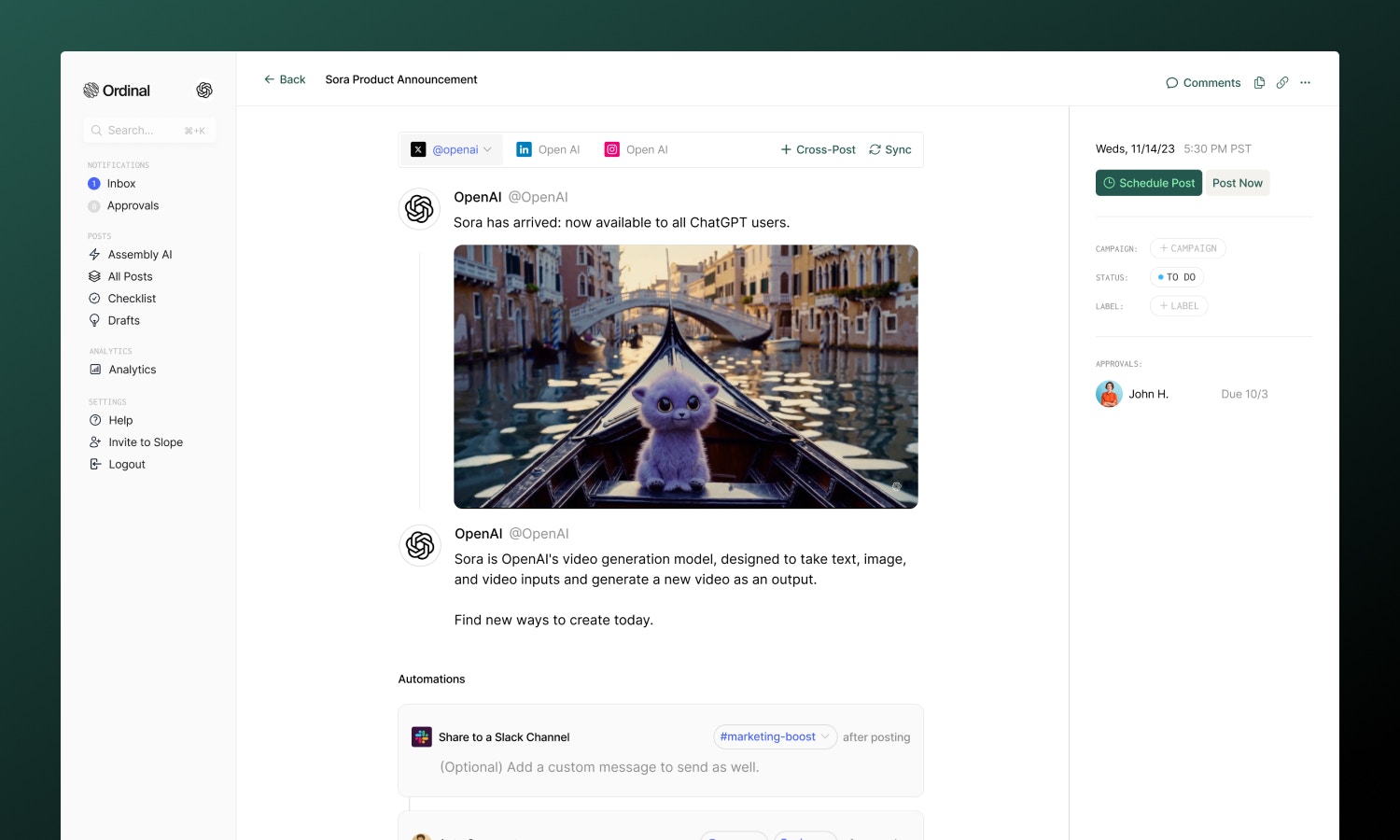
Twitter is one of the fastest platforms for real-time engagement. In Ordinal, you can schedule individual tweets, build multi-tweet threads, and coordinate auto-engagements - all timed to publish when your audience is most active.
 ## Overview
With Ordinal, you can connect Twitter accounts for both **scheduling** and **engagement**. Most users connect both to get the full experience.
Connect for scheduling or engagement
Formatting, mentions, media, and threads
Automatically like, retweet, or reply
Track tweet performance
## Connecting Twitter
There are two types of connections supported for Twitter: **scheduling** and **engagement-only**. Scheduling profiles can post tweets, threads, and use auto-engagements. Engagement-only profiles are used purely for auto-engagements (liking, retweeting, replying to posts).
**For scheduling**: Go to [**Settings → Profiles → Scheduling**](https://app.tryordinal.com/settings/profiles/scheduling/x), select "Connect X", and follow the instructions to sign in via X.
**For engagement-only**: Go to [**Settings → Profiles → Engagement**](https://app.tryordinal.com/settings/profiles/engagement/x), select "Connect X", and follow the instructions to sign in via X.
## Drafting a Tweet
### What you can post
| Feature | Supported | Notes |
| ------------------------------------- | --------- | ------------------------------------------- |
| Text tweets | ✅ | 280 characters |
| [Long-form tweets](#long-form-tweets) | ✅ | Up to 4,000 characters (Premium) |
| [Images](#images) | ✅ | Up to 4 per tweet |
| [GIFs](#gifs) | ✅ | Up to 1280px x 1280px |
| [Videos](#videos) | ✅ | Up to 2:20 (10 min for verified) |
| [Threads](#threads) | ✅ | Multi-tweet sequences with individual media |
| Polls | ❌ | Not currently supported |
### Drafting & Formatting
The Twitter editor supports Unicode formatting for **bold** and *italic* text:
* **Bold / Italic**: Use the toolbar buttons or press `Cmd/Ctrl + B` for bold and `Cmd/Ctrl + I` for italic
* **Hashtags**: Type `#` followed by your tag - it'll automatically link when published
* **Mentions**: Type `@` followed by a username to mention someone
* **Links**: Paste URLs directly into your tweet (and use a [link shortener](/analytics/shortlinks) for detailed click analytics)
Full guide to formatting, mentions, slash commands, and keyboard shortcuts.
### Long-form Tweets
## Overview
With Ordinal, you can connect Twitter accounts for both **scheduling** and **engagement**. Most users connect both to get the full experience.
Connect for scheduling or engagement
Formatting, mentions, media, and threads
Automatically like, retweet, or reply
Track tweet performance
## Connecting Twitter
There are two types of connections supported for Twitter: **scheduling** and **engagement-only**. Scheduling profiles can post tweets, threads, and use auto-engagements. Engagement-only profiles are used purely for auto-engagements (liking, retweeting, replying to posts).
**For scheduling**: Go to [**Settings → Profiles → Scheduling**](https://app.tryordinal.com/settings/profiles/scheduling/x), select "Connect X", and follow the instructions to sign in via X.
**For engagement-only**: Go to [**Settings → Profiles → Engagement**](https://app.tryordinal.com/settings/profiles/engagement/x), select "Connect X", and follow the instructions to sign in via X.
## Drafting a Tweet
### What you can post
| Feature | Supported | Notes |
| ------------------------------------- | --------- | ------------------------------------------- |
| Text tweets | ✅ | 280 characters |
| [Long-form tweets](#long-form-tweets) | ✅ | Up to 4,000 characters (Premium) |
| [Images](#images) | ✅ | Up to 4 per tweet |
| [GIFs](#gifs) | ✅ | Up to 1280px x 1280px |
| [Videos](#videos) | ✅ | Up to 2:20 (10 min for verified) |
| [Threads](#threads) | ✅ | Multi-tweet sequences with individual media |
| Polls | ❌ | Not currently supported |
### Drafting & Formatting
The Twitter editor supports Unicode formatting for **bold** and *italic* text:
* **Bold / Italic**: Use the toolbar buttons or press `Cmd/Ctrl + B` for bold and `Cmd/Ctrl + I` for italic
* **Hashtags**: Type `#` followed by your tag - it'll automatically link when published
* **Mentions**: Type `@` followed by a username to mention someone
* **Links**: Paste URLs directly into your tweet (and use a [link shortener](/analytics/shortlinks) for detailed click analytics)
Full guide to formatting, mentions, slash commands, and keyboard shortcuts.
### Long-form Tweets
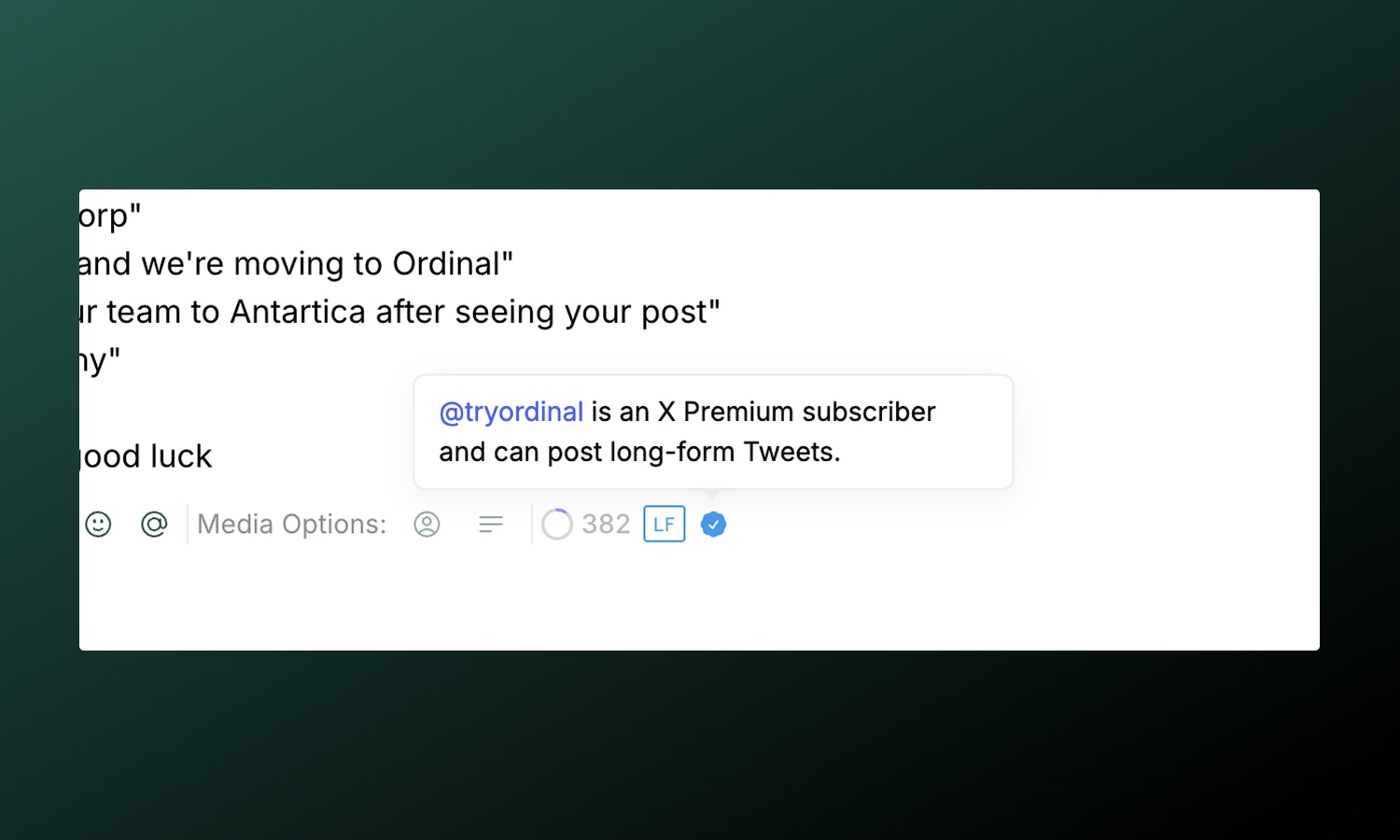 Twitter Premium subscribers can post tweets up to **4,000 characters** - far beyond the standard 280 limit. Ordinal automatically detects your account type and adjusts the character counter accordingly.
If your profile is verified you'll see a blue checkmark badge in the editor. If you're not seeing it and you should send us a support message and we'll get it updated.
Long-form tweets display with a "**Show more**" link in the feed. Note that Twitter does not show link preview images on long-form tweets.
### Post Preview
Twitter Premium subscribers can post tweets up to **4,000 characters** - far beyond the standard 280 limit. Ordinal automatically detects your account type and adjusts the character counter accordingly.
If your profile is verified you'll see a blue checkmark badge in the editor. If you're not seeing it and you should send us a support message and we'll get it updated.
Long-form tweets display with a "**Show more**" link in the feed. Note that Twitter does not show link preview images on long-form tweets.
### Post Preview
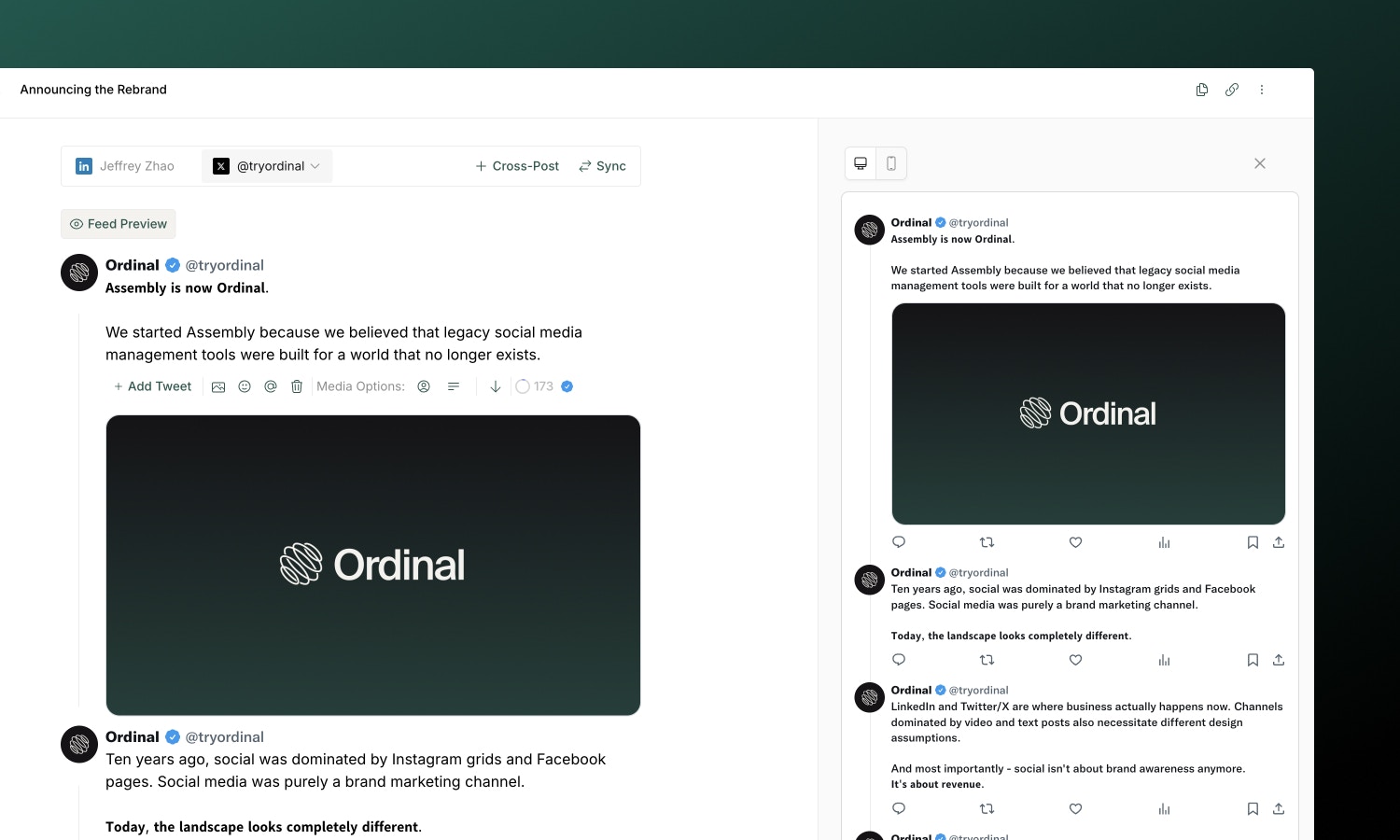 As you draft your tweet, the editor shows a live preview that matches how your content will appear on Twitter - including proper text truncation with "See more" for longer posts.
For a more realistic preview, click the **Feed Preview** button to see your tweet in a full Twitter feed context with desktop and mobile previews.
### Photo Options
**Alt text**: Add descriptions to your images for accessibility. Click the image options menu and enter alt text (up to 1,000 characters) that describes the visual content for screen readers.
**Photo tagging**: Tag users in your images to notify them and increase visibility:
1. Add images to your tweet
2. Click the **Tag Users** button (user icon)
3. Enter Twitter handles (without the @)
4. Add up to 10 users per tweet
Photo tagging only works for public accounts. If a tagged user has disabled photo-tagging, the tweet will post without their tag.
### Media Options
You can upload up to 4 attachments per tweet.
Multiple images display in a grid layout. Add alt text for accessibility via the image options.
| Spec | Limit |
| ------- | -------------- |
| Formats | JPG, PNG, WEBP |
| Size | 5MB per image |
Attach video content to any Tweet(s).
| Spec | Limit |
| ---------------- | ----------------------------------- |
| Formats | MP4, MOV |
| Size | 350mb |
| Minimum Duration | 0.5 seconds |
| Maximum Duration | 2:20 (standard) / 10 min (verified) |
| Ratio | Between 1:3 and 3:1 |
Add animated GIFs to your tweets:
| Spec | Limit |
| ------ | -------- |
| Format | GIF |
| Size | 15MB max |
Full specifications for all platforms including recommended dimensions.
## Tweet Threads
Threads are Twitter's way of telling longer stories across multiple connected tweets. Each tweet in a thread can have its own media.
### **Creating a thread:**
1. Write your first tweet
2. Click **Add Tweet** to add the next tweet
3. Continue adding tweets to your thread
4. Preview the entire thread before scheduling
5. All tweets publish in sequence automatically
### Splitting Tweets
You can quickly split a tweet into two using your keyboard:
* Press`Enter`**3 times** at the end of a tweet to add a new empty tweet after it
* Press `Enter`**5 times** in the middle of text to split a single tweet into two tweets at that point - content after the split moves to a new tweet
This makes it easy to break up long drafts into thread-sized chunks without copy-pasting.
### Reordering Tweets
Rearrange tweets in your thread using the arrow buttons:
* Click the **up arrow** to move a tweet earlier in the thread
* Click the **down arrow** to move a tweet later in the thread
The thread position updates instantly, and you can preview the final order before scheduling.
## Auto-Engagements
As you draft your tweet, the editor shows a live preview that matches how your content will appear on Twitter - including proper text truncation with "See more" for longer posts.
For a more realistic preview, click the **Feed Preview** button to see your tweet in a full Twitter feed context with desktop and mobile previews.
### Photo Options
**Alt text**: Add descriptions to your images for accessibility. Click the image options menu and enter alt text (up to 1,000 characters) that describes the visual content for screen readers.
**Photo tagging**: Tag users in your images to notify them and increase visibility:
1. Add images to your tweet
2. Click the **Tag Users** button (user icon)
3. Enter Twitter handles (without the @)
4. Add up to 10 users per tweet
Photo tagging only works for public accounts. If a tagged user has disabled photo-tagging, the tweet will post without their tag.
### Media Options
You can upload up to 4 attachments per tweet.
Multiple images display in a grid layout. Add alt text for accessibility via the image options.
| Spec | Limit |
| ------- | -------------- |
| Formats | JPG, PNG, WEBP |
| Size | 5MB per image |
Attach video content to any Tweet(s).
| Spec | Limit |
| ---------------- | ----------------------------------- |
| Formats | MP4, MOV |
| Size | 350mb |
| Minimum Duration | 0.5 seconds |
| Maximum Duration | 2:20 (standard) / 10 min (verified) |
| Ratio | Between 1:3 and 3:1 |
Add animated GIFs to your tweets:
| Spec | Limit |
| ------ | -------- |
| Format | GIF |
| Size | 15MB max |
Full specifications for all platforms including recommended dimensions.
## Tweet Threads
Threads are Twitter's way of telling longer stories across multiple connected tweets. Each tweet in a thread can have its own media.
### **Creating a thread:**
1. Write your first tweet
2. Click **Add Tweet** to add the next tweet
3. Continue adding tweets to your thread
4. Preview the entire thread before scheduling
5. All tweets publish in sequence automatically
### Splitting Tweets
You can quickly split a tweet into two using your keyboard:
* Press`Enter`**3 times** at the end of a tweet to add a new empty tweet after it
* Press `Enter`**5 times** in the middle of text to split a single tweet into two tweets at that point - content after the split moves to a new tweet
This makes it easy to break up long drafts into thread-sized chunks without copy-pasting.
### Reordering Tweets
Rearrange tweets in your thread using the arrow buttons:
* Click the **up arrow** to move a tweet earlier in the thread
* Click the **down arrow** to move a tweet later in the thread
The thread position updates instantly, and you can preview the final order before scheduling.
## Auto-Engagements
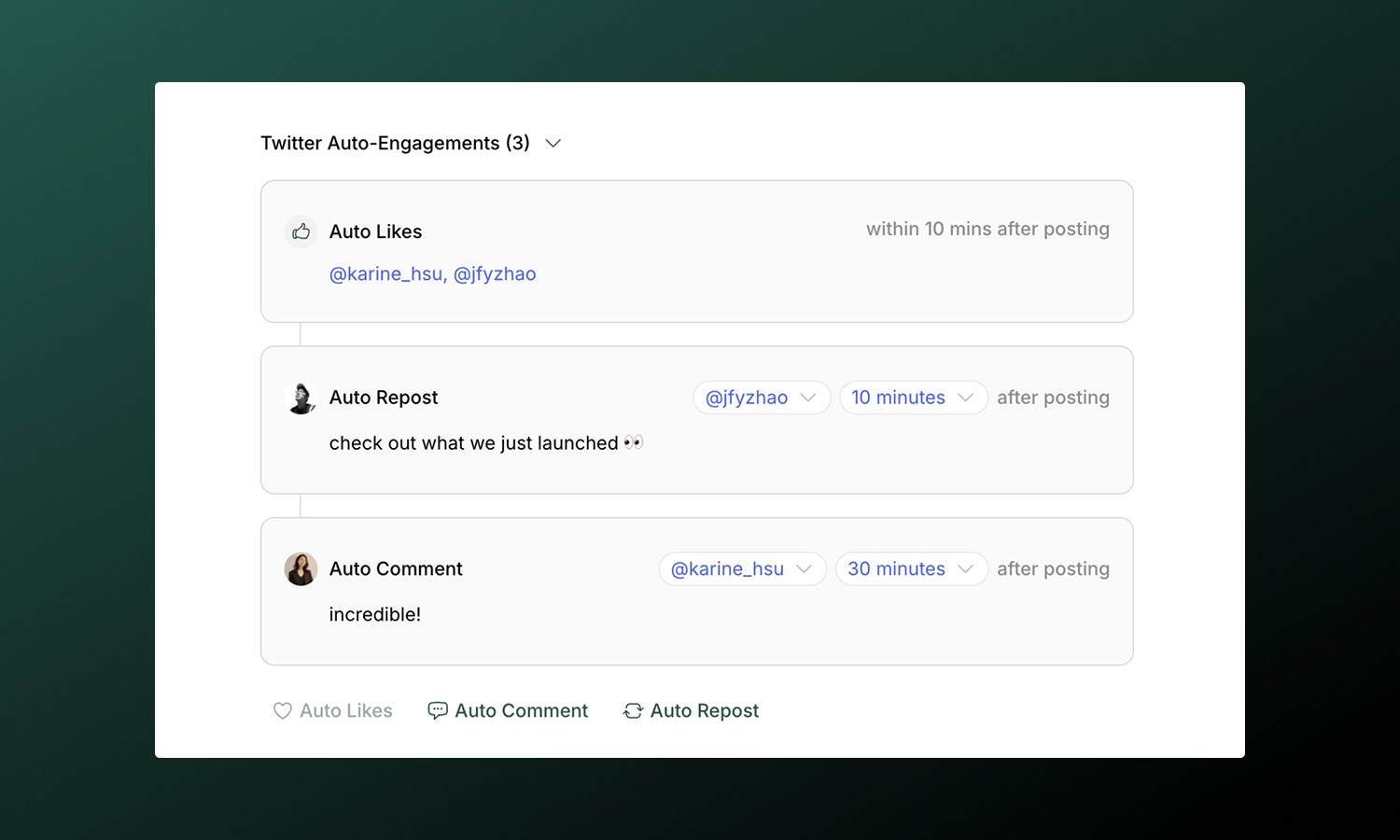 Auto-engagements are available for **Pro** plan workspaces and above. Starter workspaces can only add auto-engagements from the same account as the tweet author.
Automatically interact with your own tweets after they publish to boost initial visibility. Twitter supports these auto-engagement types:
| Type | What it does |
| ---------------- | ---------------------------------------------------------------------------- |
| **Auto-Like** | Select connected profile(s) like your tweet |
| **Auto-Repost** | Retweet from any connected Twitter account |
| **Auto-Comment** | Add a first reply (great for additional context, links, or a call-to-action) |
Configure timing from **immediately** after posting up to **24 hours** later. Staggering engagements across different delays helps them appear more natural.
Full guide to setting up timing, best practices, and troubleshooting.
## Analytics
View tweet performance in [**Analytics → X**](https://app.tryordinal.com/analytics/x). You'll see impressions, engagement breakdown (likes, retweets, replies, quote tweets), click-through rate, and follower growth.
Analytics sync automatically each day. You can also manually refresh stats using the **Refresh Stats** button (once per hour) to see the latest performance data.
Learn more about tracking performance across all your connected profiles.
## Learn more
Publish to multiple platforms at once.
Set the perfect time for your content.
Auto-engagements are available for **Pro** plan workspaces and above. Starter workspaces can only add auto-engagements from the same account as the tweet author.
Automatically interact with your own tweets after they publish to boost initial visibility. Twitter supports these auto-engagement types:
| Type | What it does |
| ---------------- | ---------------------------------------------------------------------------- |
| **Auto-Like** | Select connected profile(s) like your tweet |
| **Auto-Repost** | Retweet from any connected Twitter account |
| **Auto-Comment** | Add a first reply (great for additional context, links, or a call-to-action) |
Configure timing from **immediately** after posting up to **24 hours** later. Staggering engagements across different delays helps them appear more natural.
Full guide to setting up timing, best practices, and troubleshooting.
## Analytics
View tweet performance in [**Analytics → X**](https://app.tryordinal.com/analytics/x). You'll see impressions, engagement breakdown (likes, retweets, replies, quote tweets), click-through rate, and follower growth.
Analytics sync automatically each day. You can also manually refresh stats using the **Refresh Stats** button (once per hour) to see the latest performance data.
Learn more about tracking performance across all your connected profiles.
## Learn more
Publish to multiple platforms at once.
Set the perfect time for your content.