> ## Documentation Index
> Fetch the complete documentation index at: https://docs.tryordinal.com/llms.txt
> Use this file to discover all available pages before exploring further.
# Threads
> Schedule Threads posts with text, images, video, or as multi-part threads. Connects through Instagram (Business or Creator account, public profile).
Threads is where text-first conversations happen. If you're already on Instagram, you likely have a Threads account - and in Ordinal, you can schedule text posts, image carousels, videos, and multi-part threads to keep the conversation going.
 ## Overview
Threads connects through Instagram and requires a **Business or Creator account** (not personal). Your Threads profile must also be public - private profiles can't connect via the API.
Connect via your Instagram account
Formatting, mentions, and media
Longer stories across connected posts
Track reach, engagement, and growth
## Connecting Threads
Go to [**Settings → Profiles → Scheduling**](https://app.tryordinal.com/settings/profiles/scheduling/threads), click **Connect Threads**, and follow the Threads authentication flow. You'll sign in with your Instagram credentials.
| Requirement | Details |
| ------------------ | --------------------------------------- |
| Account type | Instagram Business or Creator |
| Profile visibility | Public (private profiles can't connect) |
| Authentication | Via Threads |
## Drafting a Threads Post
### What you can post
| Feature | Supported | Notes |
| ----------------------------------------- | --------- | --------------------------- |
| Text posts | ✅ | Up to 500 characters |
| [Images](#images) | ✅ | Up to 20 per carousel |
| [Videos](#videos) | ✅ | Up to 5 minutes |
| [Multi-part threads](#multi-part-threads) | ✅ | Each segment gets own media |
| Polls | ❌ | Not currently supported |
### Drafting & Formatting
The Threads editor supports rich formatting through Unicode characters, which render as **bold** and *italic* on Threads:
* **Bold / Italic**: Use the toolbar buttons or press `Cmd/Ctrl + B` for bold and `Cmd/Ctrl + I` for italic
* **Hashtags**: Type `#` followed by your tag - they'll automatically link to Threads search
* **Mentions**: Type `@` followed by a username - they'll link to that profile on Threads
* **Links**: Paste URLs directly into your post (they count toward the 500 character limit)
Each post or thread segment is limited to **500 characters**. The character counter updates in real-time as you type.
Full guide to formatting, mentions, slash commands, and keyboard shortcuts.
### Post Preview
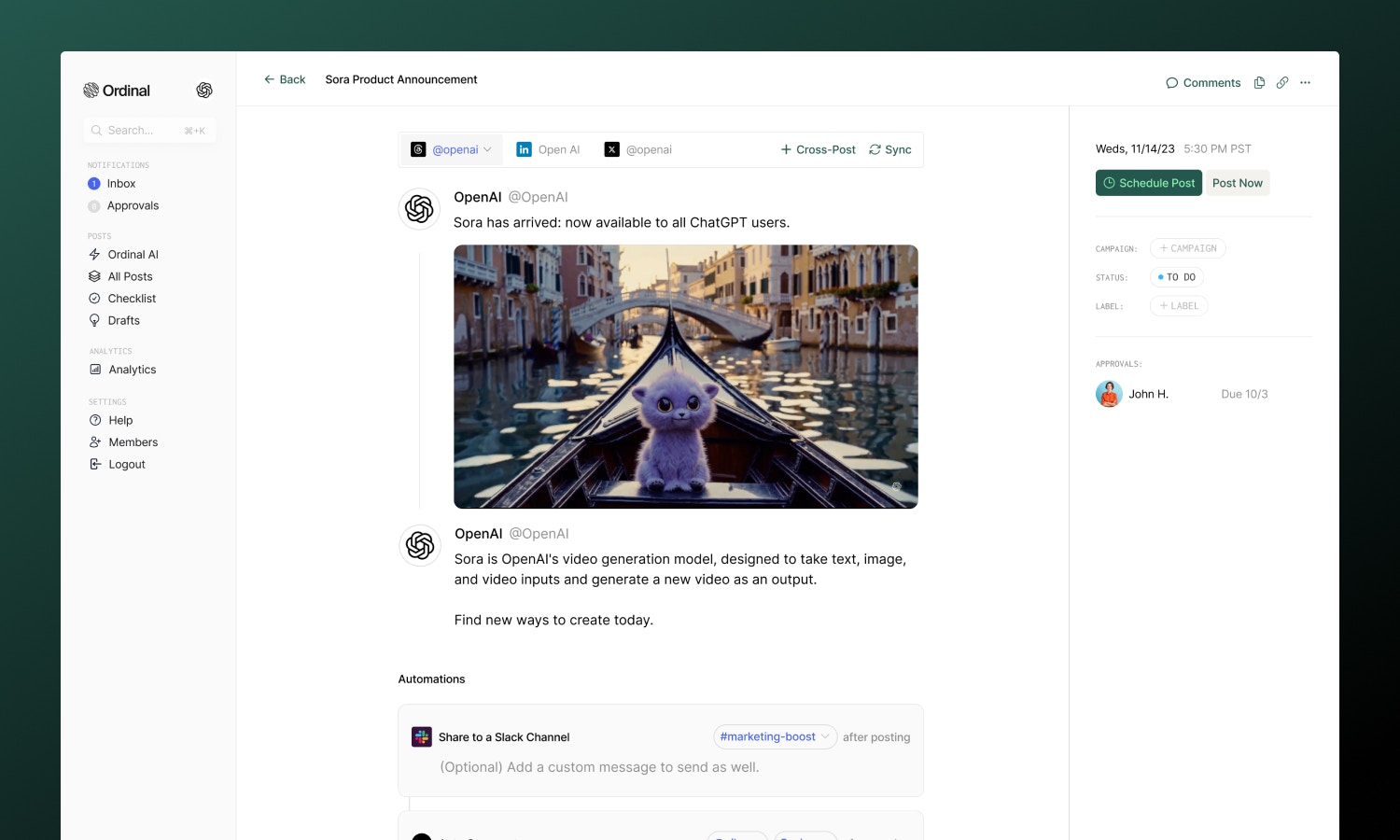
As you draft, the editor shows a live preview that matches how your content will appear on Threads - including your profile picture and username.
### Link Previews
When you add a URL to a text-only post (no images or videos), Ordinal displays a link preview card showing the destination's title and thumbnail. Link previews only appear when your post has no media attached - adding images or videos takes priority.
## Post Types
Upload images to create visual posts or carousels:
| Spec | Limit |
| ------------ | ----------------------------------- |
| Formats | JPG, PNG |
| Size | 8MB per image |
| Aspect ratio | Max 10:1 (images too wide rejected) |
| Per post | Up to 20 images |
Multiple images automatically create a swipeable carousel. Ordinal compresses oversized images automatically.
Upload video content directly to Threads:
| Spec | Limit |
| ------------ | --------------- |
| Formats | MP4, MOV |
| Duration | Up to 5 minutes |
| Aspect ratio | 0.01:1 to 10:1 |
Vertical video (9:16) is recommended for best display on mobile. Ordinal automatically compresses videos over 125MB or wider than 1920px.
## Multi-part Threads
Multi-part threads let you tell longer stories across multiple connected posts. Each segment can have its own text and media.
**Creating a multi-part thread:**
1. Write your first post
2. Click **Add Thread** to add the next segment
3. Each segment gets its own 500-character limit and media
4. Continue adding as many segments as needed
5. All segments publish together in sequence
### Reordering Segments
Use the **up/down arrow buttons** next to each segment to rearrange the order. Changes save automatically.
The first segment is what people see in their feed - make it compelling to encourage them to read on.
## Analytics
Analytics are not currently available for Threads, but are coming soon. Send us an email at [support@tryordinal.com](mailto:support@tryordinal.com) if you're interested in early access.
Learn more about tracking performance across all your connected profiles.
## Learn more
A natural cross-posting option.
Great cross-posting partner.
## Overview
Threads connects through Instagram and requires a **Business or Creator account** (not personal). Your Threads profile must also be public - private profiles can't connect via the API.
Connect via your Instagram account
Formatting, mentions, and media
Longer stories across connected posts
Track reach, engagement, and growth
## Connecting Threads
Go to [**Settings → Profiles → Scheduling**](https://app.tryordinal.com/settings/profiles/scheduling/threads), click **Connect Threads**, and follow the Threads authentication flow. You'll sign in with your Instagram credentials.
| Requirement | Details |
| ------------------ | --------------------------------------- |
| Account type | Instagram Business or Creator |
| Profile visibility | Public (private profiles can't connect) |
| Authentication | Via Threads |
## Drafting a Threads Post
### What you can post
| Feature | Supported | Notes |
| ----------------------------------------- | --------- | --------------------------- |
| Text posts | ✅ | Up to 500 characters |
| [Images](#images) | ✅ | Up to 20 per carousel |
| [Videos](#videos) | ✅ | Up to 5 minutes |
| [Multi-part threads](#multi-part-threads) | ✅ | Each segment gets own media |
| Polls | ❌ | Not currently supported |
### Drafting & Formatting
The Threads editor supports rich formatting through Unicode characters, which render as **bold** and *italic* on Threads:
* **Bold / Italic**: Use the toolbar buttons or press `Cmd/Ctrl + B` for bold and `Cmd/Ctrl + I` for italic
* **Hashtags**: Type `#` followed by your tag - they'll automatically link to Threads search
* **Mentions**: Type `@` followed by a username - they'll link to that profile on Threads
* **Links**: Paste URLs directly into your post (they count toward the 500 character limit)
Each post or thread segment is limited to **500 characters**. The character counter updates in real-time as you type.
Full guide to formatting, mentions, slash commands, and keyboard shortcuts.
### Post Preview
As you draft, the editor shows a live preview that matches how your content will appear on Threads - including your profile picture and username.
### Link Previews
When you add a URL to a text-only post (no images or videos), Ordinal displays a link preview card showing the destination's title and thumbnail. Link previews only appear when your post has no media attached - adding images or videos takes priority.
## Post Types
Upload images to create visual posts or carousels:
| Spec | Limit |
| ------------ | ----------------------------------- |
| Formats | JPG, PNG |
| Size | 8MB per image |
| Aspect ratio | Max 10:1 (images too wide rejected) |
| Per post | Up to 20 images |
Multiple images automatically create a swipeable carousel. Ordinal compresses oversized images automatically.
Upload video content directly to Threads:
| Spec | Limit |
| ------------ | --------------- |
| Formats | MP4, MOV |
| Duration | Up to 5 minutes |
| Aspect ratio | 0.01:1 to 10:1 |
Vertical video (9:16) is recommended for best display on mobile. Ordinal automatically compresses videos over 125MB or wider than 1920px.
## Multi-part Threads
Multi-part threads let you tell longer stories across multiple connected posts. Each segment can have its own text and media.
**Creating a multi-part thread:**
1. Write your first post
2. Click **Add Thread** to add the next segment
3. Each segment gets its own 500-character limit and media
4. Continue adding as many segments as needed
5. All segments publish together in sequence
### Reordering Segments
Use the **up/down arrow buttons** next to each segment to rearrange the order. Changes save automatically.
The first segment is what people see in their feed - make it compelling to encourage them to read on.
## Analytics
Analytics are not currently available for Threads, but are coming soon. Send us an email at [support@tryordinal.com](mailto:support@tryordinal.com) if you're interested in early access.
Learn more about tracking performance across all your connected profiles.
## Learn more
A natural cross-posting option.
Great cross-posting partner.