> ## Documentation Index
> Fetch the complete documentation index at: https://docs.tryordinal.com/llms.txt
> Use this file to discover all available pages before exploring further.
# LinkedIn
> Schedule posts to LinkedIn personal profiles and company pages. Set up auto-engagements and track post analytics.
LinkedIn is one of the most-used platforms in Ordinal. You can connect personal profiles (your own profile, execs, employees, etc.), or company pages to publish as your organization.
 ## Overview
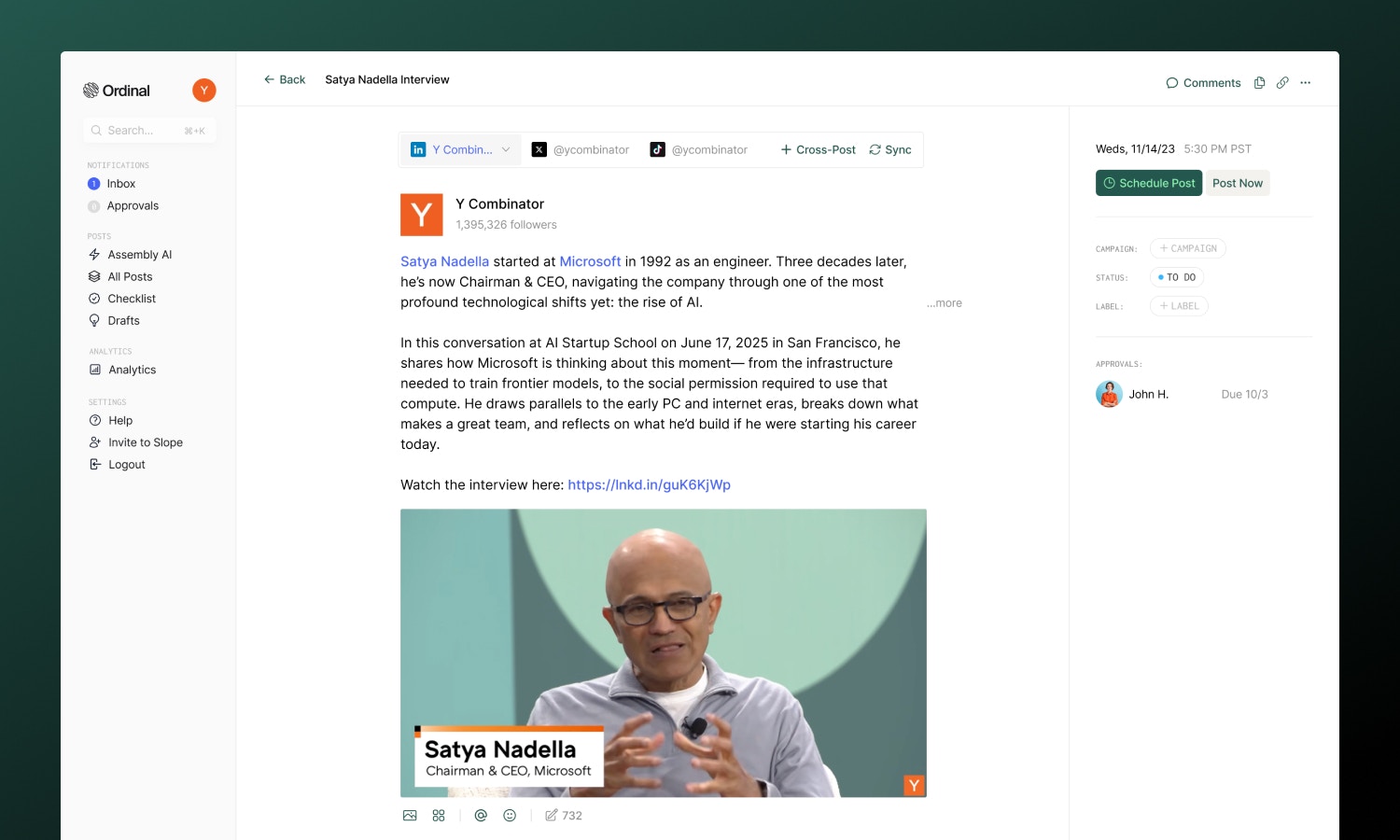
With Ordinal, you can connect and schedule to both LinkedIn **Personal Profiles** and **Company Pages**. The connection process for both is the same.
Connect personal profiles and company pages
Formatting, tagging, attachments, and more
Automatically like, comment, or repost
Track post performance
## Connecting LinkedIn
There are two types of connections supported for LinkedIn: **scheduling** and **engagement-only**. Scheduling profiles can schedule posts, use auto-engagements, and view analytics. Engagement-only profiles can only be used for auto-engagements. You can customize which permissions to grant for your profile (like, comment, and/or reposts)
**For scheduling**: Go to [**Settings → Profiles → Scheduling**](https://app.tryordinal.com/settings/profiles/scheduling/linkedin), click on "Connect LinkedIn", and sign in via LinkedIn.
**For engagement-only**: Go to [**Settings → Profiles → Engagement**](https://app.tryordinal.com/settings/profiles/engagement/linkedin), click on "Connect LinkedIn", and sign in via LinkedIn.
If you're a company admin, you'll see your company pages listed after authorization and you can choose which page to connect.
## Drafting a LinkedIn Post
### What you can post
| Feature | Supported | Notes |
| --------------------------------- | --------- | ----------------------------------------------------- |
| Text posts | ✅ | Up to 3,000 characters |
| [Images / GIFs](#images-%26-gifs) | ✅ | Up to 20 images and GIFs per post |
| [Video](#videos) | ✅ | Up to 10 minutes |
| [PDF documents](#pdfs) | ✅ | Creates a swipeable carousel |
| [External links](#links) | ✅ | Ability to customize link preview image and text |
| [Polls](#polls) | ✅ | All poll options supported |
| [Reposts](#reposts) | ✅ | Repost any other LinkedIn post with just the Post URL |
### Drafting & Formatting
The LinkedIn editor supports rich formatting:
* **Bold / Italic**: Highlight the text you want to format and use the toolbar buttons or press `Cmd/Ctrl + B` for bold and `Cmd/Ctrl + I` for italic
* **Hashtags**: Type `#` followed by your tag - they'll automatically link when published
* **Links**: Paste URLs directly into your post (and use a [link shortener](/analytics/shortlinks) for detailed click analytics)
LinkedIn posts can be up to **3,000 characters**. The character counter in the editor updates in real-time as you type.
Full guide to formatting, mentions, slash commands, and keyboard shortcuts.
### Post Preview
## Overview
With Ordinal, you can connect and schedule to both LinkedIn **Personal Profiles** and **Company Pages**. The connection process for both is the same.
Connect personal profiles and company pages
Formatting, tagging, attachments, and more
Automatically like, comment, or repost
Track post performance
## Connecting LinkedIn
There are two types of connections supported for LinkedIn: **scheduling** and **engagement-only**. Scheduling profiles can schedule posts, use auto-engagements, and view analytics. Engagement-only profiles can only be used for auto-engagements. You can customize which permissions to grant for your profile (like, comment, and/or reposts)
**For scheduling**: Go to [**Settings → Profiles → Scheduling**](https://app.tryordinal.com/settings/profiles/scheduling/linkedin), click on "Connect LinkedIn", and sign in via LinkedIn.
**For engagement-only**: Go to [**Settings → Profiles → Engagement**](https://app.tryordinal.com/settings/profiles/engagement/linkedin), click on "Connect LinkedIn", and sign in via LinkedIn.
If you're a company admin, you'll see your company pages listed after authorization and you can choose which page to connect.
## Drafting a LinkedIn Post
### What you can post
| Feature | Supported | Notes |
| --------------------------------- | --------- | ----------------------------------------------------- |
| Text posts | ✅ | Up to 3,000 characters |
| [Images / GIFs](#images-%26-gifs) | ✅ | Up to 20 images and GIFs per post |
| [Video](#videos) | ✅ | Up to 10 minutes |
| [PDF documents](#pdfs) | ✅ | Creates a swipeable carousel |
| [External links](#links) | ✅ | Ability to customize link preview image and text |
| [Polls](#polls) | ✅ | All poll options supported |
| [Reposts](#reposts) | ✅ | Repost any other LinkedIn post with just the Post URL |
### Drafting & Formatting
The LinkedIn editor supports rich formatting:
* **Bold / Italic**: Highlight the text you want to format and use the toolbar buttons or press `Cmd/Ctrl + B` for bold and `Cmd/Ctrl + I` for italic
* **Hashtags**: Type `#` followed by your tag - they'll automatically link when published
* **Links**: Paste URLs directly into your post (and use a [link shortener](/analytics/shortlinks) for detailed click analytics)
LinkedIn posts can be up to **3,000 characters**. The character counter in the editor updates in real-time as you type.
Full guide to formatting, mentions, slash commands, and keyboard shortcuts.
### Post Preview
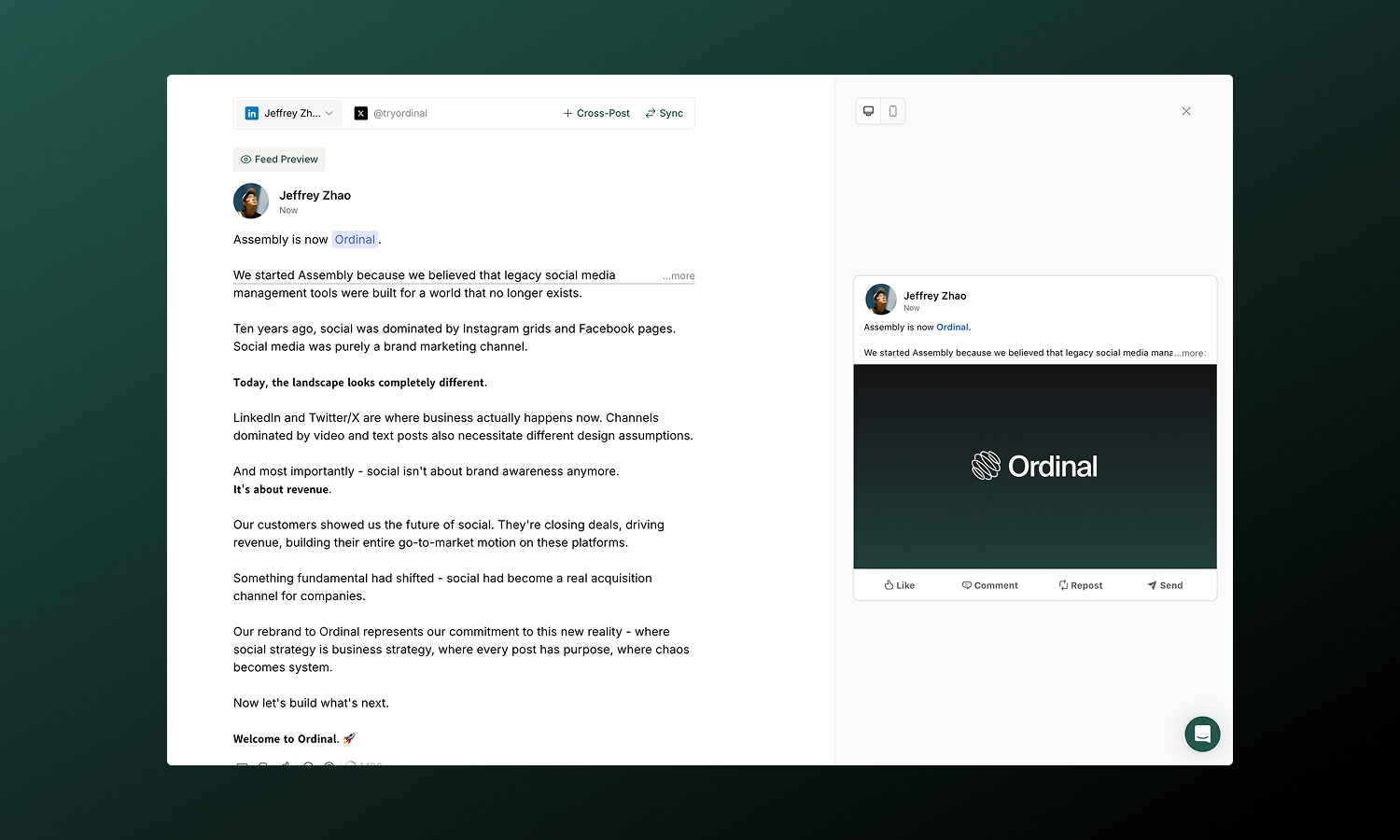 As you draft your post, the editor shows a live preview that matches how your content will appear on LinkedIn - including proper text truncation with "see more" exactly where LinkedIn would cut off.
For a more realistic preview, click the **Feed Preview** button to see your post in a full LinkedIn feed context with:
* Your profile picture and name as they'll appear
* Desktop and mobile view options
* Real-time updates as you continue editing
### Tagging
As you draft your post, the editor shows a live preview that matches how your content will appear on LinkedIn - including proper text truncation with "see more" exactly where LinkedIn would cut off.
For a more realistic preview, click the **Feed Preview** button to see your post in a full LinkedIn feed context with:
* Your profile picture and name as they'll appear
* Desktop and mobile view options
* Real-time updates as you continue editing
### Tagging
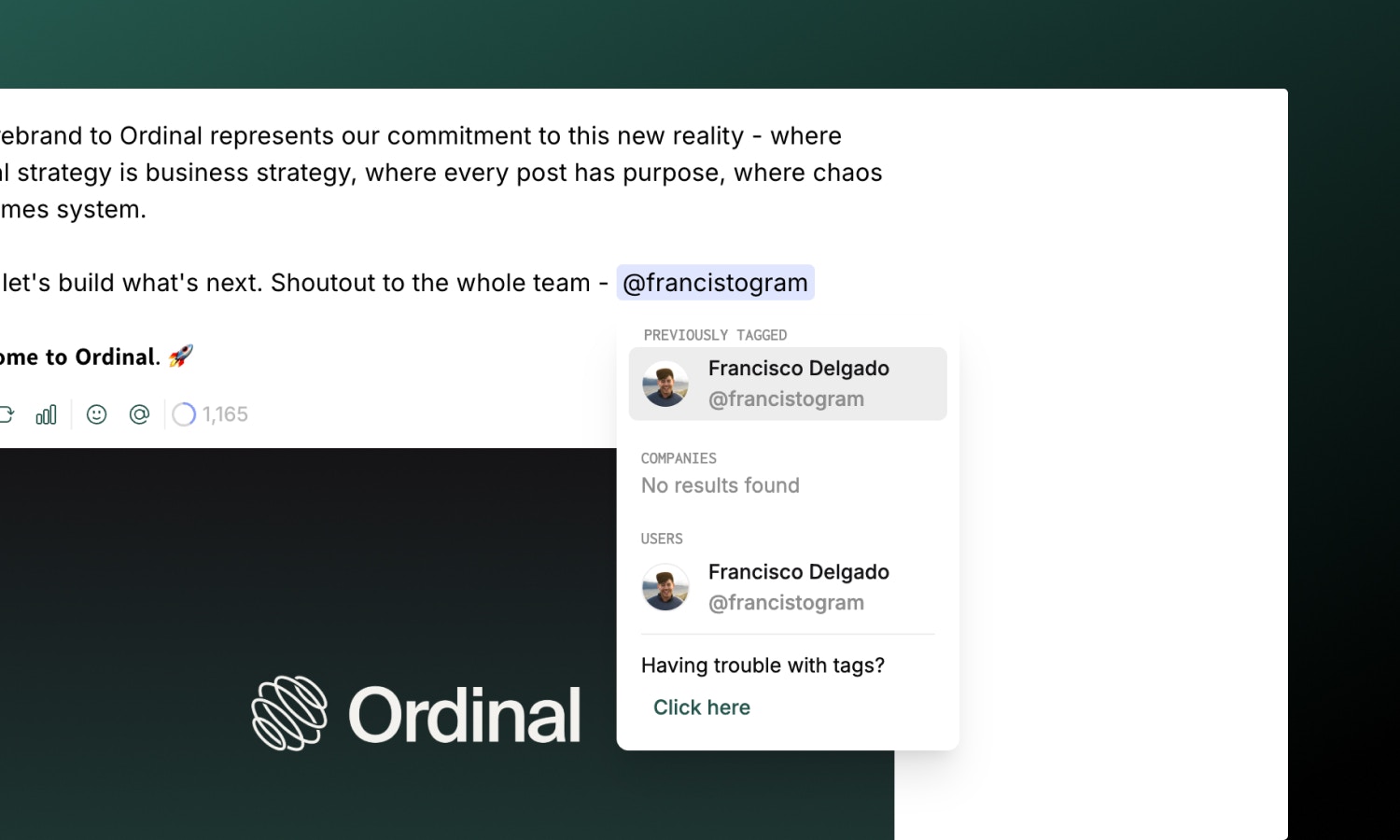 Tag people and companies in your LinkedIn posts to increase engagement and notify them:
1. Type `@` in your post
2. Paste in the LinkedIn username from the URL of the profile you want to tag (e.g. `www.linkedin.com/in/[username]` or `www.linkedin.com/company/[company-name]`)
3. Select from the suggestions dropdown
Ordinal searches LinkedIn by username and displays exact search matches and partial matches to accounts you've tagged before for quick access. For personal accounts, you can choose to display just the first name or the full name in the published post by simply deleting the last name.
Mentions become clickable links when published and may notify the tagged account, encouraging them to engage with your post.
### Links
When you add a URL to your post, Ordinal automatically fetches the link preview - showing you the title and thumbnail image before publishing.
**Customizing link previews:**
* Click the preview card to open the **Edit Link Preview** modal
* Change the title text that appears in the preview
* Upload a custom thumbnail image to replace the default
* Delete the preview entirely if you prefer a text-only post
Link previews help your content stand out in the feed and give readers context before they click.
### Post Types
Upload images to create visual posts or carousels:
| Spec | Limit |
| ---------- | --------------------------------- |
| Formats | JPG, PNG, GIF |
| Size | 5MB per image (GIFs up to 15MB) |
| Max pixels | 36 million per image |
| Per post | Up to 20 images and GIFs combined |
Multiple images automatically create a swipeable carousel. Ordinal compresses oversized images automatically.
Upload video content directly to LinkedIn:
| Spec | Limit |
| -------- | ---------------- |
| Formats | MP4, MOV |
| Size | 200MB max |
| Duration | Up to 10 minutes |
| Per post | 1 video only |
**Cover Photo**: Pick a frame from your video or upload a custom cover photo, and add custom captions (.SRT file) for accessibility. See [Cover photos for videos](/posts/media#cover-photos-for-videos) for details.
PDF documents create swipeable document carousels - one of LinkedIn's highest-performing content types:
| Spec | Limit |
| -------- | --------------- |
| Size | 100MB max |
| Pages | Up to 300 |
| Per post | 1 document only |
Great for frameworks, guides, tutorials, or repurposing slide decks.
**Document title required**: LinkedIn PDF posts require a document title before scheduling. The title appears in the preview bar above the carousel and is the first thing viewers see. If you try to schedule without one, you'll see "Please set a PDF title before scheduling".
Create polls to boost engagement and gather feedback:
| Setting | Limit |
| -------- | --------------------------------- |
| Question | Up to 140 characters |
| Options | 2–4 choices, 30 characters each |
| Duration | 1 day, 3 days, 1 week, or 2 weeks |
Polls cannot be combined with images, videos, PDFs, or reposts in the same post.
Reshare any LinkedIn post as a quote repost:
1. Paste a LinkedIn post URL into your post
2. Ordinal detects the link and offers to convert it to a repost
3. Add your own commentary above the original post
Quote reposts let you add context while sharing someone else's content.
Full specifications for all platforms including recommended dimensions.
## Auto-Engagements
Tag people and companies in your LinkedIn posts to increase engagement and notify them:
1. Type `@` in your post
2. Paste in the LinkedIn username from the URL of the profile you want to tag (e.g. `www.linkedin.com/in/[username]` or `www.linkedin.com/company/[company-name]`)
3. Select from the suggestions dropdown
Ordinal searches LinkedIn by username and displays exact search matches and partial matches to accounts you've tagged before for quick access. For personal accounts, you can choose to display just the first name or the full name in the published post by simply deleting the last name.
Mentions become clickable links when published and may notify the tagged account, encouraging them to engage with your post.
### Links
When you add a URL to your post, Ordinal automatically fetches the link preview - showing you the title and thumbnail image before publishing.
**Customizing link previews:**
* Click the preview card to open the **Edit Link Preview** modal
* Change the title text that appears in the preview
* Upload a custom thumbnail image to replace the default
* Delete the preview entirely if you prefer a text-only post
Link previews help your content stand out in the feed and give readers context before they click.
### Post Types
Upload images to create visual posts or carousels:
| Spec | Limit |
| ---------- | --------------------------------- |
| Formats | JPG, PNG, GIF |
| Size | 5MB per image (GIFs up to 15MB) |
| Max pixels | 36 million per image |
| Per post | Up to 20 images and GIFs combined |
Multiple images automatically create a swipeable carousel. Ordinal compresses oversized images automatically.
Upload video content directly to LinkedIn:
| Spec | Limit |
| -------- | ---------------- |
| Formats | MP4, MOV |
| Size | 200MB max |
| Duration | Up to 10 minutes |
| Per post | 1 video only |
**Cover Photo**: Pick a frame from your video or upload a custom cover photo, and add custom captions (.SRT file) for accessibility. See [Cover photos for videos](/posts/media#cover-photos-for-videos) for details.
PDF documents create swipeable document carousels - one of LinkedIn's highest-performing content types:
| Spec | Limit |
| -------- | --------------- |
| Size | 100MB max |
| Pages | Up to 300 |
| Per post | 1 document only |
Great for frameworks, guides, tutorials, or repurposing slide decks.
**Document title required**: LinkedIn PDF posts require a document title before scheduling. The title appears in the preview bar above the carousel and is the first thing viewers see. If you try to schedule without one, you'll see "Please set a PDF title before scheduling".
Create polls to boost engagement and gather feedback:
| Setting | Limit |
| -------- | --------------------------------- |
| Question | Up to 140 characters |
| Options | 2–4 choices, 30 characters each |
| Duration | 1 day, 3 days, 1 week, or 2 weeks |
Polls cannot be combined with images, videos, PDFs, or reposts in the same post.
Reshare any LinkedIn post as a quote repost:
1. Paste a LinkedIn post URL into your post
2. Ordinal detects the link and offers to convert it to a repost
3. Add your own commentary above the original post
Quote reposts let you add context while sharing someone else's content.
Full specifications for all platforms including recommended dimensions.
## Auto-Engagements
 Note: Auto-engagements are available for Pro plan workspaces and above. Starter workspaces can only add auto-engagements from the same account as the post author.
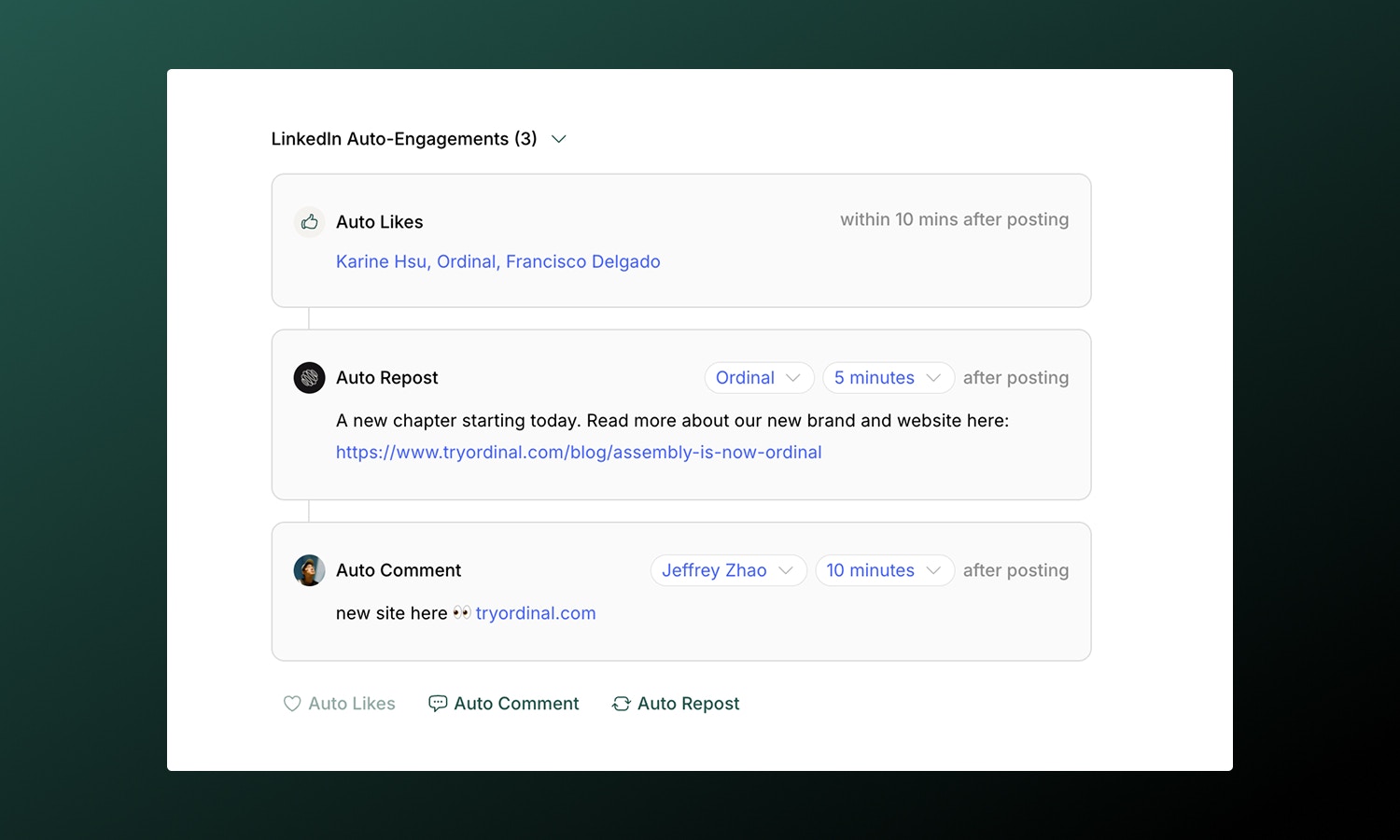
Automatically interact with your own posts after they publish to boost initial visibility. LinkedIn supports three auto-engagement types:
| Type | What it does |
| ---------------- | --------------------------------------------------------------------------------------------- |
| **Auto-Like** | Connected profiles like your post within the first 10 minutes |
| **Auto-Comment** | Add a first comment (great for CTAs, additional links, or hashtags) on a custom time delay |
| **Auto-Repost** | Reshare (repost with thoughts) from another connected LinkedIn account on a custom time delay |
Configure timing from **immediately** after posting up to **24 hours** later. Staggering engagements with different delays helps them appear more natural.
Full guide to setting up timing, best practices, and troubleshooting.
## Analytics
View post performance in [**Analytics → LinkedIn**](https://app.tryordinal.com/analytics/linkedin). You'll see impressions, engagement breakdown (likes, comments, shares), click-through rate, and follower growth.
Analytics sync automatically each day. You can also manually refresh stats using the **Refresh Stats** button (once per hour) to see the latest performance data.
Learn more about tracking performance across all your connected profiles.
## Learn more
Publish to multiple platforms at once.
Set the perfect time for your content.
Note: Auto-engagements are available for Pro plan workspaces and above. Starter workspaces can only add auto-engagements from the same account as the post author.
Automatically interact with your own posts after they publish to boost initial visibility. LinkedIn supports three auto-engagement types:
| Type | What it does |
| ---------------- | --------------------------------------------------------------------------------------------- |
| **Auto-Like** | Connected profiles like your post within the first 10 minutes |
| **Auto-Comment** | Add a first comment (great for CTAs, additional links, or hashtags) on a custom time delay |
| **Auto-Repost** | Reshare (repost with thoughts) from another connected LinkedIn account on a custom time delay |
Configure timing from **immediately** after posting up to **24 hours** later. Staggering engagements with different delays helps them appear more natural.
Full guide to setting up timing, best practices, and troubleshooting.
## Analytics
View post performance in [**Analytics → LinkedIn**](https://app.tryordinal.com/analytics/linkedin). You'll see impressions, engagement breakdown (likes, comments, shares), click-through rate, and follower growth.
Analytics sync automatically each day. You can also manually refresh stats using the **Refresh Stats** button (once per hour) to see the latest performance data.
Learn more about tracking performance across all your connected profiles.
## Learn more
Publish to multiple platforms at once.
Set the perfect time for your content.