> ## Documentation Index
> Fetch the complete documentation index at: https://docs.tryordinal.com/llms.txt
> Use this file to discover all available pages before exploring further.
# Instagram
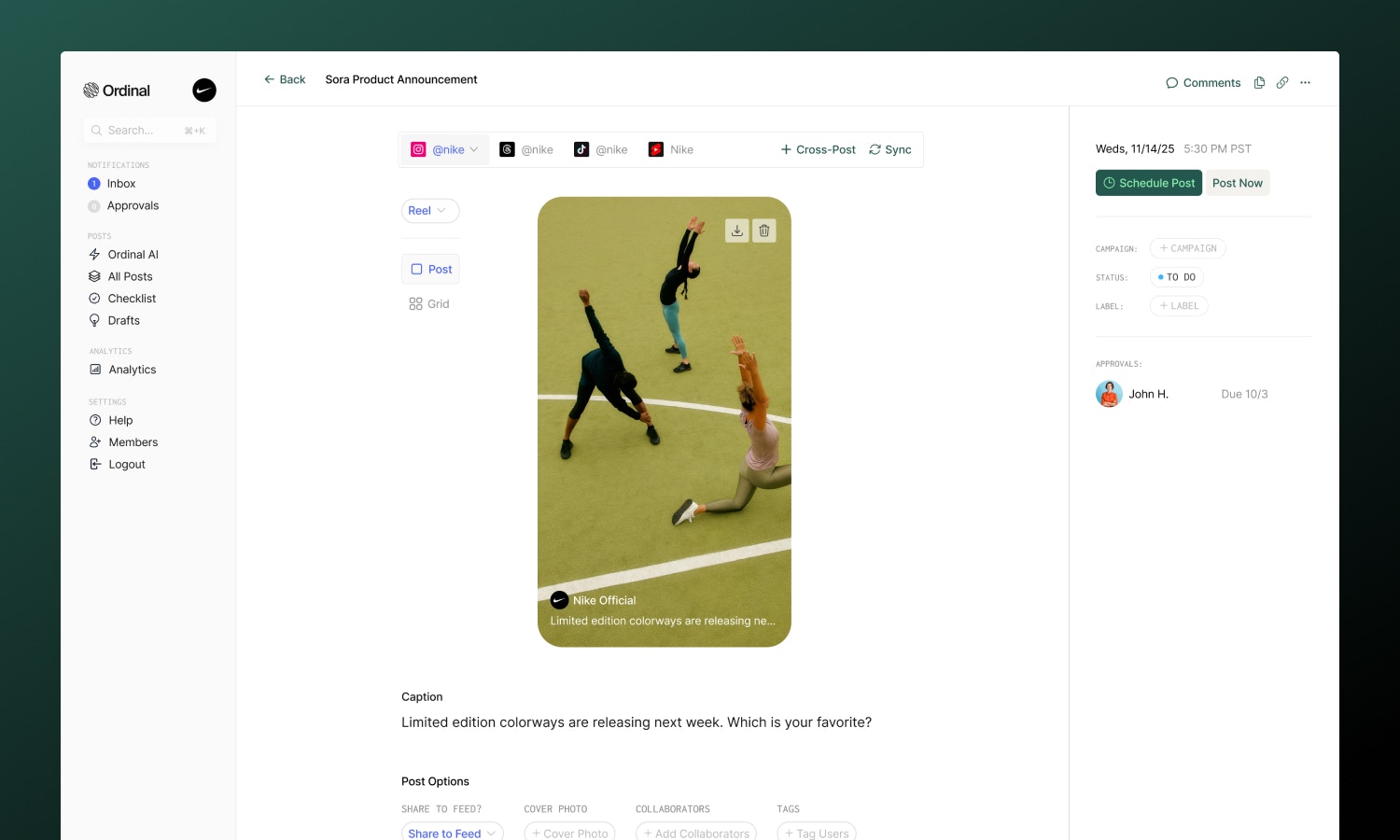
> Schedule Instagram Feed posts, Reels, and Stories from a Business or Creator account. Add tags, collaborators, and first comments.
Instagram rewards polished, visual content - and consistency. In Ordinal, you can schedule Feed Posts, Reels, and Stories, plus use Instagram-specific features like photo tagging, collaborators, and first comments.
 ## Overview
Instagram requires a **Business or Creator account** (not personal) and connects through Facebook.
You can easily switch your account to a Business or Creator account by following the [instructions here](https://help.instagram.com/502981923235522).
Connect your Business or Creator account
Formatting, tagging, and media
Feed, Reels, and Stories
Track post performance
## Connecting Instagram
Go to [**Settings → Profiles → Scheduling**](https://app.tryordinal.com/settings/profiles/scheduling/instagram), click "Connect Instagram", and sign in with Instagram to connect your account.
Make sure you are logged into the correct Instagram account you wish to connect before going through the integration flow by visiting [instagram.com](http://instagram.com) in your browser. You can always click "More" -> "Switch Accounts" on Instagram to login to the correct account.
## Drafting an Instagram Post
### What you can post
| Feature | Supported | Notes |
| ------------------------- | --------- | ----------------------------------------------- |
| [Feed posts](#feed-posts) | ✅ | Up to 10 images/videos |
| [Reels](#reels) | ✅ | Single video, up to 15 minutes |
| [Stories](#stories) | ⚠️ | Up to 10 images/videos, no interactive elements |
### Drafting & Formatting
The Instagram editor supports rich formatting through Unicode characters:
* **Bold / Italic**: Use the toolbar buttons or press `Cmd/Ctrl + B` for bold and `Cmd/Ctrl + I` for italic
* **Hashtags**: Type `#` followed by your tag - Instagram allows up to 30 per post (tracked in the editor)
* **Mentions**: Type `@` followed by an Instagram handle to mention someone
* **Links**: Instagram captions don't support clickable links, but you can include URLs as text
Captions can be up to **2,200 characters**. The character counter updates in real-time as you type.
Full guide to formatting, mentions, slash commands, and keyboard shortcuts.
### Post Preview
As you draft your post, the editor shows a live preview that matches how your content will appear on Instagram.
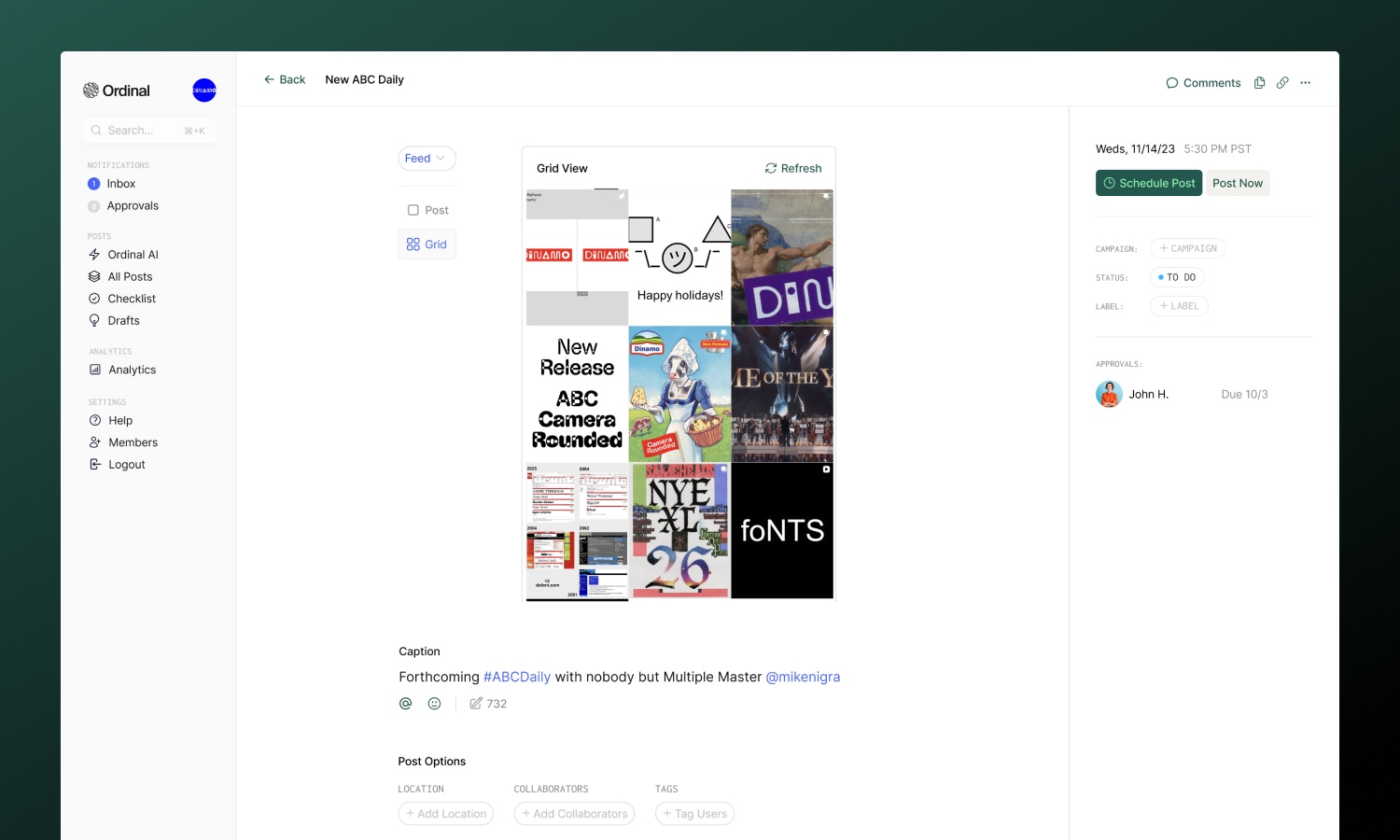
For planning your profile aesthetic, switch to **Grid Preview** to see how your new post will fit into your existing Instagram grid. This helps you maintain a consistent visual style across your profile.
## Overview
Instagram requires a **Business or Creator account** (not personal) and connects through Facebook.
You can easily switch your account to a Business or Creator account by following the [instructions here](https://help.instagram.com/502981923235522).
Connect your Business or Creator account
Formatting, tagging, and media
Feed, Reels, and Stories
Track post performance
## Connecting Instagram
Go to [**Settings → Profiles → Scheduling**](https://app.tryordinal.com/settings/profiles/scheduling/instagram), click "Connect Instagram", and sign in with Instagram to connect your account.
Make sure you are logged into the correct Instagram account you wish to connect before going through the integration flow by visiting [instagram.com](http://instagram.com) in your browser. You can always click "More" -> "Switch Accounts" on Instagram to login to the correct account.
## Drafting an Instagram Post
### What you can post
| Feature | Supported | Notes |
| ------------------------- | --------- | ----------------------------------------------- |
| [Feed posts](#feed-posts) | ✅ | Up to 10 images/videos |
| [Reels](#reels) | ✅ | Single video, up to 15 minutes |
| [Stories](#stories) | ⚠️ | Up to 10 images/videos, no interactive elements |
### Drafting & Formatting
The Instagram editor supports rich formatting through Unicode characters:
* **Bold / Italic**: Use the toolbar buttons or press `Cmd/Ctrl + B` for bold and `Cmd/Ctrl + I` for italic
* **Hashtags**: Type `#` followed by your tag - Instagram allows up to 30 per post (tracked in the editor)
* **Mentions**: Type `@` followed by an Instagram handle to mention someone
* **Links**: Instagram captions don't support clickable links, but you can include URLs as text
Captions can be up to **2,200 characters**. The character counter updates in real-time as you type.
Full guide to formatting, mentions, slash commands, and keyboard shortcuts.
### Post Preview
As you draft your post, the editor shows a live preview that matches how your content will appear on Instagram.
For planning your profile aesthetic, switch to **Grid Preview** to see how your new post will fit into your existing Instagram grid. This helps you maintain a consistent visual style across your profile.
 ### Photo Options
**Photo tagging**: Tag users directly on your images to increase engagement and notify them:
1. Add images to your post
2. Open the **Tags** option
3. Click anywhere on the image where you want the tag to appear
4. Enter the Instagram handle
Photo tagging is only available for images in Feed posts. Videos in Feed posts and all Reels content use text-based tagging instead.
### Instagram-Specific Features
**Location**: Add a location to Feed posts to increase discoverability. Search for any place and it will appear on your published post.
**Collaborators**: Invite up to **3 other Instagram accounts** to co-author your post. When published, collaborators receive a DM to accept the invitation, and the post appears on both profiles.
Tagging as Collaborator only works if each collaborator's Instagram profile meets the following requirements:
* **Profile visibility: Set to Public**
* **Tags and Mentions**: Both set to **Allow from everyone** (found in Instagram [Settings → Privacy → Tags & Mentions](https://www.instagram.com/accounts/settings/v2/tags_and_mentions/))
**Cover Photo** (Reels only): Pick any frame from your video or upload a custom thumbnail for your Reel. See [Cover photos for videos](/posts/media#cover-photos-for-videos) for details.
**Share to Feed** (Reels only): Control whether your Reel appears in both your profile grid and the Reels tab, or just in Reels.
## Post Types
Feed posts appear in your profile grid and followers' feeds. They support up to 10 images/videos.
| Spec | Limit |
| ---------- | ------------------------------------ |
| Formats | JPG only (PNG auto-converted) |
| Image size | 8MB max per image |
| Max pixels | 36 million per image |
| Per post | Up to 10 images/videos (carousel) |
| Aspect | 4:5 (portrait) to 1.91:1 (landscape) |
**Videos in Feed:**
| Spec | Limit |
| -------- | ---------------- |
| Formats | MP4, MOV |
| Duration | Up to 60 seconds |
| Aspect | 4:5 to 16:9 |
Ordinal automatically compresses videos larger than 125MB or wider than 1920px to meet Instagram's requirements.
Reels are short-form vertical videos that appear in the Reels tab and can optionally show in your grid.
| Spec | Limit |
| -------- | ------------------------- |
| Formats | MP4, MOV |
| Duration | Up to 15 minutes |
| Per post | 1 video only |
| Aspect | 0.01:1 to 10:1 (flexible) |
**Reel-specific options:**
* **Cover Photo**: Pick a frame from the video or upload a custom thumbnail to display on your grid and in your Reels tab.
* **Share to Feed**: Toggle whether the Reel appears in your profile grid
Reels consistently get higher organic reach than static posts. If growing your audience is a priority, prioritize Reels.
Stories are ephemeral content that disappears after 24 hours.
| Spec | Limit |
| -------- | ---------------------- |
| Formats | JPG, PNG, MP4, MOV |
| Per post | Up to 10 images/videos |
| Duration | 3–60 seconds (videos) |
| Image | 8MB max |
**Story limitations:**
Instagram's API restricts what can be scheduled for Stories:
* ❌ No stickers, polls, questions, or countdowns
* ❌ No link stickers
* ❌ No music
* ❌ No captions (the editor is hidden for Stories)
For interactive Stories, post directly in the Instagram app.
Full specifications for all platforms including recommended dimensions.
## Auto-Engagements
### Photo Options
**Photo tagging**: Tag users directly on your images to increase engagement and notify them:
1. Add images to your post
2. Open the **Tags** option
3. Click anywhere on the image where you want the tag to appear
4. Enter the Instagram handle
Photo tagging is only available for images in Feed posts. Videos in Feed posts and all Reels content use text-based tagging instead.
### Instagram-Specific Features
**Location**: Add a location to Feed posts to increase discoverability. Search for any place and it will appear on your published post.
**Collaborators**: Invite up to **3 other Instagram accounts** to co-author your post. When published, collaborators receive a DM to accept the invitation, and the post appears on both profiles.
Tagging as Collaborator only works if each collaborator's Instagram profile meets the following requirements:
* **Profile visibility: Set to Public**
* **Tags and Mentions**: Both set to **Allow from everyone** (found in Instagram [Settings → Privacy → Tags & Mentions](https://www.instagram.com/accounts/settings/v2/tags_and_mentions/))
**Cover Photo** (Reels only): Pick any frame from your video or upload a custom thumbnail for your Reel. See [Cover photos for videos](/posts/media#cover-photos-for-videos) for details.
**Share to Feed** (Reels only): Control whether your Reel appears in both your profile grid and the Reels tab, or just in Reels.
## Post Types
Feed posts appear in your profile grid and followers' feeds. They support up to 10 images/videos.
| Spec | Limit |
| ---------- | ------------------------------------ |
| Formats | JPG only (PNG auto-converted) |
| Image size | 8MB max per image |
| Max pixels | 36 million per image |
| Per post | Up to 10 images/videos (carousel) |
| Aspect | 4:5 (portrait) to 1.91:1 (landscape) |
**Videos in Feed:**
| Spec | Limit |
| -------- | ---------------- |
| Formats | MP4, MOV |
| Duration | Up to 60 seconds |
| Aspect | 4:5 to 16:9 |
Ordinal automatically compresses videos larger than 125MB or wider than 1920px to meet Instagram's requirements.
Reels are short-form vertical videos that appear in the Reels tab and can optionally show in your grid.
| Spec | Limit |
| -------- | ------------------------- |
| Formats | MP4, MOV |
| Duration | Up to 15 minutes |
| Per post | 1 video only |
| Aspect | 0.01:1 to 10:1 (flexible) |
**Reel-specific options:**
* **Cover Photo**: Pick a frame from the video or upload a custom thumbnail to display on your grid and in your Reels tab.
* **Share to Feed**: Toggle whether the Reel appears in your profile grid
Reels consistently get higher organic reach than static posts. If growing your audience is a priority, prioritize Reels.
Stories are ephemeral content that disappears after 24 hours.
| Spec | Limit |
| -------- | ---------------------- |
| Formats | JPG, PNG, MP4, MOV |
| Per post | Up to 10 images/videos |
| Duration | 3–60 seconds (videos) |
| Image | 8MB max |
**Story limitations:**
Instagram's API restricts what can be scheduled for Stories:
* ❌ No stickers, polls, questions, or countdowns
* ❌ No link stickers
* ❌ No music
* ❌ No captions (the editor is hidden for Stories)
For interactive Stories, post directly in the Instagram app.
Full specifications for all platforms including recommended dimensions.
## Auto-Engagements
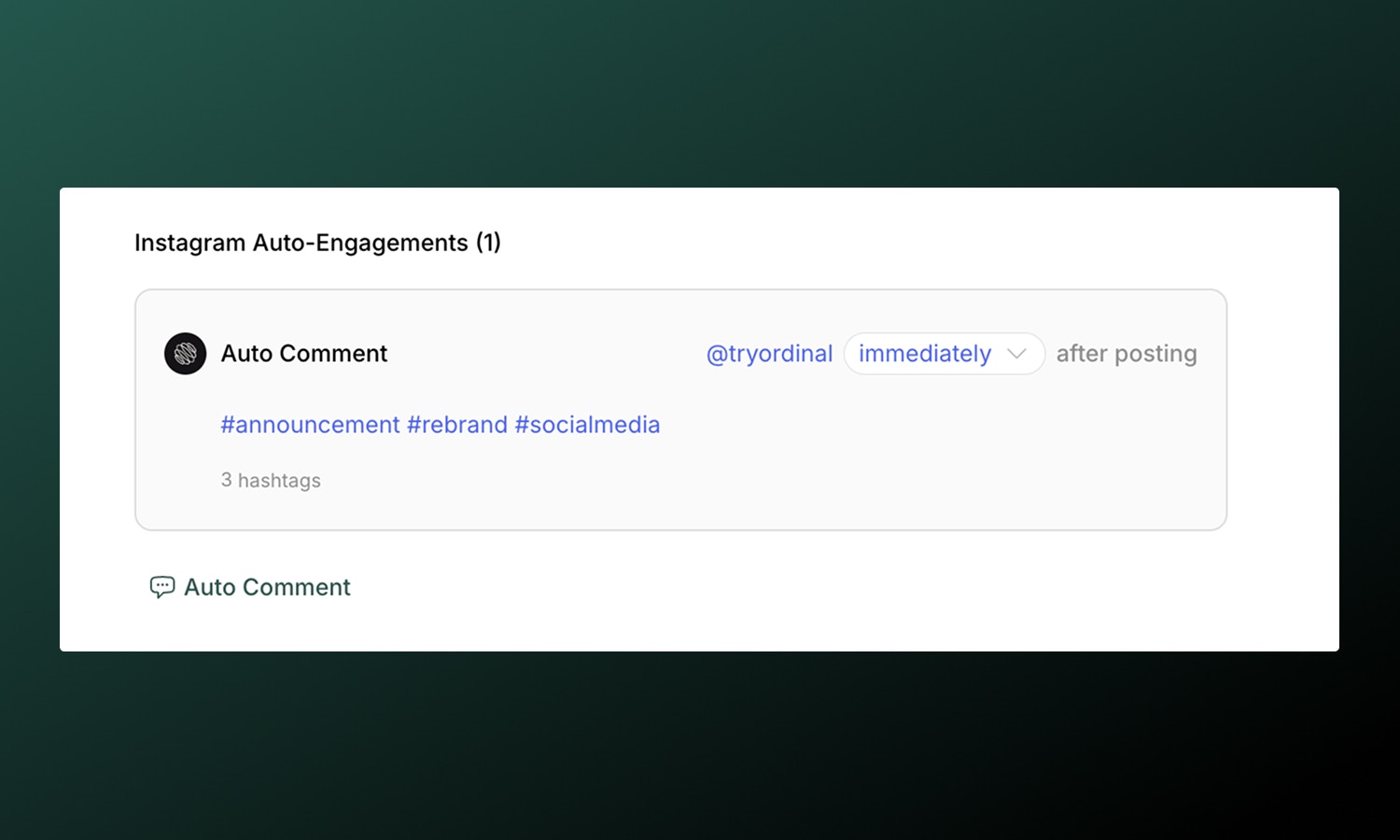 Schedule a **first comment** to publish automatically after your post goes live. This is the only auto-engagement type available for Instagram due to API limitations. The comment must be posted from the same account that the post is scheduled for.
| Type | What it does |
| ----------------- | -------------------------------------------------------------------- |
| **First Comment** | Add a comment immediately after posting (great for hashtags or CTAs) |
Many creators put their hashtags in the first comment to keep captions cleaner. It doesn't affect discoverability.
Full guide to setting up timing, best practices, and troubleshooting.
## Analytics
View post performance in [**Analytics → Instagram**](https://app.tryordinal.com/analytics/instagram). You'll see impressions, engagement breakdown (likes, comments, saves, shares), profile visits, and new followers gained from each post.
Analytics sync automatically each day. You can also manually refresh stats using the **Refresh Stats** button (once per hour) to see the latest performance data.
Learn more about tracking performance across all your connected profiles.
## Learn more
Shares authentication with Instagram.
Also uses Meta authentication.
Schedule a **first comment** to publish automatically after your post goes live. This is the only auto-engagement type available for Instagram due to API limitations. The comment must be posted from the same account that the post is scheduled for.
| Type | What it does |
| ----------------- | -------------------------------------------------------------------- |
| **First Comment** | Add a comment immediately after posting (great for hashtags or CTAs) |
Many creators put their hashtags in the first comment to keep captions cleaner. It doesn't affect discoverability.
Full guide to setting up timing, best practices, and troubleshooting.
## Analytics
View post performance in [**Analytics → Instagram**](https://app.tryordinal.com/analytics/instagram). You'll see impressions, engagement breakdown (likes, comments, saves, shares), profile visits, and new followers gained from each post.
Analytics sync automatically each day. You can also manually refresh stats using the **Refresh Stats** button (once per hour) to see the latest performance data.
Learn more about tracking performance across all your connected profiles.
## Learn more
Shares authentication with Instagram.
Also uses Meta authentication.