> ## Documentation Index
> Fetch the complete documentation index at: https://docs.tryordinal.com/llms.txt
> Use this file to discover all available pages before exploring further.
# Discord
> Schedule announcements to Discord channels using channel webhooks. No Discord login required.
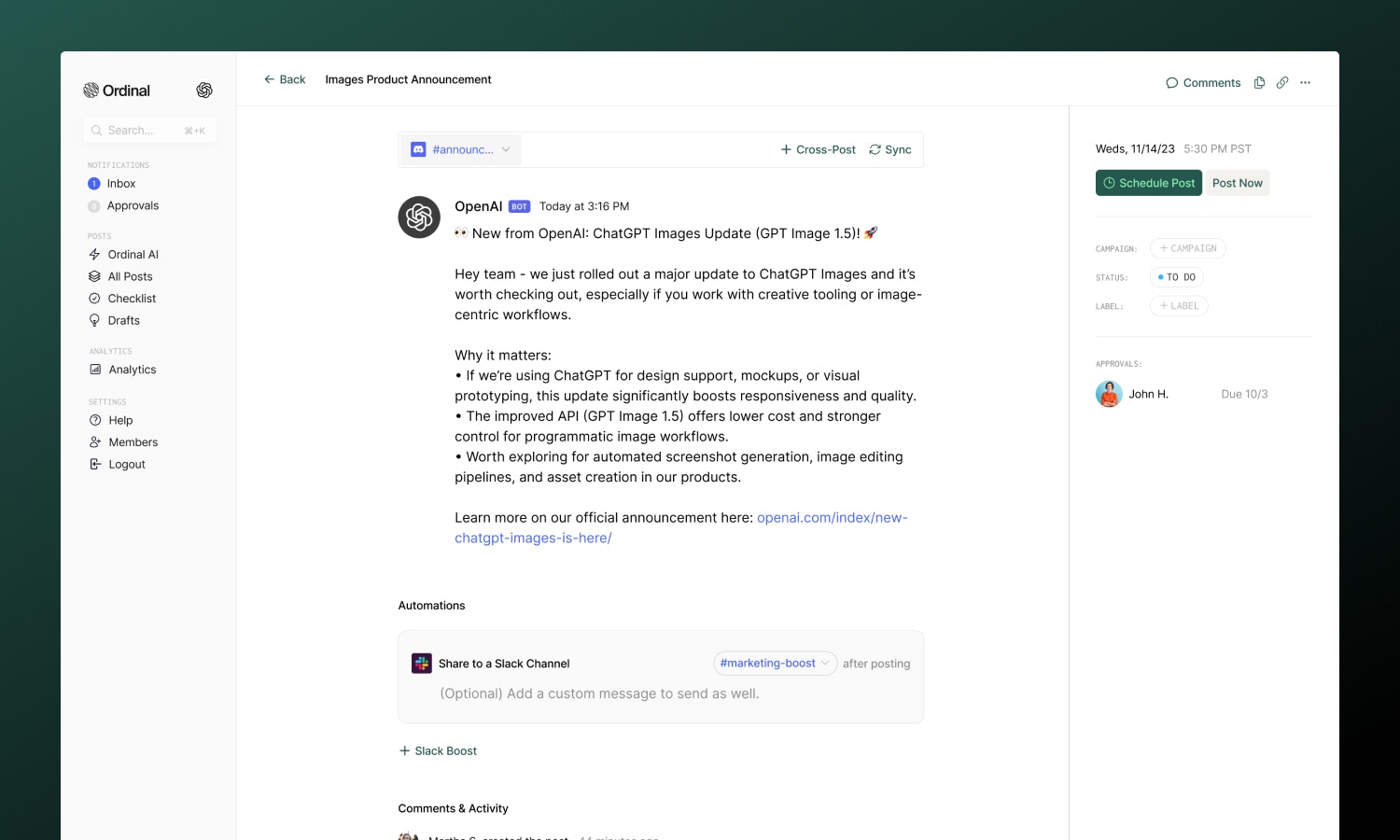
Discord is where communities live - and scheduled announcements keep them engaged. Instead of connecting an account, you create **webhooks** in Discord and add them to Ordinal. Messages post to specific channels through those webhooks, perfect for product updates, event reminders, and recurring community content.
 ## Overview
Webhooks are channel-specific URLs that accept incoming messages. You create them in Discord, give them a name and avatar, and paste the URL into Ordinal. No Discord login required - you control exactly which channels can receive scheduled messages.
Set up webhooks in your Discord server
Connect your webhook to Ordinal
Formatting, mentions, and attachments
When to use Discord scheduling
| How it works | Details |
| ----------------- | ----------------------- |
| Connection method | Webhook URL (not OAuth) |
| Sender appearance | Webhook name and avatar |
| Scope | One webhook per channel |
This means:
* You decide which channels get a webhook
* Each webhook posts to exactly one channel
* The webhook's name and avatar appear as the message sender
* Anyone with the webhook URL can post to that channel (keep it private)
## Creating a Webhook in Discord
1. Open your Discord server
2. Go to **Server Settings → Integrations**
3. Click **Create Webhook**
4. Set the name (this appears as the sender, e.g., "Ordinal Updates")
5. Upload an avatar image
6. Select which channel this webhook posts to
7. Click **Copy Webhook URL**
Keep this URL private - it's essentially a posting key for that channel.
Name webhooks clearly (like "Product Updates" or "Social Alerts") so it's obvious what's posting. Use a custom avatar to help messages look intentional, not like spam.
## Adding the Webhook to Ordinal
Go to [**Settings → Profiles → Scheduling → Discord**](https://app.tryordinal.com/settings/profiles/scheduling/discord), paste your webhook URL and the channel name. The webhook appears as a profile you can select when creating posts.
To post to multiple channels, create a separate webhook for each channel in Discord and add each to Ordinal.
## Drafting a Discord Message
### What you can post
| Feature | Supported | Notes |
| --------------------------- | --------- | ----------------------------------------------------- |
| Text messages | ✅ | Up to 2,000 characters |
| [Attachments](#attachments) | ✅ | Up to 3 files, 10MB each |
| Formatted text | ✅ | Headings, bold, italic, underline, code, links, lists |
| [Mentions](#mentions) | ✅ | @here, @everyone, users, roles |
| Link previews | ✅ | Discord unfurls links automatically |
### Formatting
The editor supports Discord's markdown formatting:
* **Headings**: H1 and H2 for structure
* **Bold**: Use the toolbar or `Cmd/Ctrl + B`
* **Italic**: Use the toolbar or `Cmd/Ctrl + I`
* **Underline**: Use the toolbar or `Cmd/Ctrl + U`
* **Code**: Inline code formatting
* **Links**: Paste URLs or use the link button
* **Lists**: Bullet and numbered lists
* **Emoji**: Type `:emoji_name:` or use the emoji picker
Formatting converts to Discord's native markdown when published.
### Mentions
Tag users, roles, and broadcast to everyone:
| Mention | What it does |
| ------------- | -------------------------------------- |
| `@here` | Notifies active members in the channel |
| `@everyone` | Notifies all members in the server |
| `<@USER_ID>` | Mentions a specific user |
| `<@&ROLE_ID>` | Mentions a specific role |
User and role mentions require Discord IDs (not display names). You can find these by enabling Developer Mode in Discord settings, then right-clicking a user or role.
You can read more from the official Discord docs [here](https://support.discord.com/hc/en-us/articles/206346498-Where-can-I-find-my-User-Server-Message-ID#h_01HRSTXPS5CRSRTWYCGPHZQ37H).
Full guide to formatting, slash commands, and keyboard shortcuts.
## Attachments
You can attach **up to 3 files** per Discord message.
| Spec | Limit |
| -------------- | ----------------------- |
| Files per post | 3 maximum |
| File size | 10MB per file |
| Formats | JPG, PNG, GIF, MP4, MOV |
Drag and drop files into the editor, paste from clipboard, or use the attachment button. Each attachment must have a unique filename.
## FAQ
The webhook may have been deleted in Discord. Create a new one and update it in Ordinal.
Verify you're checking the correct channel - each webhook posts to exactly one channel.
Each attachment in a post must have a unique filename. Rename files before uploading if needed.
Discord webhooks have a 10MB file size limit. Compress your files or use a link instead.
## Use Cases
* **Product announcements**: Release notes, feature launches, changelog updates
* **Community updates**: Event reminders, weekly roundups, server news
* **Content sharing**: Notify when new social posts, blog articles, or videos go live
* **Automated alerts**: Scheduled reminders, countdowns, recurring messages
## Learn More
Similar use case with OAuth-based connection.
Set the perfect time for your content.
## Overview
Webhooks are channel-specific URLs that accept incoming messages. You create them in Discord, give them a name and avatar, and paste the URL into Ordinal. No Discord login required - you control exactly which channels can receive scheduled messages.
Set up webhooks in your Discord server
Connect your webhook to Ordinal
Formatting, mentions, and attachments
When to use Discord scheduling
| How it works | Details |
| ----------------- | ----------------------- |
| Connection method | Webhook URL (not OAuth) |
| Sender appearance | Webhook name and avatar |
| Scope | One webhook per channel |
This means:
* You decide which channels get a webhook
* Each webhook posts to exactly one channel
* The webhook's name and avatar appear as the message sender
* Anyone with the webhook URL can post to that channel (keep it private)
## Creating a Webhook in Discord
1. Open your Discord server
2. Go to **Server Settings → Integrations**
3. Click **Create Webhook**
4. Set the name (this appears as the sender, e.g., "Ordinal Updates")
5. Upload an avatar image
6. Select which channel this webhook posts to
7. Click **Copy Webhook URL**
Keep this URL private - it's essentially a posting key for that channel.
Name webhooks clearly (like "Product Updates" or "Social Alerts") so it's obvious what's posting. Use a custom avatar to help messages look intentional, not like spam.
## Adding the Webhook to Ordinal
Go to [**Settings → Profiles → Scheduling → Discord**](https://app.tryordinal.com/settings/profiles/scheduling/discord), paste your webhook URL and the channel name. The webhook appears as a profile you can select when creating posts.
To post to multiple channels, create a separate webhook for each channel in Discord and add each to Ordinal.
## Drafting a Discord Message
### What you can post
| Feature | Supported | Notes |
| --------------------------- | --------- | ----------------------------------------------------- |
| Text messages | ✅ | Up to 2,000 characters |
| [Attachments](#attachments) | ✅ | Up to 3 files, 10MB each |
| Formatted text | ✅ | Headings, bold, italic, underline, code, links, lists |
| [Mentions](#mentions) | ✅ | @here, @everyone, users, roles |
| Link previews | ✅ | Discord unfurls links automatically |
### Formatting
The editor supports Discord's markdown formatting:
* **Headings**: H1 and H2 for structure
* **Bold**: Use the toolbar or `Cmd/Ctrl + B`
* **Italic**: Use the toolbar or `Cmd/Ctrl + I`
* **Underline**: Use the toolbar or `Cmd/Ctrl + U`
* **Code**: Inline code formatting
* **Links**: Paste URLs or use the link button
* **Lists**: Bullet and numbered lists
* **Emoji**: Type `:emoji_name:` or use the emoji picker
Formatting converts to Discord's native markdown when published.
### Mentions
Tag users, roles, and broadcast to everyone:
| Mention | What it does |
| ------------- | -------------------------------------- |
| `@here` | Notifies active members in the channel |
| `@everyone` | Notifies all members in the server |
| `<@USER_ID>` | Mentions a specific user |
| `<@&ROLE_ID>` | Mentions a specific role |
User and role mentions require Discord IDs (not display names). You can find these by enabling Developer Mode in Discord settings, then right-clicking a user or role.
You can read more from the official Discord docs [here](https://support.discord.com/hc/en-us/articles/206346498-Where-can-I-find-my-User-Server-Message-ID#h_01HRSTXPS5CRSRTWYCGPHZQ37H).
Full guide to formatting, slash commands, and keyboard shortcuts.
## Attachments
You can attach **up to 3 files** per Discord message.
| Spec | Limit |
| -------------- | ----------------------- |
| Files per post | 3 maximum |
| File size | 10MB per file |
| Formats | JPG, PNG, GIF, MP4, MOV |
Drag and drop files into the editor, paste from clipboard, or use the attachment button. Each attachment must have a unique filename.
## FAQ
The webhook may have been deleted in Discord. Create a new one and update it in Ordinal.
Verify you're checking the correct channel - each webhook posts to exactly one channel.
Each attachment in a post must have a unique filename. Rename files before uploading if needed.
Discord webhooks have a 10MB file size limit. Compress your files or use a link instead.
## Use Cases
* **Product announcements**: Release notes, feature launches, changelog updates
* **Community updates**: Event reminders, weekly roundups, server news
* **Content sharing**: Notify when new social posts, blog articles, or videos go live
* **Automated alerts**: Scheduled reminders, countdowns, recurring messages
## Learn More
Similar use case with OAuth-based connection.
Set the perfect time for your content.