> ## Documentation Index
> Fetch the complete documentation index at: https://docs.tryordinal.com/llms.txt
> Use this file to discover all available pages before exploring further.
# Version History
> View, compare, and restore previous versions of your post copy.
Version history tracks every change to your post copy, so you can see what changed, who changed it, and restore a previous version if needed.
 ## Viewing version history
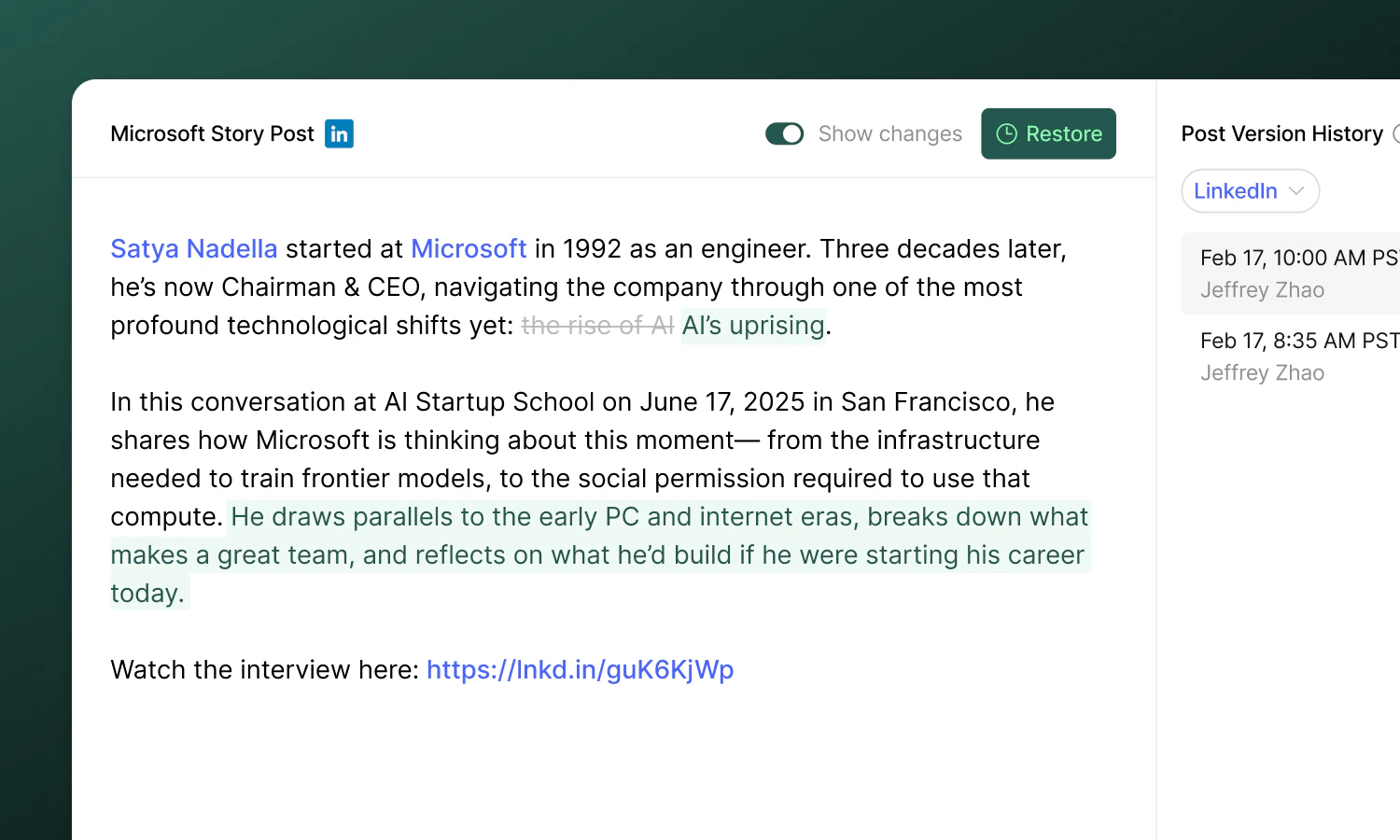
To open version history, click the **clock icon** in the post header. This opens a modal with two panels:
* **Left panel** - A preview of the selected version's content
* **Right panel** - A list of all saved versions, showing the timestamp and author of each change
Click any version in the list to preview its content.
Versions are saved automatically as you and your team edit. There's nothing you need to do to create them.
## Comparing changes
Toggle **Show changes** at the top of the modal to see a word-level diff between the selected version and the one before it. Added text is highlighted in green and removed text is highlighted in red.
This makes it easy to see exactly what was changed in each version without reading through the full post.
The "Show changes" toggle only appears when there is a previous version to compare against. The earliest version won't have a diff view.
## Restoring a version
If you want to go back to a previous version:
1. Select the version you want to restore
2. Click **Restore** in the top right
3. Confirm the action in the dialog
The selected version's content replaces the current post copy for that channel. This action is itself versioned, so you can always undo it by restoring again.
Restoring a version replaces the current post text for the selected channel. Make sure you've reviewed the content before confirming.
## Multi-channel posts
For posts that target multiple channels (e.g. LinkedIn and X), version history is tracked independently per channel. Use the **channel dropdown** in the version history modal to switch between them and review changes for each channel separately.
## Learn more
Leave feedback directly on post content.
Formalize the review process before publishing.
## Viewing version history
To open version history, click the **clock icon** in the post header. This opens a modal with two panels:
* **Left panel** - A preview of the selected version's content
* **Right panel** - A list of all saved versions, showing the timestamp and author of each change
Click any version in the list to preview its content.
Versions are saved automatically as you and your team edit. There's nothing you need to do to create them.
## Comparing changes
Toggle **Show changes** at the top of the modal to see a word-level diff between the selected version and the one before it. Added text is highlighted in green and removed text is highlighted in red.
This makes it easy to see exactly what was changed in each version without reading through the full post.
The "Show changes" toggle only appears when there is a previous version to compare against. The earliest version won't have a diff view.
## Restoring a version
If you want to go back to a previous version:
1. Select the version you want to restore
2. Click **Restore** in the top right
3. Confirm the action in the dialog
The selected version's content replaces the current post copy for that channel. This action is itself versioned, so you can always undo it by restoring again.
Restoring a version replaces the current post text for the selected channel. Make sure you've reviewed the content before confirming.
## Multi-channel posts
For posts that target multiple channels (e.g. LinkedIn and X), version history is tracked independently per channel. Use the **channel dropdown** in the version history modal to switch between them and review changes for each channel separately.
## Learn more
Leave feedback directly on post content.
Formalize the review process before publishing.