> ## Documentation Index
> Fetch the complete documentation index at: https://docs.tryordinal.com/llms.txt
> Use this file to discover all available pages before exploring further.
# Statuses
> Track posts through workflow statuses like To Do, In Progress, For Review, Finalized, Scheduled, and Posted.
Every post has a status that tracks where it is in your workflow - from early draft through publication. Statuses help you and your team see what's in progress, what's ready, and what needs attention.
 ## Workflow statuses
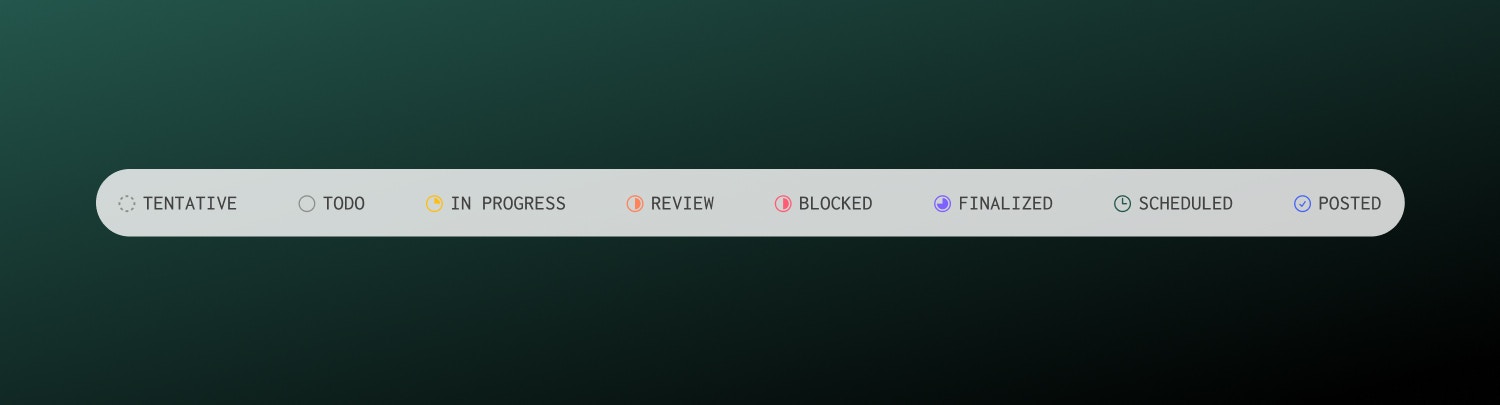
Posts can move through these statuses as you work on them. Change status anytime from the post sidebar.
| Status | Purpose |
| --------------- | ---------------------------------------------- |
| **Tentative** | Initial placeholder or rough idea |
| **To Do** | Ready to start working on |
| **In Progress** | Currently being drafted or refined |
| **For Review** | Awaiting feedback from teammates |
| **Blocked** | Stuck - waiting on assets, approvals, or input |
| **Finalized** | Content is complete and ready to schedule |
| **Scheduled** | Has a publish date and time set |
| **Posted** | Successfully published and live |
Use statuses that match your team's workflow. Some teams use all eight; others stick to just a few.
## Publishing states
When a scheduled post's publish time arrives, Ordinal sends content to each platform. Each channel has its own publishing state:
| State | What it means |
| ------------- | -------------------------------------- |
| **Scheduled** | Queued to publish at the set time |
| **Posted** | Successfully published to the platform |
| **Errored** | Publishing failed - requires attention |
For cross-posts, each platform publishes independently. One channel can succeed while another fails.
| Platform | State |
| --------- | --------- |
| LinkedIn | ✅ Posted |
| Twitter/X | ✅ Posted |
| Instagram | ❌ Errored |
View per-channel status in the post detail view. Retry failed channels individually without affecting successful ones.
## Handling errored posts
When a post fails to publish, you'll see an error message explaining the cause. Common issues:
The social profile's authorization expired. Go to [Settings → Profiles](https://app.tryordinal.com/settings/profiles), find the account, and click **Reconnect**.
Your text exceeds the platform's character limit. Edit the post to shorten it, then retry.
File size exceeds platform limits. Compress the image/video or use a smaller file.
The platform flagged the content. Review their guidelines and adjust accordingly.
Temporary platform outage. Wait a few minutes and retry.
The easiest way to fix this is to duplicate the post, fix the issue, and schedule the new post just for the failing channels.
## Approvals and scheduling
If your workspace uses approvals, posts may require sign-off before they can be scheduled. With blocking approvals enabled, the Schedule button stays disabled until approval is granted.
Learn more about approval workflows.
## Learn more
Set publish times for your content.
Visualize your content schedule.
## Workflow statuses
Posts can move through these statuses as you work on them. Change status anytime from the post sidebar.
| Status | Purpose |
| --------------- | ---------------------------------------------- |
| **Tentative** | Initial placeholder or rough idea |
| **To Do** | Ready to start working on |
| **In Progress** | Currently being drafted or refined |
| **For Review** | Awaiting feedback from teammates |
| **Blocked** | Stuck - waiting on assets, approvals, or input |
| **Finalized** | Content is complete and ready to schedule |
| **Scheduled** | Has a publish date and time set |
| **Posted** | Successfully published and live |
Use statuses that match your team's workflow. Some teams use all eight; others stick to just a few.
## Publishing states
When a scheduled post's publish time arrives, Ordinal sends content to each platform. Each channel has its own publishing state:
| State | What it means |
| ------------- | -------------------------------------- |
| **Scheduled** | Queued to publish at the set time |
| **Posted** | Successfully published to the platform |
| **Errored** | Publishing failed - requires attention |
For cross-posts, each platform publishes independently. One channel can succeed while another fails.
| Platform | State |
| --------- | --------- |
| LinkedIn | ✅ Posted |
| Twitter/X | ✅ Posted |
| Instagram | ❌ Errored |
View per-channel status in the post detail view. Retry failed channels individually without affecting successful ones.
## Handling errored posts
When a post fails to publish, you'll see an error message explaining the cause. Common issues:
The social profile's authorization expired. Go to [Settings → Profiles](https://app.tryordinal.com/settings/profiles), find the account, and click **Reconnect**.
Your text exceeds the platform's character limit. Edit the post to shorten it, then retry.
File size exceeds platform limits. Compress the image/video or use a smaller file.
The platform flagged the content. Review their guidelines and adjust accordingly.
Temporary platform outage. Wait a few minutes and retry.
The easiest way to fix this is to duplicate the post, fix the issue, and schedule the new post just for the failing channels.
## Approvals and scheduling
If your workspace uses approvals, posts may require sign-off before they can be scheduled. With blocking approvals enabled, the Schedule button stays disabled until approval is granted.
Learn more about approval workflows.
## Learn more
Set publish times for your content.
Visualize your content schedule.