> ## Documentation Index
> Fetch the complete documentation index at: https://docs.tryordinal.com/llms.txt
> Use this file to discover all available pages before exploring further.
# Slack Boost
> Notify a Slack channel when a post publishes so your team can like, comment, and amplify it.
Slack Boost notifies your team via Slack when posts publish, encouraging them to engage and amplify your content's reach. Turn employees into advocates by making it easy to find and interact with your social content.
 ## How Slack Boost works
1. You add Slack Boost to a post manually, or turn on auto-boost for a channel so every new post is boosted there
2. Once the post publishes to social platform(s), Ordinal sends a notification to your configured Slack channel
3. Your team sees the live post with direct links
4. Team members engage - likes, comments, shares - boosting visibility
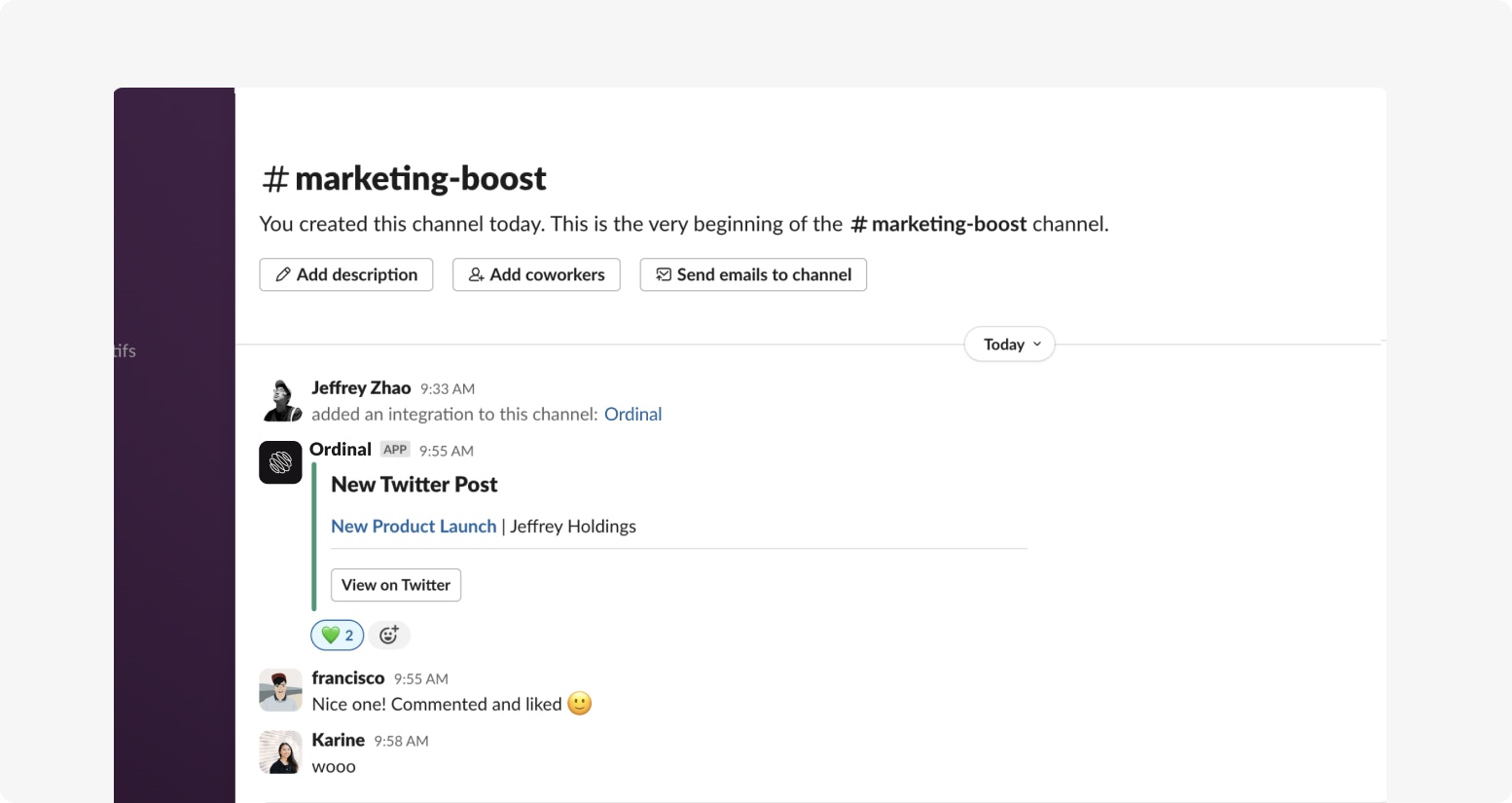
The Slack message includes:
* Post title (links to the post in Ordinal)
* Button to view on each platform where it published
* Your custom message, if you added one
## Setting up Slack Boost
## How Slack Boost works
1. You add Slack Boost to a post manually, or turn on auto-boost for a channel so every new post is boosted there
2. Once the post publishes to social platform(s), Ordinal sends a notification to your configured Slack channel
3. Your team sees the live post with direct links
4. Team members engage - likes, comments, shares - boosting visibility
The Slack message includes:
* Post title (links to the post in Ordinal)
* Button to view on each platform where it published
* Your custom message, if you added one
## Setting up Slack Boost
 Go to [Integrations → Slack](https://app.tryordinal.com/settings/integrations/slack) and click **Marketing Boost Channels**. Authorize Ordinal to access your Slack workspace.
As part of the configuration, you'll choose the specific channels you want to boost posts to e.g. `#marketing-boost` or `#marketing`.
After you connect a channel, the channel settings modal opens. **Notify channel of all posts by default** is off — the channel is opt-in.
* Leave it off to add Slack Boost manually on the posts you want to amplify.
* Toggle it on and select **Confirm** to auto-boost every new post to this channel.
Select **Cancel** or dismiss the modal to keep the setting off. You can change this later from **Integrations → Slack** by opening the channel's settings.
Slack Boost is configured. You can now boost posts to this channel.
## Adding Slack Boost to posts
### Manual boost
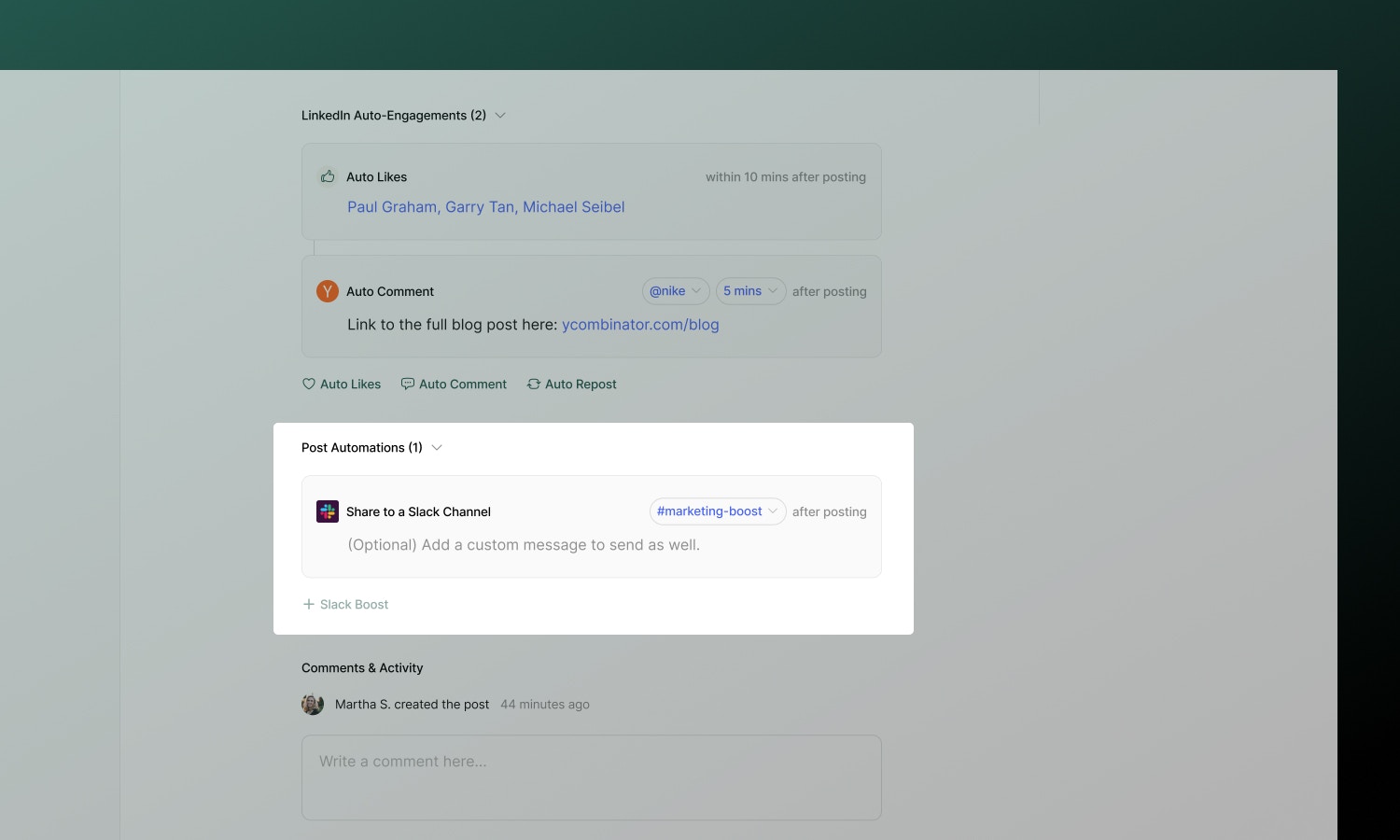
1. Open a post and scroll to **Post Automations**
2. Click **+ Slack Boost**
3. Select the Slack channel
4. Add a custom message (optional)
When the post publishes, your configured channels receive the notification.
### Auto-boost
Newly connected channels start with auto-boost **off**. To turn it on, open **Integrations → Slack**, select the channel, toggle **Notify channel of all posts by default**, and select **Confirm**. From then on, every new post automatically includes a Slack Boost to that channel — you can still remove the boost from individual posts.
Don't over-notify. Reserve boosts for content where engagement genuinely matters - auto-boosting everything leads to notification fatigue.
## Choosing the right channel
Target the right audience for each post. A company announcement might go to `#all-hands` while a product feature post goes to `#product-team`.
| Channel example | Use case |
| --------------- | ---------------------- |
| `#social-boost` | All boost requests |
| `#marketing` | Marketing team content |
| `#leadership` | Executive posts |
## Slack Boost API
You can list connected Slack channels and manage slack boosts programmatically. All endpoints require [API key authentication](/api/authentication).
| Action | Method | Path | Description |
| ------------- | -------- | ------------------------------ | -------------------------------------------------------------------------------------------- |
| List webhooks | `GET` | `/slack-webhooks` | List connected marketing boost channels (use `id` as `slackWebhookId` when creating a boost) |
| List for post | `GET` | `/posts/{postId}/slack-boosts` | List all slack boosts for a given post |
| Create | `POST` | `/slack-boosts` | Attach a boost to a post and Slack channel |
| Get | `GET` | `/slack-boosts/{id}` | Get one slack boost by ID |
| Update | `PATCH` | `/slack-boosts/{id}` | Update copy or target channel |
| Delete | `DELETE` | `/slack-boosts/{id}` | Remove the boost |
### List Slack webhooks
```bash theme={null}
curl -X GET "https://app.tryordinal.com/api/v1/slack-webhooks" \
-H "Authorization: Bearer ord_XXXXXXXXXXXXXXXX"
```
### List slack boosts for a post
```bash theme={null}
curl -X GET "https://app.tryordinal.com/api/v1/posts/550e8400-e29b-41d4-a716-446655440300/slack-boosts" \
-H "Authorization: Bearer ord_XXXXXXXXXXXXXXXX"
```
### Create slack boost
Use a post ID and a `slackWebhookId` from `GET /slack-webhooks` or from a [connected marketing boost channel](https://app.tryordinal.com/settings/integrations/slack).
```bash theme={null}
curl -X POST "https://app.tryordinal.com/api/v1/slack-boosts" \
-H "Authorization: Bearer ord_XXXXXXXXXXXXXXXX" \
-H "Content-Type: application/json" \
-d '{
"postId": "550e8400-e29b-41d4-a716-446655440300",
"slackWebhookId": "550e8400-e29b-41d4-a716-446655440920",
"copy": "New post — please like and share!"
}'
```
### Get, update, and delete
```bash theme={null}
curl -X GET "https://app.tryordinal.com/api/v1/slack-boosts/550e8400-e29b-41d4-a716-446655440910" \
-H "Authorization: Bearer ord_XXXXXXXXXXXXXXXX"
```
```bash theme={null}
curl -X PATCH "https://app.tryordinal.com/api/v1/slack-boosts/550e8400-e29b-41d4-a716-446655440910" \
-H "Authorization: Bearer ord_XXXXXXXXXXXXXXXX" \
-H "Content-Type: application/json" \
-d '{"copy": "Updated message for the team."}'
```
```bash theme={null}
curl -X DELETE "https://app.tryordinal.com/api/v1/slack-boosts/550e8400-e29b-41d4-a716-446655440910" \
-H "Authorization: Bearer ord_XXXXXXXXXXXXXXXX"
```
See the [Slack Boosts API reference](/api-reference/slack-boosts/create-slack-boost) for full schemas (including `GET /slack-webhooks`) and error handling.
## Learn more
Automate likes, comments, and reposts.
Connect your social accounts.
Go to [Integrations → Slack](https://app.tryordinal.com/settings/integrations/slack) and click **Marketing Boost Channels**. Authorize Ordinal to access your Slack workspace.
As part of the configuration, you'll choose the specific channels you want to boost posts to e.g. `#marketing-boost` or `#marketing`.
After you connect a channel, the channel settings modal opens. **Notify channel of all posts by default** is off — the channel is opt-in.
* Leave it off to add Slack Boost manually on the posts you want to amplify.
* Toggle it on and select **Confirm** to auto-boost every new post to this channel.
Select **Cancel** or dismiss the modal to keep the setting off. You can change this later from **Integrations → Slack** by opening the channel's settings.
Slack Boost is configured. You can now boost posts to this channel.
## Adding Slack Boost to posts
### Manual boost
1. Open a post and scroll to **Post Automations**
2. Click **+ Slack Boost**
3. Select the Slack channel
4. Add a custom message (optional)
When the post publishes, your configured channels receive the notification.
### Auto-boost
Newly connected channels start with auto-boost **off**. To turn it on, open **Integrations → Slack**, select the channel, toggle **Notify channel of all posts by default**, and select **Confirm**. From then on, every new post automatically includes a Slack Boost to that channel — you can still remove the boost from individual posts.
Don't over-notify. Reserve boosts for content where engagement genuinely matters - auto-boosting everything leads to notification fatigue.
## Choosing the right channel
Target the right audience for each post. A company announcement might go to `#all-hands` while a product feature post goes to `#product-team`.
| Channel example | Use case |
| --------------- | ---------------------- |
| `#social-boost` | All boost requests |
| `#marketing` | Marketing team content |
| `#leadership` | Executive posts |
## Slack Boost API
You can list connected Slack channels and manage slack boosts programmatically. All endpoints require [API key authentication](/api/authentication).
| Action | Method | Path | Description |
| ------------- | -------- | ------------------------------ | -------------------------------------------------------------------------------------------- |
| List webhooks | `GET` | `/slack-webhooks` | List connected marketing boost channels (use `id` as `slackWebhookId` when creating a boost) |
| List for post | `GET` | `/posts/{postId}/slack-boosts` | List all slack boosts for a given post |
| Create | `POST` | `/slack-boosts` | Attach a boost to a post and Slack channel |
| Get | `GET` | `/slack-boosts/{id}` | Get one slack boost by ID |
| Update | `PATCH` | `/slack-boosts/{id}` | Update copy or target channel |
| Delete | `DELETE` | `/slack-boosts/{id}` | Remove the boost |
### List Slack webhooks
```bash theme={null}
curl -X GET "https://app.tryordinal.com/api/v1/slack-webhooks" \
-H "Authorization: Bearer ord_XXXXXXXXXXXXXXXX"
```
### List slack boosts for a post
```bash theme={null}
curl -X GET "https://app.tryordinal.com/api/v1/posts/550e8400-e29b-41d4-a716-446655440300/slack-boosts" \
-H "Authorization: Bearer ord_XXXXXXXXXXXXXXXX"
```
### Create slack boost
Use a post ID and a `slackWebhookId` from `GET /slack-webhooks` or from a [connected marketing boost channel](https://app.tryordinal.com/settings/integrations/slack).
```bash theme={null}
curl -X POST "https://app.tryordinal.com/api/v1/slack-boosts" \
-H "Authorization: Bearer ord_XXXXXXXXXXXXXXXX" \
-H "Content-Type: application/json" \
-d '{
"postId": "550e8400-e29b-41d4-a716-446655440300",
"slackWebhookId": "550e8400-e29b-41d4-a716-446655440920",
"copy": "New post — please like and share!"
}'
```
### Get, update, and delete
```bash theme={null}
curl -X GET "https://app.tryordinal.com/api/v1/slack-boosts/550e8400-e29b-41d4-a716-446655440910" \
-H "Authorization: Bearer ord_XXXXXXXXXXXXXXXX"
```
```bash theme={null}
curl -X PATCH "https://app.tryordinal.com/api/v1/slack-boosts/550e8400-e29b-41d4-a716-446655440910" \
-H "Authorization: Bearer ord_XXXXXXXXXXXXXXXX" \
-H "Content-Type: application/json" \
-d '{"copy": "Updated message for the team."}'
```
```bash theme={null}
curl -X DELETE "https://app.tryordinal.com/api/v1/slack-boosts/550e8400-e29b-41d4-a716-446655440910" \
-H "Authorization: Bearer ord_XXXXXXXXXXXXXXXX"
```
See the [Slack Boosts API reference](/api-reference/slack-boosts/create-slack-boost) for full schemas (including `GET /slack-webhooks`) and error handling.
## Learn more
Automate likes, comments, and reposts.
Connect your social accounts.