> ## Documentation Index
> Fetch the complete documentation index at: https://docs.tryordinal.com/llms.txt
> Use this file to discover all available pages before exploring further.
# Overview
> The post page is where you draft, format, schedule, and collaborate on social content.
The post page is your workspace for creating, drafting, and managing social content. Everything you need - from writing and formatting to scheduling and collaboration - lives in one place.
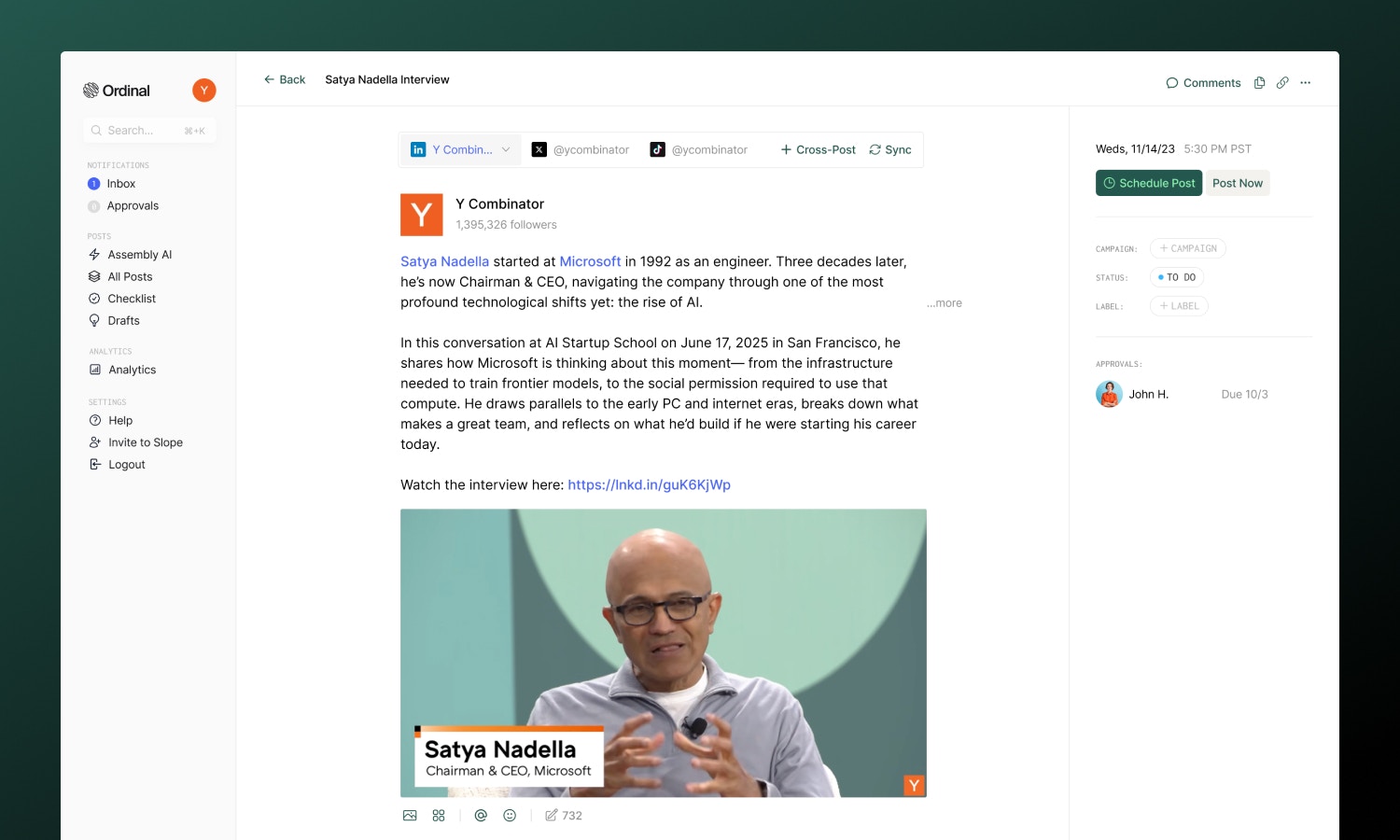 ## Post page anatomy
Start a new post from the calendar, keyboard shortcut, or idea.
Write content with formatting, mentions, and live previews.
Add images, videos, and documents to your posts.
Set publish times and manage your content calendar.
Publish to multiple platforms from a single post.
Track where posts are in your workflow.
Organize posts by topic, content type, or priority.
Group posts around launches and initiatives.
Add review gates before publishing.
Leave feedback directly on posts.
Automate likes, comments, and reposts.
Notify your team when posts publish.
Get help writing and refining content.
Pre-fill common settings for new posts.
View, compare, and restore previous versions.
***
## Notes
## Post page anatomy
Start a new post from the calendar, keyboard shortcut, or idea.
Write content with formatting, mentions, and live previews.
Add images, videos, and documents to your posts.
Set publish times and manage your content calendar.
Publish to multiple platforms from a single post.
Track where posts are in your workflow.
Organize posts by topic, content type, or priority.
Group posts around launches and initiatives.
Add review gates before publishing.
Leave feedback directly on posts.
Automate likes, comments, and reposts.
Notify your team when posts publish.
Get help writing and refining content.
Pre-fill common settings for new posts.
View, compare, and restore previous versions.
***
## Notes
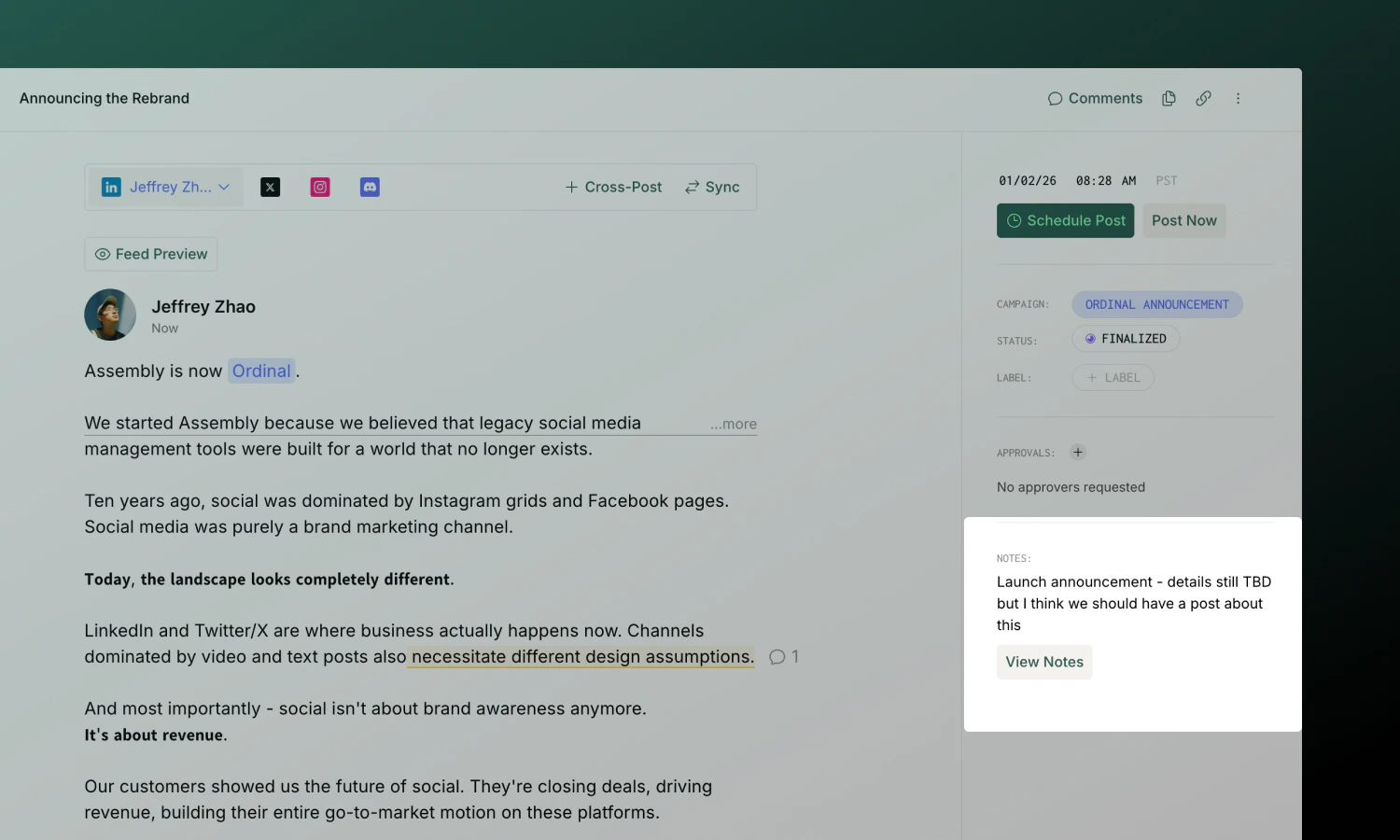 Every post has a **Notes** section in the sidebar for internal context that doesn't appear in the published content. Use it for:
* Creative briefs and guidelines
* Links to reference materials or assets
* Internal instructions for your team
Click **View Notes** in the sidebar to open the full rich text editor. Notes support formatting, links, and task lists.
## Subscribers
Every post has a **Notes** section in the sidebar for internal context that doesn't appear in the published content. Use it for:
* Creative briefs and guidelines
* Links to reference materials or assets
* Internal instructions for your team
Click **View Notes** in the sidebar to open the full rich text editor. Notes support formatting, links, and task lists.
## Subscribers
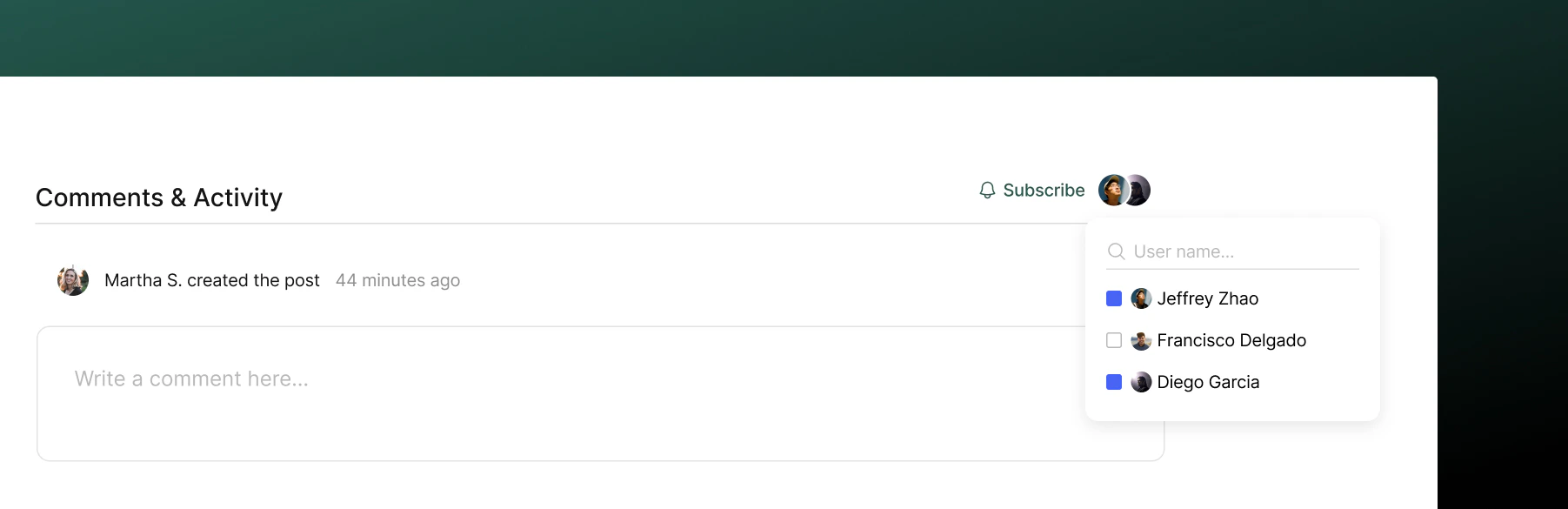 Subscribers receive notifications about a post's activity - comments, status changes, approvals, and more.
**You're automatically subscribed when you:**
* Create the post
* Comment on it
* Are @mentioned
* Are assigned as an approver
**To manually subscribe or unsubscribe:** Click the **Subscribe** or **Unsubscribe** button in the sidebar. You can also add other team members by clicking the subscriber avatars and selecting from your workspace.
Configure which notifications you receive and how (email, Slack, in-app) in [Notification Settings](/collaboration/notifications).
## Activity
At the bottom of every post, you'll find the **Activity** section - a chronological timeline showing everything that's happened:
* Status changes
* Comments added
* Approvals requested and completed
* Edits and updates
This gives you a complete history of the post from creation to publication.
## Public sharing
Subscribers receive notifications about a post's activity - comments, status changes, approvals, and more.
**You're automatically subscribed when you:**
* Create the post
* Comment on it
* Are @mentioned
* Are assigned as an approver
**To manually subscribe or unsubscribe:** Click the **Subscribe** or **Unsubscribe** button in the sidebar. You can also add other team members by clicking the subscriber avatars and selecting from your workspace.
Configure which notifications you receive and how (email, Slack, in-app) in [Notification Settings](/collaboration/notifications).
## Activity
At the bottom of every post, you'll find the **Activity** section - a chronological timeline showing everything that's happened:
* Status changes
* Comments added
* Approvals requested and completed
* Edits and updates
This gives you a complete history of the post from creation to publication.
## Public sharing
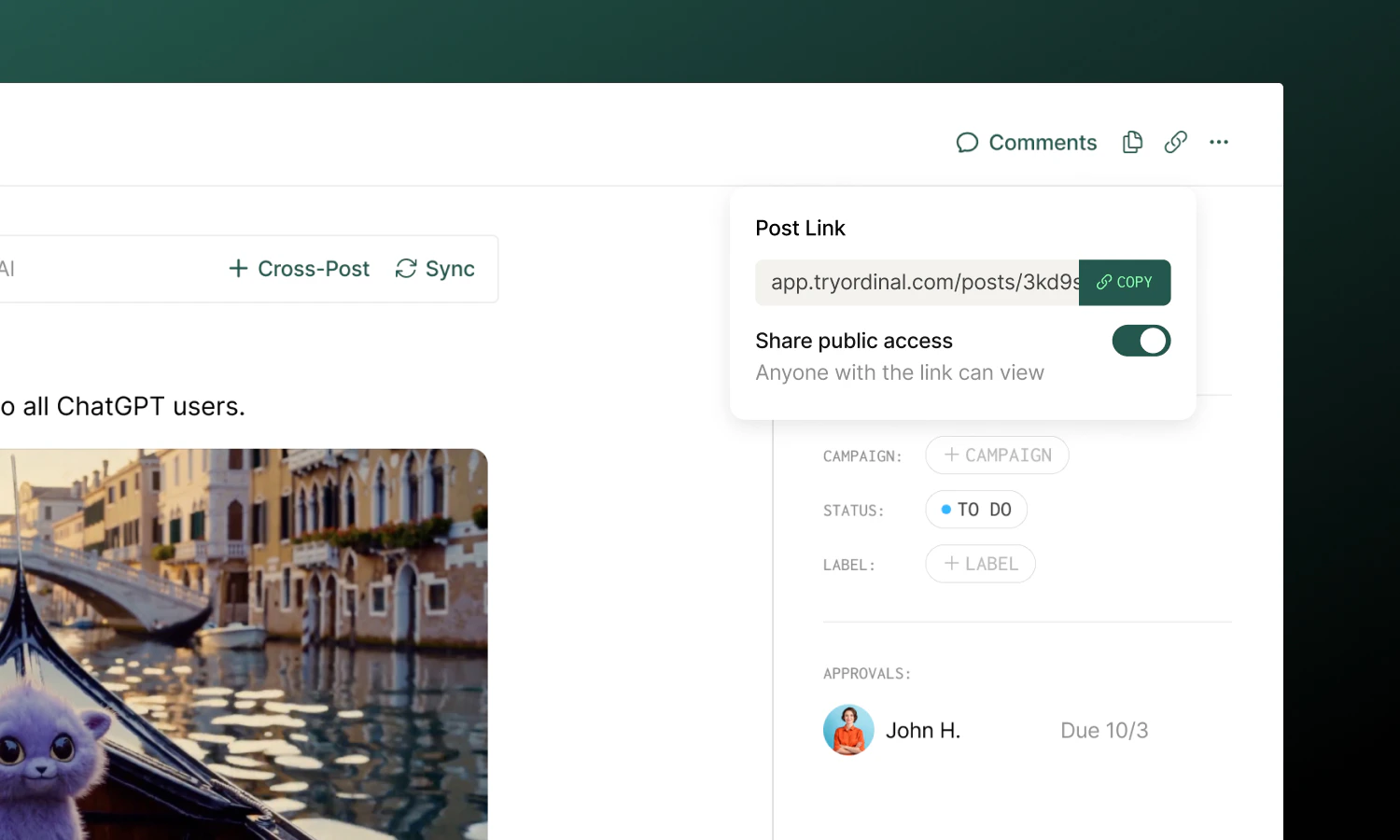 Need to share a post with someone outside your workspace? You can make any post publicly viewable.
1. Click the **link icon** in the post header
2. Toggle **Share public access** on
3. Copy the link and share it
Anyone with the link can view the post (read-only) - no login required. Toggle the setting off to revoke access.
## Duplicating posts
Need to share a post with someone outside your workspace? You can make any post publicly viewable.
1. Click the **link icon** in the post header
2. Toggle **Share public access** on
3. Copy the link and share it
Anyone with the link can view the post (read-only) - no login required. Toggle the setting off to revoke access.
## Duplicating posts
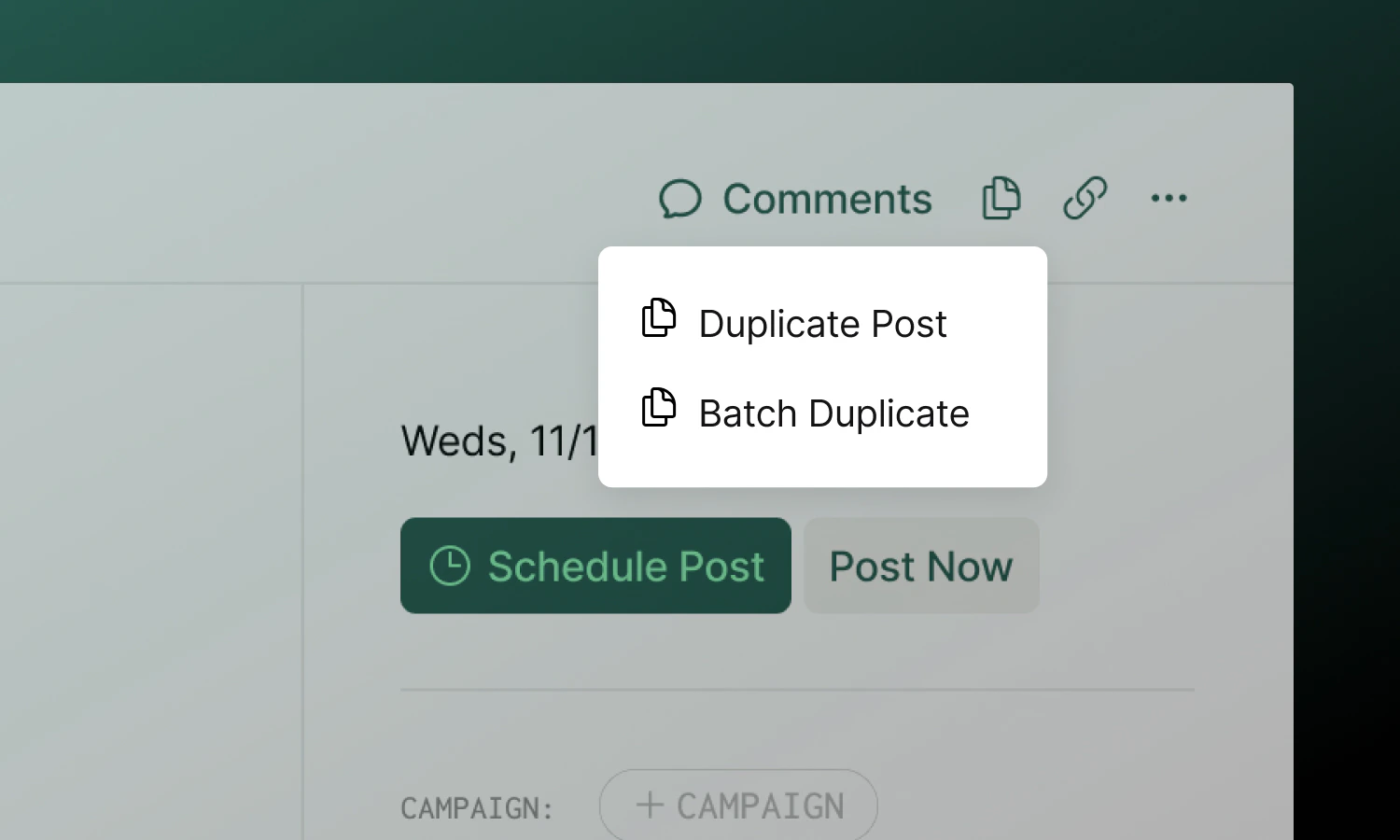 **Duplicate** creates a single copy of a post, including its content, media, labels, and settings. Find it in the duplicate menu (icon in the header).
**Batch Duplicate** creates a recurring series of posts - useful for recurring content like weekly newsletters or monthly updates:
1. Click the duplicate icon → **Batch Duplicate**
2. Set a **start date** for the first duplicate
3. Choose the **frequency** (every X days, weeks, or months)
4. Select how many **occurrences** to create (up to 10)
All duplicates inherit the original's content and settings. You can edit each one individually after creation.
## Archiving and Trash
**Duplicate** creates a single copy of a post, including its content, media, labels, and settings. Find it in the duplicate menu (icon in the header).
**Batch Duplicate** creates a recurring series of posts - useful for recurring content like weekly newsletters or monthly updates:
1. Click the duplicate icon → **Batch Duplicate**
2. Set a **start date** for the first duplicate
3. Choose the **frequency** (every X days, weeks, or months)
4. Select how many **occurrences** to create (up to 10)
All duplicates inherit the original's content and settings. You can edit each one individually after creation.
## Archiving and Trash
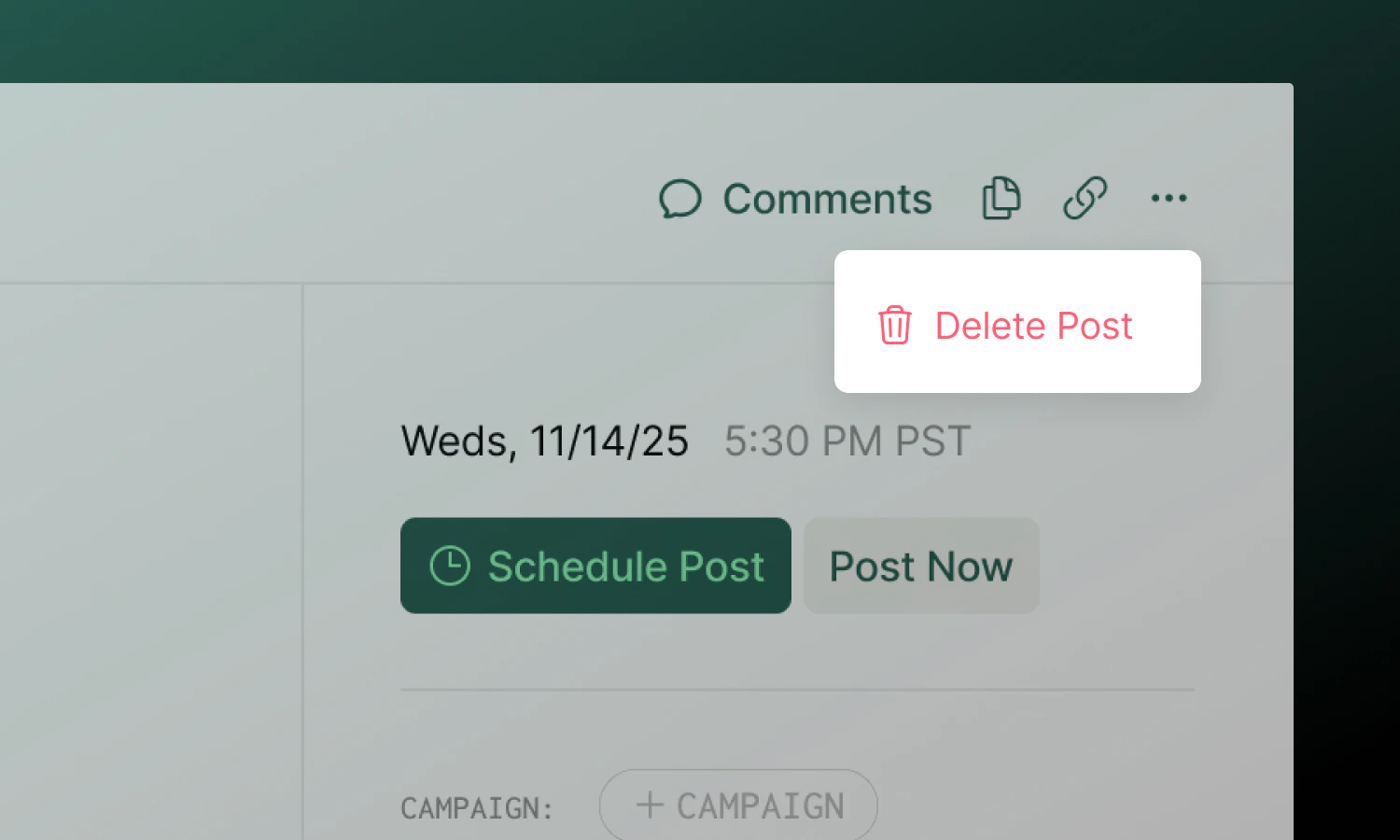 To archive a post, click the **...** menu in the header and select **Delete**. The post is moved to **Trash** and will be permanently deleted after 30 days. You can restore it anytime before then from the Trash page.
**To restore an archived post:** Open the post from [Trash](/posts/trash) and click **Restore** in the alert banner, or use the Trash page to manage archived posts.
**To permanently delete immediately:** From an archived post, click **Delete Immediately** in the alert banner. This action cannot be undone.
Archiving a scheduled post will prevent it from publishing. If the post has already published, archiving it from Ordinal keeps the live post on the social platform by default — for supported channels (LinkedIn), you can opt in to deleting the live post at the same time. See [Deleting Posts](/posts/trash#removing-live-posts-from-social-platforms).
## Learn more
Learn all the ways to start a new post.
Write, format, and preview your content.
To archive a post, click the **...** menu in the header and select **Delete**. The post is moved to **Trash** and will be permanently deleted after 30 days. You can restore it anytime before then from the Trash page.
**To restore an archived post:** Open the post from [Trash](/posts/trash) and click **Restore** in the alert banner, or use the Trash page to manage archived posts.
**To permanently delete immediately:** From an archived post, click **Delete Immediately** in the alert banner. This action cannot be undone.
Archiving a scheduled post will prevent it from publishing. If the post has already published, archiving it from Ordinal keeps the live post on the social platform by default — for supported channels (LinkedIn), you can opt in to deleting the live post at the same time. See [Deleting Posts](/posts/trash#removing-live-posts-from-social-platforms).
## Learn more
Learn all the ways to start a new post.
Write, format, and preview your content.