> ## Documentation Index
> Fetch the complete documentation index at: https://docs.tryordinal.com/llms.txt
> Use this file to discover all available pages before exploring further.
# Media & Assets
> Attach images, videos, GIFs, and PDFs to posts in Ordinal. Drag and drop, paste from your clipboard, or browse files from your device.
Media drives engagement on social platforms. Depending on the channel, Ordinal supports images, videos, GIFs, and PDF attachments, with automatic optimization for each platform's requirements.
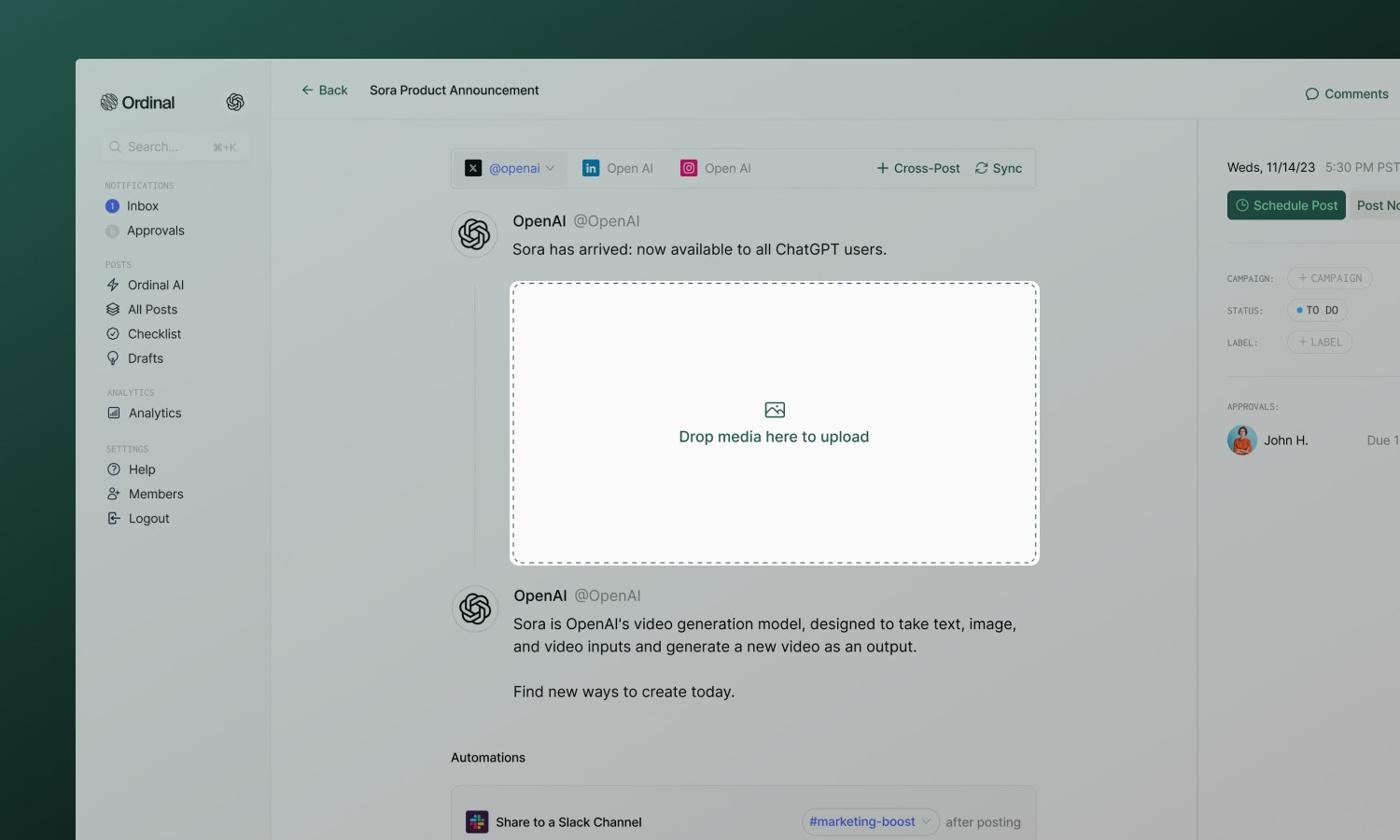 ## Adding media
There are several ways to add media to your post:
* **Drag and drop** - Drop files directly into the editor
* **Click the media button** - Click the (+) button to browse your computer
* **Paste from clipboard** - `Cmd/Ctrl + V` for screenshots or copied images
## Editing images
Click on the paintbrush icon next uploaded image to open the built-in image editor. You can make adjustments before publishing without leaving Ordinal.
Select from preset aspect ratios or enter a custom ratio.
**Presets include:**
* Square (1:1) - Instagram, LinkedIn, Facebook
* Portrait (4:5) - Instagram Feed, Facebook
* Landscape (16:9) - Twitter, YouTube
* Vertical (9:16) - Reels, Stories, TikTok, YouTube Shorts
You can also type a custom aspect ratio (e.g., "3:2") for specific needs.
* **Rotate** - Rotate left or right in 90° increments
* **Flip** - Flip horizontally or vertically
* **Resize** - Scale the image dimensions
* **Finetune** - Adjust brightness, contrast, saturation, and other settings
* **Filter** - Apply preset filters for different looks
* **Annotate** - Draw or add text directly on the image
* **Decorate** - Add stickers, shapes, or decorative elements
* **Frame** - Add borders or frames around the image
* **Redact** - Blur or block out sensitive information
Ordinal automatically compresses oversized files to meet platform limits.
## Reordering assets
For posts with multiple images or videos, hover over the assets and click the **Reorder** button. From there, drag and drop assets to reorder them. The order you set is the order they'll appear in the published post.
On platforms that support carousels (Instagram, LinkedIn, Twitter, Facebook, Threads), the first image becomes the cover that users see before swiping.
## Downloading assets
To download media from a post:
1. Hover over the asset
2. Click the **download icon** that appears
This saves the file to your computer - useful for repurposing content or keeping local backups.
## Deleting assets
To remove media from a post:
1. Hover over the asset
2. Click the **trash icon** that appears
## Supported formats
| Format | Support |
| -------- | --------------------- |
| JPG/JPEG | ✅ All platforms |
| PNG | ✅ All platforms |
| GIF | ✅ Static and animated |
| WEBP | ✅ Most platforms |
**Limits:** 10MB per image (Ordinal auto-compresses larger files)
| Format | Support |
| ------ | --------------- |
| MP4 | ✅ All platforms |
| MOV | ✅ All platforms |
**Limits:** 350MB max, H.264 codec recommended
| Format | Support |
| ------ | ------------- |
| PDF | LinkedIn only |
**Limits:** 100MB max, up to 300 pages. Creates carousel-style document posts.
## Cover photos for videos
For Instagram Reels, Facebook video and Reels, and LinkedIn video posts, you can set a custom cover photo that previews your video on each platform. Open a video post and select **Cover Photo** to launch the cover photo modal.
Use the source dropdown at the top of the modal to choose how to set the cover:
Pick any frame from the video you uploaded - no external image required.
1. In the cover photo modal, choose **Select cover photo from uploaded video**.
2. Scrub the filmstrip or use the left and right arrow keys to move the playhead. The preview and timestamp update as you scrub.
3. Select **Save Cover Photo** to set the chosen frame as your cover.
Your selection is saved with millisecond precision, so reopening the modal restores the exact frame you picked.
Use a custom image - such as a designed thumbnail - instead of a video frame.
1. In the cover photo modal, choose **Upload cover photo**.
2. Select **Upload Cover Photo File** and pick a JPG or PNG from your computer.
3. Select **Save Cover Photo** to attach it to the post.
To clear a custom cover and fall back to the platform default (the first frame of the video), switch to **Select cover photo from uploaded video**, select **Reset to Default (0:00)**, and then **Save Cover Photo**. Saving at `0:00` deletes any existing cover photo.
## Platform-specific features
Each platform has unique media capabilities - see your channel's page for limits, dimensions, and features.
## Troubleshooting
* **Check file size** - Images under 10MB, videos under 350MB
* **Check format** - JPG, PNG, GIF for images; MP4, MOV for video
* **Try refreshing** - Connection issues can interrupt uploads
* Ensure video uses H.264 codec
* Try re-encoding with a tool like HandBrake
* Verify the file isn't corrupted
Each platform crops to its preferred aspect ratio. Use the image editor to crop to the right dimensions before publishing, and preview to see exactly how it will appear.
## Learn more
Formatting, mentions, and editor features.
Handle media across multiple platforms.
## Adding media
There are several ways to add media to your post:
* **Drag and drop** - Drop files directly into the editor
* **Click the media button** - Click the (+) button to browse your computer
* **Paste from clipboard** - `Cmd/Ctrl + V` for screenshots or copied images
## Editing images
Click on the paintbrush icon next uploaded image to open the built-in image editor. You can make adjustments before publishing without leaving Ordinal.
Select from preset aspect ratios or enter a custom ratio.
**Presets include:**
* Square (1:1) - Instagram, LinkedIn, Facebook
* Portrait (4:5) - Instagram Feed, Facebook
* Landscape (16:9) - Twitter, YouTube
* Vertical (9:16) - Reels, Stories, TikTok, YouTube Shorts
You can also type a custom aspect ratio (e.g., "3:2") for specific needs.
* **Rotate** - Rotate left or right in 90° increments
* **Flip** - Flip horizontally or vertically
* **Resize** - Scale the image dimensions
* **Finetune** - Adjust brightness, contrast, saturation, and other settings
* **Filter** - Apply preset filters for different looks
* **Annotate** - Draw or add text directly on the image
* **Decorate** - Add stickers, shapes, or decorative elements
* **Frame** - Add borders or frames around the image
* **Redact** - Blur or block out sensitive information
Ordinal automatically compresses oversized files to meet platform limits.
## Reordering assets
For posts with multiple images or videos, hover over the assets and click the **Reorder** button. From there, drag and drop assets to reorder them. The order you set is the order they'll appear in the published post.
On platforms that support carousels (Instagram, LinkedIn, Twitter, Facebook, Threads), the first image becomes the cover that users see before swiping.
## Downloading assets
To download media from a post:
1. Hover over the asset
2. Click the **download icon** that appears
This saves the file to your computer - useful for repurposing content or keeping local backups.
## Deleting assets
To remove media from a post:
1. Hover over the asset
2. Click the **trash icon** that appears
## Supported formats
| Format | Support |
| -------- | --------------------- |
| JPG/JPEG | ✅ All platforms |
| PNG | ✅ All platforms |
| GIF | ✅ Static and animated |
| WEBP | ✅ Most platforms |
**Limits:** 10MB per image (Ordinal auto-compresses larger files)
| Format | Support |
| ------ | --------------- |
| MP4 | ✅ All platforms |
| MOV | ✅ All platforms |
**Limits:** 350MB max, H.264 codec recommended
| Format | Support |
| ------ | ------------- |
| PDF | LinkedIn only |
**Limits:** 100MB max, up to 300 pages. Creates carousel-style document posts.
## Cover photos for videos
For Instagram Reels, Facebook video and Reels, and LinkedIn video posts, you can set a custom cover photo that previews your video on each platform. Open a video post and select **Cover Photo** to launch the cover photo modal.
Use the source dropdown at the top of the modal to choose how to set the cover:
Pick any frame from the video you uploaded - no external image required.
1. In the cover photo modal, choose **Select cover photo from uploaded video**.
2. Scrub the filmstrip or use the left and right arrow keys to move the playhead. The preview and timestamp update as you scrub.
3. Select **Save Cover Photo** to set the chosen frame as your cover.
Your selection is saved with millisecond precision, so reopening the modal restores the exact frame you picked.
Use a custom image - such as a designed thumbnail - instead of a video frame.
1. In the cover photo modal, choose **Upload cover photo**.
2. Select **Upload Cover Photo File** and pick a JPG or PNG from your computer.
3. Select **Save Cover Photo** to attach it to the post.
To clear a custom cover and fall back to the platform default (the first frame of the video), switch to **Select cover photo from uploaded video**, select **Reset to Default (0:00)**, and then **Save Cover Photo**. Saving at `0:00` deletes any existing cover photo.
## Platform-specific features
Each platform has unique media capabilities - see your channel's page for limits, dimensions, and features.
## Troubleshooting
* **Check file size** - Images under 10MB, videos under 350MB
* **Check format** - JPG, PNG, GIF for images; MP4, MOV for video
* **Try refreshing** - Connection issues can interrupt uploads
* Ensure video uses H.264 codec
* Try re-encoding with a tool like HandBrake
* Verify the file isn't corrupted
Each platform crops to its preferred aspect ratio. Use the image editor to crop to the right dimensions before publishing, and preview to see exactly how it will appear.
## Learn more
Formatting, mentions, and editor features.
Handle media across multiple platforms.