> ## Documentation Index
> Fetch the complete documentation index at: https://docs.tryordinal.com/llms.txt
> Use this file to discover all available pages before exploring further.
# Labels
> Organize and categorize your content
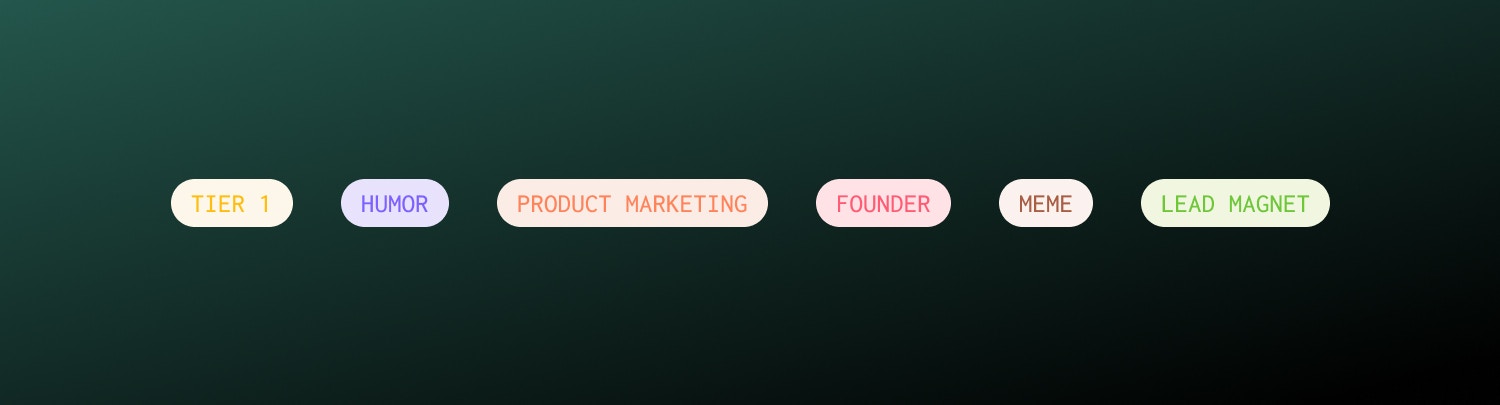
Labels are colored tags that help you organize posts and campaigns. Apply labels to categorize by content type, topic, priority, or any taxonomy that fits your workflow. Labels appear throughout Ordinal and enable powerful filtering.
 ## Creating labels
Go to [**Settings → Labels.**](https://app.tryordinal.com/settings/labels)
Click **Create New Label** and enter a name.
Select a color for your new label to help it stand out visually.
Click **Create** to add the label.
Your label is now available to use throughout Ordinal.
In any post, click the Labels field in the sidebar.
Start typing a label that doesn't exist yet.
Click **Create "\[label name]"** to create and apply it immediately.
## Applying labels
### To posts
Open any post and find the Labels field in the sidebar. Search existing labels or create new ones. Apply multiple labels to a single post - there's no limit.
### To campaigns
Campaigns can also have labels, helping you categorize entire initiatives. Open a campaign and add labels the same way.
## Filtering by label
Labels enable filtering throughout Ordinal:
| View | How it helps |
| -------------- | -------------------------------------------- |
| **Calendar** | Focus on specific content types or campaigns |
| **Posts list** | Narrow down to matching posts |
| **Analytics** | Compare performance by category |
Filters use AND logic - selecting multiple labels shows only posts with all selected labels.
## Label use cases
Categorize by format:
* 📸 Photo
* 🎥 Video
* 📄 Article
* 📊 Poll
* 🧵 Thread
Organize by subject:
* Industry News
* Company Updates
* Tips & Tricks
* Customer Stories
* Product Features
Track workflow stages:
* Needs Review
* Approved
* Client Feedback
* Ready to Publish
* Evergreen
Indicate urgency:
* Urgent
* High Priority
* Normal
* Evergreen (no time pressure)
Map to marketing funnel:
* Awareness
* Consideration
* Conversion
* Retention
## Labels vs campaigns
Both help organize content, but they serve different purposes:
| Aspect | Labels | Campaigns |
| --------------------- | ----------------------- | -------------------------- |
| **Purpose** | Flexible categorization | Time-bound groupings |
| **Date range** | No | Yes |
| **Multiple per post** | Yes | One per post |
| **Analytics** | Filter by label | Aggregate campaign metrics |
Use campaigns for initiatives with start/end dates (launches, promotions). Use labels for ongoing categorization that spans campaigns (content type, topic).
## Managing labels
### Edit labels
Update a label's name or colors in **Settings → Labels**. Changes apply immediately to all posts using that label.
### Delete labels
Remove labels you no longer need. Deleting removes the label from all posts but doesn't delete the posts themselves.
Deleting a label is permanent. Consider renaming instead if you want to preserve the categorization.
### Label usage
In Settings → Labels, see how many posts and campaigns use each label. This helps identify unused labels to clean up.
## Troubleshooting
Ensure you saved the post after applying the label. Try refreshing the page.
Check your current filters. Multiple filters combine with AND logic - a post must match all selected filters to appear.
Labels are workspace-level. Verify everyone is in the same workspace. Changes should appear for all team members.
## Related
Group content by initiative.
Filter your schedule by label.
Track content through workflow.
Measure performance by category.
## Creating labels
Go to [**Settings → Labels.**](https://app.tryordinal.com/settings/labels)
Click **Create New Label** and enter a name.
Select a color for your new label to help it stand out visually.
Click **Create** to add the label.
Your label is now available to use throughout Ordinal.
In any post, click the Labels field in the sidebar.
Start typing a label that doesn't exist yet.
Click **Create "\[label name]"** to create and apply it immediately.
## Applying labels
### To posts
Open any post and find the Labels field in the sidebar. Search existing labels or create new ones. Apply multiple labels to a single post - there's no limit.
### To campaigns
Campaigns can also have labels, helping you categorize entire initiatives. Open a campaign and add labels the same way.
## Filtering by label
Labels enable filtering throughout Ordinal:
| View | How it helps |
| -------------- | -------------------------------------------- |
| **Calendar** | Focus on specific content types or campaigns |
| **Posts list** | Narrow down to matching posts |
| **Analytics** | Compare performance by category |
Filters use AND logic - selecting multiple labels shows only posts with all selected labels.
## Label use cases
Categorize by format:
* 📸 Photo
* 🎥 Video
* 📄 Article
* 📊 Poll
* 🧵 Thread
Organize by subject:
* Industry News
* Company Updates
* Tips & Tricks
* Customer Stories
* Product Features
Track workflow stages:
* Needs Review
* Approved
* Client Feedback
* Ready to Publish
* Evergreen
Indicate urgency:
* Urgent
* High Priority
* Normal
* Evergreen (no time pressure)
Map to marketing funnel:
* Awareness
* Consideration
* Conversion
* Retention
## Labels vs campaigns
Both help organize content, but they serve different purposes:
| Aspect | Labels | Campaigns |
| --------------------- | ----------------------- | -------------------------- |
| **Purpose** | Flexible categorization | Time-bound groupings |
| **Date range** | No | Yes |
| **Multiple per post** | Yes | One per post |
| **Analytics** | Filter by label | Aggregate campaign metrics |
Use campaigns for initiatives with start/end dates (launches, promotions). Use labels for ongoing categorization that spans campaigns (content type, topic).
## Managing labels
### Edit labels
Update a label's name or colors in **Settings → Labels**. Changes apply immediately to all posts using that label.
### Delete labels
Remove labels you no longer need. Deleting removes the label from all posts but doesn't delete the posts themselves.
Deleting a label is permanent. Consider renaming instead if you want to preserve the categorization.
### Label usage
In Settings → Labels, see how many posts and campaigns use each label. This helps identify unused labels to clean up.
## Troubleshooting
Ensure you saved the post after applying the label. Try refreshing the page.
Check your current filters. Multiple filters combine with AND logic - a post must match all selected filters to appear.
Labels are workspace-level. Verify everyone is in the same workspace. Changes should appear for all team members.
## Related
Group content by initiative.
Filter your schedule by label.
Track content through workflow.
Measure performance by category.