> ## Documentation Index
> Fetch the complete documentation index at: https://docs.tryordinal.com/llms.txt
> Use this file to discover all available pages before exploring further.
# Ideas
> Capture content ideas in your backlog. Move them to the calendar when you're ready to schedule.
Ideas are your content backlog - a place to capture inspiration before you're ready to schedule. Build a library of concepts, develop them over time, and move them to the calendar when ready.
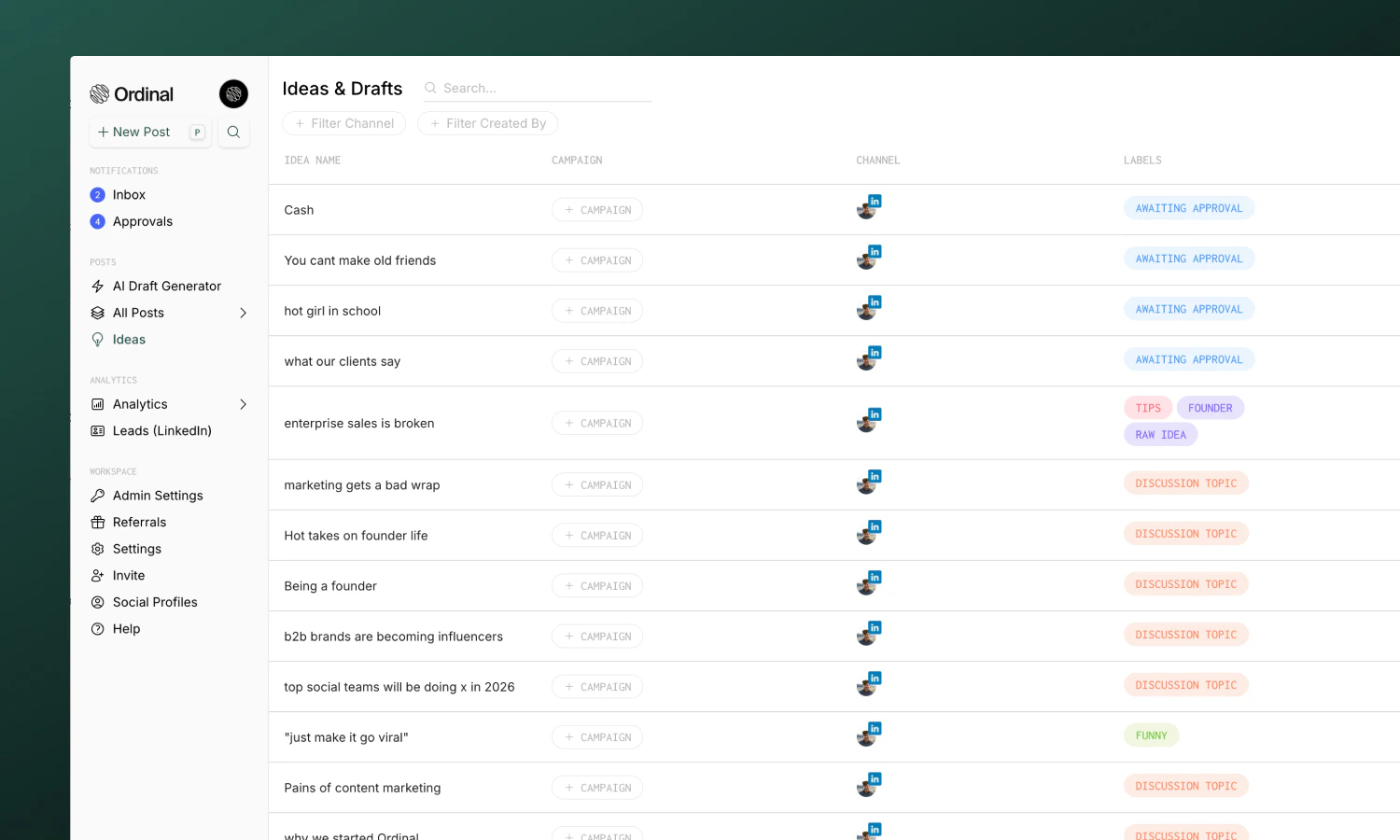 ## Creating ideas
1. Go to [Ideas](https://app.tryordinal.com/ideas) in the sidebar
2. Click on the `+` button or use the keyboard shortcut `i` to create a new idea
3. Select a channel and write your content
Ideas support the same editor and features as posts - formatting, media, comments, and collaboration all work the same way.
Add media to ideas too. Images, videos, and documents transfer when you move the idea to calendar.
## Moving ideas to calendar
When you're ready to schedule an idea:
1. Open the idea from your backlog
2. Click **Add to Calendar**. This will automatically move your idea to the Calendar for today's date.
3. Make any edits and schedule the post.
## Moving posts to ideas
Move a post on your Calendar back to your ideas backlog:
1. Open the post
2. Click the **Status** in the sidebar
3. Select **Idea** and confirm
4. The post moves back to the Ideas tab and no longer displays in the Calendar view
## Learn more
Create and compose content.
Organize ideas and posts.
## Creating ideas
1. Go to [Ideas](https://app.tryordinal.com/ideas) in the sidebar
2. Click on the `+` button or use the keyboard shortcut `i` to create a new idea
3. Select a channel and write your content
Ideas support the same editor and features as posts - formatting, media, comments, and collaboration all work the same way.
Add media to ideas too. Images, videos, and documents transfer when you move the idea to calendar.
## Moving ideas to calendar
When you're ready to schedule an idea:
1. Open the idea from your backlog
2. Click **Add to Calendar**. This will automatically move your idea to the Calendar for today's date.
3. Make any edits and schedule the post.
## Moving posts to ideas
Move a post on your Calendar back to your ideas backlog:
1. Open the post
2. Click the **Status** in the sidebar
3. Select **Idea** and confirm
4. The post moves back to the Ideas tab and no longer displays in the Calendar view
## Learn more
Create and compose content.
Organize ideas and posts.