> ## Documentation Index
> Fetch the complete documentation index at: https://docs.tryordinal.com/llms.txt
> Use this file to discover all available pages before exploring further.
# Cross-Posting
> Publish a single post to multiple platforms at once. Customize copy and media independently for each channel.
Cross-posting lets you create content once and distribute it across multiple social platforms from a single post. Unlike many scheduling tools, Ordinal gives you full flexibility - customize your copy and assets independently for each platform so you can optimize content for every audience.
 ## Creating a cross-post
Start writing your post. We recommend adding the main post draft and assets first before adding cross-post channels. This way, content from the main channel will sync across automatically once you add additional cross-post channels.
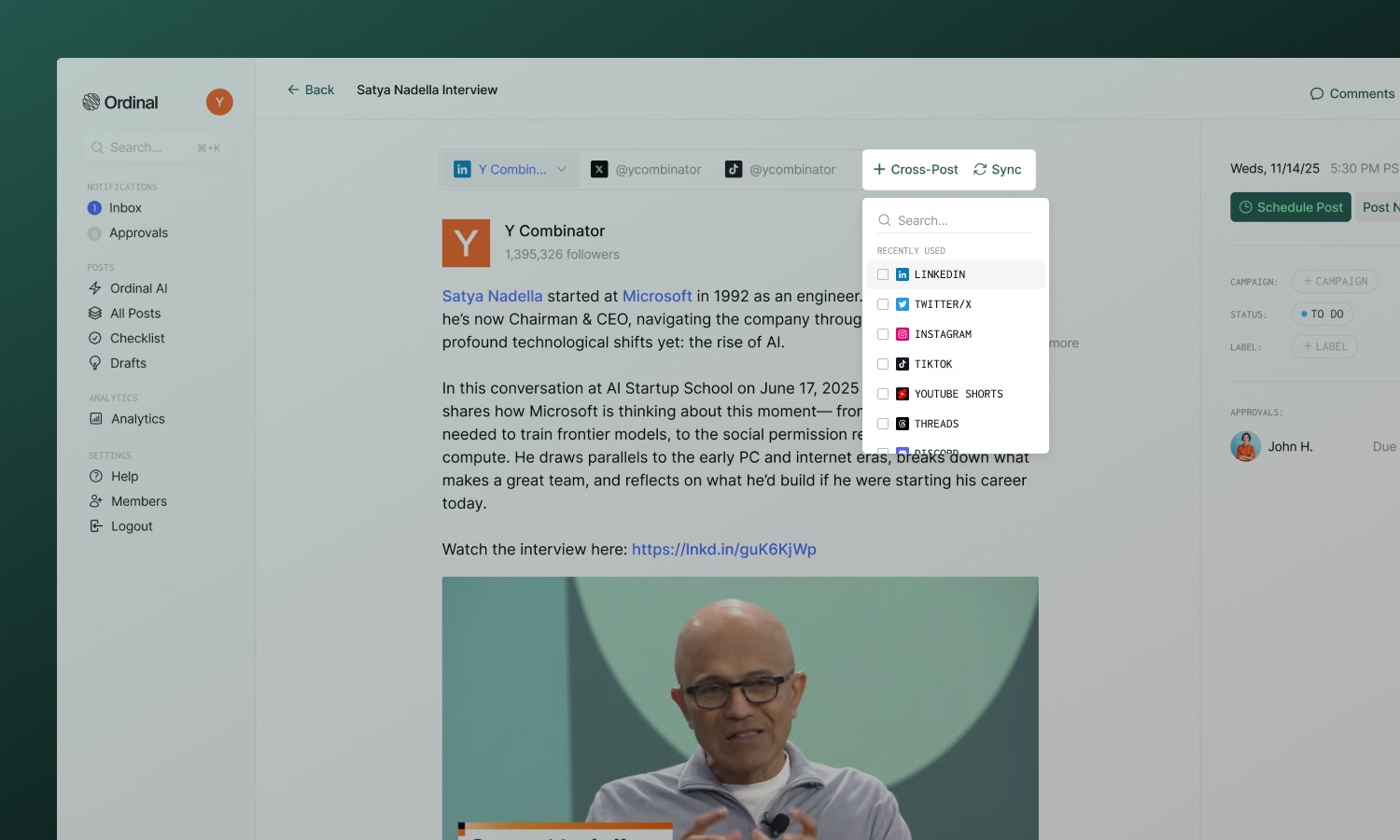
Create a new post and click the **Cross-Post** button to add platforms. Select as many as you need. The copy and content from the first channel in the post will sync automatically to the cross-post channels.
Click each platform tab to tailor that version. Change the copy, adjust hashtags, swap out media - each platform is fully independent.
Choose which connected account to use for each platform.
Note: Ordinal tries to smartly match which account to cross-post to based on similarity in usernames across channels.
Set one time - all versions publish together.
Your cross-post appears as a single item on the calendar with multiple platform icons.
## Platform tabs
Each platform in your cross-post has its own tab at the top of the editor. Click a tab to:
* See the live preview for that platform
* Edit copy specific to that platform
* Add, remove, or reorder media for that platform
* View the character count and limits
Changes you make in one tab only affect that platform - unless content is synced (see [Syncing content](#syncing-content) below).
## Customizing per channel
Ordinal lets you customize **both copy and assets** independently for each platform:
| What you can customize | Examples |
| ---------------------- | -------------------------------------------------------------------- |
| **Copy** | Different hooks, hashtag strategies, character lengths |
| **Assets** | Platform-optimized images, different aspect ratios, video vs. static |
| **Mentions** | Tag platform-specific accounts |
| **Links** | Include or exclude based on platform support |
When you edit a platform's content, it diverges from the others. The sync indicator updates to show that platform has custom content.
## Syncing content
## Creating a cross-post
Start writing your post. We recommend adding the main post draft and assets first before adding cross-post channels. This way, content from the main channel will sync across automatically once you add additional cross-post channels.
Create a new post and click the **Cross-Post** button to add platforms. Select as many as you need. The copy and content from the first channel in the post will sync automatically to the cross-post channels.
Click each platform tab to tailor that version. Change the copy, adjust hashtags, swap out media - each platform is fully independent.
Choose which connected account to use for each platform.
Note: Ordinal tries to smartly match which account to cross-post to based on similarity in usernames across channels.
Set one time - all versions publish together.
Your cross-post appears as a single item on the calendar with multiple platform icons.
## Platform tabs
Each platform in your cross-post has its own tab at the top of the editor. Click a tab to:
* See the live preview for that platform
* Edit copy specific to that platform
* Add, remove, or reorder media for that platform
* View the character count and limits
Changes you make in one tab only affect that platform - unless content is synced (see [Syncing content](#syncing-content) below).
## Customizing per channel
Ordinal lets you customize **both copy and assets** independently for each platform:
| What you can customize | Examples |
| ---------------------- | -------------------------------------------------------------------- |
| **Copy** | Different hooks, hashtag strategies, character lengths |
| **Assets** | Platform-optimized images, different aspect ratios, video vs. static |
| **Mentions** | Tag platform-specific accounts |
| **Links** | Include or exclude based on platform support |
When you edit a platform's content, it diverges from the others. The sync indicator updates to show that platform has custom content.
## Syncing content
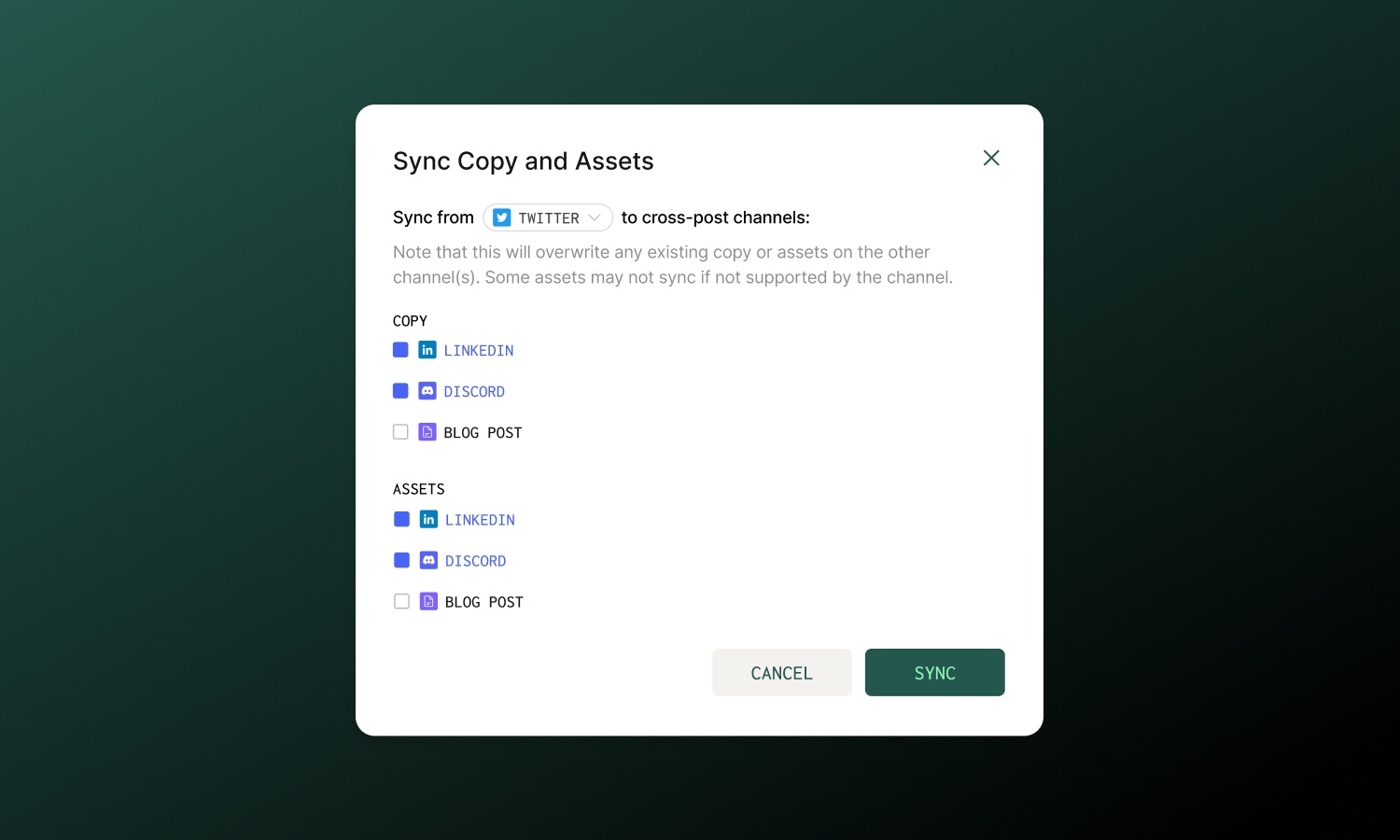 By default, content syncs across all platforms when you initially add them as cross-post channels. However, if you make updates to one channel and want to make sure it's reflected on the other cross-post channels, you'll need to click the **Sync** button in the cross-post bar.
1. Click the **Sync** button in the cross-post bar
2. Choose your **source channel** (the one you want to copy from)
3. Select which **destination channels** to update
4. Choose what to sync:
* **Copy** - syncs text content
* **Assets** - syncs images and videos
Syncing overwrites existing content on the destination channels. Some assets may not sync if they're not supported by the destination platform (e.g., PDFs only work on LinkedIn).
You can sync copy to some channels and assets to others - they're independent options.
## Best practices
LinkedIn audiences expect professional depth; Twitter rewards brevity and punch; Instagram focuses on visual impact. Customize accordingly rather than posting identical content everywhere.
Always check the preview for each platform before scheduling. Rendering differences, link previews, and cropping can surprise you.
Ordinal doesn't support cross-posting the same content to multiple profiles on the same channel (e.g. posting the same exact post to two different LinkedIn profiles). The easiest way to achieve this is to create multiple versions of the post by duplicating it, and changing the posting account.
In general, duplicate content coming from multiple accounts at the same time is not recommended since many platforms will internally flag the content as duplicate and surpress it algorithmically.
## Learn more
Set publish times and manage cross-post scheduling.
Platform specs and media requirements.
By default, content syncs across all platforms when you initially add them as cross-post channels. However, if you make updates to one channel and want to make sure it's reflected on the other cross-post channels, you'll need to click the **Sync** button in the cross-post bar.
1. Click the **Sync** button in the cross-post bar
2. Choose your **source channel** (the one you want to copy from)
3. Select which **destination channels** to update
4. Choose what to sync:
* **Copy** - syncs text content
* **Assets** - syncs images and videos
Syncing overwrites existing content on the destination channels. Some assets may not sync if they're not supported by the destination platform (e.g., PDFs only work on LinkedIn).
You can sync copy to some channels and assets to others - they're independent options.
## Best practices
LinkedIn audiences expect professional depth; Twitter rewards brevity and punch; Instagram focuses on visual impact. Customize accordingly rather than posting identical content everywhere.
Always check the preview for each platform before scheduling. Rendering differences, link previews, and cropping can surprise you.
Ordinal doesn't support cross-posting the same content to multiple profiles on the same channel (e.g. posting the same exact post to two different LinkedIn profiles). The easiest way to achieve this is to create multiple versions of the post by duplicating it, and changing the posting account.
In general, duplicate content coming from multiple accounts at the same time is not recommended since many platforms will internally flag the content as duplicate and surpress it algorithmically.
## Learn more
Set publish times and manage cross-post scheduling.
Platform specs and media requirements.