> ## Documentation Index
> Fetch the complete documentation index at: https://docs.tryordinal.com/llms.txt
> Use this file to discover all available pages before exploring further.
# Creating Posts
> Start a new post from the calendar, the P keyboard shortcut, an existing idea, or by duplicating another post.
Every piece of content in Ordinal starts with creating a post. Once created, you can draft your content, add media, configure settings, and schedule it for publishing. Here's how to get started.
## How to Create a Post
| Method | How to do it |
| --------------------- | ------------------------------------------------------------------------------------- |
| **Calendar** | Click any date on the calendar to create a post for that day. |
| **Keyboard shortcut** | Press `P` anywhere in Ordinal to instantly open the create post modal. |
| **From an idea** | Open an idea from your backlog and click **Add to Calendar** to convert it to a post. |
| **Duplicate** | Open any existing post, click the **...** menu, and select **Duplicate**. |
## Create Post Modal
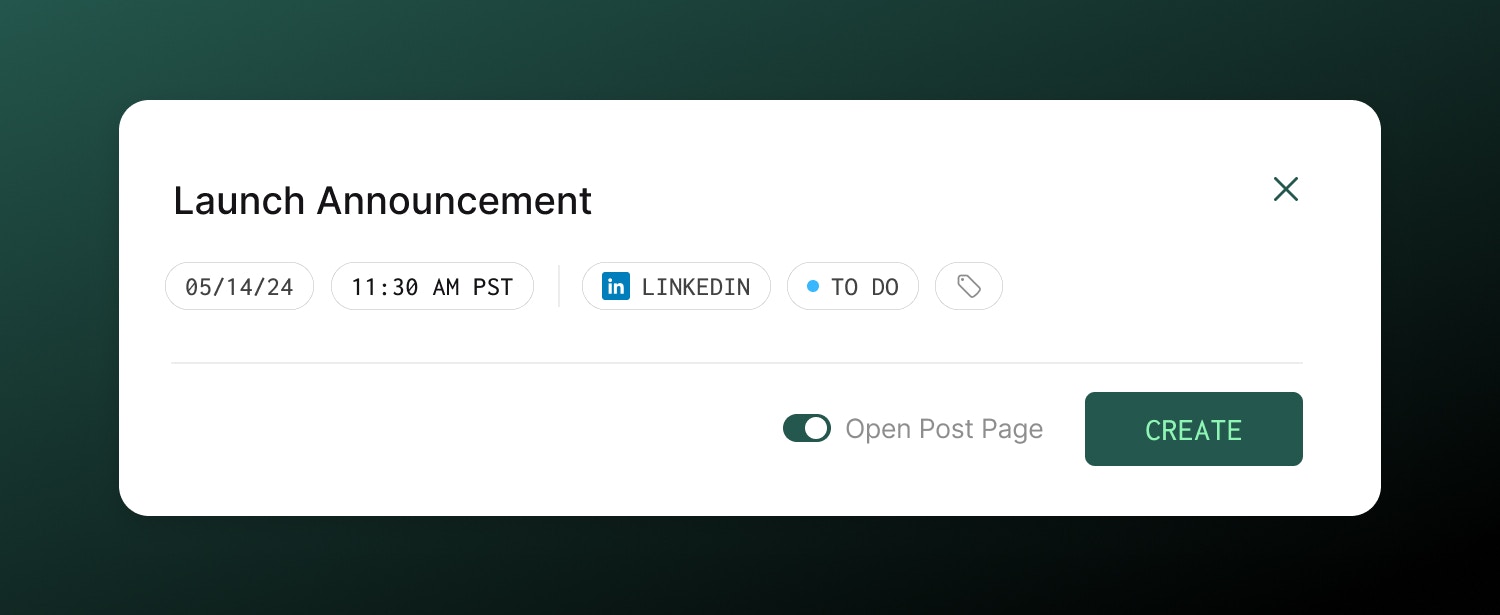 When you create a new post, a modal opens where you'll configure the basics before diving into the full editor.
| Option | Description |
| ------------------ | ----------------------------------------------------------------------------------------------------------- |
| **Title** | Give your post a descriptive title |
| **Publish Date** | Date for the post |
| **Publish Time** | Optionally choose a time for the post. You can also set this later on the Post Page itself. |
| **Channel** | Select the channel the post should go to. You can add cross-post channels later. |
| **Labels** | Optionally tag with labels to categorize by content type or topic. |
| **Open Post Page** | Toggle on to immediately open the full post editor after creation. Toggle off to stay on your current page. |
If you frequently post to the same account, set it as your default in [Post Defaults](/posts/post-defaults) to skip selecting it each time.
Once you click **Create**, your post is saved and you can start drafting your content in the full editor.
## Learn more
Formatting, mentions, settings, and saving.
Set publish times and manage your schedule.
When you create a new post, a modal opens where you'll configure the basics before diving into the full editor.
| Option | Description |
| ------------------ | ----------------------------------------------------------------------------------------------------------- |
| **Title** | Give your post a descriptive title |
| **Publish Date** | Date for the post |
| **Publish Time** | Optionally choose a time for the post. You can also set this later on the Post Page itself. |
| **Channel** | Select the channel the post should go to. You can add cross-post channels later. |
| **Labels** | Optionally tag with labels to categorize by content type or topic. |
| **Open Post Page** | Toggle on to immediately open the full post editor after creation. Toggle off to stay on your current page. |
If you frequently post to the same account, set it as your default in [Post Defaults](/posts/post-defaults) to skip selecting it each time.
Once you click **Create**, your post is saved and you can start drafting your content in the full editor.
## Learn more
Formatting, mentions, settings, and saving.
Set publish times and manage your schedule.