> ## Documentation Index
> Fetch the complete documentation index at: https://docs.tryordinal.com/llms.txt
> Use this file to discover all available pages before exploring further.
# Auto-Engagements
> Automatically add likes, comments, and reposts to your posts from connected accounts when they publish.
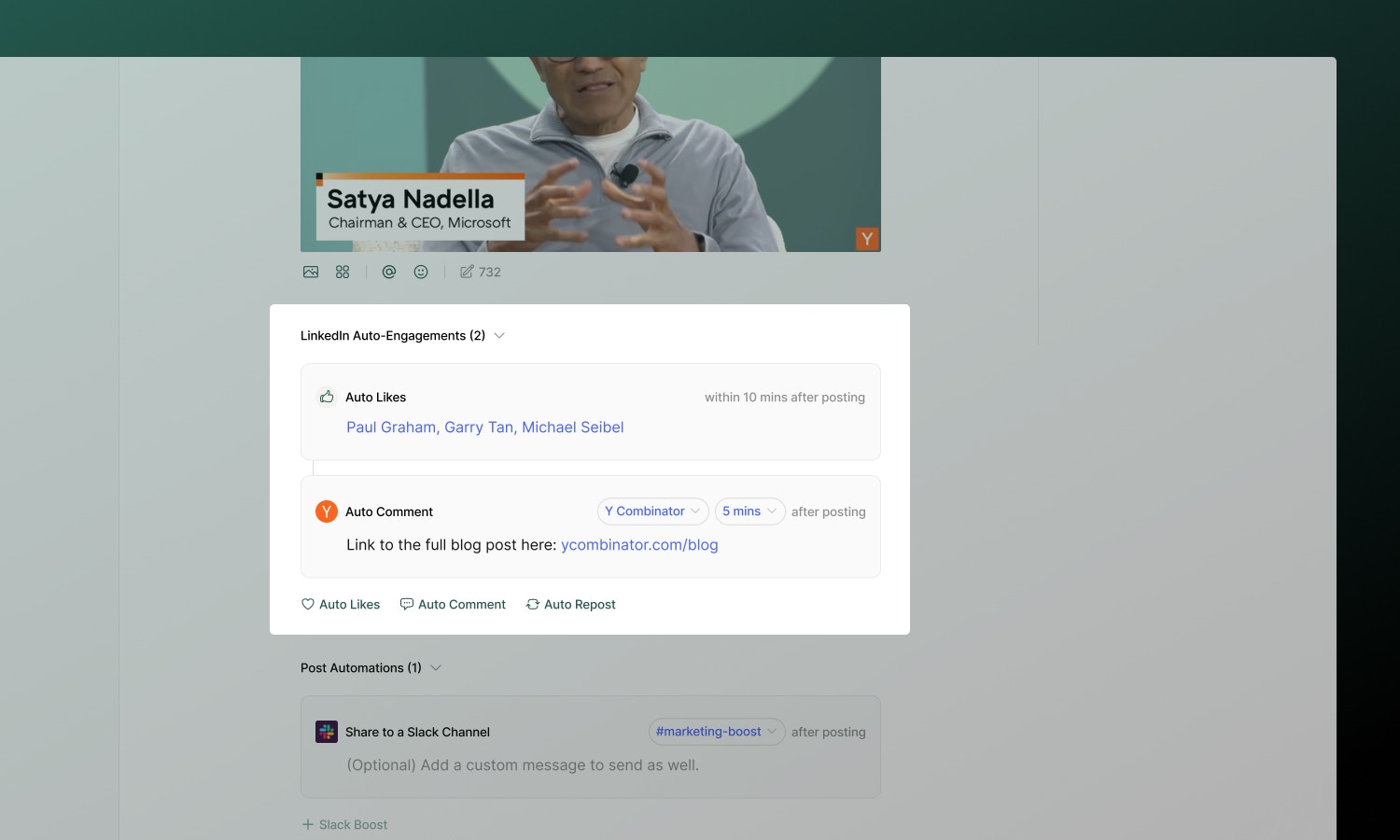
Auto-engagements allow you to automatically add likes, comments, and/or reposts to posts scheduled through Ordinal from any of your connected accounts. This makes it easy for your team to engage with content without having to manually remember to engage with every post.
 **Plan availability:** Starter workspaces can only add auto-engagements from the same account as the posting account. Pro workspaces can use any connected account for auto-engagements.
## Engagement types
| Type | What it does | Timing |
| ---------------- | -------------------------------------------------------- | -------------------------------------------- |
| **Auto-Like** | Connected profiles like your post | Configurable window (10 minutes to 24 hours) |
| **Auto-Comment** | Add a first comment (great for CTAs, hashtags, or links) | Configurable delay (immediate to 24 hours) |
| **Auto-Repost** | Reshare from another connected account | Configurable delay (immediate to 24 hours) |
## Platform support
Not all platforms support all engagement types due to API limitations:
| Platform | Auto-Like | Auto-Comment | Auto-Repost |
| --------- | --------- | ------------ | ----------- |
| LinkedIn | ✅ | ✅ | ✅ |
| Twitter/X | ✅ | ✅ | ✅ |
| Instagram | ❌ | ✅ | ❌ |
| Facebook | ❌ | ✅ | ❌ |
For platform-specific details, see each [channel's documentation](/social-profiles/overview).
### X (Twitter) eligibility
Because of X API restrictions, only certain accounts can auto-comment or auto-repost on a tweet:
* The **posting account** is always eligible.
* Any other connected X account must be **@mentioned in the text of the first tweet** to be eligible.
If a connected X account isn't @mentioned, it's disabled in the Auto-Comment and Auto-Repost profile pickers. Add the account's `@handle` to the first tweet to unlock it. This rule is enforced everywhere engagements are configured, including the post editor, the [public API](/api/introduction), and [MCP tools](/mcp/tools).
Only text `@mentions` count. Tagging an account in an image or video does not make it eligible.
## Setting up auto-engagements
1. Open a post and scroll to the **Auto-Engagement** section
2. Select the engagement type(s) you want to add (Like, Comment, or Repost)
3. Select which connected account(s) should perform the action
4. For comments and reposts, write the content
5. Set a delay for each engagement using the delay input (see [Timing](#timing))
6. Engagements fire automatically when the post publishes
Auto-engagements are configured per post. They only run once when the post publishes.
## Timing
Every engagement uses a delay you set in the numeric delay input. Enter a number, then choose **mins** or **hr** for the unit. The input also suggests common presets and a **Recently used** list of delays you've recently saved in this workspace.
* **Auto-Likes** — the value sets the window over which likes trickle in after the post publishes. The first like fires near the start of that window; the rest randomize across it. Minimum is **10 minutes**.
* **Auto-Comments and Auto-Reposts** — the value sets how long after publish the comment or repost fires. Minimum is **0** (immediate).
The maximum delay for any engagement is **24 hours**. Values outside the allowed range are rejected when you save the post.
Note: auto-engagements must be added **before** the post is published. Adding auto-engagements after a post has already been published from Ordinal will not work.
## Best practices
* **Use responsibly** - A few strategic engagements complement genuine activity. Don't overdo it.
* **Vary your patterns** - Avoid identical timing or comments on every post.
* **Add value with comments** - Generic "Great post!" comments don't help. Add context, a question, or a useful link.
**Need engagement profiles for your whole team?** Bulk discounts are available for engagement-only profiles. Reach out via in-app chat or email [support@tryordinal.com](mailto:support@tryordinal.com).
## Learn more
Notify your team to engage manually.
Connect scheduling and engagement profiles.
**Plan availability:** Starter workspaces can only add auto-engagements from the same account as the posting account. Pro workspaces can use any connected account for auto-engagements.
## Engagement types
| Type | What it does | Timing |
| ---------------- | -------------------------------------------------------- | -------------------------------------------- |
| **Auto-Like** | Connected profiles like your post | Configurable window (10 minutes to 24 hours) |
| **Auto-Comment** | Add a first comment (great for CTAs, hashtags, or links) | Configurable delay (immediate to 24 hours) |
| **Auto-Repost** | Reshare from another connected account | Configurable delay (immediate to 24 hours) |
## Platform support
Not all platforms support all engagement types due to API limitations:
| Platform | Auto-Like | Auto-Comment | Auto-Repost |
| --------- | --------- | ------------ | ----------- |
| LinkedIn | ✅ | ✅ | ✅ |
| Twitter/X | ✅ | ✅ | ✅ |
| Instagram | ❌ | ✅ | ❌ |
| Facebook | ❌ | ✅ | ❌ |
For platform-specific details, see each [channel's documentation](/social-profiles/overview).
### X (Twitter) eligibility
Because of X API restrictions, only certain accounts can auto-comment or auto-repost on a tweet:
* The **posting account** is always eligible.
* Any other connected X account must be **@mentioned in the text of the first tweet** to be eligible.
If a connected X account isn't @mentioned, it's disabled in the Auto-Comment and Auto-Repost profile pickers. Add the account's `@handle` to the first tweet to unlock it. This rule is enforced everywhere engagements are configured, including the post editor, the [public API](/api/introduction), and [MCP tools](/mcp/tools).
Only text `@mentions` count. Tagging an account in an image or video does not make it eligible.
## Setting up auto-engagements
1. Open a post and scroll to the **Auto-Engagement** section
2. Select the engagement type(s) you want to add (Like, Comment, or Repost)
3. Select which connected account(s) should perform the action
4. For comments and reposts, write the content
5. Set a delay for each engagement using the delay input (see [Timing](#timing))
6. Engagements fire automatically when the post publishes
Auto-engagements are configured per post. They only run once when the post publishes.
## Timing
Every engagement uses a delay you set in the numeric delay input. Enter a number, then choose **mins** or **hr** for the unit. The input also suggests common presets and a **Recently used** list of delays you've recently saved in this workspace.
* **Auto-Likes** — the value sets the window over which likes trickle in after the post publishes. The first like fires near the start of that window; the rest randomize across it. Minimum is **10 minutes**.
* **Auto-Comments and Auto-Reposts** — the value sets how long after publish the comment or repost fires. Minimum is **0** (immediate).
The maximum delay for any engagement is **24 hours**. Values outside the allowed range are rejected when you save the post.
Note: auto-engagements must be added **before** the post is published. Adding auto-engagements after a post has already been published from Ordinal will not work.
## Best practices
* **Use responsibly** - A few strategic engagements complement genuine activity. Don't overdo it.
* **Vary your patterns** - Avoid identical timing or comments on every post.
* **Add value with comments** - Generic "Great post!" comments don't help. Add context, a question, or a useful link.
**Need engagement profiles for your whole team?** Bulk discounts are available for engagement-only profiles. Reach out via in-app chat or email [support@tryordinal.com](mailto:support@tryordinal.com).
## Learn more
Notify your team to engage manually.
Connect scheduling and engagement profiles.