> ## Documentation Index
> Fetch the complete documentation index at: https://docs.tryordinal.com/llms.txt
> Use this file to discover all available pages before exploring further.
# Ordinal MCP server
> The Ordinal MCP server lets Claude, Cursor, Codex, and other AI assistants work inside your Ordinal workspace.
## What is it?
The Ordinal MCP server lets AI assistants work inside your Ordinal workspace. Once connected, you can ask Claude, Cursor, or any other [MCP](https://modelcontextprotocol.io)-capable assistant to draft posts, schedule them, pull analytics, manage approvals, and more — all using your own Ordinal account.
```text theme={null}
https://app.tryordinal.com/mcp
```
## How it works
Follow the [installation guide](/mcp/install/overview) for your client - Claude, Claude Code, Codex, Cursor, etc.
The first time you use it, a browser window opens. Sign in with your Ordinal account and approve access. Your assistant remembers the session - no API keys to copy or paste.
"Draft a LinkedIn post about our launch," "Show me last week's engagement analytics," "What were my top performing posts from the past month?." It picks the right tool and calls it.
## What the MCP can do
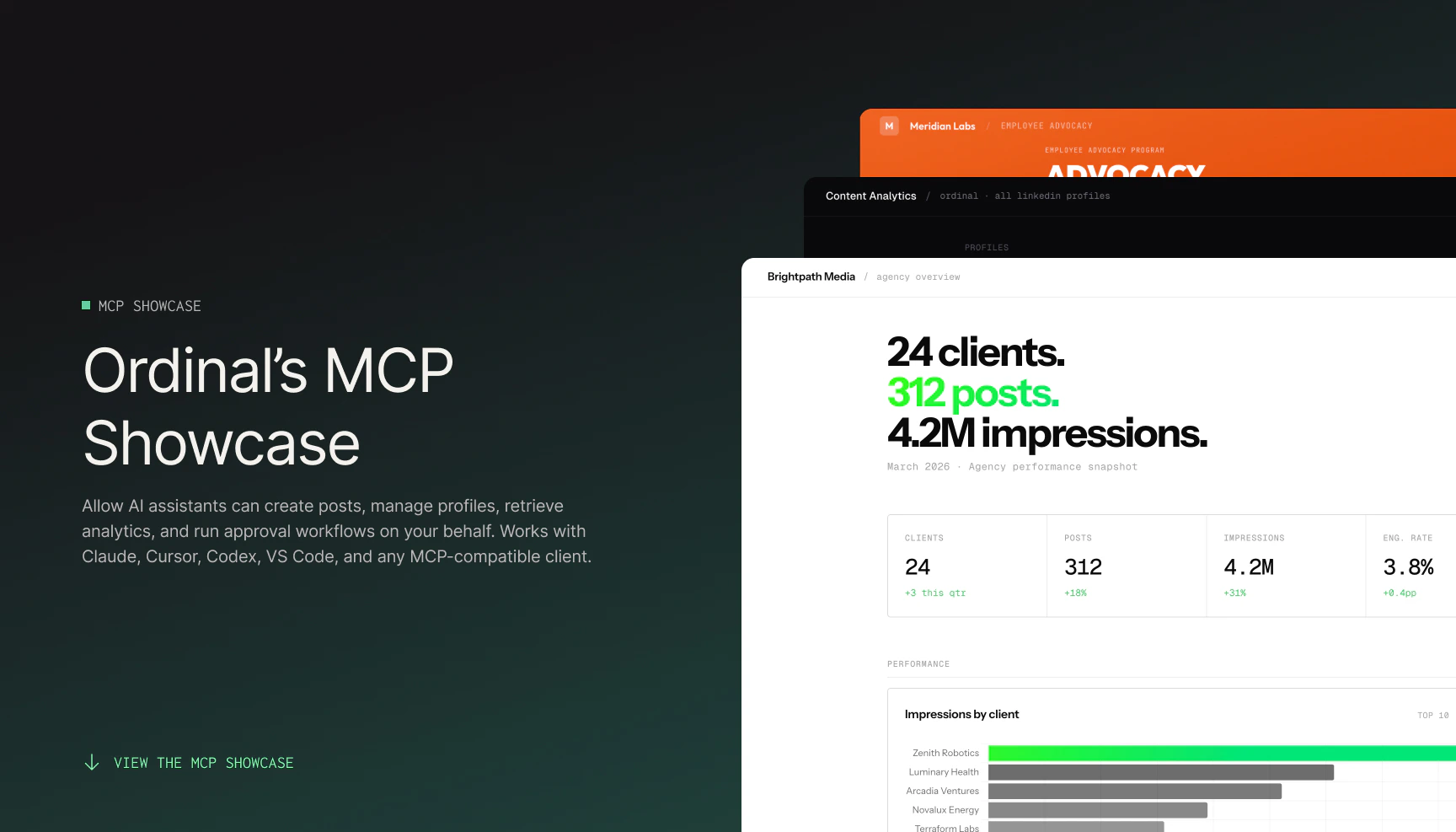
Want to see live examples of the MCP in action? Click here to check out our [MCP showcase](https://www.tryordinal.com/mcp-showcase).
 Create, update, search, and archive posts across LinkedIn, X, and Instagram.
Request approvals, add comments, manage subscribers.
Post performance and follower growth for every connected platform.
Attach images and videos to posts from a URL.
Set up automatic likes, comments, and reposts tied to posts.
Create and manage Slack broadcasts attached to posts.
See the full [tools reference](/mcp/tools) for everything.
## Signing in
The MCP server uses **OAuth** — the same kind of sign-in you use when connecting Google or GitHub to a third-party app. Your MCP client opens a browser, you sign in to Ordinal, and the client is granted access on your behalf.
**No API keys.** The old MCP server used workspace API keys that you copied into your assistant's config. The new server signs you in as a user, so the assistant can reach every workspace you belong to.
## Already using the old MCP server?
If you previously set up the server at `https://app.tryordinal.com/api/mcp` with an API key, you'll need to swap it out. The old and new servers can't coexist — if both are configured, your assistant will see duplicate tools and get confused.
Remove the old server and set up the new one
## Next steps
Set up the MCP server in your assistant.
Browse everything the assistant can do.
Create, update, search, and archive posts across LinkedIn, X, and Instagram.
Request approvals, add comments, manage subscribers.
Post performance and follower growth for every connected platform.
Attach images and videos to posts from a URL.
Set up automatic likes, comments, and reposts tied to posts.
Create and manage Slack broadcasts attached to posts.
See the full [tools reference](/mcp/tools) for everything.
## Signing in
The MCP server uses **OAuth** — the same kind of sign-in you use when connecting Google or GitHub to a third-party app. Your MCP client opens a browser, you sign in to Ordinal, and the client is granted access on your behalf.
**No API keys.** The old MCP server used workspace API keys that you copied into your assistant's config. The new server signs you in as a user, so the assistant can reach every workspace you belong to.
## Already using the old MCP server?
If you previously set up the server at `https://app.tryordinal.com/api/mcp` with an API key, you'll need to swap it out. The old and new servers can't coexist — if both are configured, your assistant will see duplicate tools and get confused.
Remove the old server and set up the new one
## Next steps
Set up the MCP server in your assistant.
Browse everything the assistant can do.