> ## Documentation Index
> Fetch the complete documentation index at: https://docs.tryordinal.com/llms.txt
> Use this file to discover all available pages before exploring further.
# Installation
> Install the Ordinal MCP server in Claude, Claude Code, Codex, Codex CLI, Cursor, or VS Code, then sign in once with OAuth.
## Before you start
**Pro Plan Required**
The Ordinal MCP server is available on the Pro plan or higher, same as the [REST API](/api/introduction). [Upgrade your workspace](https://app.tryordinal.com/settings/pricing) to enable MCP access.
You'll need an Ordinal account with access to at least one workspace. No API keys — the MCP server signs you in through your browser the first time you use it.
**Already have the old MCP server installed?**
If you previously set it up with a workspace API key, remove it first. Running both at the same time confuses the assistant — it sees duplicate tools.
[Follow the migration guide →](/mcp/migrating)
## How to connect
Pick your AI assistant below for step-by-step instructions.
Custom connectors require a **Claude Max, Team, or Enterprise** plan. They aren't available on the free or Pro tiers. Connectors are shared between Claude Desktop and claude.ai — install once, use everywhere.
```
https://app.tryordinal.com/mcp
```
Click **Add custom connector**, paste the URL you copied, name it `Ordinal`, and save.
On the next screen, click **Connect**. A browser window opens — sign in with your Ordinal account and approve access. The connector should now show **Connected**.
Ask Claude in any chat: *"List my Ordinal workspaces."* Claude should call the `ordinal_get_workspace_context` tool and return your workspaces.
**Troubleshooting**
* **I don't see "Add custom connector":** Custom connectors require a Max, Team, or Enterprise plan. Upgrade your Claude subscription at [claude.ai/settings/billing](https://claude.ai/settings/billing). Make sure you're on the latest Claude Desktop version if you don't see the option there either.
* **The connector won't sign in:** Update Claude Desktop to the latest version — older builds don't support OAuth-based MCP connectors. Restart the app after updating, then retry from the connector settings.
* **I don't see Ordinal tools in the chat:** Open the connector panel in chat (the icon in the message bar) and confirm Ordinal is enabled. If it says **Reconnect**, click it to re-run the sign-in.
* **I see duplicate Ordinal tools:** You likely still have the old server configured. Remove any connector pointing at `/api/mcp` before using the new one. See the [migration guide](/mcp/migrating).
In your terminal, run:
```bash theme={null}
claude mcp add --transport http ordinal https://app.tryordinal.com/mcp
```
The first time you use an Ordinal tool, Claude Code opens a browser window for sign-in. Authenticate with your Ordinal account and approve access.
```bash theme={null}
claude mcp list
```
You should see `ordinal` listed.
Start a Claude Code session and ask: *"List my Ordinal workspaces."* It should call the `ordinal_get_workspace_context` tool.
**Troubleshooting**
* **The sign-in browser window doesn't open:** Update Claude Code to the latest version — OAuth support was added in recent releases. Run the add command again after upgrading.
* **My session expired:** Claude Code refreshes your token automatically in the background. If that fails, remove and re-add the server: `claude mcp remove ordinal` then `claude mcp add --transport http ordinal https://app.tryordinal.com/mcp`.
* **I see duplicate Ordinal tools:** You probably still have the old server configured. Check for an `ordinal` entry pointing at `/api/mcp` and remove it. See the [migration guide](/mcp/migrating).
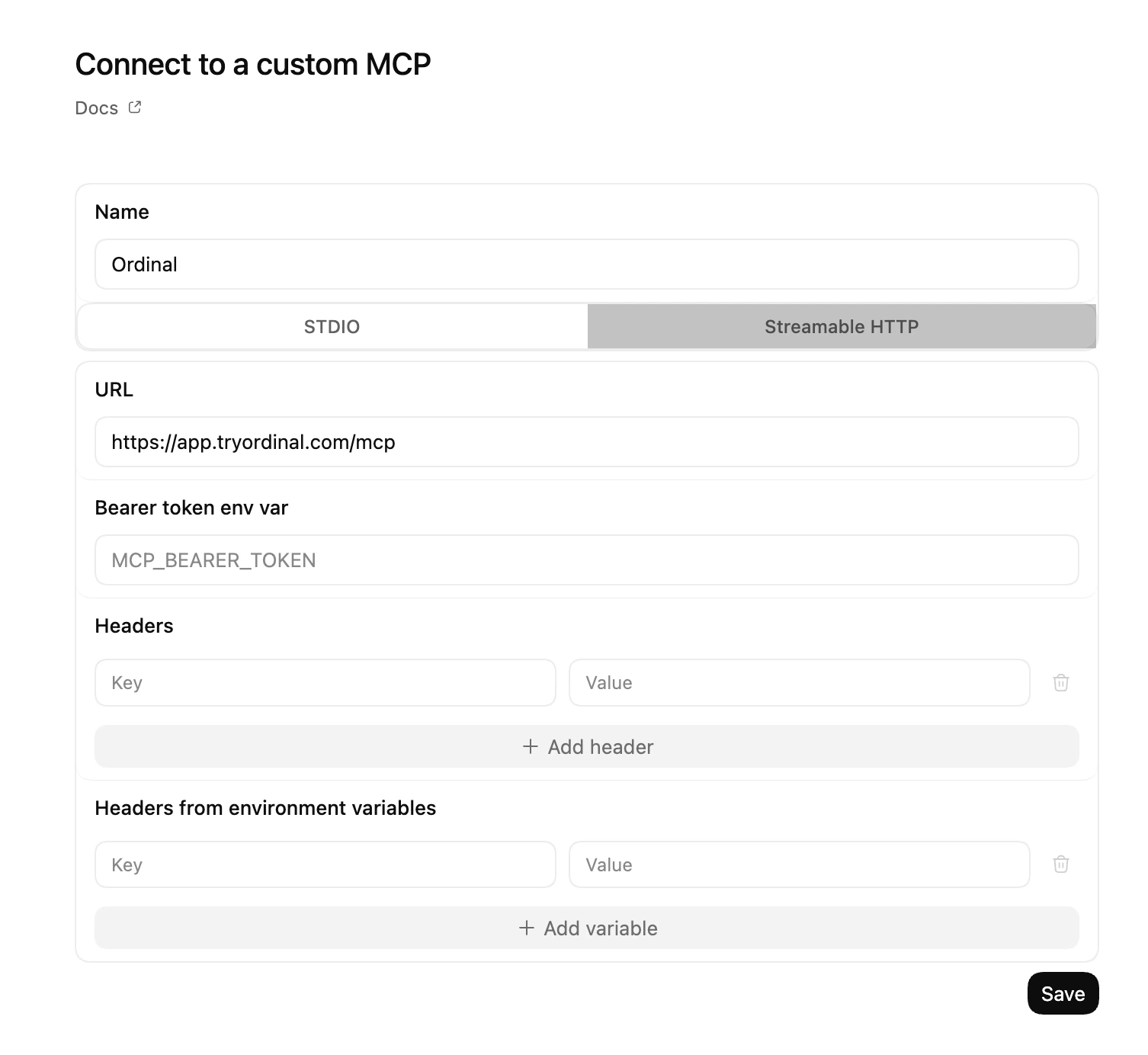
In the Codex desktop app, go to **Settings → MCP Servers** and click **Add custom MCP**.
* **Name:** `Ordinal`
* **Transport:** select **Streamable HTTP**
* **URL:** `https://app.tryordinal.com/mcp`
Leave **Bearer token env var**, **Headers**, and **Headers from environment variables** empty — Ordinal uses OAuth, not a bearer token.
Click **Save**.
Codex won't trigger OAuth automatically. Just ask Codex in chat: *"Authenticate the Ordinal MCP server."* Codex kicks off the OAuth flow and opens a browser window — sign in with your Ordinal account and approve access.
Back in **Settings → MCP Servers**, the Ordinal entry should now show as connected and list its tools.
Ask Codex: *"List my Ordinal workspaces."* It should call the `ordinal_get_workspace_context` tool.
**Troubleshooting**
* **I don't see "Add custom MCP":** Update to the latest Codex release — custom Streamable HTTP servers were added in a recent version.
* **Tool calls fail with an auth error:** Your OAuth token may have expired. Ask Codex to re-authenticate the Ordinal MCP server.
* **The sign-in browser window doesn't open:** Make sure Codex can reach `https://app.tryordinal.com`. If you're behind a corporate proxy, configure it and retry.
* **I see duplicate Ordinal tools:** You likely still have the old server configured. Remove any Ordinal MCP entry pointing at `/api/mcp`. See the [migration guide](/mcp/migrating).
In your terminal, run:
```bash theme={null}
codex mcp add ordinal --url https://app.tryordinal.com/mcp
```
Run the login command:
```bash theme={null}
codex mcp login ordinal
```
A browser window opens — sign in with your Ordinal account and approve access.
Inside the Codex TUI, run the `/mcp` slash command. You should see `ordinal` in the list of configured MCP servers along with its tools.
Ask Codex: *"List my Ordinal workspaces."* It should call the `ordinal_get_workspace_context` tool.
**Troubleshooting**
* **`codex mcp add` says it's an unknown command:** You're on an older Codex CLI build without remote MCP support. Upgrade to the latest release and try again.
* **Tool calls fail with an auth error:** Your OAuth token may have expired. Re-run `codex mcp login ordinal` to refresh it.
* **The sign-in browser window doesn't open:** Make sure Codex can reach `https://app.tryordinal.com`. If you're behind a corporate proxy, configure it and retry.
* **I see duplicate Ordinal tools:** You likely still have the old server configured. Run `codex mcp list`, remove any `ordinal` entry pointing at `/api/mcp`, and retry. See the [migration guide](/mcp/migrating).
**One-click install**
Install the Ordinal MCP server. Sign in with your Ordinal account when prompted.
**Manual install**
Open the Cursor command palette (`Cmd+Shift+P` on Mac, `Ctrl+Shift+P` on Windows) and search for **Open MCP settings**.
In the MCP settings panel, click **Add new global MCP server** and paste:
```json theme={null}
{
"mcpServers": {
"ordinal": {
"url": "https://app.tryordinal.com/mcp"
}
}
}
```
Save the file.
Cursor detects the new server and opens a browser window. Sign in with your Ordinal account and approve access.
Back in MCP settings, the `ordinal` server should show a green dot and list the available tools.
Open the Cursor agent panel and ask: *"List my Ordinal workspaces."* It should call the `ordinal_get_workspace_context` tool.
**Troubleshooting**
* **Cursor doesn't open a sign-in window:** Make sure you're on a recent Cursor version with OAuth MCP support. Restart Cursor after editing the MCP config.
* **I see a red dot next to the server:** Click the server entry in MCP settings to see the error. Most common causes: your sign-in token expired (click **Re-authorize** to refresh it), or the URL is wrong (it should be exactly `https://app.tryordinal.com/mcp` with no trailing slash or `/api/` prefix).
* **I see duplicate Ordinal tools:** You likely have the old server still configured. Remove any `ordinal` entry pointing at `/api/mcp` and restart Cursor. See the [migration guide](/mcp/migrating).
**One-click install**
Install the Ordinal MCP server. Sign in with your Ordinal account when prompted.
**Manual install**
At the root of your project, create `.vscode/mcp.json`:
```json theme={null}
{
"servers": {
"ordinal": {
"type": "http",
"url": "https://app.tryordinal.com/mcp"
}
}
}
```
Run the **Developer: Reload Window** command from the command palette (`Cmd+Shift+P` / `Ctrl+Shift+P`).
The first time you use an Ordinal tool from Copilot Chat, VS Code opens a browser for sign-in. Authenticate with your Ordinal account and approve access.
Open Copilot Chat in agent mode and ask: *"List my Ordinal workspaces."* It should call the `ordinal_get_workspace_context` tool.
**Troubleshooting**
* **The one-click button does nothing:** Make sure VS Code is registered as the handler for `vscode://` URLs. On Windows and macOS, this happens on install; on Linux you may need to associate the scheme manually. If the button still fails, use the manual install steps above.
* **I use VS Code Insiders:** The one-click button targets stable VS Code. If you use [Insiders](https://code.visualstudio.com/insiders/), follow the manual install steps above — they work the same in both editions.
* **I don't see Ordinal tools in Copilot Chat:** Open the MCP view in the sidebar and confirm `ordinal` shows as connected. If it says **Sign in required**, click it to run the OAuth flow.
* **I see duplicate Ordinal tools:** You likely have the old server still configured. Remove any `ordinal` entry pointing at `/api/mcp` from `.vscode/mcp.json` (or your user-level `settings.json`). See the [migration guide](/mcp/migrating).
If your client supports the Streamable HTTP transport with OAuth, point it at:
```
https://app.tryordinal.com/mcp
```
Then follow the client's own MCP setup docs. Reach out to [support@tryordinal.com](mailto:support@tryordinal.com) if you get stuck.
 Open in Claude
 Click **Save**.
 Install in Cursor