# Ordinal Docs
> Get an overview of Ordinal's features, integrations, and how to use them.
# Ordinal Docs
Source: https://docs.tryordinal.com/
New to Ordinal? Start with the [Quickstart](/getting-started/quickstart). Otherwise, jump to a topic below.
## Popular
**[Overview](/getting-started/overview)**
What Ordinal is and how it works.
**[Start Guide](/getting-started/quickstart)**
Get up and running in minutes.
**[Connect Profiles](/social-profiles/overview)**
Link your social accounts to start publishing.
**[Team Engagements](/posts/team-engagements)**
Coordinate likes, comments, and reposts from your team.
## Ordinal basics
**[Calendar](/calendar/overview)**
Visualize and manage your content schedule.
**[Create Posts](/posts/overview)**
Draft, schedule, and publish content.
**[Cross-Posting](/posts/cross-posting)**
Publish to multiple platforms at once.
**[Campaigns](/campaigns/overview)**
Group posts around launches and initiatives.
## Social platforms
**[LinkedIn](/social-profiles/linkedin)**
Personal profiles and company pages.
**[Twitter/X](/social-profiles/twitter)**
Tweets, threads, and media.
**[Instagram](/social-profiles/instagram)**
Feed posts, Reels, and Stories.
**[All platforms](/social-profiles/overview)**
Threads, Facebook, TikTok, YouTube, and more.
## Team & collaboration
**[Approvals](/collaboration/approvals)**
Add review gates before publishing.
**[Members](/collaboration/team-permissions)**
Invite and manage your team.
**[Analytics](/analytics/overview)**
Track performance across platforms.
**[Billing](/account/subscription-plans)**
Plans and payment.
---
# Billing & Plans
Source: https://docs.tryordinal.com/account/subscription-plans
Ordinal offers flexible plans to fit teams of all sizes, from individual creators to large agencies. This guide covers how billing works and how to manage your subscription.

## Plans
We offer three tiers designed to scale with your needs:
| Plan | Best for | Highlights |
| -------------- | -------------------------- | -------------------------------------------------------------------------------- |
| **Starter** | Individuals | Up to 3 seats, 4 social profiles, 50 posts/month |
| **Pro** | Teams | Unlimited seats, unlimited posts, team engagements, full analytics |
| **Enterprise** | Growing teams & large orgs | Custom pricing, security & account rules, CSA/MSA, prioritized support, and more |
For full pricing details, feature comparisons, and current rates, visit our [pricing page](https://www.tryordinal.com/pricing).
:::note
**Agencies and freelancers:** Managing content for multiple clients? We offer bulk discounts and agency-specific features. Chat with us or email [**support@tryordinal.com**](mailto:support@tryordinal.com) to learn more.
:::
## How billing works
- **Billing frequency**: Choose monthly or yearly billing. Annual plans save approximately 10%.
- **Enterprise billing**: Enterprise plans are billed yearly only.
### Adding or removing profiles mid-cycle
- **Adding profiles:** You'll be charged a prorated amount for the remaining days in the current cycle.
- **Removing profiles:** You'll be refunded a prorated amount for the remaining days in the current cycle as credit.
## Managing your billing
### View or change your plan
1. Go to [Settings → Plans](https://app.tryordinal.com/settings/pricing)
2. Compare available plans and select the one you want
3. Confirm the change
Changes to your plan take effect immediately and you'll be charged or refunded the prorated amount for the remaining days in the current cycle.
### Update payment method
1. Go to [**Settings → Billing**](https://app.tryordinal.com/settings/billing)
2. In the **Payment Method** section, select **Update** to add or replace your card or bank account
### View invoices
1. Go to [**Settings → Billing**](https://app.tryordinal.com/settings/billing)
2. Scroll to **Recent Invoices** to view your latest charges, or select **View all invoices** to see the full history
3. Select any invoice to download a PDF copy
### Set a billing email
Payment receipts are sent to the billing email on file. Update it whenever you want receipts to go to a different inbox, such as a shared finance alias.
1. Go to [**Settings → Billing**](https://app.tryordinal.com/settings/billing)
2. In the **Billing Email** section, enter the address you want receipts sent to
3. Select **Save**
To stop sending receipts to a dedicated address, clear the field and select **Save**. Future receipts fall back to the default email on your Stripe customer record.
## Changing or canceling your subscription
### Upgrading
When you upgrade:
- New features are available immediately
- You're charged the prorated difference for the current cycle
### Downgrading
When you downgrade:
- The change takes effect at the end of your billing period
- You keep full access until then
- If you exceed the new plan's limits (e.g., too many social profiles), you'll need to disconnect some before the downgrade takes effect
### Canceling
To cancel your subscription:
1. Go to [**Settings → Billing**](https://app.tryordinal.com/settings/billing)
2. In the **Current Plan** section, select **Cancel Plan**
3. Confirm the cancellation
You can resume a canceled subscription anytime before the billing period ends by selecting **Resume Plan** from the same page.
:::warning
Cancellations take effect at the end of your current billing period. You can reactivate your subscription at any time without losing your data.
:::
After cancellation:
- You retain access until the end of your billing period
- Your data is preserved (nothing is deleted)
- You can reactivate your subscription at any time
## Free trial
New workspaces start with a **14-day free trial** - no credit card required. During the trial, you have full access to Pro features.
To see your trial status, go to [**Settings → Billing**](https://app.tryordinal.com/settings/billing). The trial plan card shows your current tier and expiry date, along with a **Choose a Plan** link. When the trial ends, you can choose a paid plan or continue with limited functionality.
## Learn more
**[User Preferences](/account/user-preferences)**
Update your profile and settings.
**[Members](/collaboration/team-permissions)**
Manage your team.
---
# User Preferences
Source: https://docs.tryordinal.com/account/user-preferences
Personalize your Ordinal experience with your profile image, display name, and calendar preferences. These settings apply to your account across all workspaces you belong to.

## Accessing your settings
Click [Settings → Preferences](https://app.tryordinal.com/settings/user) in the left sidebar
You'll see your personal account settings - separate from workspace-level settings like timezone or billing.
## Profile image
**To upload or change your image:**
1. Go to [Settings → Preferences](https://app.tryordinal.com/settings/user)
2. Click **Choose File** under Profile Image
3. Select an image (JPG or PNG)
4. Crop and position your image in the modal
5. Click **Save Profile Image**
**To remove your image:**
Hover over your current profile image and click the **X** button that appears.
:::tip
Recommended size is 300x300 pixels or larger. Images are automatically cropped to a square.
:::
## Name
Your name is displayed in comments, activity feeds, approval requests, and team member lists.
**To update your name:**
1. Go to [**Settings → Preferences**](https://app.tryordinal.com/settings/user)
2. Edit the **First Name** and **Last Name** fields
3. Click **Save**
:::note
Your name is shared across all workspaces you belong to. Changing it here updates it everywhere.
:::
## Calendar start of week
Choose which day your calendar week starts on. This affects how the calendar grid is displayed.
**To change your start of week:**
1. Go to [**Settings → Preferences**](https://app.tryordinal.com/settings/user)
2. Find **Calendar Start of Week**
3. Select **Sunday** or **Monday**
Your preference saves automatically and the calendar updates immediately.
## Dark mode
Switch between light, dark, and system themes to match your preference or reduce eye strain.
**To change your theme:**
Find the theme toggle in the bottom-left corner of the sidebar. Click to cycle through:
- **Light mode** (sun icon)
- **Dark mode** (moon icon)
- **System** (monitor icon) - automatically matches your device settings
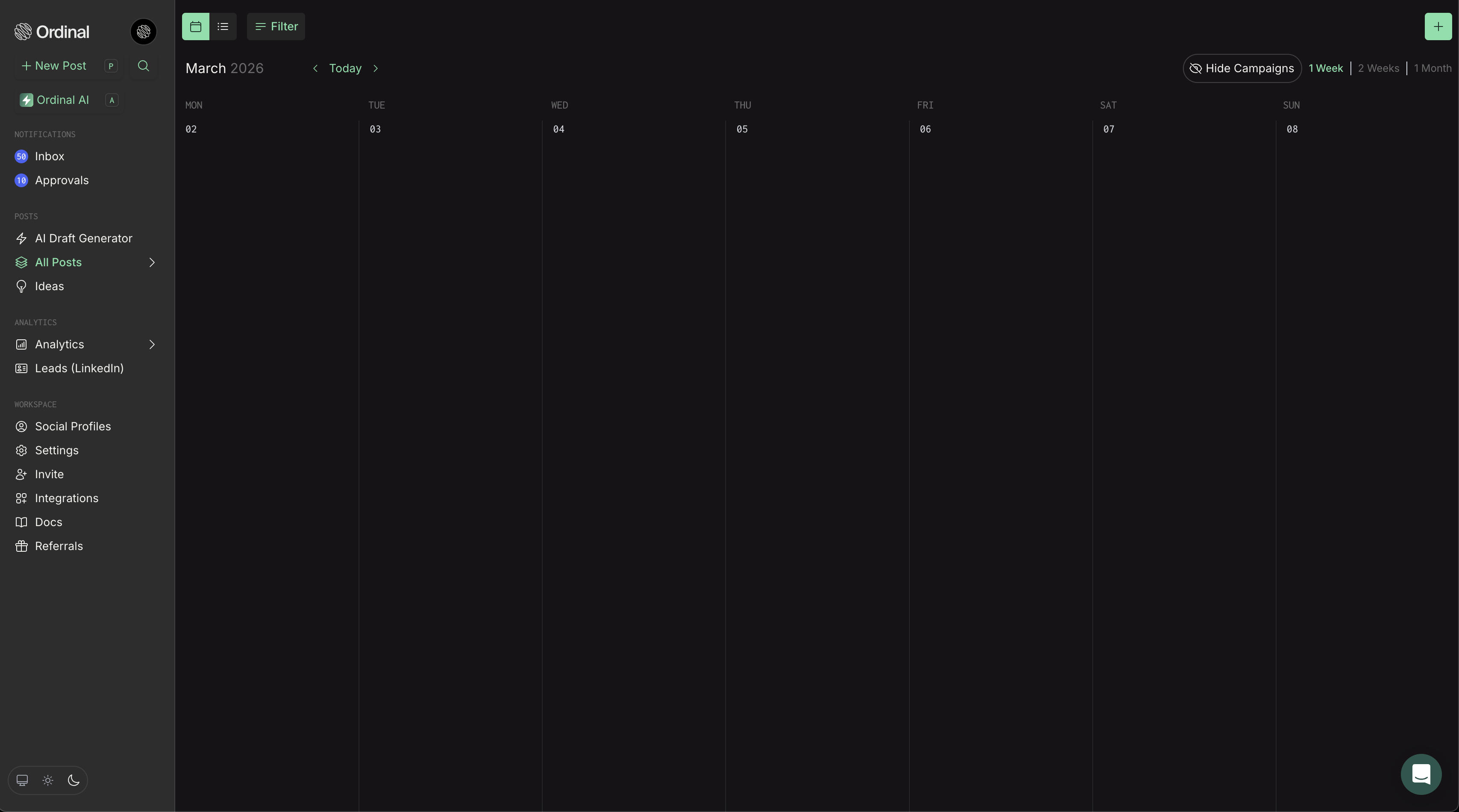
Your preference saves automatically and applies instantly across the app.
## Email and password
Your email address is used for signing in and receiving notifications. Currently, email changes require contacting support at [support@tryordinal.com](mailto:support@tryordinal.com).
If you prefer to setup a password-based login, or need to reset your password contact support at [support@tryordinal.com](mailto:support@tryordinal.com) and we can help you out.
## Learn more
**[Notifications](/collaboration/notifications)**
Configure how you receive alerts.
**[Workspace Settings](/calendar/overview#settings)**
Timezone and other workspace-level settings.
---
# Ordinal Agency API
Source: https://docs.tryordinal.com/agency-api
API for agencies to manage multiple Ordinal workspaces
Version 1.0.0
Base URL: `https://app.tryordinal.com/api/v1/company`
## Workspaces
Create and manage workspaces in your company
- [`GET /workspaces`](/agency-api/workspaces/workspaces-list) — List workspaces.
- [`POST /workspaces`](/agency-api/workspaces/workspaces-create) — Create workspace.
- [`GET /workspaces/{workspaceId}`](/agency-api/workspaces/workspaces-get) — Get workspace.
## API Keys
Create and manage workspace API keys
- [`GET /workspaces/{workspaceId}/api-keys`](/agency-api/api-keys/api-keys-list) — List workspace API keys.
- [`POST /workspaces/{workspaceId}/api-keys`](/agency-api/api-keys/api-keys-create) — Create workspace API key.
---
# Create workspace API key
Source: https://docs.tryordinal.com/agency-api/api-keys/api-keys-create
Create an API key for a specific workspace. The key can be used to access workspace-specific endpoints.
`POST /workspaces/{workspaceId}/api-keys`
---
# List workspace API keys
Source: https://docs.tryordinal.com/agency-api/api-keys/api-keys-list
List all active API keys for a specific workspace
`GET /workspaces/{workspaceId}/api-keys`
---
# Authentication
Source: https://docs.tryordinal.com/agency-api/authentication
## Overview
The Agency API uses Bearer token authentication with company-scoped API keys. All API requests must include a valid company API key in the `Authorization` header.
```bash
Authorization: Bearer ord_c_XXXXXXXXXXXXXXXX
```
:::info
**Company-Level Authentication**
Company API keys provide access to all workspaces within your company. This is different from workspace API keys, which only provide access to a single workspace.
:::
## Key Differences from Workspace API Keys
| Feature | Company API Key | Workspace API Key |
| ------- | --------------- | ----------------- |
| **Prefix** | `ord_c_*` | `ord_*` |
| **Scope** | All workspaces in company | Single workspace |
| **Can create workspaces** | Yes | No |
| **Can manage workspace API keys** | Yes | No |
| **Can access posts/profiles** | No | Yes |
## Generating a Company API Key
:::info
**Enterprise Plan Required**
Company API keys are available on the Enterprise plan. [Contact sales](mailto:sales@tryordinal.com) to upgrade your account.
:::
1. **Navigate to Company Settings**
Go to the Company Settings page in your Ordinal dashboard.
2. **Open API Keys Section**
Click on the "API Keys" tab in the company settings menu.
3. **Create New Key**
Click "Create Company API Key" and provide a descriptive name for the key.
4. **Copy Your Key**
Copy the generated API key immediately. For security reasons, the full key is only shown once.
:::warning
Store your company API key securely. It provides access to all workspaces in your company. Never expose it in client-side code, public repositories, or share it with unauthorized users.
:::
## Making Authenticated Requests
Include your company API key in the `Authorization` header with the `Bearer` prefix:
```bash cURL
curl -X GET "https://app.tryordinal.com/api/v1/company/workspaces" \
-H "Authorization: Bearer ord_c_XXXXXXXXXXXXXXXX"
```
```javascript JavaScript
const response = await fetch('https://app.tryordinal.com/api/v1/company/workspaces', {
headers: {
'Authorization': 'Bearer ord_c_XXXXXXXXXXXXXXXX'
}
});
```
```python Python
import requests
response = requests.get(
'https://app.tryordinal.com/api/v1/company/workspaces',
headers={'Authorization': 'Bearer ord_c_XXXXXXXXXXXXXXXX'}
)
```
## Authentication Errors
When authentication fails, the API returns specific error codes to help you diagnose the issue.
### Missing Token
If no authorization header is provided:
```json
{
"code": "UNAUTHORIZED",
"message": "Missing bearer token"
}
```
**Status Code:** `401 Unauthorized`
### Invalid or Not Found
If the API key is invalid or doesn't exist:
```json
{
"code": "UNAUTHORIZED",
"message": "Invalid or unauthorized API key"
}
```
**Status Code:** `401 Unauthorized`
### Wrong Key Type
If you use a workspace API key instead of a company API key:
```json
{
"code": "FORBIDDEN",
"message": "This endpoint requires a company API key. Use a company-scoped API key to access company-level resources."
}
```
**Status Code:** `403 Forbidden`
### Revoked Key
If the company API key has been revoked:
```json
{
"code": "FORBIDDEN",
"message": "API key was revoked 2 days ago"
}
```
**Status Code:** `403 Forbidden`
### Rate Limited
If you've exceeded the rate limit for your API key:
```json
{
"code": "TOO_MANY_REQUESTS",
"message": "Rate limit of 100 requests per 60s exceeded. Quota resets in 45 seconds"
}
```
**Status Code:** `429 Too Many Requests`
## Error Code Reference
| Error Code | HTTP Status | Description |
| ------------------- | ----------- | ----------------------------------------------------------- |
| `UNAUTHORIZED` | 401 | Missing or invalid API key |
| `FORBIDDEN` | 403 | Wrong key type, revoked, or insufficient permissions |
| `TOO_MANY_REQUESTS` | 429 | Rate limit exceeded |
## Best Practices
**Use Environment Variables**
Store your company API key in environment variables rather than hardcoding it in your application.
```bash
export ORDINAL_COMPANY_API_KEY="ord_c_XXXXXXXXXXXXXXXX"
```
```javascript
const apiKey = process.env.ORDINAL_COMPANY_API_KEY;
```
**Use Workspace Keys for Workspace Operations**
Company API keys cannot access workspace-specific resources like posts and profiles. Use the Agency API to create workspace API keys, then use those keys with the Workspace API.
```javascript
// 1. Create a workspace API key using your company key
const { key: workspaceKey } = await createWorkspaceApiKey(companyKey, workspaceId);
// 2. Use the workspace key for post operations
const posts = await listPosts(workspaceKey);
```
**Rotate Keys Regularly**
Periodically rotate your company API keys to minimize the impact of potential key exposure.
**Revoke Compromised Keys**
If you suspect a company API key has been compromised, revoke it immediately and generate a new one. Remember that this affects all workspaces in your company.
## Managing Company API Keys
### Viewing Keys
You can view all your company API keys in the company settings. Each key shows:
- Name and description
- Creation date
- Last used timestamp
### Revoking Keys
To revoke a company API key:
1. Navigate to company settings
2. Find the key you want to revoke
3. Click the `...` button and select "Revoke"
4. Confirm the action
:::warning
Revoking a company API key is permanent and cannot be undone. Any applications using the revoked key will immediately lose access to all company-level operations.
:::
---
# Ordinal Agency API
Source: https://docs.tryordinal.com/agency-api/introduction
:::warning
**Looking for the Workspace API?**
This is the **Agency API** for managing multiple workspaces at the company level. If you want to create posts, manage profiles, or access workspace-specific resources, see the [Workspace API](/api/introduction) instead.
:::
## Overview
The Ordinal Agency API allows agencies and teams to programmatically manage multiple workspaces from a single company account. With company-level API access, you can create new workspaces, manage workspace API keys, and automate your multi-client workflows.
**Base URL**
```
https://app.tryordinal.com/api/v1/company
```
## Use Cases
The Agency API is designed for:
- **Agencies** managing social media for multiple clients, each with their own workspace
- **Enterprises** with multiple brands or business units
- **Platforms** building integrations that provision Ordinal workspaces for their users
## Quick Start
:::info
**Enterprise Plan Required**
The Agency API requires an Enterprise plan. [Contact sales](mailto:sales@tryordinal.com) to upgrade your account.
:::
1. **Generate a Company API Key**
Navigate to your company settings and create a new company API key. See the [Authentication](/agency-api/authentication) guide for details.
2. **Make Your First Request**
Use the company API key as a Bearer token to authenticate your requests:
```bash
curl -X GET "https://app.tryordinal.com/api/v1/company/workspaces" \
-H "Authorization: Bearer ord_c_XXXXXXXXXXXXXXXX"
```
Confirm that you see your workspaces in the response.
```json
{
"workspaces": [
{
"id": "workspace-uuid-1",
"name": "Client A",
"slug": "client-a",
"timezone": "America/New_York",
"createdAt": "2025-01-01T00:00:00.000Z"
},
{
"id": "workspace-uuid-2",
"name": "Client B",
"slug": "client-b",
"timezone": "Europe/London",
"createdAt": "2025-02-01T00:00:00.000Z"
}
]
}
```
3. **Explore Endpoints**
Browse the endpoint documentation to discover all available operations for managing workspaces and API keys.
## Available Operations
**[List Workspaces](/agency-api/workspaces/workspaces-list)**
List all workspaces in your company
**[Create Workspace](/agency-api/workspaces/workspaces-create)**
Create a new workspace for a client
**[Get Workspace](/agency-api/workspaces/workspaces-get)**
Retrieve details of a specific workspace
**[Manage API Keys](/agency-api/api-keys/api-keys-create)**
Create and list workspace API keys programmatically
## Agency API vs Workspace API
| Feature | Agency API | Workspace API |
| ------- | ---------- | ------------- |
| **Scope** | All workspaces in your company | Single workspace |
| **Key prefix** | `ord_c_*` | `ord_*` |
| **Create workspaces** | Yes | No |
| **Manage workspace API keys** | Yes | No |
| **Access posts and profiles** | No (use workspace keys) | Yes |
:::tip
Use the Agency API to create workspaces and generate workspace API keys. Then use those workspace API keys with the [Workspace API](/api/introduction) to manage posts, profiles, and other workspace-specific resources.
:::
## Rate Limiting
API requests are rate limited to ensure fair usage. The Agency API has a limit of 100 requests per minute per API key.
```json
{
"code": "TOO_MANY_REQUESTS",
"message": "Rate limit of 100 requests per 60s exceeded. Quota resets in 45 seconds"
}
```
If you need a higher rate limit, please reach out to support.
## Need Help?
**[Authentication](/agency-api/authentication)**
Learn how to authenticate your Agency API requests
**[Error Handling](/api/errors)**
Understand API error responses
---
# Create workspace
Source: https://docs.tryordinal.com/agency-api/workspaces/workspaces-create
Create a new workspace in the company
`POST /workspaces`
---
# Get workspace
Source: https://docs.tryordinal.com/agency-api/workspaces/workspaces-get
Get a specific workspace by ID
`GET /workspaces/{workspaceId}`
---
# List workspaces
Source: https://docs.tryordinal.com/agency-api/workspaces/workspaces-list
List all workspaces in the company
`GET /workspaces`
---
# Analytics
Source: https://docs.tryordinal.com/analytics/overview
Understand what's working and what isn't. Ordinal's analytics help you track post performance, identify top content, and see which formats resonate with your audience - all in one place.
## Analytics Overview
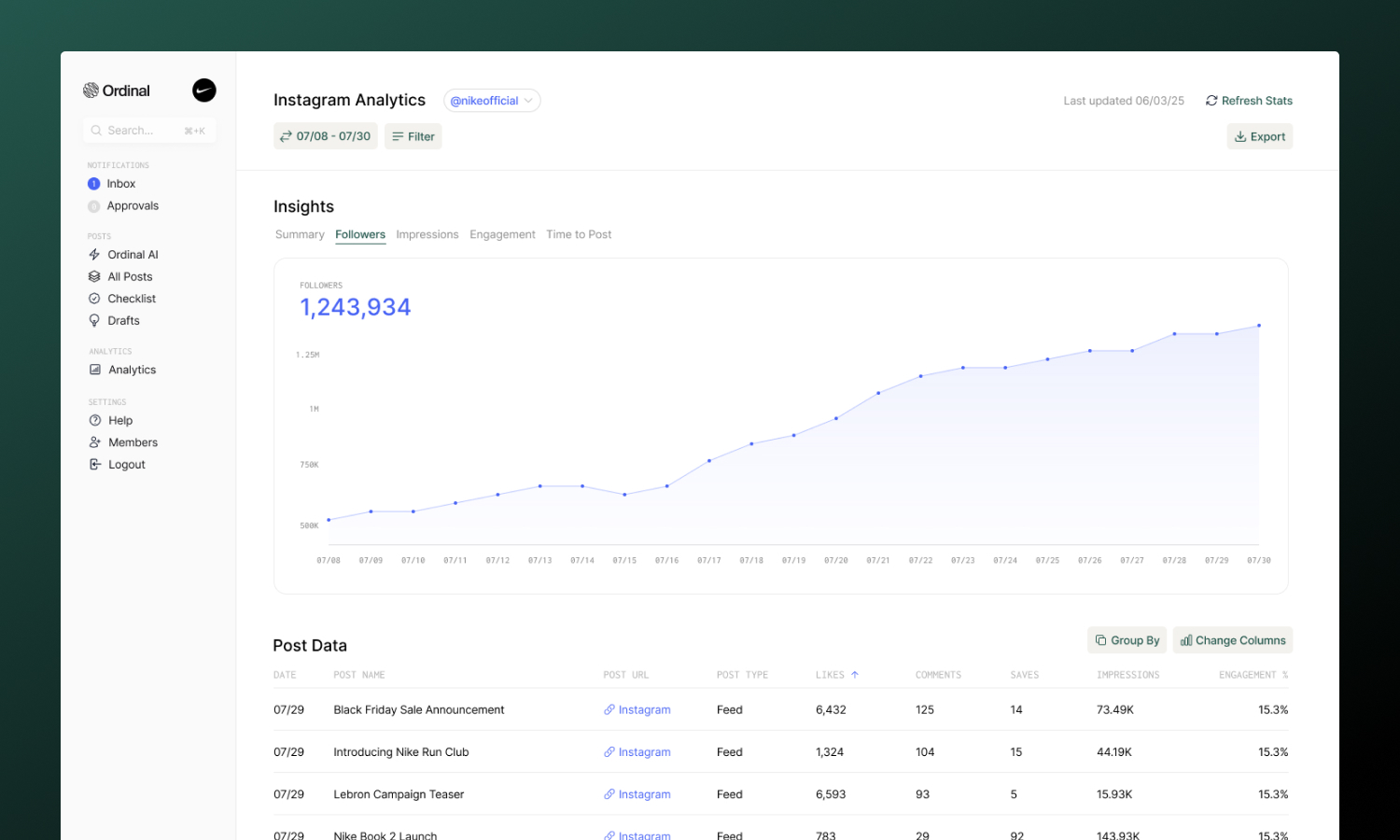
When you open **Analytics** from the sidebar, you land on the Analytics Overview page - a rollup view of performance across all your connected accounts. This is where you can see aggregate metrics like total impressions, engagement, and reach for each platform across your entire workspace.
For example, if you have three LinkedIn accounts connected, you'll see combined totals (total impressions across all LinkedIn accounts) plus a summary card for each individual account.
Click on any account card or **See More** to dive into that account's detailed analytics.
You can also switch to **Clicks Overview** to track click performance for links shortened with Ordinal's link shortener. See [Shortlinks](/analytics/shortlinks) for the full guide.
## Account-Level Analytics
Click into any account from the Overview to see detailed analytics for that specific profile. Each account page includes:
- **Account selector** - Switch between any connected profile on that channel, or select **All Accounts** to see combined performance (see [Viewing all accounts on a channel](#viewing-all-accounts-on-a-channel))
- **Summary stats** - Aggregate metrics for the selected date range with comparison to the previous period
- **Charts and graphs** - Visual trends showing performance over time
- **Post table** - Every post with its performance metrics, sortable by any column
- **Filters** - Narrow down by date range, post type, labels, or campaign
- **Export** - Download your data as a CSV for external analysis or client reporting
- **Earned Media Value** - See the dollar value of your organic reach based on configurable CPM
- **Refresh Stats** - Manually refresh analytics data on-demand (once per hour)
### Viewing all accounts on a channel
If your workspace has more than one profile connected to the same channel, the account selector at the top of the LinkedIn, Twitter/X, Instagram, and Facebook analytics pages includes an **All Accounts (N)** option. Select it to combine every profile on that channel into a single view.
The aggregate view rolls up:
- **Summary metrics** and previous-period comparisons across all connected profiles
- **Top performers** and the **post table**, with a new **Account** column so you can tell which profile each post belongs to
- **Format** and **label** breakdowns
- **CSV exports**, which include the account attribution column
- **Filter options** (post types, labels, campaigns), merged across every profile
A few things stay account-scoped even in the aggregate view:
- The **Refresh Stats** action - refresh runs against a single profile, so switch to that account to trigger it
- The **Followers** and **History** tabs - these show per-profile trends and are hidden when **All Accounts** is selected
:::tip
Use **All Accounts** for workspace-wide reporting on a single channel - for example, to see the combined LinkedIn performance across every brand you manage. Switch back to an individual profile when you need to refresh stats or inspect follower growth.
:::
## Refreshing Stats
Analytics data syncs automatically each day, but you can manually refresh stats at any time using the **Refresh Stats** button on any account analytics page. This is useful when you want to see the latest performance data for recent posts.
- Click **Refresh Stats** in the top-right corner of any analytics page
- Stats can be refreshed **once per hour** per account
- The button shows when you last refreshed and how long until you can refresh again
:::tip
Manual refresh is great for checking performance right after a post goes live or before a client meeting. For day-to-day tracking, the automatic daily sync is usually sufficient.
:::
## Earned Media Value (EMV)
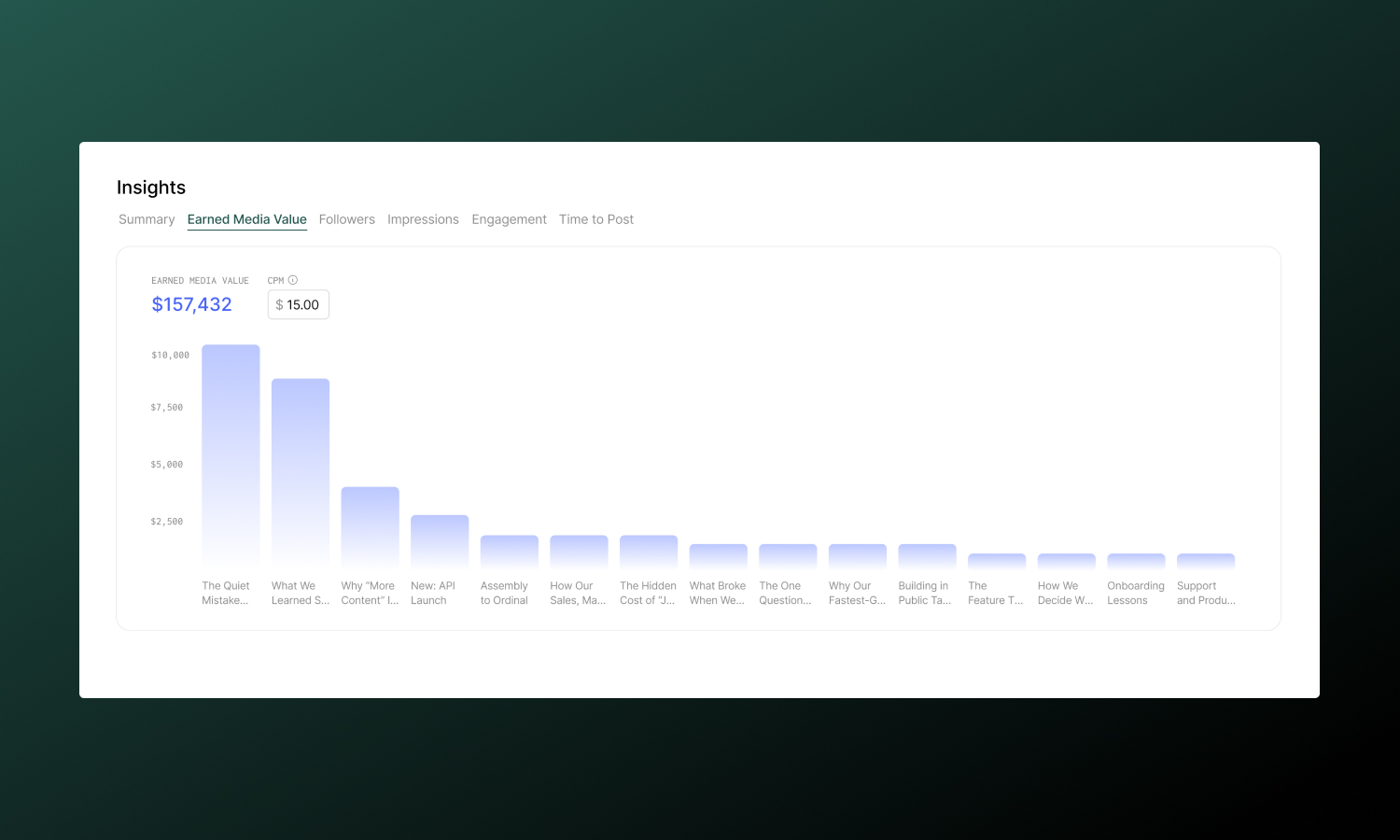
Earned Media Value helps you understand the monetary value of your organic social reach. EMV calculates what you would have paid in advertising to achieve the same number of impressions.
### How it works
EMV is calculated using this formula:
```text
EMV = (Impressions / 1,000) × CPM
```
Where **CPM** (Cost Per Mille) is the amount you'd pay for 1,000 ad impressions on that platform.
### Configuring CPM
Each channel has its own CPM setting that you can customize based on your industry benchmarks or actual ad costs:
1. Go to any account's analytics page
2. Click the **Earned Media Value** tab
3. Adjust the **CPM** input to match your target rate
CPM values are saved per channel on the workspace-level. That means if you change the CPM for one LinkedIn account, it'll change the calculation for all other LinkedIn accounts in the workspace.
Default values:
| Platform | Default CPM |
| --- | --- |
| LinkedIn | \$30 |
| Twitter | \$10 |
| Instagram | \$10 |
| Facebook | \$10 |
:::tip
Use your actual advertising CPM rates for the most accurate EMV calculations. If you're not running ads, industry benchmarks are a good starting point - LinkedIn typically has higher CPMs than other platforms due to its B2B audience.
:::
### Viewing EMV
EMV appears in two places:
- **EMV tab** - A bar chart showing EMV by post, with total EMV for the selected date range
- **EMV column** - In the post table, showing individual post EMV values (sortable)
EMV is also included when you export analytics to CSV.
## Filtering
Filters help you slice your analytics to answer specific questions. All account analytics pages support:
| Filter | What it does |
| --- | --- |
| **Date range** | Focus on a specific time period (presets like "Last 7 days", "Last 30 days", or custom ranges) |
| **Post type** | Filter by content format - Text, Image, Video, Carousel, Reel, etc. |
| **Labels** | See how your custom [labels](/posts/labels) perform (e.g., "Product updates" vs. "Industry news") |
| **Campaign** | View only posts from a specific campaign |
:::tip
**Pro tip:** Use **Labels** to tag content by topic, theme, or goal. Then filter analytics by label to see which content buckets perform best - this is one of the most powerful ways to refine your content strategy over time.
:::
## Exporting Data
Every account analytics page includes an **Export** button that downloads your current view as a CSV file. The export respects your active filters and date range, so you can create focused reports for clients or stakeholders.
## Plan Limitations
| Plan | Analytics history |
| --- | --- |
| **Starter** | Last 14 days |
| **Pro and above** | All time |
If you're on a Starter plan and need historical data, upgrade to Pro for unlimited analytics history.
---
## LinkedIn
LinkedIn is one of the most comprehensive analytics integrations in Ordinal, with support for both **personal profiles** and **company pages**. Analytics refresh automatically each day.
:::note
Personal profile analytics are available in Ordinal - a feature not all social media tools support.
:::
### Charts and tabs
Every LinkedIn account analytics page includes these chart tabs:
| Tab | What it shows | Availability |
| --- | --- | --- |
| **Summary** | Top posts and breakdowns by label and format | All profiles |
| **Earned Media Value** | Bar chart of EMV by post | All profiles |
| **Followers** | Daily follower change or cumulative growth over the selected range | Profiles with follower history |
| **Impressions** | Daily account-level impressions from LinkedIn | Personal profiles only |
| **Engagement** | Daily engagement rate driven by your published posts | All profiles |
The **Impressions** tab reflects account-wide impressions reported by LinkedIn for the profile, so it isn't affected by post type, label, or campaign filters. The **Engagement** tab is post-driven, so it does respect those filters.
### Compare to the previous period
The Followers, Impressions, and Engagement charts include a **Show previous period** toggle. Turn it on to overlay the immediately preceding equal-length period on the same chart:
- The current period stays dominant in blue.
- The previous period renders as a light-gray dotted line.
- Hover any date to see both the current and previous values side by side in the tooltip.
The comparison is off by default. If there's no data for the previous period (for example, when you connected the profile recently), the toggle stays visible but disabled.
:::tip
Use **Show previous period** to spot week-over-week or month-over-month shifts at a glance. Pair it with the date range presets to compare the last 7 days against the 7 days before, or the last 30 days against the previous 30.
:::
### Metrics
| Metric | What it measures |
| --- | --- |
| **Impressions** | How many times your post was displayed in feeds |
| **Likes** | Total reactions (includes all reaction types) |
| **Comments** | Number of comments on your post |
| **Shares** | Times your post was shared or reposted |
| **Clicks** | Link clicks (for posts containing links) |
| **Saves** | Times your post was saved to view later (personal profiles only) |
| **Sends** | Times your post was sent via DM (personal profiles only) |
| **Link Clicks** | Total clicks on any links in the post (personal profiles only) |
| **Premium CTA Clicks** | Engagements with a Premium custom call-to-action button on the post (personal profiles only) |
| **Followers Gained** | New followers attributed to the post (personal profiles only) |
| **Profile Views** | Profile views attributed to the post (personal profiles only) |
| **Engagement Rate** | (Likes \+ Comments \+ Shares \+ Clicks) / Impressions |
| **Video Views** | Total views on a video post |
| **Video Viewers** | Unique viewers of a video post |
| **Watch Time** | Total time spent watching a video post, formatted as a duration (e.g. `9m 16s`, `1h 30m`) |
:::note
Video metrics only populate for posts with type **Video**. Non-video posts show `-` in these columns. Personal profile video stats, along with **Link Clicks**, **Premium CTA Clicks**, **Followers Gained**, and **Profile Views**, require the `r_member_postAnalytics` LinkedIn OAuth scope, which is granted when you connect a personal LinkedIn profile.
:::
The **Video Views**, **Video Viewers**, and **Watch Time** columns are sortable and can be toggled from the column visibility menu. When you export to CSV, watch time is exported as raw seconds under `video_watch_time_seconds` (alongside `video_views` and `video_viewers`) so you can run your own calculations without parsing formatted strings.
The **Link Clicks**, **Premium CTA Clicks**, **Followers Gained**, and **Profile Views** columns are also sortable and toggleable, and are included in CSV exports as `link_clicks`, `premium_cta_clicks`, `followers_from_content`, and `profile_views_from_content`. These columns only appear on analytics for personal LinkedIn profiles - LinkedIn doesn't expose equivalent metrics for company pages, so they're hidden for company page analytics.
### Post Types
Filter by content format to see what's working:
- **Text** - Text-only posts
- **Image** - Single image posts
- **Multi-Image** - Carousel-style image posts
- **Video** - Video posts
- **Document** - PDF carousel posts
- **Link** - Posts with link previews
---
## Twitter / X
Full analytics for all your tweets, including individual tweets within threads.
### Metrics
| Metric | What it measures |
| --- | --- |
| **Impressions** | How many times your tweet was seen in feeds |
| **Likes** | Total likes on your tweet |
| **Comments** | Replies to your tweet |
| **Retweets** | Times your tweet was retweeted |
| **Quote Tweets** | Times your tweet was quote-tweeted |
| **Bookmarks** | Times your tweet was saved to bookmarks |
| **Engagement Rate** | (Likes \+ Comments \+ Retweets \+ Bookmarks) / Impressions |
### Post Types
Filter by content format to understand what resonates:
- **Text** - Text-only tweets
- **Image** - Single image tweets
- **Multi-Image** - Tweets with multiple images
- **Video** - Video tweets
- **GIF** - Tweets with GIFs
---
## Instagram
Analytics for Feed posts, Reels, and Carousels published through Ordinal.
### Metrics
| Metric | What it measures |
| --- | --- |
| **Impressions** | How many times your post was displayed |
| **Likes** | Total likes on your post |
| **Comments** | Number of comments |
| **Shares** | Times your post was shared via DM or to Stories |
| **Saves** | Times your post was saved to a collection (strong signal!) |
| **Engagement Rate** | (Likes \+ Comments \+ Shares \+ Saves) / Impressions |
### Post Types
Filter to compare how different formats perform:
- **Image** - Single image feed posts
- **Carousel** - Multi-image carousel posts
- **Reel** - Video Reels
---
## Facebook
Analytics for Facebook Page posts and Reels.
### Metrics
| Metric | What it measures |
| --- | --- |
| **Impressions** | How many times your post was displayed |
| **Reactions** | Total reactions (likes, loves, etc.) |
| **Comments** | Number of comments |
| **Shares** | Times your post was shared |
| **Engagement Rate** | (Reactions \+ Comments \+ Shares) / Impressions |
### Post Types
Filter by content format:
- **Photo** - Single image posts
- **Video** - Video posts
- **Reel** - Facebook Reels
- **Link** - Posts with link previews
---
## Coming Soon
:::note
Analytics for **TikTok, Threads** and **YouTube Shorts** are coming soon. If you'd like early access or have specific requests, reach out to us via chat or at [support@tryordinal.com](mailto:support@tryordinal.com).
:::
Webflow, Slack, and Discord do not have analytics (these are CMS and messaging platforms without engagement metrics).
## Learn more
**[Shortlinks](/analytics/shortlinks)**
Track click performance on shortened links.
**[Campaigns](/campaigns/overview)**
Group posts and analyze campaign performance.
---
# Shortlinks
Source: https://docs.tryordinal.com/analytics/shortlinks
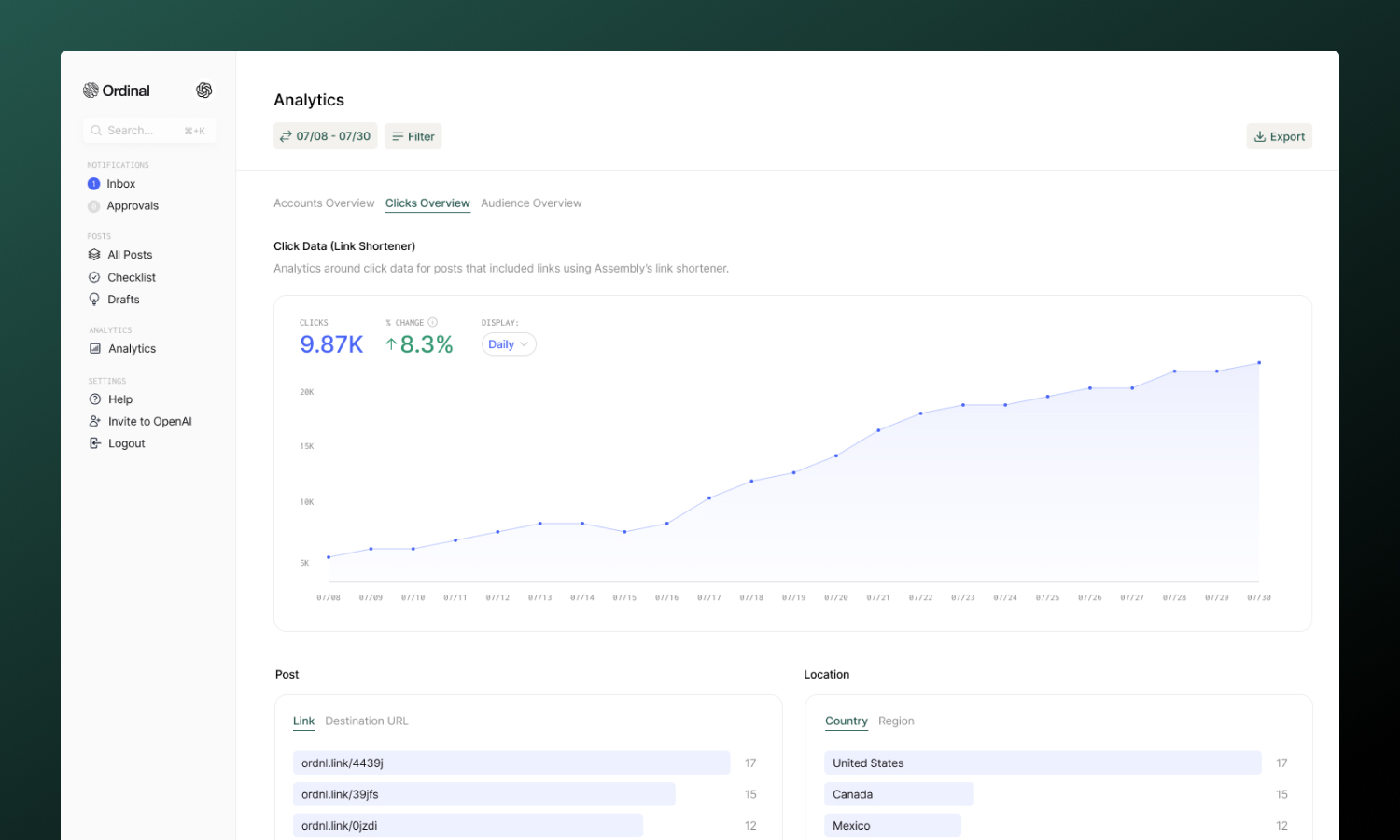
Shortlinks let you track clicks on the links you share in your posts. Instead of posting a long URL, you can shorten it with one click - and Ordinal will automatically track how many people clicked, where they came from, and what devices they used.
## Creating shortlinks
Shortlinks are created right inside the post editor - no need to leave your draft or visit a separate page. They work out of the box with Ordinal's default domain (`ordnl.link`).
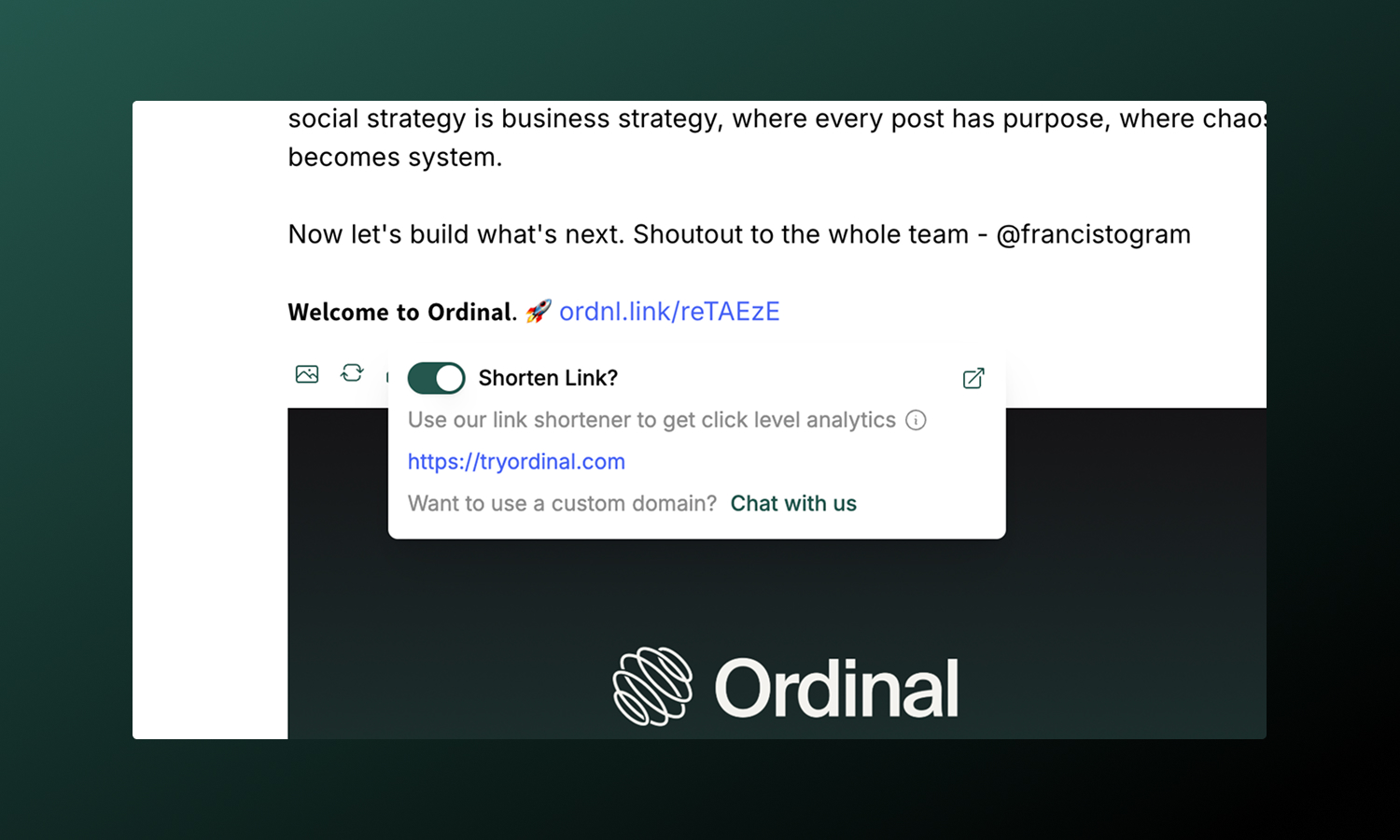
**To shorten a link:**
1. Add a link to your post (paste a URL or use `Cmd/Ctrl + K` to insert one)
2. Click on the link in the editor
3. In the popover that appears, toggle **Shorten Link?** on
4. The URL is replaced with a tracked shortlink automatically
The shortened link will look something like `ordnl.link/abc123`. When your post publishes, every click on that link is tracked. Shortlinks will also retain the same Open Graph image and title as the original URL.
:::tip
You can always toggle shortening off to revert back to the original URL.
:::
### Custom domains
By default, shortlinks use `ordnl.link`. If you'd prefer a branded domain like `go.yourcompany.com`, you can connect your Dub account.
**[Dub Integration](/integrations/dub)**
Set up a custom domain for your shortlinks.
## Click analytics
Once your post publishes and people start clicking, you can view detailed analytics in the [**Analytics**](https://app.tryordinal.com/analytics) section of Ordinal. Click data appears under the **Clicks Overview** tab.
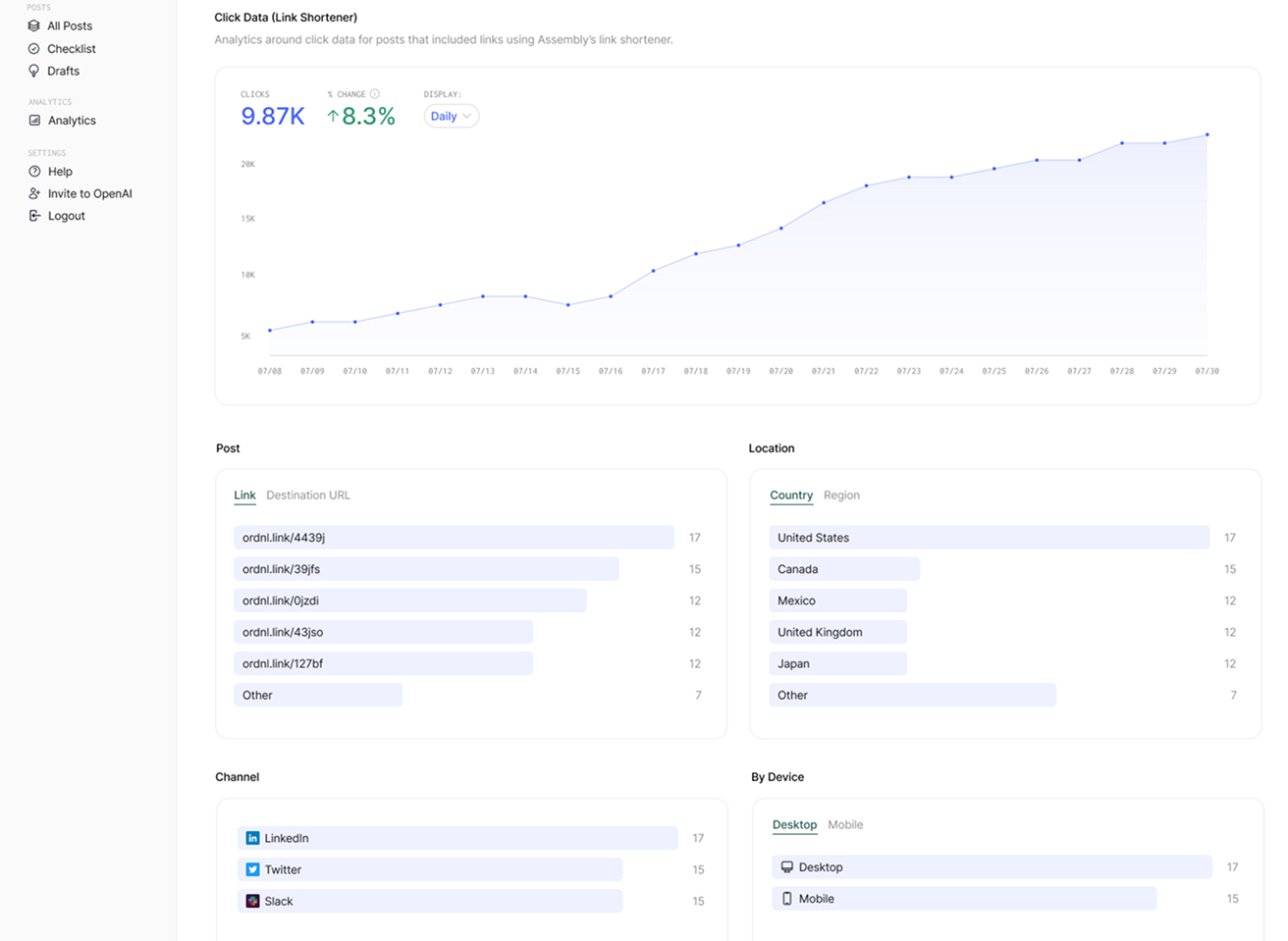
### Available metrics
| Metric | What it shows |
| ----------------------------- | ------------------------------------------------------------------------------- |
| **Total clicks** | Overall click count across all your shortlinks, displayed as a timeseries chart |
| **Clicks by link** | Which shortlinks received the most clicks |
| **Clicks by destination URL** | Which destination URLs received the most traffic |
| **Countries** | Geographic breakdown of where clicks originated |
| **Regions** | More granular location data within countries |
| **Referrers** | Where the traffic came from (social platform, direct, other websites) |
| **Devices** | Mobile vs. desktop breakdown |
| **Browsers** | Chrome, Safari, Firefox, etc. |
| **Operating systems** | Windows, macOS, iOS, Android, etc. |
Use the date range filter to zoom in on specific time periods - helpful for measuring campaign performance or comparing week-over-week trends.
:::tip
Click analytics only track links that were shortened using Ordinal's link shortener. Regular links in your posts aren't tracked.
:::
## Learn more
**[Dub Integration](/integrations/dub)**
Use a custom domain for your shortlinks.
**[Analytics Overview](/analytics/overview)**
Explore all your performance metrics.
---
# Ordinal API
Source: https://docs.tryordinal.com/api
API to create and manage Ordinal workspaces, posts, profiles, and analytics
Version 1.0.0
Base URL: `https://app.tryordinal.com/api/v1`
## Analytics
Social media analytics data
- [`GET /analytics/linkedin/{profileId}/followers`](/api/analytics/analytics-linkedin-followers) — LinkedIn follower growth.
- [`GET /analytics/linkedin/{profileId}/posts`](/api/analytics/analytics-linkedin-posts) — LinkedIn post analytics.
- [`GET /analytics/x/{profileId}/followers`](/api/analytics/analytics-x-followers) — X follower growth.
- [`GET /analytics/x/{profileId}/posts`](/api/analytics/analytics-x-posts) — X post analytics.
- [`GET /analytics/cpm`](/api/analytics/analytics-cpm-get) — Get CPM Values.
- [`PUT /analytics/cpm`](/api/analytics/analytics-cpm-update) — Update CPM Values.
## Approvals
Post approval workflows
- [`GET /approvals`](/api/approvals/approvals-list-workspace) — List workspace approvals.
- [`POST /approvals`](/api/approvals/approvals-create) — Create approval requests.
- [`DELETE /approvals/{id}`](/api/approvals/approvals-delete) — Delete approval.
- [`GET /posts/{postId}/approvals`](/api/approvals/approvals-list) — List post approvals.
## Comments
Post comments for team collaboration. Supports @mentions using the format `@[Display Name](userId)`.
- [`GET /posts/{postId}/comments`](/api/comments/comments-list) — List post comments.
- [`POST /posts/{postId}/comments`](/api/comments/comments-create) — Create a comment on a post.
- [`DELETE /comments/{commentId}`](/api/comments/comments-delete) — Delete a comment.
## Engagements
Team engagements for posts (likes, comments, reposts)
- [`GET /posts/{postId}/engagements`](/api/engagements/engagements-list) — List for a post.
- [`POST /posts/{postId}/engagements`](/api/engagements/engagements-create) — Create for a post.
- [`DELETE /engagements/{id}`](/api/engagements/engagements-delete) — Delete an engagement.
- [`PATCH /engagements/{id}`](/api/engagements/engagements-update) — Update an engagement.
## Invites
Workspace invitations for adding new users
- [`GET /invites`](/api/invites/invites-list) — List pending invites.
- [`POST /invites`](/api/invites/invites-create) — Create an invite.
- [`DELETE /invites/{id}`](/api/invites/invites-delete) — Delete an invite.
## Labels
Labels for organizing posts
- [`GET /labels`](/api/labels/labels-list) — List all labels.
- [`POST /labels`](/api/labels/labels-create) — Create a label.
- [`DELETE /labels/{id}`](/api/labels/labels-delete) — Delete a label.
## Instagram
Instagram utilities for location search and tagging
- [`GET /instagram/locations`](/api/instagram/instagram-search-locations) — Search Instagram locations.
## LinkedIn
LinkedIn utilities for profile lookups, tagging, and mentions
- [`GET /linkedin/{username}/mentions`](/api/linkedin/linkedin-get-mention) — Mention format by username.
- [`GET /linkedin/profile/{urn}`](/api/linkedin/linkedin-get-profile) — Get LinkedIn profile by URN.
## Posts
Create and manage posts
- [`GET /posts`](/api/posts/posts-list) — List posts.
- [`POST /posts`](/api/posts/posts-create) — Create post.
- [`GET /posts/{id}`](/api/posts/posts-get) — Get post.
- [`PATCH /posts/{id}`](/api/posts/posts-update) — Update post.
- [`POST /posts/{id}/archive`](/api/posts/posts-archive) — Archive post.
- [`POST /posts/{id}/unarchive`](/api/posts/posts-unarchive) — Unarchive post.
- [`POST /posts/{id}/schedule`](/api/posts/posts-schedule) — Schedule or reschedule post.
- [`POST /posts/{id}/unschedule`](/api/posts/posts-unschedule) — Unschedule post.
- [`GET /posts/{id}/versions`](/api/posts/posts-list-versions) — List post draft versions.
- [`GET /posts/{id}/channels/{channel}/versions/{versionId}`](/api/posts/posts-get-version-content) — Get post version content.
## Profiles
List connected social profiles
- [`GET /profiles/engagement`](/api/profiles/profiles-list-engagement) — List engagement profiles.
- [`GET /profiles/scheduling`](/api/profiles/profiles-list-scheduling) — List scheduling profiles.
## Slack Boosts
List connected Slack channels (webhooks), then create and manage slack boosts so teams get notified in Slack when posts publish. Requires Slack connected with marketing boost channels.
- [`GET /posts/{postId}/slack-boosts`](/api/slack-boosts/slack-boosts-list-by-post) — List post's slack boosts.
- [`POST /slack-boosts`](/api/slack-boosts/slack-boosts-create) — Create slack boost.
- [`GET /slack-boosts/{id}`](/api/slack-boosts/slack-boosts-get) — Get slack boost.
- [`DELETE /slack-boosts/{id}`](/api/slack-boosts/slack-boosts-delete) — Delete slack boost.
- [`PATCH /slack-boosts/{id}`](/api/slack-boosts/slack-boosts-update) — Update slack boost.
- [`GET /slack-webhooks`](/api/slack-boosts/slack-webhooks-list) — List slack webhooks.
## Subscribers
Post subscribers for notifications
- [`GET /posts/{postId}/subscribers`](/api/subscribers/subscribers-list) — List post subscribers.
- [`POST /subscribers`](/api/subscribers/subscribers-create) — Add subscribers to post.
- [`DELETE /subscribers/{id}`](/api/subscribers/subscribers-delete) — Delete subscriber.
## File Uploads
Upload files from URLs for use in posts. Supports images (JPEG, PNG, GIF, WebP) up to 10 MB and videos (MP4, MOV) up to 350 MB.
- [`POST /uploads`](/api/file-uploads/uploads-create) — Upload a file from a URL.
- [`POST /uploads/prepare`](/api/file-uploads/uploads-prepare) — Prepare a local file upload.
- [`GET /uploads/{id}`](/api/file-uploads/uploads-get) — Get upload status.
## Ideas
Create and manage content ideas. Ideas are draft posts without scheduled dates that can be converted to calendar posts.
- [`GET /ideas`](/api/ideas/ideas-list) — List ideas.
- [`POST /ideas`](/api/ideas/ideas-create) — Create idea.
- [`GET /ideas/{id}`](/api/ideas/ideas-get) — Get idea.
- [`PATCH /ideas/{id}`](/api/ideas/ideas-update) — Update idea.
- [`POST /ideas/{id}/archive`](/api/ideas/ideas-archive) — Archive idea.
- [`POST /ideas/{id}/unarchive`](/api/ideas/ideas-unarchive) — Unarchive idea.
- [`POST /ideas/{id}/add-to-calendar`](/api/ideas/ideas-add-to-calendar) — Add idea to calendar.
## Inline Comments
Text-anchored comments on specific post content. Read-only API for retrieving inline comments across channels.
- [`GET /posts/{postId}/inline-comments`](/api/inline-comments/inline-comments-list) — List inline comments on a post.
## Users
Workspace users
- [`GET /users`](/api/users/users-list) — List workspace users.
## Webhooks
Create, list, get, update, and delete webhooks to receive real-time event notifications
- [`GET /webhooks`](/api/webhooks/webhooks-list) — List webhooks.
- [`POST /webhooks`](/api/webhooks/webhooks-create) — Create webhook.
- [`GET /webhooks/{id}`](/api/webhooks/webhooks-get) — Get webhook.
- [`DELETE /webhooks/{id}`](/api/webhooks/webhooks-delete) — Delete webhook.
- [`PATCH /webhooks/{id}`](/api/webhooks/webhooks-update) — Update webhook.
## Workspaces
Workspace information
- [`GET /workspace`](/api/workspaces/workspace-get) — Get workspace.
## LinkedIn Leads
- [`GET /linkedin/leads/{profileId}/posts`](/api/linkedin-leads/linkedin-leads-list-posts) — List posts.
- [`GET /linkedin/leads/{profileId}/posts/{postId}`](/api/linkedin-leads/linkedin-leads-get-leads-by-post) — Get posts leads.
---
# Get CPM Values
Source: https://docs.tryordinal.com/api/analytics/analytics-cpm-get
Retrieve the current CPM (Cost Per Mille) values used for EMV (Earned Media Value) calculations across all platforms. CPM values represent the cost per 1,000 impressions for each social media platform.
`GET /analytics/cpm`
---
# Update CPM Values
Source: https://docs.tryordinal.com/api/analytics/analytics-cpm-update
Update the CPM (Cost Per Mille) values used for EMV (Earned Media Value) calculations. You can update one or more platform CPM values in a single request. Only provide the platforms you want to update.
`PUT /analytics/cpm`
---
# LinkedIn follower growth
Source: https://docs.tryordinal.com/api/analytics/analytics-linkedin-followers
Retrieve follower count history for a LinkedIn profile
`GET /analytics/linkedin/{profileId}/followers`
---
# LinkedIn post analytics
Source: https://docs.tryordinal.com/api/analytics/analytics-linkedin-posts
Retrieve post analytics for a LinkedIn profile within a date range. When a post was published from Ordinal, the response includes an ordinalPost object with the linked post's id, title, labels, and campaign.
**Click metrics by profile type:**
- Personal (member) profiles return `linkClickCount`, `profileViewFromContentCount`, `premiumCtaClickCount`, and `followerGainedFromContentCount`. `clickCount` is always null.
- Organization (company page) profiles return `clickCount` for total post clicks. The four member-only fields above are always null.
Personal profiles also include `saveCount` (times the post was saved) and `sendCount` (times the post was sent via DM). Posts with type `Video` also include `videoViewCount`, `videoViewerCount`, and `videoWatchTimeSeconds`; these fields are null for non-video posts and for video posts that have not yet been synced.
`GET /analytics/linkedin/{profileId}/posts`
---
# X follower growth
Source: https://docs.tryordinal.com/api/analytics/analytics-x-followers
Retrieve follower count history for an X profile
`GET /analytics/x/{profileId}/followers`
---
# X post analytics
Source: https://docs.tryordinal.com/api/analytics/analytics-x-posts
Retrieve post analytics for an X profile within a date range. When a post was published from Ordinal, the response includes an ordinalPost object with the linked post's id, title, labels, and campaign.
`GET /analytics/x/{profileId}/posts`
---
# Create approval requests
Source: https://docs.tryordinal.com/api/approvals/approvals-create
Create one or more approval requests for a post
`POST /approvals`
---
# Delete approval
Source: https://docs.tryordinal.com/api/approvals/approvals-delete
Delete an approval request
`DELETE /approvals/{id}`
---
# List post approvals
Source: https://docs.tryordinal.com/api/approvals/approvals-list
List all approval requests for a specific post
`GET /posts/{postId}/approvals`
---
# List workspace approvals
Source: https://docs.tryordinal.com/api/approvals/approvals-list-workspace
List all approval requests across the workspace in one paginated stream. Use for incremental sync by external integrations instead of polling each post individually. Supports keyset pagination and filters by status, post, approver, requester, and date range. Approvals on archived posts are included; filter client-side with `post.archivedAt`. Soft-deleted approvals are omitted from results.
`GET /approvals`
---
# Authentication
Source: https://docs.tryordinal.com/api/authentication
## Overview
The Ordinal API uses Bearer token authentication. All API requests must include a valid API key in the `Authorization` header.
```bash
Authorization: Bearer ord_XXXXXXXXXXXXXXXX
```
:::info
**Workspace-Level Authentication**
API keys are scoped to a specific workspace and provide access to all resources within that workspace. If you're an agency managing multiple client workspaces, you'll need to create a separate API key for each workspace.
:::
## Generating an API Key
:::info
**Pro Plan Required**
The Ordinal API is available on the Pro plan or higher. [Upgrade your workspace](https://app.tryordinal.com/settings/pricing) to access API features.
:::
1. **Navigate to Workspace Settings**
Go to the [API Keys page](https://app.tryordinal.com/settings/integrations/api) in your workspace.
2. **Open API Keys Section**
Click on the "API Keys" tab in the settings menu.
3. **Create New Key**
Click "Create an API Key" and provide a descriptive name for the key.
4. **Copy Your Key**
Copy the generated API key immediately. For security reasons, the full key is only shown once.
:::warning
Store your API key securely. Never expose it in client-side code, public repositories, or share it with unauthorized users.
:::
## Making Authenticated Requests
Include your API key in the `Authorization` header with the `Bearer` prefix:
```bash cURL
curl -X GET "https://app.tryordinal.com/api/v1/workspace" \
-H "Authorization: Bearer ord_XXXXXXXXXXXXXXXX"
```
```javascript JavaScript
const response = await fetch('https://app.tryordinal.com/api/v1/workspace', {
headers: {
'Authorization': 'Bearer ord_XXXXXXXXXXXXXXXX'
}
});
```
```python Python
import requests
response = requests.get(
'https://app.tryordinal.com/api/v1/workspace',
headers={'Authorization': 'Bearer ord_XXXXXXXXXXXXXXXX'}
)
```
## Authentication Errors
When authentication fails, the API returns specific error codes to help you diagnose the issue.
### Missing Token
If no authorization header is provided:
```json
{
"code": "UNAUTHORIZED",
"message": "Missing bearer token"
}
```
**Status Code:** `401 Unauthorized`
### Invalid or Not Found
If the API key is invalid or doesn't exist:
```json
{
"code": "UNAUTHORIZED",
"message": "Invalid or unauthorized API key"
}
```
**Status Code:** `401 Unauthorized`
### Rate Limited
If you've exceeded the rate limit for your workspace:
```json
{
"code": "TOO_MANY_REQUESTS",
"message": "Rate limit of 100 requests per 60s exceeded. Quota resets in 45 seconds"
}
```
**Status Code:** `429 Too Many Requests`
### Revoked Key
If the API key has been revoked:
```json
{
"code": "FORBIDDEN",
"message": "API key was revoked 2 days ago"
}
```
**Status Code:** `403 Forbidden`
### Expired Key
If the API key has expired:
```json
{
"code": "FORBIDDEN",
"message": "API key is expired"
}
```
**Status Code:** `403 Forbidden`
### Disabled Key
If the API key has been disabled:
```json
{
"code": "FORBIDDEN",
"message": "Invalid or unauthorized API key"
}
```
**Status Code:** `403 Forbidden`
### Insufficient Permissions
If the API key doesn't have the required permissions:
```json
{
"code": "FORBIDDEN",
"message": "Insufficient permissions"
}
```
**Status Code:** `403 Forbidden`
### Insufficient Credits
If your account has run out of API credits:
```json
{
"code": "FORBIDDEN",
"message": "Insufficient credits"
}
```
**Status Code:** `403 Forbidden`
### Usage Exceeded
If you've exceeded your usage quota:
```json
{
"code": "FORBIDDEN",
"message": "Usage exceeded"
}
```
**Status Code:** `403 Forbidden`
## Error Code Reference
| Error Code | HTTP Status | Description |
| ------------------- | ----------- | ----------------------------------------------------------- |
| `UNAUTHORIZED` | 401 | Missing or invalid API key |
| `TOO_MANY_REQUESTS` | 429 | Rate limit exceeded |
| `FORBIDDEN` | 403 | Key revoked, expired, disabled, or insufficient permissions |
## Best Practices
**Use Environment Variables**
Store your API key in environment variables rather than hardcoding it in your application.
```bash
export ORDINAL_API_KEY="ord_XXXXXXXXXXXXXXXX"
```
```javascript
const apiKey = process.env.ORDINAL_API_KEY;
```
**Rotate Keys Regularly**
Periodically rotate your API keys to minimize the impact of potential key exposure.
**Monitor Key Usage**
Regularly review your API key usage in the dashboard to detect any unusual activity.
**Revoke Compromised Keys**
If you suspect an API key has been compromised, revoke it immediately and generate a new one.
## Managing API Keys
### Viewing Keys
You can view all your API keys in the workspace settings. Each key shows:
- Name and description
- Creation date
- Last used timestamp
### Revoking Keys
To revoke an API key:
1. Navigate to workspace settings
2. Find the key you want to revoke
3. Click the `...` button and select "Revoke"
4. Confirm the action
:::warning
Revoking an API key is permanent and cannot be undone. Any applications using the revoked key will immediately lose access.
:::
---
# Create a comment on a post
Source: https://docs.tryordinal.com/api/comments/comments-create
Add a comment to a post. Supports @mentions using the format `@[Display Name](userId)`. Tagged users must be workspace members. The commenter and any tagged users are automatically subscribed to the post.
`POST /posts/{postId}/comments`
---
# Delete a comment
Source: https://docs.tryordinal.com/api/comments/comments-delete
Delete a comment from a post. Only the author of the comment can delete it.
`DELETE /comments/{commentId}`
---
# List post comments
Source: https://docs.tryordinal.com/api/comments/comments-list
List all comments on a post, ordered by creation time (oldest first)
`GET /posts/{postId}/comments`
---
# Create for a post
Source: https://docs.tryordinal.com/api/engagements/engagements-create
Add engagements (likes, comments, reposts) to a post. Engagements will be executed automatically when the post is published.
**Tagging on LinkedIn:**
To mention someone in a comment or repost, use the format `@[Display Name](urn)`. See [LinkedIn Mentions](/api/linkedin-mentions) for details on how to look up URNs.
**LinkedIn reaction types:**
For Like engagements on LinkedIn, you can specify a reaction type (Like, Celebrate, Love, Insightful, Support, Funny). Defaults to Like if not specified. Must not be provided for Comment or Repost.
**Validation rules:**
- `copy` is required for Comment, optional for Repost, must not be provided for Like
- `delaySeconds` is required for Comment and Repost (any integer from 0 to 86400 — up to 24 hours), must not be provided for Like
- `reactionType` is only for Like engagements on LinkedIn (defaults to Like if omitted)
- Only one Like engagement per profile is allowed
`POST /posts/{postId}/engagements`
---
# Delete an engagement
Source: https://docs.tryordinal.com/api/engagements/engagements-delete
Remove a team engagement from a post
`DELETE /engagements/{id}`
---
# List for a post
Source: https://docs.tryordinal.com/api/engagements/engagements-list
List all engagements (likes, comments, reposts) configured for a specific post
`GET /posts/{postId}/engagements`
---
# Update an engagement
Source: https://docs.tryordinal.com/api/engagements/engagements-update
Update an existing engagement's copy, delay, profile, or reaction type.
**Validation rules:**
- `copy` cannot be updated for Like engagements
- `copy` cannot be removed from Comment engagements (must have content)
- `delaySeconds` cannot be updated for Like engagements
- `reactionType` can only be updated for Like engagements on LinkedIn
- When changing `profileId`, the new profile must have the required engagement permissions
- Cannot update engagements for posts that have already been published
- Only one Like engagement per profile is allowed (cannot change profileId to a profile that already has a Like)
`PATCH /engagements/{id}`
---
# Error Handling
Source: https://docs.tryordinal.com/api/errors
## Overview
The Ordinal API uses conventional HTTP response codes to indicate the success or failure of an API request. Codes in the `2xx` range indicate success, codes in the `4xx` range indicate an error with the provided information, and codes in the `5xx` range indicate an error with Ordinal's servers.
## Error Response Format
All error responses follow a consistent JSON format:
```json
{
"code": "ERROR_CODE",
"message": "A human-readable description of the error"
}
```
For validation errors, additional field-level details are included:
```json
{
"code": "BAD_REQUEST",
"message": "Bad Request",
"data": {
"errors": {
"field_name": ["Error message for this field"]
}
}
}
```
## Error Code Reference
| Code | HTTP Status | Description |
|------|-------------|-------------|
| `BAD_REQUEST` | 400 | Invalid input or validation failure |
| `UNAUTHORIZED` | 401 | Authentication required or failed |
| `FORBIDDEN` | 403 | Access denied |
| `NOT_FOUND` | 404 | Resource not found |
| `CONFLICT` | 409 | Resource conflict |
| `TOO_MANY_REQUESTS` | 429 | Rate limit exceeded |
| `INTERNAL_SERVER_ERROR` | 500 | Server error (contact support if persistent) |
## Common Error Codes
### 400 Bad Request
Returned when the request contains invalid parameters or fails validation.
**Validation Error**
```json
{
"code": "BAD_REQUEST",
"message": "Bad Request",
"data": {
"errors": {
"id": ["Invalid UUID"],
"email": ["Invalid email address"]
}
}
}
```
**Business Logic Error**
```json
{
"code": "BAD_REQUEST",
"message": "Cannot schedule post in the past"
}
```
**Invalid Reference**
```json
{
"code": "BAD_REQUEST",
"message": "Campaign ID is invalid or does not belong to this workspace"
}
```
**Common causes:**
- Missing required fields
- Invalid field formats (e.g., invalid UUID, email, date)
- Business rule violations
- References to resources that don't exist or belong to another workspace
### 401 Unauthorized
Returned when authentication fails.
```json
{
"code": "UNAUTHORIZED",
"message": "Invalid or unauthorized API key"
}
```
**Common causes:**
- Missing `Authorization` header
- Invalid API key format
- API key doesn't exist
- API key was revoked
### 403 Forbidden
Returned when authentication succeeds but the request is not allowed.
**Revoked Key**
```json
{
"code": "FORBIDDEN",
"message": "API key was revoked 2 days ago"
}
```
**Expired Key**
```json
{
"code": "FORBIDDEN",
"message": "API key is expired"
}
```
**Insufficient Permissions**
```json
{
"code": "FORBIDDEN",
"message": "Insufficient permissions"
}
```
**Engagement Profile**
```json
{
"code": "FORBIDDEN",
"message": "Engagement profiles cannot be used for analytics"
}
```
**Common causes:**
- API key has been revoked or expired
- Insufficient permissions for the operation
- Attempting to use engagement-only profiles for analytics
### 404 Not Found
Returned when the requested resource doesn't exist.
```json
{
"code": "NOT_FOUND",
"message": "Post not found or does not belong to this workspace"
}
```
**Common causes:**
- Resource ID doesn't exist
- Resource belongs to a different workspace
- Resource was deleted
### 409 Conflict
Returned when the request conflicts with existing data.
```json
{
"code": "CONFLICT",
"message": "Label with name \"Marketing\" already exists"
}
```
**Common causes:**
- Attempting to create a duplicate resource
- Unique constraint violation
### 429 Too Many Requests
Returned when you've exceeded the rate limit.
```json
{
"code": "TOO_MANY_REQUESTS",
"message": "Rate limit of 100 requests per 60s exceeded. Quota resets in 45 seconds"
}
```
**How to handle:**
- Wait for the rate limit to reset
- Implement exponential backoff
- Cache responses where appropriate
- Contact support if you need to increase the rate limit
## Handling Errors
### Best Practices
**Check HTTP Status Codes**
Always check the HTTP status code before parsing the response body.
```javascript
const response = await fetch(url, options);
if (!response.ok) {
const error = await response.json();
throw new Error(`${error.code}: ${error.message}`);
}
```
**Handle Validation Errors**
For 400 errors, check the `data.errors` field for field-specific messages.
```javascript
if (error.code === 'BAD_REQUEST' && error.data?.errors) {
for (const [field, messages] of Object.entries(error.data.errors)) {
console.error(`${field}: ${messages.join(', ')}`);
}
}
```
**Implement Retry Logic**
For rate limits and server errors, implement retry with exponential backoff.
```javascript
async function fetchWithRetry(url, options, maxRetries = 3) {
for (let i = 0; i < maxRetries; i++) {
const response = await fetch(url, options);
if (response.status === 429 || response.status >= 500) {
const delay = Math.pow(2, i) * 1000;
await new Promise(resolve => setTimeout(resolve, delay));
continue;
}
return response;
}
throw new Error('Max retries exceeded');
}
```
**Log Errors for Debugging**
Log error responses with context for easier debugging.
```javascript
if (!response.ok) {
const error = await response.json();
console.error('API Error:', {
status: response.status,
code: error.code,
message: error.message,
endpoint: url,
timestamp: new Date().toISOString()
});
}
```
### Example Error Handler
```javascript
async function handleApiResponse(response) {
if (response.ok) {
return response.json();
}
const error = await response.json();
switch (response.status) {
case 400:
if (error.data?.errors) {
throw new ValidationError(error.message, error.data.errors);
}
throw new BadRequestError(error.message);
case 401:
throw new UnauthorizedError(error.message);
case 403:
throw new ForbiddenError(error.message);
case 404:
throw new NotFoundError(error.message);
case 429:
throw new RateLimitError(error.message);
default:
throw new ApiError(error.code, error.message);
}
}
```
---
# File Uploads
Source: https://docs.tryordinal.com/api/file-uploads
## Overview
The Ordinal API supports two ways to upload media:
- **URL upload** — submit a publicly accessible URL and Ordinal downloads the file for you.
- **Local file upload** — request signed credentials, then upload the file directly to the returned `uploadUrl`.
Both flows are asynchronous. You receive an upload job ID, poll until the status is `ready`, then use the returned `assetId` when [creating posts](/api/posts/posts-create).
## Choosing a flow
| Use case | Endpoint |
|----------|----------|
| The file is already hosted at a public URL | [`POST /uploads`](#url-upload) |
| The file lives on your machine, server, or in private storage | [`POST /uploads/prepare`](#local-file-upload) |
## Supported file types
| Type | Formats |
|------|---------|
| Images | JPEG, PNG, GIF, WebP |
| Videos | MP4, QuickTime (MOV) |
| Documents | PDF (LinkedIn only) |
## File size limits
| Type | Max size |
|------|----------|
| Images | 10 MB |
| GIFs | 15 MB |
| Videos | 350 MB |
| PDFs | 100 MB |
:::note
Images cannot exceed 36 megapixels total resolution.
:::
## Upload statuses
| Status | Description |
|--------|-------------|
| `awaiting_upload` | Credentials issued for a local file. Ordinal is waiting for the file to be POSTed. |
| `pending` | Upload is queued and waiting to be processed |
| `processing` | File is being downloaded and processed |
| `ready` | Upload is complete. Use the `assetId` to attach to posts |
| `failed` | Upload failed. Check the `error` field for details |
| `expired` | Upload expired before being used in a post |
## URL upload
Use this flow when the file is already hosted somewhere Ordinal can reach over the public internet.
1. **Submit the file URL**
[POST to `/uploads`](/api/file-uploads/uploads-create) with the publicly accessible URL of the file.
2. **Receive an upload job ID**
The API returns an upload job ID with `pending` status.
3. **Poll for status**
[Poll `GET /uploads/{id}`](/api/file-uploads/uploads-get) until the status changes to `ready`.
4. **Use the asset ID**
Once ready, use the returned `assetId` in the `assetIds` array when creating posts.
### Create a URL upload
```bash
curl -X POST "https://app.tryordinal.com/api/v1/uploads" \
-H "Authorization: Bearer YOUR_API_KEY" \
-H "Content-Type: application/json" \
-d '{"url": "https://example.com/images/product-photo.jpg"}'
```
#### Response
```json
{
"id": "d4f8e2a1-3b7c-4e9d-8f2a-1c5b9e7d3a6f",
"status": "pending",
"createdAt": "2026-02-04T10:30:00.000Z"
}
```
:::warning
The file URL must be publicly accessible. URLs that require authentication or sit behind a firewall will fail.
:::
## Local file upload
Use this flow when the file is on disk, in private storage, or otherwise not reachable from the public internet. Ordinal returns signed credentials that let your client upload the bytes directly to the returned `uploadUrl`.
1. **Prepare the upload**
[POST to `/uploads/prepare`](/api/file-uploads/uploads-prepare) with the file's `filename`, `mimetype`, and `size` in bytes.
2. **Upload the file**
POST the file to the returned `uploadUrl` as `multipart/form-data` with three form fields: `params` (the JSON string from the prepare response), `signature` (the signature from the prepare response), and `file` (the local file bytes). Copy `params` and `signature` verbatim — do not modify them. Ordinal is notified automatically when processing finishes.
3. **Poll for status**
[Poll `GET /uploads/{id}`](/api/file-uploads/uploads-get) until the status changes to `ready`.
4. **Use the asset ID**
Once ready, use the returned `assetId` in the `assetIds` array when creating posts.
### Prepare the upload
```bash
curl -X POST "https://app.tryordinal.com/api/v1/uploads/prepare" \
-H "Authorization: Bearer YOUR_API_KEY" \
-H "Content-Type: application/json" \
-d '{
"filename": "product-photo.jpg",
"mimetype": "image/jpeg",
"size": 245678
}'
```
#### Response
```json
{
"id": "d4f8e2a1-3b7c-4e9d-8f2a-1c5b9e7d3a6f",
"status": "awaiting_upload",
"uploadUrl": "https://upload.example.com",
"params": "{\"auth\":{\"key\":\"...\",\"expires\":\"2026-02-04T11:30:00.000Z\"},\"template_id\":\"...\",\"fields\":{\"uploadJobId\":\"...\",\"workspaceId\":\"...\",\"storagePath\":\"...\"}}",
"signature": "sha384:abc123...",
"expiresAt": "2026-02-04T11:30:00.000Z",
"createdAt": "2026-02-04T10:30:00.000Z"
}
```
The `params` value is a signed JSON string. It includes `auth` (with `key` and `expires`), `template_id`, and `fields` (`uploadJobId`, `workspaceId`, `storagePath`). The credentials are short‑lived — upload the file before `expiresAt`.
### Upload the file
POST the file to `uploadUrl` as `multipart/form-data` with three form fields. Use the `params` and `signature` values from the prepare response exactly as returned — do not parse, reformat, or regenerate them.
| Form field | Value |
|------------|-------|
| `params` | The `params` string from the prepare response |
| `signature` | The `signature` string from the prepare response |
| `file` | The local file bytes |
```bash
curl -X POST "https://upload.example.com" \
-F 'params={"auth":{"key":"...","expires":"2026-02-04T11:30:00.000Z"},"template_id":"...","fields":{"uploadJobId":"...","workspaceId":"...","storagePath":"..."}}' \
-F 'signature=sha384:abc123...' \
-F "file=@./video.mp4"
```
In practice, substitute `uploadUrl`, `params`, and `signature` with the values returned by `/uploads/prepare`.
Here's the same step in Node.js:
```javascript
import fs from "node:fs";
const form = new FormData();
form.append("params", prepare.params);
form.append("signature", prepare.signature);
form.append("file", new Blob([fs.readFileSync("./video.mp4")]), "video.mp4");
await fetch(prepare.uploadUrl, { method: "POST", body: form });
```
You don't need to do anything else after the upload completes — Ordinal is notified automatically and transitions the job to `processing` and then `ready`.
## Checking upload status
Poll the upload endpoint to check when processing is complete:
```bash
curl -X GET "https://app.tryordinal.com/api/v1/uploads/d4f8e2a1-3b7c-4e9d-8f2a-1c5b9e7d3a6f" \
-H "Authorization: Bearer YOUR_API_KEY"
```
### Ready response
When the upload is ready, the response includes the `assetId` and file metadata:
```json
{
"id": "d4f8e2a1-3b7c-4e9d-8f2a-1c5b9e7d3a6f",
"status": "ready",
"assetId": "a7c2e4b9-5d1f-4a8e-9c3b-2f6d8e1a4b7c",
"filename": "product-photo.jpg",
"mimetype": "image/jpeg",
"size": 245678,
"width": 1920,
"height": 1080,
"duration": null,
"expiresAt": "2026-02-11T10:30:00.000Z",
"createdAt": "2026-02-04T10:30:00.000Z",
"readyAt": "2026-02-04T10:30:15.000Z"
}
```
### Failed response
If the upload fails, the response includes an error message:
```json
{
"id": "d4f8e2a1-3b7c-4e9d-8f2a-1c5b9e7d3a6f",
"status": "failed",
"error": "Failed to download file: HTTP 404",
"createdAt": "2026-02-04T10:30:00.000Z"
}
```
## Using assets in posts
Include the `assetId` in the `assetIds` array when creating a post:
```json
{
"title": "Product Launch",
"publishAt": "2026-02-10T14:00:00.000Z",
"status": "Scheduled",
"linkedIn": {
"profileId": "b3e7f1c9-2d4a-4f8b-a6c1-9e5d7b2f8a3c",
"copy": "Check out our new product!",
"assetIds": ["a7c2e4b9-5d1f-4a8e-9c3b-2f6d8e1a4b7c"]
}
}
```
### Platform attachment limits
| Platform | Max attachments |
|----------|-----------------|
| X (Twitter) | 4 images or videos |
| LinkedIn | 20 images, 1 video, or 1 PDF |
X and Instagram accept only images and videos. Attaching a PDF to either channel returns a `400` error.
## LinkedIn document (carousel) posts
LinkedIn displays a PDF as a swipeable document carousel. Several images attached to one post display as a grid instead, so use a PDF when you want a carousel.
To publish a document post, upload the PDF with either flow above (`mimetype: "application/pdf"` for local uploads), then include its `assetId` in `linkedIn.assetIds`. A PDF must be the only attachment on the post.
Set `linkedIn.documentTitle` to control the title LinkedIn shows on the document. If you omit it, Ordinal uses the PDF's filename without its extension. For example, `q3-report.pdf` becomes `q3-report`.
```json
{
"title": "Q3 report carousel",
"publishAt": "2026-02-10T14:00:00.000Z",
"status": "Scheduled",
"linkedIn": {
"profileId": "b3e7f1c9-2d4a-4f8b-a6c1-9e5d7b2f8a3c",
"copy": "Swipe through our Q3 highlights.",
"assetIds": ["a7c2e4b9-5d1f-4a8e-9c3b-2f6d8e1a4b7c"],
"documentTitle": "Q3 2026 Highlights"
}
}
```
The `documentTitle` value is returned on the `linkedIn` object of post and idea responses, and is `null` when no PDF is attached.
When you update a post or idea:
- A `documentTitle` you send always replaces the current title.
- If you attach a new PDF without a `documentTitle`, the filename is used only when the post doesn't already have a title.
:::warning
Sending `documentTitle` on a post without a PDF returns a `400` error. On update, Ordinal checks the attachments in your request. If your request doesn't change attachments, it checks the attachments already on the post.
:::
:::note
LinkedIn limits documents to 300 pages. Ordinal doesn't check page count, so keep your PDF within that limit to avoid publish failures.
:::
## Important notes
:::note
Uploads expire within 24 hours if not used in a post. Once an upload expires, create a new upload job.
:::
:::note
For videos, the `duration` field in the ready response contains the video length in seconds. For images and PDFs, this field is `null`.
:::
---
# Upload a file from a URL
Source: https://docs.tryordinal.com/api/file-uploads/uploads-create
Uploads a file by downloading it from the provided URL. The file will be processed asynchronously. Poll the GET endpoint to check when it's ready, then use the returned assetId in post creation.
**Supported file types:**
- Images: JPEG, PNG, GIF, WebP
- Videos: MP4, QuickTime (MOV)
- Documents: PDF (LinkedIn only)
**File size limits:**
- Images: 10 MB max
- GIFs: 15 MB max
- Videos: 350 MB max
- PDFs: 100 MB max
**Additional constraints:**
- Images cannot exceed 36 megapixels
- URL must be publicly accessible
`POST /uploads`
---
# Get upload status
Source: https://docs.tryordinal.com/api/file-uploads/uploads-get
Returns the current status and metadata of an upload. Poll this endpoint until status is 'ready', then use the returned assetId when creating posts.
`GET /uploads/{id}`
---
# Prepare a local file upload
Source: https://docs.tryordinal.com/api/file-uploads/uploads-prepare
Creates an upload job and returns signed credentials so you can POST a local file directly to the returned `uploadUrl`. After preparing, POST the file to `uploadUrl` as multipart form data with the returned `params`, `signature`, and `file` fields, then poll `GET /uploads/{id}` until status is `ready`.
See [File uploads](/api/file-uploads#local-file-upload) for a full walkthrough and curl examples.
**Supported file types:**
- Images: JPEG, PNG, GIF, WebP
- Videos: MP4, QuickTime (MOV)
- Documents: PDF (LinkedIn only)
**File size limits:**
- Images: 10 MB max
- GIFs: 15 MB max
- Videos: 350 MB max
- PDFs: 100 MB max
The returned credentials are short-lived. Upload the file before `expiresAt`.
`POST /uploads/prepare`
---
# Add idea to calendar
Source: https://docs.tryordinal.com/api/ideas/ideas-add-to-calendar
Convert an idea to a calendar post by assigning it a publish date. The idea becomes a regular post that can be scheduled.
`POST /ideas/{id}/add-to-calendar`
---
# Archive idea
Source: https://docs.tryordinal.com/api/ideas/ideas-archive
Archive an idea by ID. The idea is moved to Trash and will be permanently deleted after 30 days. Use the unarchive endpoint to restore it.
`POST /ideas/{id}/archive`
---
# Create idea
Source: https://docs.tryordinal.com/api/ideas/ideas-create
Create a new idea in the workspace. At least one channel (linkedIn, x, or tikTok) is required.
`POST /ideas`
---
# Get idea
Source: https://docs.tryordinal.com/api/ideas/ideas-get
Get a single idea by ID.
`GET /ideas/{id}`
---
# List ideas
Source: https://docs.tryordinal.com/api/ideas/ideas-list
List all ideas in the workspace with pagination and filtering. Archived ideas are excluded from results.
`GET /ideas`
---
# Unarchive idea
Source: https://docs.tryordinal.com/api/ideas/ideas-unarchive
Restore an archived idea from Trash. The idea will no longer be scheduled for permanent deletion.
`POST /ideas/{id}/unarchive`
---
# Update idea
Source: https://docs.tryordinal.com/api/ideas/ideas-update
Update an existing idea by ID. All fields are optional - only include the fields you want to update. Archived ideas cannot be updated; unarchive them first.
`PATCH /ideas/{id}`
---
# List inline comments on a post
Source: https://docs.tryordinal.com/api/inline-comments/inline-comments-list
Returns inline comments (text-anchored comments) from all channels on a post. Optionally filter by channel or resolution status.
`GET /posts/{postId}/inline-comments`
---
# Search Instagram locations
Source: https://docs.tryordinal.com/api/instagram/instagram-search-locations
Search for locations to tag in Instagram posts. Requires at least one Instagram profile connected to the workspace.
`GET /instagram/locations`
---
# Ordinal API
Source: https://docs.tryordinal.com/api/introduction
## Overview
The Ordinal API allows you to programmatically create and manage posts, profiles, approvals, labels, and analytics data within your workspace. The API follows REST conventions and uses JSON for request and response bodies.
**Base URL**
```
https://app.tryordinal.com/api/v1
```
## Quick Start
:::info
**Pro Plan Required**
The Ordinal API is available on the Pro plan or higher. [Upgrade your workspace](https://app.tryordinal.com/settings/pricing) to access API features.
:::
1. **Generate an API Key**
Navigate to your workspace settings and create a new API key. See the [Authentication](/api/authentication) guide for details.
2. **Make Your First Request**
Use the API key as a Bearer token to authenticate your requests:
We recommend testing the [Get Workspace](/api/workspaces/workspace-get) endpoint to confirm that your API key is working.
```bash
curl -X GET "https://app.tryordinal.com/api/v1/workspace" \
-H "Authorization: Bearer your_api_key"
```
Confirm that you see your workspace information in the response.
```json
{
"id": "your-workspace-uuid",
"name": "Your Workspace",
"slug": "your-workspace",
"timezone": "America/New_York",
"createdAt": "2025-01-01T00:00:00.000Z"
}
```
3. **Explore Endpoints**
Browse the endpoint documentation to discover all available operations for posts, profiles, approvals, and more.
## Available Resources
**[Posts](/api/posts/posts-list)**
Create, list, retrieve, archive, and unarchive posts in your workspace
**[File Uploads](/api/file-uploads/uploads-create)**
Upload files from URLs to attach to posts
**[Profiles](/api/profiles/profiles-list-scheduling)**
List scheduling and engagement profiles connected to your workspace
**[Approvals](/api/approvals/approvals-create)**
Manage approval workflows for posts
**[Labels](/api/labels/labels-list)**
Create and manage labels for organizing posts
**[Subscribers](/api/subscribers/subscribers-list)**
Manage post subscribers for notifications
**[Comments](/api/comments/comments-list)**
List and create comments on posts with @mention support
**[Inline Comments](/api/inline-comments/inline-comments-list)**
Retrieve text-anchored comments on post content
**[Invites](/api/invites/invites-list)**
Invite users to your workspace via email
**[Analytics](/api/analytics/analytics-cpm-get)**
Retrieve post and follower analytics across platforms
**[Webhooks](/api/webhooks/webhooks-list)**
Create, list, get, update, and delete webhooks to receive real-time event notifications
**[Slack Boosts](/api/slack-boosts/slack-boosts-create)**
List Slack channels, then create, list, get, update, and delete Slack Boosts for posts
## Rate Limiting
API requests are rate limited to ensure fair usage of 100 requests per minute per workspace. The limit is shared across all API keys in a workspace. When you exceed the rate limit, you'll receive a `429 Too Many Requests` response with information about when your quota resets.
```json
{
"code": "TOO_MANY_REQUESTS",
"message": "Rate limit of 100 requests per 60s exceeded. Quota resets in 45 seconds"
}
```
If you need a higher rate limit, please reach out to support.
## Need Help?
**[Authentication](/api/authentication)**
Learn how to authenticate your API requests
**[Error Handling](/api/errors)**
Understand API error responses
---
# Create an invite
Source: https://docs.tryordinal.com/api/invites/invites-create
Invite a user to the workspace by email. If the user already has an Ordinal account, they will be added to the workspace immediately. Otherwise, an invite email will be sent.
`POST /invites`
---
# Delete an invite
Source: https://docs.tryordinal.com/api/invites/invites-delete
Delete a pending invite. This will prevent the invited user from joining the workspace using this invite.
`DELETE /invites/{id}`
---
# List pending invites
Source: https://docs.tryordinal.com/api/invites/invites-list
List all pending invites for the workspace
`GET /invites`
---
# Create a label
Source: https://docs.tryordinal.com/api/labels/labels-create
Create a new label in the workspace
`POST /labels`
---
# Delete a label
Source: https://docs.tryordinal.com/api/labels/labels-delete
Delete a label from the workspace
`DELETE /labels/{id}`
---
# List all labels
Source: https://docs.tryordinal.com/api/labels/labels-list
List all labels in the workspace
`GET /labels`
---
# Get posts leads
Source: https://docs.tryordinal.com/api/linkedin-leads/linkedin-leads-get-leads-by-post
Returns leads (reactions, comments, reshares) for a specific LinkedIn post. Supports filtering by engagement type and minimum follower count.
`GET /linkedin/leads/{profileId}/posts/{postId}`
---
# List posts
Source: https://docs.tryordinal.com/api/linkedin-leads/linkedin-leads-list-posts
Returns all LinkedIn posts for a profile with scraped lead counts (reactions, comments, reshares). Supports pagination and filtering by date range. Requires leads scraping to be enabled for the profile.
`GET /linkedin/leads/{profileId}/posts`
---
# LinkedIn Mentions
Source: https://docs.tryordinal.com/api/linkedin-mentions
## Overview
LinkedIn uses a special mention format to tag people and companies in posts and comments. Unlike platforms like Twitter where you can simply use `@username`, LinkedIn requires a specific format that includes the account's URN (Uniform Resource Name).
## Mention Format
To mention someone on LinkedIn, use this format in your `copy` field:
```
@[Display Name](urn)
```
For example:
- **Person**: `@[John Doe](urn:li:person:ABC123xyz)`
- **Company**: `@[Acme Inc](urn:li:organization:123456)`
When the post is published, LinkedIn will convert these into clickable profile links and notify the tagged accounts.
## Finding URNs
Use the [Mention format by username](/api/linkedin/linkedin-get-mention) endpoint to look up URNs by LinkedIn username.
The username is the part after `/in/` or `/company/` in a LinkedIn profile URL:
- `linkedin.com/in/johndoe` → `johndoe`
- `linkedin.com/company/acme-inc` → `acme-inc`
### Example Request
```bash
curl -X GET "https://app.tryordinal.com/api/v1/linkedin/johndoe/mentions" \
-H "Authorization: Bearer YOUR_API_KEY"
```
### Example Response
```json
{
"user": {
"username": "johndoe",
"urn": "urn:li:person:ABC123xyz",
"type": "User",
"displayName": "John Doe",
"firstName": "John",
"mentionFormat": "@[John Doe](urn:li:person:ABC123xyz)",
"firstNameMentionFormat": "@[John](urn:li:person:ABC123xyz)"
},
"organization": null
}
```
The response includes pre-formatted `mentionFormat` strings that you can copy directly into your post content.
## Looking up profiles by URN
If you already have a URN and need to resolve it to a username, name, or profile picture, use the [Get LinkedIn profile by URN](/api/linkedin/linkedin-get-profile) endpoint.
### Example request
```bash
curl -X GET "https://app.tryordinal.com/api/v1/linkedin/profile/urn:li:person:ABC123xyz" \
-H "Authorization: Bearer YOUR_API_KEY"
```
### Example response
```json
{
"urn": "urn:li:person:ABC123xyz",
"username": "johndoe",
"name": "John Doe",
"profileImageUrl": "https://media.licdn.com/dms/image/photo.jpg",
"type": "User"
}
```
This works for both person and organization URNs.
## Using Mentions in Posts
Include the mention format directly in your post `copy`:
```json
{
"title": "Product Launch",
"publishAt": "2026-01-20T14:00:00.000Z",
"status": "Scheduled",
"linkedIn": {
"profileId": "550e8400-e29b-41d4-a716-446655440001",
"copy": "Excited to announce our partnership with @[Acme Inc](urn:li:organization:123456)!\n\nHuge thanks to @[John Doe](urn:li:person:ABC123xyz) for making this happen."
}
}
```
## Using Mentions in Engagements
Mentions also work in team engagement comments and reposts:
```json
{
"channel": "LinkedIn",
"engagements": [
{
"type": "Comment",
"profileId": "550e8400-e29b-41d4-a716-446655440002",
"copy": "Great insights @[Jane Smith](urn:li:person:XYZ789abc)! What do you think about this?",
"delaySeconds": 300
}
]
}
```
## First Name vs Full Name
For personal profiles, you can choose to display just the first name:
| Format | Result on LinkedIn |
|--------|-------------------|
| `@[John Doe](urn:li:person:ABC123)` | **John Doe** |
| `@[John](urn:li:person:ABC123)` | **John** |
The mention lookup endpoint provides both `mentionFormat` (full name) and `firstNameMentionFormat` (first name only) for convenience.
## Important Notes
:::warning
The display name in the mention must be a prefix of the account's actual name. For example, if the account name is "John Doe", you can use `@[John Doe]` or `@[John]`, but not `@[Johnny]` or `@[J. Doe]`.
:::
:::note
Mentions are only supported on LinkedIn. For X (Twitter), use the standard `@username` format directly in your post copy.
:::
---
# Mention format by username
Source: https://docs.tryordinal.com/api/linkedin/linkedin-get-mention
Look up the mention format for a LinkedIn user or organization by their username to use in posts or comments.
The username is the part after `/in/` or `/company/` in a LinkedIn profile URL:
- Personal profile: `linkedin.com/in/johndoe` - username is `johndoe`
- Company page: `linkedin.com/company/acme-inc` - username is `acme-inc`
Returns both user and organization results if a username matches both (rare but possible).
`GET /linkedin/{username}/mentions`
---
# Get LinkedIn profile by URN
Source: https://docs.tryordinal.com/api/linkedin/linkedin-get-profile
Look up a LinkedIn user or organization by their URN (e.g. `urn:li:person:xyz` or `urn:li:organization:xyz`) to get the username, name, and profile picture.
`GET /linkedin/profile/{urn}`
---
# Archive post
Source: https://docs.tryordinal.com/api/posts/posts-archive
Archive a post by ID. The post is moved to Trash and will be permanently deleted after 30 days. Use the unarchive endpoint to restore it.
`POST /posts/{id}/archive`
---
# Create post
Source: https://docs.tryordinal.com/api/posts/posts-create
Create a new post in the workspace. At least one channel (linkedIn, x, instagram, or tikTok) is required.
`POST /posts`
---
# Get post
Source: https://docs.tryordinal.com/api/posts/posts-get
Get a specific post by ID
`GET /posts/{id}`
---
# Get post version content
Source: https://docs.tryordinal.com/api/posts/posts-get-version-content
Read the plain-text copy of a single saved draft version for one channel's editor. Get version IDs from `GET /posts/{id}/versions`.
Returns `404 NOT_FOUND` when the channel has no editor for this post or the version ID can't be read.
`GET /posts/{id}/channels/{channel}/versions/{versionId}`
---
# List posts
Source: https://docs.tryordinal.com/api/posts/posts-list
List all posts in the workspace with pagination and filtering. Archived posts are excluded from results.
`GET /posts`
---
# List post draft versions
Source: https://docs.tryordinal.com/api/posts/posts-list-versions
List saved draft versions for a post's channel editors, newest first. Each channel with an editor is returned as its own entry with its own `versions` array, `nextCursor`, and optional `error`.
**Pagination:** Each channel paginates independently. To fetch more versions for a channel, call again with `channel` set to that channel and `cursor` set to the `nextCursor` from the previous response. `channel` is required whenever `cursor` is set.
**Errors:** When `channel` is set and that channel has no editor for this post, the endpoint returns `404 NOT_FOUND`. If a single channel's version history fails to load, that channel's entry has an empty `versions` array plus an `error` string — the rest of the response still succeeds.
Use the returned version IDs with `GET /posts/{id}/channels/{channel}/versions/{versionId}` to read the copy of a specific version.
`GET /posts/{id}/versions`
---
# Schedule or reschedule post
Source: https://docs.tryordinal.com/api/posts/posts-schedule
Schedule a post for publishing, or reschedule an already scheduled post to a new time. The post must have at least one channel with a connected profile. Archived posts cannot be scheduled; unarchive them first.
`POST /posts/{id}/schedule`
---
# Unarchive post
Source: https://docs.tryordinal.com/api/posts/posts-unarchive
Restore an archived post from Trash. The post will no longer be scheduled for permanent deletion.
`POST /posts/{id}/unarchive`
---
# Unschedule post
Source: https://docs.tryordinal.com/api/posts/posts-unschedule
Cancel a scheduled post. The post status will be changed to Finalized and any pending scheduled publishes will be cancelled.
`POST /posts/{id}/unschedule`
---
# Update post
Source: https://docs.tryordinal.com/api/posts/posts-update
Update an existing post by ID. All fields are optional - only include the fields you want to update. Archived posts cannot be updated; unarchive them first.
`PATCH /posts/{id}`
---
# List engagement profiles
Source: https://docs.tryordinal.com/api/profiles/profiles-list-engagement
List all engagement-only profiles in the workspace. Engagement profiles can only be used for team engagements.
`GET /profiles/engagement`
---
# List scheduling profiles
Source: https://docs.tryordinal.com/api/profiles/profiles-list-scheduling
List all scheduling profiles in the workspace. Scheduling profiles support scheduling, team engagements, and analytics capabilities.
`GET /profiles/scheduling`
---
# Create slack boost
Source: https://docs.tryordinal.com/api/slack-boosts/slack-boosts-create
Create a slack boost for a post. When the post publishes, Ordinal sends a notification to the selected Slack channel. Each post can have at most one slack boost. Use a `slackWebhookId` from a [connected Slack marketing boost channel](/integrations/slack).
`POST /slack-boosts`
---
# Delete slack boost
Source: https://docs.tryordinal.com/api/slack-boosts/slack-boosts-delete
Delete a slack boost. The Slack notification will no longer be sent when the post is published.
`DELETE /slack-boosts/{id}`
---
# Get slack boost
Source: https://docs.tryordinal.com/api/slack-boosts/slack-boosts-get
Get a slack boost by ID for the current workspace.
`GET /slack-boosts/{id}`
---
# List post's slack boosts
Source: https://docs.tryordinal.com/api/slack-boosts/slack-boosts-list-by-post
List all slack boosts for a specific post in the current workspace.
`GET /posts/{postId}/slack-boosts`
---
# Update slack boost
Source: https://docs.tryordinal.com/api/slack-boosts/slack-boosts-update
Update an existing slack boost. Only include fields you want to change. Set `copy` to `null` to clear the custom message.
`PATCH /slack-boosts/{id}`
---
# List slack webhooks
Source: https://docs.tryordinal.com/api/slack-boosts/slack-webhooks-list
List all Slack webhooks (connected marketing boost channels) for the current workspace. Use an `id` from this list as `slackWebhookId` when creating a slack boost.
`GET /slack-webhooks`
---
# Add subscribers to post
Source: https://docs.tryordinal.com/api/subscribers/subscribers-create
Add one or more subscribers to a post
`POST /subscribers`
---
# Delete subscriber
Source: https://docs.tryordinal.com/api/subscribers/subscribers-delete
Remove a subscriber from a post
`DELETE /subscribers/{id}`
---
# List post subscribers
Source: https://docs.tryordinal.com/api/subscribers/subscribers-list
List all subscribers for a specific post
`GET /posts/{postId}/subscribers`
---
# List workspace users
Source: https://docs.tryordinal.com/api/users/users-list
List all users in the workspace
`GET /users`
---
# Create webhook
Source: https://docs.tryordinal.com/api/webhooks/webhooks-create
Create a webhook for the current workspace. The webhook will receive events for the specified topics.
`POST /webhooks`
---
# Delete webhook
Source: https://docs.tryordinal.com/api/webhooks/webhooks-delete
Delete a webhook from the current workspace. The webhook will no longer receive events.
`DELETE /webhooks/{id}`
---
# Get webhook
Source: https://docs.tryordinal.com/api/webhooks/webhooks-get
Get a webhook by ID for the current workspace.
`GET /webhooks/{id}`
---
# List webhooks
Source: https://docs.tryordinal.com/api/webhooks/webhooks-list
List all webhooks for the current workspace.
`GET /webhooks`
---
# Update webhook
Source: https://docs.tryordinal.com/api/webhooks/webhooks-update
Update an existing webhook for the current workspace. All fields are optional—only include the fields you want to update.
`PATCH /webhooks/{id}`
---
# Get workspace
Source: https://docs.tryordinal.com/api/workspaces/workspace-get
Get details about the current workspace
`GET /workspace`
---
# Calendar
Source: https://docs.tryordinal.com/calendar/overview
The calendar is your command center for scheduled content. Toggle between a visual calendar grid and a sortable list view, filter by platform or status, and drag posts to reschedule. Whether you're planning weeks ahead or reviewing today's queue, the calendar keeps everything in one place.
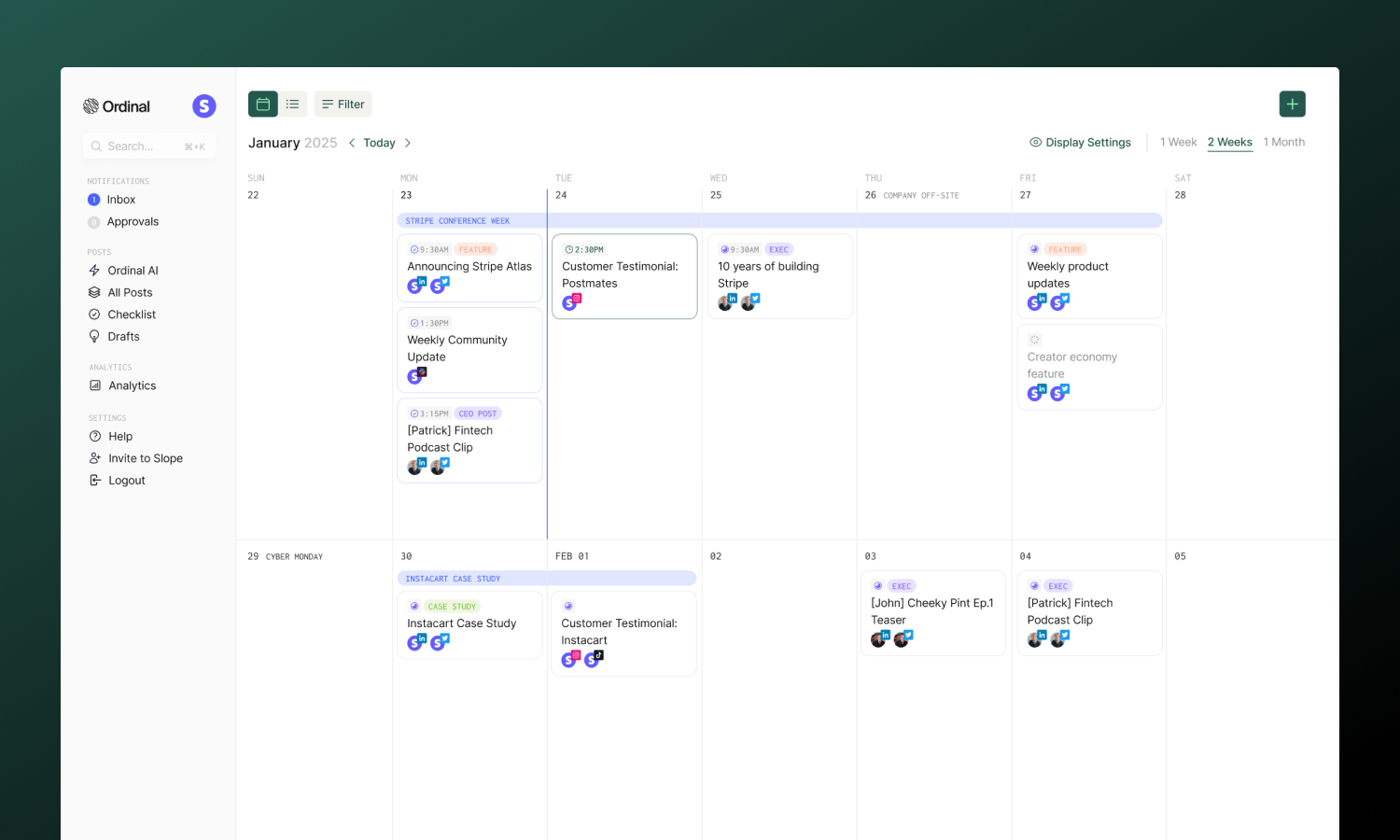
## Overview
**[Views](#views)**
Calendar, list, and time frames
**[Filtering](#filtering)**
Focus on specific content
**[Campaigns](#campaigns-on-calendar)**
See campaign date ranges
## Views
Toggle between **Calendar** and **List** using the icons in the top-left corner:
**Calendar**
The default visual grid showing posts by date:
- Posts appear as cards on their scheduled day
- Platform icons show which channels each post targets
- Color-coded by status
- Drag posts to reschedule them
- Click any day to create a new post for that date
- US holidays are labeled on their respective days
**Time frames**: Choose how much time to display - 1 Week (`W`), 2 Weeks (`X`), or 1 Month (`M`). The 2-week view is the default.
**List**
A sortable table format for managing many posts at once:
- Columns: Date, Post Name, Status, Channels, Labels, Campaign
- Click column headers to sort
- Filter by date range using the date column
- Bulk select posts for actions
- Better for reviewing large volumes of scheduled content
## Creating Posts
Click anywhere on the calendar to create a post for that date. The new post modal opens with the date pre-filled. Just choose the channel you want to post to and click **Create Post**.
:::tip
If preferred, you can also use the keyboard shortcut `P` from anywhere in the app to create a new post.
:::
## Rescheduling
Drag and drop posts directly to new dates:
- In calendar view, drag posts between days
- If the post is already scheduled, we'll automatically reschedule it for the same time on the new day. You'll see a confirmation toast appears when the post is successfully rescheduled.
You can also click a post to open it, then change the scheduled date and time in the post editor.
:::note
Published posts cannot be rescheduled - they've already gone live.
:::
## Post Actions
Right-click any post on the calendar to manage it without opening the editor:
| Action | What it does |
| ------------------------ | --------------------------------------------------------------------- |
| **Rename** | Edit the post title in a dialog. The card updates immediately on save |
| **Change Status** | Set a new status, or move the post back to [Ideas](/posts/ideas) |
| **Copy Post Link** | Copy a shareable link to the post |
| **Duplicate Post** | Create a copy of the post |
| **Batch Duplicate Post** | Create multiple copies at once |
| **Delete Post** | Move the post to the trash |
:::note
Post titles cannot be empty. If you save a blank title, the rename dialog stays open so you can enter a valid one.
:::
## Filtering
Focus on specific content using the filter dropdown:
| Filter | Use case |
| ------------ | -------------------------------------- |
| **Channel** | Show only LinkedIn, Twitter, etc. |
| **Status** | Show only scheduled, posted, or failed |
| **Label** | Focus on specific content categories |
| **Campaign** | See only posts in a campaign |
| **Account** | Show posts for specific profiles |
Filters combine to narrow your view. Clear all filters to see everything.
### Saved Views
Save frequently-used filter combinations as named views that appear in your sidebar for quick access:
1. Apply your filters (channel, status, label, etc.)
2. Click **Save** in the filter bar
3. Name your view (e.g., "LinkedIn Only" or "Scheduled This Week")
Saved views appear in the sidebar under **All Posts**, so you can jump to filtered views with one click. Right-click any saved view to rename or delete it.
## Campaigns on Calendar
Campaigns help you organize larger launches, multi-day events, or themed content series. On the calendar, campaigns appear as colored bars spanning their date range - making it easy to see when campaigns start and end at a glance.
- Each campaign shows as a distinct colored band across its dates
- Click a campaign bar to open the campaign details
**Show/Hide Campaigns**: Use the eye icon in the calendar header to toggle campaign visibility. This is helpful when you want to focus on individual posts without the campaign overlay.
**[Campaigns](/campaigns/overview)**
Learn more about creating and managing campaigns.
## Navigation
| Action | Method |
| --------------- | ---------------------------- |
| Previous period | Click `←` or press `←` key |
| Next period | Click `→` or press `→` key |
| Jump to today | Click **Today** or press `T` |
| 1 week view | Press `W` |
| 2 weeks view | Press `X` |
| 1 month view | Press `M` |
| New campaign | Press `C` |
## Settings
### Timezone
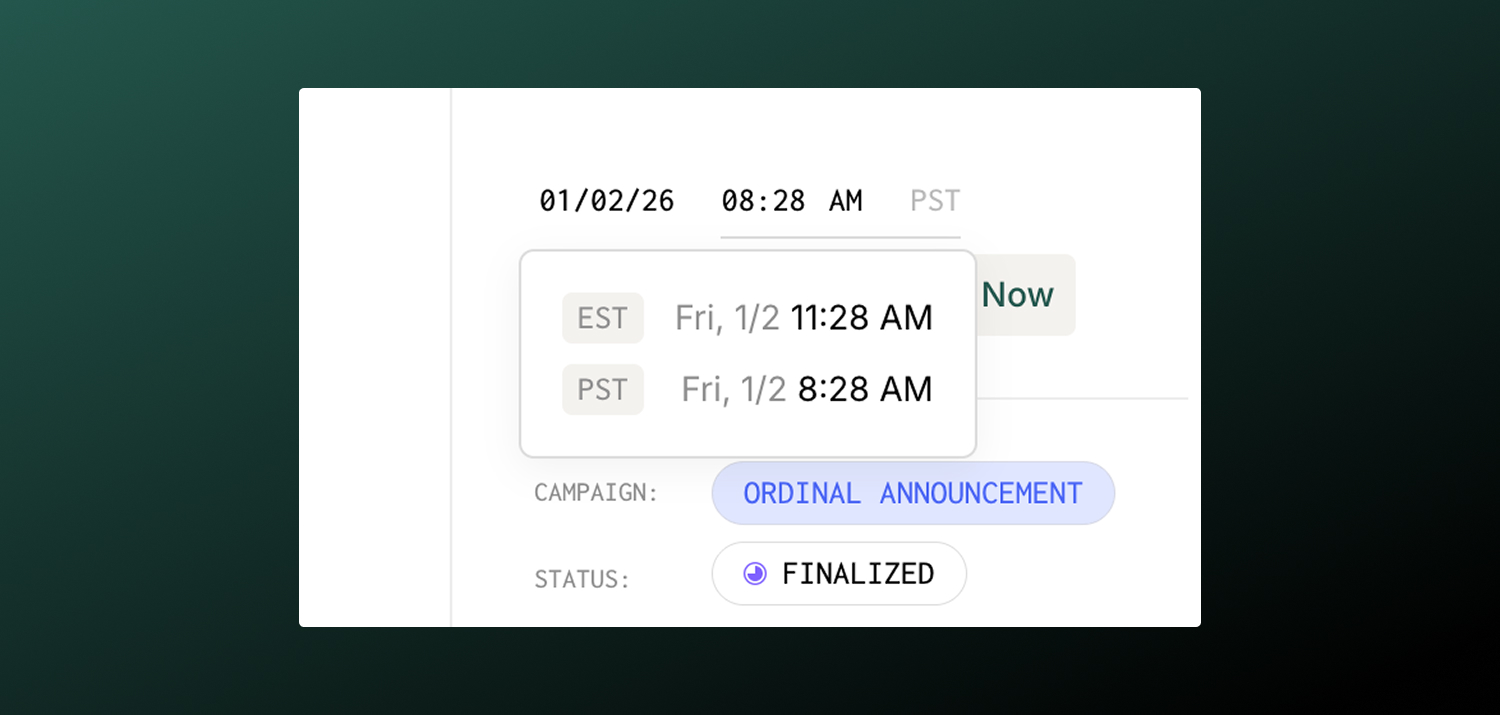
You can set a timezone for the workspace in [**Settings → General**](https://app.tryordinal.com/settings/general). Once set, this timezone will be used to generate recommended post time suggestions. When hovering over times in any part of the Ordinal app, you'll also see a conversion from your computer's local timezone to the workspace timezone.
:::info
Please note that even though your workspace timezone will allow you to easily see the conversion from your local timezone to the workspace timezone app-wide, the calendar and default times will still be based on your computer's local timezone.
:::
### Start of Week
Choose whether your calendar week starts on Sunday or Monday. Set this in your user preferences under [**Settings → Preferences**](https://app.tryordinal.com/settings/user).
## Learn more
**[Scheduling Posts](/posts/scheduling-posts)**
Set publish times for your content.
**[Campaigns](/campaigns/overview)**
Group related posts together.
---
# Campaigns
Source: https://docs.tryordinal.com/campaigns/overview
Campaigns group related posts around a theme, launch, event, or marketing initiative. They provide a unified view of all content in an initiative, help teams stay aligned, and let you track performance across posts.
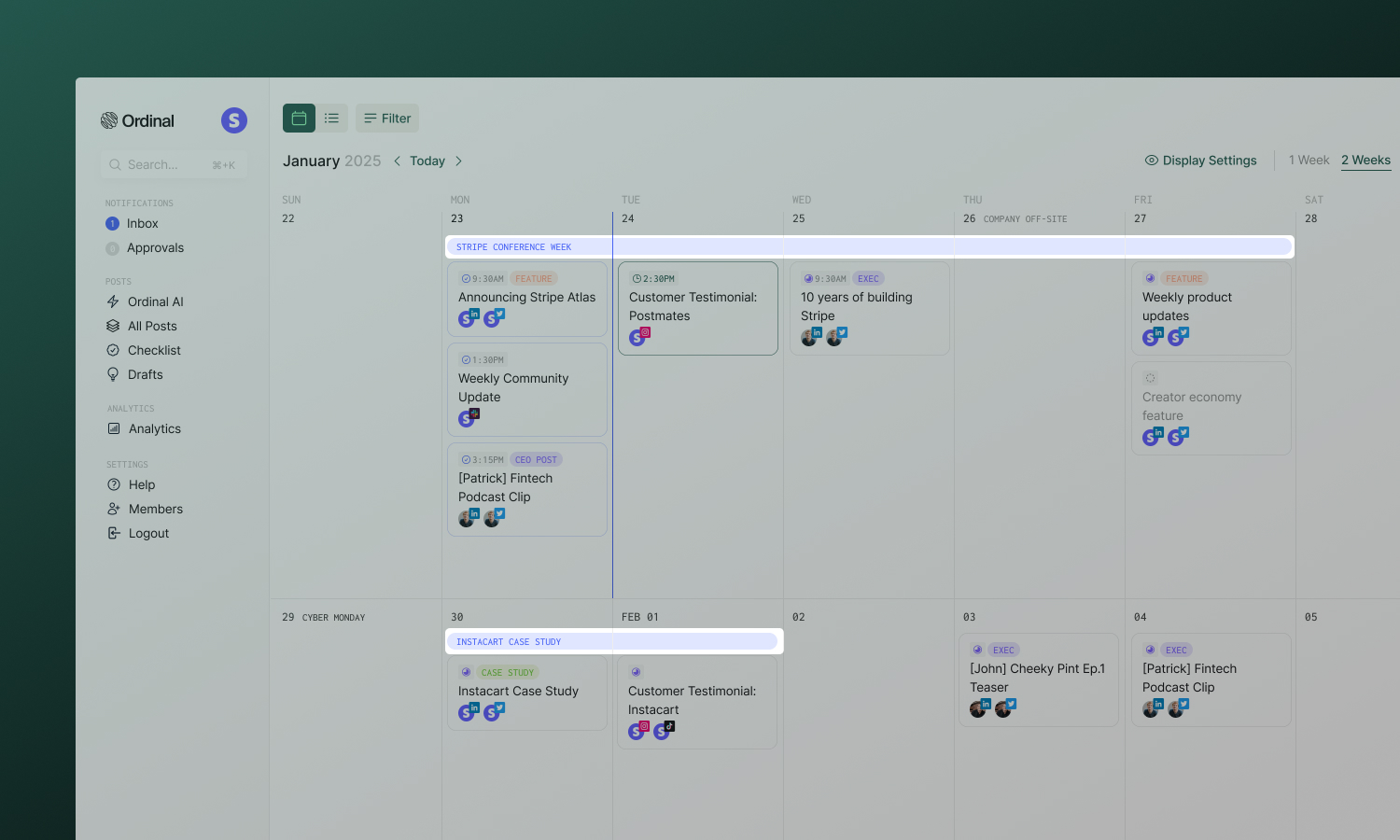
## What campaigns are for
- **Product launches** - Coordinate announcements across all platforms with unified timing
- **Events** - Build momentum before, during, and after conferences, webinars, or launches
- **Content series** - Organize multi-part educational or storytelling content
- **Seasonal promotions** - Plan holiday and seasonal marketing pushes
Campaigns add structure without constraining how you work. A post can exist without a campaign, and campaigns can have any number of posts.
## Creating a campaign
You can create campaigns in multiple ways:
- **Keyboard Shortcut** - Enter the keyboard shortcut `C` from the Calendar view.
- **Calendar** - Click the **\+** button in the top-righthand corner and select "Create Campaign"
Enter a name and date range, then click Create. You can add posts immediately or build out your campaign brief first.
## The campaign page
Open a campaign to see its dedicated workspace:
**Overview**
The main view for planning and organizing:
- **Campaign brief** - A text editor for overview, key messaging, goals/KPIs, target audience, and notes.
- **Attachments** - Upload assets, brand guidelines, or reference materials directly to the campaign.
- **Post list** - All posts and ideas in the campaign with status indicators.
**Calendar**
A focused calendar view showing only this campaign's posts. Useful for visualizing timing and spotting gaps in your schedule.
**Sidebar**
Quick access to campaign settings:
- **Dates** - Adjust start and end dates
- **Labels** - Categorize by product, team, or goal
- **Approvals** - Request sign-off from stakeholders
## Adding posts
Select a campaign from the **Campaign** dropdown in any post's sidebar - works for new posts, existing posts, and even ideas. To remove a post from a campaign, just clear the selection. The post remains in your workspace, just unlinked.
## Collaboration
### Approvals
Request [approval](/collaboration/approvals) on an entire campaign before executing. Approvers can review the brief, attached assets, and planned posts before signing off.
### Comments & Activity
Every campaign has a threaded comment section and activity feed at the bottom of the page. Use comments to discuss strategy, leave feedback, or tag teammates with @mentions. The activity feed tracks all changes - posts added, dates changed, approvals granted.
## Sharing externally
Share a campaign with clients or stakeholders who don't have Ordinal accounts:
1. Click the **Share** icon on the campaign page
2. Toggle **Share public access** on
3. Copy the link
External viewers can see the campaign brief and optionally the posts within it (toggle **Share posts** separately). They cannot edit anything.
:::note
Anyone with the link can view. Disable sharing when no longer needed.
:::
## Analytics
Campaigns don't have a separate analytics page. Instead, filter by campaign in the main [**Analytics**](/analytics/overview) section to see aggregate performance across all posts in the campaign.
**[Analytics](/analytics/overview)**
Track performance and filter by campaign.
## Deleting campaigns
Delete a campaign from the campaign header menu. You'll choose what happens to the posts:
- **Keep posts** - Posts remain in your workspace, just unlinked from the campaign
- **Delete posts** - Posts are permanently removed along with the campaign
:::warning
Deleting is permanent. Consider keeping posts if they contain valuable published content.
:::
## Learn more
**[Calendar](/calendar/overview)**
Visualize campaign timing on your schedule.
**[Labels](/posts/labels)**
Organize campaigns and posts by category.
---
# Approvals
Source: https://docs.tryordinal.com/collaboration/approvals
Approvals ensure content gets reviewed before it goes live. Whether you're an agency managing client accounts, a team posting on behalf of executives, or an organization with compliance requirements - approvals add a review gate that protects your brand and keeps stakeholders informed.
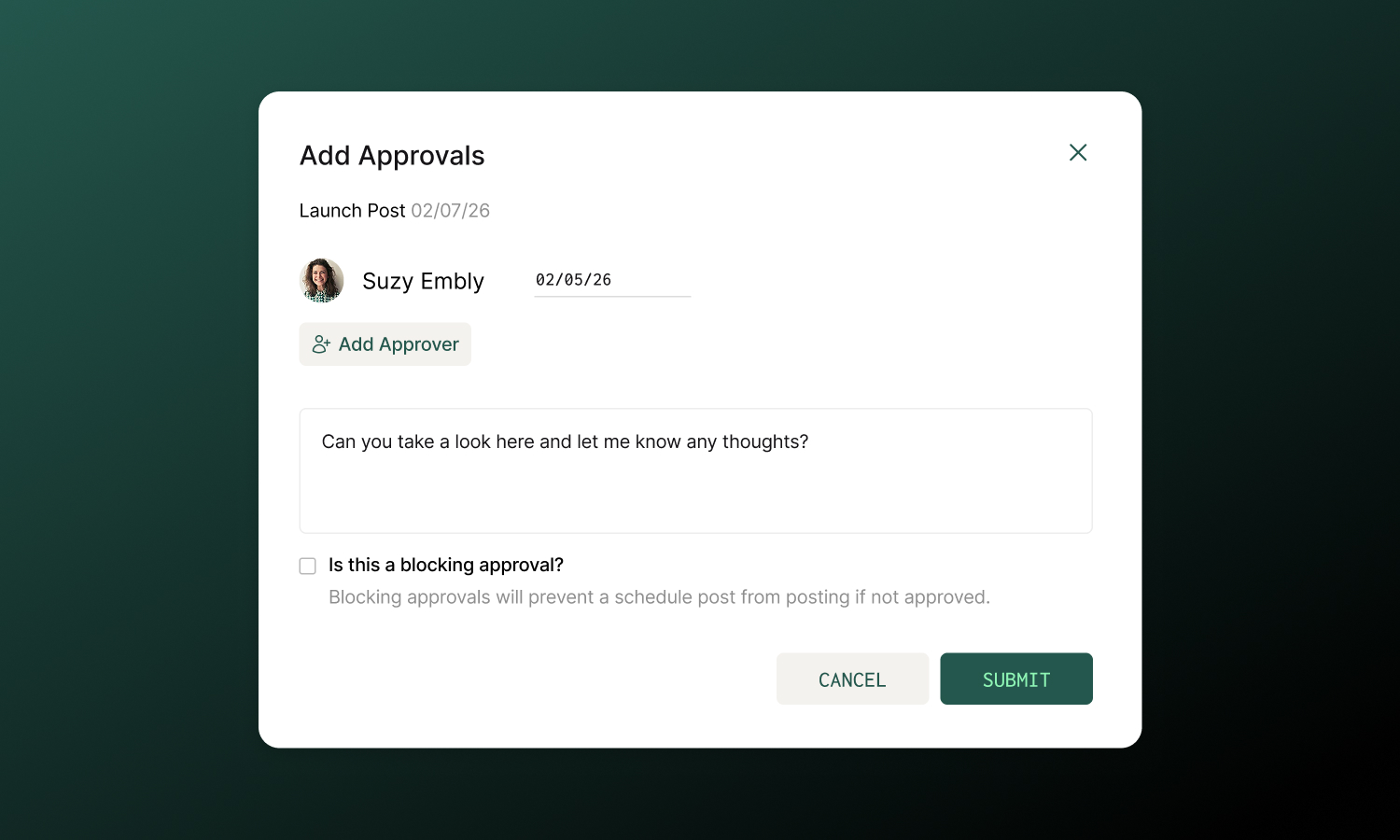
Common use cases:
- **Agencies** - Get client sign-off before publishing to their accounts
- **Executive content** - Ensure leadership reviews posts on their personal brands
- **Brand consistency** - Maintain voice and messaging standards across teams
- **Compliance** - Meet regulatory requirements with documented approval trails
## How it works
1. **Request** - Author finishes a post and requests approval from one or more reviewers
2. **Notify** - Reviewers receive notifications via Slack, email, or in-app (based on their preferences)
3. **Review** - Reviewers open the post, examine content, and approve or leave feedback
## Requesting approval
From any post or campaign, find the **Approvals** section in the sidebar and click **Request Approval**:
1. **Select reviewers** - Search and add one or more team members
2. **Set due date** (optional) - Reviewers get reminders when the due date arrives
3. **Choose blocking** - Toggle on if the post shouldn't publish without approval
4. **Add a note** - Give context: "Please check hashtags" or "Client needs to approve messaging"
The post shows "Pending" until reviewers respond.
:::tip
Add multiple approvers when you need sign-off from different stakeholders - marketing, legal, and the client can all review the same post.
:::
## Blocking vs non-blocking
**Blocking**
The post **can't** be published until approved.
- You can still schedule the post for later
- Protects sensitive accounts from accidental publishing
- Default for approval rules
- If not approved, the post will remain in "Scheduled" status and will not be published.
**Use for:** Client accounts, executive profiles, regulated content
**Non-Blocking (Default)**
The post **can** be published while approval is pending.
- Approval is for visibility and awareness
- Creates an audit trail
- Post publishes regardless of approval status
**Use for:** Informing stakeholders, low-risk content, FYI requests
:::note
**Enterprise feature:** On Enterprise plans, you can configure certain profiles to always have blocking approvals set. This ensures that certain accounts never publish without review - even if someone forgets to request approval manually.
:::
## Approvals Inbox
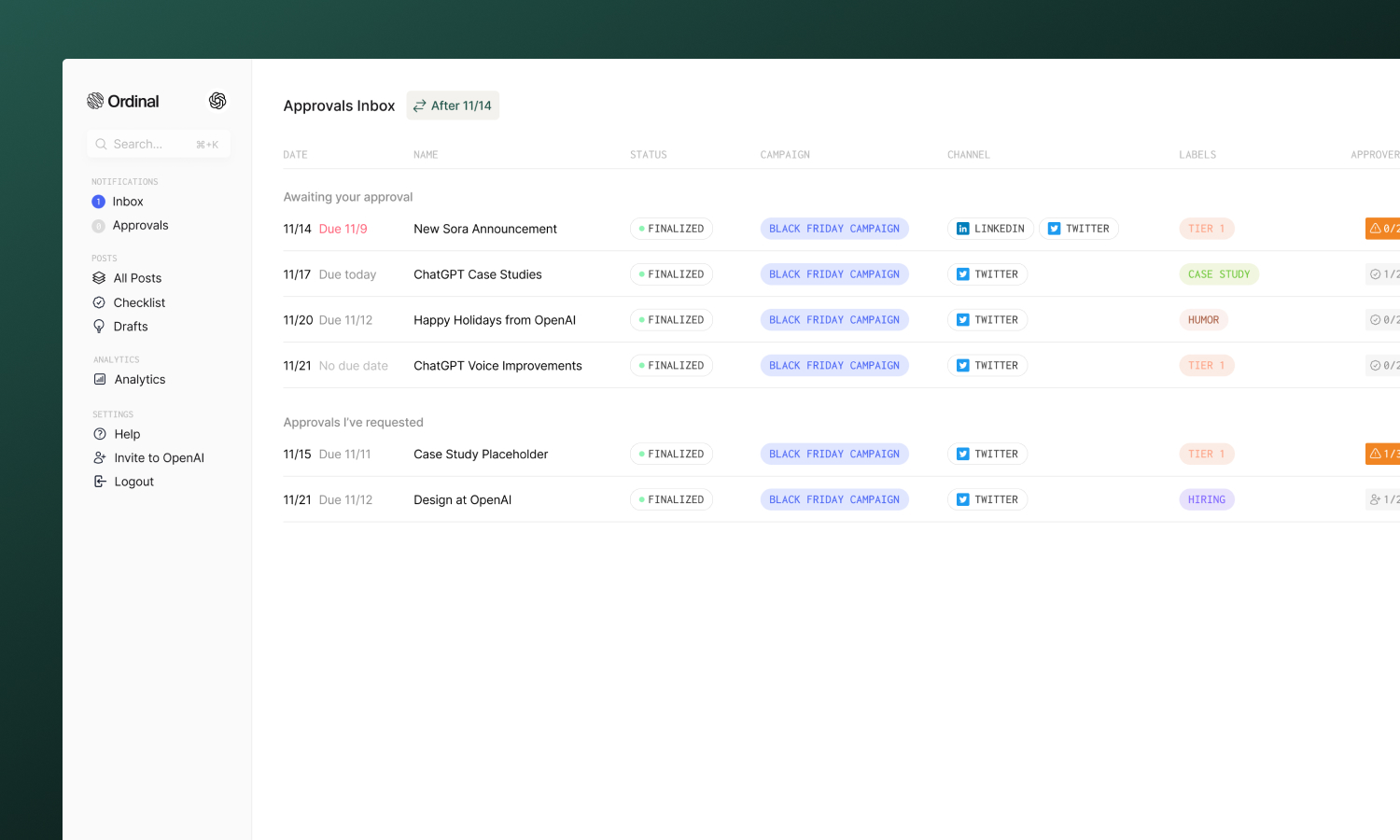
The **Approvals** page in the sidebar gives you a centralized view of posts still awaiting your approval, as well as outstanding approvals you've requested. You can filter the inbox by date range as well to focus on what's urgent.
| Section | What it shows |
| ------------------------------ | ------------------------------------------------------- |
| **Awaiting your approval** | Posts and campaigns where someone requested your review |
| **Approvals you've requested** | Posts where you're waiting on others |
## Reviewing posts
When you're asked to approve something:
1. **Find it** - Click the notification or go to the Approvals page
2. **Review** - Check the copy, media, mentions, hashtags, and schedule. Leave [comments](/collaboration/commenting) on anything that needs changing.
3. ****If all looks good - approve**** - Click the checkmark. The requester is notified that the post is approved.
:::note
Approvals work on mobile too. Review and approve posts from anywhere.
:::
## Notifications
Reviewers receive approval requests via their preferred channels:
- **In-app** - Always appears in the inbox
- **Email** - If enabled in notification settings
- **Slack** - If workspace has Slack connected
When due dates are set, reviewers get automatic reminders. Configure notification preferences in [Settings → Notifications](https://app.tryordinal.com/settings/notifications).
## FAQs
**Can I add multiple approvers?**
Yes. Add as many reviewers as needed. Each receives their own notification and can approve independently.
**Can approvals be done on mobile?**
Yes. The mobile app supports reviewing and approving posts.
**What are approval rules?**
Rules automatically require approval for specific accounts. Once set, any post to that account triggers an approval request - no manual action needed. Enterprise workspaces can set these as defaults.
**What happens if content changes after approval?**
The approval stays in place. If significant changes are made, consider re-requesting approval to ensure reviewers have seen the final version.
## Learn more
**[Notifications](/collaboration/notifications)**
Configure how you receive approval alerts.
**[Statuses](/posts/statuses)**
Track content through your workflow.
---
# Comments
Source: https://docs.tryordinal.com/collaboration/commenting
Comments let your team collaborate directly on posts - leave feedback, ask questions, and refine content before it goes live. Ordinal supports two types of comments: inline comments for specific text suggestions, and post comments for overall feedback.
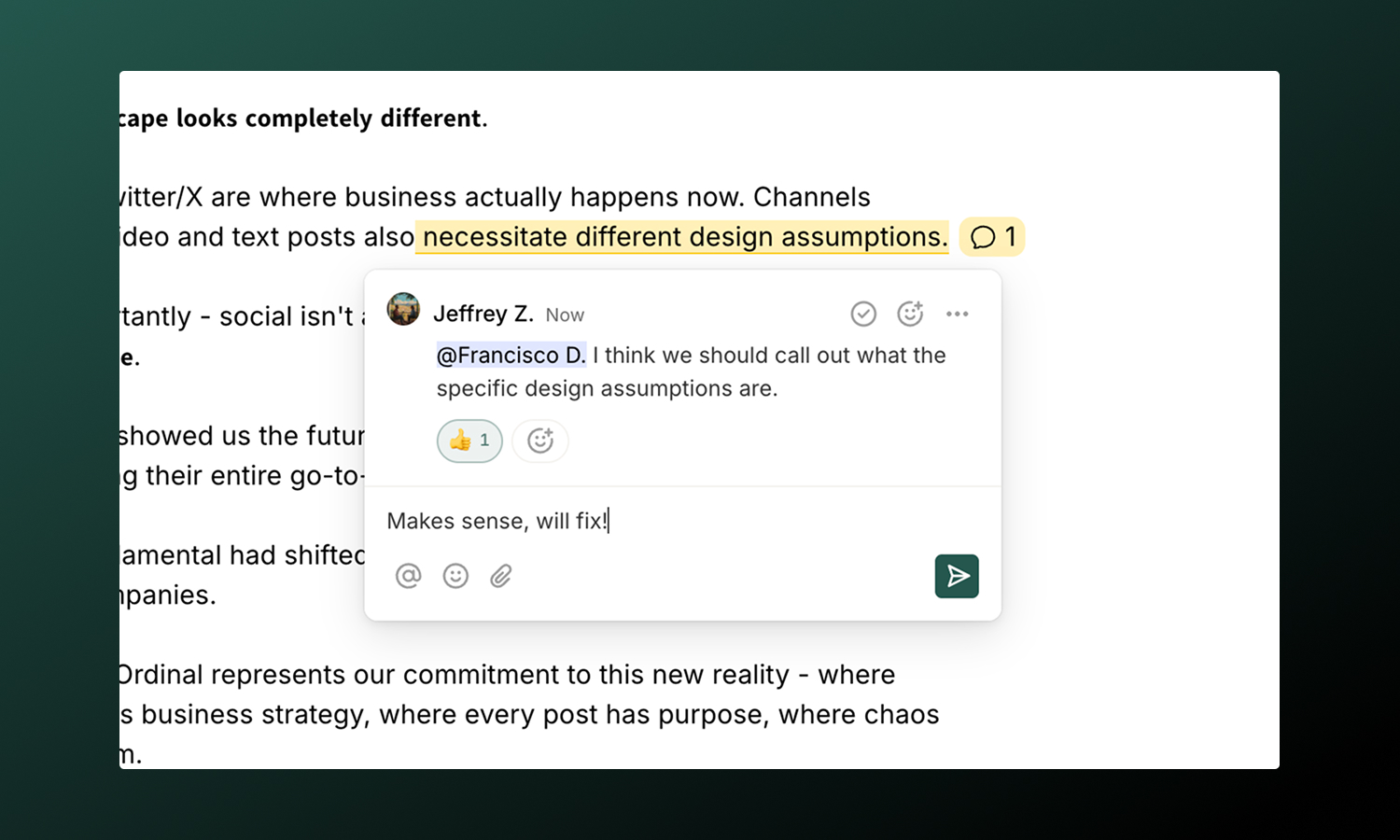
## Inline comments
Inline comments attach directly to specific text in your post - perfect for suggesting word changes, asking about a particular phrase, or pointing out issues.
**To add an inline comment:**
1. Select the text you want to comment on
2. Click the **Comment** button that appears
3. Write your feedback and submit
The selected text is highlighted, and your comment links directly to it.
### Replies and reactions
Inline comments support threaded conversations:
- **Reply** to continue the discussion
- **React with emoji** to acknowledge without adding to the thread
- **@Mention** teammates to loop them in
### Resolving comments
When feedback has been addressed, click **Resolve** on the comment. Resolved comments collapse to reduce visual clutter but remain accessible for reference.
:::tip
Resolve comments as you address them. This creates a clear trail of what's been handled and what's still pending.
:::
### Comments sidebar
Click the **Comments** button in the post header to open the comments sidebar. This gives you a centralized view of all inline comments across the post.
| View | What it shows |
| ------------ | --------------------------------------------------------- |
| **Active** | Comments that still need attention |
| **Resolved** | Toggle "Show resolved comments" to see addressed feedback |
Each comment shows the original highlighted text, making it easy to understand context even if the content has changed.
## Post comments
Post comments appear at the bottom of the post page and are visible to everyone with access. Use them for general feedback, questions, or discussions about the post as a whole.
**To leave a comment:**
1. Open a post and find the **Comments** section at the bottom of the page
2. Type your message and click the **Comment** button
Your comment appears immediately and the post author is notified.
:::note
Commenting on a post automatically subscribes you to it. You'll receive notifications when others comment or the post status changes.
:::
### @Mentions
Tag teammates by typing `@` followed by their name. When you @mention someone:
- They receive a notification (in-app, email, or Slack based on their preferences)
- They're added as a subscriber to the post
- The mention appears highlighted in your comment
:::tip
Use @mentions to ensure the right people see your feedback - don't assume they'll check on their own.
:::
### Deleting comments
To delete a post comment, hover over the comment, then click the three dots \> Delete Comment. Only comment authors and admins can delete comments. Deleted comments cannot be recovered.
## Notifications
Stay updated on comment activity as a [subscriber to a post](/posts/overview#subscribers).
| Event | When you're notified |
| ----------- | ----------------------------------------------- |
| New comment | Someone comments on a post you're subscribed to |
| Reply | Someone replies to your comment |
| @Mention | You're tagged in a comment |
Configure delivery preferences in [**Settings → Notifications**](https://app.tryordinal.com/settings/notifications).
## Learn more
**[Approvals](/collaboration/approvals)**
Formalize the review process.
**[Notifications](/collaboration/notifications)**
Configure comment alerts.
---
# Notifications
Source: https://docs.tryordinal.com/collaboration/notifications
Notifications keep you informed about what matters - posts publishing, approvals pending, comments on your content, and more. Customize which notifications you receive and how they're delivered.
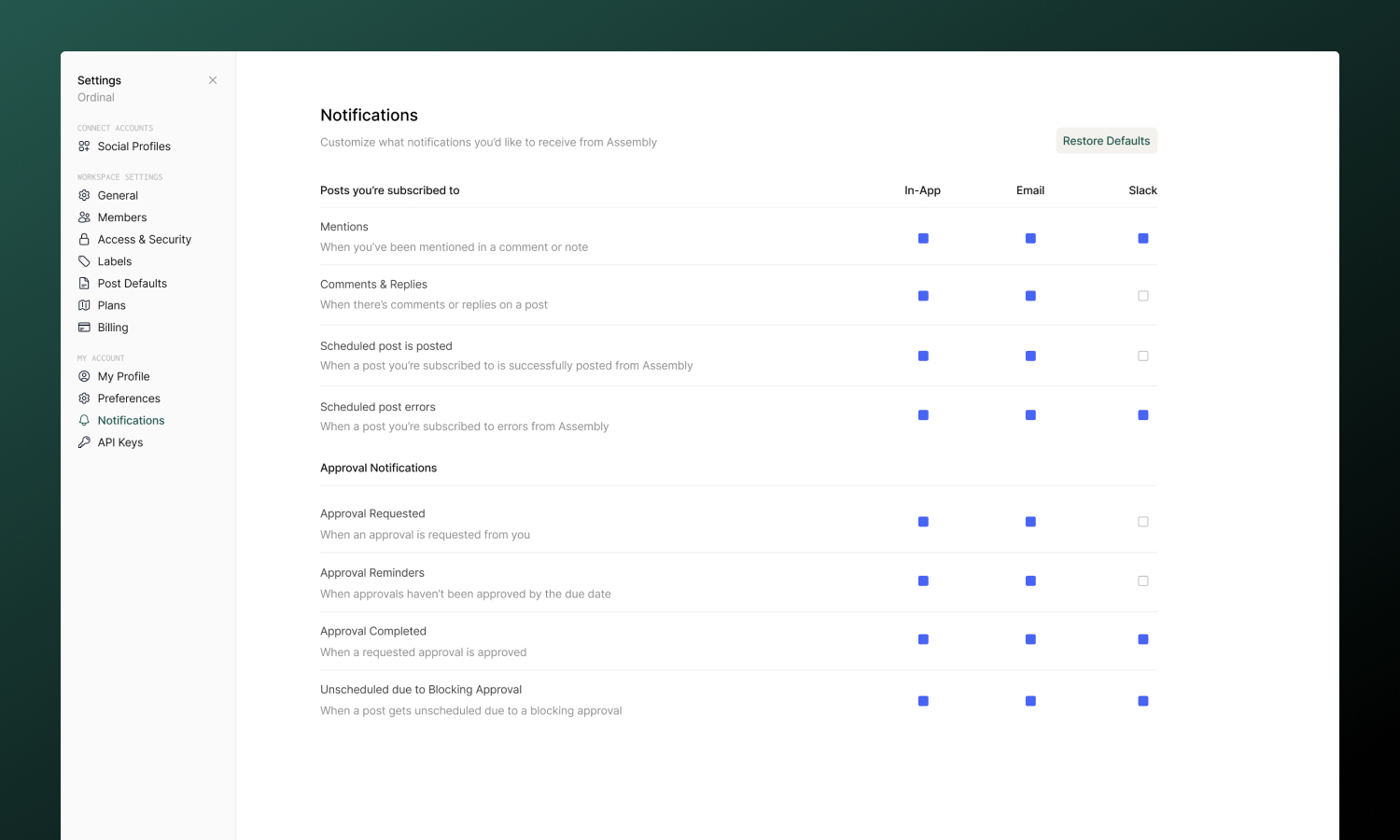
## Notification types
Ordinal sends notifications for two categories of events:
### Posts you're subscribed to
| Notification | When it's sent |
| ---------------------- | --------------------------------------- |
| **Mentions** | Someone @mentions you in a comment |
| **Comments & Replies** | New comments or replies on the post |
| **Post published** | A scheduled post goes live |
| **Post errored** | A post fails to publish (action needed) |
:::warning
Always keep "Post errored" notifications enabled. Failed posts need immediate attention.
:::
### Approvals
| Notification | When it's sent |
| ---------------------------------------- | -------------------------------------------------------------- |
| **Approval Requested** | Someone requests your approval |
| **Approval Reminders** | A pending approval reaches its due date |
| **Approval Completed** | Your approval request is approved |
| **Unscheduled due to Blocking Approval** | A post gets unscheduled because it's missing required approval |
## Delivery channels
Each notification type can be delivered through:
| Channel | Description |
| ---------- | --------------------------------------------------------------------- |
| **In-app** | Appears in your Inbox (bell icon in sidebar). Always available. |
| **Email** | Sent to your registered email address. |
| **Slack** | Sent as a direct message if you've connected Slack for notifications. |
Go to [Settings → Notifications](https://app.tryordinal.com/settings/notifications) to toggle each channel on or off per notification type.
## Slack notifications
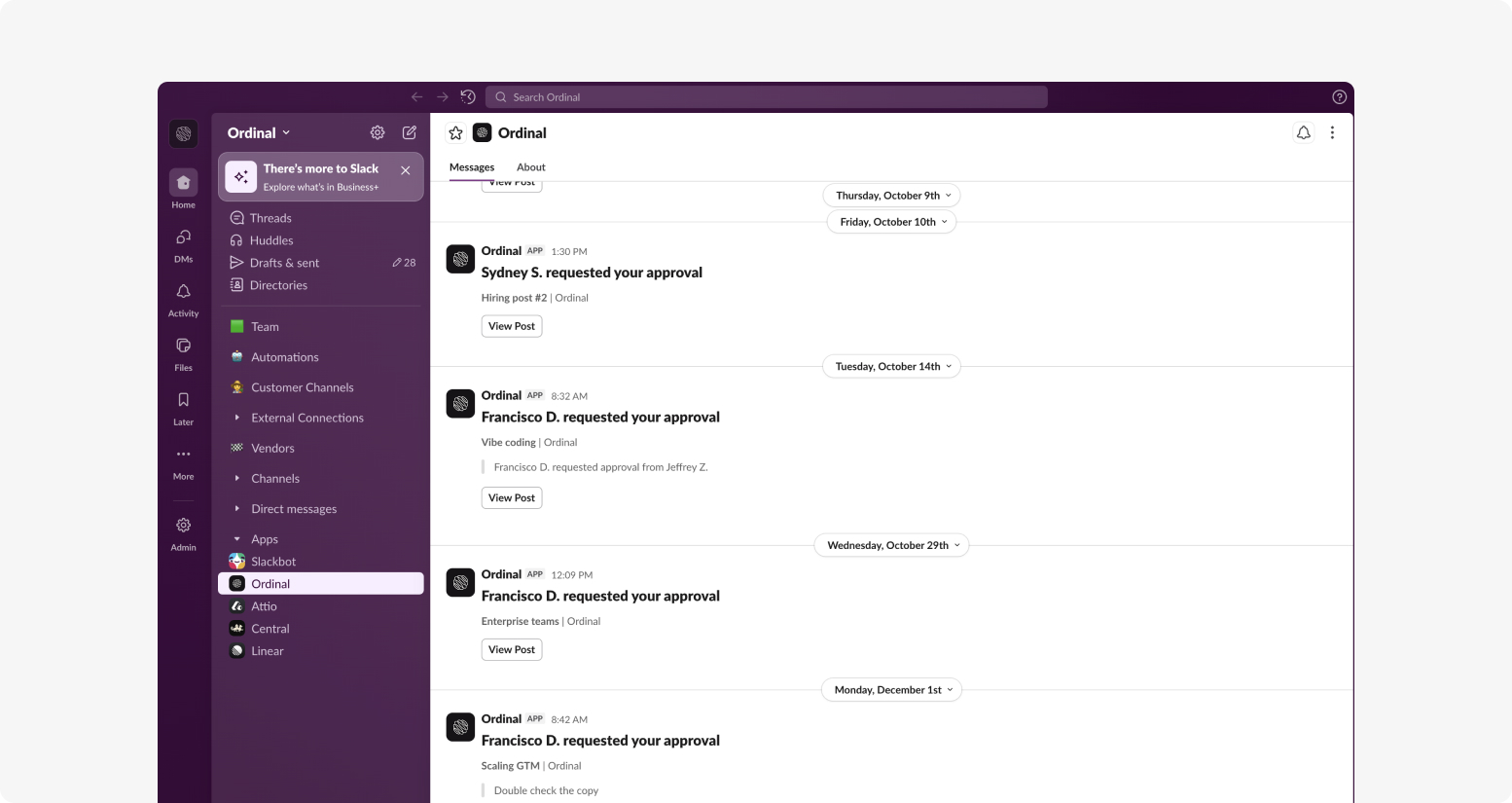
For fast response on approvals and mentions, connect Slack to receive notifications as direct messages.
**To set up:**
1. Go to [Integrations → Slack](https://app.tryordinal.com/settings/integrations/slack)
2. Click **Slack Notifications**
3. Authorize Ordinal to send you messages
4. Return to [Settings → Notifications](https://app.tryordinal.com/settings/notifications) and enable Slack for the notification types you want
Once connected, Slack notifications appear as DMs from the Ordinal app. Click any notification to jump directly to the post or approval.
:::tip
Slack works especially well for approval requests and post failures - you'll see them immediately without checking email.
:::
## Post subscriptions
You receive notifications about posts you're **subscribed** to. Subscriptions determine who gets notified about comments, status changes, and publishing events.
### Automatic subscription
You're automatically subscribed when you:
- **Create** a post
- **Comment** on a post
- Are **@mentioned** in a comment
- Are assigned as an **approver**
- Are **added as a subscriber** by someone else
### Manual subscription
To follow a post you're interested in:
1. Open the post
2. Find the **Subscribers** section above the post comments
3. Click to add yourself
To stop receiving notifications, remove yourself from the subscribers list.
### Adding others
You can add teammates as subscribers to keep them informed:
1. Open the post
2. Find the **Subscribers** section
3. Click **Add** and select team members
They'll receive notifications based on their own notification preferences.
## Configuring notifications
Go to [Settings → Notifications](https://app.tryordinal.com/settings/notifications) to customize your preferences:
- Toggle each notification type on or off
- Choose which channels receive each type (in-app, email, Slack)
- Changes take effect immediately
:::note
In-app notifications for "Approval Requested" cannot be disabled - you'll always see pending approvals in your Inbox.
:::
## Learn more
**[Approvals](/collaboration/approvals)**
Review and approve content.
**[Comments](/collaboration/commenting)**
Collaborate on posts.
---
# Members
Source: https://docs.tryordinal.com/collaboration/team-permissions
Bring your team into Ordinal to collaborate on content together. Team members can create posts, leave feedback, request approvals, and view analytics - all within your shared workspace.
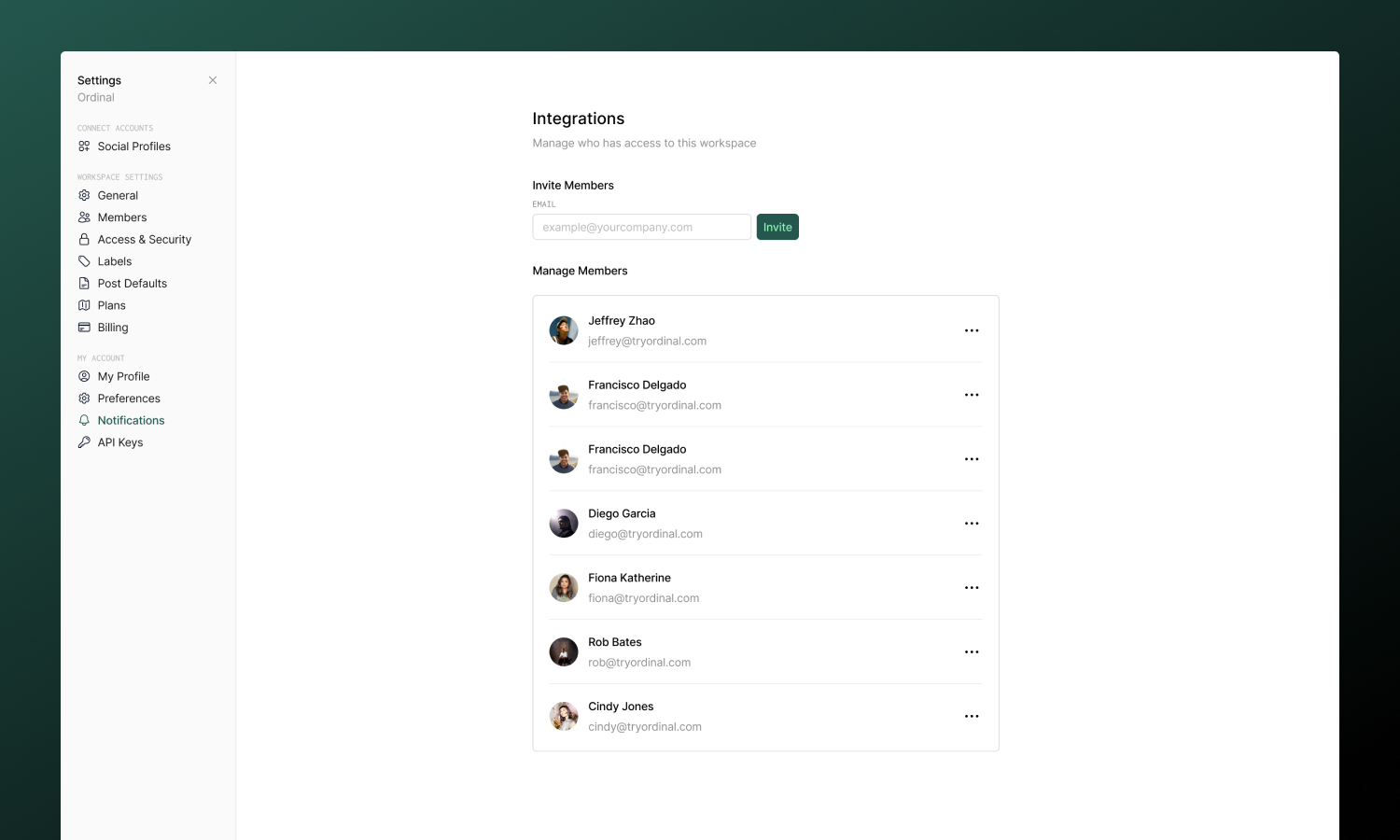
:::note
Starter plans include 3 user seats. Pro plans and above have unlimited team members.
:::
## Inviting members
To add someone to your workspace:
1. Go to [**Settings → Members**](https://app.tryordinal.com/settings/members)
2. Enter their email address
3. Click **Invite**
**What happens next depends on whether they already use Ordinal:**
- **Existing Ordinal user** - They're added to your workspace immediately and will see it the next time they log in.
- **New to Ordinal** - They'll receive an email invitation with a link to create their account.
:::note
**Important:** The person must sign up using the exact email address you invited. If they create an account with a different email, they won't have access to the workspace.
:::
### Sharing the invite link
After sending an invitation, you can copy the unique invite link to share directly - handy if you want to send it via Slack, text, or another channel. Look for the **Copy Invite Link** option in the success message, or find it in the pending invitations list.
### Managing pending invitations
Invitations that haven't been accepted yet appear in the **Pending** section of the Members page. From here you can:
- **Resend** the invitation email if they didn't receive it
- **Copy** the invite link to share manually
- **Revoke** the invitation if it's no longer needed
## Removing members
If someone leaves your team or no longer needs access:
1. Go to [Settings → Members](https://app.tryordinal.com/settings/members)
2. Find the person you want to remove
3. Click the three dots \> **Remove User** and confirm
They'll lose access to the workspace immediately. Any posts or content they created will remain in the workspace - nothing is deleted.
## Agency management
If you're an agency managing multiple client workspaces, you can view and manage team members across all your workspaces from the [Agency Admin](/campaigns/agency-admin) page.
## Learn more
**[Approvals](/collaboration/approvals)**
Add review gates before publishing.
**[Notifications](/collaboration/notifications)**
Configure how your team receives alerts.
---
# Command palette: search and navigate Ordinal with ⌘K
Source: https://docs.tryordinal.com/getting-started/command-palette
The command palette lets you search your content and move around Ordinal without using the sidebar. Use it to find a post, idea, or campaign by name. You can also jump straight to a page or setting, or run an action on the page you're viewing.
## Opening the command palette
Press `⌘K` on Mac or `Ctrl+K` on Windows and Linux. The shortcut works on every page in Ordinal, including settings pages.
:::note
Inside the post editor, `⌘K` / `Ctrl+K` opens the link menu instead of the command palette.
:::
## Searching
Start typing to search posts, ideas, and campaigns by title. The palette shows up to 10 matches, grouped by type. Post results include channel icons and dates.
Use the tabs under the search box to narrow your results:
| Tab | Shows |
| ------------- | ------------------------------------------------ |
| **All** | Matching posts, ideas, and campaigns, plus pages and page actions |
| **Posts** | Posts only |
| **Ideas** | Ideas only |
| **Campaigns** | Campaigns only |
| **Pages** | Pages and settings you can jump to |
## Jumping to a page
Type the name of a page, such as "Approvals", "Labels", or "Billing", and press `Enter` to go there. Pages are grouped as **Go to**, **Settings**, and **Agency**, plus any admin sections you have access to.
The palette lists only the pages you can open in your workspace. For example, agency pages appear only if you belong to an agency.
## Page actions
Some pages add their own commands under **This page**. For example, when you have a post open, select **Copy link** to copy the post's URL to your clipboard.
## Keyboard shortcuts
| Key | Action |
| ------------------------ | --------------------------------------- |
| `⌘K` / `Ctrl+K` | Open the command palette |
| `↑` / `↓` | Move through results |
| `←` / `→` | Switch tabs |
| `Enter` | Open the highlighted result |
| `Esc` | Close the command palette |
---
# Concepts
Source: https://docs.tryordinal.com/getting-started/concepts
## Core Concepts
Understanding these key concepts will help you get the most out of Ordinal.

### [Social Profiles](/social-profiles/overview)
A social profile is a connected account from any supported platform (LinkedIn, Twitter, Instagram, etc.). You can connect multiple profiles and manage them all from Ordinal.
:::tip
Connect all your social accounts to manage everything from one place. Each profile appears in your sidebar for quick access.
:::
### [Posts](/posts/overview)
Posts are the content you create and publish to your social profiles. A single post can be published to multiple profiles simultaneously, with automatic adaptation to each platform's requirements.
### [Campaigns](/campaigns/overview)
Campaigns are collections of related posts organized around a theme, product launch, or marketing initiative. They help you:
- Plan coordinated content efforts
- Track aggregate performance
- Keep related posts organized
### [Labels](/posts/labels)
Labels are tags you can apply to posts for organization and filtering. Use them to categorize content by:
- Topic (industry news, product updates, tips)
- Content type (educational, promotional)
- Priority (urgent, evergreen)
### [Approvals](/collaboration/approvals)
The approval workflow lets team members review and approve posts before they're published.
:::success
With approvals enabled, you can setup internal review processes to make sure everyone is in the loop on outgoing content before you publish.
:::
## The Content Workflow
A typical post flows through Ordinal like this:
1. **Create** - [Draft your content](/posts/drafting-posts) in the composer
2. **Review** - Submit for [approval](/collaboration/approvals) (if enabled)
3. **Schedule** - [Set when to publish](/posts/scheduling-posts)
4. **Publish** - Content goes live automatically
5. **Analyze** - Track performance in [analytics](/analytics/overview)
## Next Steps
**[Connect Your Profiles](/social-profiles/overview)**
Add your social media accounts.
**[Create Your First Post](/posts/drafting-posts)**
Learn how to compose content.
---
# Ordinal Overview
Source: https://docs.tryordinal.com/getting-started/overview
## What is Ordinal?
Ordinal is a comprehensive social media management platform that helps you create, schedule, and analyze your content across multiple platforms. Whether you're a solo creator or a large team, Ordinal streamlines your social media workflow.
## Key Features
**[Multi-Platform Support](/social-profiles/overview)**
Connect and manage all your social media accounts from one dashboard.
**[Smart Scheduling](/posts/scheduling-posts)**
Schedule posts at optimal times for maximum engagement.
**[Team Engagements](/posts/team-engagements)**
Make it easy for team members to coordinate likes, comments, and reposts.
**[Team Collaboration](/collaboration/approvals)**
Work together with your team using approvals and commenting.
**[Analytics](/analytics/overview)**
Track performance and gain insights across all your channels.
## Supported Platforms
Ordinal integrates with all major social platforms:
- [**LinkedIn**](/social-profiles/linkedin)
- [**Twitter / X**](/social-profiles/twitter)
- [**Instagram**](/social-profiles/instagram)
- [**Facebook**](/social-profiles/facebook)
- [**TikTok**](/social-profiles/tiktok)
- [**YouTube Shorts**](/social-profiles/youtube-shorts)
- [**Threads**](/social-profiles/threads)
- [**Webflow**](/social-profiles/webflow)
- [**Slack**](/social-profiles/slack)
- [**Discord**](/social-profiles/discord)
:::tip
You can connect multiple accounts from each platform - perfect for managing multiple brands, clients, or regional accounts.
:::
## Who Uses Ordinal?
- **Marketing teams** managing brand social presence
- **Agencies** handling multiple client accounts
- **Creators** building personal brands
- **Businesses** coordinating company communications
## Getting Started
Ready to get started? Follow our quickstart guide to set up your first social profile.
**[Quickstart Guide](/getting-started/quickstart)**
Get up and running with Ordinal in minutes.
**[Core Concepts](/getting-started/concepts)**
Understand key terminology and workflows.
---
# Quickstart Guide
Source: https://docs.tryordinal.com/getting-started/quickstart
Get up and running with Ordinal in minutes - connect your accounts, create and schedule your first post, and invite your team.
1. **Connect your accounts**
Go to [**Settings → Profiles**](https://app.tryordinal.com/settings/profiles) and click **Connect a Profile**. Select your platform (LinkedIn, Twitter/X, Instagram, etc.) and authorize access.
:::tip
Connect all the accounts you plan to use upfront. You can always disconnect them later.
:::
2. **Create your first post**
Click anywhere on the calendar to create a post for that day (or press `P` as a shortcut). Give your post a title, select the channel, and click **Create**.
You're now in the editor - write your content, add media, and see a live preview of how it will appear.
3. **Draft and schedule your post**
Write your content in the editor, add any media, and preview how it will look. When you're ready, click **Schedule Post** in the sidebar and select a date and time.
4. **Invite your team**
Go to [**Settings → Members**](https://app.tryordinal.com/settings/members), enter your teammate's email, and click **Invite**. They'll receive an email to join your workspace.
:::success
Once they accept, they can start collaborating immediately.
:::
## Next Steps
**[Cross-Posting](/posts/cross-posting)**
Publish to multiple platforms at once.
**[Campaigns](/campaigns/overview)**
Group posts around launches and initiatives.
**[Approvals](/collaboration/approvals)**
Add review gates before publishing.
**[Analytics](/analytics/overview)**
Track performance across accounts.
---
# Dub
Source: https://docs.tryordinal.com/integrations/dub
[Dub](https://dub.co/) is a link management platform that lets you use custom branded domains for your shortlinks. Instead of `ordnl.link/abc123`, your links can use your own domain like `yourcompany.link/abc123`.
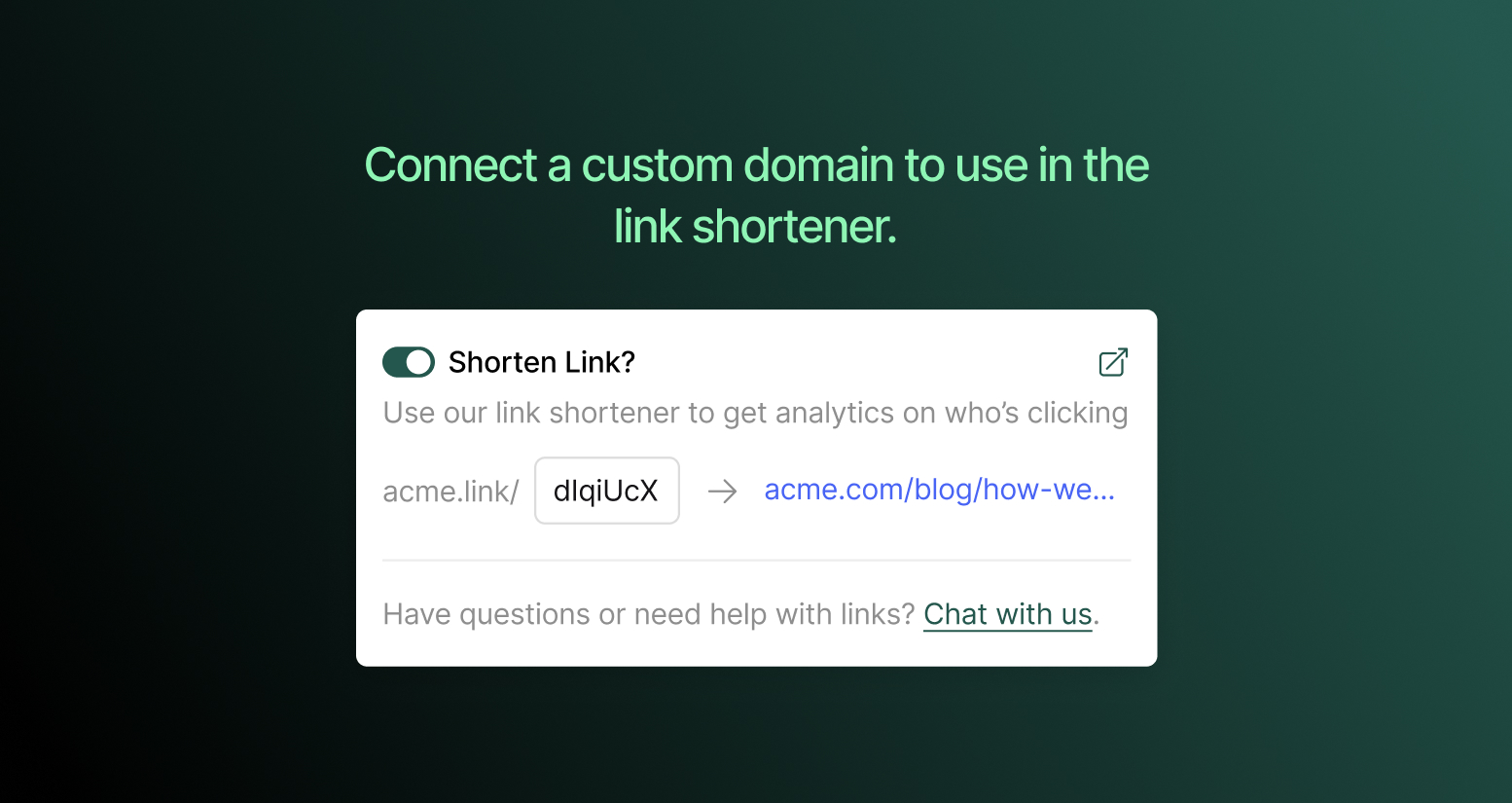
:::note
Dub integration is available on Pro plans and above. Shortlinks work out of the box with `ordnl.link` on all plans - you only need Dub if you want a custom domain.
:::
## Connecting Dub
1. Go to [Integrations → Dub](https://app.tryordinal.com/settings/integrations/dub)
2. Click **Connect**
3. You'll be redirected to Dub to authorize the connection
4. Select your Dub workspace and approve access
5. You're redirected back to Ordinal with the integration active
Ordinal automatically syncs your domains from Dub and uses your primary domain for new shortlinks.
## After connecting
Once connected, any shortlinks you create in Ordinal will use your Dub domain instead of `ordnl.link`. Click analytics for these links are available in both Ordinal's analytics and your Dub dashboard.
**[Shortlinks](/analytics/shortlinks)**
Learn how to create and track shortlinks in your posts.
## Changing domains
Ordinal uses whichever domain is set as "primary" in your Dub account. To switch domains:
1. Update your primary domain in [Dub](https://app.dub.co)
2. In Ordinal, disconnect and reconnect the integration to sync the change
Existing shortlinks will continue using their original domain.
## Disconnecting
To disconnect Dub, go to [Integrations → Dub](https://app.tryordinal.com/settings/integrations/dub) and click **Disconnect**.
- **Existing shortlinks** continue to work - they're still hosted by Dub
- **New shortlinks** will use `ordnl.link` instead of your custom domain
- **Analytics** for your Dub links remain accessible in your Dub dashboard
---
# Slack
Source: https://docs.tryordinal.com/integrations/slack
Ordinal integrates with Slack in three ways - boosting posts to your team, receiving notifications, and scheduling messages to Slack channels.
**[Slack Boost](/posts/slack-boost)**
Notify your team when posts publish to encourage engagement.
**[Notifications](/collaboration/notifications)**
Receive Ordinal alerts in Slack.
**[Slack Scheduling](/social-profiles/slack)**
Post messages to Slack channels.
---
# campaign.approval.approved
Source: https://docs.tryordinal.com/integrations/webhooks/campaign-approval-approved
All webhook payloads follow a consistent top-level structure with event-specific data nested within the `data` object.
| Prop | Type | Default | Description |
| - | - | - | - |
| `type` | `string` | - | The event type (e.g. campaign.approval.approved). |
| `data` | `object` | - | Event-specific payload for this webhook. |
| `data.approval` | `object` | - | The approval that was granted. |
| `data.approval.id` | `string` | - | Approval ID. |
| `data.approval.isBlocking` | `boolean` | - | Whether this approval blocked the campaign until granted. |
| `data.approval.message?` | `string` | - | Optional message attached to the approval request. |
| `data.approval.dueDate?` | `string` | - | ISO 8601 due date for the approval, if set. |
| `data.approval.createdAt` | `string` | - | ISO 8601 timestamp when the approval was created. |
| `data.approval.status` | `string` | - | Always Approved for this event. |
| `data.approval.approvedAt` | `string` | - | ISO 8601 timestamp when the approver granted approval. |
| `data.approval.approvedBy` | `object` | - | User who approved. Contains id, firstName, lastName, and email. |
| `data.approval.requestedBy` | `object` | - | User who originally requested approval. Contains id, firstName, lastName, and email. |
| `data.approval.campaign` | `object` | - | Campaign that was approved. Contains id, name, startDate, and endDate. |
| `data.approval.workspace` | `object` | - | Workspace the campaign belongs to. Contains id, slug, and name. |
| `createdAt` | `string` | - | ISO 8601 timestamp when the webhook event was created. |
```json Example
{
"type": "campaign.approval.approved",
"data": {
"approval": {
"id": "550e8400-e29b-41d4-a716-446655440710",
"isBlocking": true,
"message": "Legal sign-off needed for this campaign.",
"dueDate": "2025-03-05T17:00:00.000Z",
"createdAt": "2025-02-26T14:00:00.000Z",
"status": "Approved",
"approvedAt": "2025-02-26T16:15:00.000Z",
"approvedBy": {
"id": "550e8400-e29b-41d4-a716-446655440021",
"firstName": "Sam",
"lastName": "Chen",
"email": "sam@example.com"
},
"requestedBy": {
"id": "550e8400-e29b-41d4-a716-446655440010",
"firstName": "Jane",
"lastName": "Doe",
"email": "jane@example.com"
},
"campaign": {
"id": "550e8400-e29b-41d4-a716-446655440003",
"name": "Launch 2025",
"startDate": "2025-01-01",
"endDate": "2025-12-31"
},
"workspace": {
"id": "550e8400-e29b-41d4-a716-446655440000",
"slug": "acme",
"name": "Acme Inc"
}
}
},
"createdAt": "2025-02-26T16:15:00.000Z"
}
```
---
# campaign.approval.requested
Source: https://docs.tryordinal.com/integrations/webhooks/campaign-approval-requested
All webhook payloads follow a consistent top-level structure with event-specific data nested within the `data` object.
| Prop | Type | Default | Description |
| - | - | - | - |
| `type` | `string` | - | The event type (e.g. campaign.approval.requested). |
| `data` | `object` | - | Event-specific payload for this webhook. |
| `data.approval` | `object` | - | Approval request context for the campaign. |
| `data.approval.campaign` | `object` | - | Campaign being approved. Contains id, name, startDate, and endDate. |
| `data.approval.workspace` | `object` | - | Workspace the campaign belongs to. Contains id, slug, and name. |
| `data.approval.createdApprovals` | `array` | - | New approval requests created by this action. Each item has id, isBlocking, message, dueDate, createdAt, status (Requested), user (approver), and requestedBy (who asked for approval). User objects contain id, firstName, lastName, and email. Dates are ISO 8601 strings where present. |
| `data.approval.existingApprovals` | `array` | - | Approvals already on the campaign before this request. Each item is either a requested approval (status Requested) or an approved one (status Approved). Approved items include approvedAt and approvedBy. |
| `createdAt` | `string` | - | ISO 8601 timestamp when the webhook event was created. |
```json Example
{
"type": "campaign.approval.requested",
"data": {
"approval": {
"campaign": {
"id": "550e8400-e29b-41d4-a716-446655440003",
"name": "Launch 2025",
"startDate": "2025-01-01",
"endDate": "2025-12-31"
},
"workspace": {
"id": "550e8400-e29b-41d4-a716-446655440000",
"slug": "acme",
"name": "Acme Inc"
},
"createdApprovals": [
{
"id": "550e8400-e29b-41d4-a716-446655440710",
"isBlocking": true,
"message": "Legal sign-off needed for this campaign.",
"dueDate": "2025-03-05T17:00:00.000Z",
"createdAt": "2025-02-26T14:00:00.000Z",
"status": "Requested",
"user": {
"id": "550e8400-e29b-41d4-a716-446655440021",
"firstName": "Sam",
"lastName": "Chen",
"email": "sam@example.com"
},
"requestedBy": {
"id": "550e8400-e29b-41d4-a716-446655440010",
"firstName": "Jane",
"lastName": "Doe",
"email": "jane@example.com"
}
}
],
"existingApprovals": []
}
},
"createdAt": "2025-02-26T14:00:00.000Z"
}
```
---
# Event types
Source: https://docs.tryordinal.com/integrations/webhooks/event-types
Ordinal sends webhook notifications when events occur in your workspace. Every payload uses this structure:
```json
{
"type": "post.published",
"data": {
"post": {
"id": "550e8400-e29b-41d4-a716-446655440001",
"title": "Q4 Product Launch Announcement",
"channel": "LinkedIn",
"campaign": {
"id": "550e8400-e29b-41d4-a716-446655440003",
"name": "Launch 2025",
"startDate": "2025-01-01",
"endDate": "2025-12-31"
},
"url": "https://app.tryordinal.com/acme/posts/550e8400-e29b-41d4-a716-446655440001",
"postUrl": "https://www.linkedin.com/feed/update/urn:li:share:7123456789012345678",
"profile": {
"id": "550e8400-e29b-41d4-a716-446655440002",
"name": "Acme Inc",
"detail": "acme-inc"
},
"workspace": {
"id": "550e8400-e29b-41d4-a716-446655440000",
"slug": "acme",
"name": "Acme Inc"
},
"publishedBy": {
"id": "550e8400-e29b-41d4-a716-446655440010",
"firstName": "Jane",
"lastName": "Doe",
"email": "jane@example.com"
},
"publishedAt": "2025-02-26T14:30:00.000Z"
}
},
"createdAt": "2025-02-26T14:30:00.000Z"
}
```
- **type** – Event type (e.g. `post.published`)
- **data** – Event-specific payload; see each event page for the schema
- **createdAt** – ISO 8601 timestamp when the event was emitted
## Social Profile
Events for connected social accounts (LinkedIn, Twitter, Instagram, etc.):
| Event Type | Description |
| ---------- | ----------- |
| [`social_profile.connected`](/integrations/webhooks/social-profile-connected) | A profile is connected to the workspace |
| [`social_profile.disconnected`](/integrations/webhooks/social-profile-disconnected) | A profile is disconnected from the workspace |
| [`social_profile.reconnect_needed`](/integrations/webhooks/social-profile-reconnect-needed) | A profile needs reconnecting (e.g. token expired) |
## Posts
Events for post lifecycle and content changes:
| Event Type | Description |
| ---------- | ----------- |
| [`post.created`](/integrations/webhooks/post-created) | A new post is created |
| [`post.scheduled`](/integrations/webhooks/post-scheduled) | A post is scheduled for publishing |
| [`post.rescheduled`](/integrations/webhooks/post-rescheduled) | A post's scheduled time is changed |
| [`post.unscheduled`](/integrations/webhooks/post-unscheduled) | A post is unscheduled |
| [`post.published`](/integrations/webhooks/post-published) | A post is successfully published to a channel |
| [`post.publish_failed`](/integrations/webhooks/post-publish-failed) | A post fails to publish |
| [`post.archived`](/integrations/webhooks/post-archived) | A post is archived (moved to trash) |
| [`post.permanently_deleted`](/integrations/webhooks/post-permanently-deleted) | A post is permanently deleted |
| [`post.content.edited`](/integrations/webhooks/post-content-edited) | A post's content is edited (debounced per post, fires after ~5 minutes). Includes latest content for all channels. |
| [`post.comment.created`](/integrations/webhooks/post-comment-created) | A comment is added to a post (post-level comments) |
| [`post.inline_comment.created`](/integrations/webhooks/post-inline-comment-created) | An inline comment (text-anchored) is added to a post. One event per comment, including replies in a thread. |
## Approvals
Events for post and campaign [approval](/collaboration/approvals) workflows:
| Event Type | Description |
| ---------- | ----------- |
| [`post.approval.requested`](/integrations/webhooks/post-approval-requested) | Someone requests approval from users for a post |
| [`post.approval.approved`](/integrations/webhooks/post-approval-approved) | An approver grants approval for a post |
| [`campaign.approval.requested`](/integrations/webhooks/campaign-approval-requested) | Someone requests approval from users for a campaign |
| [`campaign.approval.approved`](/integrations/webhooks/campaign-approval-approved) | An approver grants approval for a campaign |
## Invites
Events for workspace invitations:
| Event Type | Description |
| ---------- | ----------- |
| [`invite.created`](/integrations/webhooks/invite-created) | A user is invited to the workspace. If the invitee already has an account, they are added directly and no email is sent. |
| [`invite.accepted`](/integrations/webhooks/invite-accepted) | A user accepts a workspace invite |
---
# Ordinal webhooks
Source: https://docs.tryordinal.com/integrations/webhooks/introduction
Use webhooks to get real-time notifications on events happening across your Ordinal workspace. With Ordinal webhooks, you can build custom integrations, such as:
- Syncing post data to your CRM when content goes live
- Auto-create Linear tickets based on changes in a post's status
- Sync [approval](/collaboration/approvals) workflows with your company's existing compliance tooling
- Trigger onboarding sequences in your own systems when new teammates accept invites
- Feed campaign activity into custom executive dashboards
- Building internal dashboards that track publishing activity across your team
In this guide, we'll show you how to configure webhooks and document the available events you can listen to.
## Managing webhooks
You can manage webhooks via the dashboard or the API.
**Dashboard:** Navigate to [**Settings → Integrations → Webhooks**](https://app.tryordinal.com/settings/integrations/webhooks) to create, view, edit, and delete webhooks.
**API:** The webhooks API supports full CRUD operations. All endpoints require [API key authentication](/api/authentication).
| Operation | Method | Endpoint | Description |
| --- | --- | --- | --- |
| List | `GET` | `/webhooks` | List all webhooks for the workspace |
| Create | `POST` | `/webhooks` | Create a new webhook |
| Get | `GET` | `/webhooks/{id}` | Get a webhook by ID |
| Update | `PATCH` | `/webhooks/{id}` | Update an existing webhook |
| Delete | `DELETE` | `/webhooks/{id}` | Delete a webhook |
### List webhooks
```bash
curl -X GET "https://app.tryordinal.com/api/v1/webhooks" \
-H "Authorization: Bearer your_api_key"
```
Response:
```json
[
{
"id": "550e8400-e29b-41d4-a716-446655440900",
"name": "CRM Sync",
"url": "https://example.com/webhooks/ordinal",
"description": "Sync published posts to our CRM",
"headers": { "X-Custom-Header": "value" },
"topics": ["post.published", "post.archived"],
"createdAt": "2026-01-15T10:00:00.000Z",
"createdBy": {
"id": "550e8400-e29b-41d4-a716-446655440010",
"email": "john@acme.com",
"firstName": "John",
"lastName": "Doe"
}
}
]
```
### Create webhook
```bash
curl -X POST "https://app.tryordinal.com/api/v1/webhooks" \
-H "Authorization: Bearer your_api_key" \
-H "Content-Type: application/json" \
-d '{
"name": "CRM Sync",
"url": "https://example.com/webhooks/ordinal",
"description": "Sync published posts to our CRM",
"topics": ["post.published", "post.archived"],
"headers": { "X-Custom-Header": "value" }
}'
```
Response:
```json
{
"id": "550e8400-e29b-41d4-a716-446655440900",
"name": "CRM Sync",
"url": "https://example.com/webhooks/ordinal",
"topics": ["post.published", "post.archived"],
"createdAt": "2026-01-15T10:00:00.000Z"
}
```
(Note: Create response omits `description`, `headers`, and `createdBy`; use Get for the full webhook object.)
### Get webhook
```bash
curl -X GET "https://app.tryordinal.com/api/v1/webhooks/550e8400-e29b-41d4-a716-446655440900" \
-H "Authorization: Bearer your_api_key"
```
### Update webhook
Send only the fields you want to change. All request body fields are optional.
```bash
curl -X PATCH "https://app.tryordinal.com/api/v1/webhooks/550e8400-e29b-41d4-a716-446655440900" \
-H "Authorization: Bearer your_api_key" \
-H "Content-Type: application/json" \
-d '{
"name": "Updated CRM Sync",
"topics": ["post.published", "post.archived", "post.content.edited"]
}'
```
### Delete webhook
```bash
curl -X DELETE "https://app.tryordinal.com/api/v1/webhooks/550e8400-e29b-41d4-a716-446655440900" \
-H "Authorization: Bearer your_api_key"
```
Response:
```json
{
"success": true
}
```
See the [Webhooks API reference](/api/webhooks/webhooks-list) for full request/response schemas, valid event types, and error handling.
## Payload format
All webhook deliveries use the same envelope. The request body is JSON:
```json
{
"type": "post.published",
"data": { ... },
"createdAt": "2025-02-26T14:30:00.000Z"
}
```
| Field | Description |
| --- | --- |
| `type` | The event type (e.g. [`post.published`](/integrations/webhooks/post-published), [`post.archived`](/integrations/webhooks/post-archived)) |
| `data` | Event-specific payload. See each event page for the schema. |
| `createdAt` | ISO 8601 timestamp when the event was emitted |
Your endpoint should respond with a `2xx` status code to acknowledge receipt.
See [Event types](/integrations/webhooks/event-types) for the full list of supported events and links to each payload schema.
---
# invite.accepted
Source: https://docs.tryordinal.com/integrations/webhooks/invite-accepted
All webhook payloads follow a consistent top-level structure with event-specific data nested within the `data` object.
| Prop | Type | Default | Description |
| - | - | - | - |
| `type` | `string` | - | The event type (e.g. invite.accepted). |
| `data` | `object` | - | Event-specific payload for this webhook. |
| `data.invite` | `object` | - | The accepted invite. |
| `data.invite.id` | `string` | - | Invite ID. |
| `data.invite.email` | `string` | - | Email address of the invited user. |
| `data.invite.createdAt` | `string` | - | ISO 8601 timestamp when the invite was created. |
| `data.invite.acceptedAt` | `string` | - | ISO 8601 timestamp when the invite was accepted. |
| `data.invite.invitedBy` | `object` | - | User who sent the invite. Contains id, firstName, lastName, and email. |
| `data.invite.acceptedBy` | `object` | - | User who accepted the invite. Contains id, firstName, lastName, and email. |
| `data.invite.workspace` | `object` | - | Workspace the user joined. Contains id, slug, and name. |
| `createdAt` | `string` | - | ISO 8601 timestamp when the webhook event was created. |
```json Example
{
"type": "invite.accepted",
"data": {
"invite": {
"id": "550e8400-e29b-41d4-a716-446655440600",
"email": "newmember@example.com",
"createdAt": "2025-02-26T11:00:00.000Z",
"acceptedAt": "2025-02-26T14:30:00.000Z",
"invitedBy": {
"id": "550e8400-e29b-41d4-a716-446655440010",
"firstName": "Jane",
"lastName": "Doe",
"email": "jane@example.com"
},
"acceptedBy": {
"id": "550e8400-e29b-41d4-a716-446655440020",
"firstName": "John",
"lastName": "Smith",
"email": "newmember@example.com"
},
"workspace": {
"id": "550e8400-e29b-41d4-a716-446655440000",
"slug": "acme",
"name": "Acme Inc"
}
}
},
"createdAt": "2025-02-26T14:30:00.000Z"
}
```
---
# invite.created
Source: https://docs.tryordinal.com/integrations/webhooks/invite-created
All webhook payloads follow a consistent top-level structure with event-specific data nested within the `data` object.
| Prop | Type | Default | Description |
| - | - | - | - |
| `type` | `string` | - | The event type (e.g. invite.created). |
| `data` | `object` | - | Event-specific payload for this webhook. |
| `data.invite` | `object` | - | The invite. |
| `data.invite.id` | `string` | - | Invite ID. |
| `data.invite.email` | `string` | - | Email address of the invited user. |
| `data.invite.createdAt` | `string` | - | ISO 8601 timestamp when the invite was created. |
| `data.invite.invitedBy` | `object` | - | User who sent the invite. Contains id, firstName, lastName, and email. |
| `data.invite.workspace` | `object` | - | Workspace the user was invited to. Contains id, slug, and name. |
| `data.invite.sentEmail` | `boolean` | - | Whether an invitation email was sent. If the invitee already had an account, they are added directly and no email is sent (false). |
| `createdAt` | `string` | - | ISO 8601 timestamp when the webhook event was created. |
```json Example
{
"type": "invite.created",
"data": {
"invite": {
"id": "550e8400-e29b-41d4-a716-446655440600",
"email": "newmember@example.com",
"createdAt": "2025-02-26T11:00:00.000Z",
"invitedBy": {
"id": "550e8400-e29b-41d4-a716-446655440010",
"firstName": "Jane",
"lastName": "Doe",
"email": "jane@example.com"
},
"workspace": {
"id": "550e8400-e29b-41d4-a716-446655440000",
"slug": "acme",
"name": "Acme Inc"
},
"sentEmail": true
}
},
"createdAt": "2025-02-26T11:00:00.000Z"
}
```
---
# post.approval.approved
Source: https://docs.tryordinal.com/integrations/webhooks/post-approval-approved
All webhook payloads follow a consistent top-level structure with event-specific data nested within the `data` object.
| Prop | Type | Default | Description |
| - | - | - | - |
| `type` | `string` | - | The event type (e.g. post.approval.approved). |
| `data` | `object` | - | Event-specific payload for this webhook. |
| `data.approval` | `object` | - | The approval that was granted. |
| `data.approval.id` | `string` | - | Approval ID. |
| `data.approval.isBlocking` | `boolean` | - | Whether this approval blocked publishing until granted. |
| `data.approval.message?` | `string` | - | Optional message attached to the approval request. |
| `data.approval.dueDate?` | `string` | - | ISO 8601 due date for the approval, if set. |
| `data.approval.createdAt` | `string` | - | ISO 8601 timestamp when the approval was created. |
| `data.approval.status` | `string` | - | Always Approved for this event. |
| `data.approval.approvedAt` | `string` | - | ISO 8601 timestamp when the approver granted approval. |
| `data.approval.approvedBy` | `object` | - | User who approved. Contains id, firstName, lastName, and email. |
| `data.approval.requestedBy` | `object` | - | User who originally requested approval. Contains id, firstName, lastName, and email. |
| `data.approval.post` | `object` | - | Post that was approved. Contains id, title, and url. |
| `data.approval.campaign?` | `object` | - | Campaign the post belongs to, if any. Contains id, name, startDate, and endDate. |
| `data.approval.workspace` | `object` | - | Workspace the post belongs to. Contains id, slug, and name. |
| `createdAt` | `string` | - | ISO 8601 timestamp when the webhook event was created. |
```json Example
{
"type": "post.approval.approved",
"data": {
"approval": {
"id": "550e8400-e29b-41d4-a716-446655440700",
"isBlocking": true,
"message": "Please review before we publish.",
"dueDate": "2025-02-28T17:00:00.000Z",
"createdAt": "2025-02-26T14:00:00.000Z",
"status": "Approved",
"approvedAt": "2025-02-26T15:30:00.000Z",
"approvedBy": {
"id": "550e8400-e29b-41d4-a716-446655440020",
"firstName": "Alex",
"lastName": "Rivera",
"email": "alex@example.com"
},
"requestedBy": {
"id": "550e8400-e29b-41d4-a716-446655440010",
"firstName": "Jane",
"lastName": "Doe",
"email": "jane@example.com"
},
"post": {
"id": "550e8400-e29b-41d4-a716-446655440001",
"title": "Q4 Product Launch Announcement",
"url": "https://app.tryordinal.com/acme/posts/550e8400-e29b-41d4-a716-446655440001"
},
"campaign": {
"id": "550e8400-e29b-41d4-a716-446655440003",
"name": "Launch 2025",
"startDate": "2025-01-01",
"endDate": "2025-12-31"
},
"workspace": {
"id": "550e8400-e29b-41d4-a716-446655440000",
"slug": "acme",
"name": "Acme Inc"
}
}
},
"createdAt": "2025-02-26T15:30:00.000Z"
}
```
---
# post.approval.requested
Source: https://docs.tryordinal.com/integrations/webhooks/post-approval-requested
All webhook payloads follow a consistent top-level structure with event-specific data nested within the `data` object.
| Prop | Type | Default | Description |
| - | - | - | - |
| `type` | `string` | - | The event type (e.g. post.approval.requested). |
| `data` | `object` | - | Event-specific payload for this webhook. |
| `data.approval` | `object` | - | Approval request context for the post. |
| `data.approval.post` | `object` | - | Post being approved. Contains id, title, and url. |
| `data.approval.campaign?` | `object` | - | Campaign the post belongs to, if any. Contains id, name, startDate, and endDate. |
| `data.approval.workspace` | `object` | - | Workspace the post belongs to. Contains id, slug, and name. |
| `data.approval.createdApprovals` | `array` | - | New approval requests created by this action. Each item has id, isBlocking, message, dueDate, createdAt, status (Requested), user (approver), and requestedBy (who asked for approval). User objects contain id, firstName, lastName, and email. Dates are ISO 8601 strings where present. |
| `data.approval.existingApprovals` | `array` | - | Approvals already on the post before this request. Each item is either a requested approval (status Requested) or an approved one (status Approved). Approved items include approvedAt and approvedBy. |
| `createdAt` | `string` | - | ISO 8601 timestamp when the webhook event was created. |
```json Example
{
"type": "post.approval.requested",
"data": {
"approval": {
"post": {
"id": "550e8400-e29b-41d4-a716-446655440001",
"title": "Q4 Product Launch Announcement",
"url": "https://app.tryordinal.com/acme/posts/550e8400-e29b-41d4-a716-446655440001"
},
"campaign": {
"id": "550e8400-e29b-41d4-a716-446655440003",
"name": "Launch 2025",
"startDate": "2025-01-01",
"endDate": "2025-12-31"
},
"workspace": {
"id": "550e8400-e29b-41d4-a716-446655440000",
"slug": "acme",
"name": "Acme Inc"
},
"createdApprovals": [
{
"id": "550e8400-e29b-41d4-a716-446655440700",
"isBlocking": true,
"message": "Please review before we publish.",
"dueDate": "2025-02-28T17:00:00.000Z",
"createdAt": "2025-02-26T14:00:00.000Z",
"status": "Requested",
"user": {
"id": "550e8400-e29b-41d4-a716-446655440020",
"firstName": "Alex",
"lastName": "Rivera",
"email": "alex@example.com"
},
"requestedBy": {
"id": "550e8400-e29b-41d4-a716-446655440010",
"firstName": "Jane",
"lastName": "Doe",
"email": "jane@example.com"
}
}
],
"existingApprovals": []
}
},
"createdAt": "2025-02-26T14:00:00.000Z"
}
```
---
# post.archived
Source: https://docs.tryordinal.com/integrations/webhooks/post-archived
All webhook payloads follow a consistent top-level structure with event-specific data nested within the `data` object.
| Prop | Type | Default | Description |
| - | - | - | - |
| `type` | `string` | - | The event type (e.g. post.archived). |
| `data` | `object` | - | Event-specific payload for this webhook. |
| `data.post` | `object` | - | The archived post. |
| `data.post.id` | `string` | - | Post ID. |
| `data.post.title` | `string` | - | Post title. |
| `data.post.status` | `string` | - | Post status. |
| `data.post.channels` | `array` | - | Channels the post was scheduled for. |
| `data.post.campaign?` | `object \| null` | - | Campaign if assigned. Contains id, name, startDate, and endDate. |
| `data.post.url` | `string` | - | Ordinal post URL. |
| `data.post.labels` | `array` | - | Labels attached to the post. Each contains id, name, color, and backgroundColor. |
| `data.post.workspace` | `object` | - | Workspace the post belongs to. Contains id, slug, and name. |
| `data.post.archivedBy` | `object` | - | User who archived the post. Contains id, firstName, lastName, and email. |
| `data.post.archivedAt` | `string` | - | ISO 8601 timestamp when the post was archived. |
| `data.post.linkedIn?` | `object \| null` | - | LinkedIn content when the post includes LinkedIn. Contains profile (id, name, detail), copy, and assets (id, name, url, mimetype, size, width, height, duration). |
| `data.post.x?` | `object \| null` | - | X/Twitter content when the post includes Twitter. Contains profile (id, name, detail) and tweets (array of { copy, assets }). |
| `createdAt` | `string` | - | ISO 8601 timestamp when the webhook event was created. |
```json Example
{
"type": "post.archived",
"data": {
"post": {
"id": "550e8400-e29b-41d4-a716-446655440001",
"title": "Draft Post",
"status": "archived",
"channels": ["LinkedIn", "Twitter"],
"campaign": null,
"url": "https://app.tryordinal.com/acme/posts/550e8400-e29b-41d4-a716-446655440001",
"labels": [
{
"id": "550e8400-e29b-41d4-a716-446655440400",
"name": "Marketing",
"color": "#9333ea",
"backgroundColor": "#f3e8ff"
}
],
"workspace": {
"id": "550e8400-e29b-41d4-a716-446655440000",
"slug": "acme",
"name": "Acme Inc"
},
"archivedBy": {
"id": "550e8400-e29b-41d4-a716-446655440010",
"firstName": "Jane",
"lastName": "Doe",
"email": "jane@example.com"
},
"archivedAt": "2025-02-26T15:00:00.000Z",
"linkedIn": {
"profile": {
"id": "550e8400-e29b-41d4-a716-446655440002",
"name": "Acme Inc",
"detail": "acme-inc"
},
"copy": "Draft post content for LinkedIn",
"assets": [
{
"id": "550e8400-e29b-41d4-a716-446655440010",
"name": "product-photo.jpg",
"url": "https://cdn.tryordinal.com/assets/product-photo.jpg",
"mimetype": "image/jpeg",
"size": 245678,
"width": 1920,
"height": 1080,
"duration": null
}
]
},
"x": {
"profile": {
"id": "550e8400-e29b-41d4-a716-446655440004",
"name": "Acme Inc",
"detail": "@acme_inc"
},
"tweets": [
{
"copy": "Draft post content for Twitter",
"assets": [
{
"id": "550e8400-e29b-41d4-a716-446655440011",
"name": "product-photo.jpg",
"url": "https://cdn.tryordinal.com/assets/product-photo.jpg",
"mimetype": "image/jpeg",
"size": 245678,
"width": 1920,
"height": 1080,
"duration": null
}
]
}
]
}
}
},
"createdAt": "2025-02-26T15:00:00.000Z"
}
```
---
# post.comment.created
Source: https://docs.tryordinal.com/integrations/webhooks/post-comment-created
All webhook payloads follow a consistent top-level structure with event-specific data nested within the `data` object.
| Prop | Type | Default | Description |
| - | - | - | - |
| `type` | `string` | - | The event type (e.g. post.comment.created). |
| `data` | `object` | - | Event-specific payload for this webhook. |
| `data.comment` | `object` | - | The comment. |
| `data.comment.id` | `string` | - | Comment ID. |
| `data.comment.message` | `string` | - | Comment message text. |
| `data.comment.post` | `object` | - | Post the comment was added to. Contains id, title, and url. |
| `data.comment.workspace` | `object` | - | Workspace the post belongs to. Contains id, slug, and name. |
| `data.comment.createdBy` | `object` | - | User who added the comment. Contains id, firstName, lastName, and email. |
| `data.comment.createdAt` | `string` | - | ISO 8601 timestamp when the comment was created. |
| `createdAt` | `string` | - | ISO 8601 timestamp when the webhook event was created. |
```json Example
{
"type": "post.comment.created",
"data": {
"comment": {
"id": "550e8400-e29b-41d4-a716-446655440050",
"message": "Looks good! Let's add a CTA at the end.",
"post": {
"id": "550e8400-e29b-41d4-a716-446655440001",
"title": "Q4 Product Launch Announcement",
"url": "https://app.tryordinal.com/acme/posts/550e8400-e29b-41d4-a716-446655440001"
},
"workspace": {
"id": "550e8400-e29b-41d4-a716-446655440000",
"slug": "acme",
"name": "Acme Inc"
},
"createdBy": {
"id": "550e8400-e29b-41d4-a716-446655440010",
"firstName": "Jane",
"lastName": "Doe",
"email": "jane@example.com"
},
"createdAt": "2025-02-26T16:00:00.000Z"
}
},
"createdAt": "2025-02-26T16:00:00.000Z"
}
```
---
# post.content.edited
Source: https://docs.tryordinal.com/integrations/webhooks/post-content-edited
All webhook payloads follow a consistent top-level structure with event-specific data nested within the `data` object.
| Prop | Type | Default | Description |
| - | - | - | - |
| `type` | `string` | - | The event type (e.g. post.content.edited). |
| `data` | `object` | - | Event-specific payload for this webhook. |
| `data.post` | `object` | - | The edited post. |
| `data.post.id` | `string` | - | Post ID. |
| `data.post.title` | `string` | - | Post title. |
| `data.post.channels` | `array` | - | Channels the post is scheduled for. |
| `data.post.campaign?` | `object \| null` | - | Campaign if assigned. Contains id, name, startDate, and endDate. |
| `data.post.url` | `string` | - | Ordinal post URL. |
| `data.post.workspace` | `object` | - | Workspace the post belongs to. Contains id, slug, and name. |
| `data.post.editedBy` | `object` | - | User who edited the post. Contains id, firstName, lastName, and email. |
| `data.post.editedAt` | `string` | - | ISO 8601 timestamp when the edit was recorded. |
| `data.post.labels` | `array` | - | Labels attached to the post. Each contains id, name, color, and backgroundColor. |
| `data.post.linkedIn?` | `object \| null` | - | LinkedIn content when the post includes LinkedIn. Contains profile (id, name, detail), copy, and assets (id, name, url, mimetype, size, width, height, duration). |
| `data.post.x?` | `object \| null` | - | X/Twitter content when the post includes Twitter. Contains profile (id, name, detail) and tweets (array of { copy, assets }). |
| `createdAt` | `string` | - | ISO 8601 timestamp when the webhook event was created. |
```json Example
{
"type": "post.content.edited",
"data": {
"post": {
"id": "550e8400-e29b-41d4-a716-446655440001",
"title": "Q4 Product Launch Announcement",
"channels": ["LinkedIn", "Twitter"],
"campaign": {
"id": "550e8400-e29b-41d4-a716-446655440003",
"name": "Launch 2025",
"startDate": "2025-01-01",
"endDate": "2025-12-31"
},
"url": "https://app.tryordinal.com/acme/posts/550e8400-e29b-41d4-a716-446655440001",
"workspace": {
"id": "550e8400-e29b-41d4-a716-446655440000",
"slug": "acme",
"name": "Acme Inc"
},
"editedBy": {
"id": "550e8400-e29b-41d4-a716-446655440010",
"firstName": "Jane",
"lastName": "Doe",
"email": "jane@example.com"
},
"editedAt": "2025-02-26T15:30:00.000Z",
"labels": [
{
"id": "550e8400-e29b-41d4-a716-446655440400",
"name": "Marketing",
"color": "#9333ea",
"backgroundColor": "#f3e8ff"
}
],
"linkedIn": {
"profile": {
"id": "550e8400-e29b-41d4-a716-446655440002",
"name": "Acme Inc",
"detail": "acme-inc"
},
"copy": "Updated LinkedIn content for the launch!",
"assets": [
{
"id": "550e8400-e29b-41d4-a716-446655440010",
"name": "product-photo.jpg",
"url": "https://cdn.tryordinal.com/assets/product-photo.jpg",
"mimetype": "image/jpeg",
"size": 245678,
"width": 1920,
"height": 1080,
"duration": null
}
]
},
"x": {
"profile": {
"id": "550e8400-e29b-41d4-a716-446655440004",
"name": "Acme Inc",
"detail": "@acme_inc"
},
"tweets": [
{
"copy": "Updated Twitter content for the launch!",
"assets": []
}
]
}
}
},
"createdAt": "2025-02-26T15:30:00.000Z"
}
```
---
# post.created
Source: https://docs.tryordinal.com/integrations/webhooks/post-created
All webhook payloads follow a consistent top-level structure with event-specific data nested within the `data` object.
| Prop | Type | Default | Description |
| - | - | - | - |
| `type` | `string` | - | The event type (e.g. post.created). |
| `data` | `object` | - | Event-specific payload for this webhook. |
| `data.post` | `object` | - | The created post. |
| `data.post.id` | `string` | - | Post ID. |
| `data.post.title` | `string` | - | Post title. |
| `data.post.status` | `string` | - | Post status. |
| `data.post.channels` | `array` | - | Channels the post is scheduled for. |
| `data.post.campaign?` | `object \| null` | - | Campaign if assigned. Contains id, name, startDate, and endDate. |
| `data.post.url` | `string` | - | Ordinal post URL. |
| `data.post.workspace` | `object` | - | Workspace the post belongs to. Contains id, slug, and name. |
| `data.post.createdBy` | `object` | - | User who created the post. Contains id, firstName, lastName, and email. |
| `data.post.createdAt` | `string` | - | ISO 8601 timestamp when the post was created. |
| `data.post.labels` | `array` | - | Labels attached to the post. Each contains id, name, color, and backgroundColor. |
| `data.post.linkedIn?` | `object \| null` | - | LinkedIn content when the post includes LinkedIn. Contains profile (id, name, detail), copy, and assets (id, name, url, mimetype, size, width, height, duration). |
| `data.post.x?` | `object \| null` | - | X/Twitter content when the post includes Twitter. Contains profile (id, name, detail) and tweets (array of { copy, assets }). |
| `createdAt` | `string` | - | ISO 8601 timestamp when the webhook event was created. |
```json Example
{
"type": "post.created",
"data": {
"post": {
"id": "550e8400-e29b-41d4-a716-446655440001",
"title": "New Draft",
"status": "draft",
"channels": ["LinkedIn"],
"campaign": null,
"url": "https://app.tryordinal.com/acme/posts/550e8400-e29b-41d4-a716-446655440001",
"labels": [
{
"id": "550e8400-e29b-41d4-a716-446655440400",
"name": "Marketing",
"color": "#9333ea",
"backgroundColor": "#f3e8ff"
}
],
"workspace": {
"id": "550e8400-e29b-41d4-a716-446655440000",
"slug": "acme",
"name": "Acme Inc"
},
"createdBy": {
"id": "550e8400-e29b-41d4-a716-446655440010",
"firstName": "Jane",
"lastName": "Doe",
"email": "jane@example.com"
},
"createdAt": "2025-02-26T12:00:00.000Z",
"linkedIn": {
"profile": {
"id": "550e8400-e29b-41d4-a716-446655440002",
"name": "Acme Inc",
"detail": "acme-inc"
},
"copy": "Excited to share our latest product update!",
"assets": [
{
"id": "550e8400-e29b-41d4-a716-446655440010",
"name": "product-photo.jpg",
"url": "https://cdn.tryordinal.com/assets/product-photo.jpg",
"mimetype": "image/jpeg",
"size": 245678,
"width": 1920,
"height": 1080,
"duration": null
}
]
},
"x": null
}
},
"createdAt": "2025-02-26T12:00:00.000Z"
}
```
---
# post.inline_comment.created
Source: https://docs.tryordinal.com/integrations/webhooks/post-inline-comment-created
All webhook payloads follow a consistent top-level structure with event-specific data nested within the `data` object. Inline comments attach to specific text in a post—this event fires for each new comment or reply in a thread.
| Prop | Type | Default | Description |
| - | - | - | - |
| `type` | `string` | - | The event type (e.g. post.inline_comment.created). |
| `data` | `object` | - | Event-specific payload for this webhook. |
| `data.comment` | `object` | - | The inline comment. |
| `data.comment.thread` | `object` | - | The inline comment thread. Contains id, channel (channel the highlighted text is in), highlightedText (the anchored text), resolved, createdAt, and updatedAt. |
| `data.comment.id` | `string` | - | Comment ID. |
| `data.comment.message` | `string` | - | Comment message text. |
| `data.comment.post` | `object` | - | Post the comment was added to. Contains id, title, and url. |
| `data.comment.workspace` | `object` | - | Workspace the post belongs to. Contains id, slug, and name. |
| `data.comment.createdBy` | `object` | - | User who added the comment. Contains id, firstName, lastName, and email. |
| `data.comment.createdAt` | `string` | - | ISO 8601 timestamp when the comment was created. |
| `createdAt` | `string` | - | ISO 8601 timestamp when the webhook event was created. |
```json Example
{
"type": "post.inline_comment.created",
"data": {
"comment": {
"thread": {
"id": "550e8400-e29b-41d4-a716-446655440060",
"channel": "LinkedIn",
"highlightedText": "coming next week",
"resolved": false,
"createdAt": "2025-02-26T16:05:00.000Z",
"updatedAt": null
},
"id": "550e8400-e29b-41d4-a716-446655440051",
"message": "Can we change this to 'launching soon'?",
"post": {
"id": "550e8400-e29b-41d4-a716-446655440001",
"title": "Q4 Product Launch Announcement",
"url": "https://app.tryordinal.com/acme/posts/550e8400-e29b-41d4-a716-446655440001"
},
"workspace": {
"id": "550e8400-e29b-41d4-a716-446655440000",
"slug": "acme",
"name": "Acme Inc"
},
"createdBy": {
"id": "550e8400-e29b-41d4-a716-446655440010",
"firstName": "Jane",
"lastName": "Doe",
"email": "jane@example.com"
},
"createdAt": "2025-02-26T16:05:00.000Z"
}
},
"createdAt": "2025-02-26T16:05:00.000Z"
}
```
---
# post.permanently_deleted
Source: https://docs.tryordinal.com/integrations/webhooks/post-permanently-deleted
All webhook payloads follow a consistent top-level structure with event-specific data nested within the `data` object.
| Prop | Type | Default | Description |
| - | - | - | - |
| `type` | `string` | - | The event type (e.g. post.permanently_deleted). |
| `data` | `object` | - | Event-specific payload for this webhook. |
| `data.post` | `object` | - | The permanently deleted post. |
| `data.post.id` | `string` | - | Post ID. |
| `data.post.title` | `string` | - | Post title. |
| `data.post.status` | `string` | - | Post status. |
| `data.post.channels` | `array` | - | Channels the post was scheduled for. |
| `data.post.campaign?` | `object \| null` | - | Campaign if assigned. Contains id, name, startDate, and endDate. |
| `data.post.url` | `string` | - | Ordinal post URL. |
| `data.post.labels` | `array` | - | Labels attached to the post. Each contains id, name, color, and backgroundColor. |
| `data.post.workspace` | `object` | - | Workspace the post belonged to. Contains id, slug, and name. |
| `data.post.deletedBy?` | `object \| null` | - | User who deleted the post, or null if auto-deleted after trash retention. Contains id, firstName, lastName, and email. |
| `data.post.deletedAt` | `string` | - | ISO 8601 timestamp when the post was permanently deleted. |
| `data.post.linkedIn?` | `object \| null` | - | LinkedIn content when the post included LinkedIn. Contains profile (id, name, detail), copy, and assets (id, name, url, mimetype, size, width, height, duration). |
| `data.post.x?` | `object \| null` | - | X/Twitter content when the post included Twitter. Contains profile (id, name, detail) and tweets (array of { copy, assets }). |
| `createdAt` | `string` | - | ISO 8601 timestamp when the webhook event was created. |
```json Example
{
"type": "post.permanently_deleted",
"data": {
"post": {
"id": "550e8400-e29b-41d4-a716-446655440001",
"title": "Old Draft",
"status": "archived",
"channels": ["LinkedIn"],
"campaign": null,
"url": "https://app.tryordinal.com/acme/posts/550e8400-e29b-41d4-a716-446655440001",
"labels": [
{
"id": "550e8400-e29b-41d4-a716-446655440400",
"name": "Marketing",
"color": "#9333ea",
"backgroundColor": "#f3e8ff"
}
],
"workspace": {
"id": "550e8400-e29b-41d4-a716-446655440000",
"slug": "acme",
"name": "Acme Inc"
},
"deletedBy": {
"id": "550e8400-e29b-41d4-a716-446655440010",
"firstName": "Jane",
"lastName": "Doe",
"email": "jane@example.com"
},
"deletedAt": "2025-03-15T10:00:00.000Z",
"linkedIn": {
"profile": {
"id": "550e8400-e29b-41d4-a716-446655440002",
"name": "Acme Inc",
"detail": "acme-inc"
},
"copy": "Old draft content",
"assets": [
{
"id": "550e8400-e29b-41d4-a716-446655440010",
"name": "product-photo.jpg",
"url": "https://cdn.tryordinal.com/assets/product-photo.jpg",
"mimetype": "image/jpeg",
"size": 245678,
"width": 1920,
"height": 1080,
"duration": null
}
]
},
"x": null
}
},
"createdAt": "2025-03-15T10:00:00.000Z"
}
```
---
# post.publish_failed
Source: https://docs.tryordinal.com/integrations/webhooks/post-publish-failed
All webhook payloads follow a consistent top-level structure with event-specific data nested within the `data` object.
| Prop | Type | Default | Description |
| - | - | - | - |
| `type` | `string` | - | The event type (e.g. post.publish_failed). |
| `data` | `object` | - | Event-specific payload for this webhook. |
| `data.post` | `object` | - | The post that failed to publish. |
| `data.post.id` | `string` | - | Post ID. |
| `data.post.title` | `string` | - | Post title. |
| `data.post.channel` | `string` | - | Channel where publish failed. |
| `data.post.error` | `string` | - | Error message describing the failure. |
| `data.post.campaign?` | `object \| null` | - | Campaign if assigned. Contains id, name, startDate, and endDate. |
| `data.post.url` | `string` | - | Ordinal post URL. |
| `data.post.profile` | `object` | - | Profile that attempted to publish. Contains id, name, and detail. |
| `data.post.scheduledPublishAt` | `string` | - | ISO 8601 timestamp when publish was attempted. |
| `data.post.workspace` | `object` | - | Workspace the post belongs to. Contains id, slug, and name. |
| `data.post.createdBy` | `object` | - | User who created the post. Contains id, firstName, lastName, and email. |
| `data.post.failedAt` | `string` | - | ISO 8601 timestamp when the publish failed. |
| `createdAt` | `string` | - | ISO 8601 timestamp when the webhook event was created. |
```json Example
{
"type": "post.publish_failed",
"data": {
"post": {
"id": "550e8400-e29b-41d4-a716-446655440001",
"title": "Q4 Product Launch Announcement",
"channel": "LinkedIn",
"error": "Token expired",
"campaign": null,
"url": "https://app.tryordinal.com/acme/posts/550e8400-e29b-41d4-a716-446655440001",
"profile": {
"id": "550e8400-e29b-41d4-a716-446655440002",
"name": "Acme Inc",
"detail": "acme-inc"
},
"scheduledPublishAt": "2025-03-01T14:00:00.000Z",
"workspace": {
"id": "550e8400-e29b-41d4-a716-446655440000",
"slug": "acme",
"name": "Acme Inc"
},
"createdBy": {
"id": "550e8400-e29b-41d4-a716-446655440010",
"firstName": "Jane",
"lastName": "Doe",
"email": "jane@example.com"
},
"failedAt": "2025-03-01T14:00:05.000Z"
}
},
"createdAt": "2025-03-01T14:00:05.000Z"
}
```
---
# post.published
Source: https://docs.tryordinal.com/integrations/webhooks/post-published
All webhook payloads follow a consistent top-level structure with event-specific data nested within the `data` object.
| Prop | Type | Default | Description |
| - | - | - | - |
| `type` | `string` | - | The event type (e.g. post.published). |
| `data` | `object` | - | Event-specific payload for this webhook. |
| `data.post` | `object` | - | The published post. |
| `data.post.id` | `string` | - | Post ID. |
| `data.post.title` | `string` | - | Post title. |
| `data.post.channel` | `string` | - | Channel where the post was published (e.g. LinkedIn, Twitter). |
| `data.post.campaign?` | `object \| null` | - | Campaign if the post is assigned to one. Contains id, name, startDate, and endDate. |
| `data.post.url` | `string` | - | Ordinal post URL. |
| `data.post.postUrl?` | `string \| null` | - | Published URL on the social platform. |
| `data.post.profile` | `object` | - | Profile that published the post. Contains id, name, and detail. |
| `data.post.workspace` | `object` | - | Workspace the post belongs to. Contains id, slug, and name. |
| `data.post.publishedBy` | `object` | - | User who triggered the publish. Contains id, firstName, lastName, and email. |
| `data.post.publishedAt` | `string` | - | ISO 8601 timestamp when the post was published. |
| `createdAt` | `string` | - | ISO 8601 timestamp when the webhook event was created. |
```json Example
{
"type": "post.published",
"data": {
"post": {
"id": "550e8400-e29b-41d4-a716-446655440001",
"title": "Q4 Product Launch Announcement",
"channel": "LinkedIn",
"campaign": {
"id": "550e8400-e29b-41d4-a716-446655440003",
"name": "Launch 2025",
"startDate": "2025-01-01",
"endDate": "2025-12-31"
},
"url": "https://app.tryordinal.com/acme/posts/550e8400-e29b-41d4-a716-446655440001",
"postUrl": "https://www.linkedin.com/feed/update/urn:li:share:7123456789012345678",
"profile": {
"id": "550e8400-e29b-41d4-a716-446655440002",
"name": "Acme Inc",
"detail": "acme-inc"
},
"workspace": {
"id": "550e8400-e29b-41d4-a716-446655440000",
"slug": "acme",
"name": "Acme Inc"
},
"publishedBy": {
"id": "550e8400-e29b-41d4-a716-446655440010",
"firstName": "Jane",
"lastName": "Doe",
"email": "jane@example.com"
},
"publishedAt": "2025-02-26T14:30:00.000Z"
}
},
"createdAt": "2025-02-26T14:30:00.000Z"
}
```
---
# post.rescheduled
Source: https://docs.tryordinal.com/integrations/webhooks/post-rescheduled
All webhook payloads follow a consistent top-level structure with event-specific data nested within the `data` object.
| Prop | Type | Default | Description |
| - | - | - | - |
| `type` | `string` | - | The event type (e.g. post.rescheduled). |
| `data` | `object` | - | Event-specific payload for this webhook. |
| `data.post` | `object` | - | The rescheduled post. |
| `data.post.id` | `string` | - | Post ID. |
| `data.post.title` | `string` | - | Post title. |
| `data.post.channels` | `array` | - | Channels the post is scheduled for. |
| `data.post.campaign?` | `object \| null` | - | Campaign if assigned. Contains id, name, startDate, and endDate. |
| `data.post.url` | `string` | - | Ordinal post URL. |
| `data.post.labels` | `array` | - | Labels attached to the post. Each contains id, name, color, and backgroundColor. |
| `data.post.previousPublishAt` | `string` | - | ISO 8601 timestamp of the previous publish time. |
| `data.post.newPublishAt` | `string` | - | ISO 8601 timestamp of the new publish time. |
| `data.post.workspace` | `object` | - | Workspace the post belongs to. Contains id, slug, and name. |
| `data.post.rescheduledBy` | `object` | - | User who rescheduled the post. Contains id, firstName, lastName, and email. |
| `data.post.rescheduledAt` | `string` | - | ISO 8601 timestamp when the post was rescheduled. |
| `data.post.linkedIn?` | `object \| null` | - | LinkedIn content when the post includes LinkedIn. Contains profile (id, name, detail), copy, and assets (id, name, url, mimetype, size, width, height, duration). |
| `data.post.x?` | `object \| null` | - | X/Twitter content when the post includes Twitter. Contains profile (id, name, detail) and tweets (array of { copy, assets }). |
| `createdAt` | `string` | - | ISO 8601 timestamp when the webhook event was created. |
```json Example
{
"type": "post.rescheduled",
"data": {
"post": {
"id": "550e8400-e29b-41d4-a716-446655440001",
"title": "Q4 Product Launch Announcement",
"channels": ["LinkedIn"],
"campaign": null,
"url": "https://app.tryordinal.com/acme/posts/550e8400-e29b-41d4-a716-446655440001",
"labels": [
{
"id": "550e8400-e29b-41d4-a716-446655440400",
"name": "Marketing",
"color": "#9333ea",
"backgroundColor": "#f3e8ff"
}
],
"previousPublishAt": "2025-03-01T14:00:00.000Z",
"newPublishAt": "2025-03-01T16:00:00.000Z",
"workspace": {
"id": "550e8400-e29b-41d4-a716-446655440000",
"slug": "acme",
"name": "Acme Inc"
},
"rescheduledBy": {
"id": "550e8400-e29b-41d4-a716-446655440010",
"firstName": "Jane",
"lastName": "Doe",
"email": "jane@example.com"
},
"rescheduledAt": "2025-02-26T13:00:00.000Z",
"linkedIn": {
"profile": {
"id": "550e8400-e29b-41d4-a716-446655440002",
"name": "Acme Inc",
"detail": "acme-inc"
},
"copy": "Excited to announce our new product launch!",
"assets": [
{
"id": "550e8400-e29b-41d4-a716-446655440010",
"name": "product-photo.jpg",
"url": "https://cdn.tryordinal.com/assets/product-photo.jpg",
"mimetype": "image/jpeg",
"size": 245678,
"width": 1920,
"height": 1080,
"duration": null
}
]
},
"x": null
}
},
"createdAt": "2025-02-26T13:00:00.000Z"
}
```
---
# post.scheduled
Source: https://docs.tryordinal.com/integrations/webhooks/post-scheduled
All webhook payloads follow a consistent top-level structure with event-specific data nested within the `data` object.
| Prop | Type | Default | Description |
| - | - | - | - |
| `type` | `string` | - | The event type (e.g. post.scheduled). |
| `data` | `object` | - | Event-specific payload for this webhook. |
| `data.post` | `object` | - | The scheduled post. |
| `data.post.id` | `string` | - | Post ID. |
| `data.post.title` | `string` | - | Post title. |
| `data.post.channels` | `array` | - | Channels the post is scheduled for. |
| `data.post.campaign?` | `object \| null` | - | Campaign if assigned. Contains id, name, startDate, and endDate. |
| `data.post.url` | `string` | - | Ordinal post URL. |
| `data.post.labels` | `array` | - | Labels attached to the post. Each contains id, name, color, and backgroundColor. |
| `data.post.publishAt` | `string` | - | ISO 8601 timestamp when the post will publish. |
| `data.post.postedImmediately` | `boolean` | - | Whether the post was published immediately. |
| `data.post.workspace` | `object` | - | Workspace the post belongs to. Contains id, slug, and name. |
| `data.post.scheduledBy` | `object` | - | User who scheduled the post. Contains id, firstName, lastName, and email. |
| `data.post.scheduledAt` | `string` | - | ISO 8601 timestamp when the post was scheduled. |
| `data.post.linkedIn?` | `object \| null` | - | LinkedIn content when the post includes LinkedIn. Contains profile (id, name, detail), copy, and assets (id, name, url, mimetype, size, width, height, duration). |
| `data.post.x?` | `object \| null` | - | X/Twitter content when the post includes Twitter. Contains profile (id, name, detail) and tweets (array of { copy, assets }). |
| `createdAt` | `string` | - | ISO 8601 timestamp when the webhook event was created. |
```json Example
{
"type": "post.scheduled",
"data": {
"post": {
"id": "550e8400-e29b-41d4-a716-446655440001",
"title": "Q4 Product Launch Announcement",
"channels": ["LinkedIn", "Twitter"],
"campaign": {
"id": "550e8400-e29b-41d4-a716-446655440003",
"name": "Launch 2025",
"startDate": "2025-01-01",
"endDate": "2025-12-31"
},
"url": "https://app.tryordinal.com/acme/posts/550e8400-e29b-41d4-a716-446655440001",
"labels": [
{
"id": "550e8400-e29b-41d4-a716-446655440400",
"name": "Marketing",
"color": "#9333ea",
"backgroundColor": "#f3e8ff"
}
],
"publishAt": "2025-03-01T14:00:00.000Z",
"postedImmediately": false,
"workspace": {
"id": "550e8400-e29b-41d4-a716-446655440000",
"slug": "acme",
"name": "Acme Inc"
},
"scheduledBy": {
"id": "550e8400-e29b-41d4-a716-446655440010",
"firstName": "Jane",
"lastName": "Doe",
"email": "jane@example.com"
},
"scheduledAt": "2025-02-26T12:00:00.000Z",
"linkedIn": {
"profile": {
"id": "550e8400-e29b-41d4-a716-446655440002",
"name": "Acme Inc",
"detail": "acme-inc"
},
"copy": "Excited to announce our new product launch!",
"assets": [
{
"id": "550e8400-e29b-41d4-a716-446655440010",
"name": "product-photo.jpg",
"url": "https://cdn.tryordinal.com/assets/product-photo.jpg",
"mimetype": "image/jpeg",
"size": 245678,
"width": 1920,
"height": 1080,
"duration": null
}
]
},
"x": {
"profile": {
"id": "550e8400-e29b-41d4-a716-446655440004",
"name": "Acme Inc",
"detail": "@acme_inc"
},
"tweets": [
{
"copy": "Excited to announce our new product launch!",
"assets": [
{
"id": "550e8400-e29b-41d4-a716-446655440011",
"name": "product-photo.jpg",
"url": "https://cdn.tryordinal.com/assets/product-photo.jpg",
"mimetype": "image/jpeg",
"size": 245678,
"width": 1920,
"height": 1080,
"duration": null
}
]
}
]
}
}
},
"createdAt": "2025-02-26T12:00:00.000Z"
}
```
---
# post.unscheduled
Source: https://docs.tryordinal.com/integrations/webhooks/post-unscheduled
All webhook payloads follow a consistent top-level structure with event-specific data nested within the `data` object.
| Prop | Type | Default | Description |
| - | - | - | - |
| `type` | `string` | - | The event type (e.g. post.unscheduled). |
| `data` | `object` | - | Event-specific payload for this webhook. |
| `data.post` | `object` | - | The unscheduled post. |
| `data.post.id` | `string` | - | Post ID. |
| `data.post.title` | `string` | - | Post title. |
| `data.post.channels` | `array` | - | Channels the post was scheduled for. |
| `data.post.campaign?` | `object \| null` | - | Campaign if assigned. Contains id, name, startDate, and endDate. |
| `data.post.url` | `string` | - | Ordinal post URL. |
| `data.post.labels` | `array` | - | Labels attached to the post. Each contains id, name, color, and backgroundColor. |
| `data.post.workspace` | `object` | - | Workspace the post belongs to. Contains id, slug, and name. |
| `data.post.unscheduledBy` | `object` | - | User who unscheduled the post. Contains id, firstName, lastName, and email. |
| `data.post.unscheduledAt` | `string` | - | ISO 8601 timestamp when the post was unscheduled. |
| `data.post.linkedIn?` | `object \| null` | - | LinkedIn content when the post includes LinkedIn. Contains profile (id, name, detail), copy, and assets (id, name, url, mimetype, size, width, height, duration). |
| `data.post.x?` | `object \| null` | - | X/Twitter content when the post includes Twitter. Contains profile (id, name, detail) and tweets (array of { copy, assets }). |
| `createdAt` | `string` | - | ISO 8601 timestamp when the webhook event was created. |
```json Example
{
"type": "post.unscheduled",
"data": {
"post": {
"id": "550e8400-e29b-41d4-a716-446655440001",
"title": "Q4 Product Launch Announcement",
"channels": ["LinkedIn"],
"campaign": null,
"url": "https://app.tryordinal.com/acme/posts/550e8400-e29b-41d4-a716-446655440001",
"labels": [
{
"id": "550e8400-e29b-41d4-a716-446655440400",
"name": "Marketing",
"color": "#9333ea",
"backgroundColor": "#f3e8ff"
}
],
"workspace": {
"id": "550e8400-e29b-41d4-a716-446655440000",
"slug": "acme",
"name": "Acme Inc"
},
"unscheduledBy": {
"id": "550e8400-e29b-41d4-a716-446655440010",
"firstName": "Jane",
"lastName": "Doe",
"email": "jane@example.com"
},
"unscheduledAt": "2025-02-26T14:00:00.000Z",
"linkedIn": {
"profile": {
"id": "550e8400-e29b-41d4-a716-446655440002",
"name": "Acme Inc",
"detail": "acme-inc"
},
"copy": "Excited to announce our new product launch!",
"assets": [
{
"id": "550e8400-e29b-41d4-a716-446655440010",
"name": "product-photo.jpg",
"url": "https://cdn.tryordinal.com/assets/product-photo.jpg",
"mimetype": "image/jpeg",
"size": 245678,
"width": 1920,
"height": 1080,
"duration": null
}
]
},
"x": null
}
},
"createdAt": "2025-02-26T14:00:00.000Z"
}
```
---
# social_profile.connected
Source: https://docs.tryordinal.com/integrations/webhooks/social-profile-connected
All webhook payloads follow a consistent top-level structure with event-specific data nested within the `data` object.
| Prop | Type | Default | Description |
| - | - | - | - |
| `type` | `string` | - | The event type (e.g. social_profile.connected). |
| `data` | `object` | - | Event-specific payload for this webhook. |
| `data.profile` | `object` | - | The connected profile. |
| `data.profile.id` | `string` | - | Profile ID. |
| `data.profile.name?` | `string \| null` | - | Profile display name. |
| `data.profile.detail?` | `string \| null` | - | Profile vanity name or handle. |
| `data.profile.channel` | `string` | - | Social channel (e.g. LinkedIn, Twitter). |
| `data.profile.profileImageUrl?` | `string \| null` | - | URL of the profile image. |
| `data.profile.type?` | `string` | - | Optional. LinkedIn account type (e.g. Company, Personal). |
| `data.profile.url?` | `string` | - | Optional. Profile URL on the social platform. |
| `data.profile.workspace` | `object` | - | Workspace the profile was connected to. Contains id, slug, and name. |
| `data.profile.connectedBy` | `object` | - | User who connected the profile. Contains id, firstName, lastName, and email. |
| `data.profile.connectedAt` | `string` | - | ISO 8601 timestamp when the profile was connected. |
| `createdAt` | `string` | - | ISO 8601 timestamp when the webhook event was created. |
```json Example
{
"type": "social_profile.connected",
"data": {
"profile": {
"id": "550e8400-e29b-41d4-a716-446655440002",
"name": "Acme Inc",
"detail": "acme-inc",
"channel": "LinkedIn",
"profileImageUrl": "https://cdn.tryordinal.com/profiles/acme.png",
"workspace": {
"id": "550e8400-e29b-41d4-a716-446655440000",
"slug": "acme",
"name": "Acme Inc"
},
"connectedBy": {
"id": "550e8400-e29b-41d4-a716-446655440010",
"firstName": "Jane",
"lastName": "Doe",
"email": "jane@example.com"
},
"connectedAt": "2025-02-26T10:00:00.000Z"
}
},
"createdAt": "2025-02-26T10:00:00.000Z"
}
```
---
# social_profile.disconnected
Source: https://docs.tryordinal.com/integrations/webhooks/social-profile-disconnected
All webhook payloads follow a consistent top-level structure with event-specific data nested within the `data` object.
| Prop | Type | Default | Description |
| - | - | - | - |
| `type` | `string` | - | The event type (e.g. social_profile.disconnected). |
| `data` | `object` | - | Event-specific payload for this webhook. |
| `data.profile` | `object` | - | The disconnected profile. |
| `data.profile.id` | `string` | - | Profile ID. |
| `data.profile.name?` | `string \| null` | - | Profile display name. |
| `data.profile.detail?` | `string \| null` | - | Profile vanity name or handle. |
| `data.profile.channel` | `string` | - | Social channel (e.g. LinkedIn, Twitter). |
| `data.profile.profileImageUrl?` | `string \| null` | - | URL of the profile image. |
| `data.profile.type?` | `string` | - | Optional. LinkedIn account type (e.g. Company, Personal). |
| `data.profile.url?` | `string` | - | Optional. Profile URL on the social platform. |
| `data.profile.workspace` | `object` | - | Workspace the profile was disconnected from. Contains id, slug, and name. |
| `data.profile.disconnectedBy` | `object` | - | User who disconnected the profile. Contains id, firstName, lastName, and email. |
| `data.profile.disconnectedAt` | `string` | - | ISO 8601 timestamp when the profile was disconnected. |
| `data.profile.unscheduledPosts` | `array` | - | Posts that were unscheduled due to the disconnect. Each item contains id, title, and url. |
| `createdAt` | `string` | - | ISO 8601 timestamp when the webhook event was created. |
```json Example
{
"type": "social_profile.disconnected",
"data": {
"profile": {
"id": "550e8400-e29b-41d4-a716-446655440002",
"name": "Acme Inc",
"detail": "acme-inc",
"channel": "LinkedIn",
"profileImageUrl": null,
"workspace": {
"id": "550e8400-e29b-41d4-a716-446655440000",
"slug": "acme",
"name": "Acme Inc"
},
"disconnectedBy": {
"id": "550e8400-e29b-41d4-a716-446655440010",
"firstName": "Jane",
"lastName": "Doe",
"email": "jane@example.com"
},
"disconnectedAt": "2025-02-26T11:00:00.000Z",
"unscheduledPosts": [
{
"id": "550e8400-e29b-41d4-a716-446655440001",
"title": "Q4 Product Launch Announcement",
"url": "https://app.tryordinal.com/acme/posts/550e8400-e29b-41d4-a716-446655440001"
}
]
}
},
"createdAt": "2025-02-26T11:00:00.000Z"
}
```
---
# social_profile.reconnect_needed
Source: https://docs.tryordinal.com/integrations/webhooks/social-profile-reconnect-needed
All webhook payloads follow a consistent top-level structure with event-specific data nested within the `data` object.
| Prop | Type | Default | Description |
| - | - | - | - |
| `type` | `string` | - | The event type (e.g. social_profile.reconnect_needed). |
| `data` | `object` | - | Event-specific payload for this webhook. |
| `data.profile` | `object` | - | The profile that needs reconnecting. |
| `data.profile.id` | `string` | - | Profile ID. |
| `data.profile.name?` | `string \| null` | - | Profile display name. |
| `data.profile.detail?` | `string \| null` | - | Profile vanity name or handle. |
| `data.profile.channel` | `string` | - | Social channel (e.g. LinkedIn, Twitter). |
| `data.profile.profileImageUrl?` | `string \| null` | - | URL of the profile image. |
| `data.profile.type?` | `string` | - | Optional. LinkedIn account type (e.g. Company, Personal). |
| `data.profile.url?` | `string` | - | Optional. Profile URL on the social platform. |
| `data.profile.workspace` | `object` | - | Workspace the profile belongs to. Contains id, slug, and name. |
| `data.profile.detectedAt` | `string` | - | ISO 8601 timestamp when the reconnect need was detected. |
| `createdAt` | `string` | - | ISO 8601 timestamp when the webhook event was created. |
```json Example
{
"type": "social_profile.reconnect_needed",
"data": {
"profile": {
"id": "550e8400-e29b-41d4-a716-446655440002",
"name": "Acme Inc",
"detail": "acme-inc",
"channel": "LinkedIn",
"profileImageUrl": "https://cdn.tryordinal.com/profiles/acme.png",
"workspace": {
"id": "550e8400-e29b-41d4-a716-446655440000",
"slug": "acme",
"name": "Acme Inc"
},
"detectedAt": "2025-02-26T09:00:00.000Z"
}
},
"createdAt": "2025-02-26T09:00:00.000Z"
}
```
---
# Installation
Source: https://docs.tryordinal.com/mcp/install/overview
## Before you start
:::info
**Pro Plan Required**
The Ordinal MCP server is available on the Pro plan or higher, same as the [REST API](/api/introduction). [Upgrade your workspace](https://app.tryordinal.com/settings/pricing) to enable MCP access.
:::
You'll need an Ordinal account with access to at least one workspace. No API keys — the MCP server signs you in through your browser the first time you use it.
## How to connect
Pick your AI assistant below for step-by-step instructions.
**Claude**
:::info
Custom connectors require a **Claude Max, Team, or Enterprise** plan. They aren't available on the free or Pro tiers. Connectors are shared between Claude Desktop and claude.ai — install once, use everywhere.
:::
1. **Copy the Ordinal MCP server URL**
```
https://app.tryordinal.com/mcp
```
2. **Open Claude's connector settings**
3. **Add the Ordinal connector**
Click **Add custom connector**, paste the URL you copied, name it `Ordinal`, and save.
4. **Connect your Ordinal account**
On the next screen, click **Connect**. A browser window opens — sign in with your Ordinal account and approve access. The connector should now show **Connected**.
5. **Try it out**
Ask Claude in any chat: *"List my Ordinal workspaces."* Claude should call the [`ordinal_get_workspace_context`](/mcp/tools) tool and return your workspaces.
**Troubleshooting**
- **I don't see "Add custom connector":** Custom connectors require a Max, Team, or Enterprise plan. Upgrade your Claude subscription at [claude.ai/settings/billing](https://claude.ai/settings/billing). Make sure you're on the latest Claude Desktop version if you don't see the option there either.
- **The connector won't sign in:** Update Claude Desktop to the latest version — older builds don't support OAuth-based MCP connectors. Restart the app after updating, then retry from the connector settings.
- **I don't see Ordinal tools in the chat:** Open the connector panel in chat (the icon in the message bar) and confirm Ordinal is enabled. If it says **Reconnect**, click it to re-run the sign-in.
**Claude Code**
1. **Run the add command**
In your terminal, run:
```bash
claude mcp add --transport http ordinal https://app.tryordinal.com/mcp
```
2. **Sign in with Ordinal**
The first time you use an Ordinal tool, Claude Code opens a browser window for sign-in. Authenticate with your Ordinal account and approve access.
3. **Verify the connection**
```bash
claude mcp list
```
You should see `ordinal` listed.
4. **Try it out**
Start a Claude Code session and ask: *"List my Ordinal workspaces."* It should call the [`ordinal_get_workspace_context`](/mcp/tools) tool.
**Troubleshooting**
- **The sign-in browser window doesn't open:** Update Claude Code to the latest version — OAuth support was added in recent releases. Run the add command again after upgrading.
- **My session expired:** Claude Code refreshes your token automatically in the background. If that fails, remove and re-add the server: `claude mcp remove ordinal` then `claude mcp add --transport http ordinal https://app.tryordinal.com/mcp`.
**Codex**
1. **Open MCP server settings**
In the Codex desktop app, go to **Settings → MCP Servers** and click **Add custom MCP**.
2. **Fill in the Ordinal server details**
- **Name:** `Ordinal`
- **Transport:** select **Streamable HTTP**
- **URL:** `https://app.tryordinal.com/mcp`
Leave **Bearer token env var**, **Headers**, and **Headers from environment variables** empty — Ordinal uses OAuth, not a bearer token.
Click **Save**.
3. **Sign in with Ordinal**
Codex won't trigger OAuth automatically. Just ask Codex in chat: *"Authenticate the Ordinal MCP server."* Codex kicks off the OAuth flow and opens a browser window — sign in with your Ordinal account and approve access.
4. **Verify the connection**
Back in **Settings → MCP Servers**, the Ordinal entry should now show as connected and list its tools.
5. **Try it out**
Ask Codex: *"List my Ordinal workspaces."* It should call the [`ordinal_get_workspace_context`](/mcp/tools) tool.
**Troubleshooting**
- **I don't see "Add custom MCP":** Update to the latest Codex release — custom Streamable HTTP servers were added in a recent version.
- **Tool calls fail with an auth error:** Your OAuth token may have expired. Ask Codex to re-authenticate the Ordinal MCP server.
- **The sign-in browser window doesn't open:** Make sure Codex can reach `https://app.tryordinal.com`. If you're behind a corporate proxy, configure it and retry.
**Codex CLI**
1. **Add the Ordinal server**
In your terminal, run:
```bash
codex mcp add ordinal --url https://app.tryordinal.com/mcp
```
2. **Sign in with Ordinal**
Run the login command:
```bash
codex mcp login ordinal
```
A browser window opens — sign in with your Ordinal account and approve access.
3. **Verify the connection**
Inside the Codex TUI, run the `/mcp` slash command. You should see `ordinal` in the list of configured MCP servers along with its tools.
4. **Try it out**
Ask Codex: *"List my Ordinal workspaces."* It should call the [`ordinal_get_workspace_context`](/mcp/tools) tool.
**Troubleshooting**
- **`codex mcp add` says it's an unknown command:** You're on an older Codex CLI build without remote MCP support. Upgrade to the latest release and try again.
- **Tool calls fail with an auth error:** Your OAuth token may have expired. Re-run `codex mcp login ordinal` to refresh it.
- **The sign-in browser window doesn't open:** Make sure Codex can reach `https://app.tryordinal.com`. If you're behind a corporate proxy, configure it and retry.
**Cursor**
**One-click install**
Install the Ordinal MCP server. Sign in with your Ordinal account when prompted.
**Manual install**
1. **Open MCP settings**
Open the Cursor command palette (`Cmd+Shift+P` on Mac, `Ctrl+Shift+P` on Windows) and search for **Open MCP settings**.
2. **Add the Ordinal server**
In the MCP settings panel, click **Add new global MCP server** and paste:
```json
{
"mcpServers": {
"ordinal": {
"url": "https://app.tryordinal.com/mcp"
}
}
}
```
Save the file.
3. **Sign in with Ordinal**
Cursor detects the new server and opens a browser window. Sign in with your Ordinal account and approve access.
4. **Verify the connection**
Back in MCP settings, the `ordinal` server should show a green dot and list the available tools.
5. **Try it out**
Open the Cursor agent panel and ask: *"List my Ordinal workspaces."* It should call the [`ordinal_get_workspace_context`](/mcp/tools) tool.
**Troubleshooting**
- **Cursor doesn't open a sign-in window:** Make sure you're on a recent Cursor version with OAuth MCP support. Restart Cursor after editing the MCP config.
- **I see a red dot next to the server:** Click the server entry in MCP settings to see the error. Most common causes: your sign-in token expired (click **Re-authorize** to refresh it), or the URL is wrong (it should be exactly `https://app.tryordinal.com/mcp` with no trailing slash or `/api/` prefix).
**VS Code**
**One-click install**
Install the Ordinal MCP server. Sign in with your Ordinal account when prompted.
**Manual install**
1. **Create the MCP config file**
At the root of your project, create `.vscode/mcp.json`:
```json
{
"servers": {
"ordinal": {
"type": "http",
"url": "https://app.tryordinal.com/mcp"
}
}
}
```
2. **Reload VS Code**
Run the **Developer: Reload Window** command from the command palette (`Cmd+Shift+P` / `Ctrl+Shift+P`).
3. **Sign in with Ordinal**
The first time you use an Ordinal tool from Copilot Chat, VS Code opens a browser for sign-in. Authenticate with your Ordinal account and approve access.
4. **Try it out**
Open Copilot Chat in agent mode and ask: *"List my Ordinal workspaces."* It should call the [`ordinal_get_workspace_context`](/mcp/tools) tool.
**Troubleshooting**
- **The one-click button does nothing:** Make sure VS Code is registered as the handler for `vscode://` URLs. On Windows and macOS, this happens on install; on Linux you may need to associate the scheme manually. If the button still fails, use the manual install steps above.
- **I use VS Code Insiders:** The one-click button targets stable VS Code. If you use [Insiders](https://code.visualstudio.com/insiders/), follow the manual install steps above — they work the same in both editions.
- **I don't see Ordinal tools in Copilot Chat:** Open the MCP view in the sidebar and confirm `ordinal` shows as connected. If it says **Sign in required**, click it to run the OAuth flow.
**Other AI tools**
If your client supports the Streamable HTTP transport with OAuth, point it at:
```
https://app.tryordinal.com/mcp
```
Then follow the client's own MCP setup docs. Reach out to [support@tryordinal.com](mailto:support@tryordinal.com) if you get stuck.
---
# Ordinal MCP server
Source: https://docs.tryordinal.com/mcp/introduction
## What is it?
The Ordinal MCP server lets AI assistants work inside your Ordinal workspace. Once connected, you can ask Claude, Cursor, or any other [MCP](https://modelcontextprotocol.io)-capable assistant to draft posts, schedule them, pull analytics, manage approvals, and more — all using your own Ordinal account.
**MCP Server URL**
```text
https://app.tryordinal.com/mcp
```
## How it works
1. **Add the server to your assistant**
Follow the [installation guide](/mcp/install/overview) for your client - Claude, Claude Code, Codex, Cursor, etc.
2. **Sign in with Ordinal**
The first time you use it, a browser window opens. Sign in with your Ordinal account and approve access. Your assistant remembers the session - no API keys to copy or paste.
3. **Ask the assistant to do something**
"Draft a LinkedIn post about our launch," "Show me last week's engagement analytics," "What were my top performing posts from the past month?." It picks the right tool and calls it.
## What the MCP can do
Want to see live examples of the MCP in action? Click here to check out our [MCP showcase](https://www.tryordinal.com/mcp-showcase).
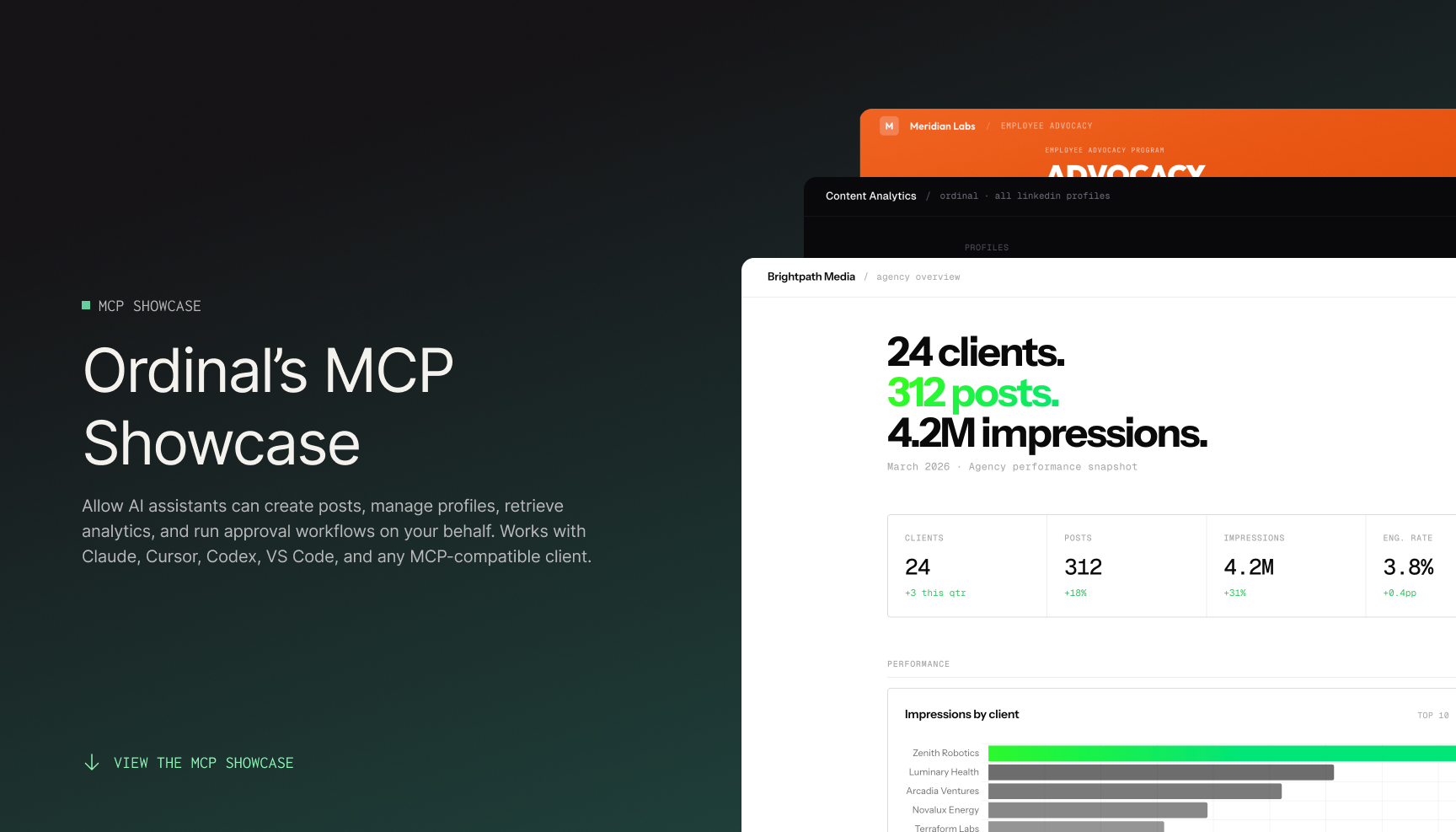
**Posts and ideas**
Create, update, search, and archive posts across LinkedIn, X, and Instagram.
**Approvals and comments**
Request approvals, add comments, manage subscribers.
**Analytics**
Post performance and follower growth for every connected platform.
**Media uploads**
Attach images and videos to posts from a URL.
**Team engagements**
Coordinate likes, comments, and reposts from connected team profiles.
**Slack boosts**
Create and manage Slack broadcasts attached to posts.
See the full [tools reference](/mcp/tools) for everything.
## Signing in
The MCP server uses **OAuth** — the same kind of sign-in you use when connecting Google or GitHub to a third-party app. Your MCP client opens a browser, you sign in to Ordinal, and the client is granted access on your behalf.
:::info
**No API keys.** The server signs you in as a user, so there's nothing to copy into your assistant's config, and the assistant can reach every workspace you belong to.
:::
## Next steps
**[Install](/mcp/install/overview)**
Set up the MCP server in your assistant.
**[Tools reference](/mcp/tools)**
Browse everything the assistant can do.
---
# Tools
Source: https://docs.tryordinal.com/mcp/tools
## Overview
Once connected, your assistant has access to the tools below. You don't need to call them by hand — just ask in plain language ("draft a LinkedIn post for Friday," "show me last month's engagement") and the assistant picks the right tool.
:::info
**Always start with workspaces.** If this is a new session, ask the assistant to "list my Ordinal workspaces" first. It needs to know which workspace you want before it can do anything else.
:::
## Discovery
| Tool | What it does |
|------|---------|
| `ordinal_get_workspace_context` | Lists your workspaces, then (once you pick one) returns the profiles, labels, and users the assistant needs to do everything else. The assistant requests only the sections it needs and can filter profiles by channel or name, so large workspaces stay within response limits. |
## Posts and ideas
| Tool | What it does |
|------|---------|
| `ordinal_search_content` | Searches posts or ideas — by status, labels, campaigns, or date — and can fetch a single post with its comments. Every post and idea it returns includes its [notes](/posts/overview#notes). |
| `ordinal_create_post` | Creates a post with LinkedIn, X, Instagram, TikTok, and/or YouTube Shorts content, optionally with a workflow status. |
| `ordinal_create_idea` | Creates an idea (a draft without a scheduled publish time). |
| `ordinal_manage_post` | Updates, archives, or unarchives a post, including changing its workflow status. |
| `ordinal_manage_idea` | Updates, archives, unarchives, or adds an idea to the calendar. |
| `ordinal_list_post_versions` | Lists saved [versions](/posts/version-history) of a post's draft per channel, with the author and timestamp of each. |
| `ordinal_get_post_version_content` | Reads the copy of a single saved version, so the assistant can diff two revisions or study how a draft evolved. |
### Notes
`ordinal_create_post`, `ordinal_create_idea`, `ordinal_manage_post`, and `ordinal_manage_idea` can write a post's or idea's [notes](/posts/overview#notes), and `ordinal_search_content` returns them, so the assistant can read the internal context your team left on a draft. Posts and ideas without notes return `null`, and setting `notes` to `null` with a manage tool clears them.
Notes don't support mentions. If the assistant writes a mention into a note, Ordinal keeps the person's name as plain text.
For example, ask "what notes did we leave on the pricing launch post?" and the assistant calls `ordinal_search_content` to fetch the post and read its notes.
### Post statuses
`ordinal_create_post` and `ordinal_manage_post` accept a `status` of `Tentative`, `ToDo`, `InProgress`, `ForReview`, or `Scheduled`, so the assistant can move posts through the same [workflow statuses](/posts/statuses) you use in the app. New posts default to `ToDo`. `Posted` can't be set through MCP because Ordinal applies it only after a post publishes.
For example, ask "move my draft about the pricing launch to For Review" and the assistant calls `ordinal_manage_post` with `status: "ForReview"`.
## Media
| Tool | What it does |
|------|---------|
| `ordinal_create_upload` | Uploads an image, video, or PDF from a URL, or prepares signed credentials so a local file can be uploaded. PDFs are LinkedIn-only and publish as document (carousel) posts. |
| `ordinal_get_upload` | Checks whether an upload is ready. |
For a local file, the assistant calls `ordinal_create_upload` with `filename`, `mimetype`, and `size`, POSTs the file to the returned `uploadUrl` with `params` and `signature`, then polls `ordinal_get_upload` until status is `ready`.
## Analytics
| Tool | What it does |
|------|---------|
| `ordinal_get_analytics` | Fetches post performance or follower growth for LinkedIn, X, Instagram, or Facebook. |
## Collaboration
| Tool | What it does |
|------|---------|
| `ordinal_list_approvals` | Shows who needs to approve a post and whether they've approved yet. |
| `ordinal_manage_approvals` | Requests or cancels approvals on a post. |
| `ordinal_list_subscribers` | Lists who's subscribed to notifications on a post. |
| `ordinal_manage_subscribers` | Adds or removes subscribers. |
| `ordinal_manage_comments` | Adds a comment to a post or deletes one of your own. |
## Team engagements
| Tool | What it does |
|------|---------|
| `ordinal_list_engagements` | Lists team likes, comments, and reposts attached to a post. |
| `ordinal_manage_engagements` | Creates, updates, or removes team engagements. |
## Slack boosts
| Tool | What it does |
|------|---------|
| `ordinal_list_slack_boosts` | Lists Slack broadcasts attached to a post. |
| `ordinal_manage_slack_boosts` | Creates, updates, or deletes Slack boosts. |
## Amplify
| Tool | What it does |
|------|---------|
| `ordinal_list_amplify_links` | Lists published Amplify campaign links (live or completed) with their titles, dates, and short link URLs. Drafts are omitted. |
| `ordinal_list_amplify_engagers` | Lists the people who completed actions on a published Amplify link — one entry per person with their name, headline, LinkedIn profile URL, and every like, comment, repost, or post they completed, each with a permalink. |
Both tools are read-only and require Amplify to be enabled on your workspace. Like permalinks point at the campaign's target post; comment, repost, and post permalinks point at the engager's own content.
`ordinal_list_amplify_engagers` is paginated (default 50 per page, max 100) and accepts an optional `action` filter. The filter only narrows which people are returned — each person's list of actions still includes everything they completed on the link.
For example, ask "who engaged with our launch Amplify link?" and the assistant calls `ordinal_list_amplify_links` to find the link, then `ordinal_list_amplify_engagers` to return names and permalinks your team can follow up on.
## LinkedIn Monitoring
| Tool | What it does |
|------|---------|
| `ordinal_list_linkedin_monitoring_posts` | Lists inbox posts with unresolved comment counts, or fetches a single post's metadata by ID. |
| `ordinal_list_linkedin_monitoring_comments` | Returns paginated root comments (with their replies) on an inbox post. |
| `ordinal_manage_linkedin_monitoring_comments` | Replies to a comment, reacts to it on LinkedIn, or resolves and unresolves it in the inbox. |
| `ordinal_list_linkedin_monitoring_mentions` | Lists inbound @mentions of your connected pages, or fetches a single mention by ID. |
| `ordinal_manage_linkedin_monitoring_mentions` | Comments on a mentioning post, reacts to it, or resolves and unresolves the mention. |
These tools appear only for workspaces where LinkedIn Monitoring is enabled, and they act on the same inbox you see in the app. Comments are paginated 10 roots per page by default (max 50); posts and mentions are 20 per page (max 50). Replies and reactions are posted from a scheduling profile — get the `profileId` from `ordinal_get_workspace_context`.
Replying to a comment automatically resolves that comment. Replying to a reply still posts on the thread root. Commenting on a mention does *not* auto-resolve it — resolve separately when you're done. LinkedIn reactions accept `Like`, `Celebrate`, `Love`, `Insightful`, `Support`, or `Funny`; sending the same reaction again removes it.
For example, ask "triage today's LinkedIn comments — reply to anything from a customer and resolve the rest" and the assistant lists unresolved posts, pages through comments, replies where needed, and marks the others resolved.
`ordinal_get_linkedin_mention` under [Platform utilities](#platform-utilities) is different: it looks up a LinkedIn user or company URN to mention in post copy, not an inbox notification.
## Labels
| Tool | What it does |
|------|---------|
| `ordinal_manage_labels` | Creates or deletes labels used to organize posts. |
## Platform utilities
| Tool | What it does |
|------|---------|
| `ordinal_get_linkedin_mention` | Looks up a LinkedIn user or company by username so it can be mentioned in a post. |
| `ordinal_get_linkedin_profile` | Fetches a LinkedIn profile by its URN. |
| `ordinal_search_instagram_locations` | Searches Instagram location tags to attach to posts. |
## Asking the assistant things
You don't call these tools by name — you describe what you want. Examples:
- "Create a LinkedIn post for next Tuesday about our new pricing, in the Launch campaign."
- "Archive the drafts I wrote last month that don't have a label."
- "Show me which posts are waiting on approval from Sarah."
- "Give me the last 30 days of follower growth on LinkedIn."
- "Show me how the LinkedIn copy on this post changed between the last two saves."
- "List everyone who commented through our launch Amplify link, with links to their comments."
- "Reply to any unresolved LinkedIn comments on our launch post, then resolve the rest."
The assistant picks the tools, fills in the arguments, and shows you the result.
---
# AI Writing
Source: https://docs.tryordinal.com/posts/ai-writing
Ordinal AI is a chat-based writing assistant that helps you draft, refine, and publish social content. It has context on all your past posts, so it can match your voice and learn from what's worked before.
:::note
Ordinal AI is in Beta. Broader access is coming soon.
:::
## Accessing AI
Open Ordinal AI from anywhere in the app:
| Method | How |
| ------ | --- |
| Keyboard shortcut | Press `A` |
| Sidebar | Click **Ordinal AI** at the bottom of the sidebar |
The AI chat opens in a sidebar panel, ready for your request.
## What AI can do
| Capability | Description |
| ---------- | ----------- |
| **Draft posts** | Generate new content based on topics, ideas, or your past posts |
| **Refine content** | Improve tone, length, or clarity of existing drafts |
| **Analyze performance** | Review how your content is performing across channels |
| **Take actions** | Schedule posts, create drafts, and more - directly from chat |
## Using AI Chat
Ordinal AI works through natural conversation. Just type what you need:
- "Draft a LinkedIn post about our product launch"
- "Make this shorter and more punchy"
- "What posts performed best last month?"
- "Schedule this for tomorrow at 9am"
When AI generates content you like, click **Create Post** to turn it into a real post in your calendar.
### Sources
Toggle additional context sources to improve AI responses:
| Source | What it provides |
| ------ | ---------------- |
| **Web search** | Real-time information from the web |
| **Company info** | Your company details and context |
| **Style guidelines** | Your brand voice and writing standards |
| **Profile analytics** | Performance data from your connected accounts |
Click the sources icon in the chat input to enable or disable these.
## Tips for better results
**Be specific** - Include platform, tone, and any constraints. "Write a casual LinkedIn post about remote work tips, under 150 words" works better than "Write about remote work."
**Iterate** - AI responses are starting points. Ask follow-up questions to refine: "Make it more conversational" or "Add a call-to-action."
**Leverage your history** - AI knows your past content. Ask it to "write something similar to my best-performing post" or "match the tone of my recent LinkedIn posts."
## Learn more
**[Drafting Posts](/posts/drafting-posts)**
Formatting, mentions, and editor shortcuts.
**[Cross-Posting](/posts/cross-posting)**
Adapt content for multiple platforms.
---
# Creating Posts
Source: https://docs.tryordinal.com/posts/creating-posts
Every piece of content in Ordinal starts with creating a post. Once created, you can draft your content, add media, configure settings, and schedule it for publishing. Here's how to get started.
## How to Create a Post
| Method | How to do it |
| --------------------- | ------------------------------------------------------------------------------------- |
| **Calendar** | Click any date on the calendar to create a post for that day. |
| **Keyboard shortcut** | Press `P` anywhere in Ordinal to instantly open the create post modal. |
| **From an idea** | Open an idea from your backlog and click **Add to Calendar** to convert it to a post. |
| **Duplicate** | Open any existing post, click the **...** menu, and select **Duplicate**. |
## Create Post Modal
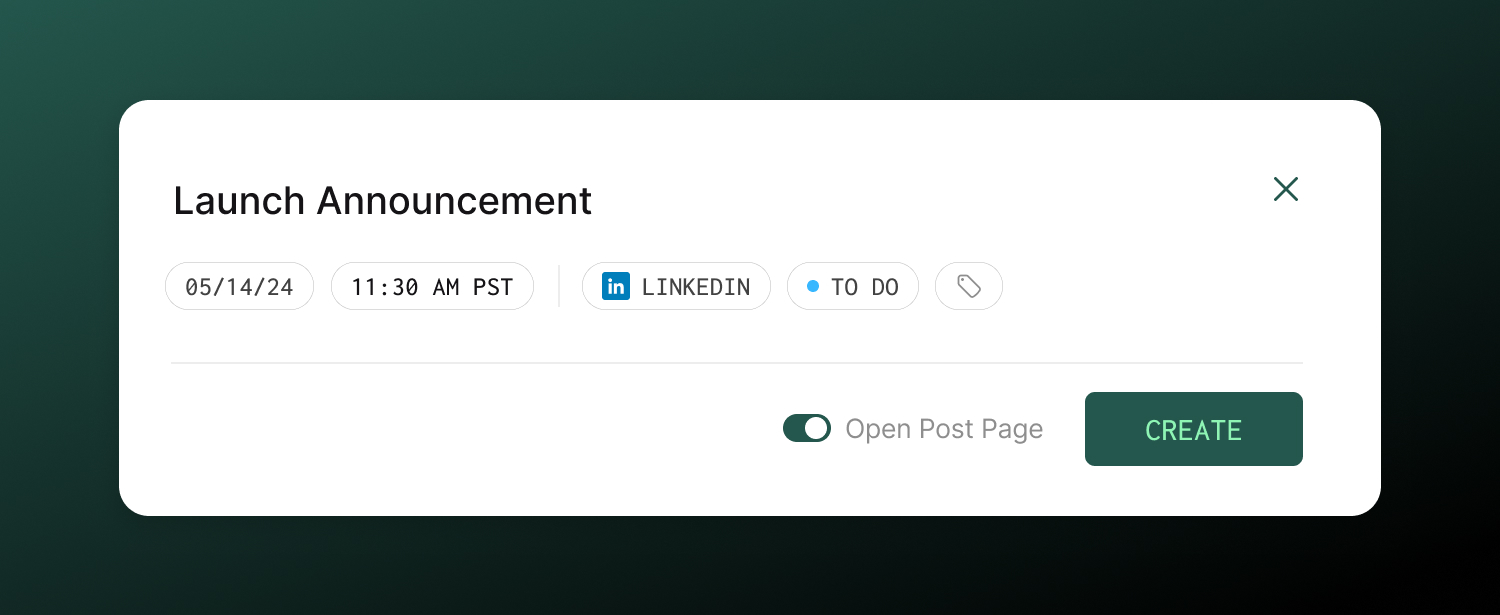
When you create a new post, a modal opens where you'll configure the basics before diving into the full editor.
| Option | Description |
| ------------------ | ----------------------------------------------------------------------------------------------------------- |
| **Title** | Give your post a descriptive title |
| **Publish Date** | Date for the post |
| **Publish Time** | Optionally choose a time for the post. You can also set this later on the Post Page itself. |
| **Account** | Select the connected account the post should go to. When a channel has multiple connected profiles, a nested submenu opens where you can pick a specific profile. Search the dropdown by channel, profile name, or handle. You can add cross-post channels later. |
| **Labels** | Optionally tag with [labels](/posts/labels) to categorize by content type or topic. |
| **Open Post Page** | Toggle on to immediately open the full post editor after creation. Toggle off to stay on your current page. |
:::tip
If you frequently post to the same account, set it as your default in [Post Defaults](/posts/post-defaults) to skip selecting it each time. When a channel has a default profile, the account picker pre-selects that profile by name instead of the platform.
:::
Once you click **Create**, your post is saved and you can start drafting your content in the full editor.
## Learn more
**[Drafting Posts](/posts/drafting-posts)**
Formatting, mentions, settings, and saving.
**[Scheduling Posts](/posts/scheduling-posts)**
Set publish times and manage your schedule.
---
# Cross-Posting
Source: https://docs.tryordinal.com/posts/cross-posting
Cross-posting lets you create content once and distribute it across multiple social platforms from a single post. Unlike many scheduling tools, Ordinal gives you full flexibility - customize your copy and assets independently for each platform so you can optimize content for every audience.
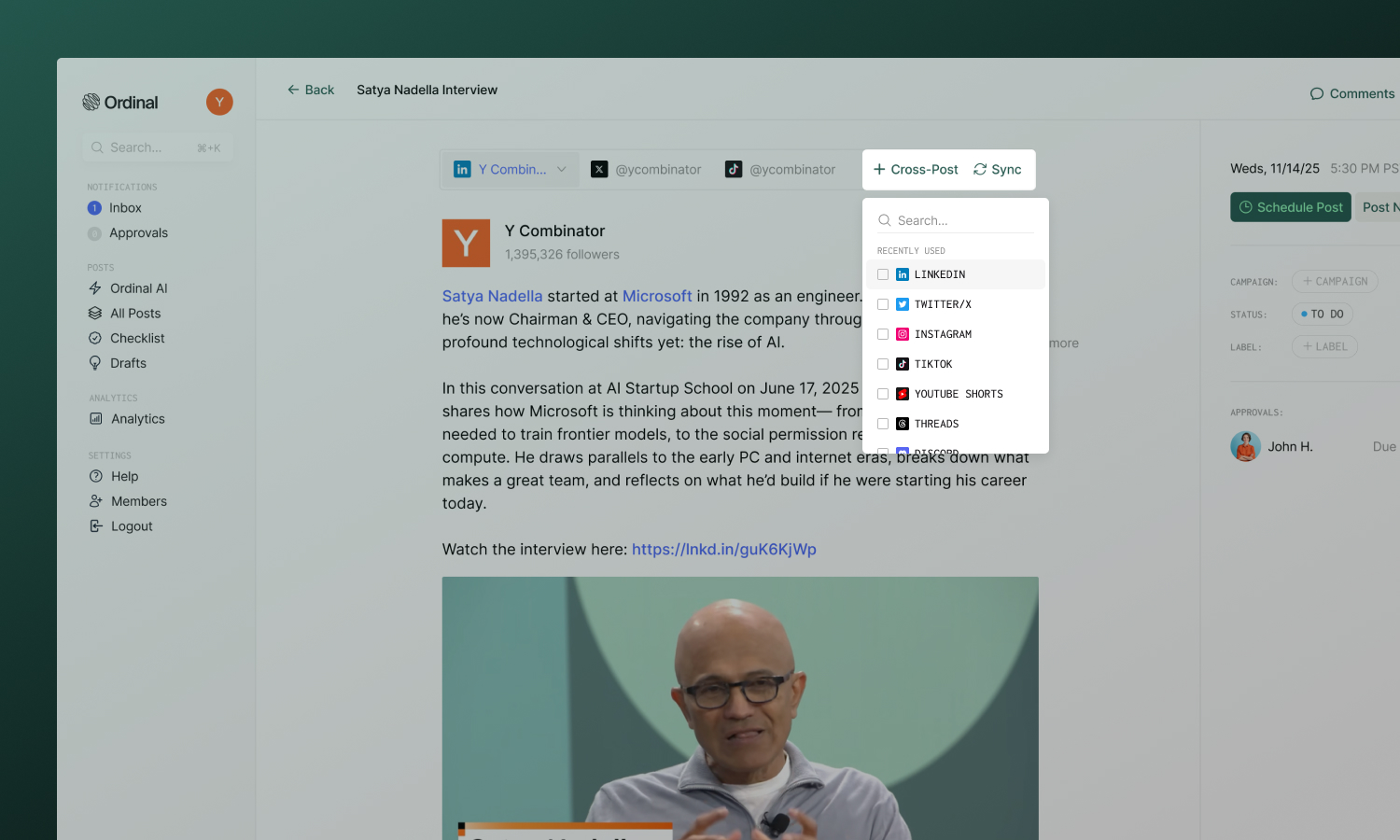
## Creating a cross-post
1. **Write your content**
Start writing your post. We recommend adding the main post draft and assets first before adding cross-post channels. This way, content from the main channel will sync across automatically once you add additional cross-post channels.
2. **Add Cross-Post Channels**
Create a new post and click the **Cross-Post** button to add platforms. Select as many as you need. The copy and content from the first channel in the post will sync automatically to the cross-post channels.
3. **Customize per platform**
Click each platform tab to tailor that version. Change the copy, adjust hashtags, swap out media - each platform is fully independent.
4. **Select accounts**
Choose which connected account to use for each platform.
:::info
Note: Ordinal tries to smartly match which account to cross-post to based on similarity in usernames across channels.
:::
5. **Schedule**
Set one time - all versions publish together.
:::success
Your cross-post appears as a single item on the calendar with multiple platform icons.
:::
## Platform tabs
Each platform in your cross-post has its own tab at the top of the editor. Click a tab to:
- See the live preview for that platform
- Edit copy specific to that platform
- Add, remove, or reorder media for that platform
- View the character count and limits
Changes you make in one tab only affect that platform - unless content is synced (see [Syncing content](#syncing-content) below).
## Customizing per channel
Ordinal lets you customize **both copy and assets** independently for each platform:
| What you can customize | Examples |
| ---------------------- | -------------------------------------------------------------------- |
| **Copy** | Different hooks, hashtag strategies, character lengths |
| **Assets** | Platform-optimized images, different aspect ratios, video vs. static |
| **Mentions** | Tag platform-specific accounts |
| **Links** | Include or exclude based on platform support |
When you edit a platform's content, it diverges from the others. The sync indicator updates to show that platform has custom content.
## Syncing content
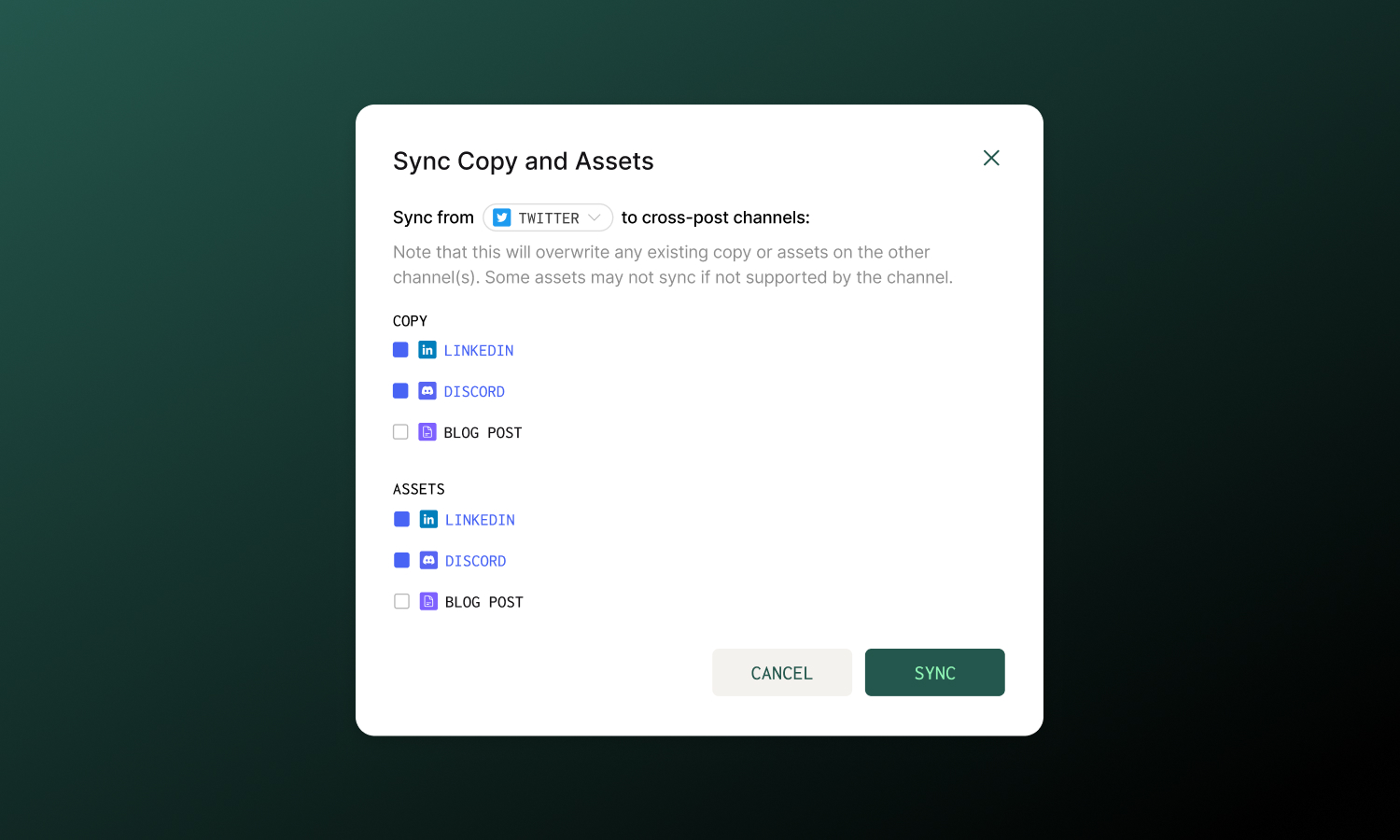
By default, content syncs across all platforms when you initially add them as cross-post channels. However, if you make updates to one channel and want to make sure it's reflected on the other cross-post channels, you'll need to click the **Sync** button in the cross-post bar.
1. Click the **Sync** button in the cross-post bar
2. Choose your **source channel** (the one you want to copy from)
3. Select which **destination channels** to update
4. Choose what to sync:
- **Copy** - syncs text content
- **Assets** - syncs images and videos
:::note
Syncing overwrites existing content on the destination channels. Some assets may not sync if they're not supported by the destination platform (e.g., PDFs only work on LinkedIn).
:::
You can sync copy to some channels and assets to others - they're independent options.
## Best practices
**Match platform culture**
LinkedIn audiences expect professional depth; Twitter rewards brevity and punch; Instagram focuses on visual impact. Customize accordingly rather than posting identical content everywhere.
**Preview each version**
Always check the preview for each platform before scheduling. Rendering differences, link previews, and cropping can surprise you.
**Cross-Posting from profiles within the same channel**
Ordinal doesn't support cross-posting the same content to multiple profiles on the same channel (e.g. posting the same exact post to two different LinkedIn profiles). The easiest way to achieve this is to create multiple versions of the post by duplicating it, and changing the posting account.
In general, duplicate content coming from multiple accounts at the same time is not recommended since many platforms will internally flag the content as duplicate and surpress it algorithmically.
## Learn more
**[Scheduling Posts](/posts/scheduling-posts)**
Set publish times and manage cross-post scheduling.
**[Media & Assets](/posts/media)**
Platform specs and media requirements.
---
# Drafting Posts
Source: https://docs.tryordinal.com/posts/drafting-posts
Once you've created a post, this is where your content comes to life. The editor gives you everything you need - a rich text experience, real-time previews, and collaborative tools - all designed to help you write and refine faster.
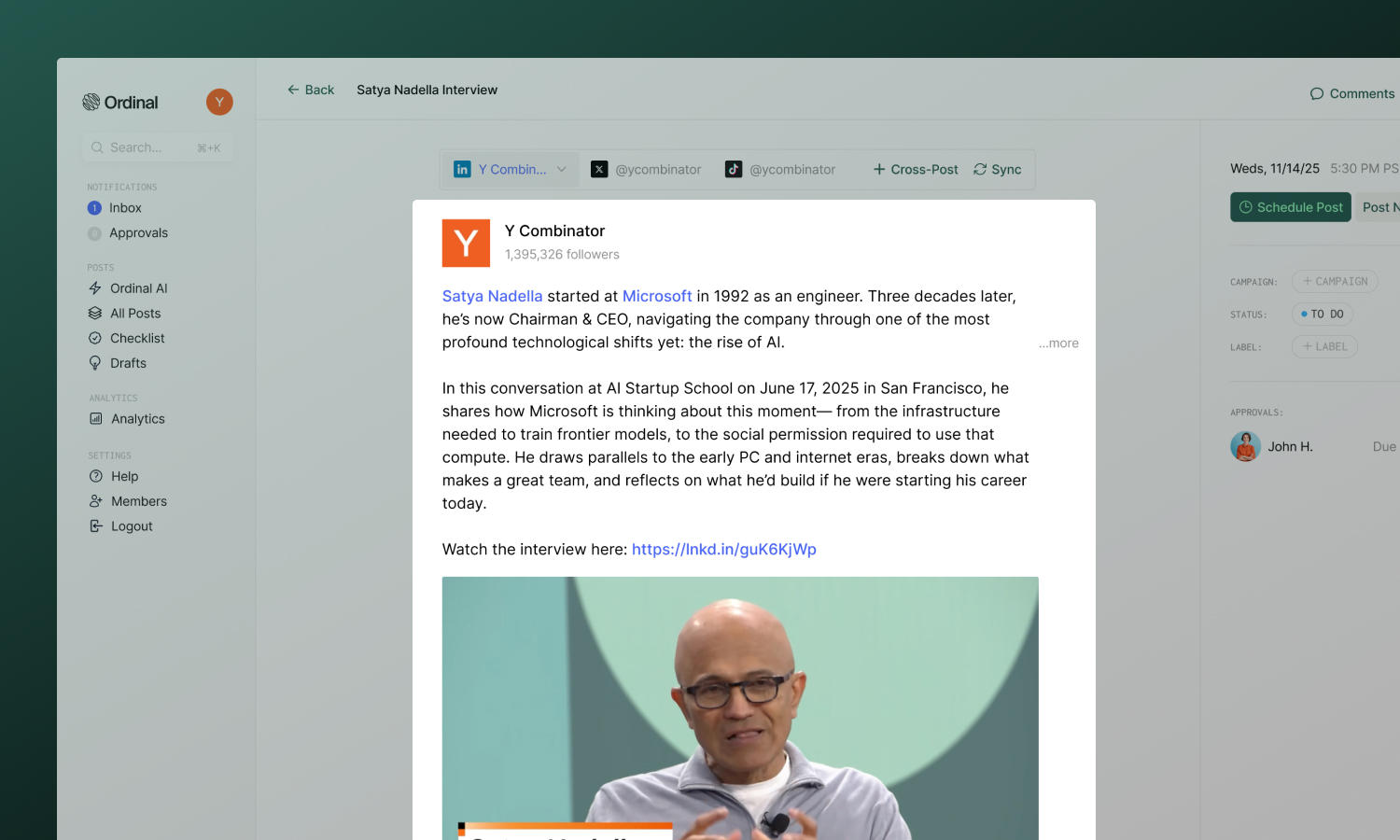
## Text Formatting
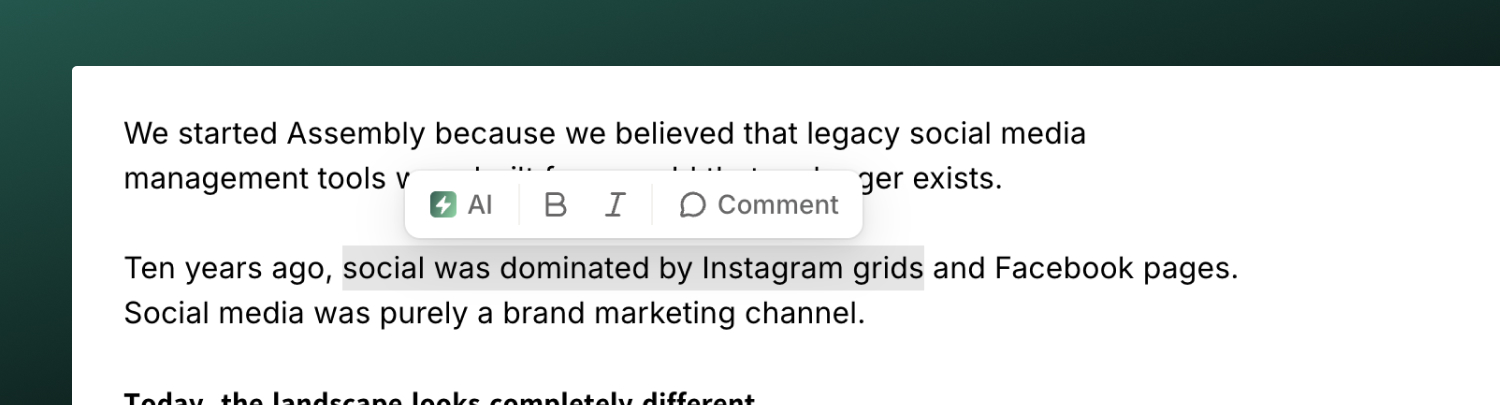
Format your content using the toolbar or keyboard shortcuts:
| Format | Shortcut |
| -------- | -------------- |
| **Bold** | `Cmd/Ctrl + B` |
| _Italic_ | `Cmd/Ctrl + I` |
| Link | `Cmd/Ctrl + K` |
## Mentions
Tag people, companies, and accounts by typing `@` followed by their name. Ordinal searches the platform for matches - select from the dropdown.
Mentions are supported on all platforms. See your [channel's page](/social-profiles/overview) for details on how tagging works for each specific platform.
## Hashtags
Add hashtags by typing `#` followed by your tag. They'll automatically link when published.
Hashtags are supported on all platforms. See your [channel's page](/social-profiles/overview) for platform-specific recommendations.
## Emojis
Click the smiley icon in the post's toolbar to open the emoji picker. Search or browse for an emoji, then select it. Ordinal inserts the emoji at your cursor and closes the picker.
In X and Threads threads, each post in the thread has its own smiley icon. If your cursor isn't in that post, Ordinal adds the emoji to the end of that post's text.
## Preview
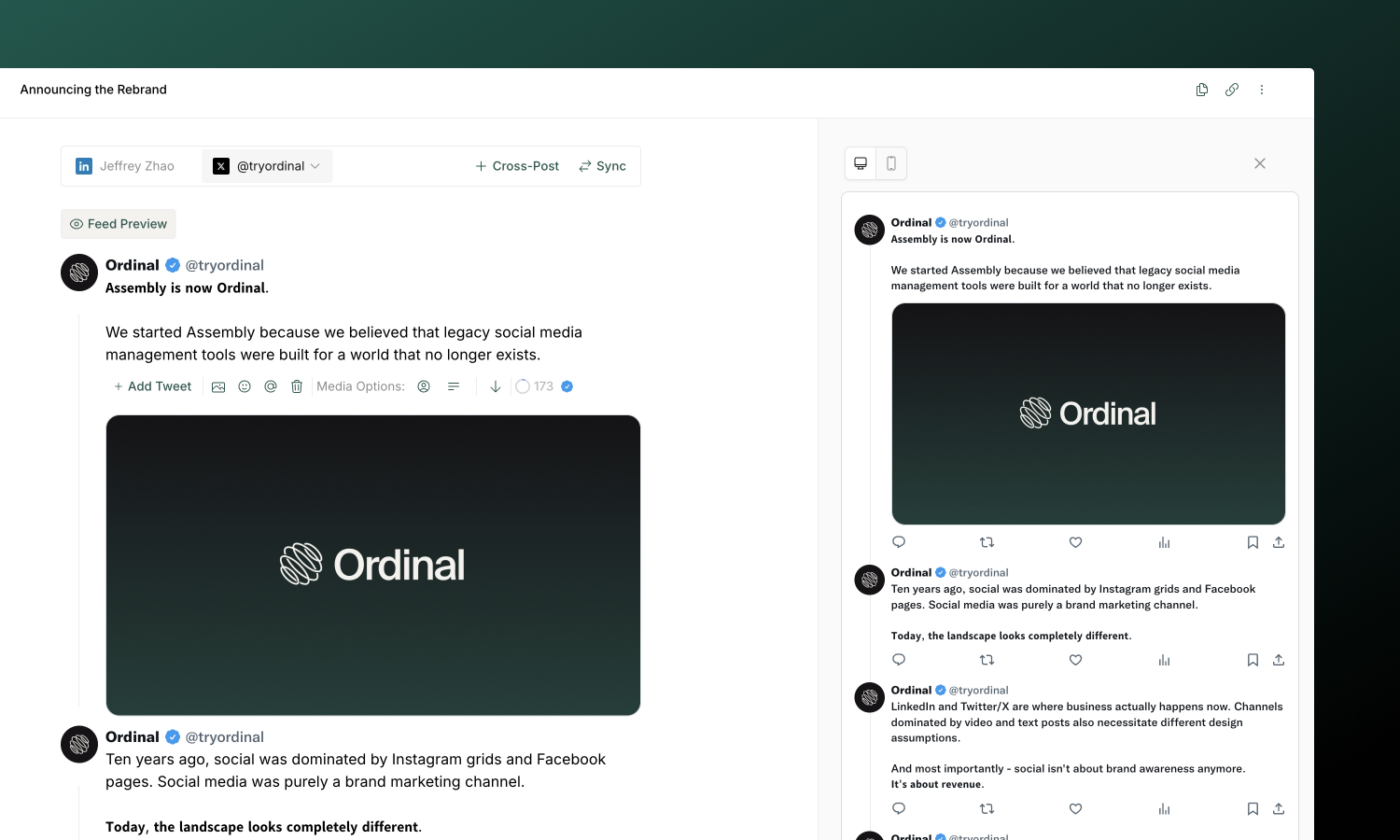
The editor shows a live preview of your post as you type - including proper text truncation with "see more" exactly where the platform would cut off on channels like LinkedIn.
For an even more realistic view, click the **Feed Preview** button (available on LinkedIn and Twitter/X) to see your post in a full feed context with your profile picture, desktop/mobile views, and engagement buttons.
## Saving
:::success
Your work saves automatically as you type.
:::
Posts won't publish until you click **Schedule Post** or **Post Now**.
## Collaboration
### Real-time editing
Multiple team members can edit the same post simultaneously:
- **Presence indicators** show who's viewing
- **Live cursors** show where others are typing
- Changes sync instantly with no version conflicts
### Inline Comments
For detailed feedback, leave comments directly on the content instead of editing:
1. Select text in the editor
2. Click the comment icon that appears
3. Add your feedback, tag teammates to call them out, and all subscribers to the post are notified
Comments create threaded conversations attached to specific text, making it easy to discuss changes without losing context.
## AI writing
Need help with your content? Select text in the editor and click the **AI button** in the toolbar to refine, expand, or rephrase your writing.
**[AI Writing](/posts/ai-writing)**
Full guide to AI-assisted content creation.
## Learn more
**[Media & Assets](/posts/media)**
Platform specs, formats, and best practices.
**[Cross-Posting](/posts/cross-posting)**
Publish to multiple platforms from a single post.
---
# Ideas
Source: https://docs.tryordinal.com/posts/ideas
Ideas are your content backlog - a place to capture inspiration before you're ready to schedule. Build a library of concepts, develop them over time, and move them to the calendar when ready.
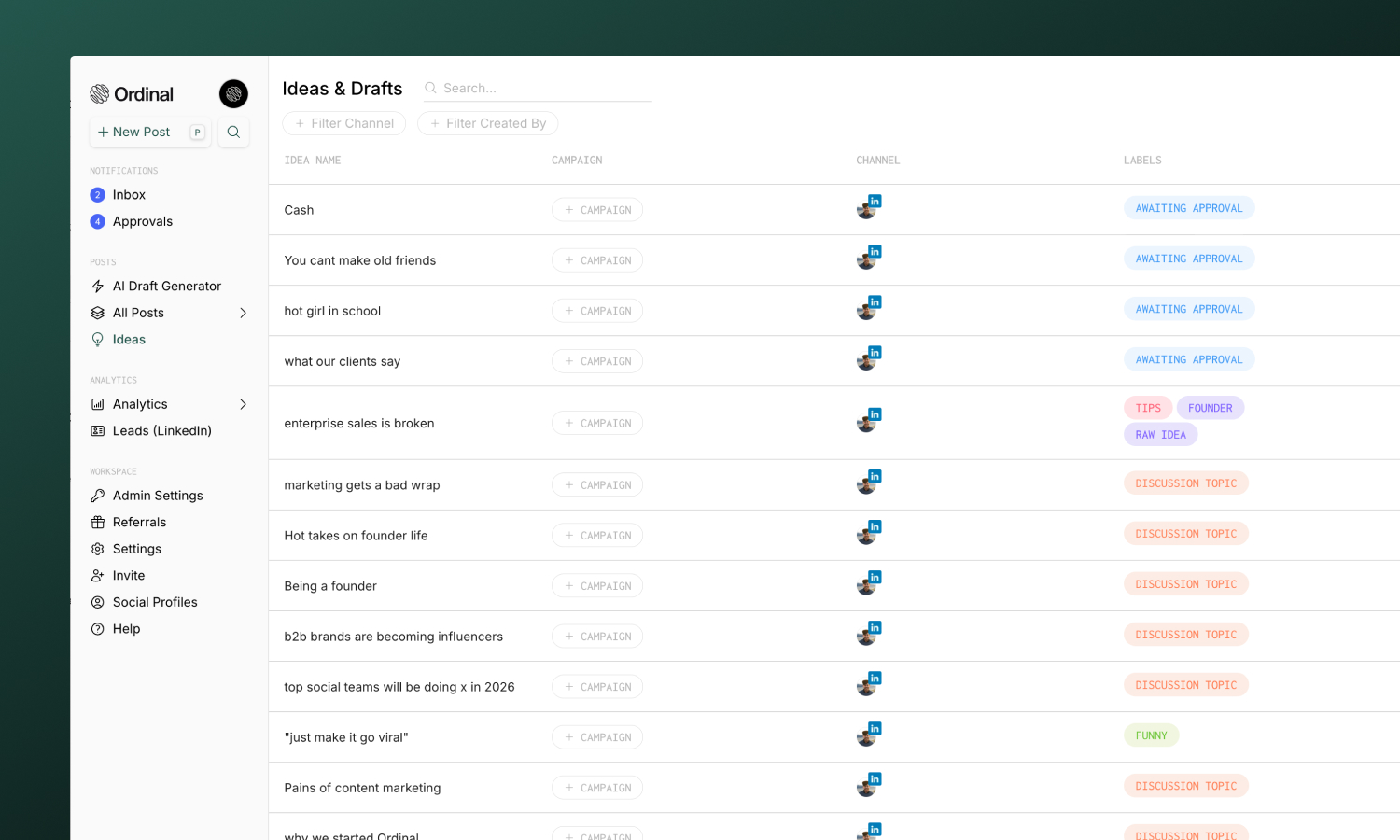
## Creating ideas
1. Go to [Ideas](https://app.tryordinal.com/ideas) in the sidebar
2. Click on the `+` button or use the keyboard shortcut `i` to create a new idea
3. Select a channel and write your content
Ideas support the same editor and features as posts - formatting, media, comments, and collaboration all work the same way.
:::tip
Add media to ideas too. Images, videos, and documents transfer when you move the idea to calendar.
:::
## Moving ideas to calendar
When you're ready to schedule an idea:
1. Open the idea from your backlog
2. Click **Add to Calendar**. This will automatically move your idea to the Calendar for today's date.
3. Make any edits and schedule the post.
## Tracking approval status
The Ideas & Drafts table shows approval progress for every idea, so you can see which drafts are cleared to schedule without opening each one.
The **Approvers** column shows:
- A dash when no approval has been requested
- A pill with approved vs. total reviewers (for example, `1/3`) when approvals are in progress. The pill turns yellow when a blocking approval is still pending.
- Hover over the pill to see each reviewer and their status
Use the **Approval** filter in the toolbar to narrow the list:
| Option | Shows |
| ------------ | ------------------------------------------------ |
| **None** | Ideas with no approval requests |
| **Pending** | Ideas with at least one outstanding request |
| **Approved** | Ideas where every reviewer has approved |
Learn more about requesting and reviewing approvals in [Approvals](/collaboration/approvals).
## Moving posts to ideas
Move a post on your Calendar back to your ideas backlog:
1. Open the post
2. Click the **Status** in the sidebar
3. Select **Idea** and confirm
4. The post moves back to the Ideas tab and no longer displays in the [Calendar](/calendar/overview) view
## Learn more
**[Drafting Posts](/posts/drafting-posts)**
Create and compose content.
**[Labels](/posts/labels)**
Organize ideas and posts.
---
# Labels
Source: https://docs.tryordinal.com/posts/labels
Labels are colored tags that help you organize posts and campaigns. Apply labels to categorize by content type, topic, priority, or any taxonomy that fits your workflow. Labels appear throughout Ordinal and enable powerful filtering.
## Creating labels
**From Settings**
1. **Open label settings**
Go to [**Settings → Labels.**](https://app.tryordinal.com/settings/labels)
2. **Add a label**
Click **Create New Label** and enter a name.
3. **Choose colors**
Select a color for your new label to help it stand out visually.
4. **Save**
Click **Create** to add the label.
:::success
Your label is now available to use throughout Ordinal.
:::
**While editing**
1. **Open label field**
In any post, click the Labels field in the sidebar.
2. **Type a new name**
Start typing a label that doesn't exist yet.
3. **Create inline**
Click **Create "[label name]"** to create and apply it immediately.
## Applying labels
### To posts
Open any post and find the Labels field in the sidebar. Search existing labels or create new ones. Apply multiple labels to a single post - there's no limit.
### To campaigns
Campaigns can also have labels, helping you categorize entire initiatives. Open a campaign and add labels the same way.
## Filtering by label
Labels enable filtering throughout Ordinal:
| View | How it helps |
| -------------- | -------------------------------------------- |
| **Calendar** | Focus on specific content types or campaigns |
| **Posts list** | Narrow down to matching posts |
| **Analytics** | Compare performance by category |
:::note
Filters use AND logic - selecting multiple labels shows only posts with all selected labels.
:::
## Label use cases
**Content type**
Categorize by format:
- 📸 Photo
- 🎥 Video
- 📄 Article
- 📊 Poll
- 🧵 Thread
**Topic or pillar**
Organize by subject:
- Industry News
- Company Updates
- Tips & Tricks
- Customer Stories
- Product Features
**Status (internal)**
Track workflow stages:
- Needs Review
- Approved
- Client Feedback
- Ready to Publish
- Evergreen
**Priority**
Indicate urgency:
- Urgent
- High Priority
- Normal
- Evergreen (no time pressure)
**Funnel stage**
Map to marketing funnel:
- Awareness
- Consideration
- Conversion
- Retention
## Labels vs campaigns
Both help organize content, but they serve different purposes:
| Aspect | Labels | Campaigns |
| --------------------- | ----------------------- | -------------------------- |
| **Purpose** | Flexible categorization | Time-bound groupings |
| **Date range** | No | Yes |
| **Multiple per post** | Yes | One per post |
| **Analytics** | Filter by label | Aggregate campaign metrics |
:::tip
Use campaigns for initiatives with start/end dates (launches, promotions). Use labels for ongoing categorization that spans campaigns (content type, topic).
:::
## Managing labels
### Edit labels
Update a label's name or colors in [**Settings → Labels**](https://app.tryordinal.com/settings/labels). Changes apply immediately to all posts using that label.
### Delete labels
Remove labels you no longer need. Deleting removes the label from all posts but doesn't delete the posts themselves.
:::warning
Deleting a label is permanent. Consider renaming instead if you want to preserve the categorization.
:::
### Label usage
In Settings → Labels, see how many posts and campaigns use each label. This helps identify unused labels to clean up.
## Troubleshooting
**Label not appearing on post**
Ensure you saved the post after applying the label. Try refreshing the page.
**Can't find labeled posts**
Check your current filters. Multiple filters combine with AND logic - a post must match all selected filters to appear.
**Labels not syncing across team**
Labels are workspace-level. Verify everyone is in the same workspace. Changes should appear for all team members.
## Related
**[Campaigns](/campaigns/overview)**
Group content by initiative.
**[Calendar](/calendar/overview)**
Filter your schedule by label.
**[Post Statuses](/posts/statuses)**
Track content through workflow.
**[Analytics](/analytics/overview)**
Measure performance by category.
---
# Media & Assets
Source: https://docs.tryordinal.com/posts/media
Media drives engagement on social platforms. Depending on the channel, Ordinal supports images, videos, GIFs, and PDF attachments, with automatic optimization for each platform's requirements.
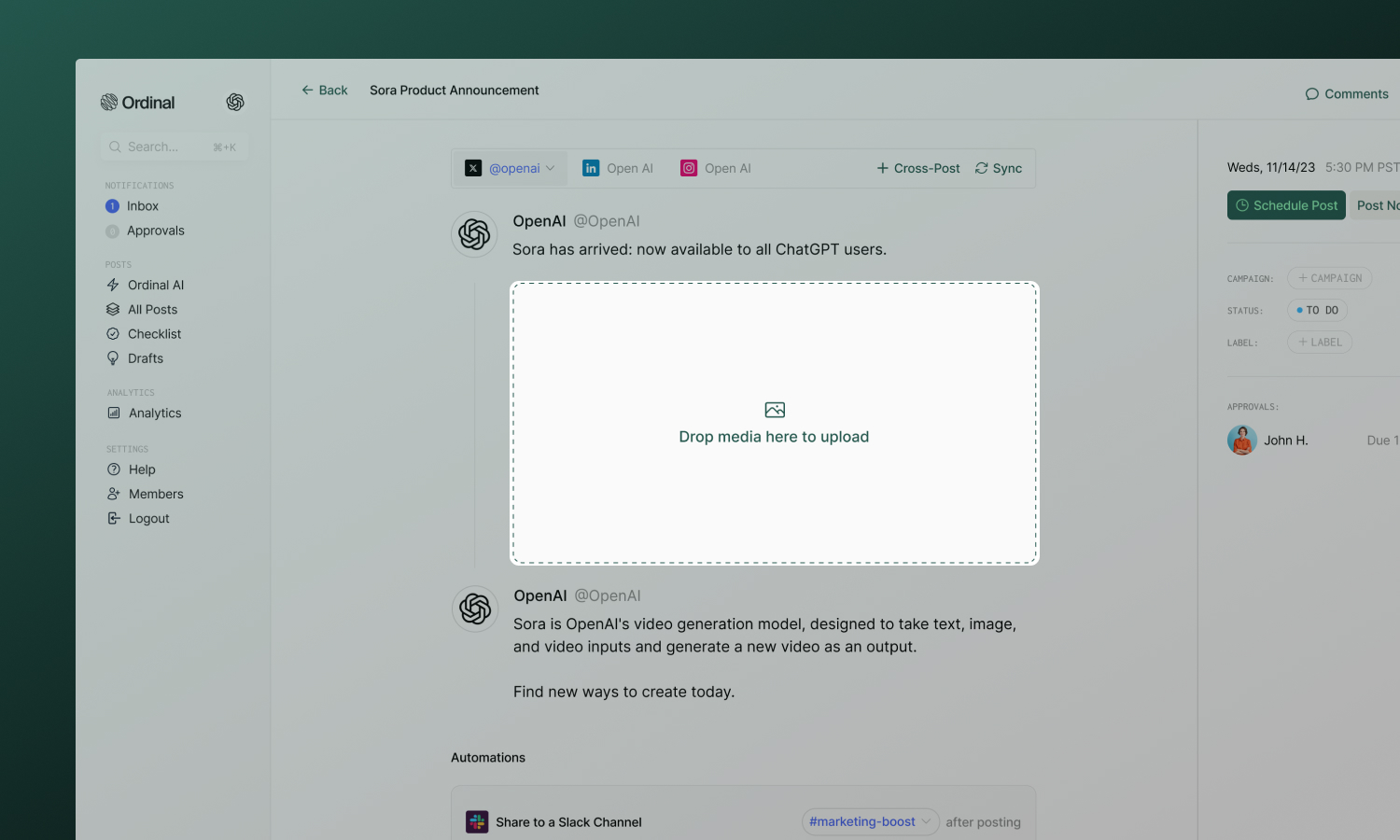
## Adding media
There are several ways to add media to your post:
- **Drag and drop** - Drop files directly into the editor
- **Click the media button** - Click the (+) button to browse your computer
- **Paste from clipboard** - `Cmd/Ctrl + V` for screenshots or copied images
## Editing images
Click on the paintbrush icon next uploaded image to open the built-in image editor. You can make adjustments before publishing without leaving Ordinal.
**Crop**
Select from preset aspect ratios or enter a custom ratio.
**Presets include:**
- Square (1:1) - Instagram, LinkedIn, Facebook
- Portrait (3:4) - Instagram Feed
- Portrait (4:5) - Instagram Feed, Facebook
- Landscape (16:9) - Twitter, YouTube
- Vertical (9:16) - Reels, Stories, TikTok, YouTube Shorts
You can also type a custom aspect ratio (e.g., "3:2") for specific needs.
**Transform**
- **Rotate** - Rotate left or right in 90° increments
- **Flip** - Flip horizontally or vertically
- **Resize** - Scale the image dimensions
**Adjust**
- **Finetune** - Adjust brightness, contrast, saturation, and other settings
- **Filter** - Apply preset filters for different looks
**Annotate**
- **Annotate** - Draw or add text directly on the image
- **Decorate** - Add stickers, shapes, or decorative elements
- **Frame** - Add borders or frames around the image
- **Redact** - Blur or block out sensitive information
:::note
Ordinal automatically compresses oversized files, converts unsupported formats (like WebP, AVIF, HEIC, or HEIF) to JPEG, and resizes TikTok photos wider than 1080px to meet platform limits. A toast confirms when a file has been changed before upload.
:::
## Reordering assets
For posts with multiple images or videos, hover over the assets and click the **Reorder** button. From there, drag and drop assets to reorder them. The order you set is the order they'll appear in the published post.
On platforms that support carousels (Instagram, LinkedIn, Twitter, Facebook, Threads), the first image becomes the cover that users see before swiping.
## Downloading assets
To download media from a post:
1. Hover over the asset
2. Click the **download icon** that appears
This saves the file to your computer - useful for repurposing content or keeping local backups.
## Deleting assets
To remove media from a post:
1. Hover over the asset
2. Click the **trash icon** that appears
## Supported formats
**Images**
| Format | Support |
| -------- | --------------------- |
| JPG/JPEG | ✅ All platforms |
| PNG | ✅ All platforms |
| GIF | ✅ Static and animated |
| WEBP | ✅ All platforms |
| AVIF | ✅ All platforms |
| HEIC/HEIF | ✅ Converted to JPEG on upload |
**Limits:** 10MB per image (Ordinal auto-compresses larger files)
WebP and AVIF are accepted on Instagram, LinkedIn, Twitter/X, Facebook, Threads, TikTok, Discord, and Slack. If the destination platform doesn't accept the format natively, Ordinal converts the image to JPEG before upload and shows a toast explaining the change.
HEIC and HEIF files (typically from iPhone cameras) are converted to JPEG in your browser before upload. A toast confirms the conversion. If a file is corrupt and can't be converted, Ordinal shows an error toast and doesn't attach it.
**Videos**
| Format | Support |
| ------ | --------------- |
| MP4 | ✅ All platforms |
| MOV | ✅ All platforms |
**Limits:** 350MB max, H.264 codec recommended
**Documents**
| Format | Support |
| ------ | ------------- |
| PDF | LinkedIn only |
**Limits:** 100MB max, up to 300 pages. Creates carousel-style document posts.
## Cover photos for videos
For Instagram Reels, Facebook video and Reels, and LinkedIn video posts, you can set a custom cover photo that previews your video on each platform. Open a video post and select **Cover Photo** to launch the cover photo modal.
Use the source dropdown at the top of the modal to choose how to set the cover:
**Select a frame from the video**
Pick any frame from the video you uploaded - no external image required.
1. In the cover photo modal, choose **Select cover photo from uploaded video**.
2. Scrub the filmstrip or use the left and right arrow keys to move the playhead. The preview and timestamp update as you scrub.
3. Select **Save Cover Photo** to set the chosen frame as your cover.
Your selection is saved with millisecond precision, so reopening the modal restores the exact frame you picked.
**Upload a cover photo**
Use a custom image - such as a designed thumbnail - instead of a video frame.
1. In the cover photo modal, choose **Upload cover photo**.
2. Select **Upload Cover Photo File** and pick a JPG or PNG from your computer.
3. Select **Save Cover Photo** to attach it to the post.
:::tip
To clear a custom cover and fall back to the platform default (the first frame of the video), switch to **Select cover photo from uploaded video**, select **Reset to Default (0:00)**, and then **Save Cover Photo**. Saving at `0:00` deletes any existing cover photo.
:::
## Platform-specific features
Each platform has unique media capabilities - see your channel's page for limits, dimensions, and features.
**[LinkedIn](/social-profiles/linkedin)**
**[Twitter/X](/social-profiles/twitter)**
**[Instagram](/social-profiles/instagram)**
**[Facebook](/social-profiles/facebook)**
**[TikTok](/social-profiles/tiktok)**
**[YouTube](/social-profiles/youtube-shorts)**
**[Threads](/social-profiles/threads)**
## Troubleshooting
**Upload failing**
- **Check file size** - Images under 10MB, videos under 350MB
- **Check format** - JPG, PNG, GIF, WebP, AVIF, or HEIC/HEIF for images; MP4, MOV for video
- **Try refreshing** - Connection issues can interrupt uploads
**Video not playing in preview**
- Ensure video uses H.264 codec
- Try re-encoding with a tool like HandBrake
- Verify the file isn't corrupted
**Image cropped unexpectedly**
Each platform crops to its preferred aspect ratio. Use the image editor to crop to the right dimensions before publishing, and preview to see exactly how it will appear.
## Learn more
**[Drafting Posts](/posts/drafting-posts)**
Formatting, mentions, and editor features.
**[Cross-Posting](/posts/cross-posting)**
Handle media across multiple platforms.
---
# Overview
Source: https://docs.tryordinal.com/posts/overview
The post page is your workspace for creating, drafting, and managing social content. Everything you need - from writing and formatting to scheduling and collaboration - lives in one place.
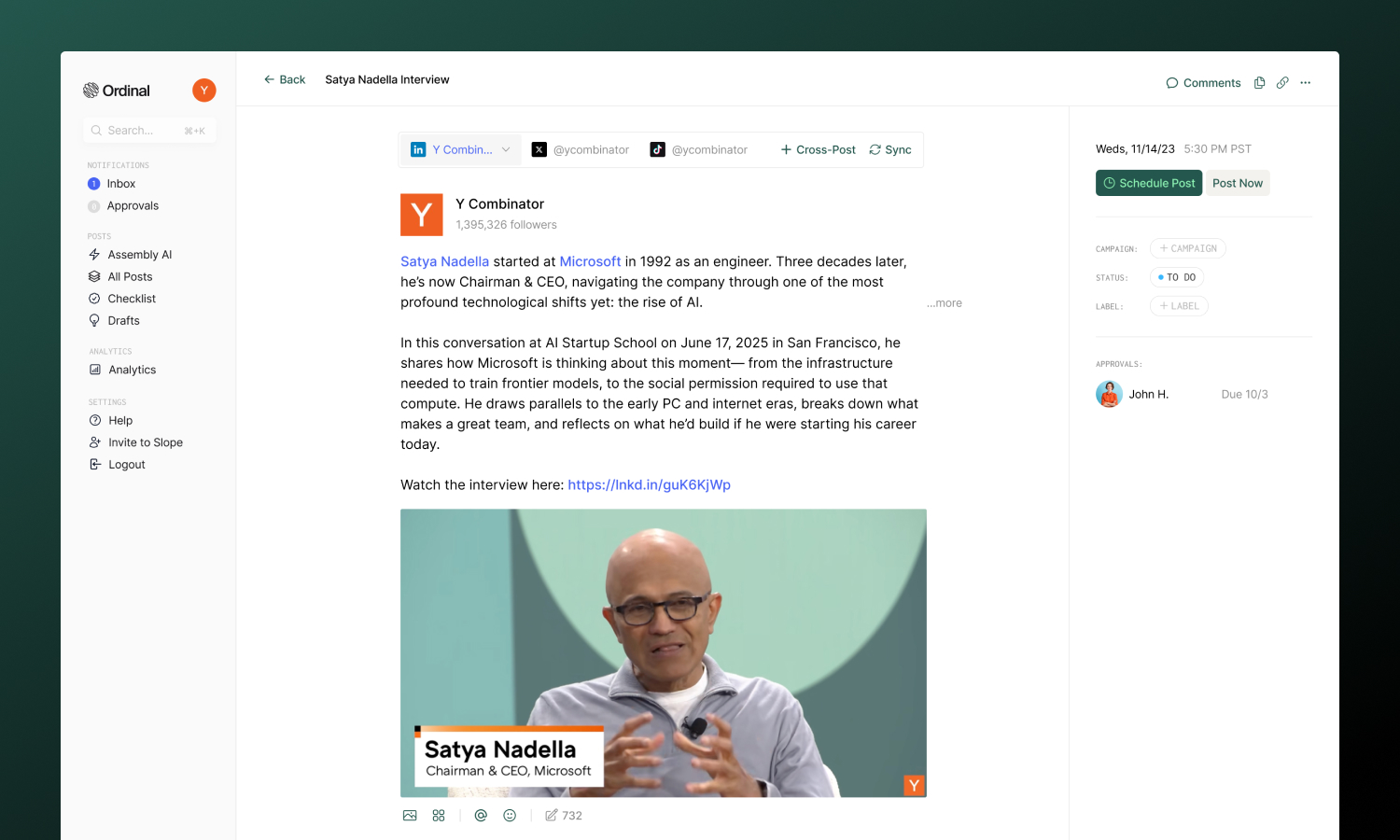
## Post page anatomy
**[Creating Posts](/posts/creating-posts)**
Start a new post from the calendar, keyboard shortcut, or idea.
**[Drafting](/posts/drafting-posts)**
Write content with formatting, mentions, and live previews.
**[Media](/posts/media)**
Add images, videos, and documents to your posts.
**[Scheduling](/posts/scheduling-posts)**
Set publish times and manage your content calendar.
**[Cross-Posting](/posts/cross-posting)**
Publish to multiple platforms from a single post.
**[Statuses](/posts/statuses)**
Track where posts are in your workflow.
**[Labels](/posts/labels)**
Organize posts by topic, content type, or priority.
**[Campaigns](/campaigns/overview)**
Group posts around launches and initiatives.
**[Approvals](/collaboration/approvals)**
Add review gates before publishing.
**[Comments](/collaboration/commenting)**
Leave feedback directly on posts.
**[Team Engagements](/posts/team-engagements)**
Coordinate likes, comments, and reposts from your team.
**[Slack Boost](/posts/slack-boost)**
Notify your team when posts publish.
**[AI Writing](/posts/ai-writing)**
Get help writing and refining content.
**[Post Defaults](/posts/post-defaults)**
Pre-fill common settings for new posts.
**[Version History](/posts/version-history)**
View, compare, and restore previous versions.
---
## Notes
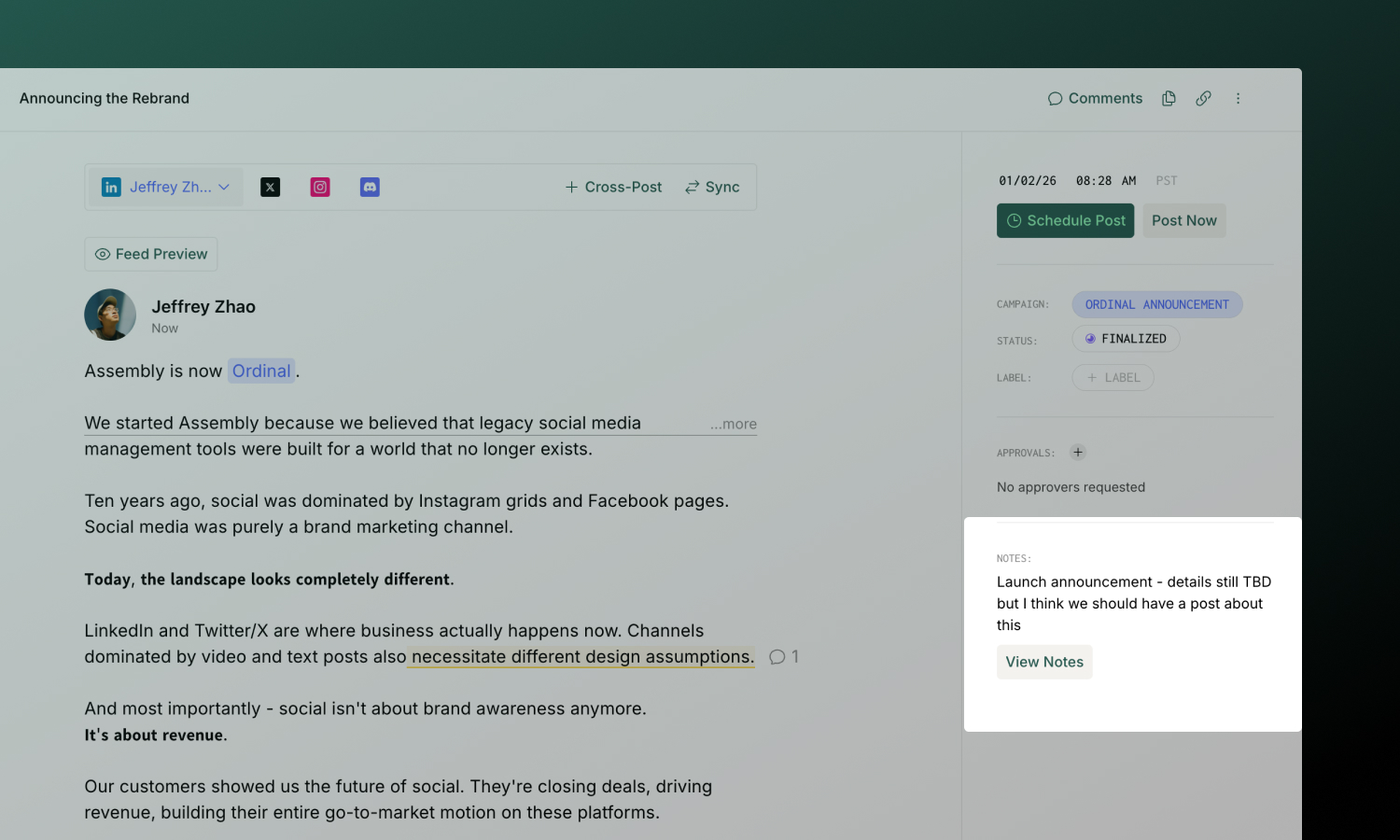
Every post has a **Notes** section in the sidebar for internal context that doesn't appear in the published content. Use it for:
- Creative briefs and guidelines
- Links to reference materials or assets
- Internal instructions for your team
Click **View Notes** in the sidebar to open the full rich text editor. Notes support formatting, links, and task lists.
## Subscribers
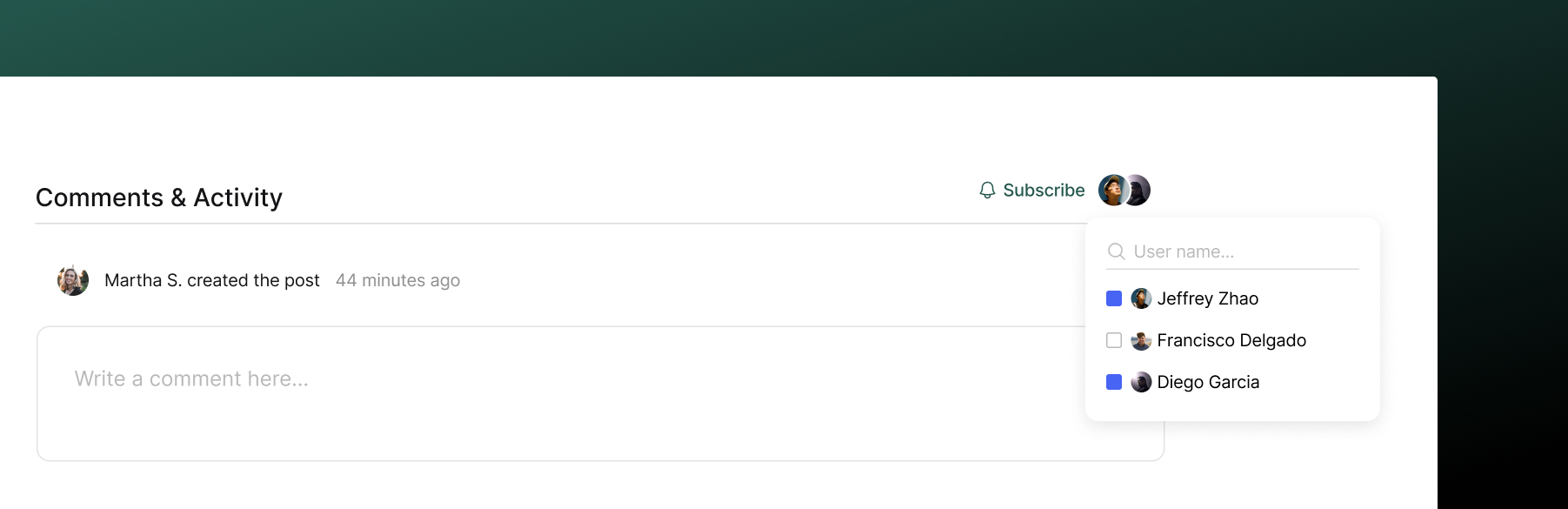
Subscribers receive notifications about a post's activity - comments, status changes, approvals, and more.
**You're automatically subscribed when you:**
- Create the post
- Comment on it
- Are @mentioned
- Are assigned as an approver
**To manually subscribe or unsubscribe:** Click the **Subscribe** or **Unsubscribe** button in the sidebar. You can also add other team members by clicking the subscriber avatars and selecting from your workspace.
:::tip
Configure which notifications you receive and how (email, Slack, in-app) in [Notification Settings](/collaboration/notifications).
:::
## Activity
At the bottom of every post, you'll find the **Activity** section - a chronological timeline showing everything that's happened:
- Status changes
- Comments added
- Approvals requested and completed
- Edits and updates
This gives you a complete history of the post from creation to publication.
## Public sharing
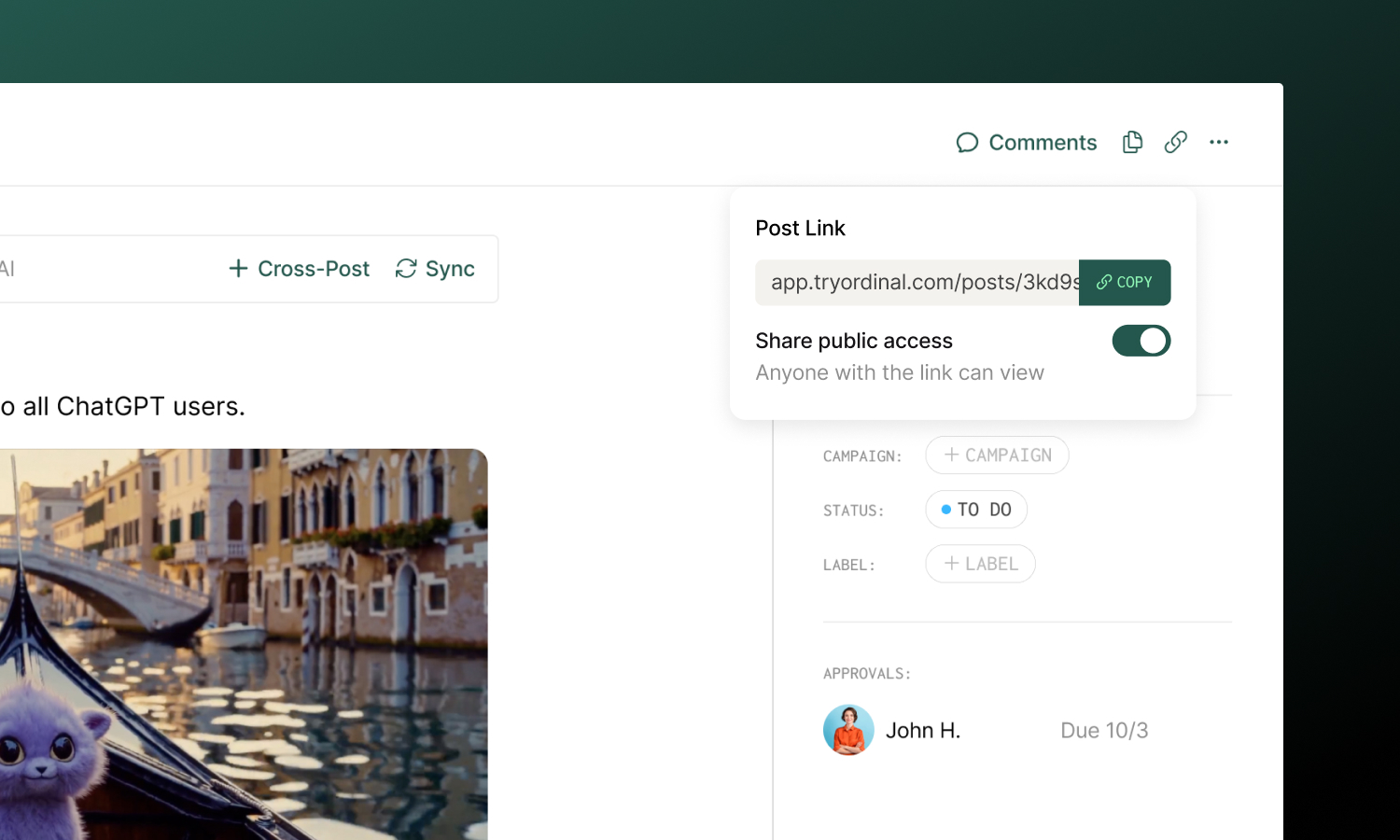
Need to share a post with someone outside your workspace? You can make any post publicly viewable.
1. Click the **link icon** in the post header
2. Toggle **Share public access** on
3. Copy the link and share it
Anyone with the link can view the post (read-only) - no login required. Toggle the setting off to revoke access.
## Duplicating posts
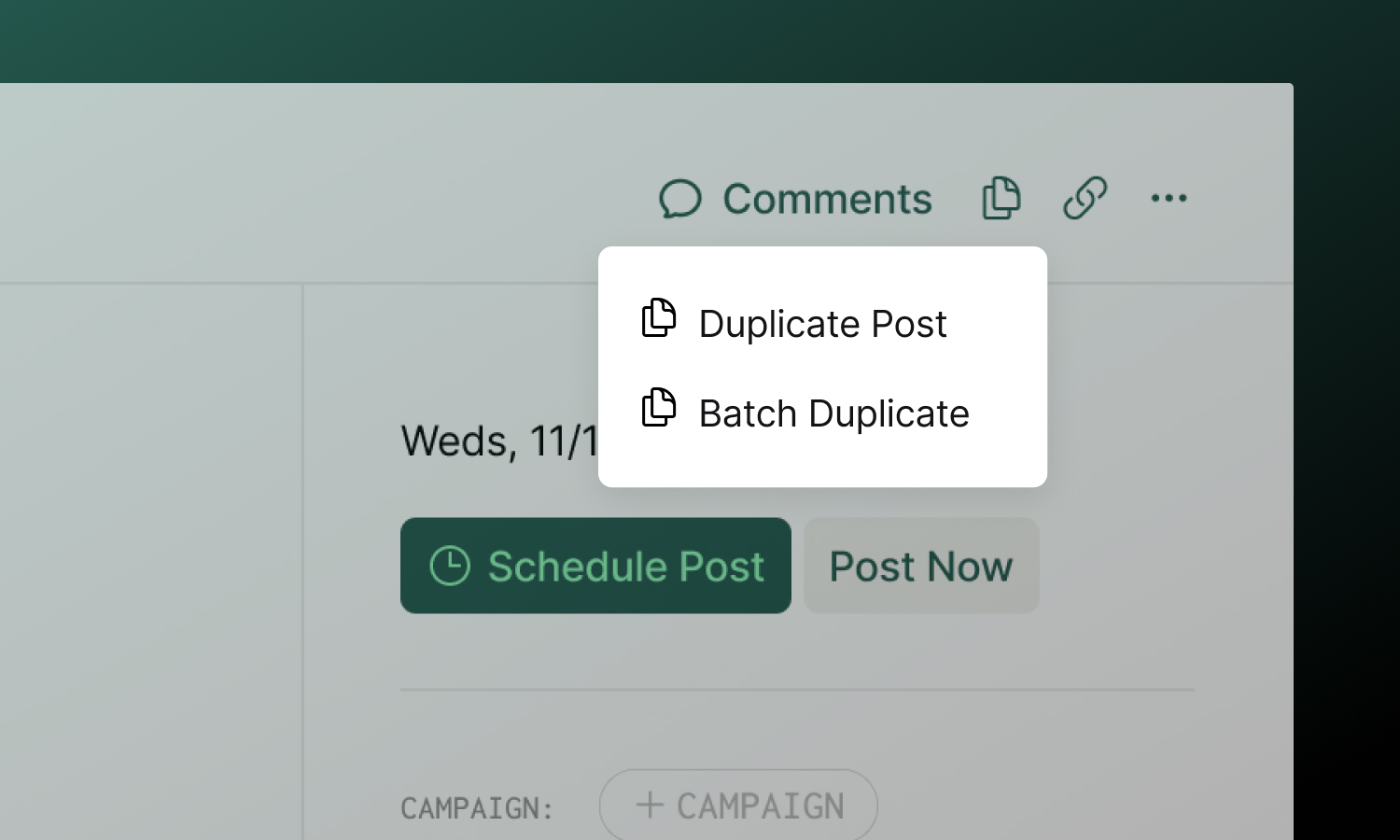
**Duplicate** creates a single copy of a post, including its content, media, labels, and settings. Find it in the duplicate menu (icon in the header).
**Batch Duplicate** creates a recurring series of posts - useful for recurring content like weekly newsletters or monthly updates:
1. Click the duplicate icon → **Batch Duplicate**
2. Set a **start date** for the first duplicate
3. Choose the **frequency** (every X days, weeks, or months)
4. Select how many **occurrences** to create (up to 10)
All duplicates inherit the original's content and settings. You can edit each one individually after creation.
## Archiving and Trash
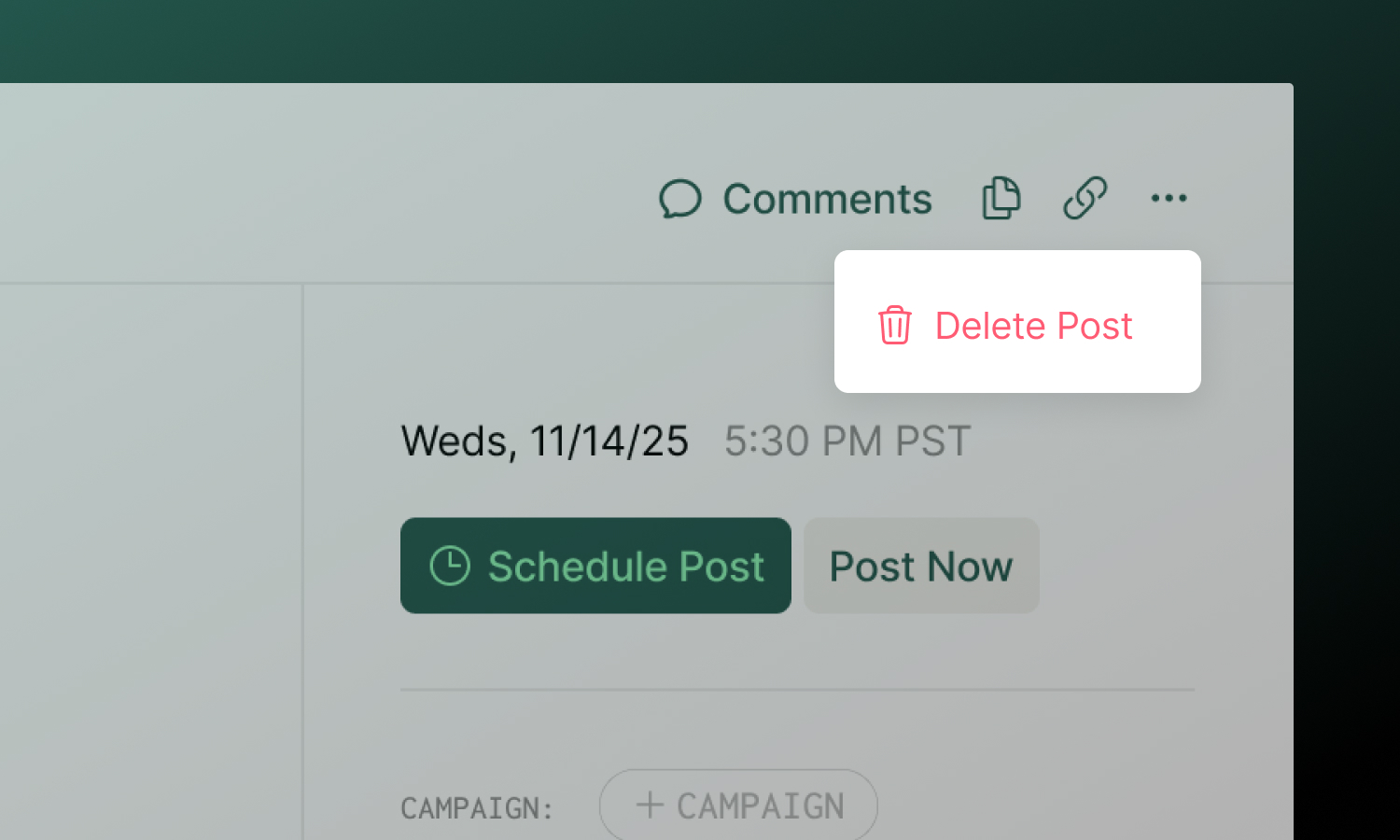
To archive a post, click the **...** menu in the header and select **Delete**. The post is moved to **Trash** and will be permanently deleted after 30 days. You can restore it anytime before then from the Trash page.
**To restore an archived post:** Open the post from [Trash](/posts/trash) and click **Restore** in the alert banner, or use the Trash page to manage archived posts.
**To permanently delete immediately:** From an archived post, click **Delete Immediately** in the alert banner. This action cannot be undone.
:::warning
Archiving a scheduled post will prevent it from publishing. If the post has already published, archiving it from Ordinal keeps the live post on the social platform by default — for supported channels (LinkedIn), you can opt in to deleting the live post at the same time. See [Deleting Posts](/posts/trash#removing-live-posts-from-social-platforms).
:::
## Learn more
**[Creating Posts](/posts/creating-posts)**
Learn all the ways to start a new post.
**[Drafting Posts](/posts/drafting-posts)**
Write, format, and preview your content.
---
# Post Defaults
Source: https://docs.tryordinal.com/posts/post-defaults
Post defaults save time by pre-selecting your most common settings. When you create a new post, your preferred accounts and platform-specific options are already configured.
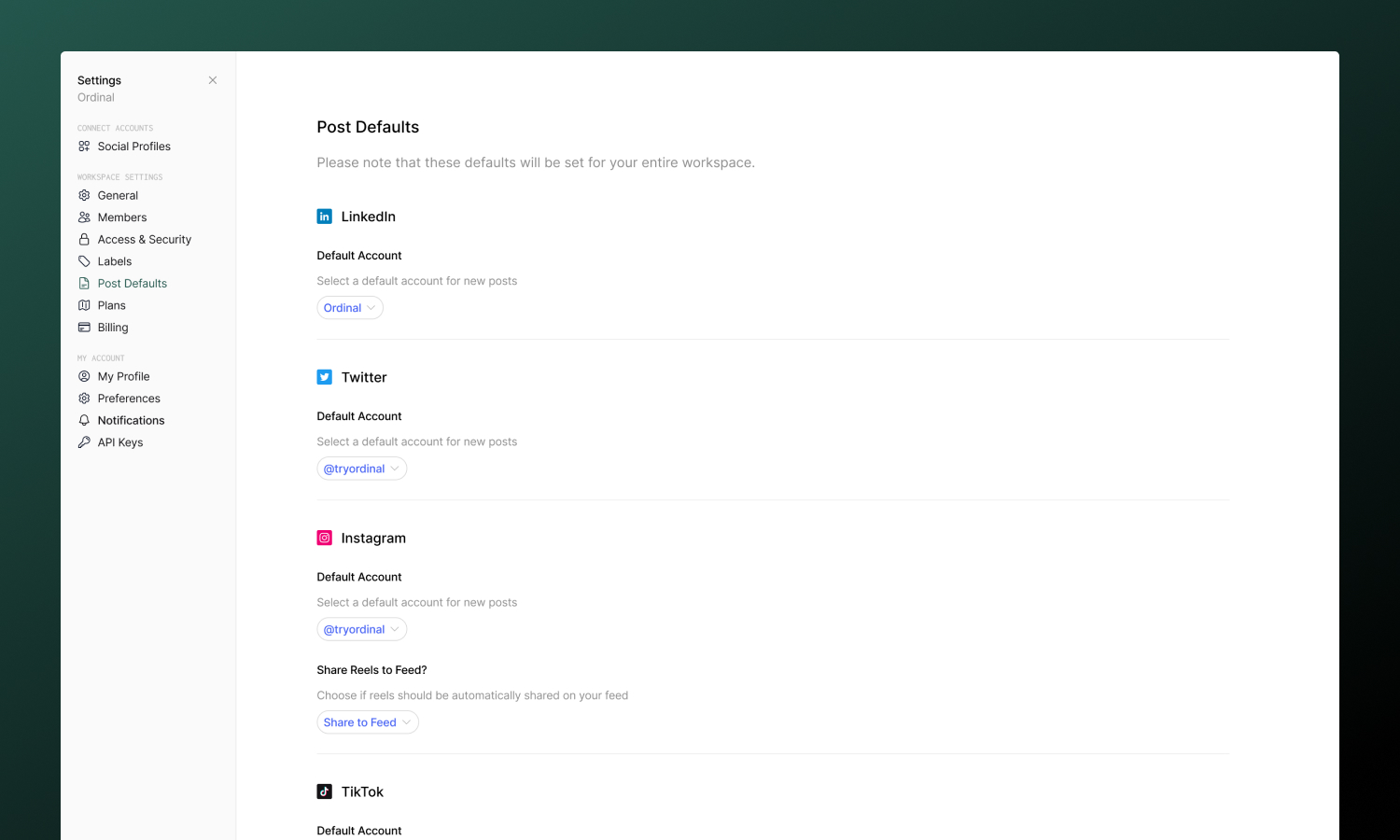
## Setting up defaults
Go to [**Settings → Post Defaults**](https://app.tryordinal.com/settings/post-defaults) to configure:
| Setting | Description |
| --------------------------- | -------------------------------------- |
| **Default accounts** | Which account to use for each platform |
| **Instagram location** | Pre-filled location tag |
| **Instagram Reel settings** | Share to Feed toggle |
| **YouTube Shorts settings** | Notify subscribers toggle |
| **Webflow preview type** | Live or Designer preview |
Changes save automatically - only connected accounts will appear as options.
:::tip
Set your most-used account as the default for each platform. If you post to the same account 80% of the time, this eliminates a click on every post.
:::
## When defaults apply
Defaults are used globally when creating new posts.
Defaults are **not** used when:
- **Duplicating a post** - Uses the original post's settings
- **Converting an idea** - Uses settings from the idea
You can always override defaults in any individual post - changes only affect that post, not your saved defaults.
## Workspace-level setting
Post defaults are configured at the workspace level. All team members share the same defaults, and anyone with settings access can modify them.
:::note
If your team members frequently post to different accounts, you may want to skip setting defaults and let each person select manually.
:::
## Learn more
**[Creating Posts](/posts/creating-posts)**
Start a new post with your defaults applied.
**[Social Profiles](/social-profiles/overview)**
Connect accounts to use as defaults.
---
# Post Review
Source: https://docs.tryordinal.com/posts/post-review
Post Review is an AI assistant that reads your draft and returns a short list of suggested improvements - things like typos, clarity issues, weak hooks, missing calls-to-action, or platform-specific concerns. It runs automatically when you open it, so you can catch issues without breaking flow.
## When to use it
Use Post Review when you want a quick second pass before scheduling or publishing:
- Right before you set a publish time, from the schedule modal
- Anytime while editing, from the post header
- On longer posts where small fixes have the biggest impact
Post Review never edits your post. It only surfaces suggestions - you decide what to apply.
## Running a review
You can run a review from two places:
| Location | How to open |
| ------------------ | ----------------------------------------------------------------- |
| Schedule modal | Click **Schedule Post**. The review section appears in the modal. |
| Post header | Click **Post Review** in the post header. |
In both places, the review runs automatically the first time you open it. When it finishes, you'll see either **No suggestions** or a count like **3 Suggestions Found**.
Expand the section to view each suggestion. Click **Re-run** to generate a fresh review after you make edits.
## Suggestions
Each suggestion includes:
- A short description of the issue
- The relevant snippet from your post (when applicable)
- A recommended change you can apply or ignore
Suggestions are advisory. Apply the ones that fit your voice and skip the rest.
## Learn more
**[AI Writing](/posts/ai-writing)**
Draft and refine posts with Ordinal's chat-based assistant.
**[Scheduling Posts](/posts/scheduling-posts)**
Pick a publish time and let Ordinal handle the rest.
---
# Scheduling Posts
Source: https://docs.tryordinal.com/posts/scheduling-posts
Scheduling determines when your content goes live. Set a specific date and time, and Ordinal handles publishing automatically - posts go out within seconds of their scheduled time.
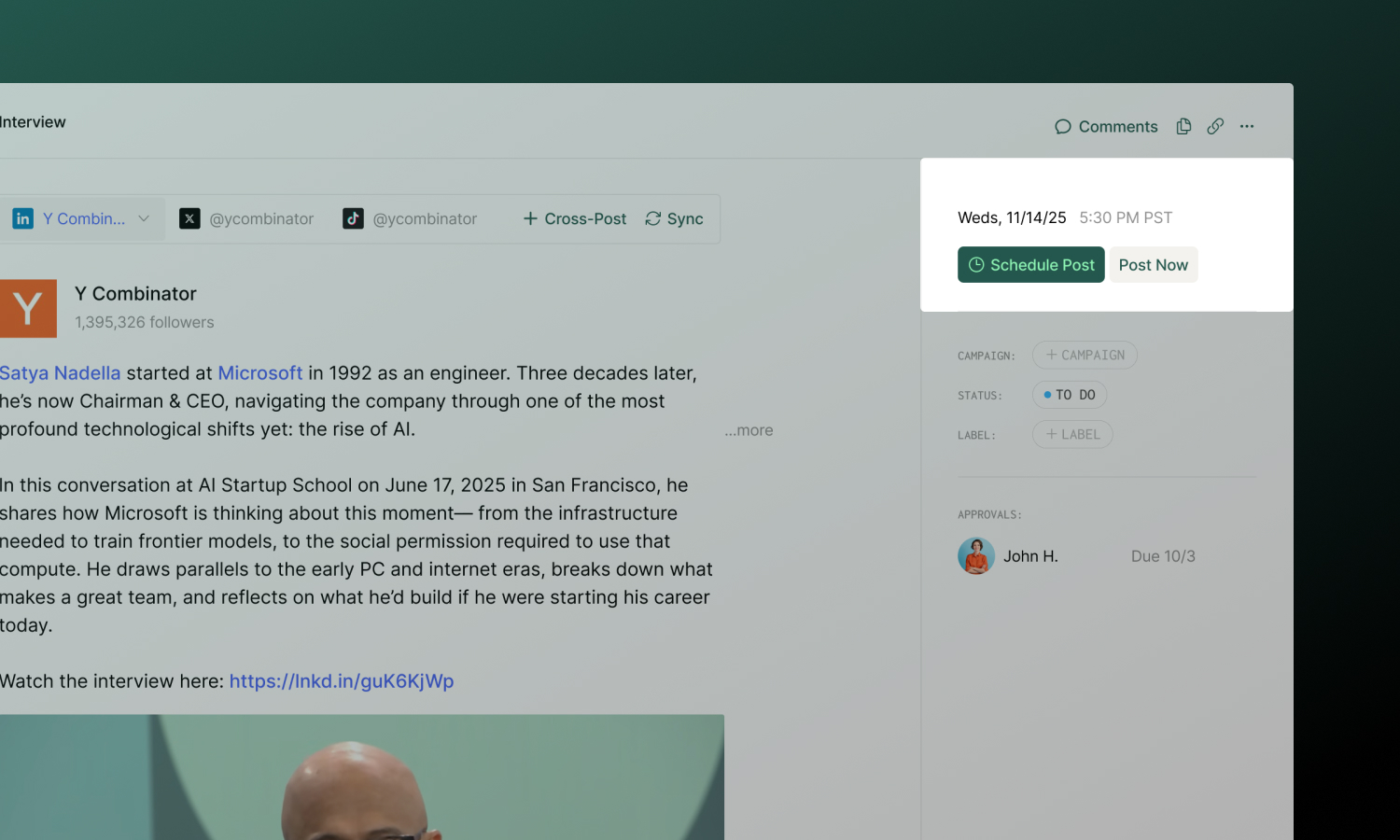
## Scheduling a post
1. Open or create a post
2. In the sidebar, click **Schedule Post**
3. Select your date and time
4. Confirm the timezone matches your workspace settings
:::success
Your post moves to "Scheduled" status and appears on the calendar as scheduled.
:::
## Recommended times
When you pick a time, Ordinal suggests optimal posting windows based on the platform and day of the week. Look for the **Recommended** section in the time picker.
How it works:
- Ordinal uses platform-specific optimal time slots (e.g., Twitter performs well 9am–1pm on Mondays)
- Times are randomized within the optimal window to avoid posting at the exact same time as others
- If another post is already scheduled within 20 minutes of a suggested time, Ordinal finds the next available slot
You'll also see **Recently Used** times - your most recent publish times for quick selection.
:::note
Recommended times require a workspace timezone. Set this in [Settings → General](https://app.tryordinal.com/settings/general).
:::
## Schedule vs Post Now
**Schedule for later**
Choose a specific future date and time. The post:
- Moves to "Scheduled" status
- Appears on the calendar
- Publishes automatically when the time arrives
- Can be edited until publishing begins
**Post now**
Publish immediately without scheduling. Useful for timely content or when you've finished drafting and want it out right away.
## Rescheduling
To change when a scheduled post publishes:
1. Open the post
2. Click the **Edit Scheduling** button in the sidebar
3. Click the **Edit Scheduling** from the dropdown menu
3. Select a new date and time
You can also drag posts directly on the calendar to reschedule the date. To reschedule the time follow the steps above.
## Unscheduling
To unschedule a post:
1. Open the post
2. Click the **Edit Scheduling** button in the sidebar
3. Click the **Unschedule** button from the dropdown menu
3. The post returns to "Finalized" status
:::note
You cannot unschedule a post that's currently publishing or already published.
:::
## Cross-post scheduling
When a post targets multiple platforms, each channel is scheduled and published independently.
### How it works
- In the schedule modal, you can choose which connected accounts to include. Uncheck any channels you don't want to publish yet.
- All channels share the same scheduled time by default. If you need to schedule a different time for another channel, we recommend creating a separate post for that channel specifically (to save time, can use the **Duplicate** functionality).
:::warning
If you add cross-post channels to an already-scheduled post, the new channels are not automatically scheduled. You'll need to click **Edit scheduling** in the sidebar, and select all the channels (including the new one) to add them to the scheduling.
:::
## CSV bulk scheduling
:::note
CSV bulk scheduling is available on Pro plans and supports **Twitter and LinkedIn only**.
:::
Upload a CSV file to create and schedule many posts at once. Find this at [**Settings → Bulk Scheduling**](https://app.tryordinal.com/settings/bulk-scheduling).
### CSV format
| Column | Required | Description |
| -------------------- | -------- | ------------------------------------------------------------- |
| `channel` | Yes | `Twitter` or `LinkedIn` |
| `username` | Yes | Account username (no @ for Twitter, vanity name for LinkedIn) |
| `publish_at` | Yes | ISO 8601 format: `2024-12-25T14:30:00` |
| `copy` | Yes | Post content |
| `first_comment_copy` | No | First comment (where supported) |
### Example CSV
```csv
channel,username,publish_at,copy,first_comment_copy
LinkedIn,johndoe,2024-12-01T09:00:00,"Excited to share our Q4 results...",
Twitter,johndoe,2024-12-01T09:30:00,"Big news coming! 🚀",
```
A [Google Sheets template](https://docs.google.com/spreadsheets/d/1Ggg91CzFgk-Scp0Nerb29Lpw3ijD--NuFFwAC0obCSI/edit#gid=0) is available for reference.
:::tip
Bulk uploads automatically create a campaign named "Bulk Posts [Date]" containing all uploaded posts.
:::
## Timezone handling
Times display in your computer's local timezone. Hover over any scheduled time to see the conversion to your workspace timezone.
Your workspace timezone is configured in [**Settings → General**](https://app.tryordinal.com/settings/general). This is the timezone used for:
- Recommended time calculations
- Team coordination (so everyone knows when posts go live in the workspace's primary timezone)
## Troubleshooting
**Post failed to publish**
Open the post to see error details. Common causes:
- Expired account authorization (reconnect in Settings)
- Platform outage (retry later)
- Content policy violation (review and edit)
**New cross-post channel not scheduled**
Channels added after scheduling aren't automatically included. Open the post and click **Edit scheduling** to add them.
## Learn more
**[Calendar](/calendar/overview)**
Visualize and manage your schedule.
**[Post Statuses](/posts/statuses)**
Understand the full post lifecycle.
---
# Slack Boost
Source: https://docs.tryordinal.com/posts/slack-boost
Slack Boost notifies your team via Slack when posts publish, encouraging them to engage and amplify your content's reach. Turn employees into advocates by making it easy to find and interact with your social content.
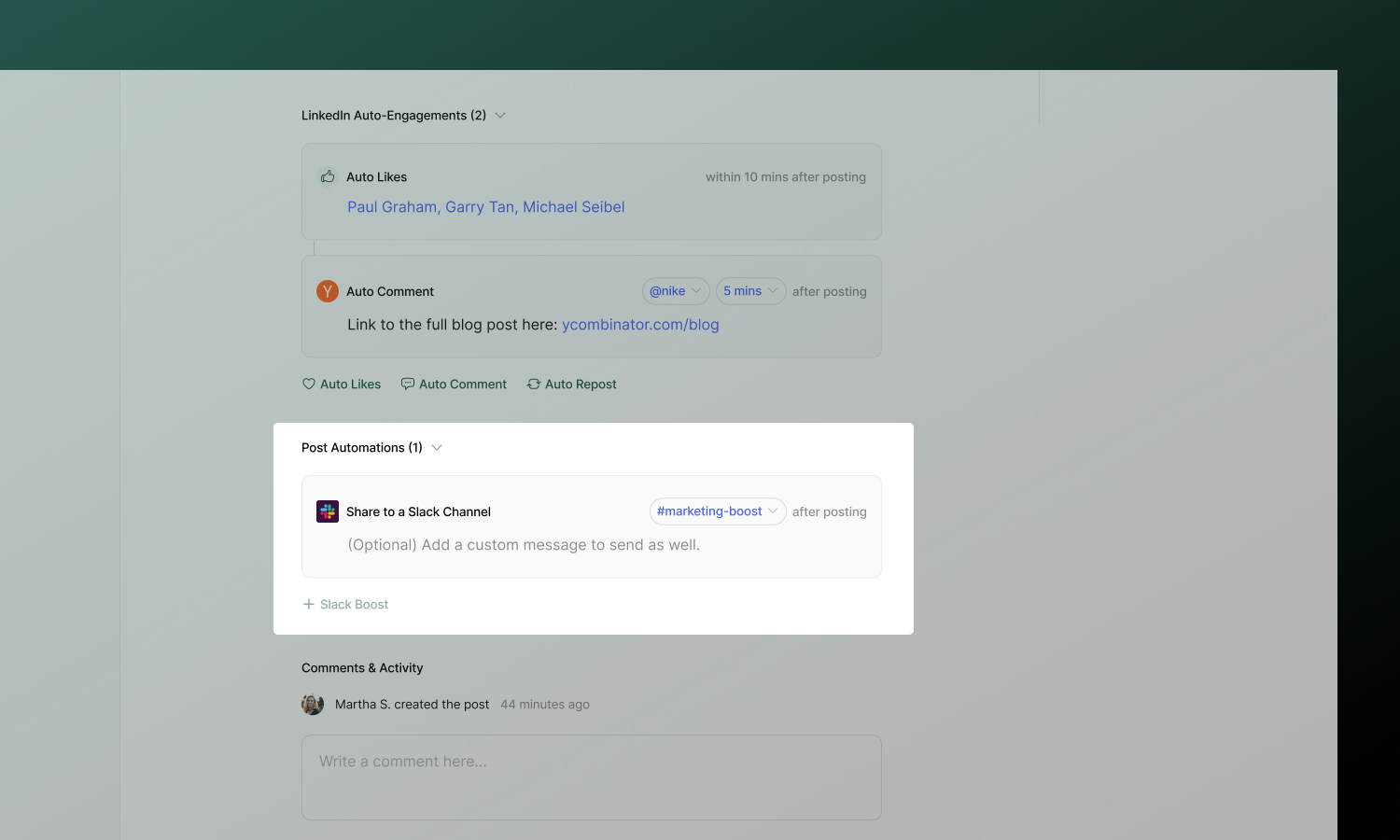
## How Slack Boost works
1. You add Slack Boost to a post manually, or turn on auto-boost for a channel so every new post is boosted there
2. Once the post publishes to social platform(s), Ordinal sends a notification to your configured Slack channel
3. Your team sees the live post with direct links
4. Team members engage - likes, comments, shares - boosting visibility
The Slack message includes:
- Post title (links to the post in Ordinal)
- Button to view on each platform where it published
- Your custom message, if you added one
## Setting up Slack Boost
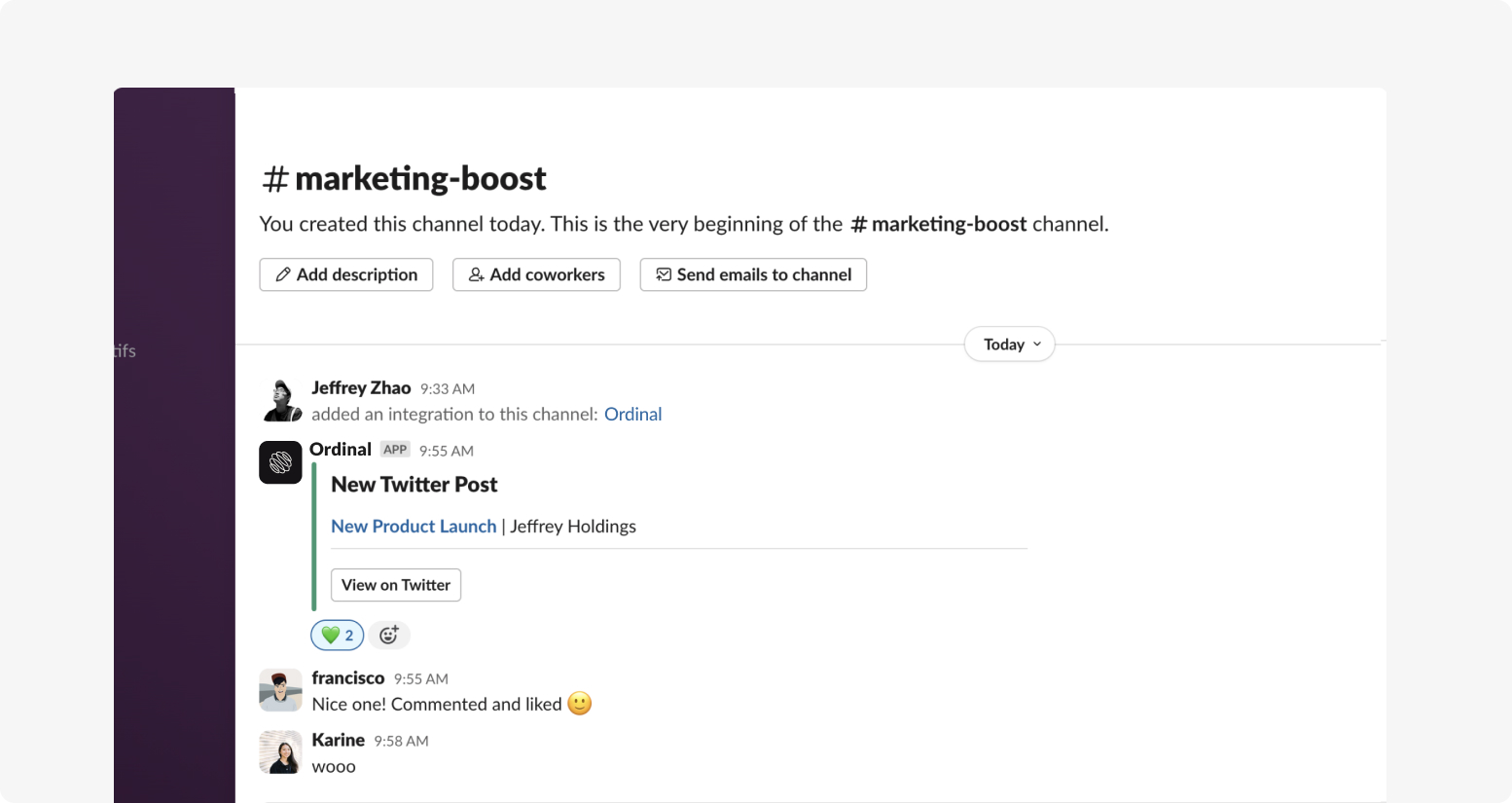
1. **Connect Slack**
Go to [Integrations → Slack](https://app.tryordinal.com/settings/integrations/slack) and click **Marketing Boost Channels**. Authorize Ordinal to access your Slack workspace.
2. **Choose a channel**
As part of the configuration, you'll choose the specific channels you want to boost posts to e.g. `#marketing-boost` or `#marketing`.
3. **Choose the default notification behavior**
After you connect a channel, the channel settings modal opens. **Notify channel of all posts by default** is off — the channel is opt-in.
- Leave it off to add Slack Boost manually on the posts you want to amplify.
- Toggle it on and select **Confirm** to auto-boost every new post to this channel.
Select **Cancel** or dismiss the modal to keep the setting off. You can change this later from **Integrations → Slack** by opening the channel's settings.
:::success
Slack Boost is configured. You can now boost posts to this channel.
:::
## Adding Slack Boost to posts
### Manual boost
1. Open a post and scroll to **Post Automations**
2. Click **\+ Slack Boost**
3. Select the Slack channel
4. Add a custom message (optional)
When the post publishes, your configured channels receive the notification.
### Auto-boost
Newly connected channels start with auto-boost **off**. To turn it on, open **Integrations → Slack**, select the channel, toggle **Notify channel of all posts by default**, and select **Confirm**. From then on, every new post automatically includes a Slack Boost to that channel — you can still remove the boost from individual posts.
:::tip
Don't over-notify. Reserve boosts for content where engagement genuinely matters - auto-boosting everything leads to notification fatigue.
:::
## Choosing the right channel
Target the right audience for each post. A company announcement might go to `#all-hands` while a product feature post goes to `#product-team`.
| Channel example | Use case |
| --------------- | ---------------------- |
| `#social-boost` | All boost requests |
| `#marketing` | Marketing team content |
| `#leadership` | Executive posts |
## Slack Boost API
You can list connected Slack channels and manage slack boosts programmatically. All endpoints require [API key authentication](/api/authentication).
| Action | Method | Path | Description |
| ------ | ------ | ---- | ----------- |
| [List webhooks](/api/slack-boosts/slack-webhooks-list) | `GET` | `/slack-webhooks` | List connected marketing boost channels (use `id` as `slackWebhookId` when creating a boost) |
| [List for post](/api/slack-boosts/slack-boosts-list-by-post) | `GET` | `/posts/{postId}/slack-boosts` | List all slack boosts for a given post |
| [Create](/api/slack-boosts/slack-boosts-create) | `POST` | `/slack-boosts` | Attach a boost to a post and Slack channel |
| [Get](/api/slack-boosts/slack-boosts-get) | `GET` | `/slack-boosts/{id}` | Get one slack boost by ID |
| [Update](/api/slack-boosts/slack-boosts-update) | `PATCH` | `/slack-boosts/{id}` | Update copy or target channel |
| [Delete](/api/slack-boosts/slack-boosts-delete) | `DELETE` | `/slack-boosts/{id}` | Remove the boost |
### List Slack webhooks
```bash
curl -X GET "https://app.tryordinal.com/api/v1/slack-webhooks" \
-H "Authorization: Bearer ord_XXXXXXXXXXXXXXXX"
```
### List slack boosts for a post
```bash
curl -X GET "https://app.tryordinal.com/api/v1/posts/550e8400-e29b-41d4-a716-446655440300/slack-boosts" \
-H "Authorization: Bearer ord_XXXXXXXXXXXXXXXX"
```
### Create slack boost
Use a post ID and a `slackWebhookId` from [`GET /slack-webhooks`](/api/slack-boosts/slack-webhooks-list) or from a [connected marketing boost channel](https://app.tryordinal.com/settings/integrations/slack).
```bash
curl -X POST "https://app.tryordinal.com/api/v1/slack-boosts" \
-H "Authorization: Bearer ord_XXXXXXXXXXXXXXXX" \
-H "Content-Type: application/json" \
-d '{
"postId": "550e8400-e29b-41d4-a716-446655440300",
"slackWebhookId": "550e8400-e29b-41d4-a716-446655440920",
"copy": "New post — please like and share!"
}'
```
### Get, update, and delete
```bash
curl -X GET "https://app.tryordinal.com/api/v1/slack-boosts/550e8400-e29b-41d4-a716-446655440910" \
-H "Authorization: Bearer ord_XXXXXXXXXXXXXXXX"
```
```bash
curl -X PATCH "https://app.tryordinal.com/api/v1/slack-boosts/550e8400-e29b-41d4-a716-446655440910" \
-H "Authorization: Bearer ord_XXXXXXXXXXXXXXXX" \
-H "Content-Type: application/json" \
-d '{"copy": "Updated message for the team."}'
```
```bash
curl -X DELETE "https://app.tryordinal.com/api/v1/slack-boosts/550e8400-e29b-41d4-a716-446655440910" \
-H "Authorization: Bearer ord_XXXXXXXXXXXXXXXX"
```
See the [Slack Boosts API reference](/api/slack-boosts/slack-boosts-create) for full schemas (including `GET /slack-webhooks`) and error handling.
## Learn more
**[Team Engagements](/posts/team-engagements)**
Coordinate likes, comments, and reposts from your team.
**[Social Profiles](/social-profiles/overview)**
Connect your social accounts.
---
# Statuses
Source: https://docs.tryordinal.com/posts/statuses
Every post has a status that tracks where it is in your workflow - from early draft through publication. Statuses help you and your team see what's in progress, what's ready, and what needs attention.
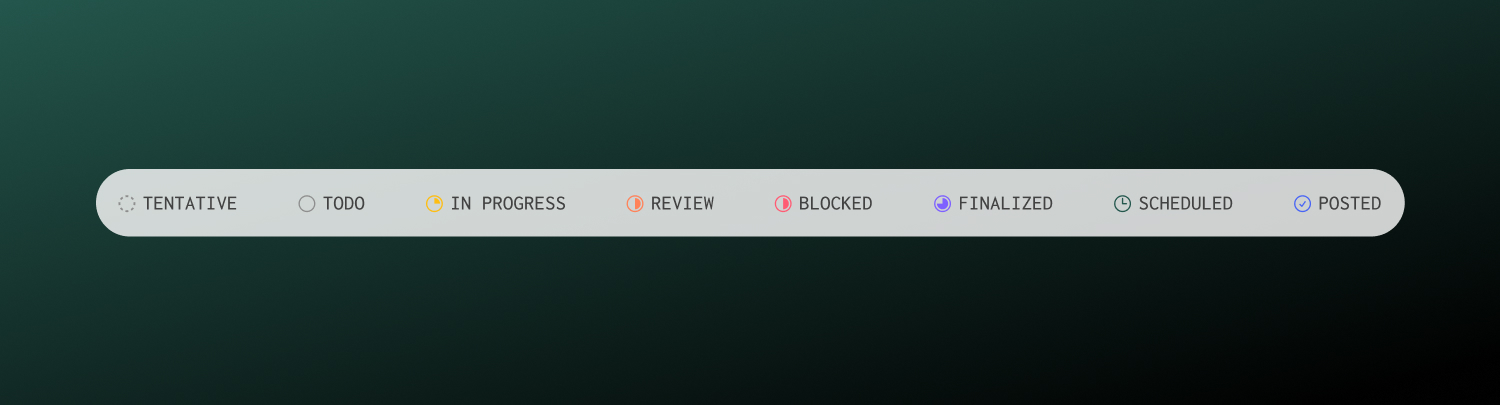
## Workflow statuses
Posts can move through these statuses as you work on them. Change status anytime from the post sidebar.
| Status | Purpose |
| --------------- | -------------------------------------------- |
| **Tentative** | Initial placeholder or rough idea |
| **To Do** | Ready to start working on |
| **In Progress** | Currently being drafted or refined |
| **For Review** | Awaiting feedback from teammates |
| **Blocked** | Stuck - waiting on assets, approvals, or input |
| **Finalized** | Content is complete and ready to schedule |
| **Scheduled** | Has a publish date and time set |
| **Posted** | Successfully published and live |
:::tip
Use statuses that match your team's workflow. Some teams use all eight; others stick to just a few.
:::
## Publishing states
When a scheduled post's publish time arrives, Ordinal sends content to each platform. Each channel has its own publishing state:
| State | What it means |
| ------------- | -------------------------------------- |
| **Scheduled** | Queued to publish at the set time |
| **Posted** | Successfully published to the platform |
| **Errored** | Publishing failed - requires attention |
For cross-posts, each platform publishes independently. One channel can succeed while another fails.
| Platform | State |
| --------- | --------- |
| LinkedIn | ✅ Posted |
| Twitter/X | ✅ Posted |
| Instagram | ❌ Errored |
View per-channel status in the post detail view. Retry failed channels individually without affecting successful ones.
## Handling errored posts
When a post fails to publish, you'll see an error message explaining the cause. Common issues:
**Account disconnected**
The social profile's authorization expired. Go to [Settings → Profiles](https://app.tryordinal.com/settings/profiles), find the account, and click **Reconnect**.
**Content too long**
Your text exceeds the platform's character limit. Edit the post to shorten it, then retry.
**Media too large**
File size exceeds platform limits. Compress the image/video or use a smaller file.
**Content rejected**
The platform flagged the content. Review their guidelines and adjust accordingly.
**Platform error**
Temporary platform outage. Wait a few minutes and retry.
The easiest way to fix this is to duplicate the post, fix the issue, and schedule the new post just for the failing channels.
## Approvals and scheduling
If your workspace uses approvals, posts may require sign-off before they can be scheduled. With blocking approvals enabled, the Schedule button stays disabled until approval is granted.
**[Approvals](/collaboration/approvals)**
Learn more about approval workflows.
## Learn more
**[Scheduling Posts](/posts/scheduling-posts)**
Set publish times for your content.
**[Calendar](/calendar/overview)**
Visualize your content schedule.
---
# Team engagements
Source: https://docs.tryordinal.com/posts/team-engagements
Team engagements make it easy for your team to like, comment, and repost a scheduled post from their connected accounts after it publishes. Choose the engagement actions and team members for each post, then coordinate their timing to support the post's initial visibility.
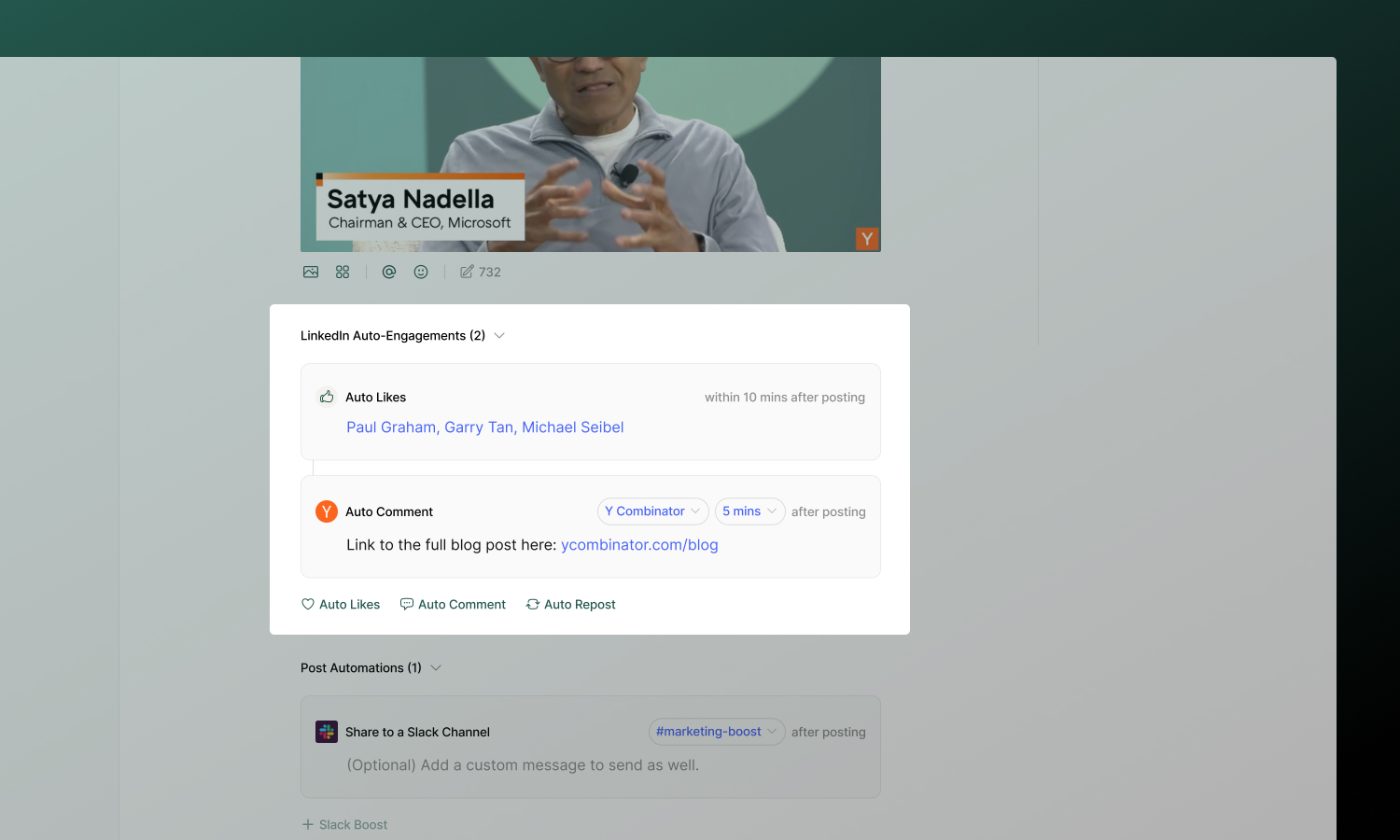
:::note
**Plan availability:** Starter workspaces can only add team engagements from the same account as the posting account. Pro workspaces can use any connected account for team engagements.
:::
## Engagement types
| Type | What it does | Timing |
| --------------- | -------------------------------------------------------- | --------------------------------------------- |
| **Team Likes** | Make it easy for selected connected profiles to like the post | Configurable window (10 minutes to 24 hours) |
| **Team Comment** | Help a selected team member add a first comment (great for CTAs, hashtags, or links) | Configurable delay (immediate to 24 hours) |
| **Team Repost** | Help a selected team member reshare from a connected account | Configurable delay (immediate to 24 hours) |
## Platform support
Not all platforms support every engagement type due to API limitations:
| Platform | Team Likes | Team Comment | Team Repost |
| --------- | ---------- | ------------ | ----------- |
| LinkedIn | ✅ | ✅ | ✅ |
| Twitter/X | ✅ | ✅ | ✅ |
| Instagram | ❌ | ✅ | ❌ |
| Facebook | ❌ | ✅ | ❌ |
For platform-specific details, see each [channel's documentation](/social-profiles/overview).
### X (Twitter) eligibility
Because of X API restrictions, only certain accounts can comment or repost on a tweet:
- The **posting account** is always eligible.
- Any other connected X account must be **@mentioned in the text of the first tweet** to be eligible.
If a connected X account isn't @mentioned, it's disabled in the Team Comment and Team Repost profile pickers. Add the account's `@handle` to the first tweet to unlock it. This rule is enforced everywhere engagements are configured, including the post editor, the [public API](/api/introduction), and [MCP tools](/mcp/tools).
:::note
Only text `@mentions` count. Tagging an account in an image or video does not make it eligible.
:::
## Setting up team engagements
1. Open a post and scroll to the **Team Engagements** section.
2. Select the engagement type(s) you want to add (Like, Comment, or Repost).
3. Select which connected account(s) should take the action.
4. For comments and reposts, write the content.
5. Set a delay for each engagement using the delay input (see [Timing](#timing)).
6. After the post publishes, team members can complete the selected engagement actions from their connected profiles.
:::success
Team engagements are configured per post, so set them up before the post publishes.
:::
## Timing
Every engagement uses a delay you set in the numeric delay input. Enter a number, then choose **mins** or **hr** for the unit. The input also suggests common presets and a **Recently used** list of delays you've recently saved in this workspace, making it easier to coordinate when team members engage.
- **Team Likes** — the value sets the window in which team members can like the post after it publishes. Minimum is **10 minutes**.
- **Team Comment and Team Repost** — the value sets how long after publishing team members can add the comment or repost. Minimum is **0** (immediate).
The maximum delay for any engagement is **24 hours**. Values outside the allowed range are rejected when you save the post.
:::note
Team engagements must be added **before** the post is published. Adding team engagements after a post has already been published from Ordinal will not work.
:::
## Best practices
- **Use responsibly** - A few strategic engagements complement genuine activity. Don't overdo it.
- **Vary your patterns** - Avoid identical timing or comments on every post.
- **Add value with comments** - Generic "Great post!" comments don't help. Add context, a question, or a useful link.
:::tip
**Need engagement profiles for your whole team?** Bulk discounts are available for engagement-only profiles. Reach out via in-app chat or email [support@tryordinal.com](mailto:support@tryordinal.com).
:::
## Learn more
**[Slack Boost](/posts/slack-boost)**
Notify your team to engage manually.
**[Social Profiles](/social-profiles/overview)**
Connect scheduling and engagement profiles.
---
# Deleting Posts
Source: https://docs.tryordinal.com/posts/trash
When you delete a post, it's moved to **Trash** rather than being permanently removed. Archived posts stay in Trash for 30 days before being automatically deleted.
## Accessing Trash
From the Calendar view, open **Trash** from the sidebar under **All Posts** to view all archived posts in your workspace. Posts are listed with when they were archived and who archived them.
## Restoring posts
To restore an archived post:
1. Open the post from the Trash page
2. Click **Restore** in the alert banner when viewing an archived post
Restored posts return to your calendar and can be edited and scheduled as normal.
## Permanently deleting
Archived posts are automatically permanently deleted after 30 days. To delete immediately:
1. Open the archived post
2. Click **Delete Immediately** in the alert banner
3. Confirm the action
:::warning
Permanent deletion cannot be undone. The post and all its content will be removed from Ordinal.
:::
## Removing live posts from social platforms
By default, archiving or permanently deleting a post in Ordinal does **not** remove the live post from the social platform it was published to. For supported channels, you can choose to delete the live post at the same time.
**Supported channels:** LinkedIn, Facebook, Twitter/X, Threads
### From the Archive or Delete dialog
When you archive or permanently delete a published post that has a live link on a supported channel, the confirmation dialog shows a **Delete live post on the following channels as well?** section with a checkbox per channel:
1. Open the **...** menu on the post and select **Delete** (or **Delete Immediately** from Trash)
2. In the confirmation dialog, check the channel(s) you want to remove the live post from
3. Confirm
Use **View Post** next to each channel to open the live post in a new tab before confirming.
### From the post performance panel
You can also remove a live post without archiving it in Ordinal:
1. Open a published post
2. In the **Published Post** panel, open the **⋮** menu
3. Select **Delete from [channel]** (for example, **Delete from LinkedIn** or **Delete from Facebook**)
4. Confirm
The live link clears from the post in Ordinal and the cached analytics for that channel are removed. The post itself stays in Ordinal so you can keep it for reference or duplicate it later.
:::warning
Deleting a live post on a social platform cannot be undone. If the platform delete fails, the Ordinal action (archive, delete, or live-post removal) still completes and a warning toast surfaces the error so you can retry.
:::
## What gets archived
- **Posts and ideas** — Both can be archived from the same menu
- **Scheduled posts** — Archiving cancels the scheduled publish
- **Published posts** — By default, archiving in Ordinal does not remove the post from social platforms. To also remove it from a supported channel, see [Deleting live posts on social platforms](#deleting-live-posts-on-social-platforms).
## Deleting live posts on social platforms
When you move a post to Trash or permanently delete it, Ordinal can also delete the live post from the connected social platform in the same step. This is useful when you want to fully remove a published post — not just hide it from your Ordinal calendar.
This option only appears for posts that have already been published to a supported channel (LinkedIn, Facebook, Twitter/X, or Threads) connected to your workspace.
To delete a live social post:
1. Open the post and click **Move to Trash** or **Delete Immediately**.
2. In the confirmation modal, under **Delete live post on the following channels as well?**, select each channel you want to remove the live post from.
3. Confirm the action.
Use **View Post** next to each channel to open the live post on the platform before deleting.
For Twitter/X and Threads posts published as a thread, deleting the root post removes every post in the thread. Child posts are deleted before the root so the thread is torn down cleanly.
:::warning
Deleting a live post on a social platform cannot be undone. Engagement (likes, comments, reposts, replies) on the live post is permanently lost.
:::
If a channel is not selected in the dialog, the post is only removed from Ordinal and stays live on that platform.
### Reconnecting a disconnected integration
If the integration for a channel has expired or been disconnected, the live delete will fail and Ordinal will flag the integration as needing reconnection. Reconnect the account from **Social Profiles**, then retry the delete.
If the live post was already removed on the platform (for example, deleted directly from LinkedIn or X), Ordinal treats the delete as successful and clears the local link so your data stays in sync.
---
# Version History
Source: https://docs.tryordinal.com/posts/version-history
Version history tracks every change to your post copy, so you can see what changed, who changed it, and restore a previous version if needed.
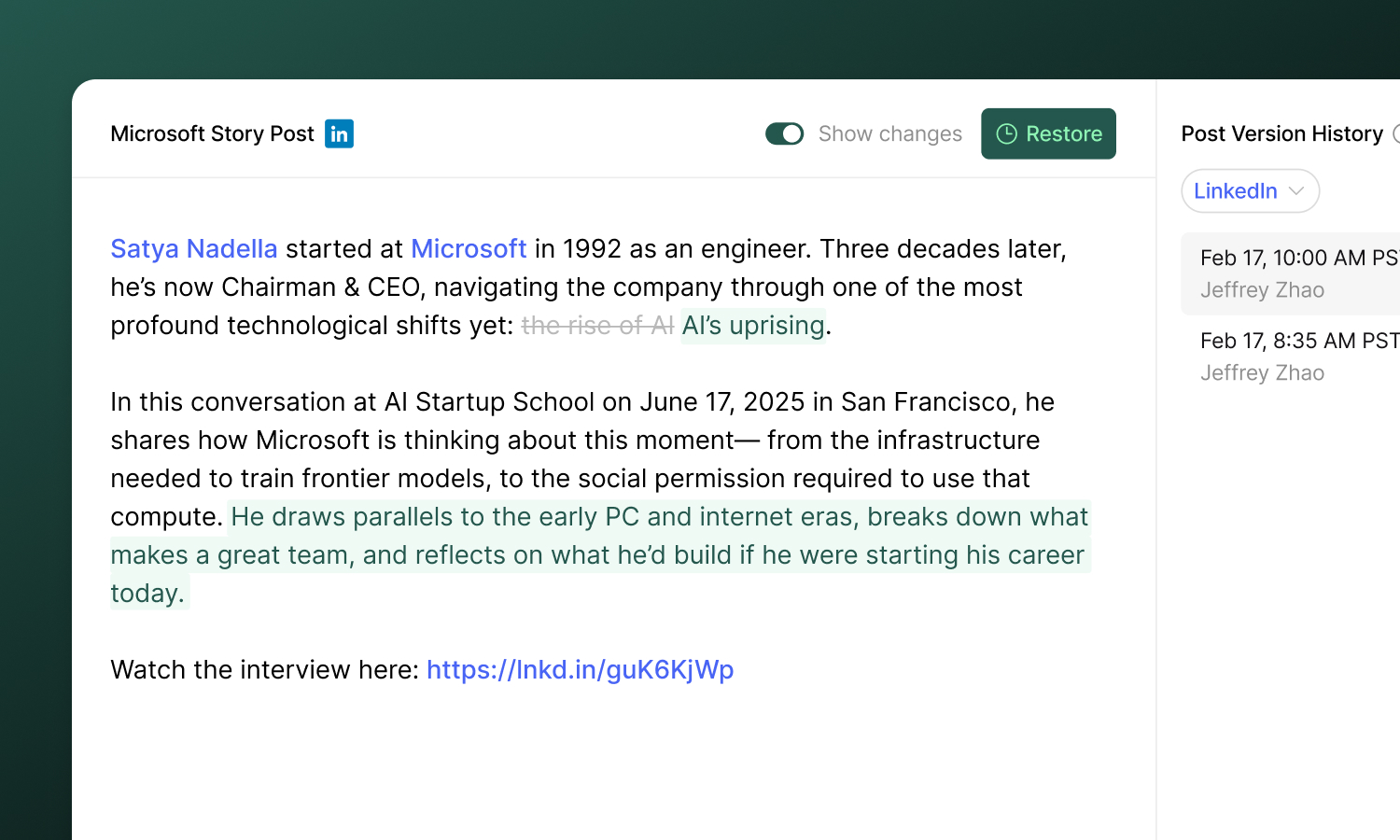
## Viewing version history
To open version history, click the **clock icon** in the post header. This opens a modal with two panels:
- **Left panel** - A preview of the selected version's content
- **Right panel** - A list of all saved versions, showing the timestamp and author of each change
Click any version in the list to preview its content.
:::tip
Versions are saved automatically as you and your team edit. There's nothing you need to do to create them.
:::
## Comparing changes
Toggle **Show changes** at the top of the modal to see a word-level diff between the selected version and the one before it. Added text is highlighted in green and removed text is highlighted in red.
This makes it easy to see exactly what was changed in each version without reading through the full post.
:::note
The "Show changes" toggle only appears when there is a previous version to compare against. The earliest version won't have a diff view.
:::
## Restoring a version
If you want to go back to a previous version:
1. Select the version you want to restore
2. Click **Restore** in the top right
3. Confirm the action in the dialog
The selected version's content replaces the current post copy for that channel. This action is itself versioned, so you can always undo it by restoring again.
:::warning
Restoring a version replaces the current post text for the selected channel. Make sure you've reviewed the content before confirming.
:::
## Multi-channel posts
For posts that target multiple channels (e.g. LinkedIn and X), version history is tracked independently per channel. Use the **channel dropdown** in the version history modal to switch between them and review changes for each channel separately.
## Accessing version history programmatically
Version history is also available through the [Ordinal API](/api/introduction) and the [MCP server](/mcp/introduction), so external integrations and AI assistants can list a post's saved versions per channel and read the copy of any version.
- **API:** [`GET /posts/{id}/versions`](/api/posts/posts-list-versions) lists versions grouped by channel; [`GET /posts/{id}/channels/{channel}/versions/{versionId}`](/api/posts/posts-get-version-content) returns the plain-text copy for one version.
- **MCP:** the `ordinal_list_post_versions` and `ordinal_get_post_version_content` [tools](/mcp/tools) expose the same data to your assistant.
## Learn more
**[Comments](/collaboration/commenting)**
Leave feedback directly on post content.
**[Approvals](/collaboration/approvals)**
Formalize the review process before publishing.
---
# Affiliate Program
Source: https://docs.tryordinal.com/referrals/affiliate
Ordinal's affiliate program pays a recurring commission on every paying customer you refer, and gives the customer a discount on their subscription. It's built for creators, agencies, newsletters, and consultants who regularly recommend social media tooling.
## How it works
- **You earn 30% commission for 12 months** on every paying customer who signs up through your affiliate link.
- **The customer you refer gets 20% off for their first 3 months** on Ordinal.
Commissions are recurring. As long as the customer keeps paying within the 12-month window, you keep earning. There's no cap on how many customers you can refer.
## Applying
Apply at [partners.dub.co/ordinal](https://partners.dub.co/ordinal). Ordinal's affiliate program runs on [Dub Partners](https://dub.co/partners), so your dashboard, links, and payouts all live there once you're approved.
We review every application. Strong applications typically come from:
- Newsletters, blogs, podcasts, or YouTube channels with an audience of marketers, creators, or founders
- Agencies or consultancies whose clients are potential Ordinal users
- People who have written reviews or comparisons of social media scheduling tools
You don't need to be an Ordinal customer to apply, but knowing the product well makes for better content.
## Your partner dashboard
Once approved, you get a Dub Partners dashboard where you can:
- Generate and share your affiliate link
- Track clicks, sign-ups, and conversions
- See pending and paid commissions
- Set up your payout method
Tracking, attribution, and payouts are handled through Dub. See the [Dub Partners documentation](https://dub.co/help) for specifics on cookie windows, supported payout methods, and minimum payout thresholds.
## Referral or affiliate: which is right for me?
Ordinal also runs an in-app [Referral Program](/referrals/referral) with one-time gift card rewards. Here's how the two compare:
| Program | Best for | Reward |
| ------------- | ----------------------------------------------------------------- | -------------------------------------- |
| **Referral** | Existing Ordinal users sending the occasional friend or colleague | Up to $200 Amazon gift card, paid once |
| **Affiliate** | Creators, agencies, and partners promoting Ordinal to an audience | 30% recurring commission for 12 months |
A new customer can only be credited to one of the two programs.
## Questions
Email [support@tryordinal.com](mailto:support@tryordinal.com) with questions about the affiliate program or to discuss a custom partnership.
## Learn more
**[Referral Program](/referrals/referral)**
Earn a one-time Amazon gift card for sharing Ordinal with someone you know.
**[Billing & Plans](/account/subscription-plans)**
See the plans your referrals will be signing up for.
---
# Referral Program
Source: https://docs.tryordinal.com/referrals/referral
Refer a company to Ordinal and earn an Amazon gift card up to $200. The program is built into your workspace and pays out once the new customer starts a paid subscription.
## How it works
1. Open [Referrals](https://app.tryordinal.com/referrals) from the left sidebar (the gift icon)
2. Copy your personal referral link and share it with someone who could use Ordinal
3. When they sign up through your link and pay for a subscription, you earn a reward
## Rewards
| Plan the new workspace chooses | What you earn |
| ------------------------------ | --------------------------------- |
| **Monthly** | 100% of the first month's payment |
| **Annual** | 15% of the first year's payment |
The maximum reward is up to $200 per referral. Rewards are issued as Amazon gift card codes delivered to the email on your Ordinal account.
We process referral payouts every other week, so once a referee starts paying you'll receive your gift card shortly after the next payout cycle.
## Tracking your referrals
The Referrals page shows a table of everyone who signed up through your link, along with the current status of each referral:
| Status | What it means |
| -------------- | ----------------------------------------------------------------------------- |
| **Signed Up** | The user has made an Ordinal account but has not paid. |
| **Subscribed** | The user has paid for a subscription. Payouts are processed every other week. |
| **Expired** | The user did not pay for a subscription within 90 days of signing up. |
| **Paid Out** | You've been paid for this referral. Check your email for the gift card code. |
## Eligibility
- **Referrer:** You must have an active paid Ordinal subscription to qualify for the reward.
- **Referee:** The person you refer must be new to Ordinal, with no prior accounts or subscriptions under any email address.
- **Conversion window:** The new workspace must pay for a subscription within 90 days of signing up. After 90 days, the referral expires.
- **One reward per referee:** A single referee cannot generate multiple rewards by opening multiple accounts.
Full terms are available on the [Referrals](https://app.tryordinal.com/referrals) page under "terms, conditions, and limits."
## Looking for recurring commissions?
If you'd rather earn a percentage of every payment from referred customers instead of a one-time gift card, check out the [Affiliate Program](/referrals/affiliate). Affiliates earn 30% commission for 12 months and the customers they refer get 20% off for 3 months.
## Learn more
**[Affiliate Program](/referrals/affiliate)**
Recurring commissions for partners who promote Ordinal to an audience.
**[Billing & Plans](/account/subscription-plans)**
See how billing works for the plans you're referring people to.
---
# Discord
Source: https://docs.tryordinal.com/social-profiles/discord
Discord is where communities live - and scheduled announcements keep them engaged. Instead of connecting an account, you create **webhooks** in Discord and add them to Ordinal. Messages post to specific channels through those webhooks, perfect for product updates, event reminders, and recurring community content.
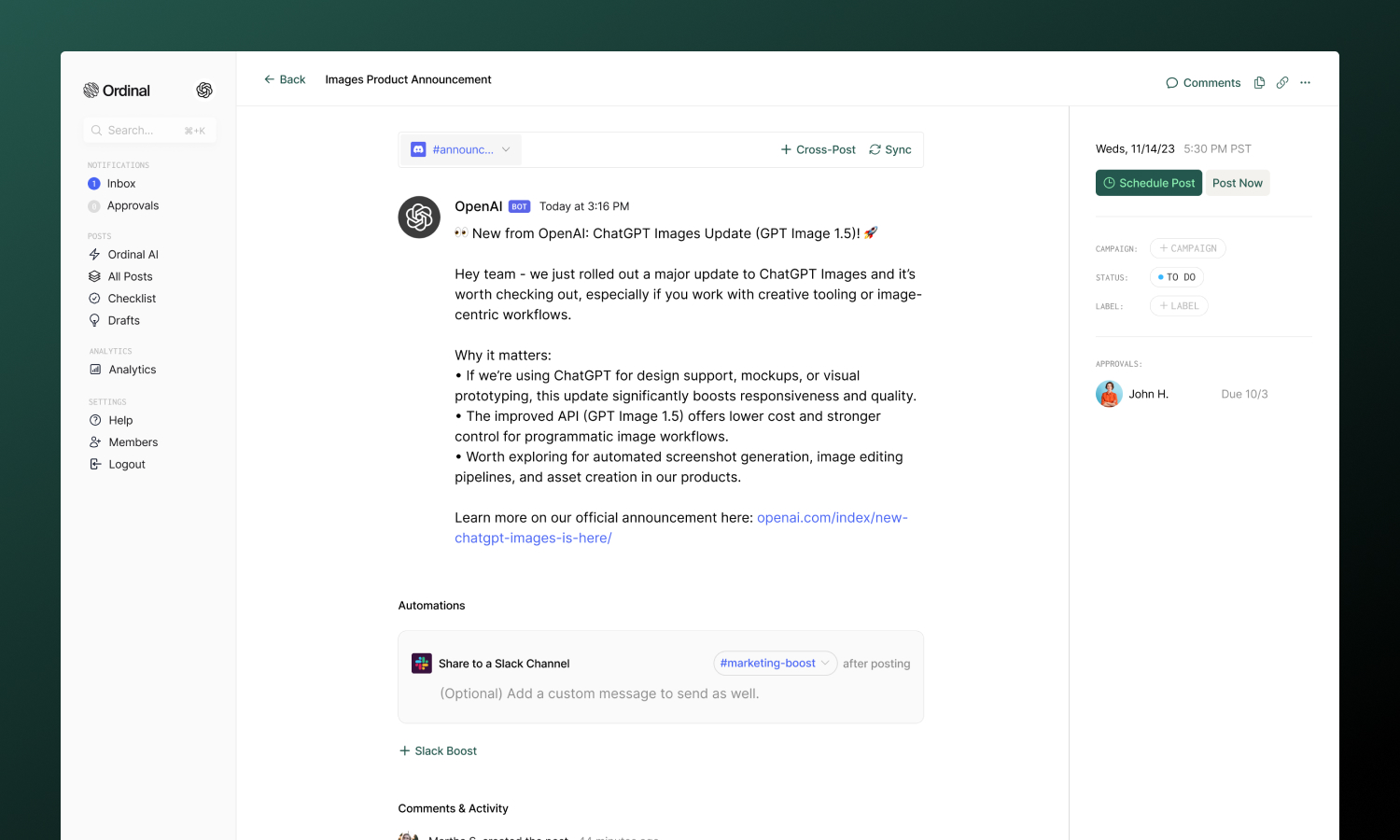
## Overview
Webhooks are channel-specific URLs that accept incoming messages. You create them in Discord, give them a name and avatar, and paste the URL into Ordinal. No Discord login required - you control exactly which channels can receive scheduled messages.
**[Creating a Webhook](#creating-a-webhook-in-discord)**
Set up webhooks in your Discord server
**[Adding to Ordinal](#adding-the-webhook-to-ordinal)**
Connect your webhook to Ordinal
**[Drafting a Message](#drafting-a-discord-message)**
Formatting, mentions, and attachments
**[Use Cases](#use-cases)**
When to use Discord scheduling
| How it works | Details |
| ----------------- | ----------------------- |
| Connection method | Webhook URL (not OAuth) |
| Sender appearance | Webhook name and avatar |
| Scope | One webhook per channel |
This means:
- You decide which channels get a webhook
- Each webhook posts to exactly one channel
- The webhook's name and avatar appear as the message sender
- Anyone with the webhook URL can post to that channel (keep it private)
## Creating a Webhook in Discord
1. Open your Discord server
2. Go to **Server Settings → Integrations**
3. Click **Create Webhook**
4. Set the name (this appears as the sender, e.g., "Ordinal Updates")
5. Upload an avatar image
6. Select which channel this webhook posts to
7. Click **Copy Webhook URL**
Keep this URL private - it's essentially a posting key for that channel.
:::tip
Name webhooks clearly (like "Product Updates" or "Social Alerts") so it's obvious what's posting. Use a custom avatar to help messages look intentional, not like spam.
:::
## Adding the Webhook to Ordinal
Go to [**Settings → Profiles → Scheduling → Discord**](https://app.tryordinal.com/settings/profiles/scheduling/discord), paste your webhook URL and the channel name. The webhook appears as a profile you can select when creating posts.
To post to multiple channels, create a separate webhook for each channel in Discord and add each to Ordinal.
## Drafting a Discord Message
### What you can post
| Feature | Supported | Notes |
| --------------------------- | --------- | ----------------------------------------------------- |
| Text messages | ✅ | Up to 2,000 characters |
| [Attachments](#attachments) | ✅ | Up to 3 files, 10MB each |
| Formatted text | ✅ | Headings, bold, italic, underline, code, links, lists |
| [Mentions](#mentions) | ✅ | @here, @everyone, users, roles |
| Link previews | ✅ | Discord unfurls links automatically |
### Formatting
The editor supports Discord's markdown formatting:
- **Headings**: H1 and H2 for structure
- **Bold**: Use the toolbar or `Cmd/Ctrl + B`
- **Italic**: Use the toolbar or `Cmd/Ctrl + I`
- **Underline**: Use the toolbar or `Cmd/Ctrl + U`
- **Code**: Inline code formatting
- **Links**: Paste URLs or use the link button
- **Lists**: Bullet and numbered lists
- **Emoji**: Type `:emoji_name:` or use the emoji picker
Formatting converts to Discord's native markdown when published.
### Mentions
Tag users, roles, and broadcast to everyone:
| Mention | What it does |
| ------------- | -------------------------------------- |
| `@here` | Notifies active members in the channel |
| `@everyone` | Notifies all members in the server |
| `<@USER_ID>` | Mentions a specific user |
| `<@&ROLE_ID>` | Mentions a specific role |
:::note
User and role mentions require Discord IDs (not display names). You can find these by enabling Developer Mode in Discord settings, then right-clicking a user or role.
You can read more from the official Discord docs [here](https://support.discord.com/hc/en-us/articles/206346498-Where-can-I-find-my-User-Server-Message-ID#h_01HRSTXPS5CRSRTWYCGPHZQ37H).
:::
**[Drafting Posts](/posts/drafting-posts)**
Full guide to formatting, slash commands, and keyboard shortcuts.
## Attachments
You can attach **up to 3 files** per Discord message.
| Spec | Limit |
| -------------- | ----------------------- |
| Files per post | 3 maximum |
| File size | 10MB per file |
| Formats | JPG, PNG, GIF, MP4, MOV |
Drag and drop files into the editor, paste from clipboard, or use the attachment button. Each attachment must have a unique filename.
## FAQ
**Webhook not working**
The webhook may have been deleted in Discord. Create a new one and update it in Ordinal.
**Messages not appearing**
Verify you're checking the correct channel - each webhook posts to exactly one channel.
**Duplicate attachment error**
Each attachment in a post must have a unique filename. Rename files before uploading if needed.
**File too large**
Discord webhooks have a 10MB file size limit. Compress your files or use a link instead.
## Use Cases
- **Product announcements**: Release notes, feature launches, changelog updates
- **Community updates**: Event reminders, weekly roundups, server news
- **Content sharing**: Notify when new social posts, blog articles, or videos go live
- **Automated alerts**: Scheduled reminders, countdowns, recurring messages
## Learn More
**[Slack](/social-profiles/slack)**
Similar use case with OAuth-based connection.
**[Scheduling posts](/posts/scheduling-posts)**
Set the perfect time for your content.
---
# Facebook
Source: https://docs.tryordinal.com/social-profiles/facebook
Facebook Pages are still one of the best ways to reach an established audience. In Ordinal, you can schedule feed posts, publish Reels, and manage multiple pages from one place.
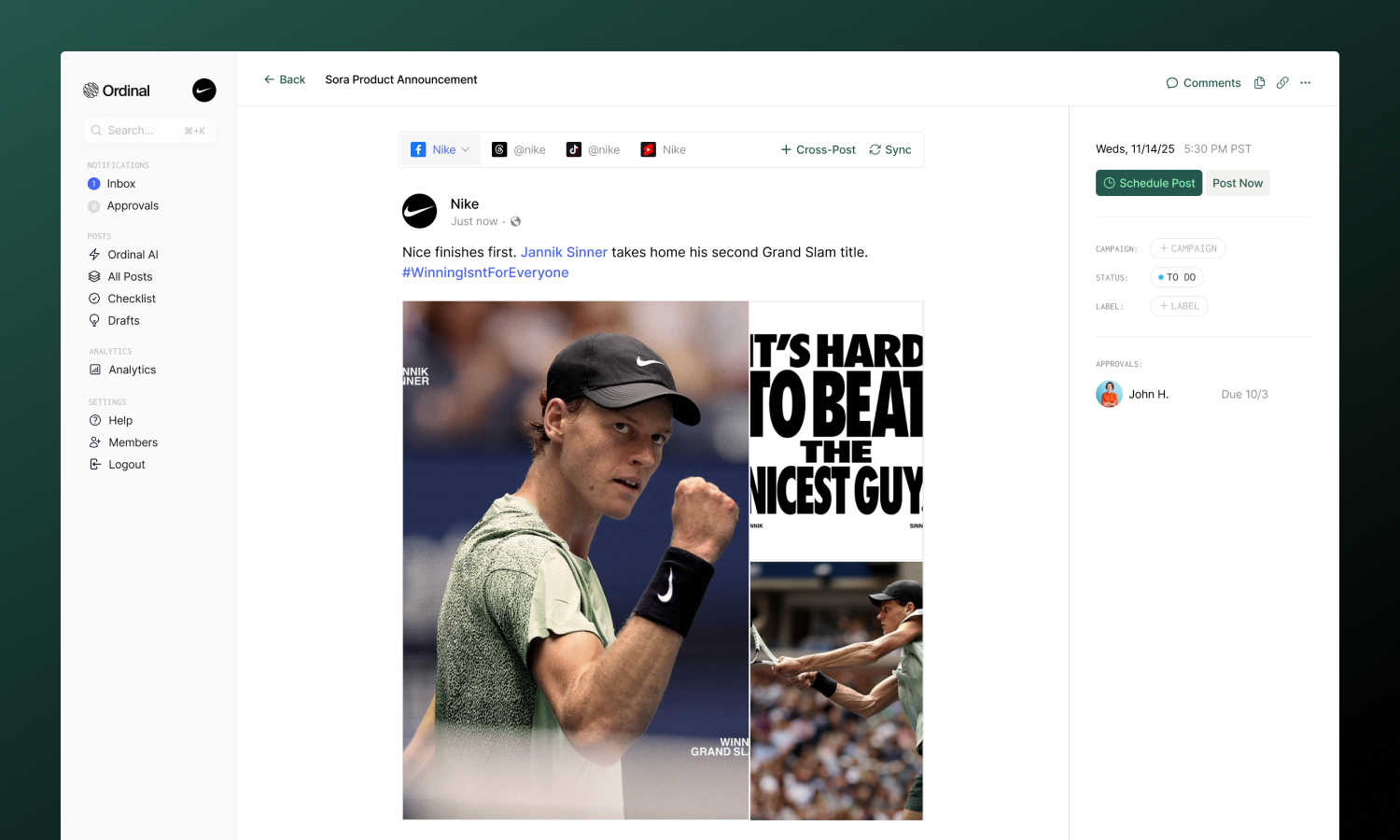
## Overview
Facebook Pages represent businesses, brands, organizations, or public figures. When you connect a page, posts appear from the page (not your personal account), and you get access to page-level analytics.
:::warning
Personal profiles can't be connected due to Facebook API restrictions. This applies to all third-party scheduling tools, not just Ordinal.
:::
**[Connecting Facebook](#connecting-facebook)**
Connect your Facebook Pages
**[Drafting a Post](#drafting-a-facebook-post)**
Formatting, mentions, and media
**[Post Types](#post-types)**
Feed posts and Reels
**[Team Engagements](#team-engagements)**
Add a first comment from your team
## Connecting Facebook
Go to [**Settings → Profiles → Scheduling**](https://app.tryordinal.com/settings/profiles/scheduling/facebook), click **Connect Account**, select Facebook, and sign in. Choose which pages to connect - you can connect multiple pages, and each appears as a separate profile.
| Requirement | Details |
| ------------ | ------------------------------------ |
| Account type | Facebook Page (not personal profile) |
| Access level | Admin or Editor role on the Page |
| Page status | Must be published (not draft) |
### Business Suite Users
If you manage pages through Meta Business Suite, you may need to authorize Ordinal in **Business Settings → Connected Apps**. Some Business Suite configurations require explicit app permissions.
## Drafting a Facebook Post
### What you can post
| Feature | Supported | Notes |
| --------------------- | --------- | --------------------------- |
| Text posts | ✅ | Up to 2,200 characters |
| [Images](#feed-posts) | ✅ | Up to 10 per post |
| [Videos](#feed-posts) | ✅ | Up to 10 minutes |
| [Reels](#reels) | ✅ | 3–90 seconds, vertical |
| Links | ✅ | With auto-generated preview |
| Events | ❌ | Not currently supported |
| Live video | ❌ | Not currently supported |
### Drafting & Formatting
The Facebook editor supports rich formatting through Unicode characters, which render as **bold** and _italic_ on Facebook:
- **Bold / Italic**: Use the toolbar buttons or press `Cmd/Ctrl + B` for bold and `Cmd/Ctrl + I` for italic
- **Hashtags**: Type `#` followed by your tag - they'll automatically link to Facebook search
- **Mentions**: Type `@` and search for Facebook Pages to tag them in your post
- **Links**: Paste URLs directly - Facebook auto-generates a preview with image, title, and description
Facebook posts can be up to **2,200 characters**. The character counter updates in real-time as you type.
**[Drafting Posts](/posts/drafting-posts)**
Full guide to formatting, mentions, slash commands, and keyboard shortcuts.
### Post Preview
As you draft, the editor shows a live preview that matches how your content will appear on Facebook - including your page name and profile picture.
### Tagging Pages
Tag other Facebook Pages in your posts to increase visibility and notify them:
1. Type `@` in your post
2. Search for the Page by name
3. Select from the suggestions dropdown
Mentions become clickable links when published and may notify the tagged Page.
## Post Types
Use the **Feed / Reel** dropdown at the top of the editor to switch between post types.
**Feed Posts**
Standard posts that appear in your Page's feed. You can include text, images, or video.
**Images:**
| Spec | Limit |
| -------- | ------------------------------- |
| Formats | JPG, PNG |
| Size | 4MB per image (auto-compressed) |
| Per post | Up to 10 images |
**Videos:**
| Spec | Limit |
| -------- | ---------------- |
| Formats | MP4, MOV |
| Duration | Up to 10 minutes |
| Per post | 1 video only |
:::warning
You cannot mix images and videos in the same post. Choose one media type per post.
:::
**Reels**
Short-form vertical videos that get higher organic reach than static posts.
| Spec | Limit |
| ---------- | ------------------------ |
| Formats | MP4, MOV |
| Duration | 3–90 seconds |
| Aspect | 9:16 (vertical) required |
| Resolution | Minimum 540×960 pixels |
**Cover Photo**: Pick a frame from the video or upload a custom image to use as the thumbnail for your Reel. See [Cover photos for videos](/posts/media#cover-photos-for-videos) for details.
:::tip
Reels currently get higher organic reach than static posts on Facebook. Use them for timely, engaging content.
:::
**[Media & Assets](/posts/media)**
Full specifications for all platforms including recommended dimensions.
## Team Engagements
Make it easy to add a first comment to your posts after they publish - great for CTAs, additional links, or hashtags you don't want in the main post.
| Type | Supported | Notes |
| ---------------- | --------- | ------------------------------------------ |
| **Team Comment** | ✅ | Make it easy to add a comment from the same profile as the post author |
| Team Likes | ❌ | Not available for Facebook |
| Team Repost | ❌ | Not available for Facebook |
Configure timing from **immediately** after posting up to **24 hours** later.
**[Team Engagements](/posts/team-engagements)**
Full guide to setting up timing and best practices.
:::note
Team comments require additional Facebook permissions. If you see a permissions banner, reconnect your Facebook Page in [**Settings → Profiles**](https://app.tryordinal.com/settings/profiles) to grant the required access.
:::
## Analytics
View Page performance in [**Analytics → Facebook**](https://app.tryordinal.com/analytics/facebook):
| Metric | Description |
| --------------- | ------------------------------- |
| Reach | Unique people who saw your post |
| Impressions | Total times post was shown |
| Reactions | Likes, loves, etc. |
| Comments | Comment count |
| Shares | Share count |
| Link clicks | Clicks on links in post |
| Follower growth | Net change in Page followers |
Analytics sync automatically each day. You can also manually refresh stats using the **Refresh Stats** button (once per hour) to see the latest performance data.
**[Analytics overview](/analytics/overview)**
Learn more about tracking performance across all your connected profiles.
## Learn more
**[Instagram](/social-profiles/instagram)**
Shares Meta authentication with Facebook.
**[Threads](/social-profiles/threads)**
Another Meta platform for text-based posts.
---
# Instagram
Source: https://docs.tryordinal.com/social-profiles/instagram
Instagram rewards polished, visual content - and consistency. In Ordinal, you can schedule Feed Posts, Reels, and Stories, plus use Instagram-specific features like photo tagging, collaborators, and first comments.
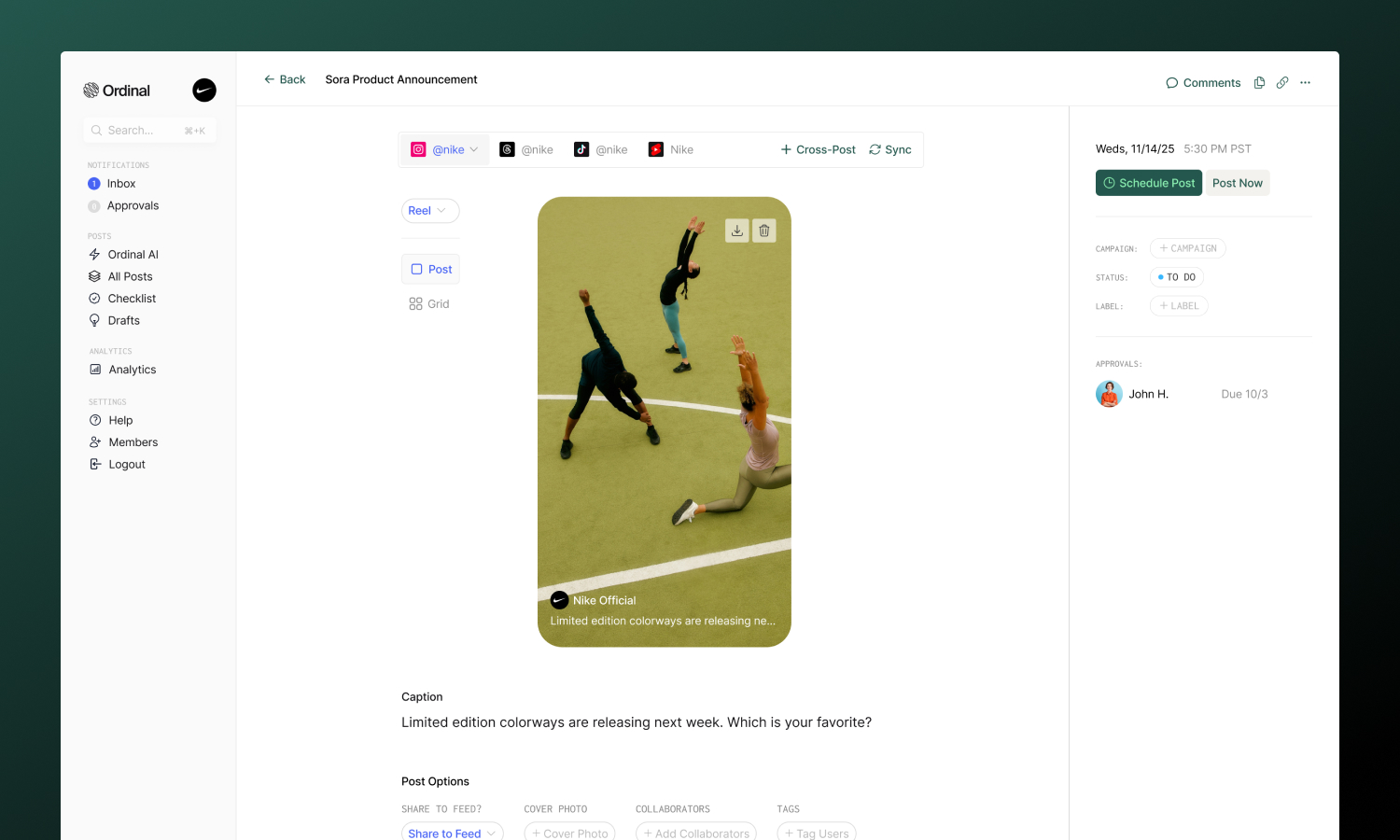
## Overview
Instagram requires a **Business or Creator account** (not personal) and connects through Facebook.
:::info
You can easily switch your account to a Business or Creator account by following the [instructions here](https://help.instagram.com/502981923235522).
:::
**[Connecting Instagram](#connecting-instagram)**
Connect your Business or Creator account
**[Drafting a Post](#drafting-an-instagram-post)**
Formatting, tagging, and media
**[Post Types](#post-types)**
Feed, Reels, and Stories
**[Analytics](#analytics)**
Track post performance
## Connecting Instagram
Go to [**Settings → Profiles → Scheduling**](https://app.tryordinal.com/settings/profiles/scheduling/instagram), click "Connect Instagram", and sign in with Instagram to connect your account.
:::info
Make sure you are logged into the correct Instagram account you wish to connect before going through the integration flow by visiting [instagram.com](http://instagram.com) in your browser. You can always click "More" -\> "Switch Accounts" on Instagram to login to the correct account.
:::
## Drafting an Instagram Post
### What you can post
| Feature | Supported | Notes |
| --- | --- | --- |
| [Feed posts](#feed-posts) | ✅ | Up to 10 images/videos |
| [Reels](#reels) | ✅ | Single video, up to 15 minutes |
| [Stories](#stories) | ⚠️ | Up to 10 images/videos, no interactive elements |
### Drafting & Formatting
The Instagram editor supports rich formatting through Unicode characters:
- **Bold / Italic**: Use the toolbar buttons or press `Cmd/Ctrl + B` for bold and `Cmd/Ctrl + I` for italic
- **Hashtags**: Type `#` followed by your tag - Instagram allows up to 30 per post (tracked in the editor)
- **Mentions**: Type `@` followed by an Instagram handle to mention someone
- **Links**: Instagram captions don't support clickable links, but you can include URLs as text
Captions can be up to **2,200 characters**. The character counter updates in real-time as you type.
**[Drafting Posts](/posts/drafting-posts)**
Full guide to formatting, mentions, slash commands, and keyboard shortcuts.
### Post Preview
As you draft your post, the editor shows a live preview that matches how your content will appear on Instagram.
For planning your profile aesthetic, switch to **Grid Preview** to see how your new post will fit into your existing Instagram grid. This helps you maintain a consistent visual style across your profile.
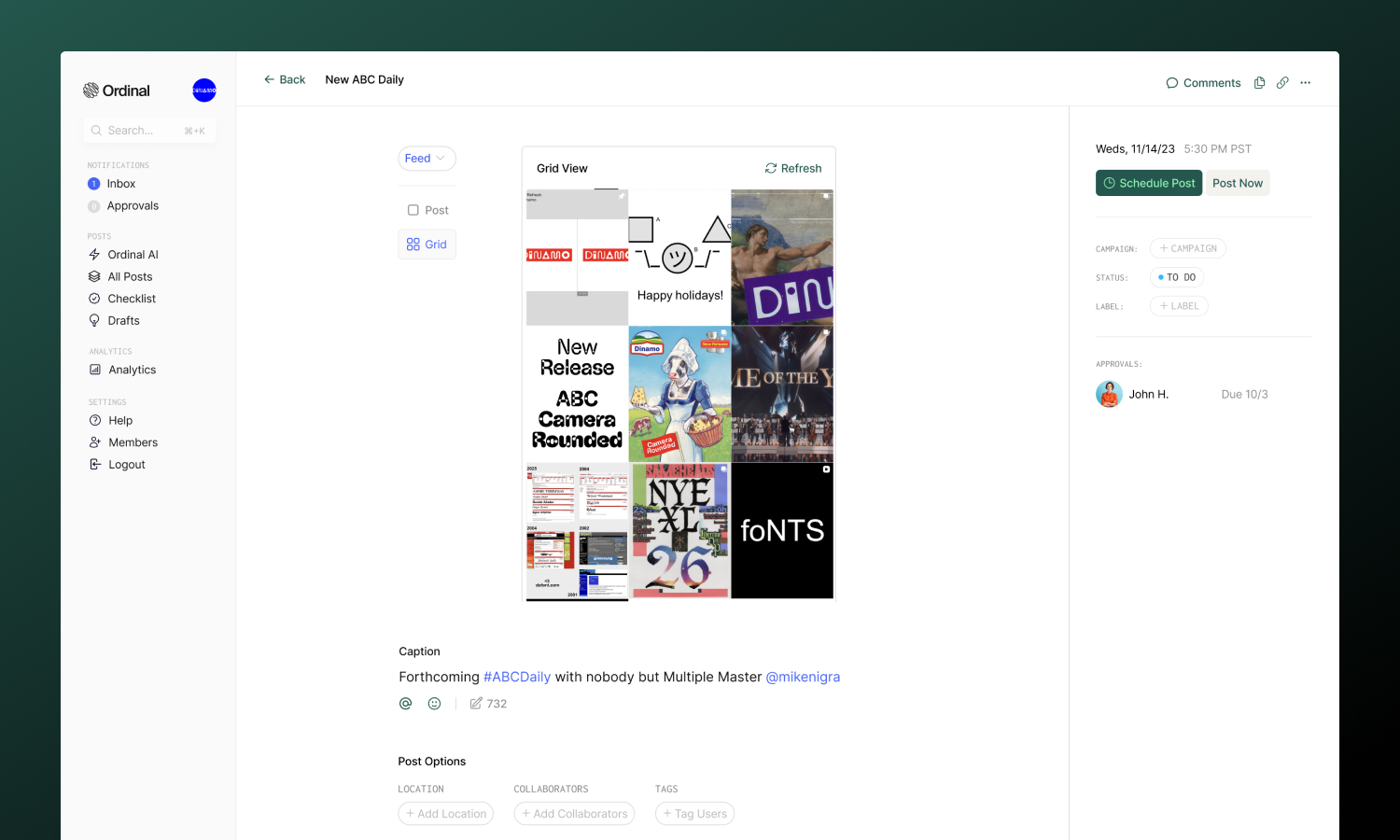
### Photo Options
**Photo tagging**: Tag users directly on your images to increase engagement and notify them:
1. Add images to your post
2. Open the **Tags** option
3. Click anywhere on the image where you want the tag to appear
4. Enter the Instagram handle
:::note
Photo tagging is only available for images in Feed posts. Videos in Feed posts and all Reels content use text-based tagging instead.
:::
### Instagram-Specific Features
**Location**: Add a location to Feed posts to increase discoverability. Search for any place and it will appear on your published post.
**Collaborators**: Invite up to **3 other Instagram accounts** to co-author your post. When published, collaborators receive a DM to accept the invitation, and the post appears on both profiles.
:::warning
Tagging as Collaborator only works if each collaborator's Instagram profile meets the following requirements:
- **Profile visibility: Set to Public**
- **Tags and Mentions**: Both set to **Allow from everyone** (found in Instagram [Settings → Privacy → Tags & Mentions](https://www.instagram.com/accounts/settings/v2/tags_and_mentions/))
:::
**Cover Photo** (Reels only): Pick any frame from your video or upload a custom thumbnail for your Reel. See [Cover photos for videos](/posts/media#cover-photos-for-videos) for details.
**Share to Feed** (Reels only): Control whether your Reel appears in both your profile grid and the Reels tab, or just in Reels.
**Trial Reel** (Reels only): Publish the Reel as a [trial reel](https://help.instagram.com/605173245571633), which is shown only to non-followers so you can test how new content performs before releasing it to your audience. Choose how the reel graduates to your main feed:
- **Off** (default): Publishes as a normal Reel to all followers.
- **Manual graduation**: The reel stays a trial until you graduate it manually from the Instagram app.
- **Auto graduate on performance**: Instagram automatically graduates the reel to your followers if it performs well in the first 72 hours.
## Post Types
**Feed Posts**
Feed posts appear in your profile grid and followers' feeds. They support up to 10 images/videos.
| Spec | Limit |
| --- | --- |
| Formats | JPG only (PNG auto-converted) |
| Image size | 8MB max per image |
| Max pixels | 36 million per image |
| Per post | Up to 10 images/videos (carousel) |
| Aspect | 3:4 (portrait) to 1.91:1 (landscape) |
**Videos in Feed:**
| Spec | Limit |
| --- | --- |
| Formats | MP4, MOV |
| Duration | Up to 60 seconds |
| Aspect | 4:5 to 16:9 |
Ordinal automatically compresses videos larger than 125MB or wider than 1920px to meet Instagram's requirements.
**Reels**
Reels are short-form vertical videos that appear in the Reels tab and can optionally show in your grid.
| Spec | Limit |
| --- | --- |
| Formats | MP4, MOV |
| Duration | Up to 15 minutes |
| Per post | 1 video only |
| Aspect | 0.01:1 to 10:1 (flexible) |
**Reel-specific options:**
- **Cover Photo**: Pick a frame from the video or upload a custom thumbnail to display on your grid and in your Reels tab.
- **Share to Feed**: Toggle whether the Reel appears in your profile grid.
- **Trial Reel**: Publish to non-followers first, then graduate manually or automatically based on performance.
:::tip
Reels consistently get higher organic reach than static posts. If growing your audience is a priority, prioritize Reels.
:::
**Stories**
Stories are ephemeral content that disappears after 24 hours.
| Spec | Limit |
| --- | --- |
| Formats | JPG, PNG, MP4, MOV |
| Per post | Up to 10 images/videos |
| Duration | 3–60 seconds (videos) |
| Image | 8MB max |
**Story limitations:**
Instagram's API restricts what can be scheduled for Stories:
- ❌ No stickers, polls, questions, or countdowns
- ❌ No link stickers
- ❌ No music
- ❌ No captions (the editor is hidden for Stories)
For interactive Stories, post directly in the Instagram app.
**[Media & Assets](/posts/media)**
Full specifications for all platforms including recommended dimensions.
## Team Engagements
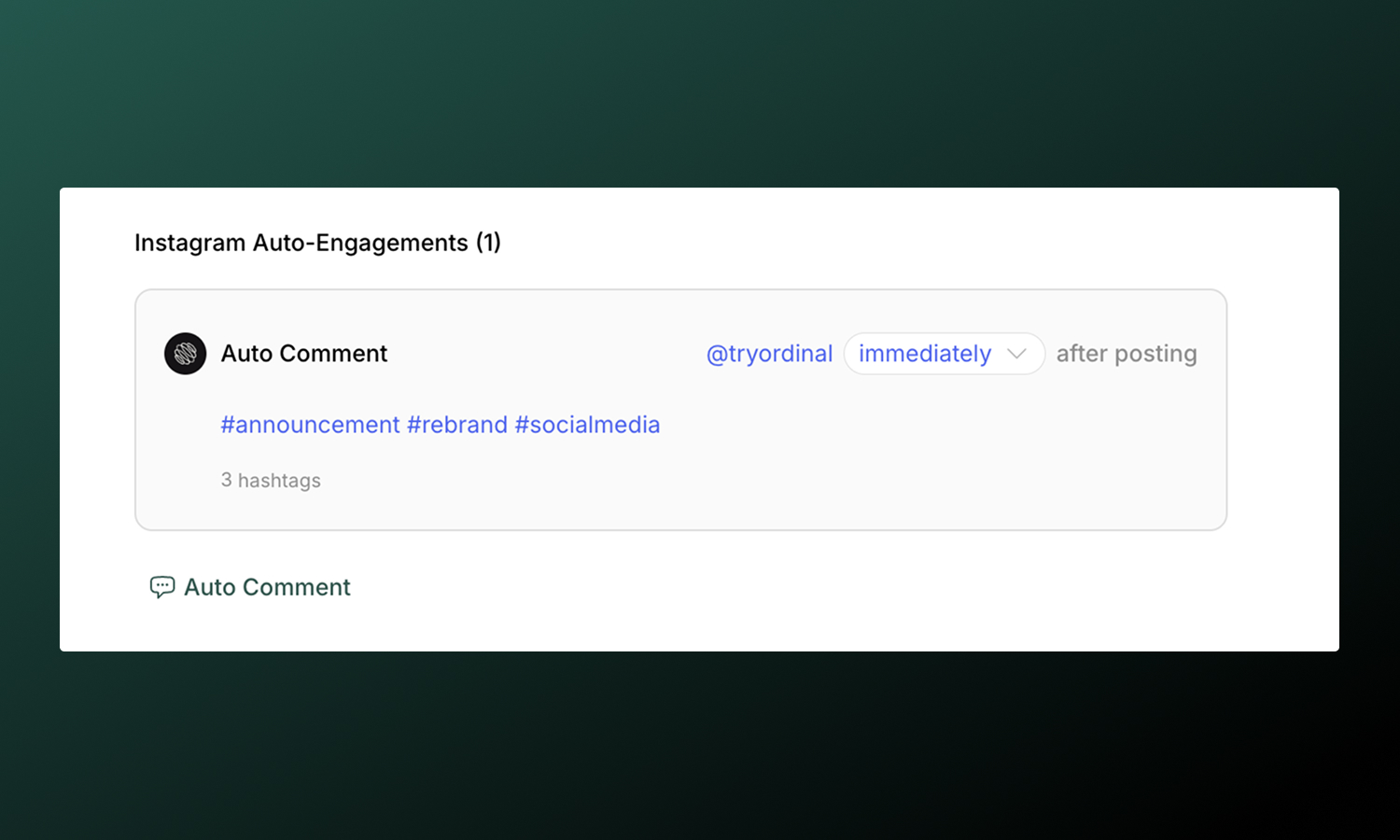
Make it easy to add a **first comment** after your post goes live. This is the only team engagement type available for Instagram due to API limitations. The comment must be posted from the same account that the post is scheduled for.
| Type | What it does |
| --- | --- |
| **First Comment** | Make it easy to add a comment immediately after posting (great for hashtags or CTAs) |
:::tip
Many creators put their hashtags in the first comment to keep captions cleaner. It doesn't affect discoverability.
:::
**[Team Engagements](/posts/team-engagements)**
Full guide to setting up timing, best practices, and troubleshooting.
## Analytics
View post performance in [**Analytics → Instagram**](https://app.tryordinal.com/analytics/instagram). You'll see impressions, engagement breakdown (likes, comments, saves, shares), profile visits, and new followers gained from each post.
Analytics sync automatically each day. You can also manually refresh stats using the **Refresh Stats** button (once per hour) to see the latest performance data.
**[Analytics overview](/analytics/overview)**
Learn more about tracking performance across all your connected profiles.
## Learn more
**[Facebook](/social-profiles/facebook)**
Shares authentication with Instagram.
**[Threads](/social-profiles/threads)**
Also uses Meta authentication.
---
# LinkedIn
Source: https://docs.tryordinal.com/social-profiles/linkedin
LinkedIn is one of the most-used platforms in Ordinal. You can connect personal profiles (your own profile, execs, employees, etc.), or company pages to publish as your organization.

## Overview
With Ordinal, you can connect and schedule to both LinkedIn **Personal Profiles** and **Company Pages**. The connection process for both is the same.
**[Connecting LinkedIn](#connecting-linkedin)**
Connect personal profiles and company pages
**[Drafting a Post](#drafting-a-linkedin-post)**
Formatting, tagging, attachments, and more
**[Team Engagements](#team-engagements)**
Coordinate likes, comments, and reposts from your team
**[Analytics](#analytics)**
Track post performance
## Connecting LinkedIn
There are two types of connections supported for LinkedIn: **scheduling** and **engagement-only**. Scheduling profiles can schedule posts, use team engagements, and view analytics. Engagement-only profiles can only be used for team engagements. You can customize which permissions to grant for your profile (like, comment, and/or reposts)
**For scheduling**: Go to [**Settings → Profiles → Scheduling**](https://app.tryordinal.com/settings/profiles/scheduling/linkedin), click on "Connect LinkedIn", and sign in via LinkedIn.
**For engagement-only**: Go to [**Settings → Profiles → Engagement**](https://app.tryordinal.com/settings/profiles/engagement/linkedin), click on "Connect LinkedIn", and sign in via LinkedIn.
:::tip
If you're a company admin, you'll see your company pages listed after authorization and you can choose which page to connect.
:::
## Drafting a LinkedIn Post
### What you can post
| Feature | Supported | Notes |
| --------------------------------- | --------- | ----------------------------------------------------- |
| Text posts | ✅ | Up to 3,000 characters |
| [Images / GIFs](#images-gifs) | ✅ | Up to 20 images and GIFs per post |
| [Video](#videos) | ✅ | Up to 10 minutes |
| [PDF documents](#pdfs) | ✅ | Creates a swipeable carousel |
| [External links](#links) | ✅ | Ability to customize link preview image and text |
| [Polls](#polls) | ✅ | All poll options supported |
| [Reposts](#reposts) | ✅ | Repost any other LinkedIn post with just the Post URL |
### Drafting & Formatting
The LinkedIn editor supports rich formatting:
- **Bold / Italic**: Highlight the text you want to format and use the toolbar buttons or press `Cmd/Ctrl + B` for bold and `Cmd/Ctrl + I` for italic
- **Hashtags**: Type `#` followed by your tag - they'll automatically link when published
- **Links**: Paste URLs directly into your post (and use a [link shortener](/analytics/shortlinks) for detailed click analytics)
LinkedIn posts can be up to **3,000 characters**. The character counter in the editor updates in real-time as you type.
**[Drafting Posts](/posts/drafting-posts)**
Full guide to formatting, mentions, slash commands, and keyboard shortcuts.
### Post Preview
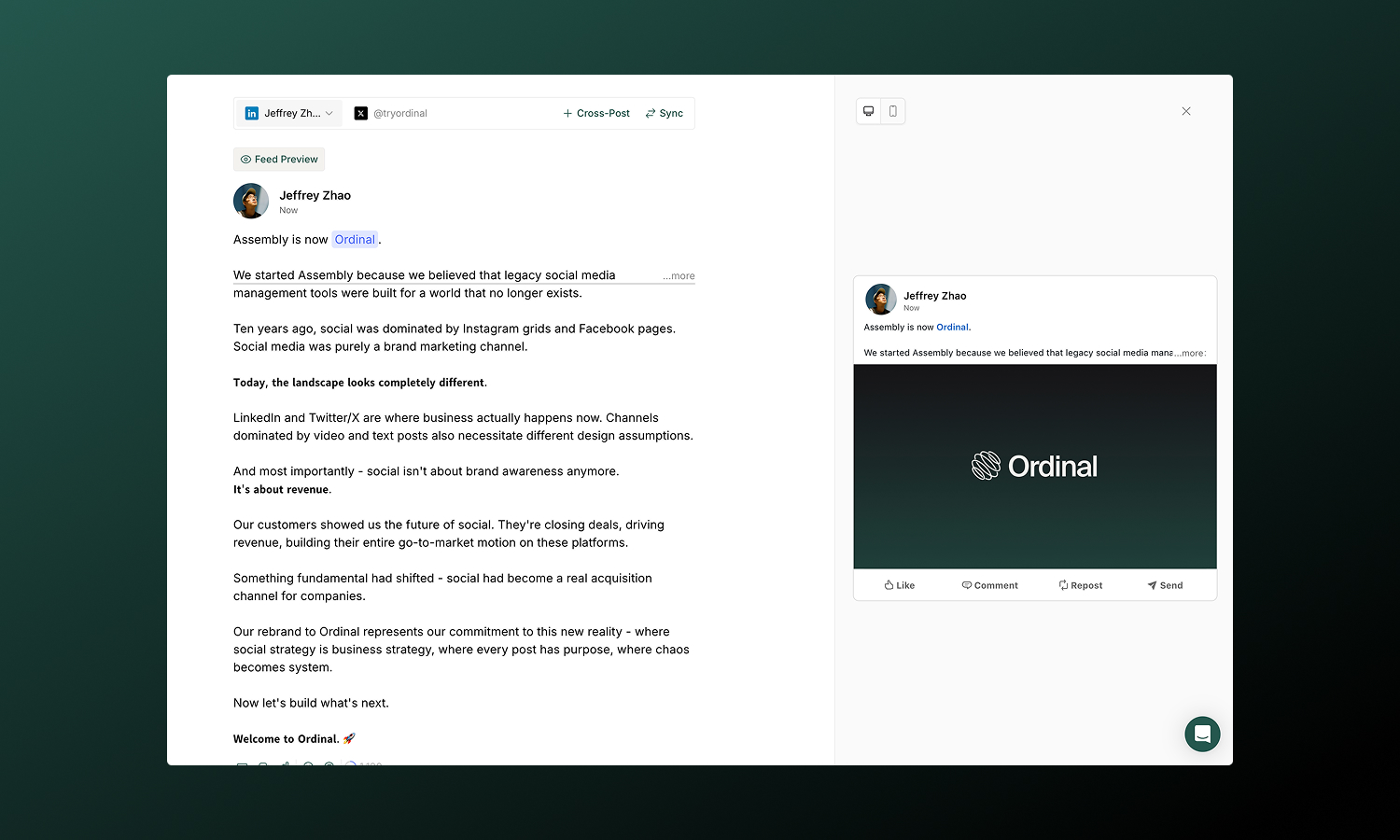
As you draft your post, the editor shows a live preview that matches how your content will appear on LinkedIn - including proper text truncation with "see more" exactly where LinkedIn would cut off.
For a more realistic preview, click the **Feed Preview** button to see your post in a full LinkedIn feed context with:
- Your profile picture and name as they'll appear
- Desktop and mobile view options
- Real-time updates as you continue editing
### Tagging
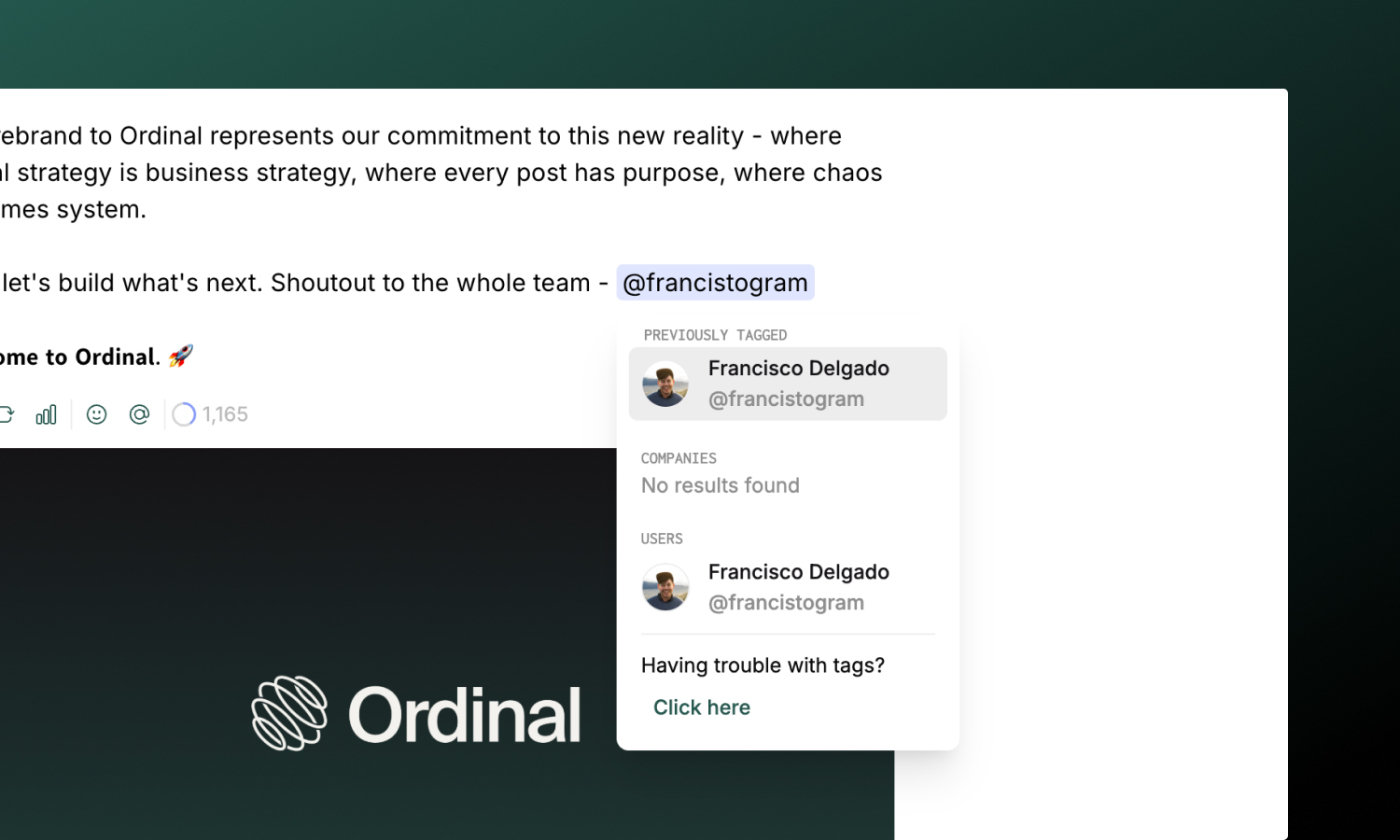
Tag people and companies in your LinkedIn posts to increase engagement and notify them:
1. Type `@` in your post
2. Paste in the LinkedIn username from the URL of the profile you want to tag (e.g. `www.linkedin.com/in/[username]` or `www.linkedin.com/company/[company-name]`)
3. Select from the suggestions dropdown
Ordinal searches LinkedIn by username and displays exact search matches and partial matches to accounts you've tagged before for quick access. For personal accounts, you can choose to display just the first name or the full name in the published post by simply deleting the last name.
:::tip
Mentions become clickable links when published and may notify the tagged account, encouraging them to engage with your post.
:::
### Links
When you add a URL to your post, Ordinal automatically fetches the link preview - showing you the title and thumbnail image before publishing.
**Customizing link previews:**
- Click the preview card to open the **Edit Link Preview** modal
- Change the title text that appears in the preview
- Upload a custom thumbnail image to replace the default
- Delete the preview entirely if you prefer a text-only post
Link previews help your content stand out in the feed and give readers context before they click.
### Post Types
**Images & GIFs**
Upload images to create visual posts or carousels:
| Spec | Limit |
| ---------- | --------------------------------- |
| Formats | JPG, PNG, GIF |
| Size | 5MB per image (GIFs up to 15MB) |
| Max pixels | 36 million per image |
| Per post | Up to 20 images and GIFs combined |
Multiple images automatically create a swipeable carousel. Ordinal compresses oversized images automatically.
**Videos**
Upload video content directly to LinkedIn:
| Spec | Limit |
| -------- | ---------------- |
| Formats | MP4, MOV |
| Size | 200MB max |
| Duration | Up to 10 minutes |
| Per post | 1 video only |
**Cover Photo**: Pick a frame from your video or upload a custom cover photo, and add custom captions (.SRT file) for accessibility. See [Cover photos for videos](/posts/media#cover-photos-for-videos) for details.
**PDFs**
PDF documents create swipeable document carousels - one of LinkedIn's highest-performing content types:
| Spec | Limit |
| -------- | --------------- |
| Size | 100MB max |
| Pages | Up to 300 |
| Per post | 1 document only |
Great for frameworks, guides, tutorials, or repurposing slide decks.
**Document title required**: LinkedIn PDF posts require a document title before scheduling. The title appears in the preview bar above the carousel and is the first thing viewers see. If you try to schedule without one, you'll see "Please set a PDF title before scheduling".
**Polls**
Create polls to boost engagement and gather feedback:
| Setting | Limit |
| -------- | --------------------------------- |
| Question | Up to 140 characters |
| Options | 2–4 choices, 30 characters each |
| Duration | 1 day, 3 days, 1 week, or 2 weeks |
Polls cannot be combined with images, videos, PDFs, or reposts in the same post.
**Reposts**
Reshare any LinkedIn post as a quote repost:
1. Paste a LinkedIn post URL into your post
2. Ordinal detects the link and offers to convert it to a repost
3. Add your own commentary above the original post
Quote reposts let you add context while sharing someone else's content.
**[Media & Assets](/posts/media)**
Full specifications for all platforms including recommended dimensions.
## Team Engagements
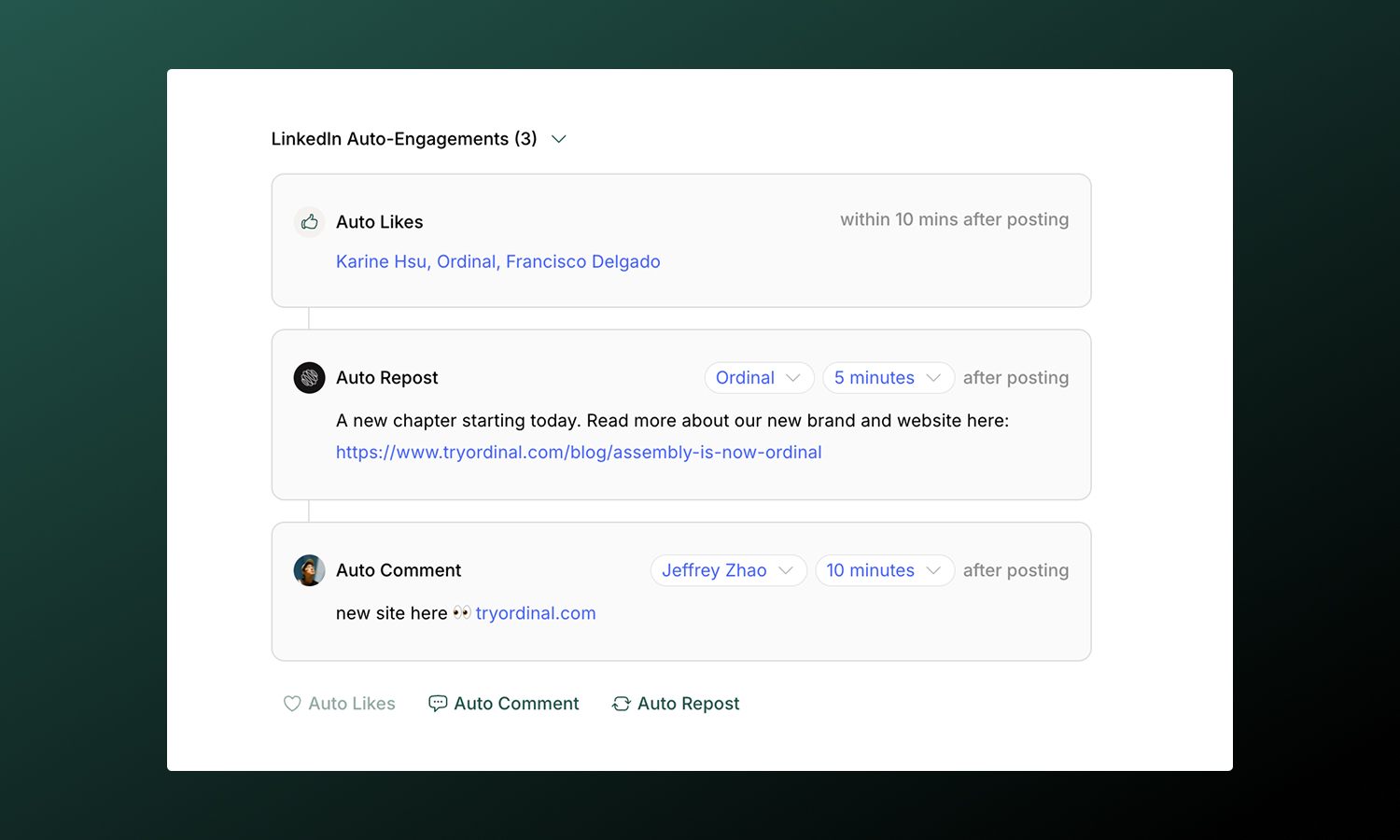
:::note
Team engagements are available for Pro plan workspaces and above. Starter workspaces can only add team engagements from the same account as the post author.
:::
Make it easy for your team to coordinate likes, comments, and reposts from their connected accounts after your post publishes. LinkedIn supports three team engagement types:
| Type | What it does |
| ---------------- | --------------------------------------------------------------------------------------------- |
| **Team Likes** | Make it easy for selected connected profiles to like your post within the first 10 minutes |
| **Team Comment** | Help a team member add a first comment (great for CTAs, additional links, or hashtags) at a chosen time |
| **Team Repost** | Help a team member reshare (repost with thoughts) from another connected LinkedIn account at a chosen time |
Choose a time from **immediately** after posting up to **24 hours** later. Staggering engagements with different delays helps your team coordinate activity.
**[Team Engagements](/posts/team-engagements)**
Full guide to setting up timing, best practices, and troubleshooting.
## Analytics
View post performance in [**Analytics → LinkedIn**](https://app.tryordinal.com/analytics/linkedin). You'll see impressions, engagement breakdown (likes, comments, shares), click-through rate, and follower growth.
Analytics sync automatically each day. You can also manually refresh stats using the **Refresh Stats** button (once per hour) to see the latest performance data.
**[Analytics overview](/analytics/overview)**
Learn more about tracking performance across all your connected profiles.
## Learn more
**[Cross-posting](/posts/cross-posting)**
Publish to multiple platforms at once.
**[Scheduling posts](/posts/scheduling-posts)**
Set the perfect time for your content.
---
# Overview
Source: https://docs.tryordinal.com/social-profiles/overview
Social profiles are the accounts you connect to Ordinal - your LinkedIn, Twitter, Instagram, and other platforms. Once connected, you can schedule posts, track performance, and manage everything from one place.
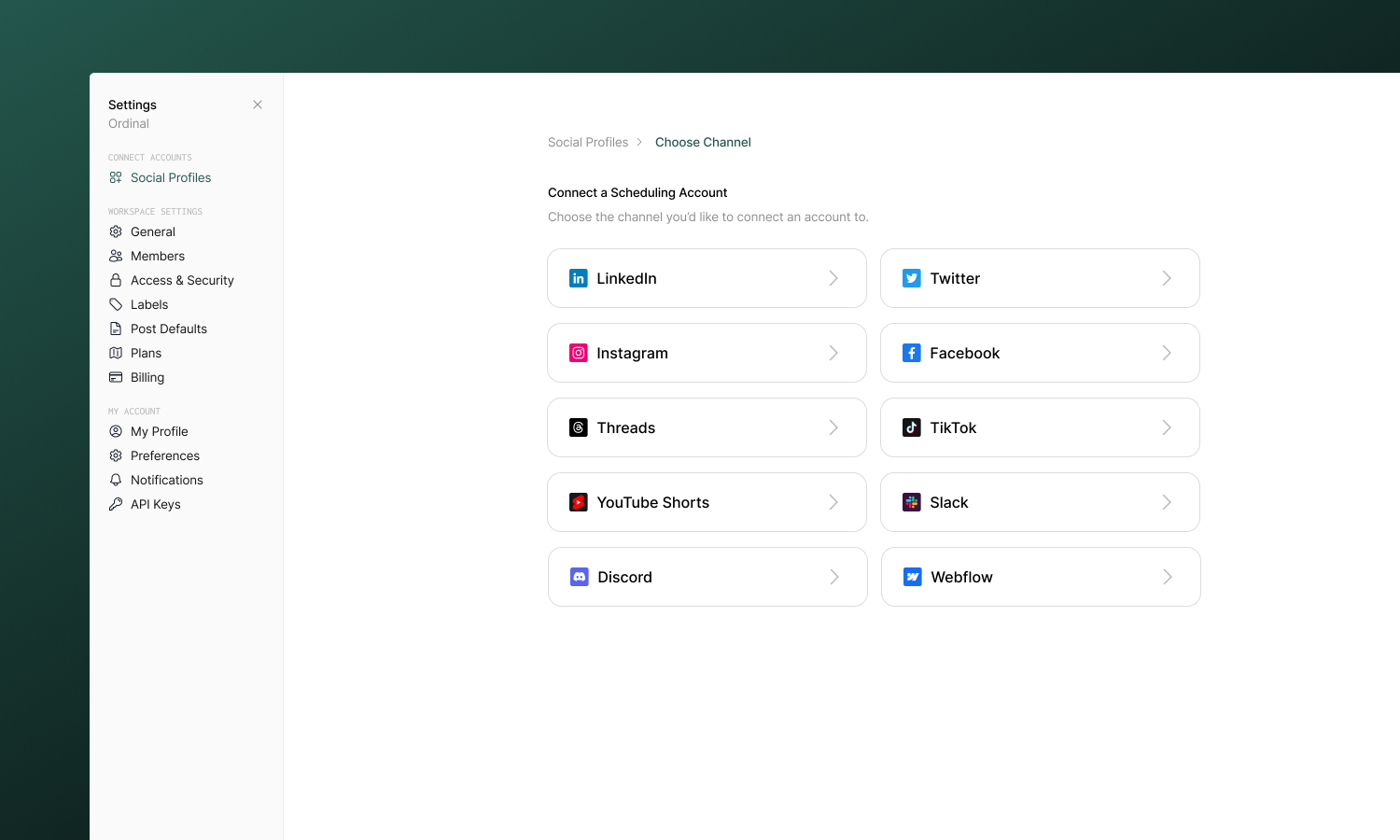
## Overview
You can connect as many accounts as your plan allows, including multiple accounts from the same platform. This is useful for managing different brands, clients, or separating personal and professional presence. Ordinal supports two types of connections:
**Scheduling profiles** let you publish content, use team engagements, and track analytics.
**Engagement-Only profiles** let you use these profiles for team engagements only - likes, comments, and reposts. Available for LinkedIn and Twitter/X.
:::tip
If you're unsure which profiles to connect first, start with the platforms where you post most frequently. You can always add more later.
:::
## Supported platforms
**[LinkedIn](/social-profiles/linkedin)**
Personal profiles and company pages
**[Twitter / X](/social-profiles/twitter)**
Tweets and threads
**[Instagram](/social-profiles/instagram)**
Feed posts, Reels, Stories, Carousels
**[Threads](/social-profiles/threads)**
Thread posts
**[Facebook](/social-profiles/facebook)**
Page posts and Reels
**[TikTok](/social-profiles/tiktok)**
Video content
**[YouTube Shorts](/social-profiles/youtube-shorts)**
Short-form vertical video
**[Webflow](/social-profiles/webflow)**
Blog posts to your CMS
**[Slack](/social-profiles/slack)**
Post to public Slack communities
**[Discord](/social-profiles/discord)**
Schedule community announcements
## Connecting profiles
Connect accounts in [**Settings → Profiles**](https://app.tryordinal.com/settings/profiles). Most platforms use OAuth - you sign in once directly on the platform itself and Ordinal handles authentication from there.
Consider connecting profiles for:
- Platforms where you post regularly
- Accounts you want to cross-post to
- Channels where you want unified analytics
## Platform capabilities
| Platform | Scheduling | [Analytics](/analytics/overview) | [Team Engagements](/posts/team-engagements) |
| -------------- | ---------- | --------- | --------------- |
| LinkedIn | ✅ | ✅ | ✅ |
| Twitter/X | ✅ | ✅ | ✅ |
| Instagram | ✅ | ✅ | Limited |
| Facebook | ✅ | ✅ | Limited |
| Threads | ✅ | - | - |
| TikTok | ✅ | - | - |
| YouTube Shorts | ✅ | - | - |
| Discord | ✅ | - | - |
| Slack | ✅ | - | - |
| Webflow | ✅ | - | - |
## FAQ
**How many profiles can I connect?**
This depends on your plan. Scheduling profiles and engagment-only profiles are also charged at different rates. See [subscription plans](/account/subscription-plans) for details.
**Can I connect personal and business accounts from the same platform?**
Yes. Each account appears as a separate profile. You can connect multiple LinkedIn profiles, multiple Twitter accounts, etc. Note that not all platforms (e.g. Facebook) support posting from personal accounts.
**What happens if I disconnect a profile?**
Scheduled posts to that profile won't publish. The posts remain in Ordinal - you can reconnect and they'll be ready to go.
## Learn more
**[Create your first post](/posts/drafting-posts)**
Learn how to compose and schedule content.
**[Cross-posting](/posts/cross-posting)**
Publish to multiple platforms at once.
---
# Slack
Source: https://docs.tryordinal.com/social-profiles/slack
Slack scheduling keeps your team in the loop without the manual work. Schedule announcements, content alerts, or recurring updates to any channel - written and timed alongside the rest of your content calendar.
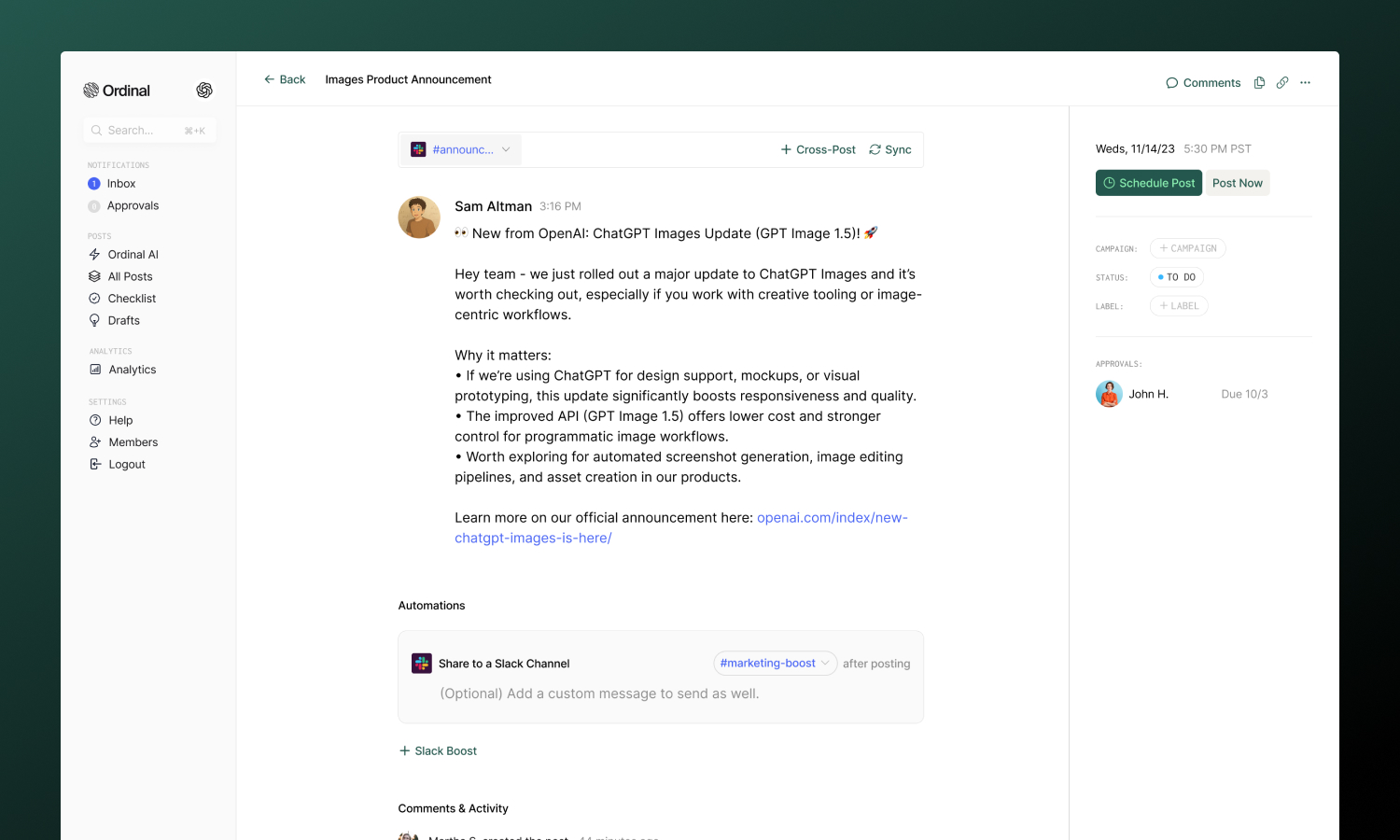
## Overview
This page covers **scheduling messages to Slack channels**. Ordinal also offers Slack notifications and Slack Boost for team amplification - see the callouts below.
**[Connecting Slack](#connecting-slack)**
Connect your workspace and channels
**[Drafting a Message](#drafting-a-slack-message)**
Formatting, mentions, and attachments
**[Attachments](#attachments)**
Images and videos
**[Use Cases](#use-cases)**
When to use Slack scheduling
## Connecting Slack
Go to [**Settings → Profiles → Scheduling → Slack**](https://app.tryordinal.com/settings/profiles/scheduling/slack), click **Connect Slack**, and sign in to your workspace. Choose which channel Ordinal can post to. Each channel appears as a selectable profile when creating posts.
| Requirement | Details |
| ----------- | ---------------------------------- |
| Connection | OAuth via Slack |
| Permissions | Post messages to selected channels |
| Sender | Your Slack profile (not Ordinal) |
:::tip
The Ordinal app must be invited to private channels. Type `/invite @Ordinal` in the channel first.
:::
## Drafting a Slack Message
### What you can post
| Feature | Supported | Notes |
| --------------------------- | --------- | ------------------------------------ |
| Text messages | ✅ | Up to 40,000 characters |
| [Attachments](#attachments) | ✅ | 1 image or video per message |
| Formatted text | ✅ | Bold, italic, code, links, lists |
| [Mentions](#mentions) | ✅ | @here, @channel, users, and channels |
| Link previews | ✅ | Slack unfurls links automatically |
### Formatting
The editor supports Slack's markdown-style formatting:
- **Bold**: Use the toolbar or `Cmd/Ctrl + B`
- **Italic**: Use the toolbar or `Cmd/Ctrl + I`
- **Code**: Inline code formatting
- **Links**: Paste URLs or use the link button
- **Lists**: Bullet and numbered lists
- **Emoji**: Type `:emoji_name:` or use the emoji picker
Formatting converts to Slack's native syntax when published, so your messages look native in the channel.
### Mentions
Tag users, channels, and broadcast to everyone:
| Mention | What it does |
| --------------- | -------------------------------------- |
| `@here` | Notifies active members in the channel |
| `@channel` | Notifies all members in the channel |
| `@everyone` | Notifies everyone in the workspace |
| `<@USER_ID>` | Mentions a specific user |
| `<#CHANNEL_ID>` | Links to another channel |
:::note
User and channel mentions require Slack IDs (not display names). You can find these in Slack by right-clicking a user or channel and copying the link.
:::
**[Drafting Posts](/posts/drafting-posts)**
Full guide to formatting, slash commands, and keyboard shortcuts.
## Attachments
You can attach **one image or video** per Slack message.
| Spec | Limit |
| -------------- | ----------------------- |
| Files per post | 1 |
| Formats | JPG, PNG, GIF, MP4, MOV |
Drag and drop files into the editor, paste from clipboard, or use the attachment button. If you need to share multiple files, consider posting them separately or linking to a shared folder.
## FAQ
**Can't connect**
You may need workspace admin permission to add apps. Check with your Slack admin.
**Messages not posting**
Verify the channel still exists and Ordinal hasn't been removed from your workspace.
## Use Cases
- **Scheduled announcements**: Company or community updates, policy changes, etc.
- **Recurring messages**: Weekly reminders, monthly reports, etc.
## Other Slack Features
Ordinal offers additional Slack integrations beyond scheduling:
**[Notifications](/collaboration/notifications)**
Get Slack alerts when posts publish, fail, or need approval.
**[Slack Boost](/posts/slack-boost)**
Automatically share published social posts with your team for engagement.
## Learn More
**[Discord](/social-profiles/discord)**
Similar use case with webhook-based connection.
**[Scheduling posts](/posts/scheduling-posts)**
Set the perfect time for your content.
---
# Threads
Source: https://docs.tryordinal.com/social-profiles/threads
Threads is where text-first conversations happen. If you're already on Instagram, you likely have a Threads account - and in Ordinal, you can schedule text posts, image carousels, videos, and multi-part threads to keep the conversation going.
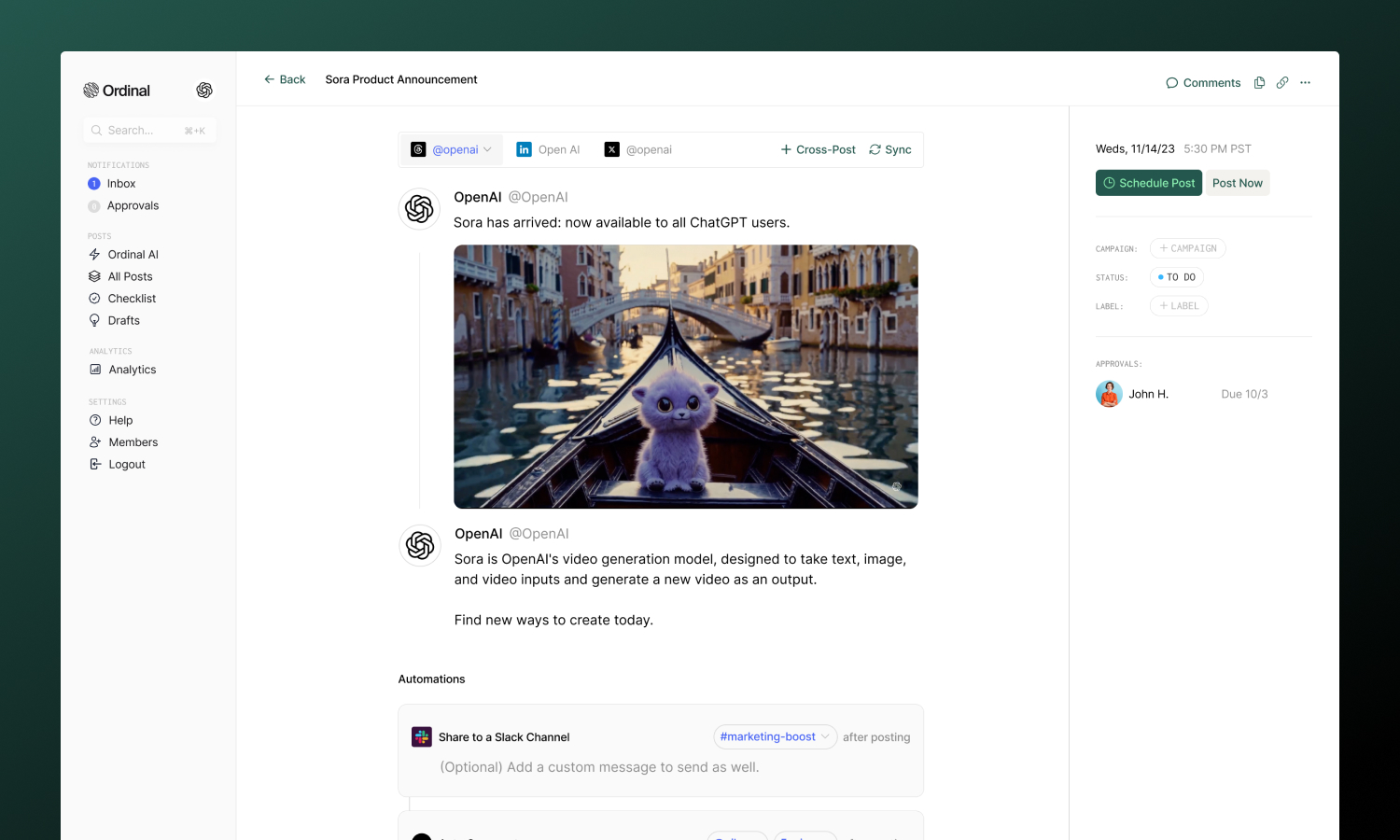
## Overview
Threads connects through Instagram and requires a **Business or Creator account** (not personal). Your Threads profile must also be public - private profiles can't connect via the API.
**[Connecting Threads](#connecting-threads)**
Connect via your Instagram account
**[Drafting a Post](#drafting-a-threads-post)**
Formatting, mentions, and media
**[Multi-part Threads](#multi-part-threads)**
Longer stories across connected posts
**[Analytics](#analytics)**
Track reach, engagement, and growth
## Connecting Threads
Go to [**Settings → Profiles → Scheduling**](https://app.tryordinal.com/settings/profiles/scheduling/threads), click **Connect Threads**, and follow the Threads authentication flow. You'll sign in with your Instagram credentials.
| Requirement | Details |
| ------------------ | --------------------------------------- |
| Account type | Instagram Business or Creator |
| Profile visibility | Public (private profiles can't connect) |
| Authentication | Via Threads |
## Drafting a Threads Post
### What you can post
| Feature | Supported | Notes |
| ----------------------------------------- | --------- | --------------------------- |
| Text posts | ✅ | Up to 500 characters |
| [Images](#images) | ✅ | Up to 20 per carousel |
| [Videos](#videos) | ✅ | Up to 5 minutes |
| [Multi-part threads](#multi-part-threads) | ✅ | Each segment gets own media |
| Polls | ❌ | Not currently supported |
### Drafting & Formatting
The Threads editor supports rich formatting through Unicode characters, which render as **bold** and _italic_ on Threads:
- **Bold / Italic**: Use the toolbar buttons or press `Cmd/Ctrl + B` for bold and `Cmd/Ctrl + I` for italic
- **Hashtags**: Type `#` followed by your tag - they'll automatically link to Threads search
- **Mentions**: Type `@` followed by a username - they'll link to that profile on Threads
- **Links**: Paste URLs directly into your post (they count toward the 500 character limit)
Each post or thread segment is limited to **500 characters**. The character counter updates in real-time as you type.
**[Drafting Posts](/posts/drafting-posts)**
Full guide to formatting, mentions, slash commands, and keyboard shortcuts.
### Post Preview
As you draft, the editor shows a live preview that matches how your content will appear on Threads - including your profile picture and username.
### Link Previews
When you add a URL to a text-only post (no images or videos), Ordinal displays a link preview card showing the destination's title and thumbnail. Link previews only appear when your post has no media attached - adding images or videos takes priority.
## Post Types
**Images**
Upload images to create visual posts or carousels:
| Spec | Limit |
| ------------ | ----------------------------------- |
| Formats | JPG, PNG |
| Size | 8MB per image |
| Aspect ratio | Max 10:1 (images too wide rejected) |
| Per post | Up to 20 images |
Multiple images automatically create a swipeable carousel. Ordinal compresses oversized images automatically.
**Videos**
Upload video content directly to Threads:
| Spec | Limit |
| ------------ | --------------- |
| Formats | MP4, MOV |
| Duration | Up to 5 minutes |
| Aspect ratio | 0.01:1 to 10:1 |
Vertical video (9:16) is recommended for best display on mobile. Ordinal automatically compresses videos over 125MB or wider than 1920px.
## Multi-part Threads
Multi-part threads let you tell longer stories across multiple connected posts. Each segment can have its own text and media.
**Creating a multi-part thread:**
1. Write your first post
2. Click **Add Thread** to add the next segment
3. Each segment gets its own 500-character limit and media
4. Continue adding as many segments as needed
5. All segments publish together in sequence
### Reordering Segments
Use the **up/down arrow buttons** next to each segment to rearrange the order. Changes save automatically.
:::tip
The first segment is what people see in their feed - make it compelling to encourage them to read on.
:::
## Analytics
Analytics are not currently available for Threads, but are coming soon. Send us an email at [support@tryordinal.com](mailto:support@tryordinal.com) if you're interested in early access.
**[Analytics overview](/analytics/overview)**
Learn more about tracking performance across all your connected profiles.
## Learn more
**[Instagram](/social-profiles/instagram)**
A natural cross-posting option.
**[Twitter / X](/social-profiles/twitter)**
Great cross-posting partner.
---
# TikTok
Source: https://docs.tryordinal.com/social-profiles/tiktok
TikTok offers some of the best organic reach of any platform - if you have the content to match. In Ordinal, you can schedule videos or photo carousels with captions and hashtags, configure privacy and interaction settings, and publish directly to your account.
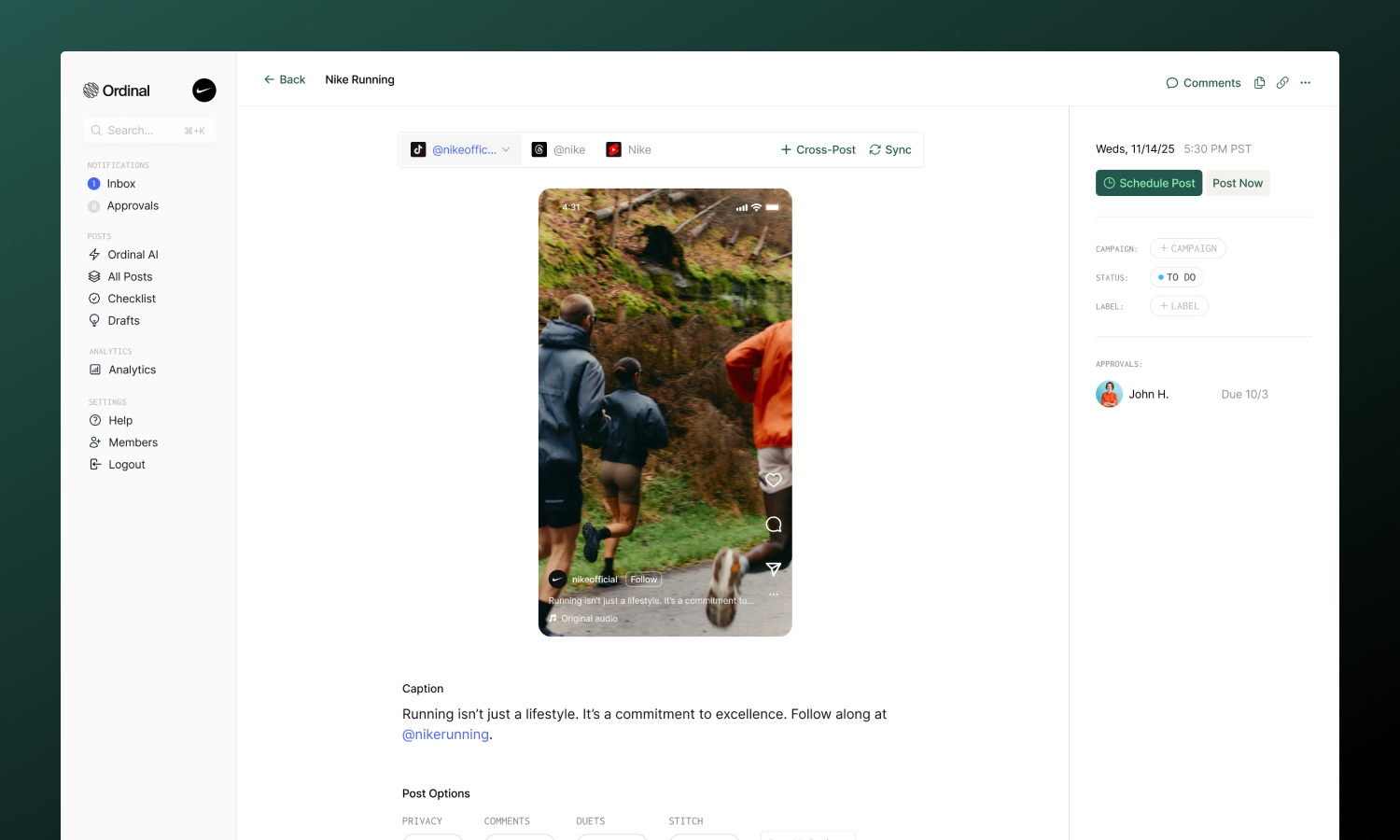
## Overview
**[Connecting TikTok](#connecting-tiktok)**
Connect your Business or Creator account
**[Drafting a Post](#drafting-a-tiktok-post)**
Captions, hashtags, and mentions
**[Post Settings](#post-settings)**
Privacy, comments, duets, and more
**[Analytics](#analytics)**
Track video performance
## Connecting TikTok
Go to [**Settings → Profiles → Scheduling → TikTok**](https://app.tryordinal.com/settings/profiles/scheduling/tiktok), click "Connect TikTok", and sign in. Authorize Ordinal and your account will appear in your connected profiles.
## Drafting a TikTok Post
### What you can post
| Content | Supported | Notes |
| ---------------------------------------- | --------- | ---------------------------------- |
| [Videos](#video-requirements) | ✅ | Single video per post |
| [Photo carousels](#photo-requirements) | ✅ | 1–35 images per post |
| Trending sounds | ❌ | API limitation |
| Filters/effects | ❌ | API limitation |
| Duets/Stitches | Video only | Not available on photo posts |
| Text overlays | ❌ | API limitation |
Use the **Video / Photo** toggle at the top of the editor to switch between content types. Switching clears the current attachments, so pick the type that matches your media before uploading.
### Caption & Formatting
Write captions to accompany your video:
- **Bold / Italic**: Use the toolbar buttons for Unicode formatting
- **Hashtags**: Type `#` followed by your tag - they'll link to TikTok's tag page when published
- **@Mentions**: Type `@` followed by a username to tag other creators
Captions can be up to **2,200 characters**.
:::tip
Mix trending hashtags with niche-specific ones. 3–5 per post is a good balance for discoverability without looking spammy.
:::
### Post Preview
As you draft your post, the editor shows a live preview that matches how your content will appear in the TikTok feed - complete with your profile picture, username, and caption overlay. Photo posts show a carousel preview you can swipe through to check image order before publishing.
### Cover frame
Video posts let you choose which frame TikTok uses as the cover thumbnail. Open the **Cover Frame** option on a TikTok video post to scrub through the video and pick a moment - the selected frame is then used in the in-app preview and sent to TikTok at publish time.
If you don't pick a frame, TikTok defaults to the first frame of the video. When you duplicate a post or cross-post from Instagram, Facebook, or LinkedIn, the selected cover frame is carried over to TikTok automatically when possible.
### Video Requirements
For video posts, here are the specs:
| Spec | Limit |
| ------------ | ---------------------------------- |
| Formats | MP4, MOV |
| Resolution | 360px to 4096px (width and height) |
| Aspect ratio | 9:16 (vertical) recommended |
| Duration | 3 seconds to 10 minutes |
| File size | 350mb maximum |
Vertical video (9:16) performs best and fills the entire screen. Horizontal or square videos work but won't have the same impact. Files over 125MB are automatically compressed before upload.
### Photo Requirements
Photo posts publish as a swipeable carousel. You can upload up to 35 images, and Ordinal automatically resizes anything wider than 1080px to keep uploads fast.
| Spec | Limit |
| ----------- | -------------------- |
| Formats | JPG, JPEG, PNG, WEBP |
| Images | 1 to 35 per post |
| Max width | 1080px (auto-resized) |
| File size | 10mb per image |
After uploading, drag images to reorder them - the first image is used as the cover. You cannot mix images and videos in the same post.
#### Title and description
Photo posts use a **title** and **description** instead of a single caption:
- **Title**: Up to 90 characters. Shown above the carousel.
- **Description**: Up to 4,000 characters. Supports hashtags and `@mentions` just like video captions.
## Post Settings
Configure how viewers can interact with your post. You'll find these options below the editor:
- **Privacy**: Choose who can see your post - Public, Followers, Friends, or just yourself
- **Comments**: Enable or disable comments
- **Cover Frame** (video only): Pick the video frame TikTok uses as the cover thumbnail. See [Cover frame](#cover-frame).
- **Duets** (video only): Allow others to create Duets with your video
- **Stitch** (video only): Allow others to Stitch your video into their content
- **Auto-add music** (photo only): Let TikTok automatically add a soundtrack to your photo carousel
- **Sponsored**: Mark the post as promotional content
- **Paid Partnership**: Disclose paid brand partnerships (only appears if Sponsored is enabled)
:::tip
Enabling Duets and Stitches on video posts can increase your reach - other creators using your content exposes you to their audience.
:::
## Analytics
Analytics are not currently available for TikTok, but are coming soon. Send us an email at [support@tryordinal.com](mailto:support@tryordinal.com) if you're interested in early access.
**[Analytics overview](/analytics/overview)**
Learn more about tracking performance across all your connected profiles.
## Learn more
**[YouTube Shorts](/social-profiles/youtube-shorts)**
Similar short-form vertical format.
**[Scheduling posts](/posts/scheduling-posts)**
Set the perfect time for your content.
---
# Twitter / X
Source: https://docs.tryordinal.com/social-profiles/twitter
Twitter is one of the fastest platforms for real-time engagement. In Ordinal, you can schedule individual tweets, build multi-tweet threads, and coordinate team engagements - all timed to publish when your audience is most active.
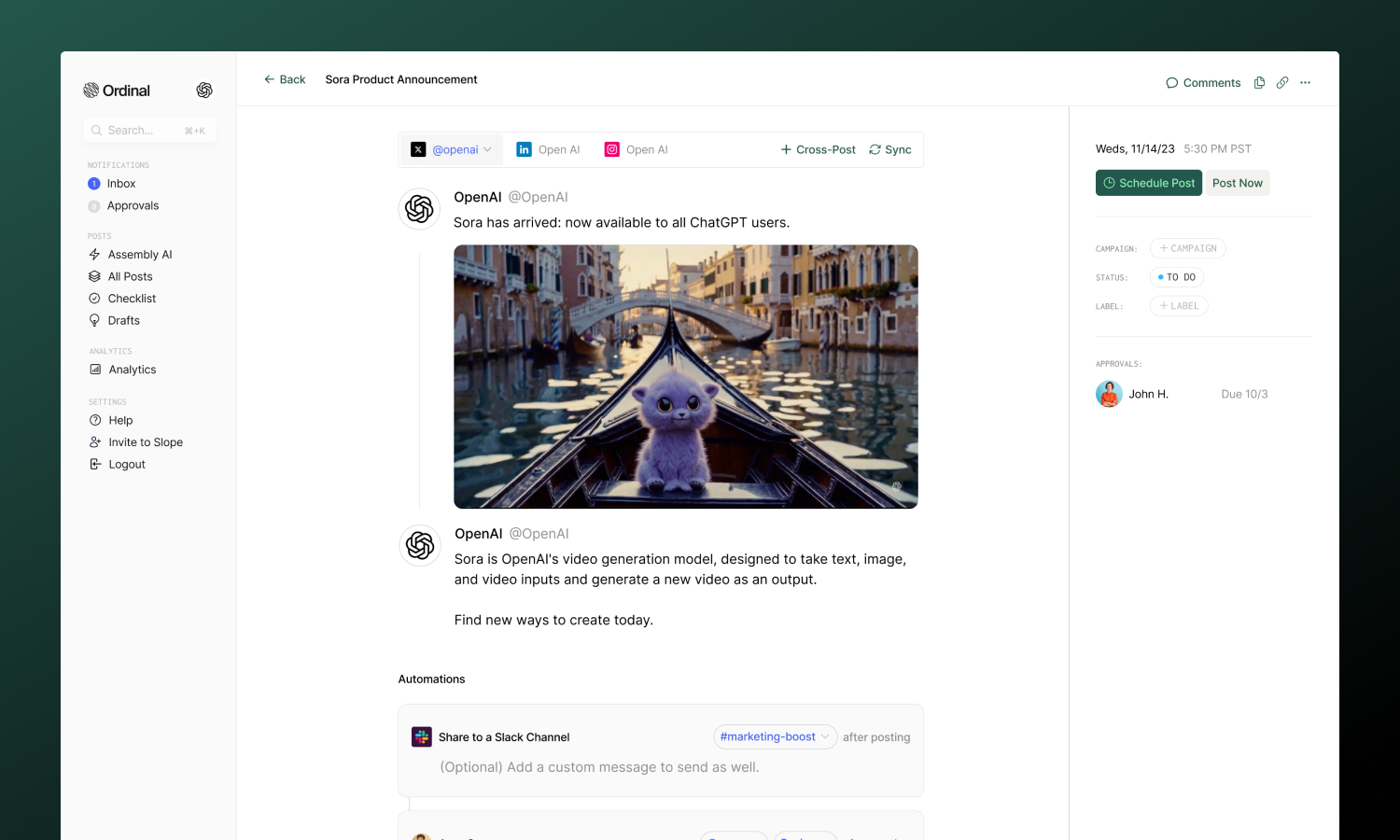
## Overview
With Ordinal, you can connect Twitter accounts for both **scheduling** and **engagement**. Most users connect both to get the full experience.
**[Connecting Twitter](#connecting-twitter)**
Connect for scheduling or engagement
**[Drafting a Tweet](#drafting-a-tweet)**
Formatting, mentions, media, and threads
**[Team Engagements](#team-engagements)**
Coordinate likes, retweets, and replies from your team
**[Analytics](#analytics)**
Track tweet performance
## Connecting Twitter
There are two types of connections supported for Twitter: **scheduling** and **engagement-only**. Scheduling profiles can post tweets, threads, and use team engagements. Engagement-only profiles are used purely for team engagements (liking, retweeting, replying to posts).
**For scheduling**: Go to [**Settings → Profiles → Scheduling**](https://app.tryordinal.com/settings/profiles/scheduling/x), select "Connect X", and follow the instructions to sign in via X.
**For engagement-only**: Go to [**Settings → Profiles → Engagement**](https://app.tryordinal.com/settings/profiles/engagement/x), select "Connect X", and follow the instructions to sign in via X.
## Drafting a Tweet
### What you can post
| Feature | Supported | Notes |
| ------------------------------------- | --------- | ------------------------------------------- |
| Text tweets | ✅ | 280 characters |
| [Long-form tweets](#long-form-tweets) | ✅ | Up to 4,000 characters (Premium) |
| [Images](#images) | ✅ | Up to 4 per tweet |
| [GIFs](#gifs) | ✅ | Up to 1280px x 1280px |
| [Videos](#videos) | ✅ | Up to 2:20 (10 min for verified) |
| [Threads](#tweet-threads) | ✅ | Multi-tweet sequences with individual media |
| Polls | ❌ | Not currently supported |
### Drafting & Formatting
The Twitter editor supports Unicode formatting for **bold** and _italic_ text:
- **Bold / Italic**: Use the toolbar buttons or press `Cmd/Ctrl + B` for bold and `Cmd/Ctrl + I` for italic
- **Hashtags**: Type `#` followed by your tag - it'll automatically link when published
- **Mentions**: Type `@` followed by a username to mention someone
- **Links**: Paste URLs directly into your tweet (and use a [link shortener](/analytics/shortlinks) for detailed click analytics)
**[Drafting Posts](/posts/drafting-posts)**
Full guide to formatting, mentions, slash commands, and keyboard shortcuts.
### Long-form Tweets
Twitter Premium subscribers can post tweets up to **4,000 characters** - far beyond the standard 280 limit. Ordinal automatically detects your account type and adjusts the character counter accordingly.
:::tip
If your profile is verified you'll see a blue checkmark badge in the editor. If you're not seeing it and you should send us a support message and we'll get it updated.
:::
Long-form tweets display with a "**Show more**" link in the feed. Note that Twitter does not show link preview images on long-form tweets.
### Post Preview

As you draft your tweet, the editor shows a live preview that matches how your content will appear on Twitter - including proper text truncation with "See more" for longer posts.
For a more realistic preview, click the **Feed Preview** button to see your tweet in a full Twitter feed context with desktop and mobile previews.
### Photo Options
**Alt text**: Add descriptions to your images for accessibility. Click the image options menu and enter alt text (up to 1,000 characters) that describes the visual content for screen readers.
**Photo tagging**: Tag users in your images to notify them and increase visibility:
1. Add images to your tweet
2. Click the **Tag Users** button (user icon)
3. Enter Twitter handles (without the @)
4. Add up to 10 users per tweet
:::note
Photo tagging only works for public accounts. If a tagged user has disabled photo-tagging, the tweet will post without their tag.
:::
### Media Options
You can upload up to 4 attachments per tweet.
**Images**
Multiple images display in a grid layout. Add alt text for accessibility via the image options.
| Spec | Limit |
| --------- | -------------- |
| Formats | JPG, PNG, WEBP |
| Size | 5MB per image |
**Videos**
Attach video content to any Tweet(s).
| Spec | Limit |
| -------- | ----------------------------------- |
| Formats | MP4, MOV |
| Size | 350mb |
| Minimum Duration | 0.5 seconds |
| Maximum Duration | 2:20 (standard) / 10 min (verified) |
| Ratio | Between 1:3 and 3:1 |
| Frame rate | Up to 60 fps |
You don't need to re-encode videos that exceed these specs. Ordinal automatically converts HEVC videos to H.264 and reduces videos above 60 fps to 60 fps before publishing to Twitter.
**GIFs**
Add animated GIFs to your tweets:
| Spec | Limit |
| --------- | -------- |
| Format | GIF |
| Size | 15MB max |
**[Media & Assets](/posts/media)**
Full specifications for all platforms including recommended dimensions.
## Tweet Threads
Threads are Twitter's way of telling longer stories across multiple connected tweets. Each tweet in a thread can have its own media.
### **Creating a thread:**
1. Write your first tweet
2. Click **Add Tweet** to add the next tweet
3. Continue adding tweets to your thread
4. Preview the entire thread before scheduling
5. All tweets publish in sequence automatically
### Splitting Tweets
You can quickly split a tweet into two using your keyboard:
- Press`Enter`**3 times** at the end of a tweet to add a new empty tweet after it
- Press `Enter`**5 times** in the middle of text to split a single tweet into two tweets at that point - content after the split moves to a new tweet
This makes it easy to break up long drafts into thread-sized chunks without copy-pasting.
### Reordering Tweets
Rearrange tweets in your thread using the arrow buttons:
- Click the **up arrow** to move a tweet earlier in the thread
- Click the **down arrow** to move a tweet later in the thread
The thread position updates instantly, and you can preview the final order before scheduling.
### If a thread fails to publish
If publishing stops partway through a thread, Ordinal deletes the tweets from that thread it already posted, so a half-finished thread isn't left on your profile. The post is marked **Errored** and you get the usual error notification. Fix the issue, then publish the thread again. See [Handling errored posts](/posts/statuses#handling-errored-posts) for common causes.
## Team Engagements
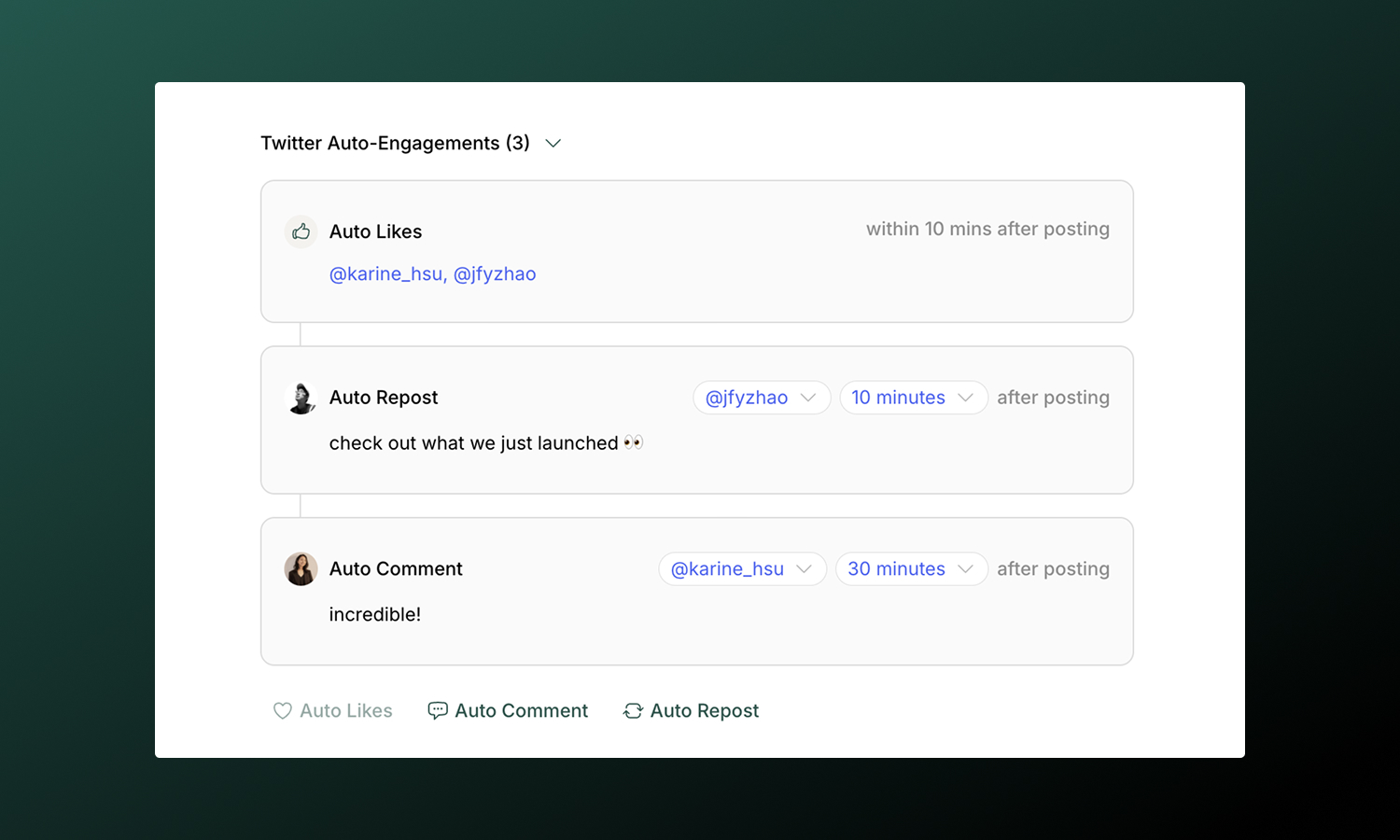
:::note
Team engagements are available for **Pro** plan workspaces and above. Starter workspaces can only add team engagements from the same account as the tweet author.
:::
Make it easy for your team to coordinate likes, replies, and retweets from their connected accounts after your tweet publishes. Twitter supports these team engagement types:
| Type | What it does |
| ---------------- | ---------------------------------------------------------------------------- |
| **Team Likes** | Make it easy for selected connected profiles to like your tweet |
| **Team Repost** | Help a team member retweet from a connected Twitter account |
| **Team Comment** | Help a team member add a first reply (great for additional context, links, or a call-to-action) |
Choose a time from **immediately** after posting up to **24 hours** later. Staggering engagements across different delays helps your team coordinate activity.
**[Team Engagements](/posts/team-engagements)**
Full guide to setting up timing, best practices, and troubleshooting.
## Analytics
View tweet performance in [**Analytics → X**](https://app.tryordinal.com/analytics/x). You'll see impressions, engagement breakdown (likes, retweets, replies, quote tweets), click-through rate, and follower growth.
Analytics sync automatically each day. You can also manually refresh stats using the **Refresh Stats** button (once per hour) to see the latest performance data.
**[Analytics overview](/analytics/overview)**
Learn more about tracking performance across all your connected profiles.
## Learn more
**[Cross-posting](/posts/cross-posting)**
Publish to multiple platforms at once.
**[Scheduling posts](/posts/scheduling-posts)**
Set the perfect time for your content.
---
# Webflow
Source: https://docs.tryordinal.com/social-profiles/webflow
Webflow integration brings your blog into Ordinal and allows you to schedule updates directly to any Webflow CMS collection. Write content in the same place you manage social, schedule posts alongside your other channels, and coordinate blog launches with social promotion - all without logging into Webflow separately.
## Overview
This integration works with **Webflow CMS collections** - typically your blog or resources section. Unlike social channels, Webflow posts are full articles with rich formatting, custom CMS fields, and unique URLs.
**[Connecting Webflow](#connecting-webflow)**
Link your site and CMS collection
**[Writing Content](#writing-content)**
Rich text editor and blog formatting
**[CMS Fields](#cms-fields)**
Custom fields, slugs, and images
**[Previewing](#previewing-your-post)**
Preview on live site or in Designer
| Requirement | Details |
| ----------------- | ------------------------------------------------- |
| Webflow plan | CMS access required (not available on free plans) |
| Permissions | Editor or higher on the site |
| What it publishes | CMS collection items (blog posts, articles) |
:::note
This integration doesn't modify static pages, site design, or ecommerce products - only CMS collection items.
:::
## Connecting Webflow
Go to [**Settings → Profiles → Scheduling → Webflow**](https://app.tryordinal.com/settings/profiles/scheduling/webflow), click **Connect Webflow CMS**, and sign in with your Webflow account. You'll then:
1. Choose the **site** you want to publish to
2. Select the **CMS collection** (usually "Blog Posts" or similar)
3. Map the **title** and **body** fields to your collection's corresponding fields
4. Set the **base URL** where your blog posts appear (e.g., `https://yoursite.com/blog`)
## Writing Content
The Webflow editor in Ordinal is a full rich text editor - more like a document than a social post. You'll find two tabs:
### Blog Copy
This is where you write your article. The editor supports:
- **Headings**: H1 through H6 for document structure
- **Text formatting**: Bold, italic, underline, and code
- **Lists**: Bullet points and numbered lists
- **Block quotes**: For callouts and citations
- **Links**: Inline hyperlinks with full URL support
- **Images**: Drag and drop or paste images directly into your content
- **Code blocks**: For technical content
Type `/` to open the slash command menu for quick formatting options. Blog content can be up to **40,000 characters** - plenty for long-form articles.
**[Drafting Posts](/posts/drafting-posts)**
Full guide to formatting, slash commands, and keyboard shortcuts.
### How it publishes
Ordinal converts your content to HTML that Webflow understands. The result looks native to your Webflow site's design.
## CMS Fields
Switch to the **CMS Fields** tab to populate your collection's custom fields. Ordinal automatically detects your Webflow collection schema and displays inputs for each field.
### Supported field types
| Field Type | How it works in Ordinal |
| ----------------- | ----------------------------------------------- |
| Plain Text | Single or multi-line text input |
| Rich Text | Markdown editor that converts to HTML |
| Image | Upload a single image |
| Multi-Image | Upload up to 25 images (great for galleries) |
| File | Upload any file type |
| Link / Video Link | URL input with validation |
| Number | Numeric input with min/max/precision validation |
| Option | Dropdown selector from your Webflow options |
| Reference | Select from related collection items |
| Multi-Reference | Select multiple related items |
| Switch | True/false toggle |
| Color | Hex color picker |
| Date/Time | Date picker with optional time |
| Email | Email input with validation |
| Phone | Phone number input |
### Slug field
The slug determines your post's URL (e.g., `/blog/your-post-slug`). Ordinal auto-generates slugs from your title, but you can customize them. Click **Sync with Blog Title** to regenerate from the current title.
:::warning
Each slug must be unique within your collection. Duplicate slugs cause publish failures.
:::
### Refreshing fields
If you update your Webflow collection schema (adding new fields, changing requirements), click the refresh link in the CMS Fields tab to pull the latest structure. This ensures Ordinal stays in sync with your Webflow setup.
:::tip
If you're not seeing the fields you expect, you may need to refresh the fields by clicking the refresh link in the CMS Fields tab.
This happens automatically when you create a new post to ensure you're always using the latest fields.
:::
>
## Previewing Your Post
Before publishing, you can preview exactly how your post will appear on your site. Click **Preview on Webflow** and choose a preview mode:
| Mode | What happens |
| ------------- | ------------------------------------------------------------------------ |
| **Live Site** | Temporarily publishes to your live site for 3 minutes, then auto-deletes |
| **Designer** | Creates a draft in Webflow's Designer for 3 minutes, then auto-deletes |
Use **Live Site** preview to see the final result with your site's styling. It will be live for everyone to see though so be careful with what you preview.
Use **Designer** preview if you want to view the content in Webflow's Designer without it being live for the public.
:::note
Preview posts are automatically removed after 3 minutes. You can also manually unpublish early by clicking **Unpublish Preview**.
:::
## Publishing
When you schedule a Webflow post, it'll be published at the scheduled time and will appear on your site at the URL specified through the `slug` field.
## FAQ
**Site not appearing**
Your Webflow site needs CMS access. Free sites without CMS aren't connectable.
**Collection not syncing**
Verify your collection has the required fields and that API access is enabled in Webflow site settings.
**Field mapping errors**
Ensure field types match - text to text, rich text to rich text. Mismatched types can cause silent failures.
**Publishing failed**
Check that required Webflow fields are populated, the slug is unique, and you haven't hit CMS item limits.
**Slug already exists**
Each post needs a unique slug. If you're republishing or have a naming conflict, change the slug in the CMS Fields tab.
## Learn More
**[Cross-posting](/posts/cross-posting)**
Publish to multiple platforms at once.
**[Approvals](/collaboration/approvals)**
Set up review workflows for blog content.
---
# YouTube Shorts
Source: https://docs.tryordinal.com/social-profiles/youtube-shorts
YouTube Shorts tap into YouTube's massive audience with quick, vertical videos. In Ordinal, you can schedule Shorts with titles, descriptions, categories, and visibility settings - getting your content in front of billions of users.
:::warning
Ordinal only supports YouTube Shorts. Standard long-form YouTube videos (horizontal videos or videos over 3 minutes) are not currently supported.
:::
## Overview
YouTube classifies a video as a **Short** when it's vertical (9:16 aspect ratio) and under 3 minutes. Videos that don't meet these criteria are considered standard long-form videos and won't work in Ordinal.
Your channel must be **verified** (phone verification) with no active strikes. If you manage multiple channels, you can connect each as a separate profile.
**[Connecting YouTube](#connecting-youtube)**
Connect your YouTube channel
**[Drafting a Short](#drafting-a-youtube-short)**
Title, description, and video
**[Video Settings](#video-settings)**
Visibility, category, and more
**[Analytics](#analytics)**
Track video performance
## Connecting YouTube
Go to [**Settings → Profiles → Scheduling**](https://app.tryordinal.com/settings/profiles/scheduling/youtube), select YouTube, and sign in with Google. Choose your channel and authorize Ordinal.
| Requirement | Details |
| --- | --- |
| Account type | YouTube channel with Google account |
| Channel status | Verified (phone verification) |
| Standing | No active strikes or restrictions |
| Role | Channel Owner |
## Drafting a YouTube Short
### What you can post
| Feature | Supported | Notes |
| --- | --- | --- |
| [Shorts](#video-requirements) | ✅ | Up to 3 minutes, vertical |
| Standard videos | ❌ | Not currently supported |
| Community posts | ❌ | Not currently supported |
| Playlists | ❌ | Not currently supported |
### Title & Description
Every Short needs a title and can include an optional description:
- **Title**: Up to 100 characters. Include relevant keywords. Shorts are searchable on YouTube.
- **Description**: Up to 5,000 characters. Add hashtags, links, and calls to action.
:::tip
Including `#Shorts` in your title or description helps YouTube categorize your video correctly, though it's not strictly required for videos that meet the format specs.
:::
**[Drafting Posts](/posts/drafting-posts)**
Full guide to formatting, mentions, slash commands, and keyboard shortcuts.
### Video Requirements
| Spec | Limit |
| --- | --- |
| Formats | MP4, MOV |
| Duration | Up to 3 minutes |
| Aspect ratio | 9:16 (vertical required) |
| Resolution | 1080×1920 recommended |
| File size | 500MB maximum |
Vertical video is required - videos must have a height greater than or equal to their width. Files over 125MB are automatically compressed before upload.
:::tip
While YouTube allows Shorts up to 3 minutes, shorter videos (under 60 seconds) often perform better in the Shorts feed.
:::
## Video Settings
Configure your Short's settings before scheduling. You'll find these options below the description editor:
- **Visibility**: Choose who can see your Short - Public (anyone on YouTube), Unlisted (only people with the link), or Private (only you)
- **Notify Subscribers**: Choose whether to notify your subscribers when the Short publishes
- **Category**: Select a category (Gaming, Music, Education, etc.) to help YouTube recommend your content
- **Embedding**: Allow or prevent others from embedding your Short on external websites
- **Made for Kids**: Mark if your content is made for children (required for COPPA compliance)
:::note
The "Made for Kids" setting affects what features are available on your video. Videos marked as made for kids won't have comments, notifications, or personalized ads.
:::
## Analytics
Analytics are not currently available for YouTube Shorts, but are coming soon. Send us an email at [support@tryordinal.com](mailto:support@tryordinal.com) if you're interested in early access.
**[Analytics overview](/analytics/overview)**
Learn more about tracking performance across all your connected profiles.
## Learn more
**[TikTok](/social-profiles/tiktok)**
Similar short-form vertical format.
**[Instagram Reels](/social-profiles/instagram)**
Another short-form video platform.
 Open in Claude
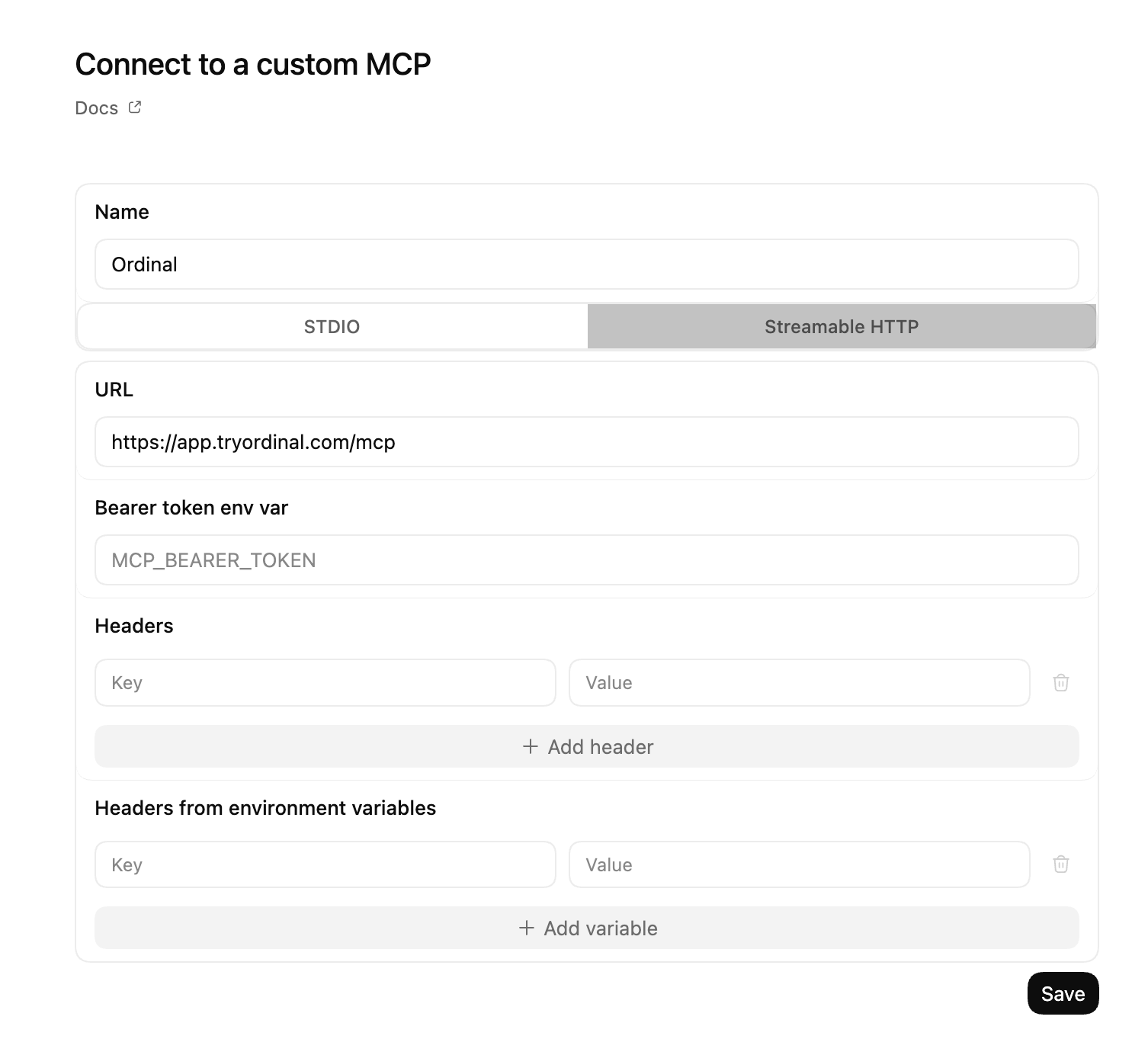 Click **Save**.
3. **Sign in with Ordinal**
Codex won't trigger OAuth automatically. Just ask Codex in chat: *"Authenticate the Ordinal MCP server."* Codex kicks off the OAuth flow and opens a browser window — sign in with your Ordinal account and approve access.
4. **Verify the connection**
Back in **Settings → MCP Servers**, the Ordinal entry should now show as connected and list its tools.
5. **Try it out**
Ask Codex: *"List my Ordinal workspaces."* It should call the [`ordinal_get_workspace_context`](/mcp/tools) tool.
**Troubleshooting**
- **I don't see "Add custom MCP":** Update to the latest Codex release — custom Streamable HTTP servers were added in a recent version.
- **Tool calls fail with an auth error:** Your OAuth token may have expired. Ask Codex to re-authenticate the Ordinal MCP server.
- **The sign-in browser window doesn't open:** Make sure Codex can reach `https://app.tryordinal.com`. If you're behind a corporate proxy, configure it and retry.
**Codex CLI**
1. **Add the Ordinal server**
In your terminal, run:
```bash
codex mcp add ordinal --url https://app.tryordinal.com/mcp
```
2. **Sign in with Ordinal**
Run the login command:
```bash
codex mcp login ordinal
```
A browser window opens — sign in with your Ordinal account and approve access.
3. **Verify the connection**
Inside the Codex TUI, run the `/mcp` slash command. You should see `ordinal` in the list of configured MCP servers along with its tools.
4. **Try it out**
Ask Codex: *"List my Ordinal workspaces."* It should call the [`ordinal_get_workspace_context`](/mcp/tools) tool.
**Troubleshooting**
- **`codex mcp add` says it's an unknown command:** You're on an older Codex CLI build without remote MCP support. Upgrade to the latest release and try again.
- **Tool calls fail with an auth error:** Your OAuth token may have expired. Re-run `codex mcp login ordinal` to refresh it.
- **The sign-in browser window doesn't open:** Make sure Codex can reach `https://app.tryordinal.com`. If you're behind a corporate proxy, configure it and retry.
**Cursor**
**One-click install**
Click **Save**.
3. **Sign in with Ordinal**
Codex won't trigger OAuth automatically. Just ask Codex in chat: *"Authenticate the Ordinal MCP server."* Codex kicks off the OAuth flow and opens a browser window — sign in with your Ordinal account and approve access.
4. **Verify the connection**
Back in **Settings → MCP Servers**, the Ordinal entry should now show as connected and list its tools.
5. **Try it out**
Ask Codex: *"List my Ordinal workspaces."* It should call the [`ordinal_get_workspace_context`](/mcp/tools) tool.
**Troubleshooting**
- **I don't see "Add custom MCP":** Update to the latest Codex release — custom Streamable HTTP servers were added in a recent version.
- **Tool calls fail with an auth error:** Your OAuth token may have expired. Ask Codex to re-authenticate the Ordinal MCP server.
- **The sign-in browser window doesn't open:** Make sure Codex can reach `https://app.tryordinal.com`. If you're behind a corporate proxy, configure it and retry.
**Codex CLI**
1. **Add the Ordinal server**
In your terminal, run:
```bash
codex mcp add ordinal --url https://app.tryordinal.com/mcp
```
2. **Sign in with Ordinal**
Run the login command:
```bash
codex mcp login ordinal
```
A browser window opens — sign in with your Ordinal account and approve access.
3. **Verify the connection**
Inside the Codex TUI, run the `/mcp` slash command. You should see `ordinal` in the list of configured MCP servers along with its tools.
4. **Try it out**
Ask Codex: *"List my Ordinal workspaces."* It should call the [`ordinal_get_workspace_context`](/mcp/tools) tool.
**Troubleshooting**
- **`codex mcp add` says it's an unknown command:** You're on an older Codex CLI build without remote MCP support. Upgrade to the latest release and try again.
- **Tool calls fail with an auth error:** Your OAuth token may have expired. Re-run `codex mcp login ordinal` to refresh it.
- **The sign-in browser window doesn't open:** Make sure Codex can reach `https://app.tryordinal.com`. If you're behind a corporate proxy, configure it and retry.
**Cursor**
**One-click install**
 Install in Cursor
 ## How it works
- **You earn 30% commission for 12 months** on every paying customer who signs up through your affiliate link.
- **The customer you refer gets 20% off for their first 3 months** on Ordinal.
Commissions are recurring. As long as the customer keeps paying within the 12-month window, you keep earning. There's no cap on how many customers you can refer.
## Applying
Apply at [partners.dub.co/ordinal](https://partners.dub.co/ordinal). Ordinal's affiliate program runs on [Dub Partners](https://dub.co/partners), so your dashboard, links, and payouts all live there once you're approved.
We review every application. Strong applications typically come from:
- Newsletters, blogs, podcasts, or YouTube channels with an audience of marketers, creators, or founders
- Agencies or consultancies whose clients are potential Ordinal users
- People who have written reviews or comparisons of social media scheduling tools
You don't need to be an Ordinal customer to apply, but knowing the product well makes for better content.
## Your partner dashboard
Once approved, you get a Dub Partners dashboard where you can:
- Generate and share your affiliate link
- Track clicks, sign-ups, and conversions
- See pending and paid commissions
- Set up your payout method
Tracking, attribution, and payouts are handled through Dub. See the [Dub Partners documentation](https://dub.co/help) for specifics on cookie windows, supported payout methods, and minimum payout thresholds.
## Referral or affiliate: which is right for me?
Ordinal also runs an in-app [Referral Program](/referrals/referral) with one-time gift card rewards. Here's how the two compare:
| Program | Best for | Reward |
| ------------- | ----------------------------------------------------------------- | -------------------------------------- |
| **Referral** | Existing Ordinal users sending the occasional friend or colleague | Up to $200 Amazon gift card, paid once |
| **Affiliate** | Creators, agencies, and partners promoting Ordinal to an audience | 30% recurring commission for 12 months |
A new customer can only be credited to one of the two programs.
## Questions
Email [support@tryordinal.com](mailto:support@tryordinal.com) with questions about the affiliate program or to discuss a custom partnership.
## Learn more
**[Referral Program](/referrals/referral)**
Earn a one-time Amazon gift card for sharing Ordinal with someone you know.
**[Billing & Plans](/account/subscription-plans)**
See the plans your referrals will be signing up for.
---
# Referral Program
Source: https://docs.tryordinal.com/referrals/referral
Refer a company to Ordinal and earn an Amazon gift card up to $200. The program is built into your workspace and pays out once the new customer starts a paid subscription.
## How it works
1. Open [Referrals](https://app.tryordinal.com/referrals) from the left sidebar (the gift icon)
2. Copy your personal referral link and share it with someone who could use Ordinal
3. When they sign up through your link and pay for a subscription, you earn a reward
## Rewards
| Plan the new workspace chooses | What you earn |
| ------------------------------ | --------------------------------- |
| **Monthly** | 100% of the first month's payment |
| **Annual** | 15% of the first year's payment |
The maximum reward is up to $200 per referral. Rewards are issued as Amazon gift card codes delivered to the email on your Ordinal account.
We process referral payouts every other week, so once a referee starts paying you'll receive your gift card shortly after the next payout cycle.
## Tracking your referrals
The Referrals page shows a table of everyone who signed up through your link, along with the current status of each referral:
| Status | What it means |
| -------------- | ----------------------------------------------------------------------------- |
| **Signed Up** | The user has made an Ordinal account but has not paid. |
| **Subscribed** | The user has paid for a subscription. Payouts are processed every other week. |
| **Expired** | The user did not pay for a subscription within 90 days of signing up. |
| **Paid Out** | You've been paid for this referral. Check your email for the gift card code. |
## Eligibility
- **Referrer:** You must have an active paid Ordinal subscription to qualify for the reward.
- **Referee:** The person you refer must be new to Ordinal, with no prior accounts or subscriptions under any email address.
- **Conversion window:** The new workspace must pay for a subscription within 90 days of signing up. After 90 days, the referral expires.
- **One reward per referee:** A single referee cannot generate multiple rewards by opening multiple accounts.
Full terms are available on the [Referrals](https://app.tryordinal.com/referrals) page under "terms, conditions, and limits."
## Looking for recurring commissions?
If you'd rather earn a percentage of every payment from referred customers instead of a one-time gift card, check out the [Affiliate Program](/referrals/affiliate). Affiliates earn 30% commission for 12 months and the customers they refer get 20% off for 3 months.
## Learn more
**[Affiliate Program](/referrals/affiliate)**
Recurring commissions for partners who promote Ordinal to an audience.
**[Billing & Plans](/account/subscription-plans)**
See how billing works for the plans you're referring people to.
---
# Discord
Source: https://docs.tryordinal.com/social-profiles/discord
Discord is where communities live - and scheduled announcements keep them engaged. Instead of connecting an account, you create **webhooks** in Discord and add them to Ordinal. Messages post to specific channels through those webhooks, perfect for product updates, event reminders, and recurring community content.

## Overview
Webhooks are channel-specific URLs that accept incoming messages. You create them in Discord, give them a name and avatar, and paste the URL into Ordinal. No Discord login required - you control exactly which channels can receive scheduled messages.
**[Creating a Webhook](#creating-a-webhook-in-discord)**
Set up webhooks in your Discord server
**[Adding to Ordinal](#adding-the-webhook-to-ordinal)**
Connect your webhook to Ordinal
**[Drafting a Message](#drafting-a-discord-message)**
Formatting, mentions, and attachments
**[Use Cases](#use-cases)**
When to use Discord scheduling
| How it works | Details |
| ----------------- | ----------------------- |
| Connection method | Webhook URL (not OAuth) |
| Sender appearance | Webhook name and avatar |
| Scope | One webhook per channel |
This means:
- You decide which channels get a webhook
- Each webhook posts to exactly one channel
- The webhook's name and avatar appear as the message sender
- Anyone with the webhook URL can post to that channel (keep it private)
## Creating a Webhook in Discord
1. Open your Discord server
2. Go to **Server Settings → Integrations**
3. Click **Create Webhook**
4. Set the name (this appears as the sender, e.g., "Ordinal Updates")
5. Upload an avatar image
6. Select which channel this webhook posts to
7. Click **Copy Webhook URL**
Keep this URL private - it's essentially a posting key for that channel.
:::tip
Name webhooks clearly (like "Product Updates" or "Social Alerts") so it's obvious what's posting. Use a custom avatar to help messages look intentional, not like spam.
:::
## Adding the Webhook to Ordinal
Go to [**Settings → Profiles → Scheduling → Discord**](https://app.tryordinal.com/settings/profiles/scheduling/discord), paste your webhook URL and the channel name. The webhook appears as a profile you can select when creating posts.
To post to multiple channels, create a separate webhook for each channel in Discord and add each to Ordinal.
## Drafting a Discord Message
### What you can post
| Feature | Supported | Notes |
| --------------------------- | --------- | ----------------------------------------------------- |
| Text messages | ✅ | Up to 2,000 characters |
| [Attachments](#attachments) | ✅ | Up to 3 files, 10MB each |
| Formatted text | ✅ | Headings, bold, italic, underline, code, links, lists |
| [Mentions](#mentions) | ✅ | @here, @everyone, users, roles |
| Link previews | ✅ | Discord unfurls links automatically |
### Formatting
The editor supports Discord's markdown formatting:
- **Headings**: H1 and H2 for structure
- **Bold**: Use the toolbar or `Cmd/Ctrl + B`
- **Italic**: Use the toolbar or `Cmd/Ctrl + I`
- **Underline**: Use the toolbar or `Cmd/Ctrl + U`
- **Code**: Inline code formatting
- **Links**: Paste URLs or use the link button
- **Lists**: Bullet and numbered lists
- **Emoji**: Type `:emoji_name:` or use the emoji picker
Formatting converts to Discord's native markdown when published.
### Mentions
Tag users, roles, and broadcast to everyone:
| Mention | What it does |
| ------------- | -------------------------------------- |
| `@here` | Notifies active members in the channel |
| `@everyone` | Notifies all members in the server |
| `<@USER_ID>` | Mentions a specific user |
| `<@&ROLE_ID>` | Mentions a specific role |
:::note
User and role mentions require Discord IDs (not display names). You can find these by enabling Developer Mode in Discord settings, then right-clicking a user or role.
You can read more from the official Discord docs [here](https://support.discord.com/hc/en-us/articles/206346498-Where-can-I-find-my-User-Server-Message-ID#h_01HRSTXPS5CRSRTWYCGPHZQ37H).
:::
**[Drafting Posts](/posts/drafting-posts)**
Full guide to formatting, slash commands, and keyboard shortcuts.
## Attachments
You can attach **up to 3 files** per Discord message.
| Spec | Limit |
| -------------- | ----------------------- |
| Files per post | 3 maximum |
| File size | 10MB per file |
| Formats | JPG, PNG, GIF, MP4, MOV |
Drag and drop files into the editor, paste from clipboard, or use the attachment button. Each attachment must have a unique filename.
## FAQ
**Webhook not working**
The webhook may have been deleted in Discord. Create a new one and update it in Ordinal.
**Messages not appearing**
Verify you're checking the correct channel - each webhook posts to exactly one channel.
**Duplicate attachment error**
Each attachment in a post must have a unique filename. Rename files before uploading if needed.
**File too large**
Discord webhooks have a 10MB file size limit. Compress your files or use a link instead.
## Use Cases
- **Product announcements**: Release notes, feature launches, changelog updates
- **Community updates**: Event reminders, weekly roundups, server news
- **Content sharing**: Notify when new social posts, blog articles, or videos go live
- **Automated alerts**: Scheduled reminders, countdowns, recurring messages
## Learn More
**[Slack](/social-profiles/slack)**
Similar use case with OAuth-based connection.
**[Scheduling posts](/posts/scheduling-posts)**
Set the perfect time for your content.
---
# Facebook
Source: https://docs.tryordinal.com/social-profiles/facebook
Facebook Pages are still one of the best ways to reach an established audience. In Ordinal, you can schedule feed posts, publish Reels, and manage multiple pages from one place.

## Overview
Facebook Pages represent businesses, brands, organizations, or public figures. When you connect a page, posts appear from the page (not your personal account), and you get access to page-level analytics.
:::warning
Personal profiles can't be connected due to Facebook API restrictions. This applies to all third-party scheduling tools, not just Ordinal.
:::
**[Connecting Facebook](#connecting-facebook)**
Connect your Facebook Pages
**[Drafting a Post](#drafting-a-facebook-post)**
Formatting, mentions, and media
**[Post Types](#post-types)**
Feed posts and Reels
**[Team Engagements](#team-engagements)**
Add a first comment from your team
## Connecting Facebook
Go to [**Settings → Profiles → Scheduling**](https://app.tryordinal.com/settings/profiles/scheduling/facebook), click **Connect Account**, select Facebook, and sign in. Choose which pages to connect - you can connect multiple pages, and each appears as a separate profile.
| Requirement | Details |
| ------------ | ------------------------------------ |
| Account type | Facebook Page (not personal profile) |
| Access level | Admin or Editor role on the Page |
| Page status | Must be published (not draft) |
### Business Suite Users
If you manage pages through Meta Business Suite, you may need to authorize Ordinal in **Business Settings → Connected Apps**. Some Business Suite configurations require explicit app permissions.
## Drafting a Facebook Post
### What you can post
| Feature | Supported | Notes |
| --------------------- | --------- | --------------------------- |
| Text posts | ✅ | Up to 2,200 characters |
| [Images](#feed-posts) | ✅ | Up to 10 per post |
| [Videos](#feed-posts) | ✅ | Up to 10 minutes |
| [Reels](#reels) | ✅ | 3–90 seconds, vertical |
| Links | ✅ | With auto-generated preview |
| Events | ❌ | Not currently supported |
| Live video | ❌ | Not currently supported |
### Drafting & Formatting
The Facebook editor supports rich formatting through Unicode characters, which render as **bold** and _italic_ on Facebook:
- **Bold / Italic**: Use the toolbar buttons or press `Cmd/Ctrl + B` for bold and `Cmd/Ctrl + I` for italic
- **Hashtags**: Type `#` followed by your tag - they'll automatically link to Facebook search
- **Mentions**: Type `@` and search for Facebook Pages to tag them in your post
- **Links**: Paste URLs directly - Facebook auto-generates a preview with image, title, and description
Facebook posts can be up to **2,200 characters**. The character counter updates in real-time as you type.
**[Drafting Posts](/posts/drafting-posts)**
Full guide to formatting, mentions, slash commands, and keyboard shortcuts.
### Post Preview
As you draft, the editor shows a live preview that matches how your content will appear on Facebook - including your page name and profile picture.
### Tagging Pages
Tag other Facebook Pages in your posts to increase visibility and notify them:
1. Type `@` in your post
2. Search for the Page by name
3. Select from the suggestions dropdown
Mentions become clickable links when published and may notify the tagged Page.
## Post Types
Use the **Feed / Reel** dropdown at the top of the editor to switch between post types.
**Feed Posts**
Standard posts that appear in your Page's feed. You can include text, images, or video.
**Images:**
| Spec | Limit |
| -------- | ------------------------------- |
| Formats | JPG, PNG |
| Size | 4MB per image (auto-compressed) |
| Per post | Up to 10 images |
**Videos:**
| Spec | Limit |
| -------- | ---------------- |
| Formats | MP4, MOV |
| Duration | Up to 10 minutes |
| Per post | 1 video only |
:::warning
You cannot mix images and videos in the same post. Choose one media type per post.
:::
**Reels**
Short-form vertical videos that get higher organic reach than static posts.
| Spec | Limit |
| ---------- | ------------------------ |
| Formats | MP4, MOV |
| Duration | 3–90 seconds |
| Aspect | 9:16 (vertical) required |
| Resolution | Minimum 540×960 pixels |
**Cover Photo**: Pick a frame from the video or upload a custom image to use as the thumbnail for your Reel. See [Cover photos for videos](/posts/media#cover-photos-for-videos) for details.
:::tip
Reels currently get higher organic reach than static posts on Facebook. Use them for timely, engaging content.
:::
**[Media & Assets](/posts/media)**
Full specifications for all platforms including recommended dimensions.
## Team Engagements
Make it easy to add a first comment to your posts after they publish - great for CTAs, additional links, or hashtags you don't want in the main post.
| Type | Supported | Notes |
| ---------------- | --------- | ------------------------------------------ |
| **Team Comment** | ✅ | Make it easy to add a comment from the same profile as the post author |
| Team Likes | ❌ | Not available for Facebook |
| Team Repost | ❌ | Not available for Facebook |
Configure timing from **immediately** after posting up to **24 hours** later.
**[Team Engagements](/posts/team-engagements)**
Full guide to setting up timing and best practices.
:::note
Team comments require additional Facebook permissions. If you see a permissions banner, reconnect your Facebook Page in [**Settings → Profiles**](https://app.tryordinal.com/settings/profiles) to grant the required access.
:::
## Analytics
View Page performance in [**Analytics → Facebook**](https://app.tryordinal.com/analytics/facebook):
| Metric | Description |
| --------------- | ------------------------------- |
| Reach | Unique people who saw your post |
| Impressions | Total times post was shown |
| Reactions | Likes, loves, etc. |
| Comments | Comment count |
| Shares | Share count |
| Link clicks | Clicks on links in post |
| Follower growth | Net change in Page followers |
Analytics sync automatically each day. You can also manually refresh stats using the **Refresh Stats** button (once per hour) to see the latest performance data.
**[Analytics overview](/analytics/overview)**
Learn more about tracking performance across all your connected profiles.
## Learn more
**[Instagram](/social-profiles/instagram)**
Shares Meta authentication with Facebook.
**[Threads](/social-profiles/threads)**
Another Meta platform for text-based posts.
---
# Instagram
Source: https://docs.tryordinal.com/social-profiles/instagram
Instagram rewards polished, visual content - and consistency. In Ordinal, you can schedule Feed Posts, Reels, and Stories, plus use Instagram-specific features like photo tagging, collaborators, and first comments.

## Overview
Instagram requires a **Business or Creator account** (not personal) and connects through Facebook.
:::info
You can easily switch your account to a Business or Creator account by following the [instructions here](https://help.instagram.com/502981923235522).
:::
**[Connecting Instagram](#connecting-instagram)**
Connect your Business or Creator account
**[Drafting a Post](#drafting-an-instagram-post)**
Formatting, tagging, and media
**[Post Types](#post-types)**
Feed, Reels, and Stories
**[Analytics](#analytics)**
Track post performance
## Connecting Instagram
Go to [**Settings → Profiles → Scheduling**](https://app.tryordinal.com/settings/profiles/scheduling/instagram), click "Connect Instagram", and sign in with Instagram to connect your account.
:::info
Make sure you are logged into the correct Instagram account you wish to connect before going through the integration flow by visiting [instagram.com](http://instagram.com) in your browser. You can always click "More" -\> "Switch Accounts" on Instagram to login to the correct account.
:::
## Drafting an Instagram Post
### What you can post
| Feature | Supported | Notes |
| --- | --- | --- |
| [Feed posts](#feed-posts) | ✅ | Up to 10 images/videos |
| [Reels](#reels) | ✅ | Single video, up to 15 minutes |
| [Stories](#stories) | ⚠️ | Up to 10 images/videos, no interactive elements |
### Drafting & Formatting
The Instagram editor supports rich formatting through Unicode characters:
- **Bold / Italic**: Use the toolbar buttons or press `Cmd/Ctrl + B` for bold and `Cmd/Ctrl + I` for italic
- **Hashtags**: Type `#` followed by your tag - Instagram allows up to 30 per post (tracked in the editor)
- **Mentions**: Type `@` followed by an Instagram handle to mention someone
- **Links**: Instagram captions don't support clickable links, but you can include URLs as text
Captions can be up to **2,200 characters**. The character counter updates in real-time as you type.
**[Drafting Posts](/posts/drafting-posts)**
Full guide to formatting, mentions, slash commands, and keyboard shortcuts.
### Post Preview
As you draft your post, the editor shows a live preview that matches how your content will appear on Instagram.
For planning your profile aesthetic, switch to **Grid Preview** to see how your new post will fit into your existing Instagram grid. This helps you maintain a consistent visual style across your profile.

### Photo Options
**Photo tagging**: Tag users directly on your images to increase engagement and notify them:
1. Add images to your post
2. Open the **Tags** option
3. Click anywhere on the image where you want the tag to appear
4. Enter the Instagram handle
:::note
Photo tagging is only available for images in Feed posts. Videos in Feed posts and all Reels content use text-based tagging instead.
:::
### Instagram-Specific Features
**Location**: Add a location to Feed posts to increase discoverability. Search for any place and it will appear on your published post.
**Collaborators**: Invite up to **3 other Instagram accounts** to co-author your post. When published, collaborators receive a DM to accept the invitation, and the post appears on both profiles.
:::warning
Tagging as Collaborator only works if each collaborator's Instagram profile meets the following requirements:
- **Profile visibility: Set to Public**
- **Tags and Mentions**: Both set to **Allow from everyone** (found in Instagram [Settings → Privacy → Tags & Mentions](https://www.instagram.com/accounts/settings/v2/tags_and_mentions/))
:::
**Cover Photo** (Reels only): Pick any frame from your video or upload a custom thumbnail for your Reel. See [Cover photos for videos](/posts/media#cover-photos-for-videos) for details.
**Share to Feed** (Reels only): Control whether your Reel appears in both your profile grid and the Reels tab, or just in Reels.
**Trial Reel** (Reels only): Publish the Reel as a [trial reel](https://help.instagram.com/605173245571633), which is shown only to non-followers so you can test how new content performs before releasing it to your audience. Choose how the reel graduates to your main feed:
- **Off** (default): Publishes as a normal Reel to all followers.
- **Manual graduation**: The reel stays a trial until you graduate it manually from the Instagram app.
- **Auto graduate on performance**: Instagram automatically graduates the reel to your followers if it performs well in the first 72 hours.
## Post Types
**Feed Posts**
Feed posts appear in your profile grid and followers' feeds. They support up to 10 images/videos.
| Spec | Limit |
| --- | --- |
| Formats | JPG only (PNG auto-converted) |
| Image size | 8MB max per image |
| Max pixels | 36 million per image |
| Per post | Up to 10 images/videos (carousel) |
| Aspect | 3:4 (portrait) to 1.91:1 (landscape) |
**Videos in Feed:**
| Spec | Limit |
| --- | --- |
| Formats | MP4, MOV |
| Duration | Up to 60 seconds |
| Aspect | 4:5 to 16:9 |
Ordinal automatically compresses videos larger than 125MB or wider than 1920px to meet Instagram's requirements.
**Reels**
Reels are short-form vertical videos that appear in the Reels tab and can optionally show in your grid.
| Spec | Limit |
| --- | --- |
| Formats | MP4, MOV |
| Duration | Up to 15 minutes |
| Per post | 1 video only |
| Aspect | 0.01:1 to 10:1 (flexible) |
**Reel-specific options:**
- **Cover Photo**: Pick a frame from the video or upload a custom thumbnail to display on your grid and in your Reels tab.
- **Share to Feed**: Toggle whether the Reel appears in your profile grid.
- **Trial Reel**: Publish to non-followers first, then graduate manually or automatically based on performance.
:::tip
Reels consistently get higher organic reach than static posts. If growing your audience is a priority, prioritize Reels.
:::
**Stories**
Stories are ephemeral content that disappears after 24 hours.
| Spec | Limit |
| --- | --- |
| Formats | JPG, PNG, MP4, MOV |
| Per post | Up to 10 images/videos |
| Duration | 3–60 seconds (videos) |
| Image | 8MB max |
**Story limitations:**
Instagram's API restricts what can be scheduled for Stories:
- ❌ No stickers, polls, questions, or countdowns
- ❌ No link stickers
- ❌ No music
- ❌ No captions (the editor is hidden for Stories)
For interactive Stories, post directly in the Instagram app.
**[Media & Assets](/posts/media)**
Full specifications for all platforms including recommended dimensions.
## Team Engagements

Make it easy to add a **first comment** after your post goes live. This is the only team engagement type available for Instagram due to API limitations. The comment must be posted from the same account that the post is scheduled for.
| Type | What it does |
| --- | --- |
| **First Comment** | Make it easy to add a comment immediately after posting (great for hashtags or CTAs) |
:::tip
Many creators put their hashtags in the first comment to keep captions cleaner. It doesn't affect discoverability.
:::
**[Team Engagements](/posts/team-engagements)**
Full guide to setting up timing, best practices, and troubleshooting.
## Analytics
View post performance in [**Analytics → Instagram**](https://app.tryordinal.com/analytics/instagram). You'll see impressions, engagement breakdown (likes, comments, saves, shares), profile visits, and new followers gained from each post.
Analytics sync automatically each day. You can also manually refresh stats using the **Refresh Stats** button (once per hour) to see the latest performance data.
**[Analytics overview](/analytics/overview)**
Learn more about tracking performance across all your connected profiles.
## Learn more
**[Facebook](/social-profiles/facebook)**
Shares authentication with Instagram.
**[Threads](/social-profiles/threads)**
Also uses Meta authentication.
---
# LinkedIn
Source: https://docs.tryordinal.com/social-profiles/linkedin
LinkedIn is one of the most-used platforms in Ordinal. You can connect personal profiles (your own profile, execs, employees, etc.), or company pages to publish as your organization.

## Overview
With Ordinal, you can connect and schedule to both LinkedIn **Personal Profiles** and **Company Pages**. The connection process for both is the same.
**[Connecting LinkedIn](#connecting-linkedin)**
Connect personal profiles and company pages
**[Drafting a Post](#drafting-a-linkedin-post)**
Formatting, tagging, attachments, and more
**[Team Engagements](#team-engagements)**
Coordinate likes, comments, and reposts from your team
**[Analytics](#analytics)**
Track post performance
## Connecting LinkedIn
There are two types of connections supported for LinkedIn: **scheduling** and **engagement-only**. Scheduling profiles can schedule posts, use team engagements, and view analytics. Engagement-only profiles can only be used for team engagements. You can customize which permissions to grant for your profile (like, comment, and/or reposts)
**For scheduling**: Go to [**Settings → Profiles → Scheduling**](https://app.tryordinal.com/settings/profiles/scheduling/linkedin), click on "Connect LinkedIn", and sign in via LinkedIn.
**For engagement-only**: Go to [**Settings → Profiles → Engagement**](https://app.tryordinal.com/settings/profiles/engagement/linkedin), click on "Connect LinkedIn", and sign in via LinkedIn.
:::tip
If you're a company admin, you'll see your company pages listed after authorization and you can choose which page to connect.
:::
## Drafting a LinkedIn Post
### What you can post
| Feature | Supported | Notes |
| --------------------------------- | --------- | ----------------------------------------------------- |
| Text posts | ✅ | Up to 3,000 characters |
| [Images / GIFs](#images-gifs) | ✅ | Up to 20 images and GIFs per post |
| [Video](#videos) | ✅ | Up to 10 minutes |
| [PDF documents](#pdfs) | ✅ | Creates a swipeable carousel |
| [External links](#links) | ✅ | Ability to customize link preview image and text |
| [Polls](#polls) | ✅ | All poll options supported |
| [Reposts](#reposts) | ✅ | Repost any other LinkedIn post with just the Post URL |
### Drafting & Formatting
The LinkedIn editor supports rich formatting:
- **Bold / Italic**: Highlight the text you want to format and use the toolbar buttons or press `Cmd/Ctrl + B` for bold and `Cmd/Ctrl + I` for italic
- **Hashtags**: Type `#` followed by your tag - they'll automatically link when published
- **Links**: Paste URLs directly into your post (and use a [link shortener](/analytics/shortlinks) for detailed click analytics)
LinkedIn posts can be up to **3,000 characters**. The character counter in the editor updates in real-time as you type.
**[Drafting Posts](/posts/drafting-posts)**
Full guide to formatting, mentions, slash commands, and keyboard shortcuts.
### Post Preview

As you draft your post, the editor shows a live preview that matches how your content will appear on LinkedIn - including proper text truncation with "see more" exactly where LinkedIn would cut off.
For a more realistic preview, click the **Feed Preview** button to see your post in a full LinkedIn feed context with:
- Your profile picture and name as they'll appear
- Desktop and mobile view options
- Real-time updates as you continue editing
### Tagging

Tag people and companies in your LinkedIn posts to increase engagement and notify them:
1. Type `@` in your post
2. Paste in the LinkedIn username from the URL of the profile you want to tag (e.g. `www.linkedin.com/in/[username]` or `www.linkedin.com/company/[company-name]`)
3. Select from the suggestions dropdown
Ordinal searches LinkedIn by username and displays exact search matches and partial matches to accounts you've tagged before for quick access. For personal accounts, you can choose to display just the first name or the full name in the published post by simply deleting the last name.
:::tip
Mentions become clickable links when published and may notify the tagged account, encouraging them to engage with your post.
:::
### Links
When you add a URL to your post, Ordinal automatically fetches the link preview - showing you the title and thumbnail image before publishing.
**Customizing link previews:**
- Click the preview card to open the **Edit Link Preview** modal
- Change the title text that appears in the preview
- Upload a custom thumbnail image to replace the default
- Delete the preview entirely if you prefer a text-only post
Link previews help your content stand out in the feed and give readers context before they click.
### Post Types
**Images & GIFs**
Upload images to create visual posts or carousels:
| Spec | Limit |
| ---------- | --------------------------------- |
| Formats | JPG, PNG, GIF |
| Size | 5MB per image (GIFs up to 15MB) |
| Max pixels | 36 million per image |
| Per post | Up to 20 images and GIFs combined |
Multiple images automatically create a swipeable carousel. Ordinal compresses oversized images automatically.
**Videos**
Upload video content directly to LinkedIn:
| Spec | Limit |
| -------- | ---------------- |
| Formats | MP4, MOV |
| Size | 200MB max |
| Duration | Up to 10 minutes |
| Per post | 1 video only |
**Cover Photo**: Pick a frame from your video or upload a custom cover photo, and add custom captions (.SRT file) for accessibility. See [Cover photos for videos](/posts/media#cover-photos-for-videos) for details.
**PDFs**
PDF documents create swipeable document carousels - one of LinkedIn's highest-performing content types:
| Spec | Limit |
| -------- | --------------- |
| Size | 100MB max |
| Pages | Up to 300 |
| Per post | 1 document only |
Great for frameworks, guides, tutorials, or repurposing slide decks.
**Document title required**: LinkedIn PDF posts require a document title before scheduling. The title appears in the preview bar above the carousel and is the first thing viewers see. If you try to schedule without one, you'll see "Please set a PDF title before scheduling".
**Polls**
Create polls to boost engagement and gather feedback:
| Setting | Limit |
| -------- | --------------------------------- |
| Question | Up to 140 characters |
| Options | 2–4 choices, 30 characters each |
| Duration | 1 day, 3 days, 1 week, or 2 weeks |
Polls cannot be combined with images, videos, PDFs, or reposts in the same post.
**Reposts**
Reshare any LinkedIn post as a quote repost:
1. Paste a LinkedIn post URL into your post
2. Ordinal detects the link and offers to convert it to a repost
3. Add your own commentary above the original post
Quote reposts let you add context while sharing someone else's content.
**[Media & Assets](/posts/media)**
Full specifications for all platforms including recommended dimensions.
## Team Engagements

:::note
Team engagements are available for Pro plan workspaces and above. Starter workspaces can only add team engagements from the same account as the post author.
:::
Make it easy for your team to coordinate likes, comments, and reposts from their connected accounts after your post publishes. LinkedIn supports three team engagement types:
| Type | What it does |
| ---------------- | --------------------------------------------------------------------------------------------- |
| **Team Likes** | Make it easy for selected connected profiles to like your post within the first 10 minutes |
| **Team Comment** | Help a team member add a first comment (great for CTAs, additional links, or hashtags) at a chosen time |
| **Team Repost** | Help a team member reshare (repost with thoughts) from another connected LinkedIn account at a chosen time |
Choose a time from **immediately** after posting up to **24 hours** later. Staggering engagements with different delays helps your team coordinate activity.
**[Team Engagements](/posts/team-engagements)**
Full guide to setting up timing, best practices, and troubleshooting.
## Analytics
View post performance in [**Analytics → LinkedIn**](https://app.tryordinal.com/analytics/linkedin). You'll see impressions, engagement breakdown (likes, comments, shares), click-through rate, and follower growth.
Analytics sync automatically each day. You can also manually refresh stats using the **Refresh Stats** button (once per hour) to see the latest performance data.
**[Analytics overview](/analytics/overview)**
Learn more about tracking performance across all your connected profiles.
## Learn more
**[Cross-posting](/posts/cross-posting)**
Publish to multiple platforms at once.
**[Scheduling posts](/posts/scheduling-posts)**
Set the perfect time for your content.
---
# Overview
Source: https://docs.tryordinal.com/social-profiles/overview
Social profiles are the accounts you connect to Ordinal - your LinkedIn, Twitter, Instagram, and other platforms. Once connected, you can schedule posts, track performance, and manage everything from one place.

## Overview
You can connect as many accounts as your plan allows, including multiple accounts from the same platform. This is useful for managing different brands, clients, or separating personal and professional presence. Ordinal supports two types of connections:
**Scheduling profiles** let you publish content, use team engagements, and track analytics.
**Engagement-Only profiles** let you use these profiles for team engagements only - likes, comments, and reposts. Available for LinkedIn and Twitter/X.
:::tip
If you're unsure which profiles to connect first, start with the platforms where you post most frequently. You can always add more later.
:::
## Supported platforms
**[LinkedIn](/social-profiles/linkedin)**
Personal profiles and company pages
**[Twitter / X](/social-profiles/twitter)**
Tweets and threads
**[Instagram](/social-profiles/instagram)**
Feed posts, Reels, Stories, Carousels
**[Threads](/social-profiles/threads)**
Thread posts
**[Facebook](/social-profiles/facebook)**
Page posts and Reels
**[TikTok](/social-profiles/tiktok)**
Video content
**[YouTube Shorts](/social-profiles/youtube-shorts)**
Short-form vertical video
**[Webflow](/social-profiles/webflow)**
Blog posts to your CMS
**[Slack](/social-profiles/slack)**
Post to public Slack communities
**[Discord](/social-profiles/discord)**
Schedule community announcements
## Connecting profiles
Connect accounts in [**Settings → Profiles**](https://app.tryordinal.com/settings/profiles). Most platforms use OAuth - you sign in once directly on the platform itself and Ordinal handles authentication from there.
Consider connecting profiles for:
- Platforms where you post regularly
- Accounts you want to cross-post to
- Channels where you want unified analytics
## Platform capabilities
| Platform | Scheduling | [Analytics](/analytics/overview) | [Team Engagements](/posts/team-engagements) |
| -------------- | ---------- | --------- | --------------- |
| LinkedIn | ✅ | ✅ | ✅ |
| Twitter/X | ✅ | ✅ | ✅ |
| Instagram | ✅ | ✅ | Limited |
| Facebook | ✅ | ✅ | Limited |
| Threads | ✅ | - | - |
| TikTok | ✅ | - | - |
| YouTube Shorts | ✅ | - | - |
| Discord | ✅ | - | - |
| Slack | ✅ | - | - |
| Webflow | ✅ | - | - |
## FAQ
**How many profiles can I connect?**
This depends on your plan. Scheduling profiles and engagment-only profiles are also charged at different rates. See [subscription plans](/account/subscription-plans) for details.
**Can I connect personal and business accounts from the same platform?**
Yes. Each account appears as a separate profile. You can connect multiple LinkedIn profiles, multiple Twitter accounts, etc. Note that not all platforms (e.g. Facebook) support posting from personal accounts.
**What happens if I disconnect a profile?**
Scheduled posts to that profile won't publish. The posts remain in Ordinal - you can reconnect and they'll be ready to go.
## Learn more
**[Create your first post](/posts/drafting-posts)**
Learn how to compose and schedule content.
**[Cross-posting](/posts/cross-posting)**
Publish to multiple platforms at once.
---
# Slack
Source: https://docs.tryordinal.com/social-profiles/slack
Slack scheduling keeps your team in the loop without the manual work. Schedule announcements, content alerts, or recurring updates to any channel - written and timed alongside the rest of your content calendar.

## Overview
This page covers **scheduling messages to Slack channels**. Ordinal also offers Slack notifications and Slack Boost for team amplification - see the callouts below.
**[Connecting Slack](#connecting-slack)**
Connect your workspace and channels
**[Drafting a Message](#drafting-a-slack-message)**
Formatting, mentions, and attachments
**[Attachments](#attachments)**
Images and videos
**[Use Cases](#use-cases)**
When to use Slack scheduling
## Connecting Slack
Go to [**Settings → Profiles → Scheduling → Slack**](https://app.tryordinal.com/settings/profiles/scheduling/slack), click **Connect Slack**, and sign in to your workspace. Choose which channel Ordinal can post to. Each channel appears as a selectable profile when creating posts.
| Requirement | Details |
| ----------- | ---------------------------------- |
| Connection | OAuth via Slack |
| Permissions | Post messages to selected channels |
| Sender | Your Slack profile (not Ordinal) |
:::tip
The Ordinal app must be invited to private channels. Type `/invite @Ordinal` in the channel first.
:::
## Drafting a Slack Message
### What you can post
| Feature | Supported | Notes |
| --------------------------- | --------- | ------------------------------------ |
| Text messages | ✅ | Up to 40,000 characters |
| [Attachments](#attachments) | ✅ | 1 image or video per message |
| Formatted text | ✅ | Bold, italic, code, links, lists |
| [Mentions](#mentions) | ✅ | @here, @channel, users, and channels |
| Link previews | ✅ | Slack unfurls links automatically |
### Formatting
The editor supports Slack's markdown-style formatting:
- **Bold**: Use the toolbar or `Cmd/Ctrl + B`
- **Italic**: Use the toolbar or `Cmd/Ctrl + I`
- **Code**: Inline code formatting
- **Links**: Paste URLs or use the link button
- **Lists**: Bullet and numbered lists
- **Emoji**: Type `:emoji_name:` or use the emoji picker
Formatting converts to Slack's native syntax when published, so your messages look native in the channel.
### Mentions
Tag users, channels, and broadcast to everyone:
| Mention | What it does |
| --------------- | -------------------------------------- |
| `@here` | Notifies active members in the channel |
| `@channel` | Notifies all members in the channel |
| `@everyone` | Notifies everyone in the workspace |
| `<@USER_ID>` | Mentions a specific user |
| `<#CHANNEL_ID>` | Links to another channel |
:::note
User and channel mentions require Slack IDs (not display names). You can find these in Slack by right-clicking a user or channel and copying the link.
:::
**[Drafting Posts](/posts/drafting-posts)**
Full guide to formatting, slash commands, and keyboard shortcuts.
## Attachments
You can attach **one image or video** per Slack message.
| Spec | Limit |
| -------------- | ----------------------- |
| Files per post | 1 |
| Formats | JPG, PNG, GIF, MP4, MOV |
Drag and drop files into the editor, paste from clipboard, or use the attachment button. If you need to share multiple files, consider posting them separately or linking to a shared folder.
## FAQ
**Can't connect**
You may need workspace admin permission to add apps. Check with your Slack admin.
**Messages not posting**
Verify the channel still exists and Ordinal hasn't been removed from your workspace.
## Use Cases
- **Scheduled announcements**: Company or community updates, policy changes, etc.
- **Recurring messages**: Weekly reminders, monthly reports, etc.
## Other Slack Features
Ordinal offers additional Slack integrations beyond scheduling:
**[Notifications](/collaboration/notifications)**
Get Slack alerts when posts publish, fail, or need approval.
**[Slack Boost](/posts/slack-boost)**
Automatically share published social posts with your team for engagement.
## Learn More
**[Discord](/social-profiles/discord)**
Similar use case with webhook-based connection.
**[Scheduling posts](/posts/scheduling-posts)**
Set the perfect time for your content.
---
# Threads
Source: https://docs.tryordinal.com/social-profiles/threads
Threads is where text-first conversations happen. If you're already on Instagram, you likely have a Threads account - and in Ordinal, you can schedule text posts, image carousels, videos, and multi-part threads to keep the conversation going.

## Overview
Threads connects through Instagram and requires a **Business or Creator account** (not personal). Your Threads profile must also be public - private profiles can't connect via the API.
**[Connecting Threads](#connecting-threads)**
Connect via your Instagram account
**[Drafting a Post](#drafting-a-threads-post)**
Formatting, mentions, and media
**[Multi-part Threads](#multi-part-threads)**
Longer stories across connected posts
**[Analytics](#analytics)**
Track reach, engagement, and growth
## Connecting Threads
Go to [**Settings → Profiles → Scheduling**](https://app.tryordinal.com/settings/profiles/scheduling/threads), click **Connect Threads**, and follow the Threads authentication flow. You'll sign in with your Instagram credentials.
| Requirement | Details |
| ------------------ | --------------------------------------- |
| Account type | Instagram Business or Creator |
| Profile visibility | Public (private profiles can't connect) |
| Authentication | Via Threads |
## Drafting a Threads Post
### What you can post
| Feature | Supported | Notes |
| ----------------------------------------- | --------- | --------------------------- |
| Text posts | ✅ | Up to 500 characters |
| [Images](#images) | ✅ | Up to 20 per carousel |
| [Videos](#videos) | ✅ | Up to 5 minutes |
| [Multi-part threads](#multi-part-threads) | ✅ | Each segment gets own media |
| Polls | ❌ | Not currently supported |
### Drafting & Formatting
The Threads editor supports rich formatting through Unicode characters, which render as **bold** and _italic_ on Threads:
- **Bold / Italic**: Use the toolbar buttons or press `Cmd/Ctrl + B` for bold and `Cmd/Ctrl + I` for italic
- **Hashtags**: Type `#` followed by your tag - they'll automatically link to Threads search
- **Mentions**: Type `@` followed by a username - they'll link to that profile on Threads
- **Links**: Paste URLs directly into your post (they count toward the 500 character limit)
Each post or thread segment is limited to **500 characters**. The character counter updates in real-time as you type.
**[Drafting Posts](/posts/drafting-posts)**
Full guide to formatting, mentions, slash commands, and keyboard shortcuts.
### Post Preview
As you draft, the editor shows a live preview that matches how your content will appear on Threads - including your profile picture and username.
### Link Previews
When you add a URL to a text-only post (no images or videos), Ordinal displays a link preview card showing the destination's title and thumbnail. Link previews only appear when your post has no media attached - adding images or videos takes priority.
## Post Types
**Images**
Upload images to create visual posts or carousels:
| Spec | Limit |
| ------------ | ----------------------------------- |
| Formats | JPG, PNG |
| Size | 8MB per image |
| Aspect ratio | Max 10:1 (images too wide rejected) |
| Per post | Up to 20 images |
Multiple images automatically create a swipeable carousel. Ordinal compresses oversized images automatically.
**Videos**
Upload video content directly to Threads:
| Spec | Limit |
| ------------ | --------------- |
| Formats | MP4, MOV |
| Duration | Up to 5 minutes |
| Aspect ratio | 0.01:1 to 10:1 |
Vertical video (9:16) is recommended for best display on mobile. Ordinal automatically compresses videos over 125MB or wider than 1920px.
## Multi-part Threads
Multi-part threads let you tell longer stories across multiple connected posts. Each segment can have its own text and media.
**Creating a multi-part thread:**
1. Write your first post
2. Click **Add Thread** to add the next segment
3. Each segment gets its own 500-character limit and media
4. Continue adding as many segments as needed
5. All segments publish together in sequence
### Reordering Segments
Use the **up/down arrow buttons** next to each segment to rearrange the order. Changes save automatically.
:::tip
The first segment is what people see in their feed - make it compelling to encourage them to read on.
:::
## Analytics
Analytics are not currently available for Threads, but are coming soon. Send us an email at [support@tryordinal.com](mailto:support@tryordinal.com) if you're interested in early access.
**[Analytics overview](/analytics/overview)**
Learn more about tracking performance across all your connected profiles.
## Learn more
**[Instagram](/social-profiles/instagram)**
A natural cross-posting option.
**[Twitter / X](/social-profiles/twitter)**
Great cross-posting partner.
---
# TikTok
Source: https://docs.tryordinal.com/social-profiles/tiktok
TikTok offers some of the best organic reach of any platform - if you have the content to match. In Ordinal, you can schedule videos or photo carousels with captions and hashtags, configure privacy and interaction settings, and publish directly to your account.

## Overview
**[Connecting TikTok](#connecting-tiktok)**
Connect your Business or Creator account
**[Drafting a Post](#drafting-a-tiktok-post)**
Captions, hashtags, and mentions
**[Post Settings](#post-settings)**
Privacy, comments, duets, and more
**[Analytics](#analytics)**
Track video performance
## Connecting TikTok
Go to [**Settings → Profiles → Scheduling → TikTok**](https://app.tryordinal.com/settings/profiles/scheduling/tiktok), click "Connect TikTok", and sign in. Authorize Ordinal and your account will appear in your connected profiles.
## Drafting a TikTok Post
### What you can post
| Content | Supported | Notes |
| ---------------------------------------- | --------- | ---------------------------------- |
| [Videos](#video-requirements) | ✅ | Single video per post |
| [Photo carousels](#photo-requirements) | ✅ | 1–35 images per post |
| Trending sounds | ❌ | API limitation |
| Filters/effects | ❌ | API limitation |
| Duets/Stitches | Video only | Not available on photo posts |
| Text overlays | ❌ | API limitation |
Use the **Video / Photo** toggle at the top of the editor to switch between content types. Switching clears the current attachments, so pick the type that matches your media before uploading.
### Caption & Formatting
Write captions to accompany your video:
- **Bold / Italic**: Use the toolbar buttons for Unicode formatting
- **Hashtags**: Type `#` followed by your tag - they'll link to TikTok's tag page when published
- **@Mentions**: Type `@` followed by a username to tag other creators
Captions can be up to **2,200 characters**.
:::tip
Mix trending hashtags with niche-specific ones. 3–5 per post is a good balance for discoverability without looking spammy.
:::
### Post Preview
As you draft your post, the editor shows a live preview that matches how your content will appear in the TikTok feed - complete with your profile picture, username, and caption overlay. Photo posts show a carousel preview you can swipe through to check image order before publishing.
### Cover frame
Video posts let you choose which frame TikTok uses as the cover thumbnail. Open the **Cover Frame** option on a TikTok video post to scrub through the video and pick a moment - the selected frame is then used in the in-app preview and sent to TikTok at publish time.
If you don't pick a frame, TikTok defaults to the first frame of the video. When you duplicate a post or cross-post from Instagram, Facebook, or LinkedIn, the selected cover frame is carried over to TikTok automatically when possible.
### Video Requirements
For video posts, here are the specs:
| Spec | Limit |
| ------------ | ---------------------------------- |
| Formats | MP4, MOV |
| Resolution | 360px to 4096px (width and height) |
| Aspect ratio | 9:16 (vertical) recommended |
| Duration | 3 seconds to 10 minutes |
| File size | 350mb maximum |
Vertical video (9:16) performs best and fills the entire screen. Horizontal or square videos work but won't have the same impact. Files over 125MB are automatically compressed before upload.
### Photo Requirements
Photo posts publish as a swipeable carousel. You can upload up to 35 images, and Ordinal automatically resizes anything wider than 1080px to keep uploads fast.
| Spec | Limit |
| ----------- | -------------------- |
| Formats | JPG, JPEG, PNG, WEBP |
| Images | 1 to 35 per post |
| Max width | 1080px (auto-resized) |
| File size | 10mb per image |
After uploading, drag images to reorder them - the first image is used as the cover. You cannot mix images and videos in the same post.
#### Title and description
Photo posts use a **title** and **description** instead of a single caption:
- **Title**: Up to 90 characters. Shown above the carousel.
- **Description**: Up to 4,000 characters. Supports hashtags and `@mentions` just like video captions.
## Post Settings
Configure how viewers can interact with your post. You'll find these options below the editor:
- **Privacy**: Choose who can see your post - Public, Followers, Friends, or just yourself
- **Comments**: Enable or disable comments
- **Cover Frame** (video only): Pick the video frame TikTok uses as the cover thumbnail. See [Cover frame](#cover-frame).
- **Duets** (video only): Allow others to create Duets with your video
- **Stitch** (video only): Allow others to Stitch your video into their content
- **Auto-add music** (photo only): Let TikTok automatically add a soundtrack to your photo carousel
- **Sponsored**: Mark the post as promotional content
- **Paid Partnership**: Disclose paid brand partnerships (only appears if Sponsored is enabled)
:::tip
Enabling Duets and Stitches on video posts can increase your reach - other creators using your content exposes you to their audience.
:::
## Analytics
Analytics are not currently available for TikTok, but are coming soon. Send us an email at [support@tryordinal.com](mailto:support@tryordinal.com) if you're interested in early access.
**[Analytics overview](/analytics/overview)**
Learn more about tracking performance across all your connected profiles.
## Learn more
**[YouTube Shorts](/social-profiles/youtube-shorts)**
Similar short-form vertical format.
**[Scheduling posts](/posts/scheduling-posts)**
Set the perfect time for your content.
---
# Twitter / X
Source: https://docs.tryordinal.com/social-profiles/twitter
Twitter is one of the fastest platforms for real-time engagement. In Ordinal, you can schedule individual tweets, build multi-tweet threads, and coordinate team engagements - all timed to publish when your audience is most active.

## Overview
With Ordinal, you can connect Twitter accounts for both **scheduling** and **engagement**. Most users connect both to get the full experience.
**[Connecting Twitter](#connecting-twitter)**
Connect for scheduling or engagement
**[Drafting a Tweet](#drafting-a-tweet)**
Formatting, mentions, media, and threads
**[Team Engagements](#team-engagements)**
Coordinate likes, retweets, and replies from your team
**[Analytics](#analytics)**
Track tweet performance
## Connecting Twitter
There are two types of connections supported for Twitter: **scheduling** and **engagement-only**. Scheduling profiles can post tweets, threads, and use team engagements. Engagement-only profiles are used purely for team engagements (liking, retweeting, replying to posts).
**For scheduling**: Go to [**Settings → Profiles → Scheduling**](https://app.tryordinal.com/settings/profiles/scheduling/x), select "Connect X", and follow the instructions to sign in via X.
**For engagement-only**: Go to [**Settings → Profiles → Engagement**](https://app.tryordinal.com/settings/profiles/engagement/x), select "Connect X", and follow the instructions to sign in via X.
## Drafting a Tweet
### What you can post
| Feature | Supported | Notes |
| ------------------------------------- | --------- | ------------------------------------------- |
| Text tweets | ✅ | 280 characters |
| [Long-form tweets](#long-form-tweets) | ✅ | Up to 4,000 characters (Premium) |
| [Images](#images) | ✅ | Up to 4 per tweet |
| [GIFs](#gifs) | ✅ | Up to 1280px x 1280px |
| [Videos](#videos) | ✅ | Up to 2:20 (10 min for verified) |
| [Threads](#tweet-threads) | ✅ | Multi-tweet sequences with individual media |
| Polls | ❌ | Not currently supported |
### Drafting & Formatting
The Twitter editor supports Unicode formatting for **bold** and _italic_ text:
- **Bold / Italic**: Use the toolbar buttons or press `Cmd/Ctrl + B` for bold and `Cmd/Ctrl + I` for italic
- **Hashtags**: Type `#` followed by your tag - it'll automatically link when published
- **Mentions**: Type `@` followed by a username to mention someone
- **Links**: Paste URLs directly into your tweet (and use a [link shortener](/analytics/shortlinks) for detailed click analytics)
**[Drafting Posts](/posts/drafting-posts)**
Full guide to formatting, mentions, slash commands, and keyboard shortcuts.
### Long-form Tweets

Twitter Premium subscribers can post tweets up to **4,000 characters** - far beyond the standard 280 limit. Ordinal automatically detects your account type and adjusts the character counter accordingly.
:::tip
If your profile is verified you'll see a blue checkmark badge in the editor. If you're not seeing it and you should send us a support message and we'll get it updated.
:::
Long-form tweets display with a "**Show more**" link in the feed. Note that Twitter does not show link preview images on long-form tweets.
### Post Preview

As you draft your tweet, the editor shows a live preview that matches how your content will appear on Twitter - including proper text truncation with "See more" for longer posts.
For a more realistic preview, click the **Feed Preview** button to see your tweet in a full Twitter feed context with desktop and mobile previews.
### Photo Options
**Alt text**: Add descriptions to your images for accessibility. Click the image options menu and enter alt text (up to 1,000 characters) that describes the visual content for screen readers.
**Photo tagging**: Tag users in your images to notify them and increase visibility:
1. Add images to your tweet
2. Click the **Tag Users** button (user icon)
3. Enter Twitter handles (without the @)
4. Add up to 10 users per tweet
:::note
Photo tagging only works for public accounts. If a tagged user has disabled photo-tagging, the tweet will post without their tag.
:::
### Media Options
You can upload up to 4 attachments per tweet.
**Images**
Multiple images display in a grid layout. Add alt text for accessibility via the image options.
| Spec | Limit |
| --------- | -------------- |
| Formats | JPG, PNG, WEBP |
| Size | 5MB per image |
**Videos**
Attach video content to any Tweet(s).
| Spec | Limit |
| -------- | ----------------------------------- |
| Formats | MP4, MOV |
| Size | 350mb |
| Minimum Duration | 0.5 seconds |
| Maximum Duration | 2:20 (standard) / 10 min (verified) |
| Ratio | Between 1:3 and 3:1 |
| Frame rate | Up to 60 fps |
You don't need to re-encode videos that exceed these specs. Ordinal automatically converts HEVC videos to H.264 and reduces videos above 60 fps to 60 fps before publishing to Twitter.
**GIFs**
Add animated GIFs to your tweets:
| Spec | Limit |
| --------- | -------- |
| Format | GIF |
| Size | 15MB max |
**[Media & Assets](/posts/media)**
Full specifications for all platforms including recommended dimensions.
## Tweet Threads
Threads are Twitter's way of telling longer stories across multiple connected tweets. Each tweet in a thread can have its own media.
### **Creating a thread:**
1. Write your first tweet
2. Click **Add Tweet** to add the next tweet
3. Continue adding tweets to your thread
4. Preview the entire thread before scheduling
5. All tweets publish in sequence automatically
### Splitting Tweets
You can quickly split a tweet into two using your keyboard:
- Press`Enter`**3 times** at the end of a tweet to add a new empty tweet after it
- Press `Enter`**5 times** in the middle of text to split a single tweet into two tweets at that point - content after the split moves to a new tweet
This makes it easy to break up long drafts into thread-sized chunks without copy-pasting.
### Reordering Tweets
Rearrange tweets in your thread using the arrow buttons:
- Click the **up arrow** to move a tweet earlier in the thread
- Click the **down arrow** to move a tweet later in the thread
The thread position updates instantly, and you can preview the final order before scheduling.
### If a thread fails to publish
If publishing stops partway through a thread, Ordinal deletes the tweets from that thread it already posted, so a half-finished thread isn't left on your profile. The post is marked **Errored** and you get the usual error notification. Fix the issue, then publish the thread again. See [Handling errored posts](/posts/statuses#handling-errored-posts) for common causes.
## Team Engagements

:::note
Team engagements are available for **Pro** plan workspaces and above. Starter workspaces can only add team engagements from the same account as the tweet author.
:::
Make it easy for your team to coordinate likes, replies, and retweets from their connected accounts after your tweet publishes. Twitter supports these team engagement types:
| Type | What it does |
| ---------------- | ---------------------------------------------------------------------------- |
| **Team Likes** | Make it easy for selected connected profiles to like your tweet |
| **Team Repost** | Help a team member retweet from a connected Twitter account |
| **Team Comment** | Help a team member add a first reply (great for additional context, links, or a call-to-action) |
Choose a time from **immediately** after posting up to **24 hours** later. Staggering engagements across different delays helps your team coordinate activity.
**[Team Engagements](/posts/team-engagements)**
Full guide to setting up timing, best practices, and troubleshooting.
## Analytics
View tweet performance in [**Analytics → X**](https://app.tryordinal.com/analytics/x). You'll see impressions, engagement breakdown (likes, retweets, replies, quote tweets), click-through rate, and follower growth.
Analytics sync automatically each day. You can also manually refresh stats using the **Refresh Stats** button (once per hour) to see the latest performance data.
**[Analytics overview](/analytics/overview)**
Learn more about tracking performance across all your connected profiles.
## Learn more
**[Cross-posting](/posts/cross-posting)**
Publish to multiple platforms at once.
**[Scheduling posts](/posts/scheduling-posts)**
Set the perfect time for your content.
---
# Webflow
Source: https://docs.tryordinal.com/social-profiles/webflow
Webflow integration brings your blog into Ordinal and allows you to schedule updates directly to any Webflow CMS collection. Write content in the same place you manage social, schedule posts alongside your other channels, and coordinate blog launches with social promotion - all without logging into Webflow separately.

## Overview
This integration works with **Webflow CMS collections** - typically your blog or resources section. Unlike social channels, Webflow posts are full articles with rich formatting, custom CMS fields, and unique URLs.
**[Connecting Webflow](#connecting-webflow)**
Link your site and CMS collection
**[Writing Content](#writing-content)**
Rich text editor and blog formatting
**[CMS Fields](#cms-fields)**
Custom fields, slugs, and images
**[Previewing](#previewing-your-post)**
Preview on live site or in Designer
| Requirement | Details |
| ----------------- | ------------------------------------------------- |
| Webflow plan | CMS access required (not available on free plans) |
| Permissions | Editor or higher on the site |
| What it publishes | CMS collection items (blog posts, articles) |
:::note
This integration doesn't modify static pages, site design, or ecommerce products - only CMS collection items.
:::
## Connecting Webflow
Go to [**Settings → Profiles → Scheduling → Webflow**](https://app.tryordinal.com/settings/profiles/scheduling/webflow), click **Connect Webflow CMS**, and sign in with your Webflow account. You'll then:
1. Choose the **site** you want to publish to
2. Select the **CMS collection** (usually "Blog Posts" or similar)
3. Map the **title** and **body** fields to your collection's corresponding fields
4. Set the **base URL** where your blog posts appear (e.g., `https://yoursite.com/blog`)
## Writing Content
The Webflow editor in Ordinal is a full rich text editor - more like a document than a social post. You'll find two tabs:
### Blog Copy
This is where you write your article. The editor supports:
- **Headings**: H1 through H6 for document structure
- **Text formatting**: Bold, italic, underline, and code
- **Lists**: Bullet points and numbered lists
- **Block quotes**: For callouts and citations
- **Links**: Inline hyperlinks with full URL support
- **Images**: Drag and drop or paste images directly into your content
- **Code blocks**: For technical content
Type `/` to open the slash command menu for quick formatting options. Blog content can be up to **40,000 characters** - plenty for long-form articles.
**[Drafting Posts](/posts/drafting-posts)**
Full guide to formatting, slash commands, and keyboard shortcuts.
### How it publishes
Ordinal converts your content to HTML that Webflow understands. The result looks native to your Webflow site's design.
## CMS Fields
Switch to the **CMS Fields** tab to populate your collection's custom fields. Ordinal automatically detects your Webflow collection schema and displays inputs for each field.
### Supported field types
| Field Type | How it works in Ordinal |
| ----------------- | ----------------------------------------------- |
| Plain Text | Single or multi-line text input |
| Rich Text | Markdown editor that converts to HTML |
| Image | Upload a single image |
| Multi-Image | Upload up to 25 images (great for galleries) |
| File | Upload any file type |
| Link / Video Link | URL input with validation |
| Number | Numeric input with min/max/precision validation |
| Option | Dropdown selector from your Webflow options |
| Reference | Select from related collection items |
| Multi-Reference | Select multiple related items |
| Switch | True/false toggle |
| Color | Hex color picker |
| Date/Time | Date picker with optional time |
| Email | Email input with validation |
| Phone | Phone number input |
### Slug field
The slug determines your post's URL (e.g., `/blog/your-post-slug`). Ordinal auto-generates slugs from your title, but you can customize them. Click **Sync with Blog Title** to regenerate from the current title.
:::warning
Each slug must be unique within your collection. Duplicate slugs cause publish failures.
:::
### Refreshing fields
If you update your Webflow collection schema (adding new fields, changing requirements), click the refresh link in the CMS Fields tab to pull the latest structure. This ensures Ordinal stays in sync with your Webflow setup.
:::tip
If you're not seeing the fields you expect, you may need to refresh the fields by clicking the refresh link in the CMS Fields tab.
This happens automatically when you create a new post to ensure you're always using the latest fields.
:::
>
## Previewing Your Post
Before publishing, you can preview exactly how your post will appear on your site. Click **Preview on Webflow** and choose a preview mode:
| Mode | What happens |
| ------------- | ------------------------------------------------------------------------ |
| **Live Site** | Temporarily publishes to your live site for 3 minutes, then auto-deletes |
| **Designer** | Creates a draft in Webflow's Designer for 3 minutes, then auto-deletes |
Use **Live Site** preview to see the final result with your site's styling. It will be live for everyone to see though so be careful with what you preview.
Use **Designer** preview if you want to view the content in Webflow's Designer without it being live for the public.
:::note
Preview posts are automatically removed after 3 minutes. You can also manually unpublish early by clicking **Unpublish Preview**.
:::
## Publishing
When you schedule a Webflow post, it'll be published at the scheduled time and will appear on your site at the URL specified through the `slug` field.
## FAQ
**Site not appearing**
Your Webflow site needs CMS access. Free sites without CMS aren't connectable.
**Collection not syncing**
Verify your collection has the required fields and that API access is enabled in Webflow site settings.
**Field mapping errors**
Ensure field types match - text to text, rich text to rich text. Mismatched types can cause silent failures.
**Publishing failed**
Check that required Webflow fields are populated, the slug is unique, and you haven't hit CMS item limits.
**Slug already exists**
Each post needs a unique slug. If you're republishing or have a naming conflict, change the slug in the CMS Fields tab.
## Learn More
**[Cross-posting](/posts/cross-posting)**
Publish to multiple platforms at once.
**[Approvals](/collaboration/approvals)**
Set up review workflows for blog content.
---
# YouTube Shorts
Source: https://docs.tryordinal.com/social-profiles/youtube-shorts
YouTube Shorts tap into YouTube's massive audience with quick, vertical videos. In Ordinal, you can schedule Shorts with titles, descriptions, categories, and visibility settings - getting your content in front of billions of users.

:::warning
Ordinal only supports YouTube Shorts. Standard long-form YouTube videos (horizontal videos or videos over 3 minutes) are not currently supported.
:::
## Overview
YouTube classifies a video as a **Short** when it's vertical (9:16 aspect ratio) and under 3 minutes. Videos that don't meet these criteria are considered standard long-form videos and won't work in Ordinal.
Your channel must be **verified** (phone verification) with no active strikes. If you manage multiple channels, you can connect each as a separate profile.
**[Connecting YouTube](#connecting-youtube)**
Connect your YouTube channel
**[Drafting a Short](#drafting-a-youtube-short)**
Title, description, and video
**[Video Settings](#video-settings)**
Visibility, category, and more
**[Analytics](#analytics)**
Track video performance
## Connecting YouTube
Go to [**Settings → Profiles → Scheduling**](https://app.tryordinal.com/settings/profiles/scheduling/youtube), select YouTube, and sign in with Google. Choose your channel and authorize Ordinal.
| Requirement | Details |
| --- | --- |
| Account type | YouTube channel with Google account |
| Channel status | Verified (phone verification) |
| Standing | No active strikes or restrictions |
| Role | Channel Owner |
## Drafting a YouTube Short
### What you can post
| Feature | Supported | Notes |
| --- | --- | --- |
| [Shorts](#video-requirements) | ✅ | Up to 3 minutes, vertical |
| Standard videos | ❌ | Not currently supported |
| Community posts | ❌ | Not currently supported |
| Playlists | ❌ | Not currently supported |
### Title & Description
Every Short needs a title and can include an optional description:
- **Title**: Up to 100 characters. Include relevant keywords. Shorts are searchable on YouTube.
- **Description**: Up to 5,000 characters. Add hashtags, links, and calls to action.
:::tip
Including `#Shorts` in your title or description helps YouTube categorize your video correctly, though it's not strictly required for videos that meet the format specs.
:::
**[Drafting Posts](/posts/drafting-posts)**
Full guide to formatting, mentions, slash commands, and keyboard shortcuts.
### Video Requirements
| Spec | Limit |
| --- | --- |
| Formats | MP4, MOV |
| Duration | Up to 3 minutes |
| Aspect ratio | 9:16 (vertical required) |
| Resolution | 1080×1920 recommended |
| File size | 500MB maximum |
Vertical video is required - videos must have a height greater than or equal to their width. Files over 125MB are automatically compressed before upload.
:::tip
While YouTube allows Shorts up to 3 minutes, shorter videos (under 60 seconds) often perform better in the Shorts feed.
:::
## Video Settings
Configure your Short's settings before scheduling. You'll find these options below the description editor:
- **Visibility**: Choose who can see your Short - Public (anyone on YouTube), Unlisted (only people with the link), or Private (only you)
- **Notify Subscribers**: Choose whether to notify your subscribers when the Short publishes
- **Category**: Select a category (Gaming, Music, Education, etc.) to help YouTube recommend your content
- **Embedding**: Allow or prevent others from embedding your Short on external websites
- **Made for Kids**: Mark if your content is made for children (required for COPPA compliance)
:::note
The "Made for Kids" setting affects what features are available on your video. Videos marked as made for kids won't have comments, notifications, or personalized ads.
:::
## Analytics
Analytics are not currently available for YouTube Shorts, but are coming soon. Send us an email at [support@tryordinal.com](mailto:support@tryordinal.com) if you're interested in early access.
**[Analytics overview](/analytics/overview)**
Learn more about tracking performance across all your connected profiles.
## Learn more
**[TikTok](/social-profiles/tiktok)**
Similar short-form vertical format.
**[Instagram Reels](/social-profiles/instagram)**
Another short-form video platform.
## How it works
- **You earn 30% commission for 12 months** on every paying customer who signs up through your affiliate link.
- **The customer you refer gets 20% off for their first 3 months** on Ordinal.
Commissions are recurring. As long as the customer keeps paying within the 12-month window, you keep earning. There's no cap on how many customers you can refer.
## Applying
Apply at [partners.dub.co/ordinal](https://partners.dub.co/ordinal). Ordinal's affiliate program runs on [Dub Partners](https://dub.co/partners), so your dashboard, links, and payouts all live there once you're approved.
We review every application. Strong applications typically come from:
- Newsletters, blogs, podcasts, or YouTube channels with an audience of marketers, creators, or founders
- Agencies or consultancies whose clients are potential Ordinal users
- People who have written reviews or comparisons of social media scheduling tools
You don't need to be an Ordinal customer to apply, but knowing the product well makes for better content.
## Your partner dashboard
Once approved, you get a Dub Partners dashboard where you can:
- Generate and share your affiliate link
- Track clicks, sign-ups, and conversions
- See pending and paid commissions
- Set up your payout method
Tracking, attribution, and payouts are handled through Dub. See the [Dub Partners documentation](https://dub.co/help) for specifics on cookie windows, supported payout methods, and minimum payout thresholds.
## Referral or affiliate: which is right for me?
Ordinal also runs an in-app [Referral Program](/referrals/referral) with one-time gift card rewards. Here's how the two compare:
| Program | Best for | Reward |
| ------------- | ----------------------------------------------------------------- | -------------------------------------- |
| **Referral** | Existing Ordinal users sending the occasional friend or colleague | Up to $200 Amazon gift card, paid once |
| **Affiliate** | Creators, agencies, and partners promoting Ordinal to an audience | 30% recurring commission for 12 months |
A new customer can only be credited to one of the two programs.
## Questions
Email [support@tryordinal.com](mailto:support@tryordinal.com) with questions about the affiliate program or to discuss a custom partnership.
## Learn more
**[Referral Program](/referrals/referral)**
Earn a one-time Amazon gift card for sharing Ordinal with someone you know.
**[Billing & Plans](/account/subscription-plans)**
See the plans your referrals will be signing up for.
---
# Referral Program
Source: https://docs.tryordinal.com/referrals/referral
Refer a company to Ordinal and earn an Amazon gift card up to $200. The program is built into your workspace and pays out once the new customer starts a paid subscription.
## How it works
1. Open [Referrals](https://app.tryordinal.com/referrals) from the left sidebar (the gift icon)
2. Copy your personal referral link and share it with someone who could use Ordinal
3. When they sign up through your link and pay for a subscription, you earn a reward
## Rewards
| Plan the new workspace chooses | What you earn |
| ------------------------------ | --------------------------------- |
| **Monthly** | 100% of the first month's payment |
| **Annual** | 15% of the first year's payment |
The maximum reward is up to $200 per referral. Rewards are issued as Amazon gift card codes delivered to the email on your Ordinal account.
We process referral payouts every other week, so once a referee starts paying you'll receive your gift card shortly after the next payout cycle.
## Tracking your referrals
The Referrals page shows a table of everyone who signed up through your link, along with the current status of each referral:
| Status | What it means |
| -------------- | ----------------------------------------------------------------------------- |
| **Signed Up** | The user has made an Ordinal account but has not paid. |
| **Subscribed** | The user has paid for a subscription. Payouts are processed every other week. |
| **Expired** | The user did not pay for a subscription within 90 days of signing up. |
| **Paid Out** | You've been paid for this referral. Check your email for the gift card code. |
## Eligibility
- **Referrer:** You must have an active paid Ordinal subscription to qualify for the reward.
- **Referee:** The person you refer must be new to Ordinal, with no prior accounts or subscriptions under any email address.
- **Conversion window:** The new workspace must pay for a subscription within 90 days of signing up. After 90 days, the referral expires.
- **One reward per referee:** A single referee cannot generate multiple rewards by opening multiple accounts.
Full terms are available on the [Referrals](https://app.tryordinal.com/referrals) page under "terms, conditions, and limits."
## Looking for recurring commissions?
If you'd rather earn a percentage of every payment from referred customers instead of a one-time gift card, check out the [Affiliate Program](/referrals/affiliate). Affiliates earn 30% commission for 12 months and the customers they refer get 20% off for 3 months.
## Learn more
**[Affiliate Program](/referrals/affiliate)**
Recurring commissions for partners who promote Ordinal to an audience.
**[Billing & Plans](/account/subscription-plans)**
See how billing works for the plans you're referring people to.
---
# Discord
Source: https://docs.tryordinal.com/social-profiles/discord
Discord is where communities live - and scheduled announcements keep them engaged. Instead of connecting an account, you create **webhooks** in Discord and add them to Ordinal. Messages post to specific channels through those webhooks, perfect for product updates, event reminders, and recurring community content.

## Overview
Webhooks are channel-specific URLs that accept incoming messages. You create them in Discord, give them a name and avatar, and paste the URL into Ordinal. No Discord login required - you control exactly which channels can receive scheduled messages.
**[Creating a Webhook](#creating-a-webhook-in-discord)**
Set up webhooks in your Discord server
**[Adding to Ordinal](#adding-the-webhook-to-ordinal)**
Connect your webhook to Ordinal
**[Drafting a Message](#drafting-a-discord-message)**
Formatting, mentions, and attachments
**[Use Cases](#use-cases)**
When to use Discord scheduling
| How it works | Details |
| ----------------- | ----------------------- |
| Connection method | Webhook URL (not OAuth) |
| Sender appearance | Webhook name and avatar |
| Scope | One webhook per channel |
This means:
- You decide which channels get a webhook
- Each webhook posts to exactly one channel
- The webhook's name and avatar appear as the message sender
- Anyone with the webhook URL can post to that channel (keep it private)
## Creating a Webhook in Discord
1. Open your Discord server
2. Go to **Server Settings → Integrations**
3. Click **Create Webhook**
4. Set the name (this appears as the sender, e.g., "Ordinal Updates")
5. Upload an avatar image
6. Select which channel this webhook posts to
7. Click **Copy Webhook URL**
Keep this URL private - it's essentially a posting key for that channel.
:::tip
Name webhooks clearly (like "Product Updates" or "Social Alerts") so it's obvious what's posting. Use a custom avatar to help messages look intentional, not like spam.
:::
## Adding the Webhook to Ordinal
Go to [**Settings → Profiles → Scheduling → Discord**](https://app.tryordinal.com/settings/profiles/scheduling/discord), paste your webhook URL and the channel name. The webhook appears as a profile you can select when creating posts.
To post to multiple channels, create a separate webhook for each channel in Discord and add each to Ordinal.
## Drafting a Discord Message
### What you can post
| Feature | Supported | Notes |
| --------------------------- | --------- | ----------------------------------------------------- |
| Text messages | ✅ | Up to 2,000 characters |
| [Attachments](#attachments) | ✅ | Up to 3 files, 10MB each |
| Formatted text | ✅ | Headings, bold, italic, underline, code, links, lists |
| [Mentions](#mentions) | ✅ | @here, @everyone, users, roles |
| Link previews | ✅ | Discord unfurls links automatically |
### Formatting
The editor supports Discord's markdown formatting:
- **Headings**: H1 and H2 for structure
- **Bold**: Use the toolbar or `Cmd/Ctrl + B`
- **Italic**: Use the toolbar or `Cmd/Ctrl + I`
- **Underline**: Use the toolbar or `Cmd/Ctrl + U`
- **Code**: Inline code formatting
- **Links**: Paste URLs or use the link button
- **Lists**: Bullet and numbered lists
- **Emoji**: Type `:emoji_name:` or use the emoji picker
Formatting converts to Discord's native markdown when published.
### Mentions
Tag users, roles, and broadcast to everyone:
| Mention | What it does |
| ------------- | -------------------------------------- |
| `@here` | Notifies active members in the channel |
| `@everyone` | Notifies all members in the server |
| `<@USER_ID>` | Mentions a specific user |
| `<@&ROLE_ID>` | Mentions a specific role |
:::note
User and role mentions require Discord IDs (not display names). You can find these by enabling Developer Mode in Discord settings, then right-clicking a user or role.
You can read more from the official Discord docs [here](https://support.discord.com/hc/en-us/articles/206346498-Where-can-I-find-my-User-Server-Message-ID#h_01HRSTXPS5CRSRTWYCGPHZQ37H).
:::
**[Drafting Posts](/posts/drafting-posts)**
Full guide to formatting, slash commands, and keyboard shortcuts.
## Attachments
You can attach **up to 3 files** per Discord message.
| Spec | Limit |
| -------------- | ----------------------- |
| Files per post | 3 maximum |
| File size | 10MB per file |
| Formats | JPG, PNG, GIF, MP4, MOV |
Drag and drop files into the editor, paste from clipboard, or use the attachment button. Each attachment must have a unique filename.
## FAQ
**Webhook not working**
The webhook may have been deleted in Discord. Create a new one and update it in Ordinal.
**Messages not appearing**
Verify you're checking the correct channel - each webhook posts to exactly one channel.
**Duplicate attachment error**
Each attachment in a post must have a unique filename. Rename files before uploading if needed.
**File too large**
Discord webhooks have a 10MB file size limit. Compress your files or use a link instead.
## Use Cases
- **Product announcements**: Release notes, feature launches, changelog updates
- **Community updates**: Event reminders, weekly roundups, server news
- **Content sharing**: Notify when new social posts, blog articles, or videos go live
- **Automated alerts**: Scheduled reminders, countdowns, recurring messages
## Learn More
**[Slack](/social-profiles/slack)**
Similar use case with OAuth-based connection.
**[Scheduling posts](/posts/scheduling-posts)**
Set the perfect time for your content.
---
# Facebook
Source: https://docs.tryordinal.com/social-profiles/facebook
Facebook Pages are still one of the best ways to reach an established audience. In Ordinal, you can schedule feed posts, publish Reels, and manage multiple pages from one place.

## Overview
Facebook Pages represent businesses, brands, organizations, or public figures. When you connect a page, posts appear from the page (not your personal account), and you get access to page-level analytics.
:::warning
Personal profiles can't be connected due to Facebook API restrictions. This applies to all third-party scheduling tools, not just Ordinal.
:::
**[Connecting Facebook](#connecting-facebook)**
Connect your Facebook Pages
**[Drafting a Post](#drafting-a-facebook-post)**
Formatting, mentions, and media
**[Post Types](#post-types)**
Feed posts and Reels
**[Team Engagements](#team-engagements)**
Add a first comment from your team
## Connecting Facebook
Go to [**Settings → Profiles → Scheduling**](https://app.tryordinal.com/settings/profiles/scheduling/facebook), click **Connect Account**, select Facebook, and sign in. Choose which pages to connect - you can connect multiple pages, and each appears as a separate profile.
| Requirement | Details |
| ------------ | ------------------------------------ |
| Account type | Facebook Page (not personal profile) |
| Access level | Admin or Editor role on the Page |
| Page status | Must be published (not draft) |
### Business Suite Users
If you manage pages through Meta Business Suite, you may need to authorize Ordinal in **Business Settings → Connected Apps**. Some Business Suite configurations require explicit app permissions.
## Drafting a Facebook Post
### What you can post
| Feature | Supported | Notes |
| --------------------- | --------- | --------------------------- |
| Text posts | ✅ | Up to 2,200 characters |
| [Images](#feed-posts) | ✅ | Up to 10 per post |
| [Videos](#feed-posts) | ✅ | Up to 10 minutes |
| [Reels](#reels) | ✅ | 3–90 seconds, vertical |
| Links | ✅ | With auto-generated preview |
| Events | ❌ | Not currently supported |
| Live video | ❌ | Not currently supported |
### Drafting & Formatting
The Facebook editor supports rich formatting through Unicode characters, which render as **bold** and _italic_ on Facebook:
- **Bold / Italic**: Use the toolbar buttons or press `Cmd/Ctrl + B` for bold and `Cmd/Ctrl + I` for italic
- **Hashtags**: Type `#` followed by your tag - they'll automatically link to Facebook search
- **Mentions**: Type `@` and search for Facebook Pages to tag them in your post
- **Links**: Paste URLs directly - Facebook auto-generates a preview with image, title, and description
Facebook posts can be up to **2,200 characters**. The character counter updates in real-time as you type.
**[Drafting Posts](/posts/drafting-posts)**
Full guide to formatting, mentions, slash commands, and keyboard shortcuts.
### Post Preview
As you draft, the editor shows a live preview that matches how your content will appear on Facebook - including your page name and profile picture.
### Tagging Pages
Tag other Facebook Pages in your posts to increase visibility and notify them:
1. Type `@` in your post
2. Search for the Page by name
3. Select from the suggestions dropdown
Mentions become clickable links when published and may notify the tagged Page.
## Post Types
Use the **Feed / Reel** dropdown at the top of the editor to switch between post types.
**Feed Posts**
Standard posts that appear in your Page's feed. You can include text, images, or video.
**Images:**
| Spec | Limit |
| -------- | ------------------------------- |
| Formats | JPG, PNG |
| Size | 4MB per image (auto-compressed) |
| Per post | Up to 10 images |
**Videos:**
| Spec | Limit |
| -------- | ---------------- |
| Formats | MP4, MOV |
| Duration | Up to 10 minutes |
| Per post | 1 video only |
:::warning
You cannot mix images and videos in the same post. Choose one media type per post.
:::
**Reels**
Short-form vertical videos that get higher organic reach than static posts.
| Spec | Limit |
| ---------- | ------------------------ |
| Formats | MP4, MOV |
| Duration | 3–90 seconds |
| Aspect | 9:16 (vertical) required |
| Resolution | Minimum 540×960 pixels |
**Cover Photo**: Pick a frame from the video or upload a custom image to use as the thumbnail for your Reel. See [Cover photos for videos](/posts/media#cover-photos-for-videos) for details.
:::tip
Reels currently get higher organic reach than static posts on Facebook. Use them for timely, engaging content.
:::
**[Media & Assets](/posts/media)**
Full specifications for all platforms including recommended dimensions.
## Team Engagements
Make it easy to add a first comment to your posts after they publish - great for CTAs, additional links, or hashtags you don't want in the main post.
| Type | Supported | Notes |
| ---------------- | --------- | ------------------------------------------ |
| **Team Comment** | ✅ | Make it easy to add a comment from the same profile as the post author |
| Team Likes | ❌ | Not available for Facebook |
| Team Repost | ❌ | Not available for Facebook |
Configure timing from **immediately** after posting up to **24 hours** later.
**[Team Engagements](/posts/team-engagements)**
Full guide to setting up timing and best practices.
:::note
Team comments require additional Facebook permissions. If you see a permissions banner, reconnect your Facebook Page in [**Settings → Profiles**](https://app.tryordinal.com/settings/profiles) to grant the required access.
:::
## Analytics
View Page performance in [**Analytics → Facebook**](https://app.tryordinal.com/analytics/facebook):
| Metric | Description |
| --------------- | ------------------------------- |
| Reach | Unique people who saw your post |
| Impressions | Total times post was shown |
| Reactions | Likes, loves, etc. |
| Comments | Comment count |
| Shares | Share count |
| Link clicks | Clicks on links in post |
| Follower growth | Net change in Page followers |
Analytics sync automatically each day. You can also manually refresh stats using the **Refresh Stats** button (once per hour) to see the latest performance data.
**[Analytics overview](/analytics/overview)**
Learn more about tracking performance across all your connected profiles.
## Learn more
**[Instagram](/social-profiles/instagram)**
Shares Meta authentication with Facebook.
**[Threads](/social-profiles/threads)**
Another Meta platform for text-based posts.
---
# Instagram
Source: https://docs.tryordinal.com/social-profiles/instagram
Instagram rewards polished, visual content - and consistency. In Ordinal, you can schedule Feed Posts, Reels, and Stories, plus use Instagram-specific features like photo tagging, collaborators, and first comments.

## Overview
Instagram requires a **Business or Creator account** (not personal) and connects through Facebook.
:::info
You can easily switch your account to a Business or Creator account by following the [instructions here](https://help.instagram.com/502981923235522).
:::
**[Connecting Instagram](#connecting-instagram)**
Connect your Business or Creator account
**[Drafting a Post](#drafting-an-instagram-post)**
Formatting, tagging, and media
**[Post Types](#post-types)**
Feed, Reels, and Stories
**[Analytics](#analytics)**
Track post performance
## Connecting Instagram
Go to [**Settings → Profiles → Scheduling**](https://app.tryordinal.com/settings/profiles/scheduling/instagram), click "Connect Instagram", and sign in with Instagram to connect your account.
:::info
Make sure you are logged into the correct Instagram account you wish to connect before going through the integration flow by visiting [instagram.com](http://instagram.com) in your browser. You can always click "More" -\> "Switch Accounts" on Instagram to login to the correct account.
:::
## Drafting an Instagram Post
### What you can post
| Feature | Supported | Notes |
| --- | --- | --- |
| [Feed posts](#feed-posts) | ✅ | Up to 10 images/videos |
| [Reels](#reels) | ✅ | Single video, up to 15 minutes |
| [Stories](#stories) | ⚠️ | Up to 10 images/videos, no interactive elements |
### Drafting & Formatting
The Instagram editor supports rich formatting through Unicode characters:
- **Bold / Italic**: Use the toolbar buttons or press `Cmd/Ctrl + B` for bold and `Cmd/Ctrl + I` for italic
- **Hashtags**: Type `#` followed by your tag - Instagram allows up to 30 per post (tracked in the editor)
- **Mentions**: Type `@` followed by an Instagram handle to mention someone
- **Links**: Instagram captions don't support clickable links, but you can include URLs as text
Captions can be up to **2,200 characters**. The character counter updates in real-time as you type.
**[Drafting Posts](/posts/drafting-posts)**
Full guide to formatting, mentions, slash commands, and keyboard shortcuts.
### Post Preview
As you draft your post, the editor shows a live preview that matches how your content will appear on Instagram.
For planning your profile aesthetic, switch to **Grid Preview** to see how your new post will fit into your existing Instagram grid. This helps you maintain a consistent visual style across your profile.

### Photo Options
**Photo tagging**: Tag users directly on your images to increase engagement and notify them:
1. Add images to your post
2. Open the **Tags** option
3. Click anywhere on the image where you want the tag to appear
4. Enter the Instagram handle
:::note
Photo tagging is only available for images in Feed posts. Videos in Feed posts and all Reels content use text-based tagging instead.
:::
### Instagram-Specific Features
**Location**: Add a location to Feed posts to increase discoverability. Search for any place and it will appear on your published post.
**Collaborators**: Invite up to **3 other Instagram accounts** to co-author your post. When published, collaborators receive a DM to accept the invitation, and the post appears on both profiles.
:::warning
Tagging as Collaborator only works if each collaborator's Instagram profile meets the following requirements:
- **Profile visibility: Set to Public**
- **Tags and Mentions**: Both set to **Allow from everyone** (found in Instagram [Settings → Privacy → Tags & Mentions](https://www.instagram.com/accounts/settings/v2/tags_and_mentions/))
:::
**Cover Photo** (Reels only): Pick any frame from your video or upload a custom thumbnail for your Reel. See [Cover photos for videos](/posts/media#cover-photos-for-videos) for details.
**Share to Feed** (Reels only): Control whether your Reel appears in both your profile grid and the Reels tab, or just in Reels.
**Trial Reel** (Reels only): Publish the Reel as a [trial reel](https://help.instagram.com/605173245571633), which is shown only to non-followers so you can test how new content performs before releasing it to your audience. Choose how the reel graduates to your main feed:
- **Off** (default): Publishes as a normal Reel to all followers.
- **Manual graduation**: The reel stays a trial until you graduate it manually from the Instagram app.
- **Auto graduate on performance**: Instagram automatically graduates the reel to your followers if it performs well in the first 72 hours.
## Post Types
**Feed Posts**
Feed posts appear in your profile grid and followers' feeds. They support up to 10 images/videos.
| Spec | Limit |
| --- | --- |
| Formats | JPG only (PNG auto-converted) |
| Image size | 8MB max per image |
| Max pixels | 36 million per image |
| Per post | Up to 10 images/videos (carousel) |
| Aspect | 3:4 (portrait) to 1.91:1 (landscape) |
**Videos in Feed:**
| Spec | Limit |
| --- | --- |
| Formats | MP4, MOV |
| Duration | Up to 60 seconds |
| Aspect | 4:5 to 16:9 |
Ordinal automatically compresses videos larger than 125MB or wider than 1920px to meet Instagram's requirements.
**Reels**
Reels are short-form vertical videos that appear in the Reels tab and can optionally show in your grid.
| Spec | Limit |
| --- | --- |
| Formats | MP4, MOV |
| Duration | Up to 15 minutes |
| Per post | 1 video only |
| Aspect | 0.01:1 to 10:1 (flexible) |
**Reel-specific options:**
- **Cover Photo**: Pick a frame from the video or upload a custom thumbnail to display on your grid and in your Reels tab.
- **Share to Feed**: Toggle whether the Reel appears in your profile grid.
- **Trial Reel**: Publish to non-followers first, then graduate manually or automatically based on performance.
:::tip
Reels consistently get higher organic reach than static posts. If growing your audience is a priority, prioritize Reels.
:::
**Stories**
Stories are ephemeral content that disappears after 24 hours.
| Spec | Limit |
| --- | --- |
| Formats | JPG, PNG, MP4, MOV |
| Per post | Up to 10 images/videos |
| Duration | 3–60 seconds (videos) |
| Image | 8MB max |
**Story limitations:**
Instagram's API restricts what can be scheduled for Stories:
- ❌ No stickers, polls, questions, or countdowns
- ❌ No link stickers
- ❌ No music
- ❌ No captions (the editor is hidden for Stories)
For interactive Stories, post directly in the Instagram app.
**[Media & Assets](/posts/media)**
Full specifications for all platforms including recommended dimensions.
## Team Engagements

Make it easy to add a **first comment** after your post goes live. This is the only team engagement type available for Instagram due to API limitations. The comment must be posted from the same account that the post is scheduled for.
| Type | What it does |
| --- | --- |
| **First Comment** | Make it easy to add a comment immediately after posting (great for hashtags or CTAs) |
:::tip
Many creators put their hashtags in the first comment to keep captions cleaner. It doesn't affect discoverability.
:::
**[Team Engagements](/posts/team-engagements)**
Full guide to setting up timing, best practices, and troubleshooting.
## Analytics
View post performance in [**Analytics → Instagram**](https://app.tryordinal.com/analytics/instagram). You'll see impressions, engagement breakdown (likes, comments, saves, shares), profile visits, and new followers gained from each post.
Analytics sync automatically each day. You can also manually refresh stats using the **Refresh Stats** button (once per hour) to see the latest performance data.
**[Analytics overview](/analytics/overview)**
Learn more about tracking performance across all your connected profiles.
## Learn more
**[Facebook](/social-profiles/facebook)**
Shares authentication with Instagram.
**[Threads](/social-profiles/threads)**
Also uses Meta authentication.
---
# LinkedIn
Source: https://docs.tryordinal.com/social-profiles/linkedin
LinkedIn is one of the most-used platforms in Ordinal. You can connect personal profiles (your own profile, execs, employees, etc.), or company pages to publish as your organization.

## Overview
With Ordinal, you can connect and schedule to both LinkedIn **Personal Profiles** and **Company Pages**. The connection process for both is the same.
**[Connecting LinkedIn](#connecting-linkedin)**
Connect personal profiles and company pages
**[Drafting a Post](#drafting-a-linkedin-post)**
Formatting, tagging, attachments, and more
**[Team Engagements](#team-engagements)**
Coordinate likes, comments, and reposts from your team
**[Analytics](#analytics)**
Track post performance
## Connecting LinkedIn
There are two types of connections supported for LinkedIn: **scheduling** and **engagement-only**. Scheduling profiles can schedule posts, use team engagements, and view analytics. Engagement-only profiles can only be used for team engagements. You can customize which permissions to grant for your profile (like, comment, and/or reposts)
**For scheduling**: Go to [**Settings → Profiles → Scheduling**](https://app.tryordinal.com/settings/profiles/scheduling/linkedin), click on "Connect LinkedIn", and sign in via LinkedIn.
**For engagement-only**: Go to [**Settings → Profiles → Engagement**](https://app.tryordinal.com/settings/profiles/engagement/linkedin), click on "Connect LinkedIn", and sign in via LinkedIn.
:::tip
If you're a company admin, you'll see your company pages listed after authorization and you can choose which page to connect.
:::
## Drafting a LinkedIn Post
### What you can post
| Feature | Supported | Notes |
| --------------------------------- | --------- | ----------------------------------------------------- |
| Text posts | ✅ | Up to 3,000 characters |
| [Images / GIFs](#images-gifs) | ✅ | Up to 20 images and GIFs per post |
| [Video](#videos) | ✅ | Up to 10 minutes |
| [PDF documents](#pdfs) | ✅ | Creates a swipeable carousel |
| [External links](#links) | ✅ | Ability to customize link preview image and text |
| [Polls](#polls) | ✅ | All poll options supported |
| [Reposts](#reposts) | ✅ | Repost any other LinkedIn post with just the Post URL |
### Drafting & Formatting
The LinkedIn editor supports rich formatting:
- **Bold / Italic**: Highlight the text you want to format and use the toolbar buttons or press `Cmd/Ctrl + B` for bold and `Cmd/Ctrl + I` for italic
- **Hashtags**: Type `#` followed by your tag - they'll automatically link when published
- **Links**: Paste URLs directly into your post (and use a [link shortener](/analytics/shortlinks) for detailed click analytics)
LinkedIn posts can be up to **3,000 characters**. The character counter in the editor updates in real-time as you type.
**[Drafting Posts](/posts/drafting-posts)**
Full guide to formatting, mentions, slash commands, and keyboard shortcuts.
### Post Preview

As you draft your post, the editor shows a live preview that matches how your content will appear on LinkedIn - including proper text truncation with "see more" exactly where LinkedIn would cut off.
For a more realistic preview, click the **Feed Preview** button to see your post in a full LinkedIn feed context with:
- Your profile picture and name as they'll appear
- Desktop and mobile view options
- Real-time updates as you continue editing
### Tagging

Tag people and companies in your LinkedIn posts to increase engagement and notify them:
1. Type `@` in your post
2. Paste in the LinkedIn username from the URL of the profile you want to tag (e.g. `www.linkedin.com/in/[username]` or `www.linkedin.com/company/[company-name]`)
3. Select from the suggestions dropdown
Ordinal searches LinkedIn by username and displays exact search matches and partial matches to accounts you've tagged before for quick access. For personal accounts, you can choose to display just the first name or the full name in the published post by simply deleting the last name.
:::tip
Mentions become clickable links when published and may notify the tagged account, encouraging them to engage with your post.
:::
### Links
When you add a URL to your post, Ordinal automatically fetches the link preview - showing you the title and thumbnail image before publishing.
**Customizing link previews:**
- Click the preview card to open the **Edit Link Preview** modal
- Change the title text that appears in the preview
- Upload a custom thumbnail image to replace the default
- Delete the preview entirely if you prefer a text-only post
Link previews help your content stand out in the feed and give readers context before they click.
### Post Types
**Images & GIFs**
Upload images to create visual posts or carousels:
| Spec | Limit |
| ---------- | --------------------------------- |
| Formats | JPG, PNG, GIF |
| Size | 5MB per image (GIFs up to 15MB) |
| Max pixels | 36 million per image |
| Per post | Up to 20 images and GIFs combined |
Multiple images automatically create a swipeable carousel. Ordinal compresses oversized images automatically.
**Videos**
Upload video content directly to LinkedIn:
| Spec | Limit |
| -------- | ---------------- |
| Formats | MP4, MOV |
| Size | 200MB max |
| Duration | Up to 10 minutes |
| Per post | 1 video only |
**Cover Photo**: Pick a frame from your video or upload a custom cover photo, and add custom captions (.SRT file) for accessibility. See [Cover photos for videos](/posts/media#cover-photos-for-videos) for details.
**PDFs**
PDF documents create swipeable document carousels - one of LinkedIn's highest-performing content types:
| Spec | Limit |
| -------- | --------------- |
| Size | 100MB max |
| Pages | Up to 300 |
| Per post | 1 document only |
Great for frameworks, guides, tutorials, or repurposing slide decks.
**Document title required**: LinkedIn PDF posts require a document title before scheduling. The title appears in the preview bar above the carousel and is the first thing viewers see. If you try to schedule without one, you'll see "Please set a PDF title before scheduling".
**Polls**
Create polls to boost engagement and gather feedback:
| Setting | Limit |
| -------- | --------------------------------- |
| Question | Up to 140 characters |
| Options | 2–4 choices, 30 characters each |
| Duration | 1 day, 3 days, 1 week, or 2 weeks |
Polls cannot be combined with images, videos, PDFs, or reposts in the same post.
**Reposts**
Reshare any LinkedIn post as a quote repost:
1. Paste a LinkedIn post URL into your post
2. Ordinal detects the link and offers to convert it to a repost
3. Add your own commentary above the original post
Quote reposts let you add context while sharing someone else's content.
**[Media & Assets](/posts/media)**
Full specifications for all platforms including recommended dimensions.
## Team Engagements

:::note
Team engagements are available for Pro plan workspaces and above. Starter workspaces can only add team engagements from the same account as the post author.
:::
Make it easy for your team to coordinate likes, comments, and reposts from their connected accounts after your post publishes. LinkedIn supports three team engagement types:
| Type | What it does |
| ---------------- | --------------------------------------------------------------------------------------------- |
| **Team Likes** | Make it easy for selected connected profiles to like your post within the first 10 minutes |
| **Team Comment** | Help a team member add a first comment (great for CTAs, additional links, or hashtags) at a chosen time |
| **Team Repost** | Help a team member reshare (repost with thoughts) from another connected LinkedIn account at a chosen time |
Choose a time from **immediately** after posting up to **24 hours** later. Staggering engagements with different delays helps your team coordinate activity.
**[Team Engagements](/posts/team-engagements)**
Full guide to setting up timing, best practices, and troubleshooting.
## Analytics
View post performance in [**Analytics → LinkedIn**](https://app.tryordinal.com/analytics/linkedin). You'll see impressions, engagement breakdown (likes, comments, shares), click-through rate, and follower growth.
Analytics sync automatically each day. You can also manually refresh stats using the **Refresh Stats** button (once per hour) to see the latest performance data.
**[Analytics overview](/analytics/overview)**
Learn more about tracking performance across all your connected profiles.
## Learn more
**[Cross-posting](/posts/cross-posting)**
Publish to multiple platforms at once.
**[Scheduling posts](/posts/scheduling-posts)**
Set the perfect time for your content.
---
# Overview
Source: https://docs.tryordinal.com/social-profiles/overview
Social profiles are the accounts you connect to Ordinal - your LinkedIn, Twitter, Instagram, and other platforms. Once connected, you can schedule posts, track performance, and manage everything from one place.

## Overview
You can connect as many accounts as your plan allows, including multiple accounts from the same platform. This is useful for managing different brands, clients, or separating personal and professional presence. Ordinal supports two types of connections:
**Scheduling profiles** let you publish content, use team engagements, and track analytics.
**Engagement-Only profiles** let you use these profiles for team engagements only - likes, comments, and reposts. Available for LinkedIn and Twitter/X.
:::tip
If you're unsure which profiles to connect first, start with the platforms where you post most frequently. You can always add more later.
:::
## Supported platforms
**[LinkedIn](/social-profiles/linkedin)**
Personal profiles and company pages
**[Twitter / X](/social-profiles/twitter)**
Tweets and threads
**[Instagram](/social-profiles/instagram)**
Feed posts, Reels, Stories, Carousels
**[Threads](/social-profiles/threads)**
Thread posts
**[Facebook](/social-profiles/facebook)**
Page posts and Reels
**[TikTok](/social-profiles/tiktok)**
Video content
**[YouTube Shorts](/social-profiles/youtube-shorts)**
Short-form vertical video
**[Webflow](/social-profiles/webflow)**
Blog posts to your CMS
**[Slack](/social-profiles/slack)**
Post to public Slack communities
**[Discord](/social-profiles/discord)**
Schedule community announcements
## Connecting profiles
Connect accounts in [**Settings → Profiles**](https://app.tryordinal.com/settings/profiles). Most platforms use OAuth - you sign in once directly on the platform itself and Ordinal handles authentication from there.
Consider connecting profiles for:
- Platforms where you post regularly
- Accounts you want to cross-post to
- Channels where you want unified analytics
## Platform capabilities
| Platform | Scheduling | [Analytics](/analytics/overview) | [Team Engagements](/posts/team-engagements) |
| -------------- | ---------- | --------- | --------------- |
| LinkedIn | ✅ | ✅ | ✅ |
| Twitter/X | ✅ | ✅ | ✅ |
| Instagram | ✅ | ✅ | Limited |
| Facebook | ✅ | ✅ | Limited |
| Threads | ✅ | - | - |
| TikTok | ✅ | - | - |
| YouTube Shorts | ✅ | - | - |
| Discord | ✅ | - | - |
| Slack | ✅ | - | - |
| Webflow | ✅ | - | - |
## FAQ
**How many profiles can I connect?**
This depends on your plan. Scheduling profiles and engagment-only profiles are also charged at different rates. See [subscription plans](/account/subscription-plans) for details.
**Can I connect personal and business accounts from the same platform?**
Yes. Each account appears as a separate profile. You can connect multiple LinkedIn profiles, multiple Twitter accounts, etc. Note that not all platforms (e.g. Facebook) support posting from personal accounts.
**What happens if I disconnect a profile?**
Scheduled posts to that profile won't publish. The posts remain in Ordinal - you can reconnect and they'll be ready to go.
## Learn more
**[Create your first post](/posts/drafting-posts)**
Learn how to compose and schedule content.
**[Cross-posting](/posts/cross-posting)**
Publish to multiple platforms at once.
---
# Slack
Source: https://docs.tryordinal.com/social-profiles/slack
Slack scheduling keeps your team in the loop without the manual work. Schedule announcements, content alerts, or recurring updates to any channel - written and timed alongside the rest of your content calendar.

## Overview
This page covers **scheduling messages to Slack channels**. Ordinal also offers Slack notifications and Slack Boost for team amplification - see the callouts below.
**[Connecting Slack](#connecting-slack)**
Connect your workspace and channels
**[Drafting a Message](#drafting-a-slack-message)**
Formatting, mentions, and attachments
**[Attachments](#attachments)**
Images and videos
**[Use Cases](#use-cases)**
When to use Slack scheduling
## Connecting Slack
Go to [**Settings → Profiles → Scheduling → Slack**](https://app.tryordinal.com/settings/profiles/scheduling/slack), click **Connect Slack**, and sign in to your workspace. Choose which channel Ordinal can post to. Each channel appears as a selectable profile when creating posts.
| Requirement | Details |
| ----------- | ---------------------------------- |
| Connection | OAuth via Slack |
| Permissions | Post messages to selected channels |
| Sender | Your Slack profile (not Ordinal) |
:::tip
The Ordinal app must be invited to private channels. Type `/invite @Ordinal` in the channel first.
:::
## Drafting a Slack Message
### What you can post
| Feature | Supported | Notes |
| --------------------------- | --------- | ------------------------------------ |
| Text messages | ✅ | Up to 40,000 characters |
| [Attachments](#attachments) | ✅ | 1 image or video per message |
| Formatted text | ✅ | Bold, italic, code, links, lists |
| [Mentions](#mentions) | ✅ | @here, @channel, users, and channels |
| Link previews | ✅ | Slack unfurls links automatically |
### Formatting
The editor supports Slack's markdown-style formatting:
- **Bold**: Use the toolbar or `Cmd/Ctrl + B`
- **Italic**: Use the toolbar or `Cmd/Ctrl + I`
- **Code**: Inline code formatting
- **Links**: Paste URLs or use the link button
- **Lists**: Bullet and numbered lists
- **Emoji**: Type `:emoji_name:` or use the emoji picker
Formatting converts to Slack's native syntax when published, so your messages look native in the channel.
### Mentions
Tag users, channels, and broadcast to everyone:
| Mention | What it does |
| --------------- | -------------------------------------- |
| `@here` | Notifies active members in the channel |
| `@channel` | Notifies all members in the channel |
| `@everyone` | Notifies everyone in the workspace |
| `<@USER_ID>` | Mentions a specific user |
| `<#CHANNEL_ID>` | Links to another channel |
:::note
User and channel mentions require Slack IDs (not display names). You can find these in Slack by right-clicking a user or channel and copying the link.
:::
**[Drafting Posts](/posts/drafting-posts)**
Full guide to formatting, slash commands, and keyboard shortcuts.
## Attachments
You can attach **one image or video** per Slack message.
| Spec | Limit |
| -------------- | ----------------------- |
| Files per post | 1 |
| Formats | JPG, PNG, GIF, MP4, MOV |
Drag and drop files into the editor, paste from clipboard, or use the attachment button. If you need to share multiple files, consider posting them separately or linking to a shared folder.
## FAQ
**Can't connect**
You may need workspace admin permission to add apps. Check with your Slack admin.
**Messages not posting**
Verify the channel still exists and Ordinal hasn't been removed from your workspace.
## Use Cases
- **Scheduled announcements**: Company or community updates, policy changes, etc.
- **Recurring messages**: Weekly reminders, monthly reports, etc.
## Other Slack Features
Ordinal offers additional Slack integrations beyond scheduling:
**[Notifications](/collaboration/notifications)**
Get Slack alerts when posts publish, fail, or need approval.
**[Slack Boost](/posts/slack-boost)**
Automatically share published social posts with your team for engagement.
## Learn More
**[Discord](/social-profiles/discord)**
Similar use case with webhook-based connection.
**[Scheduling posts](/posts/scheduling-posts)**
Set the perfect time for your content.
---
# Threads
Source: https://docs.tryordinal.com/social-profiles/threads
Threads is where text-first conversations happen. If you're already on Instagram, you likely have a Threads account - and in Ordinal, you can schedule text posts, image carousels, videos, and multi-part threads to keep the conversation going.

## Overview
Threads connects through Instagram and requires a **Business or Creator account** (not personal). Your Threads profile must also be public - private profiles can't connect via the API.
**[Connecting Threads](#connecting-threads)**
Connect via your Instagram account
**[Drafting a Post](#drafting-a-threads-post)**
Formatting, mentions, and media
**[Multi-part Threads](#multi-part-threads)**
Longer stories across connected posts
**[Analytics](#analytics)**
Track reach, engagement, and growth
## Connecting Threads
Go to [**Settings → Profiles → Scheduling**](https://app.tryordinal.com/settings/profiles/scheduling/threads), click **Connect Threads**, and follow the Threads authentication flow. You'll sign in with your Instagram credentials.
| Requirement | Details |
| ------------------ | --------------------------------------- |
| Account type | Instagram Business or Creator |
| Profile visibility | Public (private profiles can't connect) |
| Authentication | Via Threads |
## Drafting a Threads Post
### What you can post
| Feature | Supported | Notes |
| ----------------------------------------- | --------- | --------------------------- |
| Text posts | ✅ | Up to 500 characters |
| [Images](#images) | ✅ | Up to 20 per carousel |
| [Videos](#videos) | ✅ | Up to 5 minutes |
| [Multi-part threads](#multi-part-threads) | ✅ | Each segment gets own media |
| Polls | ❌ | Not currently supported |
### Drafting & Formatting
The Threads editor supports rich formatting through Unicode characters, which render as **bold** and _italic_ on Threads:
- **Bold / Italic**: Use the toolbar buttons or press `Cmd/Ctrl + B` for bold and `Cmd/Ctrl + I` for italic
- **Hashtags**: Type `#` followed by your tag - they'll automatically link to Threads search
- **Mentions**: Type `@` followed by a username - they'll link to that profile on Threads
- **Links**: Paste URLs directly into your post (they count toward the 500 character limit)
Each post or thread segment is limited to **500 characters**. The character counter updates in real-time as you type.
**[Drafting Posts](/posts/drafting-posts)**
Full guide to formatting, mentions, slash commands, and keyboard shortcuts.
### Post Preview
As you draft, the editor shows a live preview that matches how your content will appear on Threads - including your profile picture and username.
### Link Previews
When you add a URL to a text-only post (no images or videos), Ordinal displays a link preview card showing the destination's title and thumbnail. Link previews only appear when your post has no media attached - adding images or videos takes priority.
## Post Types
**Images**
Upload images to create visual posts or carousels:
| Spec | Limit |
| ------------ | ----------------------------------- |
| Formats | JPG, PNG |
| Size | 8MB per image |
| Aspect ratio | Max 10:1 (images too wide rejected) |
| Per post | Up to 20 images |
Multiple images automatically create a swipeable carousel. Ordinal compresses oversized images automatically.
**Videos**
Upload video content directly to Threads:
| Spec | Limit |
| ------------ | --------------- |
| Formats | MP4, MOV |
| Duration | Up to 5 minutes |
| Aspect ratio | 0.01:1 to 10:1 |
Vertical video (9:16) is recommended for best display on mobile. Ordinal automatically compresses videos over 125MB or wider than 1920px.
## Multi-part Threads
Multi-part threads let you tell longer stories across multiple connected posts. Each segment can have its own text and media.
**Creating a multi-part thread:**
1. Write your first post
2. Click **Add Thread** to add the next segment
3. Each segment gets its own 500-character limit and media
4. Continue adding as many segments as needed
5. All segments publish together in sequence
### Reordering Segments
Use the **up/down arrow buttons** next to each segment to rearrange the order. Changes save automatically.
:::tip
The first segment is what people see in their feed - make it compelling to encourage them to read on.
:::
## Analytics
Analytics are not currently available for Threads, but are coming soon. Send us an email at [support@tryordinal.com](mailto:support@tryordinal.com) if you're interested in early access.
**[Analytics overview](/analytics/overview)**
Learn more about tracking performance across all your connected profiles.
## Learn more
**[Instagram](/social-profiles/instagram)**
A natural cross-posting option.
**[Twitter / X](/social-profiles/twitter)**
Great cross-posting partner.
---
# TikTok
Source: https://docs.tryordinal.com/social-profiles/tiktok
TikTok offers some of the best organic reach of any platform - if you have the content to match. In Ordinal, you can schedule videos or photo carousels with captions and hashtags, configure privacy and interaction settings, and publish directly to your account.

## Overview
**[Connecting TikTok](#connecting-tiktok)**
Connect your Business or Creator account
**[Drafting a Post](#drafting-a-tiktok-post)**
Captions, hashtags, and mentions
**[Post Settings](#post-settings)**
Privacy, comments, duets, and more
**[Analytics](#analytics)**
Track video performance
## Connecting TikTok
Go to [**Settings → Profiles → Scheduling → TikTok**](https://app.tryordinal.com/settings/profiles/scheduling/tiktok), click "Connect TikTok", and sign in. Authorize Ordinal and your account will appear in your connected profiles.
## Drafting a TikTok Post
### What you can post
| Content | Supported | Notes |
| ---------------------------------------- | --------- | ---------------------------------- |
| [Videos](#video-requirements) | ✅ | Single video per post |
| [Photo carousels](#photo-requirements) | ✅ | 1–35 images per post |
| Trending sounds | ❌ | API limitation |
| Filters/effects | ❌ | API limitation |
| Duets/Stitches | Video only | Not available on photo posts |
| Text overlays | ❌ | API limitation |
Use the **Video / Photo** toggle at the top of the editor to switch between content types. Switching clears the current attachments, so pick the type that matches your media before uploading.
### Caption & Formatting
Write captions to accompany your video:
- **Bold / Italic**: Use the toolbar buttons for Unicode formatting
- **Hashtags**: Type `#` followed by your tag - they'll link to TikTok's tag page when published
- **@Mentions**: Type `@` followed by a username to tag other creators
Captions can be up to **2,200 characters**.
:::tip
Mix trending hashtags with niche-specific ones. 3–5 per post is a good balance for discoverability without looking spammy.
:::
### Post Preview
As you draft your post, the editor shows a live preview that matches how your content will appear in the TikTok feed - complete with your profile picture, username, and caption overlay. Photo posts show a carousel preview you can swipe through to check image order before publishing.
### Cover frame
Video posts let you choose which frame TikTok uses as the cover thumbnail. Open the **Cover Frame** option on a TikTok video post to scrub through the video and pick a moment - the selected frame is then used in the in-app preview and sent to TikTok at publish time.
If you don't pick a frame, TikTok defaults to the first frame of the video. When you duplicate a post or cross-post from Instagram, Facebook, or LinkedIn, the selected cover frame is carried over to TikTok automatically when possible.
### Video Requirements
For video posts, here are the specs:
| Spec | Limit |
| ------------ | ---------------------------------- |
| Formats | MP4, MOV |
| Resolution | 360px to 4096px (width and height) |
| Aspect ratio | 9:16 (vertical) recommended |
| Duration | 3 seconds to 10 minutes |
| File size | 350mb maximum |
Vertical video (9:16) performs best and fills the entire screen. Horizontal or square videos work but won't have the same impact. Files over 125MB are automatically compressed before upload.
### Photo Requirements
Photo posts publish as a swipeable carousel. You can upload up to 35 images, and Ordinal automatically resizes anything wider than 1080px to keep uploads fast.
| Spec | Limit |
| ----------- | -------------------- |
| Formats | JPG, JPEG, PNG, WEBP |
| Images | 1 to 35 per post |
| Max width | 1080px (auto-resized) |
| File size | 10mb per image |
After uploading, drag images to reorder them - the first image is used as the cover. You cannot mix images and videos in the same post.
#### Title and description
Photo posts use a **title** and **description** instead of a single caption:
- **Title**: Up to 90 characters. Shown above the carousel.
- **Description**: Up to 4,000 characters. Supports hashtags and `@mentions` just like video captions.
## Post Settings
Configure how viewers can interact with your post. You'll find these options below the editor:
- **Privacy**: Choose who can see your post - Public, Followers, Friends, or just yourself
- **Comments**: Enable or disable comments
- **Cover Frame** (video only): Pick the video frame TikTok uses as the cover thumbnail. See [Cover frame](#cover-frame).
- **Duets** (video only): Allow others to create Duets with your video
- **Stitch** (video only): Allow others to Stitch your video into their content
- **Auto-add music** (photo only): Let TikTok automatically add a soundtrack to your photo carousel
- **Sponsored**: Mark the post as promotional content
- **Paid Partnership**: Disclose paid brand partnerships (only appears if Sponsored is enabled)
:::tip
Enabling Duets and Stitches on video posts can increase your reach - other creators using your content exposes you to their audience.
:::
## Analytics
Analytics are not currently available for TikTok, but are coming soon. Send us an email at [support@tryordinal.com](mailto:support@tryordinal.com) if you're interested in early access.
**[Analytics overview](/analytics/overview)**
Learn more about tracking performance across all your connected profiles.
## Learn more
**[YouTube Shorts](/social-profiles/youtube-shorts)**
Similar short-form vertical format.
**[Scheduling posts](/posts/scheduling-posts)**
Set the perfect time for your content.
---
# Twitter / X
Source: https://docs.tryordinal.com/social-profiles/twitter
Twitter is one of the fastest platforms for real-time engagement. In Ordinal, you can schedule individual tweets, build multi-tweet threads, and coordinate team engagements - all timed to publish when your audience is most active.

## Overview
With Ordinal, you can connect Twitter accounts for both **scheduling** and **engagement**. Most users connect both to get the full experience.
**[Connecting Twitter](#connecting-twitter)**
Connect for scheduling or engagement
**[Drafting a Tweet](#drafting-a-tweet)**
Formatting, mentions, media, and threads
**[Team Engagements](#team-engagements)**
Coordinate likes, retweets, and replies from your team
**[Analytics](#analytics)**
Track tweet performance
## Connecting Twitter
There are two types of connections supported for Twitter: **scheduling** and **engagement-only**. Scheduling profiles can post tweets, threads, and use team engagements. Engagement-only profiles are used purely for team engagements (liking, retweeting, replying to posts).
**For scheduling**: Go to [**Settings → Profiles → Scheduling**](https://app.tryordinal.com/settings/profiles/scheduling/x), select "Connect X", and follow the instructions to sign in via X.
**For engagement-only**: Go to [**Settings → Profiles → Engagement**](https://app.tryordinal.com/settings/profiles/engagement/x), select "Connect X", and follow the instructions to sign in via X.
## Drafting a Tweet
### What you can post
| Feature | Supported | Notes |
| ------------------------------------- | --------- | ------------------------------------------- |
| Text tweets | ✅ | 280 characters |
| [Long-form tweets](#long-form-tweets) | ✅ | Up to 4,000 characters (Premium) |
| [Images](#images) | ✅ | Up to 4 per tweet |
| [GIFs](#gifs) | ✅ | Up to 1280px x 1280px |
| [Videos](#videos) | ✅ | Up to 2:20 (10 min for verified) |
| [Threads](#tweet-threads) | ✅ | Multi-tweet sequences with individual media |
| Polls | ❌ | Not currently supported |
### Drafting & Formatting
The Twitter editor supports Unicode formatting for **bold** and _italic_ text:
- **Bold / Italic**: Use the toolbar buttons or press `Cmd/Ctrl + B` for bold and `Cmd/Ctrl + I` for italic
- **Hashtags**: Type `#` followed by your tag - it'll automatically link when published
- **Mentions**: Type `@` followed by a username to mention someone
- **Links**: Paste URLs directly into your tweet (and use a [link shortener](/analytics/shortlinks) for detailed click analytics)
**[Drafting Posts](/posts/drafting-posts)**
Full guide to formatting, mentions, slash commands, and keyboard shortcuts.
### Long-form Tweets

Twitter Premium subscribers can post tweets up to **4,000 characters** - far beyond the standard 280 limit. Ordinal automatically detects your account type and adjusts the character counter accordingly.
:::tip
If your profile is verified you'll see a blue checkmark badge in the editor. If you're not seeing it and you should send us a support message and we'll get it updated.
:::
Long-form tweets display with a "**Show more**" link in the feed. Note that Twitter does not show link preview images on long-form tweets.
### Post Preview

As you draft your tweet, the editor shows a live preview that matches how your content will appear on Twitter - including proper text truncation with "See more" for longer posts.
For a more realistic preview, click the **Feed Preview** button to see your tweet in a full Twitter feed context with desktop and mobile previews.
### Photo Options
**Alt text**: Add descriptions to your images for accessibility. Click the image options menu and enter alt text (up to 1,000 characters) that describes the visual content for screen readers.
**Photo tagging**: Tag users in your images to notify them and increase visibility:
1. Add images to your tweet
2. Click the **Tag Users** button (user icon)
3. Enter Twitter handles (without the @)
4. Add up to 10 users per tweet
:::note
Photo tagging only works for public accounts. If a tagged user has disabled photo-tagging, the tweet will post without their tag.
:::
### Media Options
You can upload up to 4 attachments per tweet.
**Images**
Multiple images display in a grid layout. Add alt text for accessibility via the image options.
| Spec | Limit |
| --------- | -------------- |
| Formats | JPG, PNG, WEBP |
| Size | 5MB per image |
**Videos**
Attach video content to any Tweet(s).
| Spec | Limit |
| -------- | ----------------------------------- |
| Formats | MP4, MOV |
| Size | 350mb |
| Minimum Duration | 0.5 seconds |
| Maximum Duration | 2:20 (standard) / 10 min (verified) |
| Ratio | Between 1:3 and 3:1 |
| Frame rate | Up to 60 fps |
You don't need to re-encode videos that exceed these specs. Ordinal automatically converts HEVC videos to H.264 and reduces videos above 60 fps to 60 fps before publishing to Twitter.
**GIFs**
Add animated GIFs to your tweets:
| Spec | Limit |
| --------- | -------- |
| Format | GIF |
| Size | 15MB max |
**[Media & Assets](/posts/media)**
Full specifications for all platforms including recommended dimensions.
## Tweet Threads
Threads are Twitter's way of telling longer stories across multiple connected tweets. Each tweet in a thread can have its own media.
### **Creating a thread:**
1. Write your first tweet
2. Click **Add Tweet** to add the next tweet
3. Continue adding tweets to your thread
4. Preview the entire thread before scheduling
5. All tweets publish in sequence automatically
### Splitting Tweets
You can quickly split a tweet into two using your keyboard:
- Press`Enter`**3 times** at the end of a tweet to add a new empty tweet after it
- Press `Enter`**5 times** in the middle of text to split a single tweet into two tweets at that point - content after the split moves to a new tweet
This makes it easy to break up long drafts into thread-sized chunks without copy-pasting.
### Reordering Tweets
Rearrange tweets in your thread using the arrow buttons:
- Click the **up arrow** to move a tweet earlier in the thread
- Click the **down arrow** to move a tweet later in the thread
The thread position updates instantly, and you can preview the final order before scheduling.
### If a thread fails to publish
If publishing stops partway through a thread, Ordinal deletes the tweets from that thread it already posted, so a half-finished thread isn't left on your profile. The post is marked **Errored** and you get the usual error notification. Fix the issue, then publish the thread again. See [Handling errored posts](/posts/statuses#handling-errored-posts) for common causes.
## Team Engagements

:::note
Team engagements are available for **Pro** plan workspaces and above. Starter workspaces can only add team engagements from the same account as the tweet author.
:::
Make it easy for your team to coordinate likes, replies, and retweets from their connected accounts after your tweet publishes. Twitter supports these team engagement types:
| Type | What it does |
| ---------------- | ---------------------------------------------------------------------------- |
| **Team Likes** | Make it easy for selected connected profiles to like your tweet |
| **Team Repost** | Help a team member retweet from a connected Twitter account |
| **Team Comment** | Help a team member add a first reply (great for additional context, links, or a call-to-action) |
Choose a time from **immediately** after posting up to **24 hours** later. Staggering engagements across different delays helps your team coordinate activity.
**[Team Engagements](/posts/team-engagements)**
Full guide to setting up timing, best practices, and troubleshooting.
## Analytics
View tweet performance in [**Analytics → X**](https://app.tryordinal.com/analytics/x). You'll see impressions, engagement breakdown (likes, retweets, replies, quote tweets), click-through rate, and follower growth.
Analytics sync automatically each day. You can also manually refresh stats using the **Refresh Stats** button (once per hour) to see the latest performance data.
**[Analytics overview](/analytics/overview)**
Learn more about tracking performance across all your connected profiles.
## Learn more
**[Cross-posting](/posts/cross-posting)**
Publish to multiple platforms at once.
**[Scheduling posts](/posts/scheduling-posts)**
Set the perfect time for your content.
---
# Webflow
Source: https://docs.tryordinal.com/social-profiles/webflow
Webflow integration brings your blog into Ordinal and allows you to schedule updates directly to any Webflow CMS collection. Write content in the same place you manage social, schedule posts alongside your other channels, and coordinate blog launches with social promotion - all without logging into Webflow separately.

## Overview
This integration works with **Webflow CMS collections** - typically your blog or resources section. Unlike social channels, Webflow posts are full articles with rich formatting, custom CMS fields, and unique URLs.
**[Connecting Webflow](#connecting-webflow)**
Link your site and CMS collection
**[Writing Content](#writing-content)**
Rich text editor and blog formatting
**[CMS Fields](#cms-fields)**
Custom fields, slugs, and images
**[Previewing](#previewing-your-post)**
Preview on live site or in Designer
| Requirement | Details |
| ----------------- | ------------------------------------------------- |
| Webflow plan | CMS access required (not available on free plans) |
| Permissions | Editor or higher on the site |
| What it publishes | CMS collection items (blog posts, articles) |
:::note
This integration doesn't modify static pages, site design, or ecommerce products - only CMS collection items.
:::
## Connecting Webflow
Go to [**Settings → Profiles → Scheduling → Webflow**](https://app.tryordinal.com/settings/profiles/scheduling/webflow), click **Connect Webflow CMS**, and sign in with your Webflow account. You'll then:
1. Choose the **site** you want to publish to
2. Select the **CMS collection** (usually "Blog Posts" or similar)
3. Map the **title** and **body** fields to your collection's corresponding fields
4. Set the **base URL** where your blog posts appear (e.g., `https://yoursite.com/blog`)
## Writing Content
The Webflow editor in Ordinal is a full rich text editor - more like a document than a social post. You'll find two tabs:
### Blog Copy
This is where you write your article. The editor supports:
- **Headings**: H1 through H6 for document structure
- **Text formatting**: Bold, italic, underline, and code
- **Lists**: Bullet points and numbered lists
- **Block quotes**: For callouts and citations
- **Links**: Inline hyperlinks with full URL support
- **Images**: Drag and drop or paste images directly into your content
- **Code blocks**: For technical content
Type `/` to open the slash command menu for quick formatting options. Blog content can be up to **40,000 characters** - plenty for long-form articles.
**[Drafting Posts](/posts/drafting-posts)**
Full guide to formatting, slash commands, and keyboard shortcuts.
### How it publishes
Ordinal converts your content to HTML that Webflow understands. The result looks native to your Webflow site's design.
## CMS Fields
Switch to the **CMS Fields** tab to populate your collection's custom fields. Ordinal automatically detects your Webflow collection schema and displays inputs for each field.
### Supported field types
| Field Type | How it works in Ordinal |
| ----------------- | ----------------------------------------------- |
| Plain Text | Single or multi-line text input |
| Rich Text | Markdown editor that converts to HTML |
| Image | Upload a single image |
| Multi-Image | Upload up to 25 images (great for galleries) |
| File | Upload any file type |
| Link / Video Link | URL input with validation |
| Number | Numeric input with min/max/precision validation |
| Option | Dropdown selector from your Webflow options |
| Reference | Select from related collection items |
| Multi-Reference | Select multiple related items |
| Switch | True/false toggle |
| Color | Hex color picker |
| Date/Time | Date picker with optional time |
| Email | Email input with validation |
| Phone | Phone number input |
### Slug field
The slug determines your post's URL (e.g., `/blog/your-post-slug`). Ordinal auto-generates slugs from your title, but you can customize them. Click **Sync with Blog Title** to regenerate from the current title.
:::warning
Each slug must be unique within your collection. Duplicate slugs cause publish failures.
:::
### Refreshing fields
If you update your Webflow collection schema (adding new fields, changing requirements), click the refresh link in the CMS Fields tab to pull the latest structure. This ensures Ordinal stays in sync with your Webflow setup.
:::tip
If you're not seeing the fields you expect, you may need to refresh the fields by clicking the refresh link in the CMS Fields tab.
This happens automatically when you create a new post to ensure you're always using the latest fields.
:::
>
## Previewing Your Post
Before publishing, you can preview exactly how your post will appear on your site. Click **Preview on Webflow** and choose a preview mode:
| Mode | What happens |
| ------------- | ------------------------------------------------------------------------ |
| **Live Site** | Temporarily publishes to your live site for 3 minutes, then auto-deletes |
| **Designer** | Creates a draft in Webflow's Designer for 3 minutes, then auto-deletes |
Use **Live Site** preview to see the final result with your site's styling. It will be live for everyone to see though so be careful with what you preview.
Use **Designer** preview if you want to view the content in Webflow's Designer without it being live for the public.
:::note
Preview posts are automatically removed after 3 minutes. You can also manually unpublish early by clicking **Unpublish Preview**.
:::
## Publishing
When you schedule a Webflow post, it'll be published at the scheduled time and will appear on your site at the URL specified through the `slug` field.
## FAQ
**Site not appearing**
Your Webflow site needs CMS access. Free sites without CMS aren't connectable.
**Collection not syncing**
Verify your collection has the required fields and that API access is enabled in Webflow site settings.
**Field mapping errors**
Ensure field types match - text to text, rich text to rich text. Mismatched types can cause silent failures.
**Publishing failed**
Check that required Webflow fields are populated, the slug is unique, and you haven't hit CMS item limits.
**Slug already exists**
Each post needs a unique slug. If you're republishing or have a naming conflict, change the slug in the CMS Fields tab.
## Learn More
**[Cross-posting](/posts/cross-posting)**
Publish to multiple platforms at once.
**[Approvals](/collaboration/approvals)**
Set up review workflows for blog content.
---
# YouTube Shorts
Source: https://docs.tryordinal.com/social-profiles/youtube-shorts
YouTube Shorts tap into YouTube's massive audience with quick, vertical videos. In Ordinal, you can schedule Shorts with titles, descriptions, categories, and visibility settings - getting your content in front of billions of users.

:::warning
Ordinal only supports YouTube Shorts. Standard long-form YouTube videos (horizontal videos or videos over 3 minutes) are not currently supported.
:::
## Overview
YouTube classifies a video as a **Short** when it's vertical (9:16 aspect ratio) and under 3 minutes. Videos that don't meet these criteria are considered standard long-form videos and won't work in Ordinal.
Your channel must be **verified** (phone verification) with no active strikes. If you manage multiple channels, you can connect each as a separate profile.
**[Connecting YouTube](#connecting-youtube)**
Connect your YouTube channel
**[Drafting a Short](#drafting-a-youtube-short)**
Title, description, and video
**[Video Settings](#video-settings)**
Visibility, category, and more
**[Analytics](#analytics)**
Track video performance
## Connecting YouTube
Go to [**Settings → Profiles → Scheduling**](https://app.tryordinal.com/settings/profiles/scheduling/youtube), select YouTube, and sign in with Google. Choose your channel and authorize Ordinal.
| Requirement | Details |
| --- | --- |
| Account type | YouTube channel with Google account |
| Channel status | Verified (phone verification) |
| Standing | No active strikes or restrictions |
| Role | Channel Owner |
## Drafting a YouTube Short
### What you can post
| Feature | Supported | Notes |
| --- | --- | --- |
| [Shorts](#video-requirements) | ✅ | Up to 3 minutes, vertical |
| Standard videos | ❌ | Not currently supported |
| Community posts | ❌ | Not currently supported |
| Playlists | ❌ | Not currently supported |
### Title & Description
Every Short needs a title and can include an optional description:
- **Title**: Up to 100 characters. Include relevant keywords. Shorts are searchable on YouTube.
- **Description**: Up to 5,000 characters. Add hashtags, links, and calls to action.
:::tip
Including `#Shorts` in your title or description helps YouTube categorize your video correctly, though it's not strictly required for videos that meet the format specs.
:::
**[Drafting Posts](/posts/drafting-posts)**
Full guide to formatting, mentions, slash commands, and keyboard shortcuts.
### Video Requirements
| Spec | Limit |
| --- | --- |
| Formats | MP4, MOV |
| Duration | Up to 3 minutes |
| Aspect ratio | 9:16 (vertical required) |
| Resolution | 1080×1920 recommended |
| File size | 500MB maximum |
Vertical video is required - videos must have a height greater than or equal to their width. Files over 125MB are automatically compressed before upload.
:::tip
While YouTube allows Shorts up to 3 minutes, shorter videos (under 60 seconds) often perform better in the Shorts feed.
:::
## Video Settings
Configure your Short's settings before scheduling. You'll find these options below the description editor:
- **Visibility**: Choose who can see your Short - Public (anyone on YouTube), Unlisted (only people with the link), or Private (only you)
- **Notify Subscribers**: Choose whether to notify your subscribers when the Short publishes
- **Category**: Select a category (Gaming, Music, Education, etc.) to help YouTube recommend your content
- **Embedding**: Allow or prevent others from embedding your Short on external websites
- **Made for Kids**: Mark if your content is made for children (required for COPPA compliance)
:::note
The "Made for Kids" setting affects what features are available on your video. Videos marked as made for kids won't have comments, notifications, or personalized ads.
:::
## Analytics
Analytics are not currently available for YouTube Shorts, but are coming soon. Send us an email at [support@tryordinal.com](mailto:support@tryordinal.com) if you're interested in early access.
**[Analytics overview](/analytics/overview)**
Learn more about tracking performance across all your connected profiles.
## Learn more
**[TikTok](/social-profiles/tiktok)**
Similar short-form vertical format.
**[Instagram Reels](/social-profiles/instagram)**
Another short-form video platform.