> ## Documentation Index
> Fetch the complete documentation index at: https://docs.tryordinal.com/llms.txt
> Use this file to discover all available pages before exploring further.
# Members
> Invite teammates by email, share invite links, and remove members. Manage pending invitations from the Members page.
Bring your team into Ordinal to collaborate on content together. Team members can create posts, leave feedback, request approvals, and view analytics - all within your shared workspace.
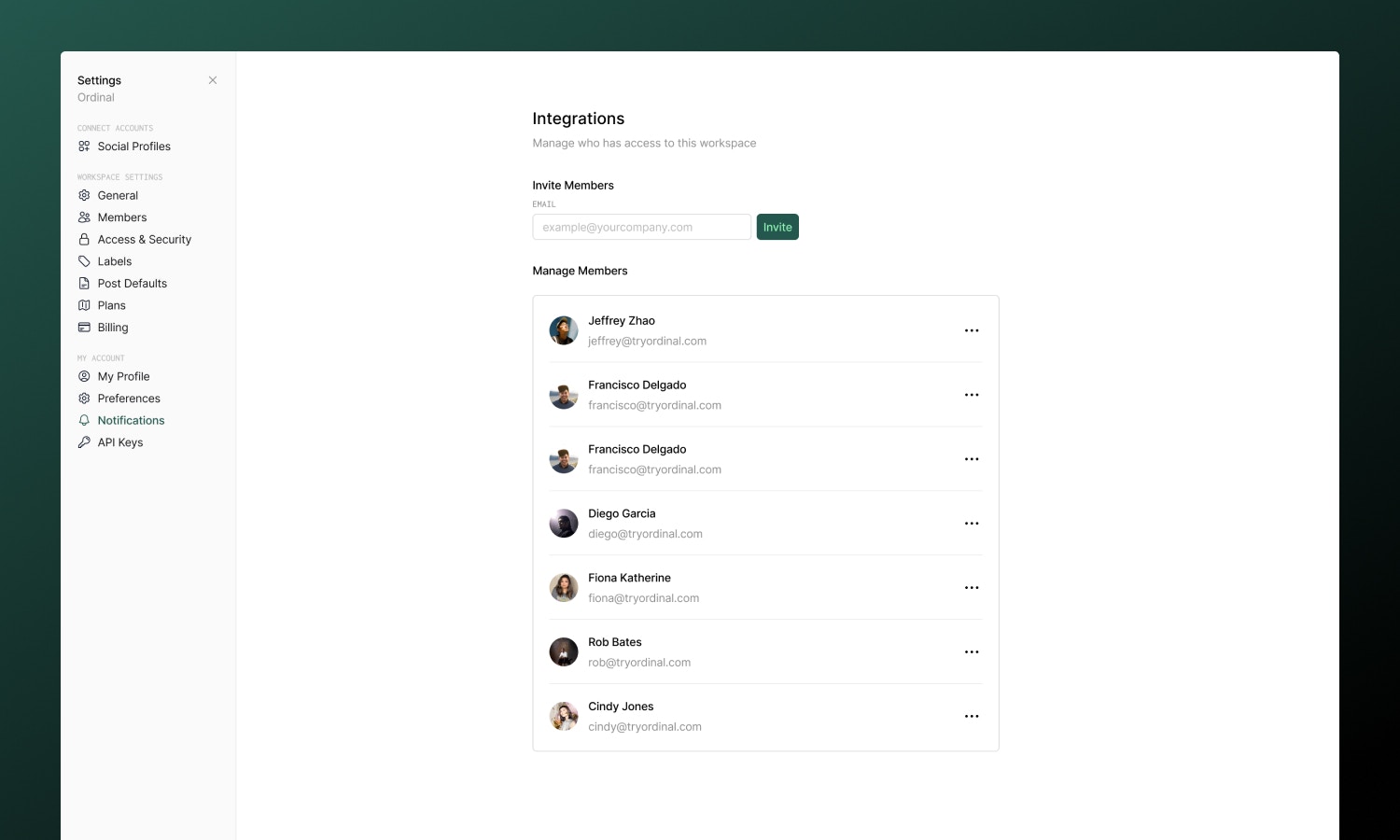 Starter plans include 3 user seats. Pro plans and above have unlimited team members.
## Inviting members
To add someone to your workspace:
1. Go to [**Settings → Members**](https://app.tryordinal.com/settings/members)
2. Enter their email address
3. Click **Invite**
**What happens next depends on whether they already use Ordinal:**
* **Existing Ordinal user** - They're added to your workspace immediately and will see it the next time they log in.
* **New to Ordinal** - They'll receive an email invitation with a link to create their account.
**Important:** The person must sign up using the exact email address you invited. If they create an account with a different email, they won't have access to the workspace.
### Sharing the invite link
After sending an invitation, you can copy the unique invite link to share directly - handy if you want to send it via Slack, text, or another channel. Look for the **Copy Invite Link** option in the success message, or find it in the pending invitations list.
### Managing pending invitations
Invitations that haven't been accepted yet appear in the **Pending** section of the Members page. From here you can:
* **Resend** the invitation email if they didn't receive it
* **Copy** the invite link to share manually
* **Revoke** the invitation if it's no longer needed
## Removing members
If someone leaves your team or no longer needs access:
1. Go to [Settings → Members](https://app.tryordinal.com/settings/members)
2. Find the person you want to remove
3. Click the three dots > **Remove User** and confirm
They'll lose access to the workspace immediately. Any posts or content they created will remain in the workspace - nothing is deleted.
## Agency management
If you're an agency managing multiple client workspaces, you can view and manage team members across all your workspaces from the Agency Admin page.
## Learn more
Add review gates before publishing.
Configure how your team receives alerts.
Starter plans include 3 user seats. Pro plans and above have unlimited team members.
## Inviting members
To add someone to your workspace:
1. Go to [**Settings → Members**](https://app.tryordinal.com/settings/members)
2. Enter their email address
3. Click **Invite**
**What happens next depends on whether they already use Ordinal:**
* **Existing Ordinal user** - They're added to your workspace immediately and will see it the next time they log in.
* **New to Ordinal** - They'll receive an email invitation with a link to create their account.
**Important:** The person must sign up using the exact email address you invited. If they create an account with a different email, they won't have access to the workspace.
### Sharing the invite link
After sending an invitation, you can copy the unique invite link to share directly - handy if you want to send it via Slack, text, or another channel. Look for the **Copy Invite Link** option in the success message, or find it in the pending invitations list.
### Managing pending invitations
Invitations that haven't been accepted yet appear in the **Pending** section of the Members page. From here you can:
* **Resend** the invitation email if they didn't receive it
* **Copy** the invite link to share manually
* **Revoke** the invitation if it's no longer needed
## Removing members
If someone leaves your team or no longer needs access:
1. Go to [Settings → Members](https://app.tryordinal.com/settings/members)
2. Find the person you want to remove
3. Click the three dots > **Remove User** and confirm
They'll lose access to the workspace immediately. Any posts or content they created will remain in the workspace - nothing is deleted.
## Agency management
If you're an agency managing multiple client workspaces, you can view and manage team members across all your workspaces from the Agency Admin page.
## Learn more
Add review gates before publishing.
Configure how your team receives alerts.