> ## Documentation Index
> Fetch the complete documentation index at: https://docs.tryordinal.com/llms.txt
> Use this file to discover all available pages before exploring further.
# Notifications
> Choose which Ordinal events trigger notifications and whether they go to in-app, email, or Slack.
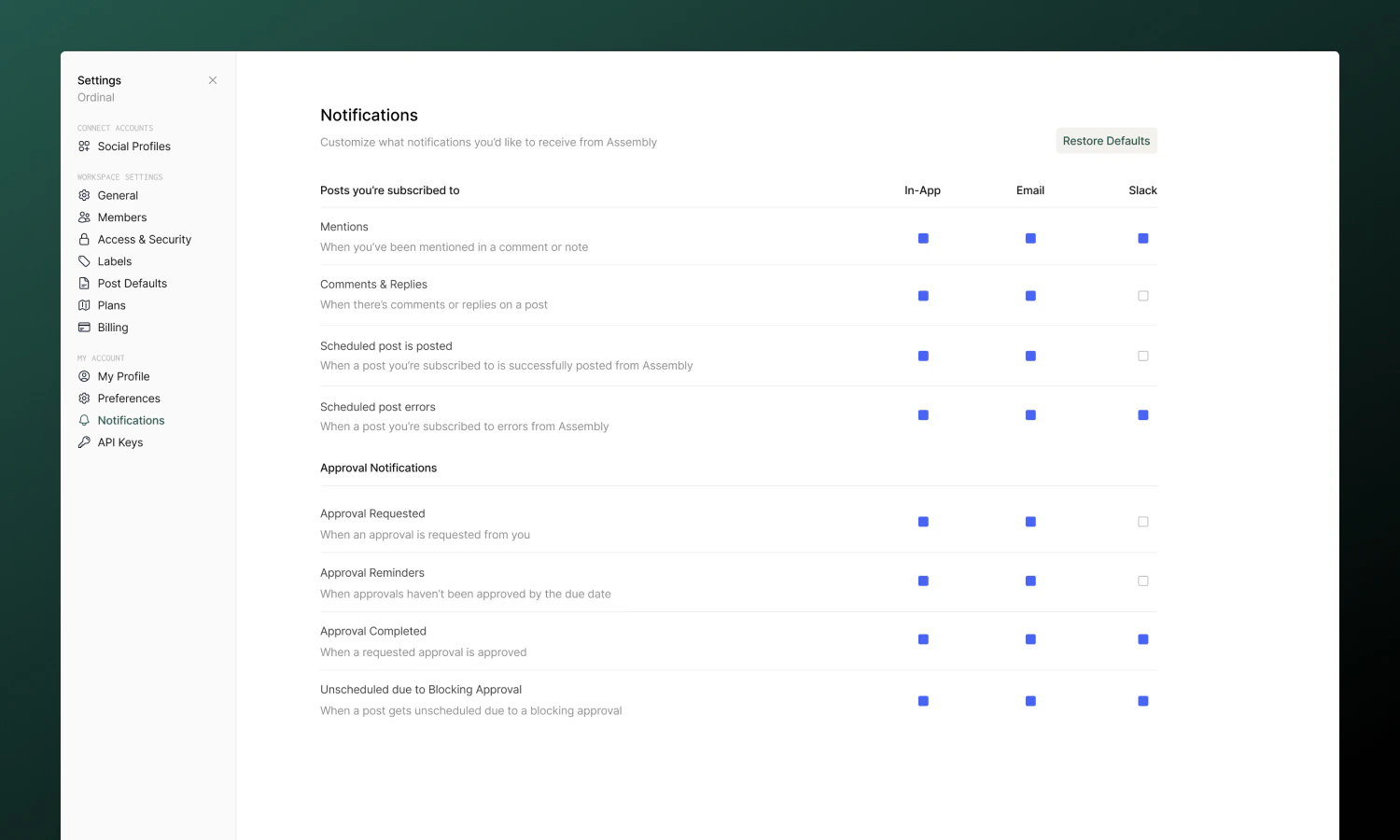
Notifications keep you informed about what matters - posts publishing, approvals pending, comments on your content, and more. Customize which notifications you receive and how they're delivered.
 ## Notification types
Ordinal sends notifications for two categories of events:
### Posts you're subscribed to
| Notification | When it's sent |
| ---------------------- | --------------------------------------- |
| **Mentions** | Someone @mentions you in a comment |
| **Comments & Replies** | New comments or replies on the post |
| **Post published** | A scheduled post goes live |
| **Post errored** | A post fails to publish (action needed) |
Always keep "Post errored" notifications enabled. Failed posts need immediate attention.
### Approvals
| Notification | When it's sent |
| ---------------------------------------- | -------------------------------------------------------------- |
| **Approval Requested** | Someone requests your approval |
| **Approval Reminders** | A pending approval reaches its due date |
| **Approval Completed** | Your approval request is approved |
| **Unscheduled due to Blocking Approval** | A post gets unscheduled because it's missing required approval |
## Delivery channels
Each notification type can be delivered through:
| Channel | Description |
| ---------- | --------------------------------------------------------------------- |
| **In-app** | Appears in your Inbox (bell icon in sidebar). Always available. |
| **Email** | Sent to your registered email address. |
| **Slack** | Sent as a direct message if you've connected Slack for notifications. |
Go to [Settings → Notifications](https://app.tryordinal.com/settings/notifications) to toggle each channel on or off per notification type.
## Slack notifications
## Notification types
Ordinal sends notifications for two categories of events:
### Posts you're subscribed to
| Notification | When it's sent |
| ---------------------- | --------------------------------------- |
| **Mentions** | Someone @mentions you in a comment |
| **Comments & Replies** | New comments or replies on the post |
| **Post published** | A scheduled post goes live |
| **Post errored** | A post fails to publish (action needed) |
Always keep "Post errored" notifications enabled. Failed posts need immediate attention.
### Approvals
| Notification | When it's sent |
| ---------------------------------------- | -------------------------------------------------------------- |
| **Approval Requested** | Someone requests your approval |
| **Approval Reminders** | A pending approval reaches its due date |
| **Approval Completed** | Your approval request is approved |
| **Unscheduled due to Blocking Approval** | A post gets unscheduled because it's missing required approval |
## Delivery channels
Each notification type can be delivered through:
| Channel | Description |
| ---------- | --------------------------------------------------------------------- |
| **In-app** | Appears in your Inbox (bell icon in sidebar). Always available. |
| **Email** | Sent to your registered email address. |
| **Slack** | Sent as a direct message if you've connected Slack for notifications. |
Go to [Settings → Notifications](https://app.tryordinal.com/settings/notifications) to toggle each channel on or off per notification type.
## Slack notifications
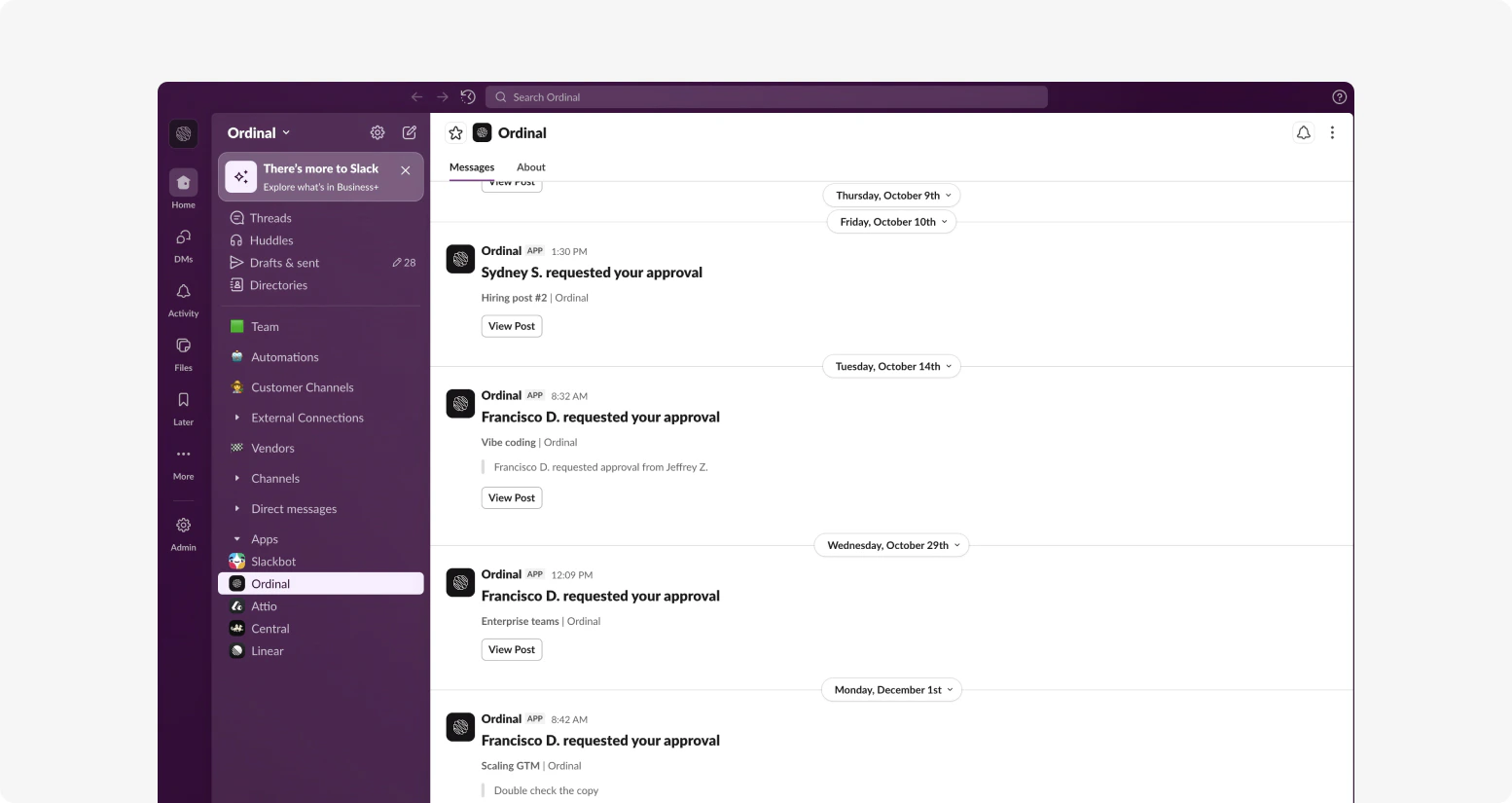 For fast response on approvals and mentions, connect Slack to receive notifications as direct messages.
**To set up:**
1. Go to [Integrations → Slack](https://app.tryordinal.com/settings/integrations/slack)
2. Click **Slack Notifications**
3. Authorize Ordinal to send you messages
4. Return to [Settings → Notifications](https://app.tryordinal.com/settings/notifications) and enable Slack for the notification types you want
Once connected, Slack notifications appear as DMs from the Ordinal app. Click any notification to jump directly to the post or approval.
Slack works especially well for approval requests and post failures - you'll see them immediately without checking email.
## Post subscriptions
You receive notifications about posts you're **subscribed** to. Subscriptions determine who gets notified about comments, status changes, and publishing events.
### Automatic subscription
You're automatically subscribed when you:
* **Create** a post
* **Comment** on a post
* Are **@mentioned** in a comment
* Are assigned as an **approver**
* Are **added as a subscriber** by someone else
### Manual subscription
To follow a post you're interested in:
1. Open the post
2. Find the **Subscribers** section above the post comments
3. Click to add yourself
To stop receiving notifications, remove yourself from the subscribers list.
### Adding others
You can add teammates as subscribers to keep them informed:
1. Open the post
2. Find the **Subscribers** section
3. Click **Add** and select team members
They'll receive notifications based on their own notification preferences.
## Configuring notifications
Go to [Settings → Notifications](https://app.tryordinal.com/settings/notifications) to customize your preferences:
* Toggle each notification type on or off
* Choose which channels receive each type (in-app, email, Slack)
* Changes take effect immediately
In-app notifications for "Approval Requested" cannot be disabled - you'll always see pending approvals in your Inbox.
## Learn more
Review and approve content.
Collaborate on posts.
For fast response on approvals and mentions, connect Slack to receive notifications as direct messages.
**To set up:**
1. Go to [Integrations → Slack](https://app.tryordinal.com/settings/integrations/slack)
2. Click **Slack Notifications**
3. Authorize Ordinal to send you messages
4. Return to [Settings → Notifications](https://app.tryordinal.com/settings/notifications) and enable Slack for the notification types you want
Once connected, Slack notifications appear as DMs from the Ordinal app. Click any notification to jump directly to the post or approval.
Slack works especially well for approval requests and post failures - you'll see them immediately without checking email.
## Post subscriptions
You receive notifications about posts you're **subscribed** to. Subscriptions determine who gets notified about comments, status changes, and publishing events.
### Automatic subscription
You're automatically subscribed when you:
* **Create** a post
* **Comment** on a post
* Are **@mentioned** in a comment
* Are assigned as an **approver**
* Are **added as a subscriber** by someone else
### Manual subscription
To follow a post you're interested in:
1. Open the post
2. Find the **Subscribers** section above the post comments
3. Click to add yourself
To stop receiving notifications, remove yourself from the subscribers list.
### Adding others
You can add teammates as subscribers to keep them informed:
1. Open the post
2. Find the **Subscribers** section
3. Click **Add** and select team members
They'll receive notifications based on their own notification preferences.
## Configuring notifications
Go to [Settings → Notifications](https://app.tryordinal.com/settings/notifications) to customize your preferences:
* Toggle each notification type on or off
* Choose which channels receive each type (in-app, email, Slack)
* Changes take effect immediately
In-app notifications for "Approval Requested" cannot be disabled - you'll always see pending approvals in your Inbox.
## Learn more
Review and approve content.
Collaborate on posts.