> ## Documentation Index
> Fetch the complete documentation index at: https://docs.tryordinal.com/llms.txt
> Use this file to discover all available pages before exploring further.
# Campaigns
> Group related posts into a campaign for product launches, events, content series, or seasonal promotions.
Campaigns group related posts around a theme, launch, event, or marketing initiative. They provide a unified view of all content in an initiative, help teams stay aligned, and let you track performance across posts.
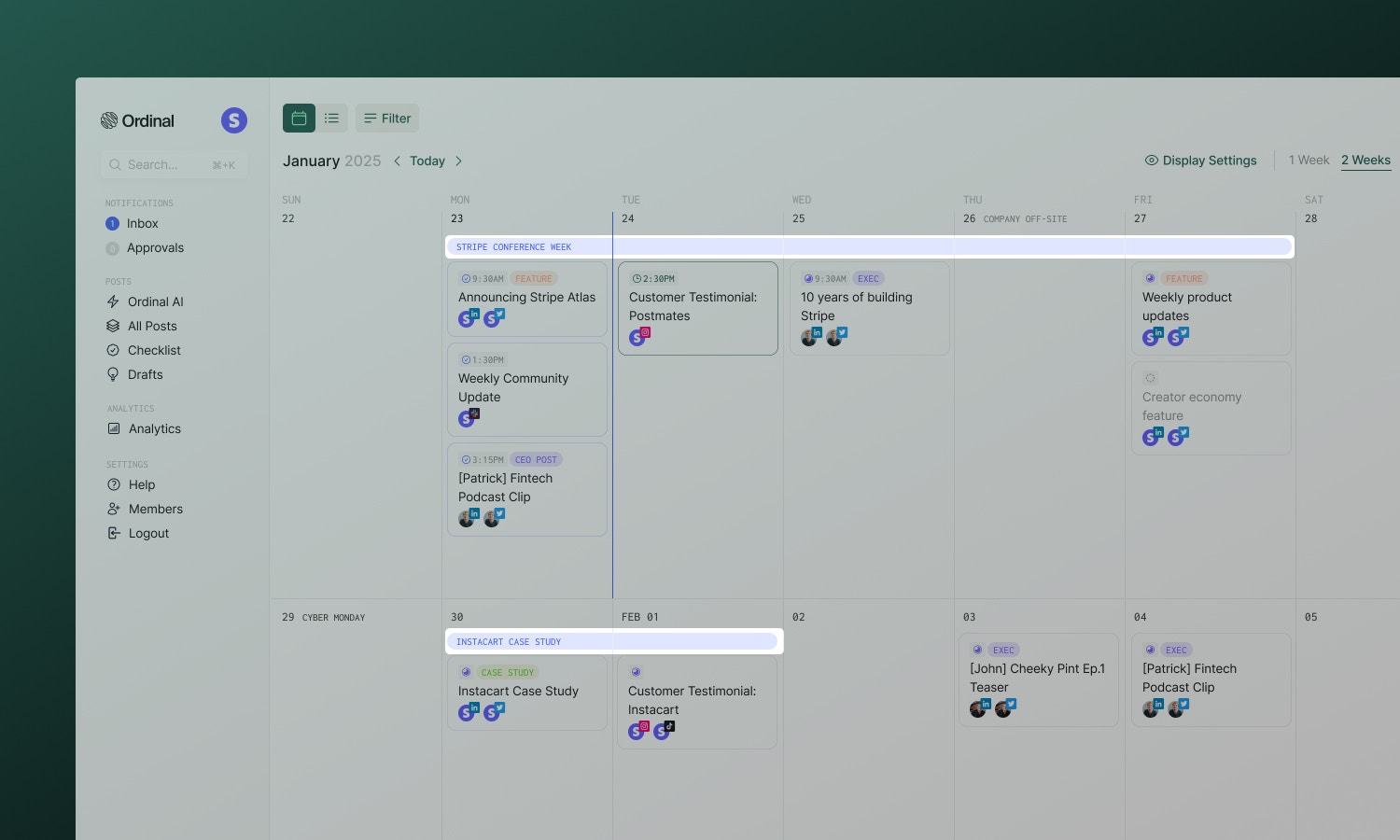 ## What campaigns are for
* **Product launches** - Coordinate announcements across all platforms with unified timing
* **Events** - Build momentum before, during, and after conferences, webinars, or launches
* **Content series** - Organize multi-part educational or storytelling content
* **Seasonal promotions** - Plan holiday and seasonal marketing pushes
Campaigns add structure without constraining how you work. A post can exist without a campaign, and campaigns can have any number of posts.
## Creating a campaign
You can create campaigns in multiple ways:
* **Keyboard Shortcut** - Enter the keyboard shortcut `C` from the Calendar view.
* **Calendar** - Click the **+** button in the top-righthand corner and select "Create Campaign"
Enter a name and date range, then click Create. You can add posts immediately or build out your campaign brief first.
## The campaign page
Open a campaign to see its dedicated workspace:
The main view for planning and organizing:
* **Campaign brief** - A text editor for overview, key messaging, goals/KPIs, target audience, and notes.
* **Attachments** - Upload assets, brand guidelines, or reference materials directly to the campaign.
* **Post list** - All posts and ideas in the campaign with status indicators.
A focused calendar view showing only this campaign's posts. Useful for visualizing timing and spotting gaps in your schedule.
Quick access to campaign settings:
* **Dates** - Adjust start and end dates
* **Labels** - Categorize by product, team, or goal
* **Approvals** - Request sign-off from stakeholders
## Adding posts
Select a campaign from the **Campaign** dropdown in any post's sidebar - works for new posts, existing posts, and even ideas. To remove a post from a campaign, just clear the selection. The post remains in your workspace, just unlinked.
## Collaboration
### Approvals
Request approval on an entire campaign before executing. Approvers can review the brief, attached assets, and planned posts before signing off.
### Comments & Activity
Every campaign has a threaded comment section and activity feed at the bottom of the page. Use comments to discuss strategy, leave feedback, or tag teammates with @mentions. The activity feed tracks all changes - posts added, dates changed, approvals granted.
## Sharing externally
Share a campaign with clients or stakeholders who don't have Ordinal accounts:
1. Click the **Share** icon on the campaign page
2. Toggle **Share public access** on
3. Copy the link
External viewers can see the campaign brief and optionally the posts within it (toggle **Share posts** separately). They cannot edit anything.
Anyone with the link can view. Disable sharing when no longer needed.
## Analytics
Campaigns don't have a separate analytics page. Instead, filter by campaign in the main **Analytics** section to see aggregate performance across all posts in the campaign.
Track performance and filter by campaign.
## Deleting campaigns
Delete a campaign from the campaign header menu. You'll choose what happens to the posts:
* **Keep posts** - Posts remain in your workspace, just unlinked from the campaign
* **Delete posts** - Posts are permanently removed along with the campaign
Deleting is permanent. Consider keeping posts if they contain valuable published content.
## Learn more
Visualize campaign timing on your schedule.
Organize campaigns and posts by category.
## What campaigns are for
* **Product launches** - Coordinate announcements across all platforms with unified timing
* **Events** - Build momentum before, during, and after conferences, webinars, or launches
* **Content series** - Organize multi-part educational or storytelling content
* **Seasonal promotions** - Plan holiday and seasonal marketing pushes
Campaigns add structure without constraining how you work. A post can exist without a campaign, and campaigns can have any number of posts.
## Creating a campaign
You can create campaigns in multiple ways:
* **Keyboard Shortcut** - Enter the keyboard shortcut `C` from the Calendar view.
* **Calendar** - Click the **+** button in the top-righthand corner and select "Create Campaign"
Enter a name and date range, then click Create. You can add posts immediately or build out your campaign brief first.
## The campaign page
Open a campaign to see its dedicated workspace:
The main view for planning and organizing:
* **Campaign brief** - A text editor for overview, key messaging, goals/KPIs, target audience, and notes.
* **Attachments** - Upload assets, brand guidelines, or reference materials directly to the campaign.
* **Post list** - All posts and ideas in the campaign with status indicators.
A focused calendar view showing only this campaign's posts. Useful for visualizing timing and spotting gaps in your schedule.
Quick access to campaign settings:
* **Dates** - Adjust start and end dates
* **Labels** - Categorize by product, team, or goal
* **Approvals** - Request sign-off from stakeholders
## Adding posts
Select a campaign from the **Campaign** dropdown in any post's sidebar - works for new posts, existing posts, and even ideas. To remove a post from a campaign, just clear the selection. The post remains in your workspace, just unlinked.
## Collaboration
### Approvals
Request approval on an entire campaign before executing. Approvers can review the brief, attached assets, and planned posts before signing off.
### Comments & Activity
Every campaign has a threaded comment section and activity feed at the bottom of the page. Use comments to discuss strategy, leave feedback, or tag teammates with @mentions. The activity feed tracks all changes - posts added, dates changed, approvals granted.
## Sharing externally
Share a campaign with clients or stakeholders who don't have Ordinal accounts:
1. Click the **Share** icon on the campaign page
2. Toggle **Share public access** on
3. Copy the link
External viewers can see the campaign brief and optionally the posts within it (toggle **Share posts** separately). They cannot edit anything.
Anyone with the link can view. Disable sharing when no longer needed.
## Analytics
Campaigns don't have a separate analytics page. Instead, filter by campaign in the main **Analytics** section to see aggregate performance across all posts in the campaign.
Track performance and filter by campaign.
## Deleting campaigns
Delete a campaign from the campaign header menu. You'll choose what happens to the posts:
* **Keep posts** - Posts remain in your workspace, just unlinked from the campaign
* **Delete posts** - Posts are permanently removed along with the campaign
Deleting is permanent. Consider keeping posts if they contain valuable published content.
## Learn more
Visualize campaign timing on your schedule.
Organize campaigns and posts by category.