> ## Documentation Index
> Fetch the complete documentation index at: https://docs.tryordinal.com/llms.txt
> Use this file to discover all available pages before exploring further.
# Calendar
> Plan your content in calendar or list view. Filter by platform or status, and drag posts to reschedule.
The calendar is your command center for scheduled content. Toggle between a visual calendar grid and a sortable list view, filter by platform or status, and drag posts to reschedule. Whether you're planning weeks ahead or reviewing today's queue, the calendar keeps everything in one place.
 ## Overview
Calendar, list, and time frames
Focus on specific content
See campaign date ranges
## Views
Toggle between **Calendar** and **List** using the icons in the top-left corner:
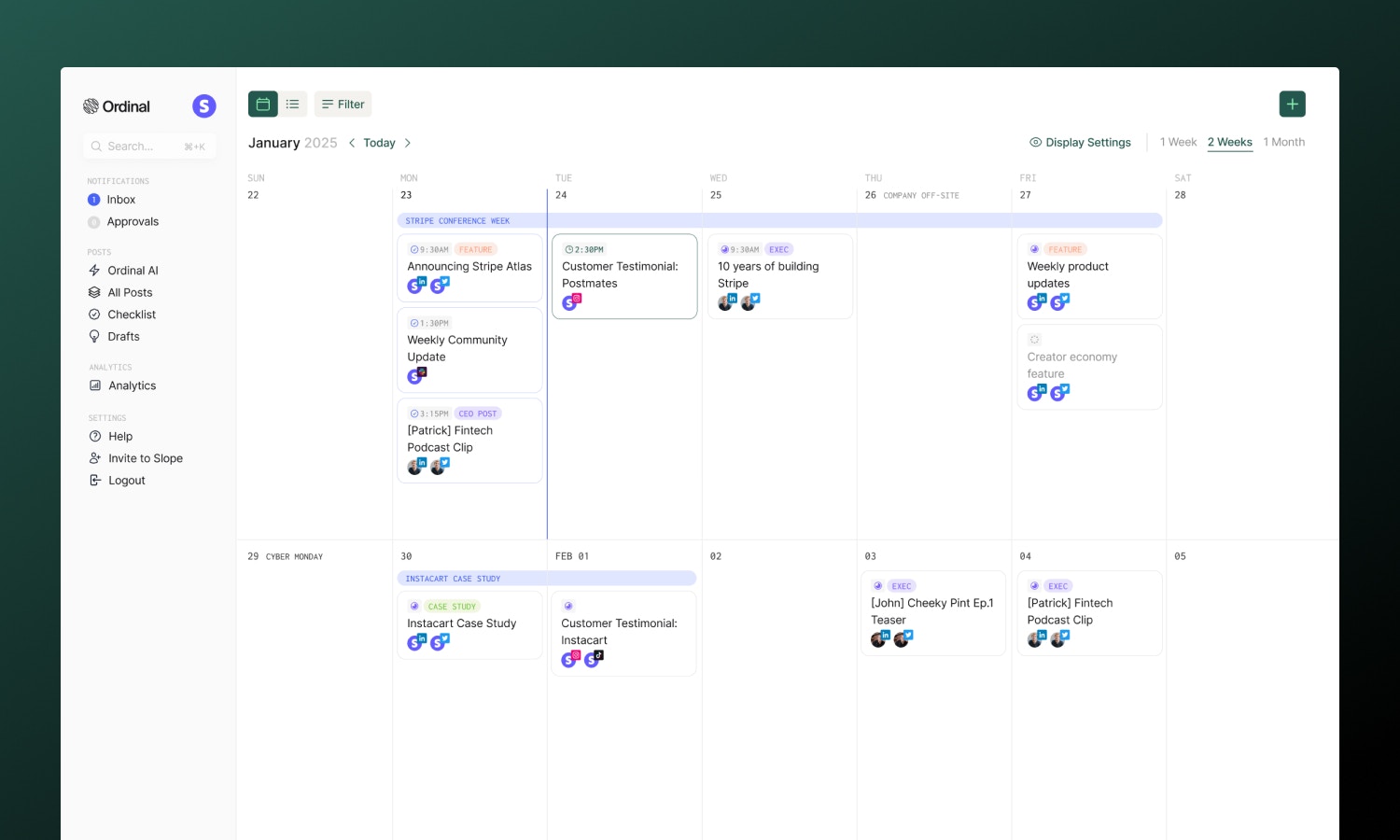
The default visual grid showing posts by date:
* Posts appear as cards on their scheduled day
* Platform icons show which channels each post targets
* Color-coded by status
* Drag posts to reschedule them
* Click any day to create a new post for that date
* US holidays are labeled on their respective days
**Time frames**: Choose how much time to display - 1 Week (`W`), 2 Weeks (`X`), or 1 Month (`M`). The 2-week view is the default.
A sortable table format for managing many posts at once:
* Columns: Date, Post Name, Status, Channels, Labels, Campaign
* Click column headers to sort
* Filter by date range using the date column
* Bulk select posts for actions
* Better for reviewing large volumes of scheduled content
## Creating Posts
Click anywhere on the calendar to create a post for that date. The new post modal opens with the date pre-filled. Just choose the channel you want to post to and click **Create Post**.
If preferred, you can also use the keyboard shortcut `P` from anywhere in the app to create a new post.
## Rescheduling
Drag and drop posts directly to new dates:
* In calendar view, drag posts between days
* If the post is already scheduled, we'll automatically reschedule it for the same time on the new day. You'll see a confirmation toast appears when the post is successfully rescheduled.
You can also click a post to open it, then change the scheduled date and time in the post editor.
Published posts cannot be rescheduled - they've already gone live.
## Filtering
Focus on specific content using the filter dropdown:
| Filter | Use case |
| ------------ | -------------------------------------- |
| **Channel** | Show only LinkedIn, Twitter, etc. |
| **Status** | Show only scheduled, posted, or failed |
| **Label** | Focus on specific content categories |
| **Campaign** | See only posts in a campaign |
| **Account** | Show posts for specific profiles |
Filters combine to narrow your view. Clear all filters to see everything.
### Saved Views
Save frequently-used filter combinations as named views that appear in your sidebar for quick access:
1. Apply your filters (channel, status, label, etc.)
2. Click **Save** in the filter bar
3. Name your view (e.g., "LinkedIn Only" or "Scheduled This Week")
Saved views appear in the sidebar under **All Posts**, so you can jump to filtered views with one click. Right-click any saved view to rename or delete it.
## Campaigns on Calendar
Campaigns help you organize larger launches, multi-day events, or themed content series. On the calendar, campaigns appear as colored bars spanning their date range - making it easy to see when campaigns start and end at a glance.
* Each campaign shows as a distinct colored band across its dates
* Click a campaign bar to open the campaign details
**Show/Hide Campaigns**: Use the eye icon in the calendar header to toggle campaign visibility. This is helpful when you want to focus on individual posts without the campaign overlay.
Learn more about creating and managing campaigns.
## Navigation
| Action | Method |
| --------------- | ---------------------------- |
| Previous period | Click `←` or press `←` key |
| Next period | Click `→` or press `→` key |
| Jump to today | Click **Today** or press `T` |
| 1 week view | Press `W` |
| 2 weeks view | Press `X` |
| 1 month view | Press `M` |
| New campaign | Press `C` |
## Settings
### Timezone
## Overview
Calendar, list, and time frames
Focus on specific content
See campaign date ranges
## Views
Toggle between **Calendar** and **List** using the icons in the top-left corner:
The default visual grid showing posts by date:
* Posts appear as cards on their scheduled day
* Platform icons show which channels each post targets
* Color-coded by status
* Drag posts to reschedule them
* Click any day to create a new post for that date
* US holidays are labeled on their respective days
**Time frames**: Choose how much time to display - 1 Week (`W`), 2 Weeks (`X`), or 1 Month (`M`). The 2-week view is the default.
A sortable table format for managing many posts at once:
* Columns: Date, Post Name, Status, Channels, Labels, Campaign
* Click column headers to sort
* Filter by date range using the date column
* Bulk select posts for actions
* Better for reviewing large volumes of scheduled content
## Creating Posts
Click anywhere on the calendar to create a post for that date. The new post modal opens with the date pre-filled. Just choose the channel you want to post to and click **Create Post**.
If preferred, you can also use the keyboard shortcut `P` from anywhere in the app to create a new post.
## Rescheduling
Drag and drop posts directly to new dates:
* In calendar view, drag posts between days
* If the post is already scheduled, we'll automatically reschedule it for the same time on the new day. You'll see a confirmation toast appears when the post is successfully rescheduled.
You can also click a post to open it, then change the scheduled date and time in the post editor.
Published posts cannot be rescheduled - they've already gone live.
## Filtering
Focus on specific content using the filter dropdown:
| Filter | Use case |
| ------------ | -------------------------------------- |
| **Channel** | Show only LinkedIn, Twitter, etc. |
| **Status** | Show only scheduled, posted, or failed |
| **Label** | Focus on specific content categories |
| **Campaign** | See only posts in a campaign |
| **Account** | Show posts for specific profiles |
Filters combine to narrow your view. Clear all filters to see everything.
### Saved Views
Save frequently-used filter combinations as named views that appear in your sidebar for quick access:
1. Apply your filters (channel, status, label, etc.)
2. Click **Save** in the filter bar
3. Name your view (e.g., "LinkedIn Only" or "Scheduled This Week")
Saved views appear in the sidebar under **All Posts**, so you can jump to filtered views with one click. Right-click any saved view to rename or delete it.
## Campaigns on Calendar
Campaigns help you organize larger launches, multi-day events, or themed content series. On the calendar, campaigns appear as colored bars spanning their date range - making it easy to see when campaigns start and end at a glance.
* Each campaign shows as a distinct colored band across its dates
* Click a campaign bar to open the campaign details
**Show/Hide Campaigns**: Use the eye icon in the calendar header to toggle campaign visibility. This is helpful when you want to focus on individual posts without the campaign overlay.
Learn more about creating and managing campaigns.
## Navigation
| Action | Method |
| --------------- | ---------------------------- |
| Previous period | Click `←` or press `←` key |
| Next period | Click `→` or press `→` key |
| Jump to today | Click **Today** or press `T` |
| 1 week view | Press `W` |
| 2 weeks view | Press `X` |
| 1 month view | Press `M` |
| New campaign | Press `C` |
## Settings
### Timezone
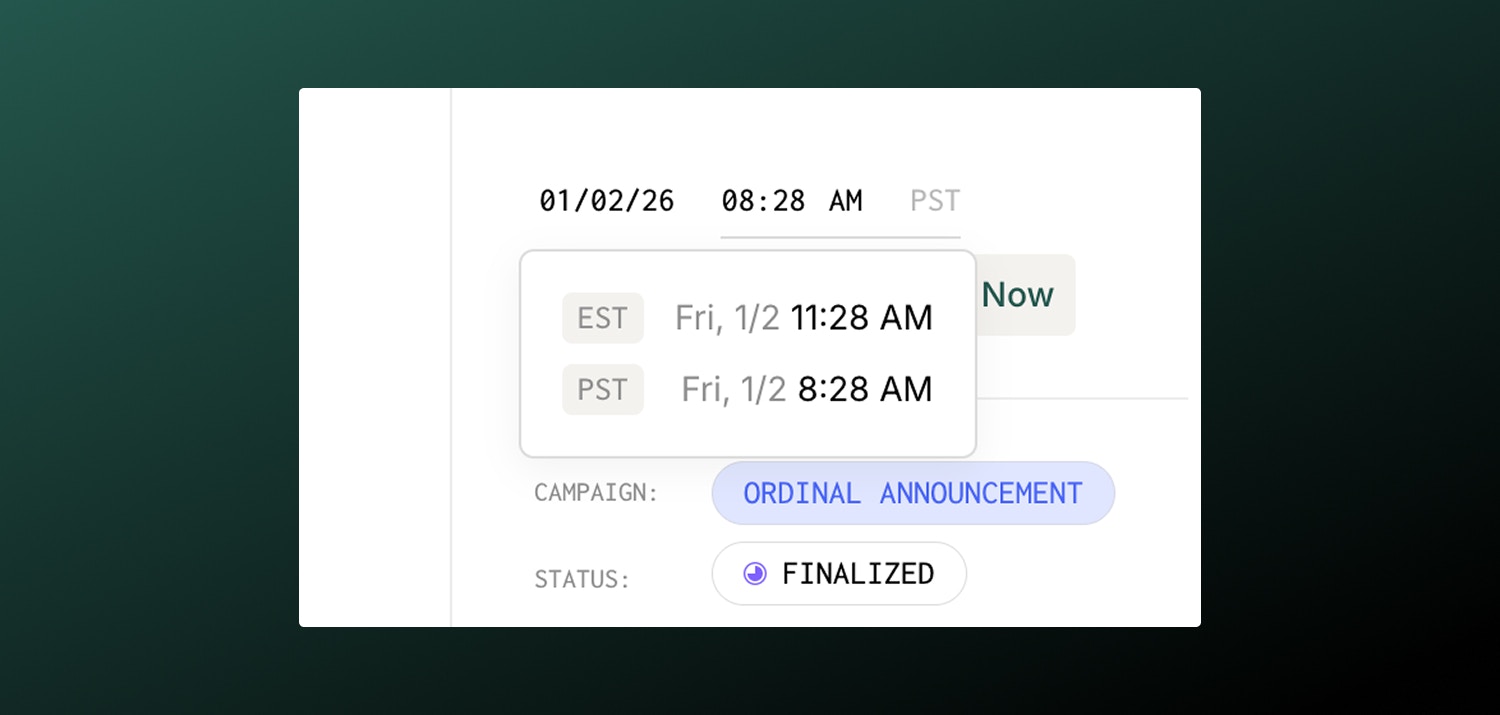 You can set a timezone for the workspace in [**Settings → General**](https://app.tryordinal.com/settings/general). Once set, this timezone will be used to generate recommended post time suggestions. When hovering over times in any part of the Ordinal app, you'll also see a conversion from your computer's local timzone to the workspace timezone.
Please note that even though your workspace timezone will allow you to easily see the conversion from your local timezone to the workspace timezone app-wide, the calendar and default times will still be based on your computer's local timezone.
### Start of Week
Choose whether your calendar week starts on Sunday or Monday. Set this in your user preferences under [**Settings → Preferences**](https://app.tryordinal.com/settings/user).
## Learn more
Set publish times for your content.
Group related posts together.
You can set a timezone for the workspace in [**Settings → General**](https://app.tryordinal.com/settings/general). Once set, this timezone will be used to generate recommended post time suggestions. When hovering over times in any part of the Ordinal app, you'll also see a conversion from your computer's local timzone to the workspace timezone.
Please note that even though your workspace timezone will allow you to easily see the conversion from your local timezone to the workspace timezone app-wide, the calendar and default times will still be based on your computer's local timezone.
### Start of Week
Choose whether your calendar week starts on Sunday or Monday. Set this in your user preferences under [**Settings → Preferences**](https://app.tryordinal.com/settings/user).
## Learn more
Set publish times for your content.
Group related posts together.