> ## Documentation Index
> Fetch the complete documentation index at: https://docs.tryordinal.com/llms.txt
> Use this file to discover all available pages before exploring further.
# User Preferences
> Update your Ordinal profile image, name, calendar start of week, and light/dark theme.
Personalize your Ordinal experience with your profile image, display name, and calendar preferences. These settings apply to your account across all workspaces you belong to.
 ## Accessing your settings
Click [Settings → Preferences](https://app.tryordinal.com/settings/user) in the left sidebar
You'll see your personal account settings - separate from workspace-level settings like timezone or billing.
## Profile image
**To upload or change your image:**
1. Go to [Settings → Preferences](https://app.tryordinal.com/settings/user)
2. Click **Choose File** under Profile Image
3. Select an image (JPG or PNG)
4. Crop and position your image in the modal
5. Click **Save Profile Image**
**To remove your image:**
Hover over your current profile image and click the **X** button that appears.
Recommended size is 300x300 pixels or larger. Images are automatically cropped to a square.
## Name
Your name is displayed in comments, activity feeds, approval requests, and team member lists.
**To update your name:**
1. Go to [**Settings → Preferences**](https://app.tryordinal.com/settings/user)
2. Edit the **First Name** and **Last Name** fields
3. Click **Save**
Your name is shared across all workspaces you belong to. Changing it here updates it everywhere.
## Calendar start of week
Choose which day your calendar week starts on. This affects how the calendar grid is displayed.
**To change your start of week:**
1. Go to [**Settings → Preferences**](https://app.tryordinal.com/settings/user)
2. Find **Calendar Start of Week**
3. Select **Sunday** or **Monday**
Your preference saves automatically and the calendar updates immediately.
## Dark mode
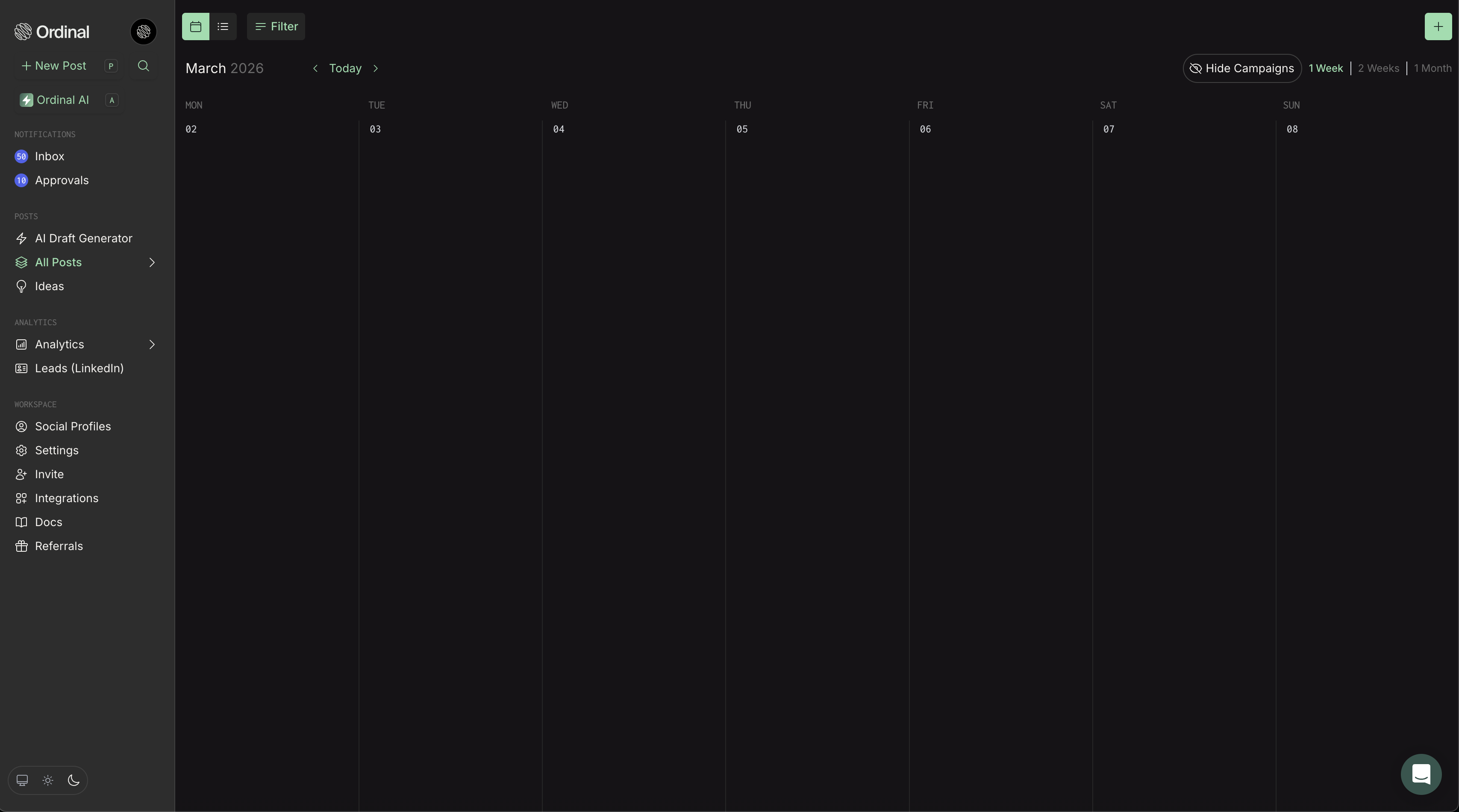
Switch between light, dark, and system themes to match your preference or reduce eye strain.
**To change your theme:**
Find the theme toggle in the bottom-left corner of the sidebar. Click to cycle through:
* **Light mode** (sun icon)
* **Dark mode** (moon icon)
* **System** (monitor icon) - automatically matches your device settings
## Accessing your settings
Click [Settings → Preferences](https://app.tryordinal.com/settings/user) in the left sidebar
You'll see your personal account settings - separate from workspace-level settings like timezone or billing.
## Profile image
**To upload or change your image:**
1. Go to [Settings → Preferences](https://app.tryordinal.com/settings/user)
2. Click **Choose File** under Profile Image
3. Select an image (JPG or PNG)
4. Crop and position your image in the modal
5. Click **Save Profile Image**
**To remove your image:**
Hover over your current profile image and click the **X** button that appears.
Recommended size is 300x300 pixels or larger. Images are automatically cropped to a square.
## Name
Your name is displayed in comments, activity feeds, approval requests, and team member lists.
**To update your name:**
1. Go to [**Settings → Preferences**](https://app.tryordinal.com/settings/user)
2. Edit the **First Name** and **Last Name** fields
3. Click **Save**
Your name is shared across all workspaces you belong to. Changing it here updates it everywhere.
## Calendar start of week
Choose which day your calendar week starts on. This affects how the calendar grid is displayed.
**To change your start of week:**
1. Go to [**Settings → Preferences**](https://app.tryordinal.com/settings/user)
2. Find **Calendar Start of Week**
3. Select **Sunday** or **Monday**
Your preference saves automatically and the calendar updates immediately.
## Dark mode
Switch between light, dark, and system themes to match your preference or reduce eye strain.
**To change your theme:**
Find the theme toggle in the bottom-left corner of the sidebar. Click to cycle through:
* **Light mode** (sun icon)
* **Dark mode** (moon icon)
* **System** (monitor icon) - automatically matches your device settings
 Your preference saves automatically and applies instantly across the app.
## Email and password
Your email address is used for signing in and receiving notifications. Currently, email changes require contacting support at [support@tryordinal.com](mailto:support@tryordinal.com).
If you prefer to setup a password-based login, or need to reset your password contact support at [support@tryordinal.com](mailto:support@tryordinal.com) and we can help you out.
## Learn more
Configure how you receive alerts.
Timezone and other workspace-level settings.
Your preference saves automatically and applies instantly across the app.
## Email and password
Your email address is used for signing in and receiving notifications. Currently, email changes require contacting support at [support@tryordinal.com](mailto:support@tryordinal.com).
If you prefer to setup a password-based login, or need to reset your password contact support at [support@tryordinal.com](mailto:support@tryordinal.com) and we can help you out.
## Learn more
Configure how you receive alerts.
Timezone and other workspace-level settings.